Website profiles · Technology insights · Alternatives

pickscribe.com Paid content Multilingual

Categories: Video & Film

Get transcripts from any video in seconds. Copy, download, search. Used by 550K+ creators. Free.

Visit website

Updated: 2026-09-28 02:48 Language: English (default) Access: Normal

Profile views 6 Outbound visits 1
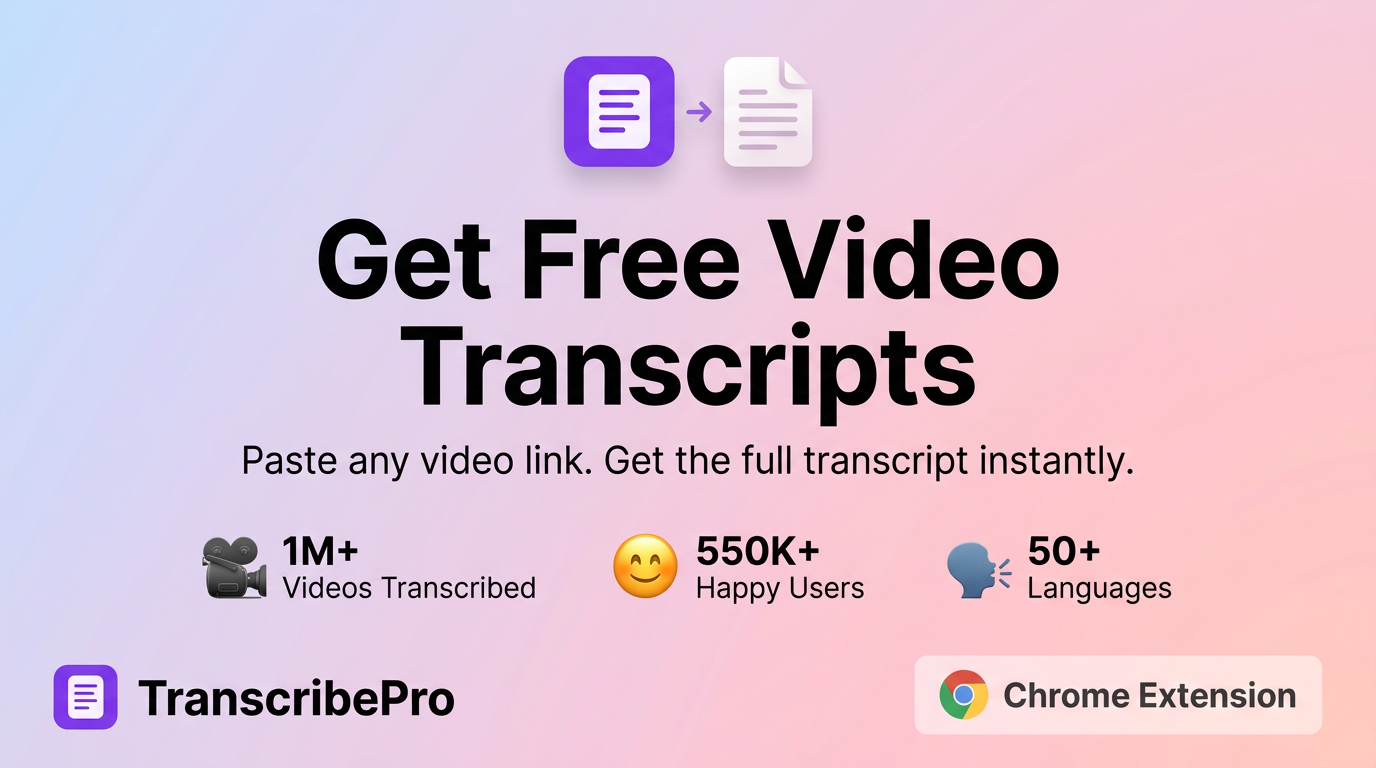
Free Video Transcripts - Scribe Full homepage screenshot
Editorial Review

Website Review

What is Scribe?

Scribe is a free browser-based tool for turning online videos into text. According to its own page, it produces transcripts you can copy, download, or search, supports 50+ languages, and can work with auto-generated or manual captions. It also offers AI extras beyond plain transcription: asking questions about a video, auto-generated chapters, summaries, and analytics. It is available as a Chrome extension and reports being used by 550K+ people.

Scribe

H3: What you can actually do with it

  • Paste a video and get a transcript on the page.
  • Copy the text or download it as TXT or SRT (SRT is the subtitle format you'd hand to a video editor or upload to a platform).
  • Switch between available subtitle languages.
  • Search within the transcript to find a specific moment or quote.
  • Ask questions about the video and get summaries or chapters.

H3: Who it suits

  • Students and researchers mining long lectures or talks for quotes and notes.
  • Deaf and hard-of-hearing viewers who need a readable version of a video; one reviewer, Steven B., specifically described using it that way and then translating transcripts into other languages.
  • Content creators and marketers repurposing video into blog posts, show notes, or social captions.
  • Journalists pulling accurate quotes from interviews and press conferences.

H3: Trade-offs to weigh Free and instant usually means you trade some control. Automatic captions can mangle names, jargon, and punctuation — one reviewer, Christopher H., was waiting on a punctuation feature. Treat any transcript as a first draft and proofread before publishing or quoting. If you need speaker labels, timestamps tied to a timeline editor, or guaranteed accuracy for legal or medical work, a paid human or hybrid service may be worth it.

H3: A quick decision test Take one representative video — ideally one with heavy accents, technical terms, or poor audio — and run it through. If the output needs only light cleanup, it fits your workflow. If you spend more time fixing than you saved, look elsewhere.

If you use Chrome, installing the extension is the fastest way to test it on a video you already have open.

How do I get a transcript from a video without installing anything?

Open the video’s page in Scribe, paste its link or use the on-page transcript panel, and copy the text — no installation needed. The page describes getting transcripts “right on the page,” plus copy and TXT/SRT download options, so a browser alone is enough for a quick one-off transcript.

Practical workflow

  1. Go to Scribe in your browser.
  2. Paste the video URL or open the video where the transcript panel appears.
  3. Wait for processing (the page shows a “Transcribing…” state).
  4. Copy the text or download TXT/SRT. If the video has multiple subtitle languages, switch languages from the same panel.

When this approach fits

  • You need a transcript for one video, a quote, or notes.
  • You are on a managed computer where you cannot install extensions.
  • You want to search the transcript on the page rather than scrub the video.

Trade-offs to expect

  • Browser-only tools can be slower or less reliable on long videos than installed desktop apps.
  • Formatting and punctuation may need a quick cleanup; the page’s own reviews include a user looking forward to a punctuation feature.
  • If you need repeated transcription across many videos, an extension or dedicated app may save time. The page offers a Chrome extension, but that is optional for the no-install route.

Next step: try it with a short video first (the page lists sample TED and Veritasium videos). If the result is clean enough, use the same page for longer videos; if punctuation or speaker labels matter, plan to edit the text afterward.

Can I ask questions about a video and get AI-generated answers?

Yes. Scribe's own page lists "Chat with Any Video" and says you can "ask questions, and learn from any video with AI," so question-and-answer over a video is part of what the tool advertises. Alongside the transcript, it also mentions auto-generated chapters, summaries and analytics, which are the kinds of outputs that usually feed a chat-style Q&A experience.

How this typically works in practice

You point the tool at a video (or use the Chrome extension on a page), it produces a transcript, and then you ask questions in plain language. Good questions are the ones whose answers live in the spoken content:

  • "What three reasons does the speaker give for X?"
  • "Summarize the argument in the middle section."
  • "Where does the video mention pricing or deadlines?"
  • "List the steps in the demo, in order."

What to watch for

Chat answers are only as good as the transcript underneath. Auto-captions mishear names, jargon and numbers, so if a detail matters — a figure, a citation, a product name — check it against the transcript text or the video itself rather than trusting the chat summary alone. Videos with heavy background music, multiple overlapping speakers or strong accents are the usual weak spots. One reviewer on the page, Christopher H., specifically noted looking forward to a punctuation feature, which is a fair reminder that raw auto-transcripts can read roughly and that roughness carries into any AI answer built on them.

A sensible next step

Pick one video you already know well, run it through, and ask a question whose correct answer you can verify. That tells you quickly whether the Q&A is reliable enough for your use case — studying, research notes, or repurposing content — before you rely on it for anything you can't easily check. If you want a second opinion on accuracy for a specific video type, compare the result with a transcript from YouTube's own caption view, which is free and already attached to the video.

What languages are supported for transcription and translation?

Scribe says it supports 50+ languages for video transcripts and lets you switch between available subtitle languages with one click. The same page also mentions multi-language downloading, auto and manual captions, and instant language switching.

What that means in practice:

  • Transcription can produce a transcript in the language of the video, assuming the language is among the 50+ supported and the video has usable audio.
  • Translation is handled through subtitle-language switching: if a translated subtitle track is available, you can switch to it and download or copy the transcript in that language.
  • The page does not list the exact 50+ languages, so if you need a specific one, test it with a short sample before relying on it for a large batch.

A useful next step is to open the tool with a two-minute clip in your target language, generate the transcript, then check whether the language menu offers the output you need. If it does, you can confidently use it for longer videos; if not, you will know before investing time.

What is included in the free plan versus the paid plans?

The free plan centers on getting a usable transcript without paying: paste a video link, generate the transcript on the page, then copy or download it as TXT or SRT, with auto and manual captions and instant language switching across 50+ languages. The page also presents AI extras such as asking questions about a video, auto-generated chapters, summaries and analytics. A Chrome extension is offered, and the site reports 1M+ videos transcribed and 550K+ users.

Paid plans are referenced through a "View Plans" link, but the page does not spell out the free-versus-paid feature split, limits or prices. So the practical distinction is: free gets transcription and export; the AI chat, chapters, summaries and analytics are the likely paid territory, but confirm on the pricing page.

Decision guide

Need Likely fit
Quick transcript, copy or SRT download Free
Deaf or hard-of-hearing access, language switching Free tier reported by users
AI Q&A, chapters, summaries, analytics Check paid plans
Heavy daily transcription or team use Compare paid tiers

A reader scenario: a student pastes a lecture video, copies the transcript into notes, and downloads SRT for captions. That workflow fits the free tier. If they want the tool to summarize the lecture or answer questions, they would need to check whether that requires an upgrade.

Next step: open Scribe and test one video end to end, then visit the pricing page to see exactly which AI features sit behind payment.

How accurate are the transcripts compared to YouTube's automatic captions?

Scribe presents its transcripts as AI-generated and offers them in 50+ languages, but the page does not publish a benchmark or accuracy percentage. So the honest comparison is: expect broadly similar performance to YouTube's automatic captions, with differences that depend on audio quality, accents, background noise, and how much technical or proper-noun vocabulary the video contains.

Where they differ in practice:

  • Access and format. YouTube's captions are tied to the platform and can be copied from the transcript panel, but the output is awkward to reuse. Scribe is built around copying or downloading TXT and SRT files, which matters if you want a clean file for editing, subtitling, or notes.
  • Language switching. Scribe advertises switching between available subtitle languages with one click, which is useful when a video has multiple caption tracks. YouTube requires you to change the caption track manually per video.
  • Punctuation and readability. One reviewer, Christopher H., said they were looking forward to the punctuation feature, which suggests punctuation has been a known rough edge. Treat that as a user observation, not a current product guarantee — punctuation quality is exactly where automatic systems tend to disappoint.
  • Extra layers. Scribe also offers summaries, auto-generated chapters, analytics, and the ability to ask questions about a video. Those are additions on top of transcription, not accuracy improvements.

A practical way to decide: pick one video you know well, ideally one with a strong accent, crosstalk, or jargon, and run it through both YouTube's captions and Scribe. Compare the first two minutes word for word. If you only need to skim a video, YouTube's captions are fine. If you need a reusable file, translated output, or searchable text, Scribe's export options are the reason to use it.

For a second opinion on raw transcription accuracy, you can compare against a dedicated tool such as Otter.ai, though its free tier limits are different.

Related questions

More questions →
What Are Subtitles and How Do You Get Them for a Video?

Subtitles are timed text lines that appear on screen while a video plays, translating or transcribing the spoken audio so viewers can read along. You get them either by generating them automatically from the video's audio (with a tool like Scribe) or by writing and timing them manually. The right method depends on whether you need a quick readable transcript, a downloadable subtitle file, or a polished, perfectly synced track for publishing.

Subtitles vs. captions vs. transcripts

These three terms get used interchangeably, but they describe different outputs:

Term What it is Typical use
Subtitles Timed text shown on screen, often translating dialogue into another language Watching foreign-language content, reaching multilingual audiences
Captions Timed text that also conveys non-speech audio (sound effects, speaker labels) Accessibility for deaf and hard-of-hearing viewers
Transcript The full text of the spoken content, usually without timing Reading, searching, repurposing into articles or notes

In practice, the same source audio can produce all three. A tool that transcribes a video gives you the text; that text can then be formatted as subtitles or captions with timestamps attached.

Common subtitle formats and when to use them

Two formats cover most needs:

  • SRT (SubRip Subtitle) — the most widely accepted format. Plain text with sequence numbers, start/end timestamps, and the subtitle line. Use it for YouTube uploads, most video editors, and players like VLC.
  • VTT (WebVTT) — the web standard, used for HTML5 video and streaming platforms. It supports styling and positioning cues that SRT does not.

If you are unsure, SRT is the safer default because almost every platform imports it. Scribe's transcript panel offers Copy TXT SRT, so you can pull the plain text or the timed subtitle file directly from the same result.

How subtitles are created: automatic vs. manual

Automatic (auto-generated) subtitles come from speech-recognition software that listens to the audio and produces timed text. They are fast and cheap, and they work well when audio is clear and the speaker's language is well supported. Scribe supports 50+ languages and can pull from auto & manual captions, with instant language switching.

Manual subtitles are written or corrected by a person. They are slower and cost more, but they handle accents, overlapping speakers, jargon, and timing precision that automation can miss.

A practical middle path: generate automatically, then fix the errors that matter. One reviewer of Scribe noted they were "really looking forward to the punctuation feature," which is a fair reminder that auto output sometimes needs a cleanup pass before it is publish-ready.

How to get subtitles for a video

Using a transcription tool such as Scribe:

  1. Provide the video. Paste the video URL or use the browser extension on the page where the video plays. Scribe also offers a Chrome extension.
  2. Wait for transcription. The tool processes the audio and returns a timed transcript. The page shows a progress state (for example, "Transcribing... 29:45") while it works.
  3. Review the text. Read through for accuracy, punctuation, and speaker changes.
  4. Export in the format you need. Use the copy/download options to get TXT for a plain transcript or SRT for a subtitle file you can upload to a video platform.

The expected result is a text file you can either read directly or attach to your video as a subtitle track.

Multi-language subtitles and switching

If your audience spans languages, look for a tool that supports multiple subtitle languages and lets you switch between them. Scribe lists 50+ languages supported with instant language switching, which means one transcription can serve several language tracks rather than requiring a separate pass per language. This is useful for creators publishing the same video to different regional audiences.

Common issues to watch for

  • Missing or wrong punctuation. Auto-generated text often runs together without commas or periods. Plan to edit before publishing.
  • Sync problems. Subtitles that drift out of time with the audio usually mean the timestamps need adjusting, or the source audio had gaps or speed changes.
  • Speaker confusion. Without speaker labels, multi-person dialogue can be hard to follow. Captions that identify speakers solve this.
  • Language mismatches. If the detected language is wrong, the whole transcript will be off. Confirm the language setting before exporting.

Choosing an approach

  • Need a quick readable transcript or a downloadable SRT? Automatic transcription is the fastest route, and a free tool covers most personal and creator use.
  • Publishing to a broad or accessibility-focused audience? Budget time for a manual cleanup pass, or use captions that include non-speech audio.
  • Working across languages? Prioritize a tool with multi-language support and easy switching so you are not re-transcribing per language.

Scribe reports being used by 550K+ creators with 1M+ videos transcribed, and offers a free Chrome extension alongside its web tool, so it is a reasonable starting point if you want to test automatic subtitles before committing to a paid workflow.

How to Generate a Free Video Transcript and Download It as TXT or SRT

You can get a free transcript by pasting a video link into a browser-based tool or installing its Chrome extension, then copying the text or downloading it as TXT (plain reading text) or SRT (timed captions). Scribe (pickscribe.com) is one option that supports this workflow, with 50+ languages and both auto and manual captions. Use TXT when you only need to read or quote the content; use SRT when you need subtitles that stay synced to the video.

What you need before starting

  • A video that is publicly accessible by link (the tool pulls the transcript from the video source).
  • A browser; the site also offers a Chrome extension if you want to transcribe without leaving the page.
  • A decision on output format: TXT for reading/searching, SRT for captions.

Step-by-step: generate and download a transcript

  1. Open the tool and provide the video. Paste the video link into the input, or use the Chrome extension while viewing the video. Scribe's page shows sample videos (TED talks, Veritasium, Mark Rober) you can try first to see the output before using your own.
  2. Wait for transcription. The page shows a progress state (for example, "Transcribing… 29:45") while it processes. Longer videos take longer.
  3. Read the transcript on the page. The transcript appears in a panel labeled "Video Transcript" with the word count shown (for example, "0 words" before processing completes).
  4. Pick your format and export. Use Copy for the clipboard, TXT for a plain text file, or SRT for a subtitle file. Copy is best for pasting into notes or a doc; TXT for archiving; SRT for uploading to a video editor or caption track.
  5. Check before you rely on it. Auto-generated transcripts can mishear names, numbers, and technical terms. Skim the text and fix errors in your editor after export, since the downloaded file is what you'll actually use.

TXT vs SRT: which to choose

Format What it contains Best for
TXT Plain text, no timestamps Reading, searching, quoting, repurposing into articles or notes
SRT Text with time codes per caption Subtitles, video editing, accessibility captions

If you need both, export twice — the formats serve different jobs and one doesn't replace the other.

Working with multiple languages

Scribe supports 50+ languages and lets you switch between available subtitle languages with one click, using auto or manual captions. If a video has multiple subtitle tracks, switch to the language you want before copying or downloading, so you export the track you actually need rather than the default.

When a free tool is enough — and when it isn't

A free transcript generator covers most everyday needs: reading a talk, pulling quotes, translating content, or making captions for a personal video. Scribe's page notes it's used by 550K+ creators and has transcribed over 1M videos, and user reviews mention speed and accessibility use (for example, a deaf user transcribing videos into other languages).

Consider paid features when you need more than raw text. Scribe's page lists "More Than Just Transcripts" — auto-generated chapters, summaries, and analytics — as additional capabilities, and there's a "View Plans" pricing link. If your workflow depends on summaries, chapters, or team features, check the pricing page for what's included rather than assuming the free tier covers it.

Common snags

  • No transcript appears: the video may not have accessible captions or may be private/region-locked. Try a public video first to confirm the tool works.
  • Wrong language: switch the subtitle language before exporting.
  • Garbled names or terms: expected with auto-captions; fix after export.
  • Punctuation gaps: some user reviews specifically note waiting for punctuation improvements, so plan to clean up the text if you're publishing it.
What Is a Video Transcript and How Do You Get One?

A video transcript is a text version of everything spoken in a video, and you can get one by running the video through an automatic transcription tool, using the platform's own caption data, or typing it out yourself. The right method depends on how accurate you need it, whether the video already has captions, and what you plan to do with the text. For most everyday uses—reading, searching, quoting, or repurposing—an automatic tool is fast enough, as long as you check names, numbers, and punctuation afterward.

Transcript vs. captions vs. subtitles

These three terms get used interchangeably, but they do different jobs:

Format What it is Typical use
Transcript Full text of the spoken content, usually as a continuous document Reading, searching, quoting, repurposing
Captions Timed text synced to the audio, shown on screen Accessibility, watching without sound
Subtitles Timed text, often translated into another language Viewing by speakers of another language

A transcript is the raw material; captions and subtitles are that material timed to the video. Many tools produce both at once, which is why a single service can hand you a plain text file and a timed file from the same video.

How to get a transcript from a video

The general workflow is the same across tools:

  1. Get the video into the tool. Paste a video URL, upload a file, or use a browser extension that reads the page you're already on. For example, Scribe offers a Chrome extension alongside its web tool, so you can transcribe a video without leaving the page.
  2. Let it process the audio. The tool detects speech and converts it to text. Longer videos take longer; a short clip is usually near-instant.
  3. Review and correct. Read through for wrong names, technical terms, numbers, and missing punctuation. This step is where most of the real quality comes from.
  4. Export in the format you need. Most tools let you copy the text or download it.

Automatic vs. manual transcription

  • Automatic is fast and cheap (often free) and works on almost any video with clear audio. It struggles with heavy accents, overlapping speakers, background noise, and jargon.
  • Manual (a human typist) is slower and usually paid, but far more accurate and better at punctuation and speaker labels. Worth it for legal, medical, or published material.
  • Platform captions are a middle path: if a video already has auto or manual captions, you can often pull the text from those instead of re-transcribing. Quality depends entirely on who made the captions.

Output formats: TXT vs. SRT

The two formats you'll see most often serve different purposes:

  • TXT — plain text with no timestamps. Best for reading, searching, quoting, and feeding into other writing or AI tools.
  • SRT — text with timestamps and sequence numbers. Best when you need to re-upload captions, sync subtitles, or jump to a specific moment in the video.

If you only need to read or repurpose the content, TXT is enough. If the text needs to line up with the video again, take the SRT.

What to watch out for

  • Accuracy. Automatic transcripts mishear names, brands, and numbers most often. Always verify anything you'll publish or act on.
  • Punctuation and formatting. Some tools add punctuation and paragraph breaks; others return a wall of text. A tool's users sometimes flag this directly—one reviewer of Scribe noted they were "looking forward to the punctuation feature," a reminder to check output quality before relying on it.
  • Language support. Coverage varies. Scribe states support for 50+ languages with instant switching between available subtitle languages, but not every tool handles every language or accent equally.
  • Speaker changes. Automatic transcripts often don't label who is speaking, which matters for interviews and meetings.

Practical uses

Once you have the text, the transcript becomes a working document:

  • Search for a specific phrase instead of scrubbing through the video.
  • Quote accurately in articles, notes, or reports.
  • Translate into another language—one Scribe reviewer, who is deaf, described using it to "watch videos and transcribe them into other languages."
  • Repurpose into blog posts, summaries, show notes, or social captions.
  • Study or reference long talks and lectures without rewatching.

Choosing a tool

Match the tool to the job:

  • Quick, free, everyday transcripts → an automatic web tool or browser extension. Scribe advertises free transcripts, copy/download/search, and use by 550K+ creators, with a Chrome extension available.
  • Publishing or professional accuracy → human transcription or careful editing of automatic output.
  • Captioning for re-upload → a tool that exports SRT.

Check the tool's pricing page for current plan details, since free tiers and paid upgrades vary and change over time. Whichever you pick, budget a few minutes to proofread—the transcript is only as useful as it is correct.

What Are Captions and How Do You Get Them for a Video?

Captions are the on-screen text that displays a video's spoken dialogue (and often sound effects or speaker labels) synchronized to the audio. You get them in one of two ways: the platform generates them automatically from the audio track, or a person writes them manually. If you need captions for a video that doesn't have them, a transcription tool like Scribe can produce them from the video and let you download the result as an SRT (caption) or TXT (plain text) file.

Captions vs. transcripts vs. subtitles

These three terms get used interchangeably, but they describe different things:

| Term | What it is | Timing | Typical use | |---|---|---|---|---| | Captions | On-screen text for dialogue plus relevant non-speech audio | Synced to the video | Accessibility, silent viewing | | Transcript | A full text document of everything said | Usually unsynced | Reading, searching, repurposing | | Subtitles | Translated or same-language text for dialogue | Synced to the video | Watching in another language |

The practical difference: a transcript is a document, while captions and subtitles are timed overlays. Captions also carry non-dialogue information (like "[music]" or a speaker name), whereas subtitles typically render only the spoken words. In many tools the same source file feeds all three — you transcribe once, then export as SRT for captions or TXT for a transcript.

Auto-generated vs. manual captions

Auto-generated captions are produced by speech-recognition software. They're fast and cost nothing to create, but accuracy varies with audio quality, accents, overlapping speakers, and background noise. A common user observation in Scribe's reviews is that punctuation was still being refined — one reviewer specifically said they were "really looking forward to the punctuation feature." That's a typical trade-off with automatic captions: the words are largely right, but formatting needs a pass.

Manual captions are written or corrected by a person. They're more accurate and better formatted, but slower and usually more expensive.

For most casual use — reading back a lecture, searching a long interview, or getting a rough caption track — auto-generated captions are enough. For publishing, legal, or accessibility-compliance purposes, plan on editing the automatic output.

How to generate captions from a video

The general workflow is the same across tools. Using Scribe as the example:

  1. Provide the video. Paste a video URL or upload the file. Scribe's page shows sample videos (TED talks, Veritasium, MrBeast) you can try before using your own.
  2. Let it transcribe. The tool processes the audio and returns a transcript on the page. Scribe reports support for 50+ languages and over 1M videos transcribed.
  3. Review the text. Check names, technical terms, and punctuation, since automatic output often needs corrections.
  4. Export in the format you need. Scribe offers Copy, TXT, and SRT. Choose SRT if you want a caption file you can upload to a video platform; choose TXT if you just want the text.

Expected result: an SRT file with timecoded lines you can attach to the video as a caption track, or a TXT file for reading and searching.

Common snags:

  • Poor audio (music, crosstalk, heavy accents) lowers accuracy — clean audio or a manual pass fixes most of it.
  • If the video already has captions, you may be able to pull the existing track instead of re-transcribing; Scribe notes support for both auto and manual captions.
  • Punctuation and speaker labels are the most frequent cleanup items.

Multi-language captions and switching

If a video has multiple caption tracks, viewers switch between them with one click — Scribe lists instant language switching and 50+ supported languages as a feature. This matters in two cases: you want captions in a language other than the spoken one, or you want to compare an auto track against a manual one. When only one track exists, you generate the additional language by translating the transcript rather than re-recording.

Choosing an approach

  • Just need the words to read or search: generate a transcript and export TXT.
  • Need captions to display on the video: export SRT and upload it as a caption track.
  • Need accuracy for publishing or compliance: start with auto-generated captions, then edit manually.
  • Need another language: use a tool with multi-language support and switch or translate the track.

Scribe is free to use according to its site and is used by 550K+ creators, with a Chrome extension available; a "View Plans" link points to paid options, so check the pricing page if you need features beyond the free tier.

Website Overview

Page metadata, canonical configuration and social previews work together to provide more consistent search and sharing presentation. An active inbound-mail setup with incomplete authentication may leave the domain more open to impersonation. Provider hosting alone does not close that gap.

Domain and Registration

The domain was registered less than a year ago and has limited historical evidence to assess. Transfer-protection status is present, helping reduce the risk of unauthorized domain transfers. The registrar is Cloudflare, Inc., a widely used domain service provider. The domain uses the common .com extension, which is not an independent safety signal.

DNS and Email

The observed email authentication setup is incomplete: DMARC is missing. Nameservers are provided by Cloudflare, indicating managed DNS hosting. MX records point to the Cloudflare Email Routing email service. No CNAME was found; the observed records resolve directly to addresses. TXT records include verification markers for Google. Such markers may also remain after a service stops being used.

TLS and Certificates

The public key uses EC with 256 bits. The server supplied a complete certificate chain. No organization name is present in the certificate; the available fields are consistent with domain validation. The certificate was issued by Let's Encrypt, commonly associated with automated certificate services. The certificate's total validity is about 89 days, consistent with a short renewal cycle.

HTTP and Browser Security

X-Powered-By exposes backend information: Next.js. The checked browser-security headers were not detected, leaving fewer explicit browser-side safeguards. The cf-ray response header indicates a CDN or caching proxy in the delivery path. No obvious internal addresses or debug information were found in the headers. The Server header identifies cloudflare without an exact version.

Technology Stack Analysis

The public page identifies Next.js, Google Tag Manager, Cloudflare without precise versions, leaving fewer clues for version-specific scanning.

Search and Social Sharing

Twitter Card metadata is configured. The page declares 13 language or regional alternatives using hreflang. The title has 31 characters, within a common display range. A meta description is present, with 96 characters. The observed directives allow indexing and link following.

Hosting and Email

DNSCloudflare
HostingCloudflare
EmailCloudflare Email Routing
Location Location unknown 104.21.67.200

User reviews (0)

  • No reviews yet.

Pages, Search and Sharing

Meta descriptionGet transcripts from any video in seconds. Copy, download, search. Used by 550K+ creators. Free.
Canonical URLhttps://pickscribe.com
LanguageEnglish (default) · Multilingual
Twitter Cardsummary_large_image
All bots 1 allowed · 0 disallowed
  • Allow/

Registration details RDAP / WHOIS

RegistrarCloudflare, Inc.
Registered2026-03-24
Expires2027-03-24
Domain statusclient transfer prohibited
Nameserversbarbara.ns.cloudflare.com、bart.ns.cloudflare.com
DNSSECunsigned

DNS records

TypeNameValueTTLPriority
Apickscribe.com104.21.67.200300—
Apickscribe.com172.67.180.145300—
AAAApickscribe.com2606:4700:3030::6815:43c8300—
AAAApickscribe.com2606:4700:3035::ac43:b491300—
MXpickscribe.comroute1.mx.cloudflare.net30023
MXpickscribe.comroute3.mx.cloudflare.net30054
MXpickscribe.comroute2.mx.cloudflare.net30095
NSpickscribe.combarbara.ns.cloudflare.com86400—
NSpickscribe.combart.ns.cloudflare.com86400—
TXTpickscribe.comgoogle-site-verification=QjxFWdXkE2zEcQQ1GOhRgZrmXdmtVU1cqbhYYiB6aWc300—
TXTpickscribe.comgoogle-site-verification=u5-G9uwqCucwix-5KnMVEcBxjx2Pb4XNjx8SLhNhVsw300—
TXTpickscribe.comgoogle-site-verification=zdxq394iwyiqAnVJBayaDmkGomUE9IWZxFXywvImK8I300—
TXTpickscribe.comv=spf1 include:_spf.mx.cloudflare.net ~all300—

TLS and certificates

AssessmentNormal configuration
Supported protocolsTLSv1.2、TLSv1.3
Negotiated protocolTLSv1.3
Certificate subjectpickscribe.com
IssuerLet's Encrypt
Valid until2026-12-17T00:27 · Remaining when checked: 79 days
Verification detailsCertificate trust: Passed · Hostname match: Passed

HTTP response headers

HeaderValue
content-typetext/html; charset=utf-8
cache-controls-maxage=3600, stale-while-revalidate=31532400
servercloudflare

Identified technologies

Next.jsGoogle Tag ManagerCloudflare