

 Multilingual
 Visit website
 Updated: 2026-09-29 23:47
 Access: Normal
 Profile views 0
  Outbound visits 0
 Website Review
What is WorldViewStream?
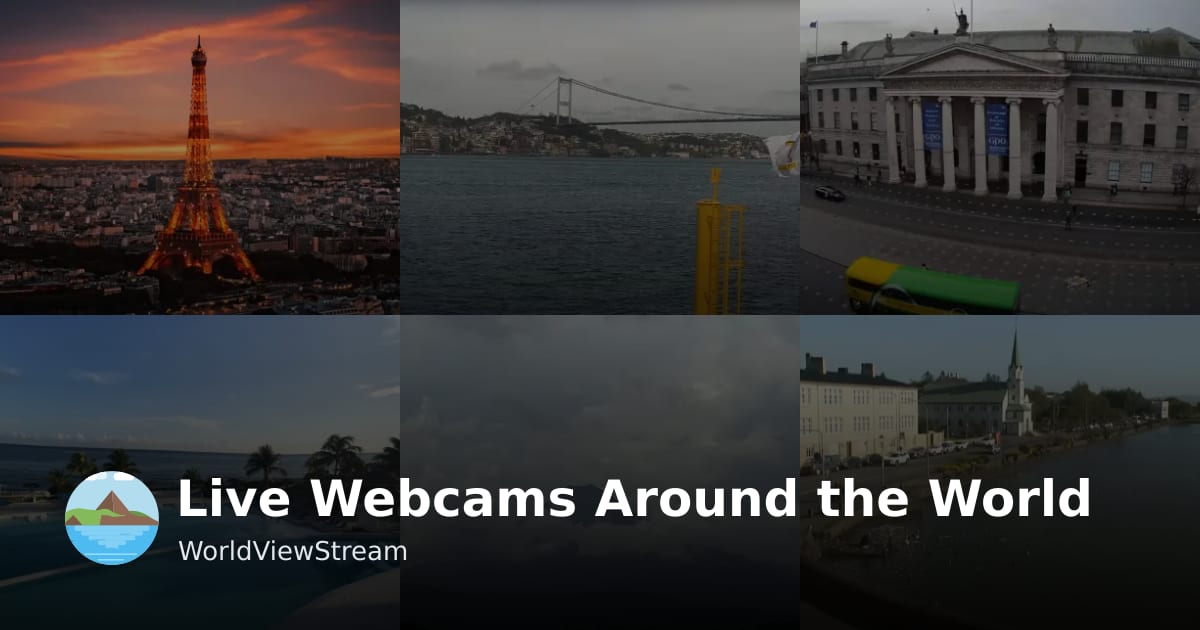
WorldViewStream is a live webcam directory: it gathers public camera feeds from around the world into one browsable site so you can see what a place looks like right now. Its own page describes 2,082 live webcams across 115 countries, covering city streets, beaches, mountains, ports, animal cams and landmarks, with many streams running around the clock and some in HD.
What you actually get
- A single page listing cameras with view counts and ratings, so popular or currently trending feeds surface first.
- Categories such as Tourist Attractions, Landscapes, Seas Rivers and Lakes, Animals, Squares, and Houses and skyscrapers.
- An interactive map for finding cameras in a specific area.
- Sections for newly added cameras, "Walks," a travel blog and travel guides.
The site is explicit that these are unedited views of places as they are at that moment, not polished travel videos. That is the main trade-off: you get honesty and immediacy, but also whatever the weather, lighting or empty street happens to be there — a landmark cam at night may show very little.
Who it suits
- Trip planners checking conditions or the look of a neighbourhood before booking.
- People with a connection to a place — a former home city, a relative's town, a past holiday.
- Casual browsers who enjoy dipping into ordinary daily life elsewhere.
If you want a specific use case: before a trip to a coastal town, open the map, find a camera near your hotel and watch it at the same hour you'd be walking around, to judge light, crowds and sea conditions. Treat it as a preview, not a guarantee — camera angles are fixed and a single view can't represent a whole city.
For comparison, if you want curated destination information rather than raw feeds, general travel references may serve you better; WorldViewStream's own travel guides and blog sit alongside the cameras for that purpose.
How can I use WorldViewStream to check the current weather or conditions at a travel destination before I go?
You can use WorldViewStream as a visual pre-trip check: instead of reading a forecast, you look at a live camera at or near your destination and judge the conditions yourself. The site organizes 2,082 live webcams across 115 countries, with categories for city streets, beaches, mountains, ports and landmarks, and many streams run around the clock, some in HD.
A practical routine before you travel
- Open the interactive map and zoom to your destination city or region. The map is the fastest way to see which cameras exist in that area.
- Pick the camera closest to where you'll actually be — a city-center square tells you more about street conditions than a panoramic mountain cam 40 km away.
- Look for these visual cues rather than relying on a single glance:
- Sky and light: overcast, blue sky, haze, or low sun angle.
- Ground: wet pavement, standing water, snow, or dry streets.
- People: coats, umbrellas, shorts, or empty streets (which can also signal a holiday or a very early hour).
- Water and wind: choppy sea, whitecaps, or calm surface at beach and harbor cams.
- Re-check at a different time of day. A morning view and an evening view of the same camera often show very different weather, and it also tells you how busy the area gets.
Choosing the right camera type
| Your question | Best camera category | Why |
|---|---|---|
| What should I pack? | City streets, squares | Shows how locals are dressed and whether it's raining |
| Is the beach usable today? | Beaches, seas/rivers/lakes | Waves, wind and crowd levels are visible |
| Will my hike or drive be affected? | Mountains, landscapes | Snow line, fog and visibility |
| Is the area crowded right now? | Tourist attractions, landmarks | Queue and crowd density |
What this approach can and cannot tell you
Live cameras give you current, unfiltered conditions — the site explicitly notes these are not edited travel videos, so you see a place as it is right now. That's genuinely useful for a same-day decision, like whether to shift a beach day or bring a heavier jacket.
The limits are worth knowing. A camera shows one narrow slice of a place, so a sunny view of a landmark doesn't mean the whole city is dry. It also can't give you a temperature number, a wind speed, or a forecast for tomorrow. Treat it as a complement to a weather service, not a replacement: use the forecast for planning and the camera for confirmation.
If your destination has no camera
Coverage is broad but not complete, and popular tourist spots are better represented than small towns. Check nearby larger cities or transport hubs — an airport or harbor cam a short distance away can still tell you a lot about regional weather. The "New webcams" section shows freshly added streams, so coverage in a given area can change over time.
A useful next step
Before your next trip, save the two or three cameras nearest your hotel and your main planned activity, then check them once in the morning and once in the evening for a few days beforehand. That short habit gives you a realistic sense of the local rhythm — when it rains, when it clears, and how people actually dress — which is often more actionable than a single forecast number.
How do I find live webcams for a specific country or city on WorldViewStream?
On WorldViewStream, the fastest route is the interactive map: load it, then pan or zoom to the country or city you want and use the "show cameras on map" option to reveal every stream in that area. The map is the most reliable way to go from a place name to actual cameras, because it shows what is available before you click.
If you prefer browsing, the site also organizes cameras by category and theme rather than by strict geography. You'll see groupings such as Tourist Attractions, City panorama, Seas Rivers and Lakes, Animals, Airport and airplanes, Squares, and Religion, with entries labeled by country and city (for example, "Eiffel Tower — France · Paris" or "Sydney Harbour — Australia · New South Wales"). The "Recommended Webcams" section mixes cameras tied to recent search interest, current activity, and editors' picks, so it is useful for discovery but not for finding one specific city.
A practical search routine
- Open the interactive map and zoom to your target city or region.
- Note the camera labels, which usually pair the landmark or view with the country and city.
- If the map is crowded in a dense area, switch to scanning the category lists and match the country/city text.
- Check the small badges before committing: HD for higher resolution, and the sun/moon icon for whether the feed is currently in daylight or night.
What to expect
Coverage is uneven. Large landmarks and well-known cities tend to have several cameras, while smaller towns may have one or none. Some streams run around the clock and some are available in HD, but a night-time feed in a distant time zone will often show a dark or low-detail scene, which is a limitation of live cameras rather than a fault of the site.
For a concrete example: if you are planning a trip to Venice, search the map around the city and you may find cameras such as "Ponte delle Guglie — Italy · Venice." Use it to judge current light, weather and crowd levels before you go. For broader context on a destination, pair the live view with a guide such as Lonely Planet or official local tourism boards, and cross-check conditions with timeanddate.com so you know whether the camera is in daylight.
Can I watch popular tourist landmarks like the Eiffel Tower or Sagrada Familia live on WorldViewStream?
Yes. WorldViewStream lists live cameras at major tourist landmarks, including the Eiffel Tower in Paris and the Sagrada Familia in Barcelona. These appear under its Tourist Attractions category, where you can open a stream and see the site as it looks right now.
The page evidence shows both cameras are marked HD, and the Eiffel Tower feed carries a high view count, so it is one of the more popular streams on the site. Landmark cameras are typically fixed views rather than guided tours, so what you see depends on the camera angle, time of day and weather.
How to use it well
- Check before you travel: Look at the live view to judge current weather, light and crowd levels at a landmark.
- Pick your timing: Many cameras run around the clock, but night views can be dark or less detailed, so daytime is usually better for seeing architecture.
- Use the map: The interactive map shows all available cameras in an area, which helps you compare several viewpoints in the same city.
- Expect variety: Some streams are HD, others are not, and image quality can change with connection and lighting.
If you want to explore beyond single landmarks, the site also groups cameras by theme, such as city panoramas, beaches, animals and religious sites. For a second opinion on a destination, you could compare the live view with a dedicated travel resource like Lonely Planet, though the value here is the unedited, real-time view rather than polished travel content.
What types of locations and scenes can I view on WorldViewStream, such as beaches, mountains, or city streets?
WorldViewStream organizes its 2,082 live cameras across 115 countries into recognizable scene types, so you can pick by mood rather than by geography alone. The main categories visible on the page are:
- City streets and squares — downtown panoramas, old-town market squares, and busy avenues.
- Beaches and coastlines — seaside and harbor views, including places known for plane-spotting.
- Mountains, lakes, and landscapes — alpine panoramas, rivers, and scenic coastal towns.
- Landmarks and tourist attractions — famous monuments and historic sites.
- Animals — zoo enclosures and wildlife nests.
- Airports and aviation — runway and aircraft views.
- Houses and skyscrapers — residential streets and modern towers, sometimes showing construction.
- Religious sites — major places of worship.
- Walks — a dedicated section suggesting moving or route-based coverage.
A practical way to use this: if you are checking conditions before a trip, filter mentally toward city squares, beaches, or mountain cams for weather and crowd levels. If you want atmosphere rather than information, the landmark and landscape cameras work better, since many run around the clock and some stream in HD.
One trade-off to expect: these are unedited, real-time feeds, so a camera may show a quiet street at an odd hour or a view partly obscured by weather. That is the point — you see the place as it is right now, not as a highlight reel. For a concrete scenario, someone missing a past trip to Italy could open the Cinque Terre or Venice cameras, while someone planning a US city break might start with the Nashville or Leavenworth feeds.
If you want to browse by place instead of category, the interactive map showing all cameras in an area is the faster next step.
How often are new webcams added to WorldViewStream and how can I discover them?
New webcams are added on an ongoing basis, but WorldViewStream does not publish a fixed schedule or a guaranteed number per week. The site shows a dedicated New webcams section for “freshly added live streams,” and the homepage also has a Recommended Webcams area that mixes cameras tied to recent search interest, current activity and editor picks. So the most reliable way to discover additions is to check those two sections rather than wait for an announcement.
H3 Practical ways to find them
- Open the New webcams section first; that is the clearest signal of recent additions.
- Scan Recommended Webcams afterward, because newly added or newly popular cameras can surface there too.
- Use the interactive map and country or category listings to browse by place rather than by date.
- Check back periodically, since the catalog is large and changes are not presented as a dated feed.
H3 Who this suits If you enjoy browsing rather than searching for one specific camera, the New webcams and Recommended sections work well as a casual discovery loop. If you need to know exactly when a particular city or landmark camera was added, the site is less useful, because the evidence does not show a dated changelog or notification system.
For a concrete routine: start with New webcams, pick one unfamiliar country, then use the map to see what else is nearby. That turns a simple check for additions into a short virtual trip. You can begin at WorldViewStream.
 Hosting and Email
 Cloudflare
 Hosting
 Location
 Pages, Search and Sharing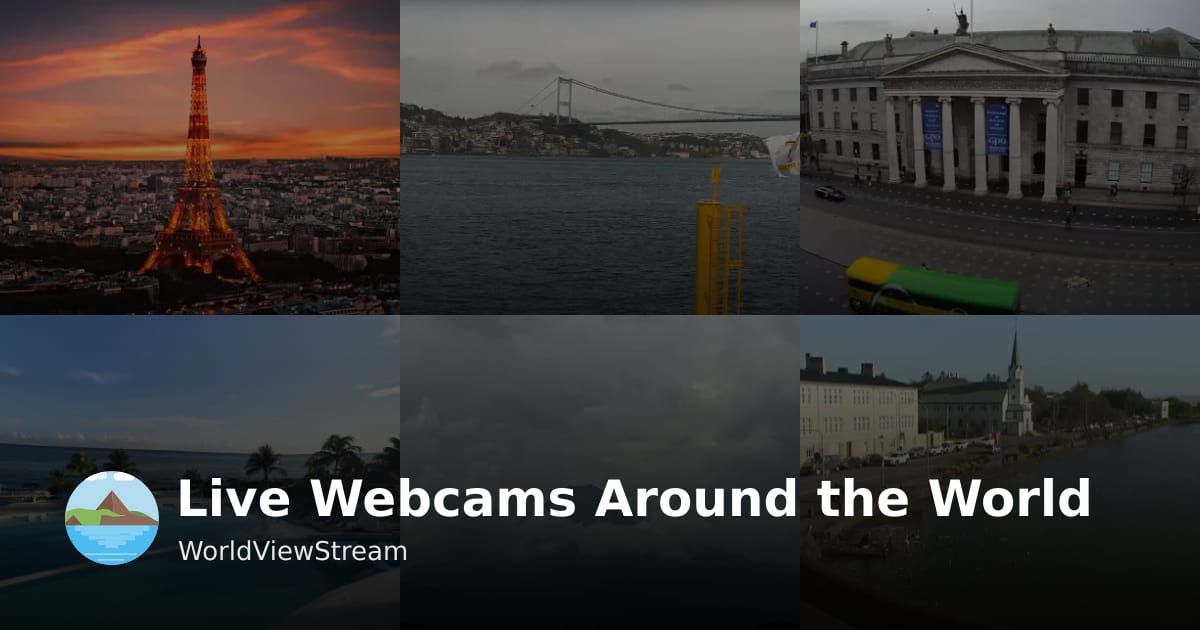



 All bots


 Registration details

 Identified technologies
User reviews (0)