
 简体中文
简体中文 English
Website review
This review may include AI-generated content and is not individually verified. Domain, certificate and other facts come from the observed data on this page.
What is Roadie Trip Planner?
Roadie Trip Planner is a web-based tool for building multi-stop driving itineraries on an interactive map. You pin as many locations as you like, and it shows the distances between waypoints and the driving time for each leg. It also lets you search for points of interest such as attractions, trails, restaurants, accommodation, or national parks, and you can set whether you are travelling by car or RV so the route is optimised for that vehicle.
Its main parts, based on the site’s own sections:
- Multi-stop route planning — an interactive map where you add waypoints and see distances and driving times between them.
- Places along the route — search for stops and services near your driving route rather than planning each one separately.
- Inspiration and templates — curated collections of ready-made road trip routes you can browse and adapt.
- Sharing and collaboration — invite family or friends to plan together, or export the itinerary as a document.
Who it suits: people planning longer driving holidays with several overnight or sightseeing stops, and anyone who wants to compare route options before committing. The RV mode is a meaningful detail if you are travelling in a larger vehicle, since route optimisation can differ from a standard car.
A practical next step: if you already have a rough list of stops, enter them in order first, then use the points-of-interest search to fill gaps between them. If you are starting from scratch, browse the curated route collections and treat one as a template, adjusting waypoints to your own start and finish points.
For context, general-purpose map tools such as Google Maps are fine for simple A-to-B navigation, while dedicated planners like this one are more useful when the itinerary itself — order of stops, daily driving time, things to see en route — is the hard part.
How do I plan a multi-stop road trip itinerary with driving times and distances?
Use a map-based planner to place each stop in order, then let it calculate the driving legs between them. On Plan epic road trips, the core workflow is exactly that: pin as many locations as you like, see the distances connecting the waypoints, and read the driving times between multiple stops. You can also search points of interest such as attractions, trails, or national parks, and choose car or RV so the route is optimized for your vehicle type.
A practical sequence
- List your must-see stops first, then add maybes.
- Pin them in a rough order and check the driving time for each leg.
- Cut or merge stops where a leg is disproportionately long.
- Add food, fuel and overnight stops along the route rather than detouring for them.
- Share the itinerary so passengers or co-planners can review it.
What to watch
Driving times are estimates, not promises. Traffic, weather, RV speed limits, mountain roads and border crossings can all stretch a leg. Build in slack, especially on the longest day. If you are in an RV, check whether the route avoids low bridges and narrow roads; vehicle-type routing helps but does not replace local knowledge.
Example
A five-day trip from a city to a national park might look like: Day 1, 4 hours to a midway town; Day 2, 3 hours into the park with a scenic overlook stop; Days 3–4, short in-park drives; Day 5, a long 7-hour return. Without seeing each leg's time, that final day looks fine on a list but is punishing in practice.
Next step
Open the planner, pin your start and end points, then add stops one at a time and watch how each new pin changes the total. For inspiration before you commit, browse the site's curated route collections and use one as a template. If you want a second opinion on a region, official tourism boards such as Visit The USA or national park sites can confirm seasonal closures and road conditions.
Can I find attractions, restaurants, or accommodation along my route?
Yes. The planner is built around finding places along your driving route, not just at your final destination. You can search for points of interest such as attractions, trails, and national parks, and the page also lists restaurants and accommodation as things to find along the way. Because it works on an interactive map with waypoints, those stops can be added directly to the itinerary, so distances and driving times update as you go.
H3 Practical ways to use it
- Overnight planning: Add a likely stop town, then search accommodation near that waypoint rather than guessing a hotel before you know where you'll be by evening.
- Meal breaks: Look for restaurants around a mid-day waypoint so lunch doesn't force a long detour.
- Sightseeing: Search attractions or trails near the route and pin the ones worth a stop; the map shows how much extra driving each one adds.
- RV travel: Tell the planner you're in an RV so the route is optimized for that vehicle, which matters more for larger vehicles and slower speeds.
H3 A realistic scenario
Suppose you're driving a long day between two national parks. Instead of searching each town separately, set your start and end points, then scan the route corridor for a trail, a lunch stop, and a campground or motel near your halfway point. Add the best options as waypoints and check the revised driving time before committing.
H3 What to keep in mind
The tool helps you find and place stops, but it doesn't replace booking. Confirm opening hours, seasonal closures, and whether accommodation is actually available on your dates. For campgrounds and popular parks, reserve well ahead. If you want ready-made ideas first, the site's curated route collections can serve as templates you then adapt.
A useful next step: build a rough route with only your must-see stops, then search along each leg for food and lodging and add them one at a time, checking the updated driving times after each addition.
For a second opinion on route ideas, National Park Service covers park-specific access and closures, and Recreation.gov handles many federal campground reservations.
How do I share my itinerary with friends or family for collaborative planning?
Use the Share your itinerary feature on Plan epic road trips. The site describes two distinct sharing paths: inviting family and friends to plan the route together, or sharing the finished itinerary as a neat document.
Which sharing mode fits your situation
| Your goal | What to use | Why |
|---|---|---|
| Friends add stops, adjust order, debate routes | Collaborative invite | Everyone edits the same live map, so changes and driving times stay in sync |
| Family just needs to see the plan | Share as a document | Read-only overview; no one accidentally moves a waypoint |
| Group trip with a driver and passengers | Collaborative invite, then share the final document once locked | Plan together, then freeze the version people follow on the road |
A concrete example
You are planning a national park loop with two other households. Invite both to the itinerary so each can pin the attractions, trails or campgrounds they care about. Because the map shows distances and driving times between every stop, the group can immediately see when someone's detour adds two hours. When the route settles, share it as a document so the less-involved relatives have a clean copy without edit rights.
Practical tips before you invite anyone
- Agree on the vehicle setting first — car versus RV changes which route the planner optimizes, so an RV edit on a car plan can distort everyone's driving times.
- Set a rough stop budget. The site lets you pin as many locations as you like, and a shared map with 40 pins is hard for a group to reason about.
- Pull in a ready-made route from the curated collections as a starting template, then let collaborators modify it rather than building from zero.
- Decide who owns the final call on ordering. Collaborative editing is fast, but someone should resolve tie-breakers.
Next step: open your itinerary, use the share or invite option, and send it to one test collaborator before inviting the whole group — that confirms the invite works and shows you how edits appear to others.
What ready-made road trip routes and collections are available for inspiration?
The site offers curated, ready-made road trip routes and themed trip collections you can browse for inspiration, then reuse as templates for your own itinerary. According to the page, these are grouped under "Discover Inspiring Routes" and "Explore our curated selection of epic road trips for every taste," with "growing collections of ready-made road trip routes." The page does not list individual route names or destinations, so treat the collections as a starting point rather than a fixed catalogue.
How to use them
- Browse the collections to find a route matching your travel style or region.
- Open a route as a template, then adapt it: add or remove waypoints, and see distances and driving times between stops.
- Search points of interest (attractions, trails, national parks, restaurants, accommodation) along the way.
- Set your mode to car or RV so the route is optimized accordingly.
- Share the itinerary as a document or invite family and friends to plan together.
Who this suits
- First-time planners who want a proven structure instead of a blank map.
- Groups splitting planning tasks, since itineraries can be shared and co-edited.
- RV travelers, because route optimization accounts for vehicle type.
A practical next step: pick one collection close to your intended region, duplicate it, and immediately check the total driving time between your furthest waypoints. If the daily distances look too long, trim stops before adding new ones. For broader route ideas beyond this site, you can also consult National Park Service for park-specific drives.
Does the route optimization work differently for car versus RV travel?
Yes. The site's own description says you “choose if you're traveling by car or RV to optimize your route accordingly,” so vehicle type is an input to how the route is optimized rather than just a label. The multi-stop map, distance and driving-time display, and the search for attractions, trails, or national parks are presented as part of the same planning flow.
What the page does not spell out is how the two profiles differ algorithmically. In practice, RV routing usually has to account for constraints a car ignores: height, weight, propane restrictions, low bridges or tunnels, narrow mountain roads, and slower comfortable cruising speeds. Car routing can favor the fastest legal roads. Because the page doesn't list the exact constraints, treat the RV setting as a routing preference to verify, not a guarantee that every restriction is avoided.
How to decide which mode to use
| If you are… | Choose | Why |
|---|---|---|
| Driving a standard car or SUV | Car | Fastest, simplest routing; no need for clearance checks |
| Towing a trailer or driving a large RV | RV | Better chance the route avoids unsuitable roads and reflects slower speeds |
| In a camper van or small Class B | Either, then compare | Van may fit car routes, but height and weight still matter |
| Planning a mixed group | RV for the shared plan | Conservative route is easier for everyone to follow |
A practical next step
Build the same short multi-stop test route twice, once as a car and once as an RV, and compare the distances and driving times. If the RV version sends you a longer way around, that difference is likely the constraint handling doing its job. Then check the specific roads it chose against your vehicle's height, weight, and propane rules before you commit.
For a second opinion on road suitability, state or national tourism sites often publish commercial-vehicle and RV advisories.
 DigitalOcean
 Fastly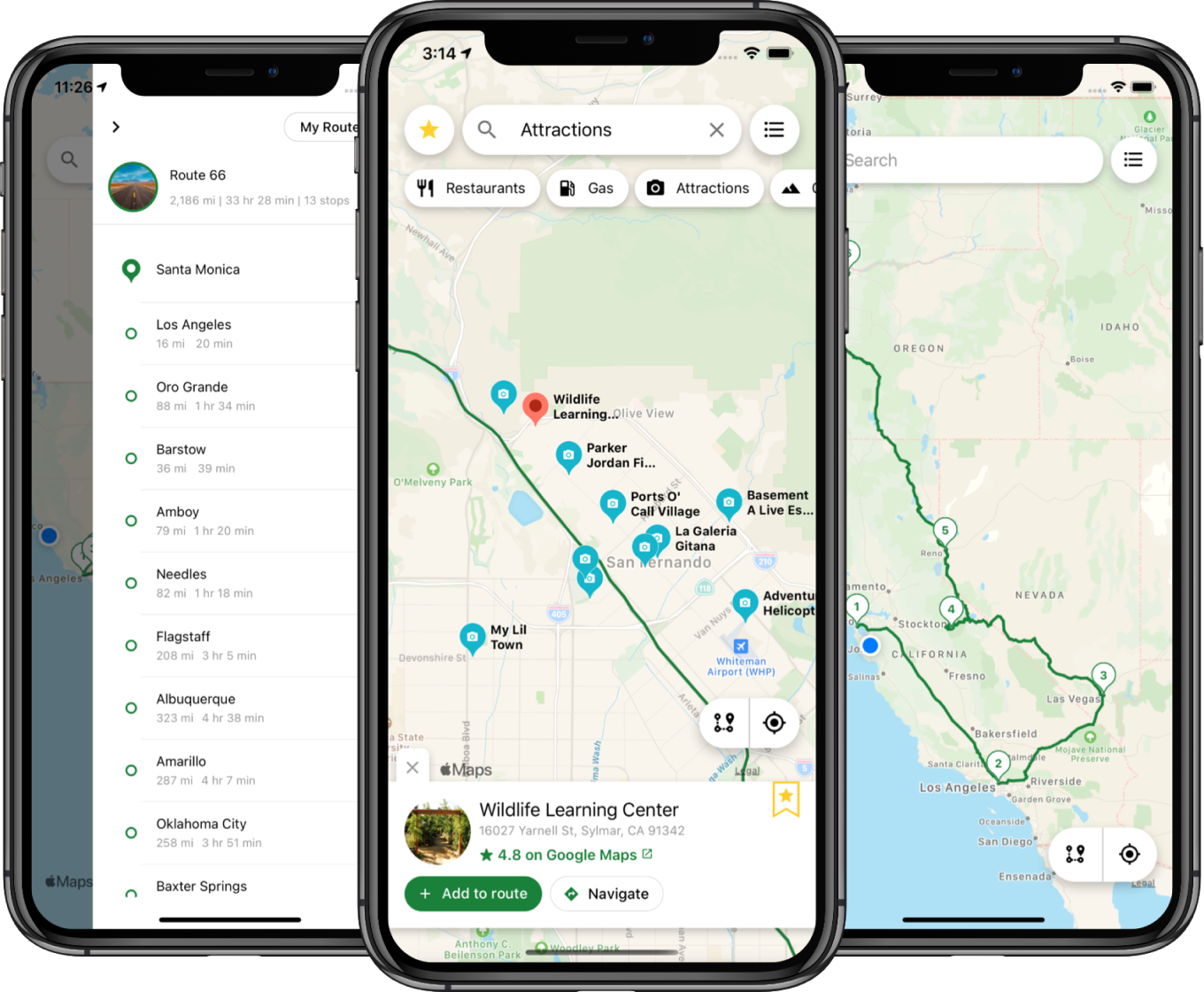
User reviews (0)