
 简体中文
简体中文 English
Website review
This review may include AI-generated content and is not individually verified. Domain, certificate and other facts come from the observed data on this page.
What is IT Tools?
IT Tools is a browser-based collection of small utilities aimed at developers and IT professionals. Instead of installing separate apps or hunting for one-off websites, you open a single page and pick the tool you need: converters, encoders, formatters, generators, and similar quick tasks.
<H3>What you can expect</H3>
- Many small tools in one place. The value is convenience — one bookmark covers a lot of common chores.
- Client-side orientation. Tools of this type usually run in your browser, which matters when you paste tokens, configs or sample data.
- No account needed for basic use. The appeal is zero setup: open, use, close.
<H3>Who gets the most out of it</H3>
A backend developer debugging a JWT at 11pm, a sysadmin converting a timestamp, or a student decoding a Base64 string — all want the same thing: an answer in ten seconds without a login screen. If you only need one specific transformation, a dedicated site may be faster; if you need many, a toolbox wins.
<H3>Trade-offs to weigh</H3>
Convenience cuts both ways. A broad toolbox rarely matches a specialist tool on depth, and for anything sensitive you should confirm whether processing happens locally in the page or is sent to a server. For regulated data, prefer offline or self-hosted options.
Next step: bookmark IT Tools and test it with a real task you do often — a format conversion or a hash — so you can judge whether it replaces your current habit.
Which online developer tools are available on IT Tools?
IT Tools provides a large collection of small, single-purpose developer utilities in one place. The exact inventory can change over time, so treat the categories below as the practical way to browse it rather than a fixed list.
Typical tool groups
- Encoding and conversion: Base64, URL encoding, HTML entities, JSON ↔ YAML/XML, number-base conversion, text-to-binary.
- Generators: UUIDs, hashes (MD5, SHA variants), passwords, lorem ipsum, QR codes, fake/test data.
- Formatters and validators: JSON, XML, SQL, CSS, HTML beautifiers and minifiers; JWT and cron-expression parsing.
- Text and data utilities: case conversion, diff comparison, regex testing, string statistics, CSV/JSON conversion.
- Web and network helpers: URL parsing, HTTP status references, MIME-type lookup, user-agent and IP information, timestamp conversion.
- Media and color: image resizing/format conversion, color picker and converter, EXIF viewing.
- Math and time: unit converters, percentage and date calculators, timezone and duration tools.
Who gets the most from it A backend developer debugging a token, a frontend developer converting color formats, or a support engineer decoding a Base64 payload can each finish the job without installing anything. Because everything runs in the browser, it suits quick, one-off tasks and machines where you cannot install software. The trade-off is that very large files, batch processing, or project-wide refactoring will outgrow a browser tool; for those, use a local CLI or your editor's built-in tooling.
How to choose Start from the task, not the tool name: if you need a repeatable, scriptable step in a build pipeline, prefer a command-line equivalent; if you need a one-time check or a shareable result, a browser tool is faster.
Next step Open IT Tools and use the search box to jump straight to the utility you need, then bookmark the specific tool pages you use most.
How do I use IT Tools for common coding tasks like formatting or conversion?
IT Tools is a collection of small browser-based utilities aimed at developers. For formatting and conversion, the typical workflow is: pick the tool from the list, paste your input into the left or top box, adjust any options, and copy the result from the output box. Everything happens client-side in your browser, so there is no upload step and no account required.
Formatting tasks
- JSON, XML, HTML, CSS, SQL, JavaScript: paste messy or minified code, then use the format/beautify action to get indented output. Useful when you receive a one-line API response or a compressed config file.
- Minify: the reverse operation, handy when you want to shrink a snippet before embedding it in a page or a test fixture.
- Diff/compare: paste two versions of a file to spot changed lines, a quick substitute for opening a full editor when you just need to check what changed.
Conversion tasks
- Encoding: Base64, URL encoding, HTML entities, JWT decoding — paste the encoded string and read the decoded value, or go the other direction.
- Data formats: convert between JSON, YAML, CSV and similar structures, which is convenient when moving data between a config file and a spreadsheet or test data set.
- Number and unit bases: convert between binary, decimal, hex and other bases, or between timestamps and human-readable dates.
- Hashing and IDs: generate hashes or UUIDs when you need a placeholder value for a test.
A concrete scenario
Suppose a colleague sends you a minified JSON payload from a production bug. Paste it into the JSON formatter, read the indented structure, copy the relevant nested object into the JSON-to-YAML converter if your config uses YAML, then decode the JWT in the same tab set to check which user the token belongs to. No files leave your machine, which matters if the payload contains real user data.
Trade-offs and when to look elsewhere
The strength of a tool like this is speed and zero setup: no install, no project context, works on any machine you can open a browser on. The limits are equally clear. It handles snippets, not repositories — there is no multi-file refactoring, no linting rules from your project config, no Git awareness. Large inputs can also make a browser tab sluggish compared with a native editor.
For everyday editor work, dedicated tools are stronger: Visual Studio Code for formatting with project-specific rules, Prettier for consistent style across a codebase, and JSON Formatter or Regex101 when you want a focused single-purpose page with explanations. Use IT Tools when the job is a one-off paste-and-convert and you do not want to open an editor at all.
A practical decision rule: if the task is under a minute and the input is a snippet, use a browser tool; if the same formatting will recur across files or needs to match team style, wire it into your editor instead.
Is IT Tools free to use, and does it require an account or installation?
IT Tools is a browser-based collection of utilities aimed at developers, and it is designed to be used without creating an account or installing anything. You open the site, pick a tool, and work directly in the page.
Its main appeal is convenience for small, recurring tasks: formatting JSON, converting timestamps, encoding or decoding strings, generating hashes, testing regular expressions, and similar jobs. Because everything runs in the browser, it suits people who need a quick answer without adding another desktop app or signing into a service.
A few practical caveats are worth knowing before you rely on it:
- No account needed means no saved history or synced settings across devices.
- Browser-based means performance and offline behavior depend on the page and your connection.
- Client-side tools are generally safer for sensitive data than services that upload your input, but you should still avoid pasting secrets into any online tool unless you have verified how it handles data.
As a next step, decide based on the task: for one-off conversions and formatting, a browser tool is usually the fastest option; for repeated work inside a project, a command-line tool or editor extension will integrate better. If you want a comparable reference point, IT Tools is the official project site.
Can IT Tools handle sensitive data securely without sending it to a server?
Yes—IT Tools is built around client-side processing, so most of its utilities run in your browser and the values you paste in are not uploaded to a server. That makes it a reasonable choice for one-off transformations of things like API keys, JWTs, hashes or configuration snippets.
Two caveats matter more than the general promise:
- Client-side is not the same as private. Anything you paste into a page can still be read by browser extensions, other scripts on the page, or anyone looking over your shoulder. Use a clean browser profile and avoid extensions you don't trust.
- Static hosting still involves a server. The page itself is fetched from a host, so a network request does occur—just not one carrying your data. If your threat model forbids loading third-party code at all, run the tool locally instead.
A practical way to decide
| Situation | Safe to use a browser tool? |
|---|---|
| Formatting JSON, decoding a JWT you already own | Yes |
| Generating a hash of a non-secret string | Yes |
| Production private keys, customer PII, live credentials | Prefer an offline/local tool |
| Anything under a compliance regime (HIPAA, PCI, internal policy) | Check policy first; assume no |
Next step
Open the page, then disconnect from the network and try the tool. If it still works, you've confirmed the logic runs locally. For genuinely sensitive material, the stronger habit is to keep a local copy of the tool or use your editor's built-in utilities, and treat any hosted web page as convenience-only.
How does IT Tools compare to other online developer tool collections for everyday workflows?
IT Tools fits best as a quick-access utility belt: a single site where you can hash a string, format JSON, convert a timestamp, generate a UUID, or test a regex without installing anything. Its main advantage over larger collections is speed of use rather than breadth or depth. If your everyday tasks are small, discrete conversions and checks, it removes friction; if you need project-aware tooling, it won't replace an IDE or CLI.
Where it wins
- No signup or setup for one-off tasks like encoding, decoding, or formatting.
- Many tools on one page, so you stay in one tab instead of juggling bookmarks.
- Works well on locked-down machines where you can't install packages.
Where alternatives pull ahead
- Editor-integrated tools (VS Code extensions, IDE refactoring) understand your actual files and project context.
- CLI tools like
jq,openssl, ordateare scriptable and reproducible in pipelines. - Bigger web collections often go deeper on niche areas such as cron parsing, diffing, or certificate inspection.
| Need | IT Tools-style web collection | IDE / CLI |
|---|---|---|
| One-off JSON formatting | Fast, no install | Requires setup but repeatable |
| Automating a conversion | Manual copy-paste | Scriptable |
| Sensitive data (keys, tokens) | Depends on client-side processing | Stays local |
| Learning/exploring formats | Good for experimentation | Steeper |
Practical scenario: A backend developer debugging an API response pastes a JWT into a decoder, checks the expiry timestamp, then formats the JSON payload. That's three taps in one place — the exact workflow where a collection like IT Tools beats opening a terminal three times.
Next step: Keep IT Tools bookmarked for throwaway tasks, but move anything you do more than a few times a week into your editor or a small script. For broader coverage, compare with Transform Tools or DevToys, and treat any tool handling secrets as local-only unless you've confirmed it processes data in the browser.
 vercel-dns-3.com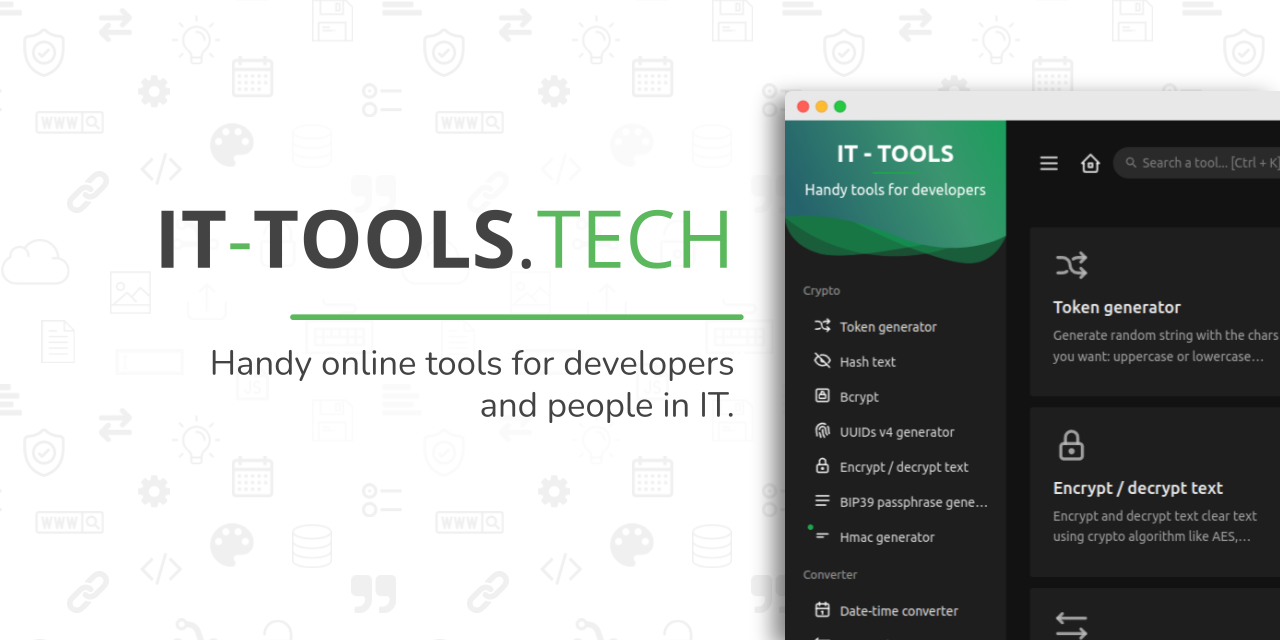

User reviews (0)