Website profiles · Technology insights · Alternatives

superfile.dev

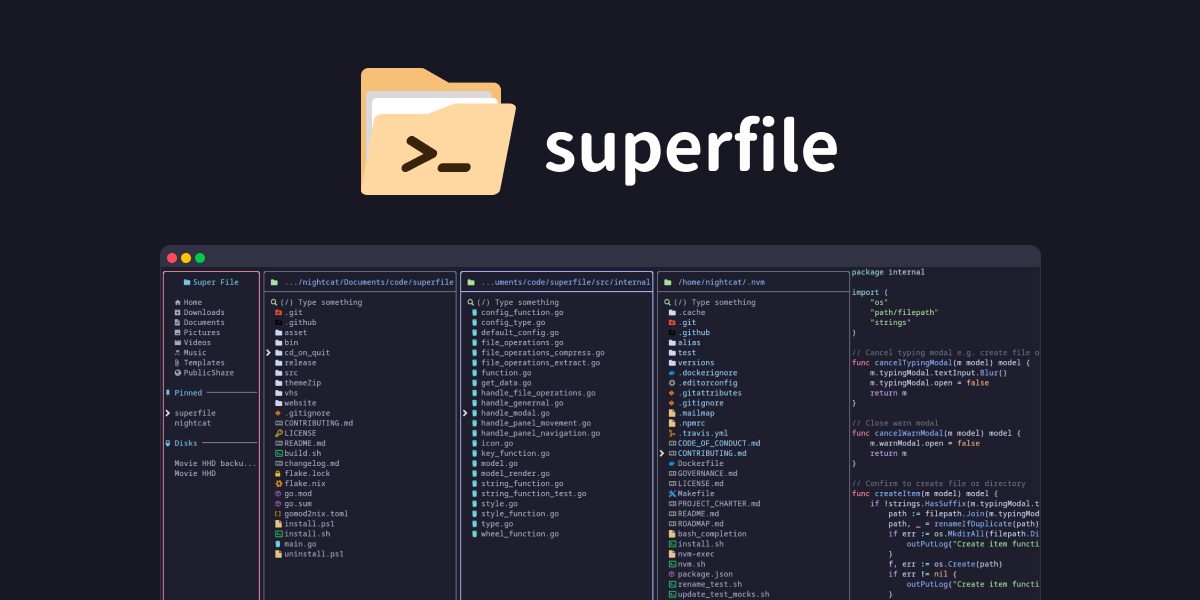
A fancy, modern terminal file manager. Complete your file operations with style.

No paid content found
Visit website
Profile views 3 Outbound visits 1 Normal
superfile Full homepage screenshot

At a glance

Category
Development
Language
English
Paid-content signal
No paid content foundObserved
Registered
2025
Hosting
CloudflareInferred
HTTPS certificate trusted
PassedObserved
Last updated

Website review

This review may include AI-generated content and is not individually verified. Domain, certificate and other facts come from the observed data on this page.

What is superfile?

superfile is a terminal file manager built for developers who work primarily in the command line. It runs inside your terminal (launched with the command spf) and handles everyday file operations—copy, move, delete, rename, fuzzy search, bulk actions and image preview—while presenting a deliberately polished interface rather than a bare list of filenames. It's written in Go using the Bubble Tea framework, is MIT-licensed, and installs on Linux, macOS and Windows through package managers such as Homebrew, Pacman and Nix, or via install scripts.

What it actually gives you

  • Multiple panels: split the view into several directory panes and copy or paste between them with a few keystrokes. This is the feature most likely to change how you work: you can keep a source folder, a destination folder and a project directory visible at once instead of navigating back and forth.
  • Customization: every hotkey can be remapped, and borders, colors and themes can be adjusted. There are 20+ built-in themes (Catppuccin, Nord, Tokyo Night, Dracula, Gruvbox, Rose Pine and others), which matters if you already keep your terminal and editor in a matching palette.
  • Plugins: community extensions add things like Git status, system monitoring and custom commands, so the file manager can surface context you'd otherwise check in separate tools.
  • Keyboard-first operation: fuzzy search and bulk selection suit people who'd rather type a few characters than click through folders.

Who it suits, and the trade-off

It fits developers already living in a terminal—running an editor like Neovim, using tmux, or working over SSH—who find ls, cp and mv workable but clumsy for browsing and reorganizing many files. The trade-off is that it is still a terminal application: there's no drag-and-drop, no thumbnail grid beyond image preview, and no desktop integration. If you mainly manage files visually or share a machine with non-technical users, a graphical file manager remains the simpler choice.

A practical next step: install it alongside your existing setup and use it for one real task—say, sorting a downloads folder or moving assets between two project directories using two panels. If the panel workflow and remapped keys feel natural within a week, it earns a permanent place; if you keep reaching for your old commands, you've lost little. The project's site, superfile, has the install guide and a showcase of the interface in action.

How do I install superfile on my operating system?

Install superfile with the package manager or install script for your platform, then run the command spf to start it.

Per-platform install commands

Linux / macOS (install script):

bash -c "$(curl -sLo- https://superfile.dev/install.sh)"

macOS (Homebrew):

brew install superfile

Arch Linux:

sudo pacman -S superfile

Nix:

nix profile install github:yorukot/superfile#superfile

Windows (PowerShell):

powershell -ExecutionPolicy Bypass -Command "Invoke-Expression ((New-Object System.Net.WebClient).DownloadString('https://superfile.dev/install.ps1'))"

The site also links a full install guide for details and troubleshooting.

Choosing a method

  • Homebrew on macOS: best if you already manage tools with Homebrew; upgrades stay simple.
  • Arch / Nix: use the native package so updates flow through your existing system tooling.
  • Script install: the quickest route on Linux distros without a packaged build, but you take on manual updates.
  • Windows: the PowerShell script is the documented path; expect to run it in a terminal with script execution permitted for that session.

Next step

After installing, open a terminal and run spf. The project is built in Go (Go 1.21+ per the site) and runs on macOS, Linux and Windows under the MIT License. If spf is not found, confirm the install location is on your PATH, then check the full install guide linked from superfile.

How does superfile compare to traditional terminal file managers like ranger or nnn?

Superfile is best understood as a styled, multi-pane terminal file manager for developers who want visual polish without leaving the shell, rather than a minimal, keyboard-only file browser in the tradition of ranger or nnn. It is built with Go and Bubble Tea, and its own description emphasizes a refined UI, multiple directory panes, remappable hotkeys, themes, image preview, fuzzy search and plugin support superfile.

Where it differs in practice

Area Superfile, as described Typical ranger/nnn-style approach
Interface Deliberately polished terminal UI with themes and adjustable borders/colors Usually leaner and more utilitarian; appearance is secondary
Panes Multiple directory panes for cross-pane copy and paste Often a single active view with navigation shortcuts, though ranger is known for its column layout
Configuration Remap every hotkey, choose themes, adjust colors Usually configured through dotfiles and keybindings, with less emphasis on visual theming
Extensibility Community plugins such as Git status and system monitoring Varies; often relies on external scripts and shell integration
Setup Install via Homebrew, script, Arch, Nix or Windows PowerShell, then run spf Typically installed from a package manager and launched from the shell

The practical difference is how much of your file workflow you want to see at once. If you regularly move files between two directories, compare versions of files, or want a Git-status cue while browsing, superfile's multiple panes and plugin support are concrete advantages. If you mostly jump between paths by typing and prefer a sparse screen with minimal visual chrome, a lighter manager may feel faster.

A useful way to decide

Try a realistic task rather than judging screenshots: copy three files from a project folder into a build output folder, rename one, and preview an image. If you want both source and destination visible and like themed panes, superfile fits. If you find yourself ignoring the panes and relying on typed paths, a more minimal manager is likely the better match. For a broader look at terminal-first workflows, see GitHub for the project's repository and community plugins.

How can I customize superfile's keybindings and themes to match my workflow?

Superfile is designed so that both keybindings and themes are user-configurable: the site says you can "remap every hotkey," "choose any theme," and "adjust every border and color," with 20+ built-in themes including Catppuccin, Nord, Tokyo Night, Dracula, Gruvbox, and Rose Pine. The exact config file paths and syntax aren't given on the page, so check the project's documentation or repository for the current config format before editing.

A practical approach

  1. Start from a built-in theme, then tweak. Pick the closest match (for example Nord or Tokyo Night) and adjust only the colors that clash with your terminal—this is faster than building a theme from scratch.
  2. Remap keys around habits you already have. If you use Vim or another terminal tool daily, map navigation and selection to the keys your fingers already expect. Keep copy, move, delete, and bulk operations on distinct, easy-to-reach keys, since those are the actions you'll repeat most.
  3. Test with multiple panels open. Superfile supports split directory panes with cross-panel copy and paste, so verify your key choices don't collide when several panels are active and you're switching focus or entering selection mode.
  4. Change a little at a time. Remap a handful of keys, use it for a day, then adjust. Wholesale remapping tends to produce conflicts you only notice mid-task.

Who gets the most from this

Customization pays off most for developers who live in the terminal and want a file manager that matches their editor's look and muscle memory. If you only occasionally browse files, the defaults plus a theme swap are usually enough.

A concrete scenario

A developer running a Neovim-centric setup could adopt a dark theme close to their editor's palette, map panel movement to the same keys they use for window splits, and keep fuzzy search on a single dedicated key—so moving files feels like part of the same environment. For a broader look at terminal-first workflows, see Neovim; for terminal emulators that pair well with themed TUIs, Ghostty is one option to compare against your current terminal.

As a rule of thumb: customize themes for comfort and keybindings for speed—but only remap keys you actually use daily, and leave the rest at their defaults.

How do I use multiple panels in superfile to move files between directories?

Multiple panels in superfile let you open several directory panes side by side in the terminal, then copy or cut files in one pane and paste them into another. The page lists "multiple panels" and cross-panel copy-paste "with just a few keystrokes" as core features, and the showcase includes multiple-panels, panel-movement and panel-navigation demos you can watch to see the exact key presses.

A practical workflow

  1. Start superfile by running spf (per the install instructions on superfile).
  2. Open a second (or third) panel so your source and destination directories are both visible.
  3. Navigate each panel to the relevant folder.
  4. Select the files in the source panel, copy or cut them, switch focus to the destination panel, and paste.
  5. Since hotkeys are fully remappable, check your own key bindings if the defaults don't match what you expect.

When this layout helps

  • Moving files between distant trees (e.g., a downloads folder and a project's assets/ directory): you avoid retyping long paths.
  • Bulk reorganizing: select many files in one pane and drop them into another without leaving the terminal.
  • Keeping context visible: you can see both directories at once instead of relying on memory.

Trade-offs

  • Panels consume horizontal space, so on narrow terminal windows or small screens, two panes may be cramped; one panel plus fuzzy search can be faster there.
  • The page doesn't document specific default keys, so treat the built-in showcase (superfile --showcase) or your remapped bindings as the source of truth.

If you prefer a GUI-style dual-pane file manager, tools like Midnight Commander or ranger offer similar two-pane workflows; superfile's appeal is its themed, modern UI on top of that model.

What plugins are available for superfile and how do I install them?

The site does not list specific community plugins or explain how to install them. It only states that superfile supports plugins and gives examples of what they can do: Git status integration, system monitoring, and custom commands. For an actual plugin catalogue and installation steps, check the project's GitHub repository.

What the site does say

  • Plugins are described as a way to "extend" superfile with community-built additions.
  • The examples given are Git status integration, system monitoring, and custom commands.
  • No plugin names, repositories, or install commands appear on the page.

Practical next step

If you want Git status in your file manager, a sensible approach is to look for a plugin that runs git status for the current directory and displays the result in a panel. Installation usually means adding a plugin entry to superfile's configuration and pointing it at the plugin's command or script, but confirm the exact steps in the project's documentation rather than assuming.

Decision criterion

Choose a plugin only if it replaces a command you already run by hand in that directory. Git status and system monitoring fit that test; a custom-command plugin is worth it mainly if you repeat the same shell command often. Otherwise, superfile's built-in features (copy, move, rename, fuzzy search, multiple panels) may cover the task without added configuration.

For background on the tool itself, see superfile.

Related questions

More questions →
What plugins and themes are available for superfile?

superfile supports community plugins and ships with more than 20 built-in themes. The site names Git status integration, system monitoring, and custom commands as plugin examples, and lists Catppuccin, Nord, Tokyo Night, Dracula, Gruvbox, and Rose Pine among the built-in themes. Both are part of an MIT-licensed, open-source project built in Go with Bubble Tea, so the ecosystem grows from its developer community rather than a closed marketplace.

Plugins: what the site confirms

The plugin support section of superfile.dev describes plugins as a way to "extend with community plugins" and gives three concrete examples:

  • Git status integration — surface repository state inside the file manager
  • System monitoring — keep an eye on machine resources without leaving the terminal
  • Custom commands — wire your own actions into the interface

The site does not publish a plugin directory, a list of every available plugin, or a plugin API reference. Treat the three examples as the documented starting points, and check the project's GitHub repository for the current set of community plugins and any installation notes.

What this means for your workflow

If your goal is to keep Git context visible while moving files around, or to trigger your own scripts from inside the file manager, the plugin system is the intended path. Because the project is MIT licensed and open source, you can also read how existing plugins are built and adapt them — but the site itself does not document that process, so the repository is the place to look.

Themes: 20+ built-in options

superfile ships with more than 20 themes, and the site names six of them directly:

Theme Notes
Catppuccin Popular pastel palette family
Nord Cool, muted blue-grey palette
Tokyo Night Dark theme with vivid accents
Dracula High-contrast dark palette
Gruvbox Warm, retro-inspired colors
Rose Pine Soft, low-contrast palette

The remaining built-in themes are not enumerated on the page, so the exact count and full list should be confirmed in the repository or by browsing the theme picker after installation.

Customization beyond presets

Themes are only part of the story. The site states that you can "choose any theme" and "adjust every border and color," and that you can "remap every hotkey." In practice, that means a theme is a starting point: if none of the 20+ presets matches your terminal setup, the color and border controls let you tune the look further. The same applies to keybindings — the defaults are replaceable, so the plugin and theme experience can be shaped around how you already work.

How to try plugins and themes

  1. Install superfile using the method for your platform — Homebrew on Linux/macOS, the install script, PowerShell on Windows, pacman on Arch, or Nix — then run spf to start.
  2. Open the theme picker and cycle through the built-in themes to see which presets fit your terminal palette.
  3. Check the GitHub repository for the current plugin list, since the site only names examples rather than a full catalog.
  4. Adjust borders, colors, and hotkeys to match your workflow once you've settled on a base theme.

The site's showcase section (superfile --showcase) demonstrates file operations, hotkeys, multiple panels, and selection mode, which is a quick way to see the interface before committing to customization.

Choosing based on what you need

  • If you want a polished look out of the box, the 20+ built-in themes likely cover common terminal palettes; start with a preset and adjust colors only if needed.
  • If you need Git or system context while working, the documented plugin examples are the relevant starting point, but verify current availability in the repository first.
  • If you have custom scripts, the "custom commands" plugin category is the intended extension route; expect to work from community examples rather than official API docs.
  • If you need a guaranteed, fully documented plugin catalog, the site does not provide one — factor that into your decision and check the project's activity on GitHub.

For installation details and the full feature set, see the related guides on installing superfile and its file operations.

What file operations and features does superfile offer?

superfile is a terminal file manager built with Go and Bubble Tea, aimed at developers who work primarily in the terminal. It covers the core file operations you'd expect — copy, move, delete, rename, fuzzy search, and bulk operations — and adds image preview, multiple directory panels, plugin support, and 20+ built-in themes. It runs on macOS, Linux, and Windows, is MIT licensed, and requires Go 1.21+ if you build from source. If your work happens mostly in a terminal and you want file management without leaving it, superfile is worth evaluating; if you need a graphical file manager or deep OS-level file integration, it isn't a fit.

Core file operations

The site lists the following as the complete functional set:

  • Copy and move — including copying and pasting across separate directory panels.
  • Delete and rename — standard operations on files and directories.
  • Fuzzy search — jump to files by approximate name rather than exact paths.
  • Bulk operations — act on multiple selected items at once, which is where a terminal manager saves the most time compared with typing individual commands.
  • Image preview — preview images inside the terminal instead of opening a separate viewer.

The stated design principle is "everything you need, nothing you don't," so expect a focused set rather than a full desktop file manager's feature list.

Multiple panels and cross-panel workflows

superfile lets you split the view into several directory panes at once. The practical use: open your source directory in one panel and the destination in another, then copy and paste between them with a few keystrokes instead of navigating back and forth or typing full paths. The site's showcase includes dedicated demos for multiple panels, panel movement, panel navigation, and selection mode, which suggests these are first-class interactions rather than an afterthought.

Customization: hotkeys, themes, and layout

  • Hotkey remapping — every hotkey can be reassigned, so the tool can match an existing workflow rather than forcing a new one.
  • Themes — 20+ built-in options including Catppuccin, Nord, Tokyo Night, Dracula, Gruvbox, and Rose Pine.
  • Visual tuning — borders and colors are adjustable.

This matters if you already have muscle memory from another terminal tool; remapping is the difference between adopting superfile and fighting it.

Plugins

Community plugins extend the tool with things like Git status integration, system monitoring, and custom commands. Plugin support is the main path for adding capabilities beyond the built-in set — useful if you want repository state visible while managing files, for example.

Installation options

The site provides one-line installers and package-manager commands:

Platform Method
Linux / macOS bash -c "$(curl -sLo- https://superfile.dev/install.sh)"
macOS brew install superfile
Windows PowerShell Invoke-Expression of https://superfile.dev/install.ps1
Arch Linux sudo pacman -S superfile
Nix nix profile install github:yorukot/superfile#superfile

After installing, run spf to start. A full install guide is linked from the site.

How to decide

Choose superfile if you live in the terminal, want fast bulk file operations with fuzzy search, and value a polished, themeable interface with remappable keys. Look elsewhere if you need a GUI, or if your file work depends on OS-specific integrations the site doesn't describe. The site doesn't publish pricing details, so check the project's GitHub and install guide for licensing and current release information before standardizing on it.

How customizable is superfile's interface and keybindings?

superfile is highly customizable for a terminal file manager: every hotkey can be remapped, you can choose from 20+ built-in themes (including Catppuccin, Nord, Tokyo Night, Dracula, and Gruvbox), and borders and colors can be adjusted individually. The project describes the goal as adapting the tool to your exact workflow, so the customization is meant to be broad rather than limited to a few presets. This applies to anyone running superfile on macOS, Linux, or Windows who wants the interface and controls to match habits they already have in other terminal tools.

What you can change

The site groups customization into three concrete areas:

Area What the project says you can do
Keybindings Remap every hotkey
Themes Choose any theme from 20+ built-ins, or adjust the theme
Visual details Adjust every border and color

That combination matters because it covers both how you drive the tool (keys) and how it looks (theme, borders, colors). A file manager you use daily is worth tuning on both fronts: keys for speed, visuals for readability in long sessions.

Keybindings

"Remap every hotkey" is the strongest customization claim on the page. In practice this means the default key map is a starting point, not a fixed contract. If you already have muscle memory from another terminal tool, you can align superfile's keys to it instead of relearning a new set.

The site does not publish the exact configuration file format or the full default key list on the page, so treat the remapping scope as documented but the mechanics as something to confirm in the full documentation or the project's GitHub repository before you plan a large custom key map.

Themes and visual details

The built-in theme list is the most concrete evidence of customization depth: Catppuccin, Nord, Tokyo Night, Dracula, Gruvbox, Rose Pine, and others, totaling 20+. These are well-known palettes, which helps if you already theme your terminal and editor to match — you can keep a consistent look across tools.

Beyond picking a theme, the page states you can adjust every border and color. That suggests the theme is a base layer you can modify rather than a locked preset.

How this fits the rest of the tool

Customization is one of six feature areas the site highlights, alongside the UI, file operations, multiple panels, plugin support, and themes. The practical takeaway: superfile is designed for developers who live in the terminal, and the customization options exist so the tool bends to your workflow rather than the reverse.

If your priority is a file manager that looks and behaves the way you want with minimal friction, the remap-everything and theme-plus-border approach is the relevant selling point. If you prefer zero configuration and default keys, the same defaults still work — customization is optional, not required.

What to check before relying on it

  • Configuration specifics: The page confirms what is customizable but not the file paths, syntax, or full default key map. Check the full install/usage documentation or the GitHub repository for the exact config format.
  • Plugin-based extensions: Community plugins (Git status, system monitoring, custom commands) are a separate extension path from key/theme customization; the site lists them as their own feature.
  • Platform parity: Install methods exist for Linux, macOS, and Windows, but the page does not state whether customization options differ by platform.

Bottom line

If your question is "can I make superfile feel like mine?", the answer is yes on the dimensions that matter most day to day: keys, theme, borders, and colors. Start with a built-in theme close to your terminal palette, then remap the hotkeys you use most; consult the full documentation for the exact configuration steps.

How to Install superfile on Linux, macOS, or Windows

superfile is a terminal file manager written in Go, and you can install it on Linux or macOS with Homebrew, on Linux/macOS with the official install script, on Windows with a PowerShell one-liner, or through Arch Linux and Nix package managers. After installation, run spf to start it. The site lists macOS, Linux, and Windows support, requires Go 1.21+, and is MIT licensed.

Pick your install method

Platform Method Command
Linux / macOS Homebrew brew install superfile
Linux / macOS Install script bash -c "$(curl -sLo- https://superfile.dev/install.sh)"
Windows PowerShell powershell -ExecutionPolicy Bypass -Command "Invoke-Expression ((New-Object System.Net.WebClient).DownloadString('https://superfile.dev/install.ps1'))"
Arch Linux pacman sudo pacman -S superfile
Any (with Nix) Nix profile nix profile install github:yorukot/superfile#superfile

Homebrew (macOS and Linux)

Use this if Homebrew is already set up. The command installs the superfile package; when it finishes, spf should be on your PATH.

brew install superfile
spf

Install script (Linux and macOS)

The script downloads and runs the project's installer. It pipes a remote script into bash, so the expected result is that the installer places the binary and you can launch it with spf. If spf is not found afterward, check that the install location is on your PATH.

bash -c "$(curl -sLo- https://superfile.dev/install.sh)"
spf

PowerShell (Windows)

Run this in PowerShell. It downloads and executes the Windows install script, then you start the app with spf.

powershell -ExecutionPolicy Bypass -Command "Invoke-Expression ((New-Object System.Net.WebClient).DownloadString('https://superfile.dev/install.ps1'))"
spf

Arch Linux and Nix

Arch users can install from the package manager directly:

sudo pacman -S superfile
spf

Nix users can install from the GitHub flake:

nix profile install github:yorukot/superfile#superfile
spf

Verify the install

The site's stated way to start superfile is the spf command. Run it in a terminal; if the interface opens, the install worked. The site also documents a showcase mode, superfile --showcase, which you can use to confirm the binary runs and to preview features.

What you get after installing

superfile is built for developers who work in the terminal, using Go and Bubble Tea. Its listed features include:

  • File operations: copy, move, delete, rename, fuzzy search, bulk operations, and image preview.
  • Multiple panels: split into several directory panes and copy/paste across them.
  • Customization: remap hotkeys, choose themes, and adjust borders and colors.
  • Themes: 20+ built-in options such as Catppuccin, Nord, Tokyo Night, Dracula, Gruvbox, and Rose Pine.
  • Plugins: community extensions for Git status, system monitoring, and custom commands.

Common snags

  • spf not found after install: the binary's directory is probably not on your PATH. Reopen the terminal or add the install location to PATH.
  • Script install fails: the curl-based installer needs network access to superfile.dev. If it fails, use Homebrew or your platform package manager instead.
  • Windows execution policy: the command includes -ExecutionPolicy Bypass for the current process; if your organization blocks script execution, the PowerShell route may not work and you should check with your administrator.
  • Version and requirements: the site lists Go 1.21+ and a latest version marker (v latest) but does not publish a specific version number, so check the GitHub releases for the current build.

For full details, the site links a full install guide from its install section.

What is superfile and what is it used for?

superfile is a terminal-based file manager aimed at developers who work primarily from the command line. It combines a styled interface with standard file operations—copy, move, delete, rename, fuzzy search, bulk actions, and image preview—and runs on macOS, Linux, and Windows under the MIT License. It is built with Go and Bubble Tea, and you start it by running spf. If you already live in a terminal and want visual file browsing without leaving it, superfile is designed for that workflow.

What superfile actually does

superfile is not a shell replacement or a general-purpose desktop file manager. It is a full-screen terminal application that gives you a navigable view of your directories and lets you act on files with keyboard-driven commands.

The core operations listed on the site are:

  • Copy, move, delete, rename — the everyday file operations, done inside the terminal UI.
  • Fuzzy search — jump to files or directories by typing partial matches instead of exact paths.
  • Bulk operations — select multiple items and act on them together.
  • Image preview — view images without opening a separate viewer.
  • Multiple panels — split the view into several directory panes and copy/paste across them with a few keystrokes.

That last feature is the one most likely to change how you work: instead of typing cp between two long paths, you open two panels, select in one, and paste into the other.

Who it fits and who it doesn't

Your situation Does superfile fit?
You work mostly in a terminal and want visual file browsing Yes — that is the core use case
You frequently move files between two directories Yes — multiple panels are built for this
You want a GUI file manager with drag-and-drop No — it lives entirely in the terminal
You need a file manager on a remote server over SSH Likely yes — it is a terminal app, though confirm your terminal supports its rendering
You want deep customization of keys and appearance Yes — hotkeys are remappable and themes are adjustable

The site describes it as "crafted for developers who live in the terminal," which is the clearest statement of its intended audience. If you only occasionally open a terminal, the learning curve for keyboard-driven navigation may not pay off.

Installation

The site lists several install paths. Pick the one matching your platform:

Linux / macOS (script):

bash -c "$(curl -sLo- https://superfile.dev/install.sh)"

macOS / Linux (Homebrew):

brew install superfile

Windows (PowerShell):

powershell -ExecutionPolicy Bypass -Command "Invoke-Expression ((New-Object System.Net.WebClient).DownloadString('https://superfile.dev/install.ps1'))"

Arch Linux:

sudo pacman -S superfile

Nix:

nix profile install github:yorukot/superfile#superfile

After installing, run spf to start it. The site points to a full install guide for details beyond these commands.

What to expect: the install commands fetch and run scripts or packages from the project's own domain or package repositories. If your environment restricts running remote scripts, prefer the package-manager routes (Homebrew, pacman, Nix) where available.

Customization and extensibility

Two features separate superfile from a minimal terminal file browser:

  • Remappable hotkeys and adjustable UI — every hotkey can be remapped, and borders and colors can be adjusted, so the tool can be shaped around an existing workflow rather than the reverse.
  • Plugin support — community plugins extend it with things like Git status integration, system monitoring, and custom commands.

The site also ships 20+ built-in themes, including Catppuccin, Nord, Tokyo Night, Dracula, Gruvbox, and Rose Pine. If you already theme your terminal and editor, this lets the file manager match.

Checking it before committing

The site hosts a set of community videos demonstrating the tool in use, including walkthroughs by TechHut, Better Stack, and others, plus a superfile --showcase command that appears to demo features directly. Watching one short walkthrough is a reasonable way to judge whether the panel-and-hotkey model suits you before installing.

For a developer already comfortable in the terminal, superfile's value is narrow but real: it replaces typed path juggling with a visual, keyboard-driven layer that stays inside the environment you already use.

Website Overview

The available information shows a mix of normal operation and configuration gaps. Depending on how the website is used, these gaps may affect secure access or the consistency of its public presentation.

Domain and Registration

Transfer-protection status is present, helping reduce the risk of unauthorized domain transfers. The domain has about 1 years of registration history; its current configuration provides more context than age alone. The domain uses the common .dev extension, which is not an independent safety signal.

DNS and Email

Nameservers are provided by Cloudflare, indicating managed DNS hosting. No CNAME was found; the observed records resolve directly to addresses. No MX record was found. A conventional explicit inbound-mail route is not configured. TXT records include verification markers for Google. Such markers may also remain after a service stops being used. DNSSEC signatures were not detected, so this additional DNS authenticity protection is not confirmed.

TLS and Certificates

The public key uses EC with 256 bits. The server supplied a complete certificate chain. No organization name is present in the certificate; the available fields are consistent with domain validation. The certificate was issued within the Google Trust Services cloud or CDN ecosystem. The certificate's total validity is about 90 days, consistent with a short renewal cycle.

HTTP and Browser Security

The response lacks these common security headers: HSTS, CSP, Permissions-Policy, clickjacking protection. CORS permits any origin to read this response. This is common for public resources; sensitive responses need narrower handling. No X-Powered-By header was found, reducing one common source of backend fingerprinting information. The cf-ray response header indicates a CDN or caching proxy in the delivery path. No obvious internal addresses or debug information were found in the headers.

Technology Stack Analysis

The public page identifies Cloudflare without precise versions, leaving fewer clues for version-specific scanning.

Search and Social Sharing

No homepage canonical URL was detected. If duplicate URLs exist, consolidation may be less explicit. Twitter Card metadata is configured. The title has 33 characters, within a common display range. A meta description is present, with 80 characters. The observed directives allow indexing and link following.

Hosting and Email

DNSCloudflare
HostingCloudflare
EmailUnknown
Approximate IP geolocation (inferred; a CDN or proxy may differ from the origin server) Location unknown Inferred 104.21.5.241

Registration details

RDAP / WHOIS

RegistrarName.com, Inc.
Registered2025-09-21
Expires2027-09-21
Domain statusclient transfer prohibited
Nameserverskelly.ns.cloudflare.com、lennox.ns.cloudflare.com
DNSSECunsigned

DNS records

DNS

TypeNameValueTTLPriority
Asuperfile.dev104.21.5.241300—
Asuperfile.dev172.67.134.9300—
AAAAsuperfile.dev2606:4700:3030::ac43:8609300—
AAAAsuperfile.dev2606:4700:3036::6815:5f1300—
NSsuperfile.devkelly.ns.cloudflare.com86400—
NSsuperfile.devlennox.ns.cloudflare.com86400—
TXTsuperfile.devgoogle-site-verification=f5KN8UTlbBuJjgcYw9-GEU-S3yD0hNVZvs_-Bifs5as3600—

TLS and certificates

TLS / SSL

AssessmentNormal configuration
Supported protocolsTLSv1.2、TLSv1.3
Negotiated protocolTLSv1.3
Certificate subjectsuperfile.dev
IssuerGoogle Trust Services
Valid until2027-01-14T13:16 · Remaining when checked: 84 days
Verification detailsCertificate trust: Passed · Hostname match: Passed

HTTP response headers

HTTP

HeaderValue
content-typetext/html; charset=utf-8
cache-controlpublic, max-age=0, must-revalidate
servercloudflare
x-content-type-optionsnosniff
referrer-policystrict-origin-when-cross-origin
access-control-allow-origin*

Identified technologies

Cloudflare

Pages, Search and Sharing

Meta descriptionA fancy, modern terminal file manager. Complete your file operations with style.
Canonical URLNot detected
LanguageEnglish (default)
Twitter Cardsummary_large_image

Unknown

No sitemaps found

User reviews (0)

  • No reviews yet.