
 简体中文
简体中文 English
Website review
This review may include AI-generated content and is not individually verified. Domain, certificate and other facts come from the observed data on this page.
What is SVGX?
SVGX is a desktop app for Mac and Windows that manages SVG icon and asset files already on your computer. Rather than a design tool for drawing icons, it is a finder-and-inspector: it searches across deeply nested folders to locate SVG files, previews how they render, and helps you get the right code into a project. It is free to download and use, and it is not open source.
What it does
- Search and locate — tracks down SVG files across nested folder structures, with Recents and Bookmarks so you can return to files you use often.
- Preview and zoom — see how a file actually renders, zooming in for detail or out for the overall shape.
- Inline editing — edit the SVG markup directly and see changes immediately.
- Code output — copy the full markup or just the inner markup, copy URL-encoded SVG, or generate
background-imageCSS. - Pattern and background testing — preview how an icon or pattern looks across different
background-repeat,background-position, andbackground-sizevalues, on transparent or colored backgrounds, then grab the generated code. - Optimization and export — built-in optimization via the SVGO library; export the original or optimized SVG, or save as PNG.
- Dark mode — for people who work in low light.
Who it suits
A front-end developer with an icon set scattered across a monorepo is the clearest fit: they can search for a glyph, check it renders correctly, tweak the markup, optimize it, and paste the CSS or markup without opening a separate editor. A designer maintaining a large icon library gets similar value from search, preview, and the background-pattern previews. Someone who only needs to draw a new icon occasionally will find a vector editor more appropriate, since SVGX works with files you already have.
Trade-offs to weigh
The app is free, but it is not distributed through the Apple or Microsoft stores and is not code-signed or store-verified, which is why the site itself advises care when installing executables from the internet. In practice that means you may see an operating-system warning on first launch and will need to decide whether you trust the source. The site publishes SHA256 checksums for the Mac and Windows downloads, which is the concrete step worth taking: verify the checksum before installing. Note also that source-code access is a separate paid arrangement rather than something included with the free app.
Next step
Download the build for your platform from SVGX, verify the published SHA256 checksum against the file you received, then point the app at the folder where your icons live and try a search for a filename fragment you know exists somewhere deep in the tree. If it surfaces that file quickly and the preview and copy-markup flow fits how you work, it earns a place in your toolchain; if you mainly need to author new icons, keep your vector editor as the primary tool.
How does SVGX help me find SVG files hidden in deeply nested folders?
SVGX is built around one core job: indexing and searching the SVG files already sitting on your machine, including ones buried many folders deep. Rather than opening Finder or Explorer and clicking through directory levels, you point the app at your files and let its search track SVGs across deeply nested folders, as described on the site.
H3 What that looks like in practice
- Search instead of browsing: You type a name or fragment rather than reconstructing the folder path you saved it in months ago.
- Recents and bookmarks: The page lists Recents for files you found but forgot the location of, and Bookmarks for icons you return to often — useful when the same logo or arrow gets reused across projects.
- Preview and zoom: You confirm you have the right file by seeing how it renders, zooming in for detail or out for the whole shape.
- Copy-ready output: Once found, you can copy the markup, URL-encoded SVG, background-image CSS, or export the original, an optimized version, or a PNG.
H3 Who benefits most A front-end developer with a design system spread across multiple repos, or a designer with years of downloaded icon packs, gets the clearest win. If your SVGs live in one tidy folder, a plain file manager is probably enough.
H3 A quick decision rule If you regularly think "I know I have that icon somewhere," the indexing and search are worth the install. If you only ever touch a handful of files you already have open, skip it.
One practical note from the site's own FAQ: SVGX is free to download and use, but it is not open source, and the developer states the app is not signed or distributed through the Apple or Microsoft stores, so you should apply your usual caution with any unsigned executable. As a next step, download the build for your platform and point it at your largest icon or assets directory first — that is where nested-folder search proves itself fastest.
- SVGX
Can I edit SVG markup directly in SVGX and see the changes instantly?
Yes. SVGX has an inline editing feature: you can live-edit the SVG markup and see the rendered result update immediately, without saving a file and reopening it in a browser or design tool. That makes it practical for small, targeted changes rather than full illustration work.
What that looks like in practice
If you are a front-end developer who has just pulled an icon from a deeply nested asset folder, you can adjust fill, stroke-width, viewBox, or remove a stray group and watch the preview respond as you type. Designers doing the same job usually want a visual editor, so the markup route is the main trade-off here: precise and fast for code-level tweaks, less comfortable for reshaping paths by hand.
A few related features in SVGX support this workflow:
- Preview and zoom to check how the SVG actually renders on screen, in and out.
- Backgrounds and background repeat options to see icons on transparent or colored backdrops and against repeating patterns.
- Copy markup to send either the full SVG or just the inner markup to your clipboard.
- URL encoding and background-image CSS output when you need the icon embedded in CSS instead of markup.
- SVGO-based optimization and export to original SVG, optimized SVG, or PNG once you are happy with the edit.
- Recents and bookmarks so a file you edited earlier is easy to find again.
A sensible next step
Install it, point it at the folder where your icons live, and test one edit end to end: change a color in the markup, confirm the preview updates, then copy the markup into your project. If your edits are mostly path-level redesigns, keep a vector editor alongside it.
One thing to weigh before installing: the site states SVGX is free to download and use, is not open source, and is not distributed through the Apple or Microsoft stores or code-signed, because the developer does not pay for those accounts. The page also lists SHA256 checksums for the Mac and Windows downloads, so verifying those after download is a reasonable precaution. If store distribution or signed installers are a requirement for your team, that is the deciding factor against it.
The developer also offers paid access to the source code on GitHub under a Gitware model, which is a separate purchase from the free app.
What options does SVGX offer for copying SVG code into my projects?
SVGX offers several clipboard-oriented copy options, so the right one depends on how you plan to use the icon.
Copy markup — Copies the SVG code itself. The page says you can take either the whole SVG or just the inner markup. This is the choice for pasting directly into HTML, JSX, Vue templates, or an SVG file you are editing. The inner-markup option is handy when you already have a wrapper <svg> element and only want the paths and shapes.
URL encoding — Copies URL-encoded SVG code. Use this when the SVG must live inside a CSS url() value or a data URI, where raw <, >, # and quote characters would otherwise break the syntax.
Background image CSS — Generates ready-to-paste background-image CSS. This is the fastest route for decorative icons, badges, or repeating patterns where the SVG is a background rather than inline markup.
Background repeat and backgrounds — These are preview-and-generate tools rather than plain copy buttons. You can test background-repeat, background-position, and background-size values, see the icon on transparent or colored backgrounds, then copy the generated CSS. The page also mentions previewing patterns specifically.
Export as a file — If you need an asset rather than clipboard text, SVGX can export the original or optimized SVG, or save as PNG. This suits design handoff, favicons, or anywhere an inline snippet is not practical.
A practical way to decide: inline markup for icons you want to recolor or animate with CSS; URL-encoded or background-image code for CSS-driven decoration; PNG export when a raster asset is required.
One thing to weigh before relying on it: SVGX is distributed outside the Apple and Microsoft stores and the page states the app is not signed or verified, with a note that downloads should be approached carefully. If you are working on a locked-down machine or in a regulated environment, check whether unsigned executables are permitted before adopting it.
How do I install SVGX on Mac or Windows without developer signing?
Install SVGX by downloading the build for your platform from the official site, then expecting an extra security prompt: the app isn't signed or distributed through the Apple or Microsoft stores, so macOS Gatekeeper or Windows SmartScreen will flag it. Download from SVGX and verify the file hash before opening it.
macOS
- Download the
.dmg.zip, unzip it, and open the disk image. - Drag SVGX to Applications, then try to open it. macOS will refuse the first time.
- Open System Settings → Privacy & Security, find the message about SVGX being blocked, and click Open Anyway. Confirm with Touch ID or your password.
- If it still won't launch, right-click (or Control-click) the app and choose Open, then Open again in the dialog.
Windows
- Download the
.exe.zipand unzip it. - Run the installer. SmartScreen will show "Windows protected your PC."
- Click More info, confirm the publisher is unknown, then Run anyway.
Verify before you bypass
Because there's no developer signature, the hash is your only integrity check. The page publishes SHA256 values for both the archives and the extracted files; compare them with shasum -a 256 on macOS or Get-FileHash in PowerShell. If a hash doesn't match, delete the file and re-download.
Decision criteria
- If you're on a managed or work machine: don't override these prompts. IT policy usually prohibits unsigned executables, and you may lack admin rights anyway.
- If you're on a personal machine and the hash matches: the override is reasonable, but you're accepting the risk that comes with any unsigned binary.
- If you want a signed, store-distributed alternative: look at an icon manager distributed through official channels instead — the trade-off is losing SVGX's specific feature set.
The developer states plainly that store accounts aren't funded because the app generates little revenue, so treat the unsigned status as a permanent characteristic rather than a temporary gap.
Is SVGX free, and can I purchase access to its source code?
Yes. SVGX is free to download and use, and the source code is not openly published; instead, the developer says you can purchase access to it on GitHub under a "Gitware" distribution model. So "free app" and "paid source access" are two separate things here.
What that means in practice
- Free to use: The Mac and Windows downloads are offered at no charge, and the FAQ states plainly that you may download and use SVGX free of charge.
- Source code is separate: SVGX is not open source. Paying gets you access to the repository, not a different or more capable build of the app.
- No app-store distribution: The developer notes that because the app is unlikely to generate much revenue, they have not paid for Apple or Microsoft developer accounts. That means no store distribution and no code signing or verification.
The trade-off to weigh
A free, unsigned desktop utility is a reasonable thing to run if you accept the trust decision that comes with it. Your practical options are: run it as-is, skip it, or buy source access if you want to read the code before trusting the binary. For a designer or developer who mainly wants a fast local search across deeply nested icon folders, previewing and zooming SVGs, live-editing markup, copying markup or URL-encoded code, generating background-image CSS with repeat/position/size variants, optimizing with SVGO, bookmarking favourites, and exporting to SVG or PNG, the feature set is the appeal — the distribution model is the caveat.
Next step
If you want the source, look for the GitHub purchase route referenced in the SVGX FAQ rather than assuming a public repo exists. If you just want to try the tool, start with a small project folder: point it at a directory of icons, bookmark a handful, and confirm the search and export behaviour matches how you work before relying on it.
For comparison, other icon tooling lives at Iconify and Heroicons.
 Cloudflare
 Netlify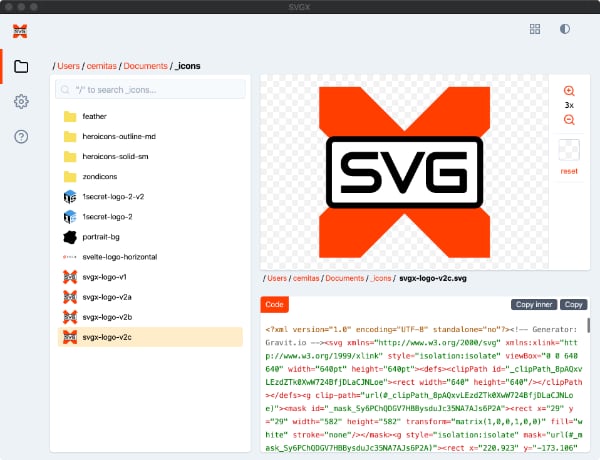
User reviews (0)