Website profiles · Technology insights · Alternatives

syncplay.pl

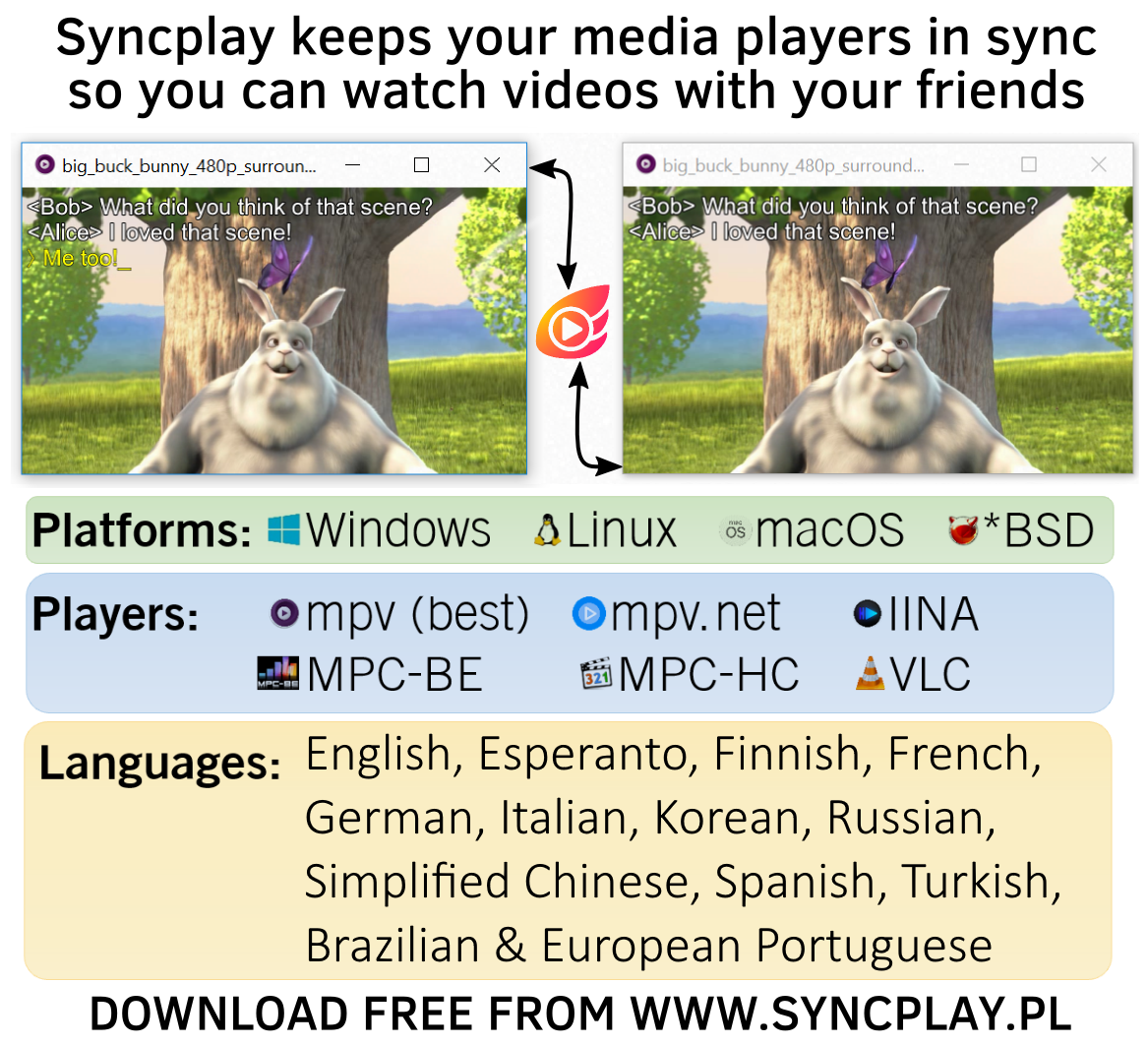
Syncplay synchronises video playback across multiple media players so that a group of people who all have the same videos can watch them together.

Paid content
Visit website
Profile views 1 Outbound visits 11 Normal
Syncplay Full homepage screenshot

At a glance

Category
Software & Apps
Language
English
Paid-content signal
Paid contentObserved
Registered
2012
Hosting
OVH SASInferred
HTTPS certificate trusted
PassedObserved
Last updated

Website review

This review may include AI-generated content and is not individually verified. Domain, certificate and other facts come from the observed data on this page.

What is Syncplay?

Syncplay is free, open-source software that keeps video playback in sync across several people's media players, so a group can watch the same file together from different locations. Everyone needs their own copy of the video; Syncplay synchronizes pausing, unpausing and seeking over the internet in a shared "virtual room," so the group stays on the same moment.

What it actually does

  • Shared control: when one person pauses or jumps to a scene, the others follow, instead of everyone shouting "wait, pause!"
  • Works with players you already use: the site lists mpv, mpv.net, MPC-BE, MPC-HC, VLC 3, IINA and memento, with mpv (or mpv.net on Windows) recommended for best compatibility.
  • Pairs with voice chat: it handles playback only, so you run Mumble, Skype or similar alongside it to talk.
  • Cross-platform: Windows, Linux, BSD and macOS builds are offered, plus public servers hosted in France if you don't want to run your own.

Who it suits

It fits friend groups and long-distance couples who already have the same files and want a low-friction watch-together setup without a streaming service. It suits people comfortable installing software and picking a media player. It is less suitable if you want built-in chat, browser-based viewing, or automatic handling of different copies or versions of a film.

A practical next step

For a first session, agree on one player (mpv is the safest bet), confirm everyone has an identical file, and connect to one of the public rooms before trying a private server. If you'd rather compare alternatives, MetaTheater and Watch2Gether take different approaches worth checking.

How do I set up Syncplay so my friends and I can watch the same video together?

Syncplay keeps everyone's media player at the same point in the video: when one person pauses, unpauses or seeks, the others follow, while each person plays the file locally. That means everyone must already have the same video file, and each person needs a compatible player installed. According to the Syncplay page, supported players include mpv, mpv.net, MPC-BE, MPC-HC, VLC 3, IINA and memento, with mpv recommended for best compatibility.

Setup, step by step

  1. Everyone installs Syncplay from Syncplay (Windows installer or portable, Linux packages, or the macOS disk image for version 15+). On Windows, the page warns against running it as administrator on Windows 11, and notes that a missing Visual C++ 2015–2022 Redistributable can stop it loading.
  2. Everyone installs a supported player and makes sure the same video file is available locally, in the same or a comparable version.
  3. One person hosts a room. You can use one of the public servers listed on the site (for example syncplay.pl:8995 through :8999) or run your own server; the site has a "Running a server" section for that.
  4. Others join the same server and room with the same room name, then each person opens the video in their player through Syncplay rather than launching it separately.
  5. Agree on a countdown, then press play. From then on, pauses and seeks propagate to the room.
  6. Run voice chat alongside — the site suggests VoIP software such as Mumble or Skype, since Syncplay only synchronises playback.

Practical decisions

  • Public server vs. your own: a public server is the fastest way to start for a one-off movie night. A self-hosted server gives you a private room and control over who connects, at the cost of setup effort.
  • Which player: mpv is the safest default for compatibility; VLC 3 is the familiar choice if your friends already use it.
  • Same file matters: Syncplay synchronises playback, not the video itself, so mismatched rips or different editions will drift or fail to line up.

As a next step, do a two-minute test with one friend before inviting the group: join the room, play, pause and seek once each, and confirm both sides stay together.

Which media players work best with Syncplay, and how do I choose one?

Start with mpv (or mpv.net on Windows) if you want the smoothest Syncplay experience: Syncplay's own documentation names mpv as the most compatible option. Choose VLC 3 if you want a familiar interface with minimal setup, MPC-BE or MPC-HC if you are already comfortable with those Windows players, and IINA on macOS if you want a native-feeling player. memento is also listed as supported.

Quick comparison

Player Best for Trade-off to know
mpv Best overall compatibility with Syncplay Sparse default interface; many controls are keyboard-driven or configured via files
mpv.net Windows users who want mpv compatibility with a more conventional UI Windows-focused
VLC 3 People who want a widely known player with little learning curve Check that you are using the supported VLC 3 line rather than assuming any VLC version works
MPC-BE / MPC-HC Windows users already using these players Less portable across operating systems
IINA macOS users who want a native app macOS only
memento Users looking for another supported option Less commonly discussed than mpv or VLC

How to decide

  1. Pick your operating system first. On macOS, IINA is the natural native choice; on Windows, mpv.net, MPC-BE or MPC-HC fit existing habits; on Linux, mpv is the straightforward pick.
  2. Prioritise compatibility over familiarity if sync problems appear. Syncplay synchronises pausing, unpausing and seeking, but it does not stream the video itself—everyone must already have the same file. If playback drifts or controls behave inconsistently, switching to mpv is the most direct troubleshooting step.
  3. Keep voice chat separate. Syncplay is designed to run alongside VoIP software such as Mumble or Skype rather than replacing it, so choose a player that leaves screen space and audio handling comfortable during a call.

A practical setup for a distant friend group: each person installs mpv and Syncplay, confirms they have an identical copy of the video file, joins the same virtual room and server, then starts playback together. If one person strongly prefers VLC's interface, test a short clip with both players before committing to a full-length session.

For downloads and supported player details, see Syncplay.

Why won't Syncplay launch on Windows, and how can I fix it?

The most likely cause is a missing Microsoft Visual C++ runtime: Syncplay's own download page notes that if Syncplay does not load on Windows, you probably need the Microsoft Visual C++ 2015–2022 Redistributable Package, specifically the 32-bit version (vc_redist.x86.exe) even on 64-bit Windows. Install that, reboot, and try launching again.

Other fixes worth trying

  • Don't run it as Administrator on Windows 11. The page explicitly warns this can cause UI issues. Launch it normally from your user account.
  • Try the console build. The same download includes SyncplayConsole.exe, which starts without the graphical interface. If that runs, the problem is in the GUI layer rather than the installation itself.
  • Reinstall cleanly. Uninstall, delete leftover settings, then reinstall. On Windows the installer stores settings in %APPDATA%, while the portable build keeps them in the Syncplay folder — a corrupted settings file in either location can stop startup.
  • Check your media player. Syncplay drives an external player such as mpv, mpv.net, MPC-BE, MPC-HC, VLC 3, IINA or memento. If Syncplay opens but then closes or hangs, the player path or version may be the issue; mpv (or mpv.net on Windows) is recommended for best compatibility.

If it still fails

Report it through Syncplay's GitHub issue tracker, but check the Support section first in case the problem is already covered. Include your Windows version, whether you used the installer or portable build, and any error message.

For a quick decision: if nothing happens at all when you double-click the icon, start with the Visual C++ redistributable; if the window flashes and vanishes, suspect settings or the player configuration.

Can I run my own Syncplay server instead of using the public ones?

Yes. Syncplay is designed so that groups can run their own server rather than relying on the official public servers (the page lists several hosted in France, e.g. syncplay.pl:8995–8999). The software is free and open source under Apache 2.0, and the site includes a "Running a server" section plus a server-only package for Linux, so self-hosting is an intended, supported path.

When self-hosting makes sense

  • Privacy and control: you decide who can connect and where the traffic goes, instead of using a shared public room.
  • Reliability for a regular group: a persistent server avoids depending on the availability of the official ones.
  • Custom setup: useful if you already run a Linux box or VPS and want the room on your own network or domain.

Trade-offs to weigh

  • You handle uptime and updates: a self-run server is your responsibility; public servers are maintained for you.
  • Setup effort: expect to install and configure the server package, open the relevant port, and share the address with your group.
  • Same client, either way: each participant still needs Syncplay and the same video files locally; only the server address differs.

Practical next step

Read the "Running a server" page on Syncplay before installing, then test with one friend: start your server, have them connect using your address and port, and confirm that pause, unpause and seek stay in sync. If you only watch occasionally with a few people, the public servers are the simpler choice; if you host a recurring movie night, a small self-run server is worth the one-time setup.

How does Syncplay keep everyone's pause, play, and seek actions in sync during a group viewing?

Syncplay coordinates pause, play, and seek across the internet so that everyone in the same virtual room, playing the same local file, sees the same thing at the same moment. It doesn't stream video itself: each person opens their own copy in a supported player (mpv, mpv.net, MPC-BE, MPC-HC, VLC 3, IINA, or memento), and Syncplay sends the control events between clients. The practical effect is that one person pausing or jumping to a timestamp moves the whole group, instead of people shouting "wait, pause!" as the project's own page jokes.

What this means for a real session

  • One host, one shared file: every participant needs the identical video file locally; Syncplay keeps the players aligned, not the files distributed.
  • Voice goes elsewhere: the site suggests running it alongside VoIP software such as Mumble or Skype, since Syncplay handles playback control only.
  • Compatibility matters: the project recommends mpv (or mpv.net on Windows) for the best experience, so a group with mixed players may see smoother results if everyone standardises.
  • Rooms and servers: you join a virtual room on a server; the site lists official public servers hosted in France, and you can run your own.

Choosing this over screen sharing

If your group already has the same files and decent players, Syncplay preserves full local quality and lets each person resize, adjust volume, or use subtitles without affecting others. Screen sharing or a watch-party service is simpler when files differ or when someone can't install software, but it costs quality and control. For a small group of friends with matched libraries, the synchronised-player approach is the lighter option.

A sensible first step: have everyone install Syncplay and mpv, confirm the exact same file version, then test pause and seek in a private room before the real session.

Related questions

More questions →
How Does Syncplay Keep Everyone's Video in Sync During a Group Watch?

Syncplay keeps a group in sync by synchronizing the actions that matter — play, pause, and seek — over the Internet, so everyone who has the same video file in the same virtual room sees the same moment. It does not stream video to anyone: each person plays their own local copy in a supported media player, and Syncplay relays the control events between them. To use it, you need the Syncplay client, a compatible player (mpv is recommended for best compatibility), the same video file, and a shared room on a server.

The core mechanism: shared control events, not shared video

The key design choice is that Syncplay never touches the video data itself. Instead:

  • Each participant opens the same file in their own player.
  • Syncplay connects everyone to a virtual room on a Syncplay server.
  • When one person pauses, unpauses, or seeks, that action is sent to the server and passed on to the other clients, which apply it to their own players.

The result is a shared viewing experience without transferring large files. Because the file is local, playback quality depends on each person's own copy and hardware, not on the connection to the server.

A practical example: four friends each have the same 1080p file. They join room "movie-night" on a public server, one person presses play, and everyone's player starts together. If someone needs to step away, they pause and everyone else pauses too; when they resume, the group resumes from the same point.

What gets synchronized, and what doesn't

Action Synchronized? Notes
Play / unpause Yes Sent over the Internet to all room members
Pause Yes Same mechanism
Seek Yes Everyone jumps to the same position
Voice chat No Use separate VoIP software such as Mumble or Skype alongside Syncplay
Video/audio data No Each person plays their own local file

This split is why Syncplay is lightweight: the server only coordinates state, and the heavy lifting stays on each machine.

Setting up a group watch: the concrete steps

  1. Install the client. Download Syncplay 1.7.6 from the official release page (https://syncplay.pl/syncplay-1-7-6-release/). Windows users can choose the installer (settings stored in %APPDATA%) or the portable version (settings stored in the Syncplay folder). Linux users have a Deb package, a server-only Deb package, and a tarball; macOS users need version 15 or later and use the disk image.
  2. Make sure the player is supported. Syncplay 1.7.6 works with mpv, mpv.net, MPC-BE, MPC-HC, VLC 3, IINA, and memento. mpv (or mpv.net on Windows) is recommended for best compatibility.
  3. Confirm everyone has the same file. Syncplay assumes identical copies; mismatched files are the most common cause of drift or failed sync.
  4. Connect to a server and join the same room. Public official servers are hosted in France at syncplay.pl on ports 8995, 8996, 8997, 8998, and 8999. Everyone must use the same server and room name.
  5. Start playback together. One person presses play; the others follow automatically. From then on, pause and seek actions propagate to the room.
  6. Add voice chat separately. Run Mumble, Skype, or similar alongside Syncplay so you can talk while watching.

Verification: after the first play/pause/seek, check that every participant's player responded. If one person's player didn't move, that client is the place to troubleshoot.

Common snags and how to handle them

  • Syncplay won't launch on Windows. Install the Microsoft Visual C++ 2015–2022 Redistributable — specifically the 32-bit vc_redist.x86.exe. As an alternative, the command-line version SyncplayConsole.exe is available.
  • Don't run as administrator on Windows 11. The project explicitly warns this can cause UI issues (referenced as issues #623 and #634).
  • Players drift or won't sync. Recheck that everyone opened the exact same file and is in the same room on the same server; also confirm the player is on the supported list.
  • Linux tarball install confusion. Follow the installation instructions if you're unsure about sudo make install.

Licensing, cost, and where to get help

Syncplay is free software under the Apache 2.0 license, with source code at https://github.com/Syncplay/syncplay. It supports Windows, Linux, *BSD, and macOS, and the interface is available in English, Esperanto, Finnish, French, German, Italian, Korean, Russian, Simplified Chinese, Spanish, Turkish, and Brazilian and European Portuguese. Bugs can be reported at https://github.com/Syncplay/syncplay/issues or by email to [email protected] — but check the Support section first, since many problems are already documented there.

Which Media Players and Platforms Does Syncplay Support?

Syncplay 1.7.6 supports mpv, mpv.net, MPC-BE, MPC-HC, VLC 3, IINA and memento, and runs on *Windows, Linux, BSD and macOS. If you want the smoothest experience, use mpv (or mpv.net on Windows), which the project names as the best-compatibility option. Your setup will work as long as everyone in the room plays the same file in the same virtual room; Syncplay synchronises pause, unpause and seek actions over the internet, and you pair it with voice software such as Mumble or Skype.

Supported players

Player Notes
mpv Recommended for best compatibility
mpv.net Recommended Windows option
MPC-BE Supported
MPC-HC Supported
VLC 3 Supported (version 3)
IINA Supported (macOS player)
memento Supported

If your usual player is not on this list, Syncplay cannot synchronise it — switch to one of the above before setting up a room.

Supported platforms and downloads

Platform What the site offers
Windows Installer (settings stored in %APPDATA%) or portable build (settings stored in the Syncplay folder)
Linux Deb package, server-only deb package, or tarball (installation instructions provided if you are unsure about sudo make install)
macOS Disk image, for version 15+
*BSD Listed as a supported platform; source code is on GitHub

The release page is at https://syncplay.pl/syncplay-1-7-6-release/ and the source code at https://github.com/Syncplay/syncplay.

Windows-specific caveats

  • Do not run Syncplay as administrator on Windows 11 — the site warns this can cause UI issues (referencing issues #623 and #634).
  • If Syncplay does not load on Windows, install the Microsoft Visual C++ 2015-2022 Redistributable Package, specifically the 32-bit version (vc_redist.x86.exe).
  • As a fallback, the command-line version SyncplayConsole.exe is available.

Choosing between the options

  • Best compatibility: mpv everywhere, or mpv.net on Windows.
  • Already using VLC: VLC 3 is supported, so you can keep your current player.
  • No install rights on Windows: the portable build keeps settings inside the Syncplay folder, so nothing is written to %APPDATA%.
  • macOS older than 15: the disk image is listed for version 15+, so check your OS version before downloading.

Public servers to test with

Once your player and platform match, you can try the official public servers hosted in France: syncplay.pl:8995, :8996, :8997, :8998 and :8999. Bug reports go to https://github.com/Syncplay/syncplay/issues or [email protected], but the site suggests checking the Support section first.

What Is Syncplay and What Does It Do?

Syncplay is free software that synchronizes media playback across multiple media players, so a group of people who each have the same video file can watch it together from different locations. It synchronizes pausing, unpausing, and seeking over the Internet, giving everyone in the same virtual room a shared viewing experience. It does not stream video itself — each participant plays their own local copy, and Syncplay keeps those copies in step. It is typically used alongside voice software such as Mumble or Skype, since Syncplay handles playback sync, not conversation.

How It Works

The core mechanism is a shared virtual room backed by a Syncplay server. Each participant connects their media player to the Syncplay client and joins the same room. When one person pauses, resumes, or seeks, that action is sent through the server and applied to everyone else's player.

Because the video file is never transmitted, every participant must already have the same file locally. Syncplay's own framing captures the problem it solves: before it existed, groups had to shout things like "3..2..1.. Play! ...No wait, pause! ...No wait, argh!" to stay roughly in sync.

For example, if four friends in different cities each own the same movie file, they can join one room, and when one of them pauses to answer the door, everyone else's playback pauses too.

What You Need to Use It

  • A supported media player. Syncplay 1.7.6 supports mpv, mpv.net, MPC-BE, MPC-HC, VLC 3, IINA, and memento. The project recommends mpv (or mpv.net on Windows) for best compatibility.
  • The same media file on each participant's machine.
  • The Syncplay client, available for Windows, Linux, *BSD, and macOS (version 15+ for the macOS disk image).
  • A server to connect to. You can use public Syncplay servers or run your own; the site documents a server-only package for Linux and a "Running a server" guide.
  • Optionally, voice software like Mumble or Skype for talking during the session.

Supported Platforms and Players at a Glance

Category Details
Platforms Windows, Linux, *BSD, macOS
Players mpv, mpv.net, MPC-BE, MPC-HC, VLC 3, IINA, memento
Languages English, Esperanto, Finnish, French, German, Italian, Korean, Russian, Simplified Chinese, Spanish, Turkish, Brazilian & European Portuguese
License Apache 2.0
Cost Free

Public Servers

The official public Syncplay servers are hosted in France and listed as:

  • syncplay.pl:8995
  • syncplay.pl:8996
  • syncplay.pl:8997
  • syncplay.pl:8998
  • syncplay.pl:8999

Common Setup Issues

  • Syncplay won't launch on Windows. The site notes you likely need the Microsoft Visual C++ 2015-2022 Redistributable Package — specifically the 32-bit version (vc_redist.x86.exe). The command-line version, SyncplayConsole.exe, is an alternative.
  • Windows 11 UI problems. The site explicitly warns not to run Syncplay as Administrator on Windows 11, as this can cause UI issues.
  • Installation help. Linux tarball users who aren't sure how to sudo make install are pointed to the installation instructions; the site also has a client troubleshooting/FAQ page.

Where to Get It and Report Problems

Syncplay 1.7.6 is available from the release page at https://syncplay.pl/syncplay-1-7-6-release/, with source code on GitHub at https://github.com/Syncplay/syncplay. Bugs can be reported at https://github.com/Syncplay/syncplay/issues or by email to [email protected] — though the site suggests checking the Support section first in case the problem is already covered.

Where to Get Help or Report a Bug with Syncplay

Start with the Support section and the client troubleshooting/FAQ on syncplay.pl, since most setup and playback problems are already covered there. If the issue is a genuine bug, report it at https://github.com/Syncplay/syncplay/issues, or email [email protected]. Before filing anything, confirm you are on the current release (1.7.6) and can reproduce the problem.

Check the documentation first

Syncplay's site organizes help by task, so match your problem to the right page before searching elsewhere:

Problem type Where to look
Installing on Windows, Linux, macOS Installation page (includes notes on packages and tarballs)
Client won't connect, sync drifts, UI misbehaves Client troubleshooting/FAQ
Setting up your own room server Running a server page
Understanding how syncing works The Syncplay Protocol page

The FAQ is the fastest route for common client issues. For example, if Syncplay does not load on Windows, the site notes you likely need the Microsoft Visual C++ 2015-2022 Redistributable Package (the 32-bit vc_redist.x86.exe), and that the command-line version SyncplayConsole.exe is an alternative.

Report a bug on GitHub

The GitHub issues page is the primary bug tracker. A report that gets acted on usually includes:

  • Version: state that you are running 1.7.6 (the current release).
  • Platform: Windows, Linux, *BSD, or macOS, plus the exact OS version.
  • Player: which supported player you paired with Syncplay — mpv, mpv.net, MPC-BE, MPC-HC, VLC 3, IINA, or memento. mpv (or mpv.net on Windows) is recommended for best compatibility, so mention if you are using something else.
  • Steps to reproduce: what you did, what you expected, and what happened.
  • Logs or screenshots: especially for UI problems.

One known trap worth checking before you file: on Windows 11, do not run Syncplay as Administrator, as the site warns this can cause UI issues (referenced as issues #623 and #634). If your symptom matches that, the fix is to run it normally rather than to report a new bug.

Email the team

If GitHub isn't practical, write to [email protected]. The site asks that you check the Support section first so the problem can be resolved without a round trip. Email suits questions that aren't clearly bugs, such as installation confusion or feedback.

What not to expect from these channels

These are volunteer-run support routes for a free, Apache 2.0–licensed project. There is no stated response-time guarantee, and the site's own framing is community help plus bug tracking — so include enough detail in your first message to make a reply useful. Donations via PayPal are mentioned on the site as a way to support the project, but they are not a support channel.

How to Download and Install Syncplay 1.7.6

Syncplay 1.7.6 is available as a free download for Windows, Linux, and macOS (version 15+), with the source code on GitHub. Pick the package that matches your operating system: Windows users choose between an installer (settings stored in %APPDATA%) and a portable build (settings stored in the Syncplay folder); Linux users choose between a Deb package, a server-only Deb package, and a tarball; macOS users download a disk image. All packages are listed on the release page at https://syncplay.pl/syncplay-1-7-6-release/.

Before you start

  • Syncplay synchronises playback across media players, so everyone in a room needs the same video file. For best compatibility, the project recommends using it with mpv (or mpv.net on Windows). Supported players in 1.7.6 are mpv, mpv.net, MPC-BE, MPC-HC, VLC 3, IINA, and memento.
  • Syncplay is free software under the Apache 2.0 licence. The site lists PayPal among its payment platforms, but that is for donations — the download itself is free.
  • You will also need a server to connect to. Official public servers are listed on the site (hosted in France): syncplay.pl:8995 through syncplay.pl:8999. Alternatively, you can run your own server.

Windows

  1. Go to the release page and choose one of the two Windows builds:
    • Windows installer — stores settings in %APPDATA%.
    • Windows portable — stores settings inside the Syncplay folder, which suits running from a USB drive or keeping everything self-contained.
  2. Run the downloaded file and follow the installer prompts (or unpack the portable build).
  3. Do not run Syncplay as Administrator on Windows 11 — the project warns this can cause UI issues (referenced as issues #623 and #634).
  4. If Syncplay does not load, install the Microsoft Visual C++ 2015-2022 Redistributable Package, specifically the 32-bit version (vc_redist.x86.exe). As an alternative, you can use the command-line console version, SyncplayConsole.exe.

Verify it works: launch Syncplay, open the server list, and connect to one of the public servers above. If the client window opens and shows a server connection, the install is sound.

Linux

Three options are offered:

Package Use it when
Linux Deb Package You are on a Debian-based distribution and want the client
Linux Deb Server-only Package You only need to host a room, not watch
Linux Tarball Your distribution does not use Deb packages, or you prefer building from source

For the tarball, the site points to its installation instructions if you are unsure how to sudo make install. Follow those instructions rather than guessing at paths.

Verify it works: start the client from your application menu or terminal, then connect to a public server or your own.

macOS

Download the macOS disk image from the release page. Note the requirement: macOS version 15 or later. Open the disk image and drag the app into Applications as usual, then launch it and connect to a server to confirm it runs.

Source code and bug reports

  • Source code: https://github.com/Syncplay/syncplay
  • Bug reports: https://github.com/Syncplay/syncplay/issues — the project asks you to check the Support section of the site first in case the problem is already covered. You can also email [email protected].

Common snags

  • Nothing happens on Windows launch: install the 32-bit Visual C++ 2015-2022 Redistributable, or try SyncplayConsole.exe to see whether the issue is the GUI or the program itself.
  • Strange UI behaviour on Windows 11: check that you are not running the app as Administrator.
  • macOS install refused: confirm your macOS version is 15 or newer.
  • Everyone drifts out of sync: this is usually a player mismatch or different files. Standardise on mpv/mpv.net where possible and confirm all participants have the identical video file.

Once installed, the remaining setup is joining or hosting a room and pairing Syncplay with a voice client such as Mumble or Skype, since Syncplay handles pausing, unpausing, and seeking but not voice chat.

Website Overview

Identifiable technologies and additional version or configuration signals make the service easier to fingerprint, which may help targeted scanners narrow their checks. An established domain and managed infrastructure suggest continuity of operations and may support dependable delivery, although neither guarantees service quality.

Domain and Registration

Registered in 2012, this domain has about 13 years of history. That suggests continuity, although ownership and purpose may have changed. The domain uses the common .pl extension, which is not an independent safety signal.

DNS and Email

Nameservers are provided by nazwa.pl, indicating managed DNS hosting. MX records point to the syncplay.pl email service. DNSSEC is enabled, allowing validating resolvers to authenticate signed DNS data. CAA records restrict which certificate authorities are authorized to issue certificates. No CNAME was found; the observed records resolve directly to addresses.

TLS and Certificates

The public key uses EC with 256 bits. The server supplied a complete certificate chain. No organization name is present in the certificate; the available fields are consistent with domain validation. The certificate was issued by Let's Encrypt, commonly associated with automated certificate services. The certificate's total validity is about 89 days, consistent with a short renewal cycle.

HTTP and Browser Security

The response lacks these common security headers: CSP, X-Content-Type-Options, Referrer-Policy, Permissions-Policy, clickjacking protection. No X-Powered-By header was found, reducing one common source of backend fingerprinting information. No obvious internal addresses or debug information were found in the headers. The Server header identifies nginx without an exact version. No explicit CDN or WAF marker was found in the response headers.

Technology Stack Analysis

The public page identifies WordPress 7.1.3, jQuery, Google Analytics, nginx, with exact versions exposed for 1 technologies. These details can narrow vulnerability checks, although exposure alone is not a vulnerability.

Search and Social Sharing

The Generator tag identifies WordPress 7.1.3, making the publishing system easier to fingerprint. No viewport meta tag was detected, which may affect mobile layout behavior. The title has 8 characters, within a common display range. A meta description is present, with 146 characters. The observed directives allow indexing and link following.

Hosting and Email

DNSnazwa.pl
HostingOVH SAS
Emailsyncplay.pl
Approximate IP geolocation (inferred; a CDN or proxy may differ from the origin server) France flagFrance Inferred 151.80.32.178

Registration details

RDAP / WHOIS

Registrarnazwa.pl sp. z o.o.
Registered2012-11-05
Expires2027-11-05
Domain statusUnknown
Nameserversns1.nazwa.pl、ns2.nazwa.pl、ns3.nazwa.pl
DNSSECsigned

DNS records

DNS

TypeNameValueTTLPriority
Asyncplay.pl151.80.32.1783600—
MXsyncplay.plsyncplay.pl360010
NSsyncplay.plns1.nazwa.pl3600—
NSsyncplay.plns2.nazwa.pl3600—
NSsyncplay.plns3.nazwa.pl3600—
TXTsyncplay.plv=spf1 mx a include:_spf.google.com ~all3600—
CAAsyncplay.pl0 issue "certum.pl"3600—
CAAsyncplay.pl0 issue "letsencrypt.org"3600—
CAAsyncplay.pl0 issuewild "certum.pl"3600—
CAAsyncplay.pl0 issuewild "letsencrypt.org"3600—
DSsyncplay.pl57584 13 2 588a9b439074f45b49ddd32de6000f412e3fd64f155750ce2bcf26a059f14bc986400—
DMARC_dmarc.syncplay.plv=DMARC1; p=none; pct=100; rua=mailto:[email protected]; sp=none; aspf=r;3600—

TLS and certificates

TLS / SSL

AssessmentNormal configuration
Supported protocolsTLSv1.3
Negotiated protocolTLSv1.3
Certificate subjectsyncplay.pl
IssuerLet's Encrypt
Valid until2026-12-25T06:03 · Remaining when checked: 61 days
Verification detailsCertificate trust: Passed · Hostname match: Passed

HTTP response headers

HTTP

HeaderValue
content-typetext/html; charset=UTF-8
servernginx
strict-transport-securitymax-age=63072000; includeSubDomains; preload

Identified technologies

WordPress 7.1.3jQueryGoogle Analyticsnginx

Pages, Search and Sharing

Meta descriptionSyncplay synchronises video playback across multiple media players so that a group of people who all have the same videos can watch them together.
Canonical URLhttps://syncplay.pl/
LanguageEnglish (default)
Twitter CardNot detected
All bots 0 allowed · 0 disallowed

Recent Updates

  • Website images
  • Screenshots

User reviews (0)

  • No reviews yet.