Website profiles · Technology insights · Alternatives

thegitcity.com

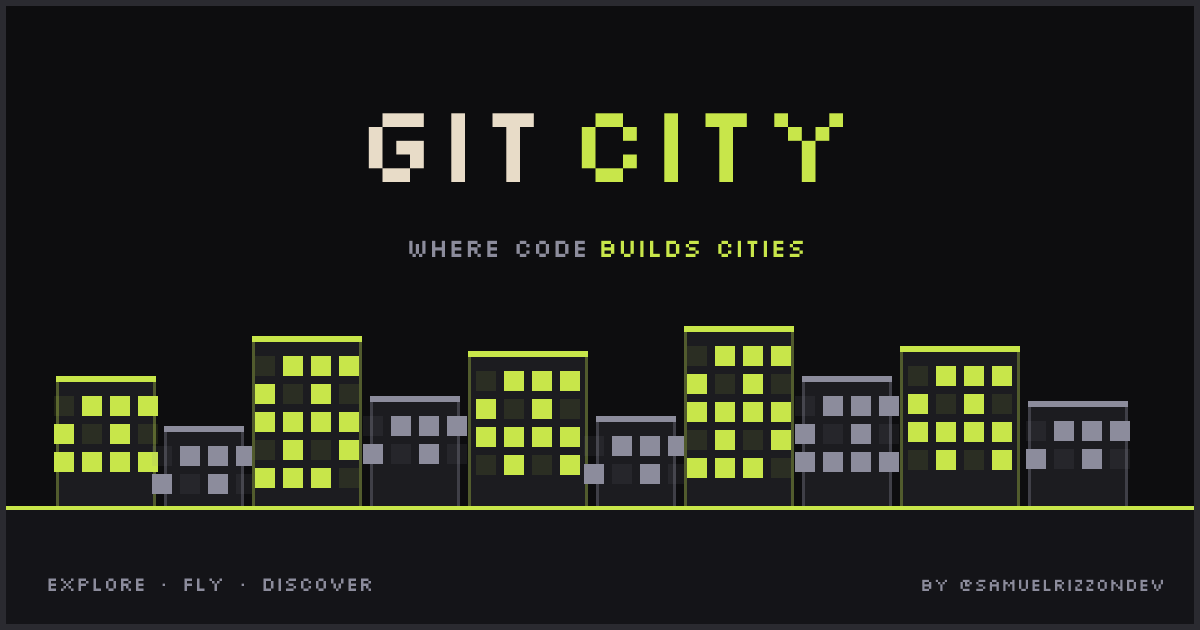
Explore GitHub users as buildings in a 3D pixel art city. Fly through the city and discover developers.

No paid content found
Visit website
Profile views 0 Outbound visits 0 Normal
Git City - Your GitHub as a 3D City Full homepage screenshot

At a glance

Category
Development
Language
English
Paid-content signal
No paid content foundObserved
Registered
2026
Hosting
VercelInferred
HTTPS certificate trusted
PassedObserved
Last updated

Website review

This review may include AI-generated content and is not individually verified. Domain, certificate and other facts come from the observed data on this page.

What is Git City?

Git City is a browser-based visualization that turns GitHub users into buildings in a 3D pixel-art city. Instead of browsing profiles as lists, you fly through a shared "global city of GitHub developers," where each developer is represented as a structure you can discover visually. The page describes it as a way to "find yourself" among GitHub users, with a search function and adjustable graphics settings.

What you can do with it

  • Locate your own profile using the search, then see how your building fits into the wider city.
  • Explore developers visually rather than through rankings or follower counts.
  • Browse casually — the pixel-art, fly-through format suits quick, curiosity-driven discovery more than serious analysis.

Who it suits

It's aimed at developers who enjoy playful representations of open-source activity, and at anyone curious how a GitHub presence translates into a visual landmark. It is not a productivity or analytics tool: the page evidence shows no contribution charts, metrics, or repository breakdowns, so treat it as exploration and novelty rather than insight.

A practical next step

Search for your own GitHub handle first. If your building exists, that confirms the visualization is drawing on your public profile; from there, fly around nearby buildings to see which developers and projects cluster together. For conventional profile browsing alongside it, GitHub itself remains the reference point.

How do I find my own building in Git City?

Search for your GitHub username in the search box shown in the Git City interface, then use the arrow controls to fly through the city and locate the building that represents your profile. Your building is drawn from your GitHub account, so start by confirming you are searching the exact username you use on GitHub.

A practical way to narrow it down

  • Enter your username without extra spaces or a leading "@".
  • If the city view is hard to scan, move through it section by section rather than trying to spot your building from the overview.
  • Check that you are looking at the correct account if you have renamed or transferred your GitHub username, since the city is built from GitHub users.

The page itself presents Git City as a global city of GitHub developers, with a search field and a flight-style view of the city. That means the intended path is search first, then navigate. If you want to compare how another GitHub profile looks in the same city, you can search a collaborator's username and use their building as a landmark near yours.

For a quick reference point, the official GitHub profile page at GitHub shows the username and profile details Git City draws from, which helps you confirm you are searching the right handle before returning to Git City.

How are buildings generated from GitHub profiles and contributions?

Git City turns GitHub activity into a 3D pixel-art city where each developer appears as a building, and the page's own framing ("A global city of GitHub developers. Find yourself.") suggests the mapping is per-user rather than per-repository. The supplied page evidence does not document the exact generation algorithm, so the specific rules for height, shape or district placement shouldn't be treated as confirmed.

What the page supports

  • One building per developer. The city is described as a global city of GitHub developers, so the unit is the person's profile, not individual repos.
  • Contributions feed the visual. The page's keywords include "contributions" and "git visualization," indicating that activity data shapes how a building looks.
  • Pixel-art rendering. Buildings are stylized in pixel art, which means data is translated into simplified visual attributes rather than literal charts.
  • Exploration by flying through. Visitors navigate the city spatially to discover developers, as the description says "Fly through the city and discover developers."

A practical reading

In a typical implementation of this idea, a profile's contribution volume would drive building height or footprint, while account age or consistency might influence style. That is general advice about how such visualizations usually work, not a documented feature of this site. If precise mapping matters to you, check the site directly or the builder's notes (@samuelrizzondev is credited on the page).

Who benefits

Recruiters and community organizers can scan a spatial overview faster than a leaderboard; developers get a playful self-portrait of their activity. The trade-off is that a stylized building compresses many signals into one shape, so it rewards impression over precise comparison.

What can I learn about a developer by exploring their building in the city?

A developer's building in Git City is a visual summary of their GitHub presence rather than a full read of their skills. The page describes the city as "a global city of GitHub developers" where you "find yourself" by flying through buildings, so each structure stands in for a GitHub profile and its activity. What you can reasonably infer is the shape of someone's public work: how much they contribute, how prominent they are in the cityscape, and how their footprint compares with other developers nearby.

What the building view is good for

  • A quick visual comparison. If one building reads as larger or more developed than another, treat that as a cue to look closer, not a verdict. It helps you shortlist profiles worth opening on GitHub.
  • Spotting active contributors. Scanning a dense cluster gives you a fast sense of who is consistently present in open source, which is useful when you are assembling a list of people to follow or learn from.
  • Self-check. The "Find yourself" framing makes it a mirror: seeing your own building next to others is a concrete prompt to ask whether your public work reflects what you want to be known for.

What it cannot tell you

A building does not show code quality, collaboration style, review habits, or whether someone is a good teammate. Those require reading actual repositories, issues and pull requests. Use the city as a starting point and the profile page as the evidence.

A practical next step

Pick one building that stands out, open the underlying GitHub profile, and read two or three recent repositories: what they build, how they respond to issues, and how often they commit. That combination—visual impression plus repository detail—gives you a fairer picture than either alone. For broader context on a developer's ecosystem, checking their activity on GitHub directly remains the reliable source.

How does Git City differ from a standard GitHub profile or contribution graph?

Git City turns a GitHub account into a building inside a shared 3D pixel-art city, where you fly through and discover developers. A standard GitHub profile is a functional page: your repositories, pinned projects, activity and contribution graph in a list-and-grid layout. The difference is purpose and presentation — GitHub is built for browsing code and history, while Git City is built for visual exploration and discovery of people.

What changes in practice

  • Your contribution graph becomes a structure. Instead of a green-square calendar, your activity is expressed as a building you can locate in a city. The page evidence describes the site as "a global city of GitHub developers" with a search field, so the core interaction is find-a-developer, not read-a-repo.
  • Discovery is spatial rather than list-based. On GitHub you find people through search, followers, stars or shared repos. In Git City you move through a city and encounter developers by proximity and visual presence.
  • Detail is traded for atmosphere. A GitHub profile shows commit history, languages, issues and README content in depth. A pixel-art building can signal that someone exists and is active, but it can't carry the same information density.

Choosing between them

Need Better fit
Review someone's code, issues or commit history Standard GitHub profile
Judge contribution consistency over time GitHub contribution graph
Browse developers casually or share a playful identity Git City
Assess a candidate for a technical role GitHub profile, not the city view

A concrete scenario: an open-source maintainer wants a lightweight, shareable way to show they're part of a community — a city building works as a visual calling card. A hiring manager screening for relevant experience should stay on GitHub, where repository and contribution detail is legible.

As a practical next step, treat Git City as a discovery layer and GitHub as the source of record: use the city to stumble onto developers, then open their actual profiles to evaluate their work. For broader context on how developers present themselves, the official GitHub site GitHub remains the reference point for profile features.

Can I use Git City to discover and compare developers for collaboration or hiring?

Yes, but mainly as a lightweight discovery and browsing tool rather than a formal comparison or screening platform. Git City turns GitHub users into buildings in a 3D pixel-art city that you fly through, so the intended experience is exploration: find yourself, browse developers, and get a visual sense of who is active. The page evidence confirms the core concept ("Explore GitHub users as buildings in a 3D pixel art city. Fly through the city and discover developers") and shows a search field, but it does not show side-by-side metrics, filtering by language or location, or any hiring-oriented comparison view.

What it is useful for

  • Casual discovery: Spotting developers you might not encounter through GitHub search alone, especially if you enjoy a visual, game-like browse.
  • Self-orientation: Seeing your own profile represented in the city, which is the "Find yourself" framing on the page.
  • Starting a shortlist: Using it as a first pass, then verifying candidates on their actual GitHub profiles.

Where it falls short for hiring

Comparing developers for collaboration or hiring needs consistent, reviewable criteria: contribution history, languages, project quality, and communication. A 3D city is engaging but not a substitute for reading repositories and contribution graphs. Treat building size or placement as a prompt to look closer, not as a ranking.

A practical workflow

  1. Browse or search in Git City to surface names.
  2. Open each developer's GitHub profile and check pinned repositories, recent activity, and code you can actually read.
  3. For deeper context, look at community profiles on GitHub and discussion activity on Stack Overflow.
  4. Compare candidates in a simple table of your own criteria rather than relying on any single visualization.

Use it when you want a playful entry point to open-source discovery; use structured profile review when the decision is a hire or a serious collaboration.

Related questions

More questions →
What Is a Developer Profile and How Does Git City Turn It Into a 3D City?

A developer profile is the public record of a GitHub account: its repositories, contribution history, and activity over time. Git City (thegitcity.com) is a third-party visualization that turns those profiles into buildings in a shared 3D pixel-art city, so you can fly through and discover developers spatially. It is not an official GitHub product, and the city reflects only what GitHub exposes publicly — not code quality, skill, or hiring suitability.

What a developer profile actually contains

On GitHub, a profile is assembled from a few data types:

  • Repositories — public (and, to you, private) projects, each with its own language mix, stars, and history.
  • Contributions — commits, pull requests, issues, and reviews, aggregated into the contribution graph.
  • Activity — when and how often the account works, including streaks and gaps.
  • Identity layer — username, avatar, bio, followers, and pinned repositories.

These are the raw signals any profile visualization has to work from. Git City's own description frames the result simply: "Explore GitHub users as buildings in a 3D pixel art city."

How Git City maps profiles to a city

The site presents "a global city of GitHub developers" and invites you to "find yourself." The mapping works at the level of the profile as a whole:

GitHub profile element Appears in Git City as
A developer account A building in the city
The full set of developers The city layout you fly through
Your own account A locatable building via search

The page shows a search field with a "Search ▶" control and a small set of scene options (an "Intro" view and a "Graphics" setting marked HIGH), plus a live-activity indicator. What the visualization does not do is grade developers: a taller or more central building should be read as a visual placement, not a ranking of ability. Treat the city as a discovery and browsing layer over public GitHub data.

Finding your own profile in the city

  1. Open thegitcity.com in a browser. The city scene loads with the search control visible.
  2. Enter your GitHub username in the search field and submit with the search button.
  3. Expect the view to move to your building — your profile rendered as a structure within the city.
  4. Fly around to compare neighboring buildings and discover other developers.
  5. Adjust the Graphics setting if the scene runs poorly; the page exposes a HIGH option, so a lower setting is the place to look if performance drops.

A common snag: if your building looks sparse or you can't find yourself, check that your GitHub activity is public. Private contributions and private repositories won't surface in a third-party view.

What the visualization does and doesn't tell you

It does give you a fast, memorable way to see that a developer exists in the open-source landscape, to browse adjacent developers, and to get a spatial feel for a community.

It doesn't replace reading a profile. Stars, commit cadence, and repository contents still carry the substance; the city is an entry point, not an evaluation. For a concrete use case: if you're assembling a shortlist of open-source contributors to follow, use the city to stumble onto names, then open each GitHub profile to check repositories and contribution history before deciding.

Git City is built by an independent developer (@samuelrizzondev, per the site) and is a visualization layer, not a GitHub feature — so don't expect it to show anything GitHub itself keeps private.

What Is a 3D GitHub City and How Does It Visualize Developers?

A 3D GitHub city is a visualization that turns GitHub users into buildings inside a navigable pixel-art world. Git City (thegitcity.com) is one example: it describes itself as "a global city of GitHub developers" where you can "find yourself" and "fly through the city and discover developers." It is an exploration layer over developer profiles and contributions, not a replacement for GitHub itself. Use it when you want a spatial, visual way to browse developers or locate your own place in the city; keep using GitHub for actual code, issues, and collaboration.

How developers become buildings

The core mechanism is a mapping from developer identity to a place in the city:

  • One user, one building. Each GitHub user appears as a building in the 3D pixel-art city, so the skyline is a population of developers rather than a single project.
  • The city is global. The site frames it as a worldwide city of GitHub developers, so buildings represent people across the platform rather than one organization.
  • Pixel-art style. The visual language is deliberately game-like, which makes scanning and flying through the city feel like exploration rather than reading a directory.

The site's own description is the reliable source for this mapping: "Explore GitHub users as buildings in a 3D pixel art city." What the page evidence does not specify is the exact formula for building height, size, or placement, so treat any claim that a taller building equals a precise contribution count as unconfirmed unless the site states it.

What data drives the visualization

The site's keywords point to the inputs it works with: developer profiles, contributions, and open-source activity. In practice, that means the city is built from public-facing GitHub signals — who the developer is and what their activity looks like — rendered as architecture instead of a profile card.

A useful way to think about it: GitHub stores the record; the 3D city re-renders that record as a place. For example, if you want to see how a group of open-source maintainers looks as a neighborhood, the city view gives you that at a glance, while GitHub gives you the commits, pull requests, and discussions behind it.

Finding yourself and exploring others

The page evidence shows a search control ("Search") and a "Find yourself" prompt, which tells you the intended entry point: look up a GitHub user and locate their building.

  1. Open thegitcity.com.
  2. Use the search field to look up a GitHub username.
  3. Navigate or fly through the city to reach the matching building.
  4. Continue exploring nearby buildings to discover other developers.

The page also shows interface elements like a live/sleeping city indicator, a district-style label ("Emerald"), a view counter ("1 / 4"), and a graphics quality setting ("Graphics HIGH"). These are presentation controls for the city experience — they affect how the city looks and performs, not your GitHub data.

What the city view does and does not show

You can You cannot (based on available evidence)
See GitHub users as buildings in a 3D pixel-art city Read or edit code, issues, or pull requests
Search for a developer and find their building Assume building size maps to an exact contribution metric
Fly through and discover developers spatially Treat the city as an official GitHub product
Get a visual overview of developer presence Rely on it as a complete or real-time record of activity

The city is a discovery and visualization tool. For anything that requires the underlying repository data — reviewing a contribution history in detail, contacting a maintainer, or contributing to a project — go to the developer's GitHub profile.

When a 3D GitHub city is worth using

It fits best when the question is "who is out there and how do they cluster visually?" rather than "what exactly did this person commit?" If you are curating a list of open-source developers to follow, showing a friend what the GitHub population looks like as a skyline, or just want to find your own building, the city view is a fast, memorable way in. If you need verifiable contribution numbers or project-level detail, start from GitHub and use the city as a companion view.

What Is GitHub and How Is It Used for Open-Source Projects?

GitHub is a web platform for hosting Git repositories and collaborating on code. For open-source projects like mailcow, it serves as the place where source code lives, releases are published, bugs are reported, and contributions are reviewed. You can use GitHub without writing any code — browsing a project's repository, reading its changelog, or filing a bug report are all legitimate uses. The one thing to keep straight up front: Git is the version-control tool that tracks changes to files, while GitHub is a hosting and collaboration service built around Git. You can use Git without GitHub, and GitHub hosts projects that use Git.

The core concepts you'll actually encounter

Concept What it is Why it matters to you
Repository ("repo") A project's folder plus its full change history The single place to find source, docs, and releases
Commit A saved snapshot of changes with a message Lets you see what changed and when
Branch A parallel line of development Where new work happens before it's merged
Pull request (PR) A proposed set of changes, open for review How outside contributors submit fixes or features
Issue A tracked bug report, question, or task Where problems get reported and discussed
Release A tagged, packaged version of the project What you download or upgrade to

A repository's history is a chain of commits. Branches let people work on changes without disturbing the main line. When a change is ready, it's proposed as a pull request, reviewed, and merged. Issues are the separate track for problems and discussion — they aren't code, but they often drive it.

Finding a project's source, releases, and changelog

For a project like mailcow, the repository is the authoritative source for what's in a given version. A practical path:

  1. Open the project's repository page. The file listing and README are the front door — the README usually states what the project is and how to install it.
  2. Check the Releases section (often a link in the sidebar) to see tagged versions. Release notes typically list component version bumps and security fixes. mailcow's own blog, for example, publishes entries such as "Mootember 2026 | Unbound 1.26.1, SOGo 5.12.11 & Redis 7.4.11" and "Mooly 2026 | Postfix 3.10.12, Rspamd 4.1.0 & Nginx 1.30.3," each tied to a dated update release.
  3. Look for a CHANGELOG file or a changelog link. This is where you confirm exactly which component versions and fixes landed in a release.
  4. Use the commits view when you need to know when something changed, not just that it changed.

This matters when you're deciding whether to upgrade. A release note that says it "addresses several security-related issues" and "strongly recommend[s] updating" is a different signal than a routine dependency bump.

Reporting a bug or contributing a change

The workflow is the same across most projects:

  • Before filing an issue, search existing issues. Duplicates get closed, and the answer may already be there.
  • When filing, include what you did, what you expected, and what happened — plus version numbers. For a Docker-based project, that means the image or release version and relevant logs.
  • To contribute code, the usual path is: fork the repository, create a branch, make commits, push, then open a pull request against the upstream project. Maintainers review, request changes, and merge.

You don't need commit access to any of this. Forking and pull requests exist precisely so outside contributors can propose changes without direct write access to the main repository.

GitHub vs. Git, in one example

Say you want to fix a typo in a project's documentation. Git, running on your machine, records your edit as a commit and tracks the branch you made it on. GitHub is where you push that branch and open a pull request so the maintainers can see and merge it. Git did the version tracking; GitHub did the hosting and the collaboration. If you only ever browse a project's releases or read its issues, you're using GitHub and never touching Git directly — which is fine.

Where this leaves you

If your goal is to use a project like mailcow, you mainly need the Releases and changelog views to pick and verify a version. If your goal is to report or fix something, you need issues and pull requests. And if you're trying to understand what changed between two versions, commits and release notes are the record — not the marketing page.

How to Make Pixel Art and Animated Sprites with Piskel

Piskel is a free, open-source, browser-based editor for pixel art and animated sprites — you can design characters, animations, and tiles right in your browser, then export them as animated GIFs or spritesheet PNG/ZIP files. It works best in a desktop browser in landscape orientation, so if you're on a phone or a narrow window, expect a cramped workspace. The workflow below covers starting a sprite, drawing, animating frame by frame, and exporting.

Getting started

Open piskelapp.com and choose one of two paths:

  • Start from scratch — create a blank sprite at a size you pick (small canvases like 32×32 or 64×64 are typical for characters and tiles).
  • Try an example — the site's Sprite examples gallery includes characters, Gameboy retro graphics, layered backgrounds, and tilesets contributed by users such as CaptainBrosset, Ansimuz, Buch, and Surt. Opening one is the fastest way to see how frames, layers, and palettes are organized before you build your own.

If you're working with children or in a classroom, Piskel for Kids is a child-friendly version of the same editor, designed to be safe and distraction-free.

Drawing your pixel art

The editor gives you the standard pixel-art toolset: a pencil for single pixels, an eraser, fill, color picker, and shape/line tools, plus a color palette you can adjust as you work. Because everything is grid-based, zoom in before you draw — at small canvas sizes each pixel is a deliberate decision, and zooming keeps you from accidentally painting the wrong cell.

A practical order of work:

  1. Set your canvas size first. Changing it later means redrawing or rescaling.
  2. Block in the silhouette with a solid color.
  3. Add shading and highlights with a limited palette (3–5 colors per material reads cleanly).
  4. Clean up stray pixels with the eraser at high zoom.

Animating frame by frame

Piskel's timeline sits below the canvas. Each frame is a still image; the animation plays by cycling through them.

  • Add frames to build a sequence — for a walk cycle, that usually means 4–8 frames.
  • Duplicate a frame and edit only what changes, which keeps motion consistent between frames.
  • Use layers to separate elements (for example, a character layer and a background layer) so you can edit one without disturbing the other.
  • Check the live preview — Piskel shows a real-time preview of your animation as you draw, so you can judge timing without exporting.
  • Adjust frame delay on the fly to speed up or slow down playback until the motion feels right.

Exporting your work

Piskel supports several export modes, and the right one depends on what you're doing next:

Export format Best for
Animated GIF Sharing your animation on the web or in chat
PNG A single still frame or image
Spritesheet PNG/ZIP Larger projects, game engines, and anything that needs all frames in one file

For game development, the spritesheet export is usually what you want — engines typically expect a single image containing every frame rather than a GIF.

Offline and desktop options

If you need to work without an internet connection, Piskel offers free desktop and offline applications for Windows, OSX, and Linux via its download page. The full source code is also open-source and available on GitHub at github.com/piskelapp/piskel, so you can inspect it, self-host it, or contribute.

Common snags

  • Mobile or portrait orientation — the editor warns that it's best used in a desktop browser in landscape orientation. You can open it anyway, but the layout will be tight.
  • Canvas size regret — pick your dimensions before drawing; resizing mid-project is the most common source of rework.
  • Choppy animation — if motion looks jerky, the fix is usually more frames or a shorter frame delay, not more detail in each frame.
What Does "Open Source" Mean for a Zen Cart Online Store?

Open source means the software's source code is publicly available, so anyone can inspect, modify, and redistribute it. Zen Cart, the platform running this reptile supply store, is open-source e-commerce software: the store owner can read and change the code, and no license fee is paid to a vendor. That matters to a small shop because it removes per-sale or monthly software fees and allows deep customization — but it also means the owner (or a developer they hire) handles hosting, updates, and security. Note that "open source" here describes the store software, not the reptile foods and supplements sold on it.

Open source in plain terms

Proprietary store platforms typically charge a subscription or a percentage of sales and keep their code closed. Open-source platforms publish the code under a license that permits use and modification. In practice, for a store like this one:

  • No license fee. You pay for hosting and your own time, not for permission to run the software.
  • Full access to the code. Layouts, checkout flow, and product pages can be changed beyond what a theme editor allows.
  • Community development. Fixes and add-ons come from contributors and other store owners, not only from one company.

What it looks like on this store

The page evidence shows a typical Zen Cart storefront: category navigation (Bee Pollen, Cat Grass, Chia Seeds, Dandelion, Sprouting Seeds, Supplements), an "All Products" listing, reviews, and an information block with About Us, Shipping & Returns, Privacy Notice, Conditions of Use, Order Status, Site Map, Gift Certificate FAQ, and Discount Coupons. That structure — categories, reviews, coupons, gift certificates, order status — is what the platform provides out of the box. The store also publishes care guides (Russian Tortoise Care, Box Turtle Care, Redfoot Tortoise Care) and growing instructions, which are content pages the owner added rather than built-in store features.

Benefits for a small pet supply shop

  • Cost control. No platform subscription means a low fixed cost that doesn't scale with order volume.
  • Custom catalog logic. A shop selling seeds, dried weeds, and supplements by weight can adjust product options, units, and shipping rules directly in the code.
  • Content and commerce in one place. Care guides and growing instructions sit alongside the catalog, which supports the store's stated role of helping customers find foods for herbivore reptiles.
  • No vendor lock-in on data. You can export and migrate your catalog if you decide to move.

Trade-offs to plan for

Concern What it means in practice
Hosting You arrange your own web host and domain; the platform doesn't host the store for you
Security updates You apply patches yourself or pay someone to; skipping them is the main risk
Technical maintenance Theme changes, add-ons, and upgrades need someone comfortable with PHP-based code
Support Help comes from forums, documentation, and paid developers rather than a single support line
Add-on quality Third-party modules vary; test before relying on them for checkout or payments

Deciding whether it fits your store

Choose an open-source cart like Zen Cart if you want no license fees, need code-level customization, and have either technical skills or a developer you can call. Choose a hosted subscription platform instead if you'd rather not manage hosting, patches, and upgrades, and you're comfortable paying monthly for that convenience. A middle path works for many small shops: run the open-source cart on managed hosting that handles server updates, and keep a developer on retainer for store-level changes.

If you're evaluating this specific store as a model, the useful signal is that a niche reptile supply shop can run a full catalog, reviews, coupons, and care content on open-source software without a platform fee — the cost shifts from subscriptions to maintenance.

Website Overview

The available information shows a mix of normal operation and configuration gaps. Depending on how the website is used, these gaps may affect secure access or the consistency of its public presentation.

Domain and Registration

The domain was registered less than a year ago and has limited historical evidence to assess. Transfer-protection status is present, helping reduce the risk of unauthorized domain transfers. The domain uses the common .com extension, which is not an independent safety signal.

DNS and Email

Nameservers are provided by Cloudflare, indicating managed DNS hosting. MX records point to the Google Workspace email service. No CNAME was found; the observed records resolve directly to addresses. SPF and DMARC are configured. DKIM status is unknown. TXT records include verification markers for Google. Such markers may also remain after a service stops being used.

TLS and Certificates

The public key uses EC with 256 bits. The server supplied a complete certificate chain. No organization name is present in the certificate; the available fields are consistent with domain validation. The certificate was issued by Let's Encrypt, commonly associated with automated certificate services. The certificate's total validity is about 89 days, consistent with a short renewal cycle.

HTTP and Browser Security

X-Powered-By exposes backend information: Next.js. All six checked browser-security headers are present. Their effectiveness still depends on the policy values and application behavior. The cf-ray response header indicates a CDN or caching proxy in the delivery path. No obvious internal addresses or debug information were found in the headers. The Server header identifies cloudflare without an exact version.

Technology Stack Analysis

The public page identifies Next.js, Cloudflare, Vercel without precise versions, leaving fewer clues for version-specific scanning.

Search and Social Sharing

No homepage canonical URL was detected. If duplicate URLs exist, consolidation may be less explicit. Twitter Card metadata is configured. JSON-LD includes Product or Offer data, potentially supporting eligible product search features. The title has 35 characters, within a common display range. A meta description is present, with 103 characters.

Hosting and Email

DNSCloudflare
HostingVercel
EmailGoogle Workspace
Approximate IP geolocation (inferred; a CDN or proxy may differ from the origin server) Location unknown Inferred 104.21.58.55

Registration details

RDAP / WHOIS

RegistrarHOSTINGER operations, UAB
Registered2026-02-20
Expires2029-02-20
Domain statusclient transfer prohibited
Nameserversleland.ns.cloudflare.com、sky.ns.cloudflare.com
DNSSECunsigned

DNS records

DNS

TypeNameValueTTLPriority
Awww.thegitcity.com104.21.58.55300—
Awww.thegitcity.com172.67.168.4300—
AAAAwww.thegitcity.com2606:4700:3033::6815:3a37300—
AAAAwww.thegitcity.com2606:4700:3033::ac43:a804300—
MXthegitcity.comaspmx.l.google.com36001
MXthegitcity.comalt1.aspmx.l.google.com36005
MXthegitcity.comalt2.aspmx.l.google.com36005
MXthegitcity.comalt3.aspmx.l.google.com360010
MXthegitcity.comalt4.aspmx.l.google.com360010
NSthegitcity.comleland.ns.cloudflare.com86400—
NSthegitcity.comsky.ns.cloudflare.com86400—
TXTthegitcity.comgoogle-site-verification=RPfSiXQQFG_SsVdEmWMTD_dRgp4EgFZluSbPFOGvX_Q3600—
TXTthegitcity.comgoogle-site-verification=YYDj7br9w3I5dxL2yq90MjW5DFrn9lLOfR3jWyAJYFA3600—
TXTthegitcity.comv=spf1 include:_spf.google.com ~all3600—
DMARC_dmarc.thegitcity.comv=DMARC1; p=none; rua=mailto:[email protected]300—

TLS and certificates

TLS / SSL

AssessmentNormal configuration
Supported protocolsTLSv1.2、TLSv1.3
Negotiated protocolTLSv1.3
Certificate subjectthegitcity.com
IssuerLet's Encrypt
Valid until2027-01-13T04:41 · Remaining when checked: 85 days
Verification detailsCertificate trust: Passed · Hostname match: Passed

HTTP response headers

HTTP

HeaderValue
content-typetext/html; charset=utf-8
cache-controlprivate, no-cache, no-store, max-age=0, must-revalidate
servercloudflare
strict-transport-securitymax-age=63072000; includeSubDomains; preload
content-security-policyframe-ancestors 'none'; object-src 'none'; base-uri 'self'
x-frame-optionsDENY
x-content-type-optionsnosniff
referrer-policystrict-origin-when-cross-origin
permissions-policycamera=(), microphone=(), geolocation=()

Identified technologies

Next.jsCloudflareVercel

Pages, Search and Sharing

Meta descriptionExplore GitHub users as buildings in a 3D pixel art city. Fly through the city and discover developers.
Canonical URLNot detected
LanguageEnglish (default)
Twitter Cardsummary_large_image
All bots 1 allowed · 0 disallowed
  • Allow/

User reviews (0)

  • No reviews yet.