Website profiles · Technology insights · Alternatives

tmuxcheatsheet.com

Master tmux with the comprehensive cheat sheet: session management, examples, installation guide and more for the ultimate terminal multiplexer.

No paid content found Multilingual
Visit website
Profile views 5 Outbound visits 12 Normal
Tmux Cheat Sheet & Quick Reference Full homepage screenshot

At a glance

Category
Development
Language
English
Paid-content signal
No paid content foundObserved
Registered
2014
Hosting
CloudflareInferred
HTTPS certificate trusted
PassedObserved
Last updated

Website review

This review may include AI-generated content and is not individually verified. Domain, certificate and other facts come from the observed data on this page.

What is Tmux Cheat Sheet & Quick Reference?

Tmux Cheat Sheet & Quick Reference (tmuxcheatsheet.com) is a browser-based reference page for tmux, the terminal multiplexer that lets you run multiple sessions, windows and panes inside one terminal. It is organized into sections—Sessions, Windows, Panes, Copy Mode and Misc—and lists commands alongside their default keyboard shortcuts, so you can look up either the shell command or the key binding.

The page is aimed at people who already use tmux and need a fast lookup rather than a tutorial. Typical entries pair a command with its shortcut: starting a session (tmux new), detaching (Ctrl+b d), splitting panes (Ctrl+b % and Ctrl+b "), and switching windows (Ctrl+b n, Ctrl+b 0…9). It also covers session handling such as attaching to a named session, listing sessions, and killing all sessions but one—the kind of commands that are easy to forget between uses.

What it is good for, and what it is not

  • Good fit: quick recall of a command or binding mid-task, or scanning the session/window/pane groups to see what tmux can do.
  • Less useful: learning tmux from scratch, or understanding why you would choose panes over windows. The page is a reference, not a guided walkthrough.
  • Practical trade-off: a single dense page is fast to scan and search (there is a search shortcut), but it assumes familiarity with tmux concepts and the prefix key.

A concrete next step

If you are new to tmux, open the page after your first hands-on session: start one with a name, split a pane, detach, then reattach. Use the cheat sheet to confirm each command as you go, rather than reading it top to bottom. For installation or deeper configuration, the same site links to separate Install and Theming pages; for the tool itself, see GitHub for the official tmux repository.

How do I start a new tmux session and attach to it later?

Start one named session, detach from it, and reattach by that name. Naming the session is the part that makes "later" reliable, since you won't have to guess which of several sessions you meant.

Start it

tmux new -s mysession

This creates a session called mysession and attaches you to it. If you only need a throwaway session, plain tmux works, but it gets an auto-generated name that is harder to find later. The cheat sheet also lists tmux new-session -A -s mysession, which starts the session if it doesn't exist and attaches to it if it does — handy when you always want to land in the same workspace.

Leave it running

Press Ctrl+b, then d. That detaches: the session and everything running inside it keep going in the background, and you return to your normal shell.

Come back to it

tmux ls                 # list sessions and their names
tmux attach -t mysession

tmux a -t mysession is the short form. Running bare tmux attach reattaches to the most recent session, which is fine when you only have one.

A practical scenario

You're SSH'd into a server running a long build or a database import. You start tmux new -s deploy, kick off the job, detach, close your laptop, and reconnect hours later. tmux attach -t mysession-style reattachment puts you back in front of the still-running process. This is the main reason people reach for tmux at all: surviving disconnects.

One trade-off to know: if the same session is attached from two terminals, both see the same screen. The reference lists : attach -d to detach other clients so you get a full-size view, and Ctrl+b s to browse and switch between sessions.

For the full key list — windows, panes, copy mode — see Tmux Cheat Sheet & Quick Reference.

How do I split the current pane vertically or horizontally in tmux?

Use Ctrl+b followed by % to split the current pane into left and right (a vertical divider). Use Ctrl+b followed by " to split it into top and bottom (a horizontal divider). The new pane appears to the right or below; the original pane stays focused.

The equivalent commands, useful in scripts or when you prefer typing them, are split-window -h for the side-by-side split and split-window -v for the stacked split. The cheat sheet at Tmux Cheat Sheet & Quick Reference lists both the key bindings and these command forms on its Panes section.

A quick sanity check: % produces a vertical line between panes, while " produces a horizontal line. If you remember "vertical line = %", the rest follows.

For a practical example, open a shell, start tmux, run a long build in the current pane, then press Ctrl+b % to get a second pane beside it for reading logs. To move between panes, Ctrl+b then the arrow keys works by default, and Ctrl+b ; jumps back to the previously active pane.

Two things worth knowing as you get comfortable:

  • Direction of new panes: By default new panes open right or below. If you'd rather have them open left or above, that's a configuration choice in your tmux settings, not a different key.
  • Splitting repeatedly: You can split any pane again, including one you just created, so a single window can hold a grid of shells without opening new windows.

If you often need the same layout, consider creating a named session with the panes already arranged, then reattaching to it later rather than rebuilding the split each time.

How do I detach from a tmux session and reattach to it later?

Detach with Ctrl+b then d. The session keeps running in the background; your programs, shells and scrollback stay alive. To come back, run tmux attach (or its short forms tmux a, tmux at, tmux attach-session), which reattaches to the most recent session. If you have several sessions, list them with tmux ls (or tmux list-sessions) and attach by name: tmux attach -t mysession.

A practical habit is to name sessions when you start them, so reattaching is unambiguous:

tmux new -s work
# ... do things, then Ctrl+b d
tmux ls
tmux attach -t work

If you often forget whether a session exists, tmux new-session -A -s work starts a session named work or attaches to it if it already exists — one command for both cases.

Detaching others and switching

  • Ctrl+b d detaches only your current client; the session survives.
  • : attach -d (typed at the tmux prompt after Ctrl+b :) detaches other clients, which is handy when a session is squeezed into a tiny window on another screen.
  • Ctrl+b s shows all sessions, and Ctrl+b w previews sessions and windows, so you can jump without typing names.

When detach isn't what you want

Detaching is for keeping work alive; it is not the same as closing. To end a session, use tmux kill-session -t mysession, or tmux kill-session -a to kill everything except the current session. A common mistake is closing the terminal window expecting the session to persist — that usually kills the client, and depending on how tmux was started, the session may go with it. Detaching first avoids the ambiguity.

For a quick lookup of these bindings while working, Tmux Cheat Sheet & Quick Reference groups sessions, windows, panes and copy mode on one page, which is useful when you only remember that a shortcut exists but not the keys.

How do I rename or kill a tmux session?

Use tmux's built-in commands or its default prefix key (Ctrl+b), depending on whether you are inside a session or at a shell prompt.

Rename a session

  • From inside tmux: press Ctrl+b, then $, and type the new name. The page lists this as Rename session.
  • From inside tmux via the command prompt: press Ctrl+b, then :, and enter rename-session newname.
  • When starting: tmux new -s mysession names the session at creation, and tmux new-session -A -s mysession attaches to that name if it exists or creates it otherwise.

Kill a session

  • Current session: press Ctrl+b, then :, and enter kill-session.
  • A named session from a shell: tmux kill-session -t mysession.
  • Every session except one: tmux kill-session -a -t mysession keeps mysession and removes the rest. Without -t, it keeps only the current session.

A practical pattern for people who keep several projects open: give each session a project name, then use tmux ls to see what is running and tmux attach -t mysession to return to the right one. Renaming early prevents killing the wrong session later. The full command list is at Tmux Cheat Sheet & Quick Reference.

How do I switch between tmux windows by number or move a window to another session?

Use a prefix key followed by the window number to jump straight to a window, and the move-window command to relocate a window into another session.

Switching windows by number

With the default prefix Ctrl+b, press Ctrl+b then the window number (0–9). For example, Ctrl+b 2 selects window 2. Related shortcuts from the reference:

  • Ctrl+b n / Ctrl+b p — next / previous window
  • Ctrl+b l — toggle back to the last active window
  • Ctrl+b w — list windows for selection

Number switching is fastest when you keep a stable layout (e.g., 0 = editor, 1 = shell, 2 = logs). If windows get renumbered after closing one, run :move-window -r (or movew -r) to renumber and remove gaps, keeping your number shortcuts predictable.

Moving a window to another session

From the command prompt (Ctrl+b :) or a shell:

:move-window -s src_session:src_window -t target_session:target_window

For example, :movew -s foo:0 -t bar:9 moves window 0 from session foo to slot 9 in session bar. To reposition a window within the current session, use :movew -s 0:9. To swap two windows' positions instead of moving, use :swap-window -s 2 -t 1.

A practical tip: give target sessions a free slot number first, or the move can collide with an existing window. For a broader command-and-shortcut reference covering sessions, panes and copy mode, see Tmux Cheat Sheet & Quick Reference.

Related questions

More questions →
How to Manage tmux Sessions Using the Commands on tmuxcheatsheet.com

Use tmux new -s mysession to start a named session, Ctrl+b d to detach from it, tmux ls to list sessions, tmux attach -t mysession to reattach, and tmux kill-session -t mysession to delete it. These commands come from the Sessions section of the tmuxcheatsheet.com quick reference and cover the full start–detach–reattach–cleanup cycle. They apply to any standard tmux install; the cheat sheet also includes an Install page if tmux is not yet on your machine.

Start a session

Goal Command
Start an unnamed session tmux or tmux new or tmux new-session
Start a named session tmux new -s mysession (also : new -s mysession from inside tmux)
Start a named session or attach if it already exists tmux new-session -A -s mysession
Start a session with a named first window tmux new -s mysession -n mywindow

The -A form is the one to remember for repeat use: running it again attaches you to the existing mysession instead of failing because the name is taken.

Detach and reattach

  • Detach: press Ctrl+b, release, then press d. The session keeps running in the background.
  • Attach to the last session: tmux a, tmux at, tmux attach, or tmux attach-session.
  • Attach by name: tmux a -t mysession (the cheat sheet lists a, at, attach, and attach-session as equivalent forms).
  • Detach other clients: : attach -d detaches everyone else on the session, which the cheat sheet describes as maximizing the window by detaching other clients.

Expected result: after Ctrl+b d you return to your normal shell prompt; after attaching you see the session's windows and panes exactly as you left them.

List and navigate sessions

  • tmux ls or tmux list-sessions prints all running sessions.
  • Ctrl+b s shows all sessions in an interactive picker.
  • Ctrl+b w opens a session and window preview.
  • Ctrl+b ( moves to the previous session; Ctrl+b ) moves to the next.
  • Ctrl+b $ renames the current session.

A common snag: tmux ls reports "no server running" when no session exists — start one with tmux new -s mysession first.

Kill sessions

Goal Command
Kill the current session from inside tmux : kill-session
Kill a named session tmux kill-session -t mysession (also tmux kill-ses -t mysession)
Kill all sessions except the current one tmux kill-session -a
Kill all sessions except a named one tmux kill-session -a -t mysession

Verify with tmux ls afterward: the killed session should no longer appear. If you are inside the session you kill, tmux drops you back to the shell.

Where sessions, windows, and panes fit

A session is the top-level container; each session holds one or more windows (like tabs), and each window can be split into panes. That is why session commands use -t with a session name, while window commands use shortcuts such as Ctrl+b c (create window) and pane commands use Ctrl+b % or Ctrl+b " (split). The cheat sheet's Windows and Panes sections list those separately, so keep the session commands above for the outer layer and switch sections when you need to split or rearrange inside a session.

Which tmux Key Bindings Does tmuxcheatsheet.com List for Windows and Panes?

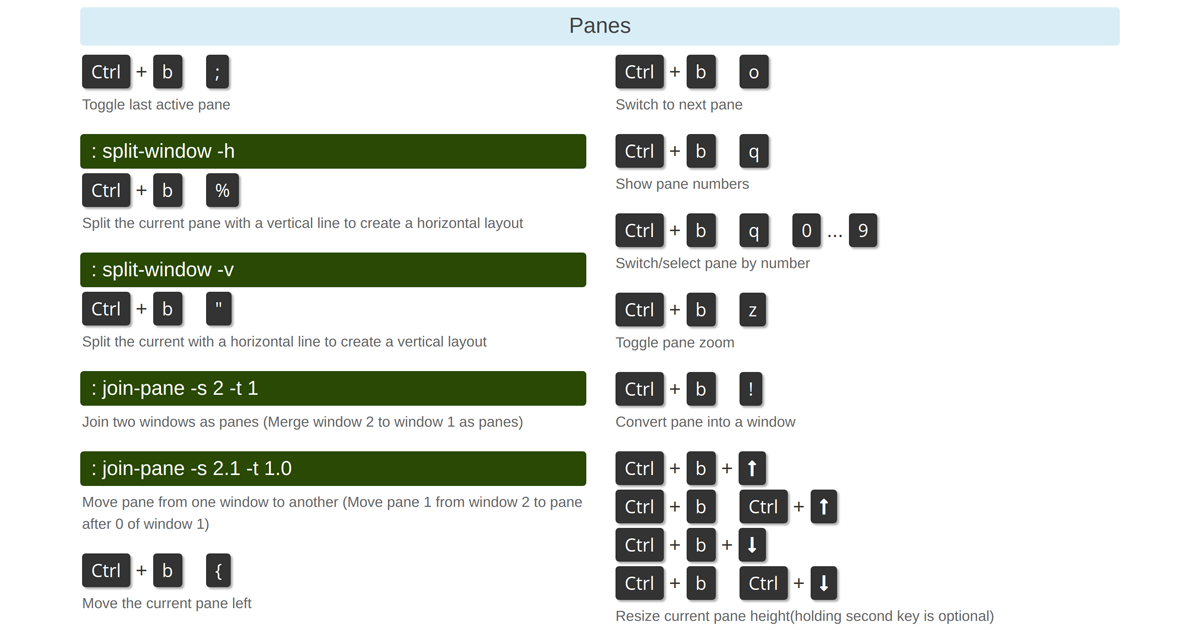
The cheat sheet groups window and pane control under two short sections, and nearly every action starts with the prefix Ctrl+b. For windows, the listed bindings are c (create), , (rename), & (close), w (list), p/n (previous/next), 0–9 (select by number), l (toggle last active), and < (open the window actions menu). For panes, the listed bindings are % (split into a horizontal layout with a vertical divider), " (split into a vertical layout with a horizontal divider), and ; (toggle the last active pane). All of these assume you are already inside a tmux session and that the default prefix has not been changed.

Window bindings on the cheat sheet

Keys Action as listed
Ctrl+b c Create window
Ctrl+b , Rename current window
Ctrl+b & Close current window
Ctrl+b w List windows
Ctrl+b p Previous window
Ctrl+b n Next window
Ctrl+b 0 … 9 Switch/select window by number
Ctrl+b l Toggle last active window
Ctrl+b < Open window actions menu

A few related window operations are shown only as command-mode examples rather than key bindings: : swap-window -s 2 -t 1 swaps windows 2 and 1, : swap-window -t -1 moves the current window one position left, : move-window -s src_ses:win -t target_ses:win (or the movew short form) moves a window between sessions, and : move-window -r renumbers windows to close gaps in the sequence.

Pane bindings on the cheat sheet

Keys Action as listed
Ctrl+b % Split the current pane with a vertical line to create a horizontal layout
Ctrl+b " Split the current pane with a horizontal line to create a vertical layout
Ctrl+b ; Toggle last active pane

The pane section also lists : join-pane -s 2 -t 1 as a command-mode example for joining two windows as panes (merging windows). The excerpt cuts off there, so treat the pane list above as what the page shows in the captured section, not necessarily the full pane reference.

How to use these bindings in practice

  1. Start or attach to a session. From a normal shell, run tmux new -s mysession (the cheat sheet also lists tmux new, tmux new-session, and tmux new-session -A -s mysession, where -A attaches if the named session already exists). To rejoin later, use tmux a -t mysession or tmux attach -t mysession.
  2. Press the prefix, then the key. Hold Ctrl and press b, release both, then press the action key — for example Ctrl+b c to create a window or Ctrl+b % to split the pane.
  3. Verify the result. After Ctrl+b c, a new window appears in the status bar and becomes active. After Ctrl+b % or Ctrl+b ", the current pane divides and the cursor moves into the new pane. Ctrl+b w shows the window list, which confirms window names and numbering.
  4. Switch context. Use Ctrl+b n/p or a number key to change windows, and Ctrl+b ; to jump back to the pane you were last in.

Common snags: the prefix must be pressed and released before the action key, not held together with it; % and " are layout directions, so % produces a side-by-side split while " stacks panes; and Ctrl+b & asks for confirmation before closing a window, so a single press will not silently destroy it.

Related session-level keys worth knowing alongside these

The same cheat sheet lists Ctrl+b d (detach), Ctrl+b $ (rename session), Ctrl+b s (show all sessions), Ctrl+b w (session and window preview), and Ctrl+b ( / ) (previous/next session). These matter because window and pane work happens inside a session — if you detach with Ctrl+b d, your windows and panes keep running, and tmux a -t mysession brings them back.

How the Tmux Cheat Sheet Is Organized for Finding Commands Quickly

The Tmux Cheat Sheet & Quick Reference (tmuxcheatsheet.com) organizes commands into five main sections — Sessions, Windows, Panes, Copy Mode, and Misc — and pairs each task with both the command-line form and the default Ctrl+b prefix shortcut. To find a command fast, use the Ctrl+K search, or jump straight to the section matching the scope you're working in: sessions for whole workspaces, windows for tabs inside a session, panes for splits inside a window.

The five main sections

Each section follows the same pattern: a short task description, the shell command (marked with $ or : for the tmux command prompt), and the key binding where one exists.

Section Covers Example entries from the page
Sessions Starting, naming, attaching, detaching, listing, killing tmux new -s mysession, tmux ls, Ctrl+b d, Ctrl+b s
Windows Creating, renaming, closing, switching, reordering Ctrl+b c, Ctrl+b ,, Ctrl+b 0…9, swap-window -s 2 -t 1
Panes Splitting, toggling, joining, rearranging Ctrl+b %, Ctrl+b ", Ctrl+b ;, join-pane -s 2 -t 1
Copy Mode Scrollback and text selection Listed as its own section on the page
Misc Remaining commands not tied to one scope Listed as its own section on the page

How to locate a command in under a minute

  1. Know your scope first. If the thing you want to control is the whole workspace, look in Sessions; a tab-like view, Windows; a split, Panes.
  2. Try Ctrl+K. The page exposes a search shortcut (Ctrl + K) for jumping to an entry without scrolling.
  3. Scan for the key binding column. Bindings are written as Ctrl + b followed by the key, so Ctrl+b % and Ctrl+b " sit next to their split-window command equivalents.
  4. Use the top navigation for non-command topics. Install, Theming & Customizing, Plugins & Tools, and the OpenClaw + Tmux and Claude Code pages are separate from the command sections.

Reading the entries correctly

The page distinguishes three input styles, and mixing them up is the most common source of confusion:

  • $ tmux … — run in your normal shell, outside or alongside tmux.
  • : command — typed at the tmux command prompt (open it with Ctrl+b :).
  • Ctrl+b key — pressed inside a tmux session.

For example, starting a named session appears as $ tmux new -s mysession and : new -s mysession — same result, two entry points. Likewise, killing a session shows $ tmux kill-session -t mysession alongside the in-session : kill-session.

Where the site is strongest — and where to look elsewhere

The sheet is dense on lifecycle and layout operations: creating and naming sessions, attaching with tmux a -t mysession, detaching others via : attach -d, reordering windows with swap-window and move-window, and merging windows into panes with join-pane. If your task is "get back to where I was" or "rearrange my layout," the Sessions, Windows, and Panes sections will almost always have the answer.

For configuration, status-bar theming, and plugin setup, switch to the Theming & Customizing and Plugins & Tools pages rather than hunting through the command sections. The page also offers a language switcher (English, German, Chinese, French, Spanish, Korean, Dutch, Russian) if you prefer reading the reference in another language.

A practical lookup example

Suppose you want to detach from a session but keep it running. Under Sessions you'll find Ctrl+b d for "Detach from session," plus : attach -d for detaching other clients while you stay attached — a distinction worth noting, since the two are easy to conflate. If instead you want to return later, the same section lists tmux a, tmux at, tmux attach, and tmux attach-session as equivalent forms, with -t mysession to target a specific one.

Quick decision guide

  • Need a key binding? Scan the Ctrl+b entries in the section for your scope.
  • Need the scriptable form? Use the $ tmux … line, which works in scripts and outside a session.
  • Need to change settings or add plugins? Go to Theming & Customizing or Plugins & Tools, not the command sections.
  • Can't find it by browsing? Ctrl+K and type the task name.
What are tmux sessions, windows, and panes, and how do they relate?

tmux organizes your terminal work in three nested levels: a session is the top-level workspace you can detach from and reattach to later; windows live inside a session and behave like tabs; panes split a single window so several terminals share the screen at once. The reference site tmuxcheatsheet.com mirrors this hierarchy directly — its command groups are Sessions, Windows, Panes, Copy Mode, and Misc — so once you understand the nesting, you know where to look up any command.

The three levels, from outermost to innermost

Session: the persistent workspace

A session is the container everything else lives in, and it is the unit that survives disconnection. You start one with tmux new (or tmux new -s mysession to name it), and you can leave it running in the background with Ctrl + b d. Later, tmux attach (or tmux a -t mysession) brings it back exactly as you left it.

The cheat sheet also lists tmux new-session -A -s mysession, which starts a session with that name or attaches to it if it already exists — useful when you want "open my workspace" to be one command whether or not it is already running. Cleanup commands sit at this level too: tmux kill-session -t mysession removes one session, and tmux kill-session -a removes all sessions except the current one.

Window: a tab inside a session

Each session holds one or more windows, and each window fills the terminal screen. Think of them as tabs: Ctrl + b c creates a window, Ctrl + b n and Ctrl + b p move to the next and previous one, and Ctrl + b 0 through Ctrl + b 9 jump directly by number. Ctrl + b w lists windows, and Ctrl + b , renames the current one.

You can also create a session and its first named window in one step: tmux new -s mysession -n mywindow. Windows can be reordered or moved between sessions with commands like swap-window and move-window, which the cheat sheet documents under Windows.

Pane: splitting a window

A pane is a subdivision of a window, letting you watch several terminals simultaneously. Ctrl + b % splits the current pane with a vertical line (side-by-side layout), and Ctrl + b " splits with a horizontal line (stacked layout). Ctrl + b ; toggles back to the last active pane.

Panes are not a separate workspace — they belong to the window that was split. The cheat sheet notes that join-pane can merge two windows into panes of one window, which shows the relationship in reverse: windows and panes are both views onto running terminal processes, and tmux lets you rearrange them.

How the levels fit together

Level Created with Typical role Detach/reattach?
Session tmux new -s name Whole workspace, survives disconnect Yes — Ctrl + b d, then tmux attach
Window Ctrl + b c Tab within a session No — lives and dies with its session
Pane Ctrl + b % or Ctrl + b " Split view inside one window No — belongs to its window

The nesting rule is simple: one session contains many windows; one window contains many panes. Detaching affects the session as a whole, so every window and pane inside it keeps running. Killing a session removes everything beneath it.

Why the cheat sheet's grouping matters

Because the site organizes commands by these three levels, the fastest way to find a command is to ask which level it acts on. Renaming, listing, and killing are session-level operations found under Sessions. Creating, switching, and reordering tabs are under Windows. Splitting and joining are under Panes. Copy Mode and Misc cover behavior that applies across levels, such as scrollback and configuration.

A practical example: if you want to check on a long-running build while editing code, keep the build in one window, open a second window for the editor, and split that editor window into two panes — logs on one side, code on the other. Detach with Ctrl + b d when you leave, and tmux attach restores the entire arrangement.

What Is Tmux Cheat Sheet & Quick Reference?

Tmux Cheat Sheet & Quick Reference (tmuxcheatsheet.com) is a browser-based reference for tmux commands, organized by the part of tmux you're working with: sessions, windows, panes, copy mode, and miscellaneous commands. It suits anyone who knows roughly what they want to do in tmux but doesn't remember the exact keystroke or command syntax — you scan the section, find the action, and copy the command or shortcut. It is a lookup tool, not a tutorial, so it won't teach you tmux concepts from scratch.

What the site covers

The reference is grouped into five sections, each pairing the default prefix shortcut with the equivalent command-line form where one exists.

Section Example entries
Sessions tmux new -s mysession, tmux ls, tmux attach -t mysession, Ctrl+b d to detach, Ctrl+b $ to rename
Windows Ctrl+b c to create, Ctrl+b , to rename, Ctrl+b 0…9 to switch by number, swap-window and move-window commands
Panes Ctrl+b % for a vertical split, Ctrl+b " for a horizontal split, Ctrl+b ; to toggle the last active pane, join-pane to merge windows
Copy Mode Navigation and selection keys for scrolling back through output
Misc Remaining commands that don't fit the other categories

A useful detail is that many rows show both forms side by side — for example, Ctrl+b $ next to : rename-session — so you can use whichever fits your workflow, whether you're at the keyboard or writing a script.

How to use it effectively

  1. Pick the section first. Decide whether your task is about a session (the whole tmux instance), a window (a tab-like container), or a pane (a split inside a window). The site's structure mirrors that hierarchy, so starting with the right section narrows the list quickly.
  2. Search rather than scroll. The site exposes a search shortcut (Ctrl + K) for jumping to a command, which is faster than scanning a long table when you already know the verb — kill, attach, split, and so on.
  3. Check the prefix assumption. Shortcuts are listed with the default prefix Ctrl+b. If you've remapped your prefix, translate the shortcut accordingly; the command-line equivalents are unaffected.
  4. Verify against your own tmux. Before relying on a command in a script or a shared environment, run tmux -V and test the command in a throwaway session. The site is a reference, not a version-specific manual, so behavior on older or heavily customized setups can differ.

Beyond the cheat sheet

The site also links to an installation guide and to pages on theming and customizing tmux, which help if you're setting tmux up rather than just looking up a key. The interface is available in multiple languages, including English, German, Chinese, French, Spanish, Korean, Dutch, and Russian, selectable from the header — useful if you're sharing the reference with a team that works in different languages.

When it's the right tool — and when it isn't

Use tmuxcheatsheet.com when you need a fast, no-login lookup of a specific command and prefer a compact table over a long manual page. It's also handy as a shared link in team docs, since the sections map cleanly to "how do I split a pane" or "how do I kill a session" questions.

It's less suitable if you're learning tmux for the first time and need explanation of what sessions, windows, and panes actually are, or if you need documentation for a specific tmux version's edge cases. In those situations, pair the cheat sheet with the official tmux manual (man tmux) — use the site to find the command, and the manual to confirm its exact options on your system.

Website Overview

An established domain and managed infrastructure suggest continuity of operations and may support dependable delivery, although neither guarantees service quality.

Domain and Registration

Registered in 2014, this domain has about 12 years of history. That suggests continuity, although ownership and purpose may have changed. Transfer-protection status is present, helping reduce the risk of unauthorized domain transfers. The registrar is NameCheap, Inc., a widely used domain service provider. The domain uses the common .com extension, which is not an independent safety signal.

DNS and Email

Nameservers are provided by Cloudflare, indicating managed DNS hosting. No CNAME was found; the observed records resolve directly to addresses. No MX record was found. A conventional explicit inbound-mail route is not configured. TXT records include verification markers for Google. Such markers may also remain after a service stops being used. DNSSEC signatures were not detected, so this additional DNS authenticity protection is not confirmed.

TLS and Certificates

The public key uses EC with 256 bits. The server supplied a complete certificate chain. No organization name is present in the certificate; the available fields are consistent with domain validation. The certificate was issued within the Google Trust Services cloud or CDN ecosystem. The certificate's total validity is about 90 days, consistent with a short renewal cycle.

HTTP and Browser Security

The response lacks these common security headers: HSTS, CSP, Permissions-Policy, clickjacking protection. CORS permits any origin to read this response. This is common for public resources; sensitive responses need narrower handling. No X-Powered-By header was found, reducing one common source of backend fingerprinting information. The cf-ray response header indicates a CDN or caching proxy in the delivery path. No obvious internal addresses or debug information were found in the headers.

Technology Stack Analysis

The public page identifies Bootstrap, Google Tag Manager, Cloudflare without precise versions, leaving fewer clues for version-specific scanning.

Search and Social Sharing

The title has 67 characters and may be truncated in search results. Twitter Card metadata is configured. The page declares 9 language or regional alternatives using hreflang. A meta description is present, with 144 characters. The observed directives allow indexing and link following.

Hosting and Email

DNSCloudflare
HostingCloudflare
EmailUnknown
Approximate IP geolocation (inferred; a CDN or proxy may differ from the origin server) Location unknown Inferred 104.21.5.211

Registration details

RDAP / WHOIS

RegistrarNameCheap, Inc.
Registered2014-10-12
Expires2027-10-12
Domain statusclient transfer prohibited
Nameserversadam.ns.cloudflare.com、adel.ns.cloudflare.com
DNSSECunsigned

DNS records

DNS

TypeNameValueTTLPriority
Atmuxcheatsheet.com104.21.5.211300—
Atmuxcheatsheet.com172.67.133.218300—
AAAAtmuxcheatsheet.com2606:4700:3030::ac43:85da300—
AAAAtmuxcheatsheet.com2606:4700:3034::6815:5d3300—
NStmuxcheatsheet.comadam.ns.cloudflare.com86400—
NStmuxcheatsheet.comadel.ns.cloudflare.com86400—
TXTtmuxcheatsheet.comgoogle-site-verification=RUBcbQqt9vclGQLqdp715q61J5VRL0RRx9d2LHpD7G8300—

TLS and certificates

TLS / SSL

AssessmentNormal configuration
Supported protocolsTLSv1.2、TLSv1.3
Negotiated protocolTLSv1.3
Certificate subjecttmuxcheatsheet.com
IssuerGoogle Trust Services
Valid until2027-01-10T11:25 · Remaining when checked: 78 days
Verification detailsCertificate trust: Passed · Hostname match: Passed

HTTP response headers

HTTP

HeaderValue
content-typetext/html; charset=utf-8
cache-controlpublic, max-age=300, must-revalidate
servercloudflare
x-content-type-optionsnosniff
referrer-policystrict-origin-when-cross-origin
access-control-allow-origin*

Identified technologies

BootstrapGoogle Tag ManagerCloudflare

Pages, Search and Sharing

Meta descriptionMaster tmux with the comprehensive cheat sheet: session management, examples, installation guide and more for the ultimate terminal multiplexer.
Canonical URLhttps://tmuxcheatsheet.com/
LanguageEnglish (default) · Multilingual
Twitter Cardsummary_large_image

No rules found

No sitemaps found

User reviews (0)

  • No reviews yet.