
 简体中文
简体中文 English
Website review
This review may include AI-generated content and is not individually verified. Domain, certificate and other facts come from the observed data on this page.
What is Transmute?
Transmute is a free, open-source file converter and compressor that you run on your own hardware rather than in someone else's cloud. You deploy it with a single Docker command, then convert or compress files across images, video, audio, documents, data, 3D models and diagrams without uploading anything to a third party. According to its own documentation, it imposes no file size limits, adds no watermarks, applies no rate limits and has no paid tiers.
What it handles
- Images: PNG, JPG, WebP, SVG, BMP
- Video: MKV, MP4, MOV, AVI, WebM
- Audio: MP3, WAV, FLAC, AAC, OGG
- 3D models: STL, OBJ, PLY, GLB, 3MF, DXF
- Data: CSV, JSON, YAML
- Documents: PDF, DOCX, TXT, Markdown, HTML
- Diagrams: draw.io to PNG, SVG or PDF
Compression is a separate mode: it shrinks images, PDFs, audio, video and GIFs while keeping the same format, with adjustable levels that trade quality against file size.
Who it suits
The strongest fit is anyone who handles files they would rather not hand to a web service: legal or medical documents, unreleased product renders, client footage, or internal datasets. A small studio converting a batch of MOV clips to WebM, or a developer turning CSV exports into JSON, gets the same tool with no per-file ceiling and no subscription.
The trade-off is that self-hosting means you own the setup. You need Docker running somewhere—a laptop, a home server, a NAS or a small VPS—and you are responsible for keeping it updated and reachable on your network. If you convert a file once a month and do not care about privacy, a browser-based converter is less effort.
A practical next step
Before deploying, list the two or three conversion jobs you actually repeat—say, PDF compression for email and GLB to STL for printing—and confirm each format pair appears in the supported list. Then run the Docker Compose quickstart on a machine with enough disk for your largest files, since conversion of large video needs working space. For background on the underlying media tools, the FFmpeg project documents the codecs Transmute is likely relying on, and GitHub hosts the project's repository and issue tracker.
How do I deploy Transmute with Docker on my own server?
Deploy Transmute with a single Docker Compose command: download the official docker-compose.yml from the project's GitHub repository and start it with docker compose up -d. The page's Quickstart gives this exact command:
wget "https://raw.githubusercontent.com/transmute-app/transmute/refs/heads/main/docker-compose.yml" && docker compose up -d
What you need first
- A server or home machine with Docker and the Docker Compose plugin installed.
- Network access to pull the image and the compose file.
- A decision on where converted files should live and who can reach the web interface — the page describes Docker deployment but does not spell out port, volume or authentication settings, so check the compose file and repository docs before exposing it beyond your local network.
Practical next step
Run the command on the target host, then open the service in a browser on the port defined in the compose file. Convert a small test file in each category you care about — for example a PNG, an MP4 and a PDF — to confirm the container has the tools it needs. If a format fails, the container logs are the first place to look.
Who this suits
Self-hosting makes sense if you regularly handle files you would rather not upload to a cloud converter, or if you hit size limits elsewhere. The trade-offs are real: you own updates, storage and uptime, and large video conversions will consume your server's CPU. For occasional one-off conversions on a laptop, a hosted tool is less effort; for recurring batch work or sensitive documents, a local instance pays off. Other self-hosted converter projects exist, such as GitHub-hosted alternatives you can compare before committing.
Is Transmute really private compared to cloud-based file converters?
Yes, in the specific sense that matters most: with Transmute, files are processed on hardware you control rather than uploaded to a third-party service. The project describes itself as free, open-source and self-hosted, deployed with a single Docker command, with conversion and compression of images, video, audio, documents, data and 3D models happening locally. That removes the main privacy exposure of cloud converters — sending your files to someone else's server — along with their file-size limits, watermarks and rate limits.
What "private" actually covers here
Self-hosting shifts trust from a vendor to your own setup. The practical differences:
| Concern | Cloud converter | Self-hosted Transmute |
|---|---|---|
| Where files go | Uploaded to a third-party server | Stay on your machine or server |
| File size limits | Often capped or paywalled | None imposed by the tool |
| Watermarks / rate limits | Common on free tiers | None described |
| Who can access files | The provider, per their policy | Whoever can reach your deployment |
| Your maintenance burden | None | Updates, backups, network exposure |
The last row is the trade-off. Privacy is not automatic: if you expose the Docker container to the public internet without authentication or a firewall, you have recreated the exposure you were avoiding. For a home lab or an internal team server behind a VPN, the privacy gain is real and substantial.
A concrete scenario
A lawyer or HR team converting PDFs and DOCX files containing client or personnel data should not upload them to an ad-hoc web converter. Running Transmute on an internal machine keeps those documents inside the organisation's boundary. A video editor compressing large MP4s similarly avoids multi-gigabyte uploads and any per-file limits.
Practical next step
Before deploying, decide who needs access and how they will reach it: localhost only, a LAN address, or behind a reverse proxy with authentication. Then verify the deployment is not reachable from outside your network. If you want a comparison point for hosted alternatives, official pages such as CloudConvert describe their own handling policies; the meaningful test is whether your files leave your infrastructure at all.
One caveat worth stating plainly: open-source and self-hosted are claims about architecture, not an audit. If your threat model requires verified security review, check the project's repository and issue tracker directly rather than relying on the description alone.
Can Transmute compress large video and PDF files without size limits?
Yes—Transmute is designed to compress video, PDFs, images, audio and GIFs on your own hardware, and its page states there are no file size limits or rate limits. The practical ceiling is your server's disk space, memory and CPU rather than an imposed upload cap.
What this means in practice
A video editor with a multi-gigabyte master file can drop it into a local Transmute instance instead of a cloud converter that rejects large uploads or watermarks output. The same applies to a scanned PDF that needs shrinking before emailing. Because processing happens on your machine, files never leave your network—useful for legal, medical or client-confidential material.
The trade-off is that you run the infrastructure. Video compression is CPU-intensive, so a large file will occupy the server for a while and may need more resources than a small VM provides. The page notes simple compression levels to balance quality and size, which suits quick jobs but is less granular than dedicated encoding tools.
Decision criterion
Choose Transmute if privacy and unlimited size matter more than zero setup, and you already have Docker and a machine with spare capacity. If you only occasionally shrink a single PDF on a laptop, a lightweight local tool may be simpler. For teams already self-hosting services, the single Docker command fits existing workflows; see Docker Documentation for deployment basics.
Start by testing one representative large video and one PDF on your intended hardware to confirm processing time and output quality before relying on it for routine work.
Which file formats can Transmute convert for images, video, audio, and 3D models?
Transmute handles four main media categories with these formats:
| Category | Formats listed |
|---|---|
| Images | PNG, JPG, WebP, SVG, BMP |
| Video | MKV, MP4, MOV, AVI, WebM |
| Audio | MP3, WAV, FLAC, AAC, OGG |
| 3D models | STL, OBJ, PLY, GLB, 3MF, DXF |
The page also mentions data (CSV, JSON, YAML), documents (PDF, DOCX, TXT, Markdown, HTML) and diagrams (draw.io to PNG, SVG, PDF), but those fall outside your question.
What this means in practice
The format lists tell you which containers are supported, not every possible pairing. The page doesn't spell out which source converts to which target, so check the converter's interface before relying on a specific direction — for example, MOV to WebM or FLAC to MP3.
The breadth is useful for mixed workloads. A designer cleaning up a batch of PNGs and WebP files, a video editor normalizing MOV and MKV footage, and a 3D printing hobbyist moving between STL, OBJ and 3MF can all use one self-hosted tool instead of separate cloud services. DXF alongside the mesh formats also helps people working from CAD drawings.
Because it runs on your own hardware, there are no file size limits or watermarks per the page, which matters for large video files or print-resolution images. The trade-off is that conversion speed and capacity depend on your machine, and you need to deploy it yourself with Docker.
Next step
Pick your most common conversion pair — say MP4 to WebM, or STL to OBJ — and test it on a sample file after deploying. If a direction you need isn't supported, a dedicated tool such as FFmpeg for video and audio is a practical fallback.
How does Transmute's compression quality compare across different compression levels?
Transmute's page does not publish a quality comparison across its compression levels, so there is no documented answer to how much quality each step gives up. What the page does say is that compression keeps the same format and offers "simple compression levels to balance quality and size," which tells you the trade-off exists but not where the visible quality cliff sits.
What this means in practice
Because the levels are a quality-versus-size dial rather than a fixed preset with published results, the useful comparison is one you run on your own files:
- Pick a representative file from the batch you plan to compress — an image with fine detail, a PDF with scanned text, a short audio clip.
- Run each level on that same file and compare output size against visible quality, not just the number.
- Set a floor you can defend. For archival images or print-bound PDFs, keep detail intact; for web thumbnails or chat attachments, a smaller file usually wins.
Where level choice matters most
| Content type | What tends to degrade first | Practical check |
|---|---|---|
| Images (PNG, JPG, WebP) | Fine texture, gradients, thin lines | Zoom to 100% on edges and shadows |
| PDFs and documents | Small text, scanned pages | Read a dense paragraph at normal size |
| Audio (MP3, WAV, FLAC, AAC, OGG) | High frequencies, cymbals, sibilance | Listen on headphones, not laptop speakers |
| Video (MP4, MKV, WebM) | Fast motion, dark scenes | Watch a moving clip, not a still frame |
| GIFs | Color banding in flat areas | Check backgrounds and skies |
A sensible next step: compress one file per content type at your intended level, keep the original alongside it, and compare side by side before running the whole batch. Since Transmute runs on your own hardware with no file size limits, testing a few levels costs nothing but time.
If you want a second opinion on format and quality trade-offs generally, FFmpeg documents the codecs and quality settings that underpin most conversion and compression work, and ImageMagick covers image-specific quality guidance.
 Cloudflare
 Fastly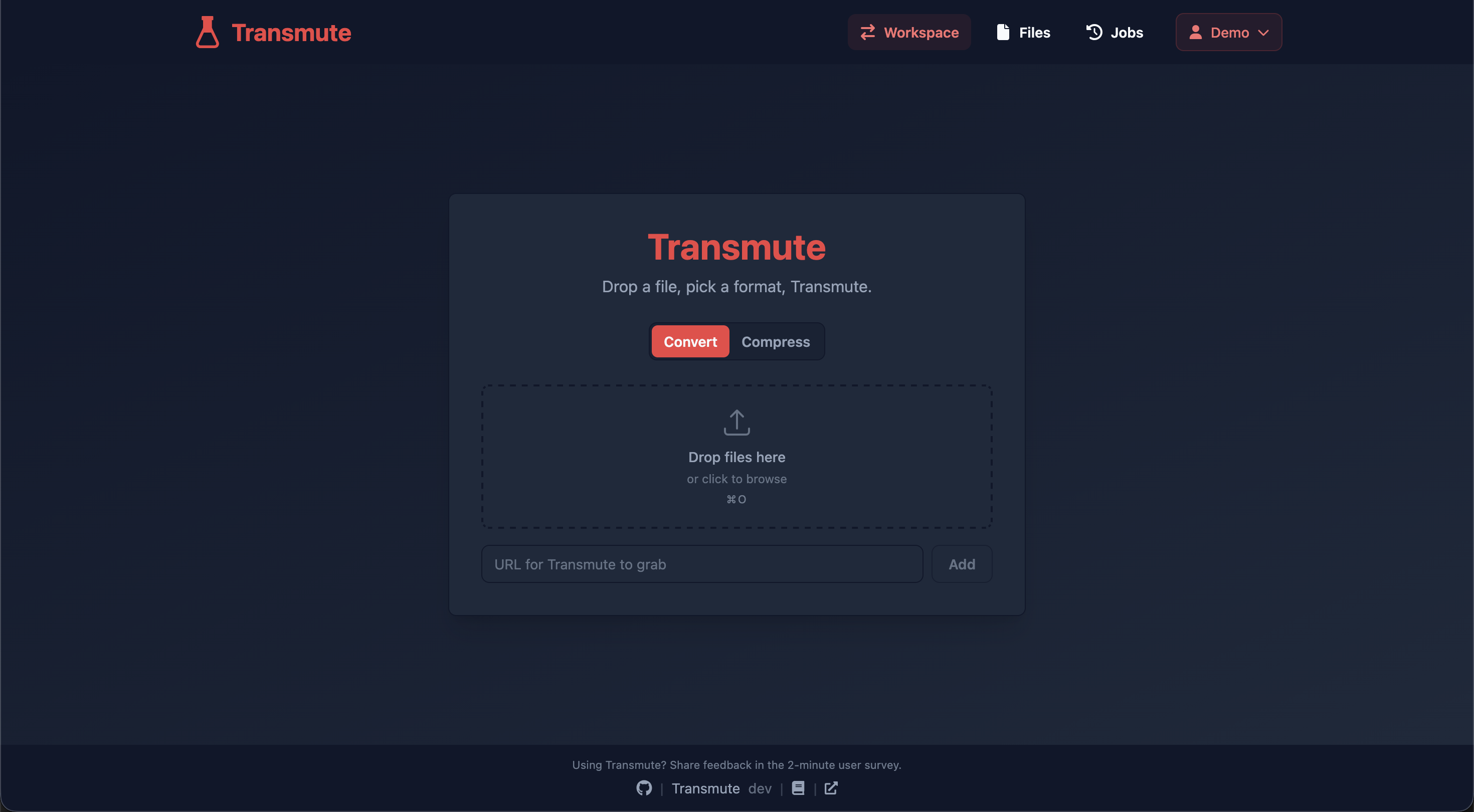

User reviews (0)