Website profiles · Technology insights · Alternatives

utauguides.carrd.co

UTAU Tutorials and Guides: How to use UTAU, create covers, make voicebanks, and design UTAU characters! Tips & Tutorial

No paid content found
Visit website
Profile views 1 Outbound visits 1 Normal
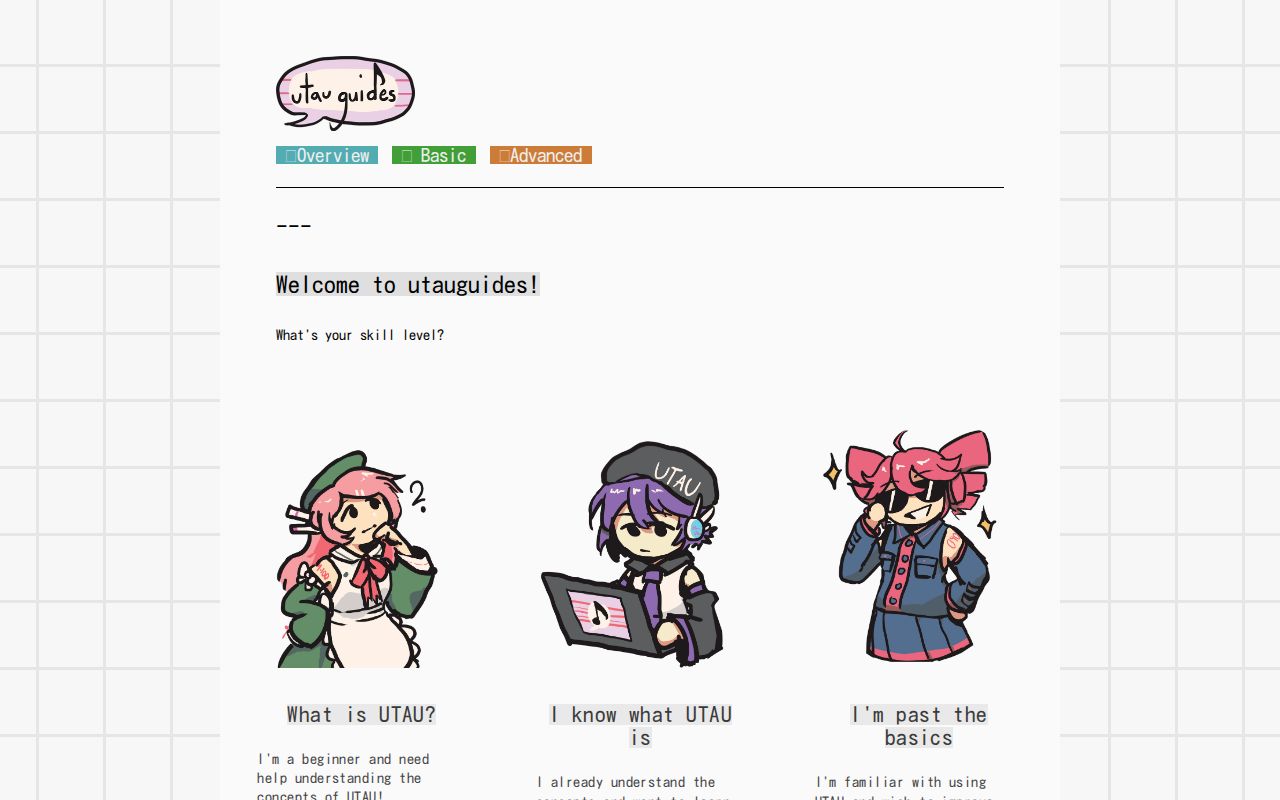
utauguides Full homepage screenshot

At a glance

Category
Design & Creativity
Language
English
Paid-content signal
No paid content foundObserved
Registered
2015
Hosting
CloudflareInferred
HTTPS certificate trusted
PassedObserved
Last updated

Website review

This review may include AI-generated content and is not individually verified. Domain, certificate and other facts come from the observed data on this page.

What is UTAU?

UTAU is a free, community-made singing synthesizer: you program notes on a piano roll, and a recorded voicebank "sings" them back as a rendered vocal track. The site frames the whole workflow as a collaboration with a real singer — you set up the studio (the UTAU program), write the sheet music (a UST), bring in the singer (a voicebank), then hit record and let the computer render the vocals.

The three pieces you actually work with

  • The program — your studio. Everything you edit happens here.
  • A voicebank — your singer. It is a folder of recorded audio plus configuration files (oto.ini) that tell UTAU where each sample starts, ends, and how it should line up with a note. Aliases let a UST "command" a specific sample, and .frq frequency files supply pitch data so UTAU can flatten the recording and keep it on tune.
  • A UST — your sheet music. It stores BPM, notes, aliases, pitch bends and vibrato, which is what makes a cover sound human rather than robotic.

Who it suits

UTAU appeals to people who want to make vocal covers, write original songs with synthesized vocals, or build and release their own voicebank — including character design, since voicebanks are often tied to an original character. The trade-off is hands-on work: unlike commercial synthesizers with polished defaults, results depend on how well you tune the UST and how cleanly the voicebank was recorded and configured. Expect a learning curve before anything sounds natural.

A practical first step

Pick the path that matches your level on utauguides — overview if the concepts are still fuzzy, basic if you know what UTAU is but not how to use it, advanced if you want to improve. Beginners should start with the overview pages on how UTAU works, what a voicebank is, and how USTs work before touching any settings.

For a concrete scenario: someone who wants to cover an existing Japanese song should download a UST for that song, load a voicebank, and spend their time on pitch bends and vibrato rather than on recording anything themselves. Someone who wants their own character's voice has the opposite job — recording samples, cutting them, and writing oto.ini entries — and should treat the UST side as the easy part.

How do I create a voicebank for UTAU?

Creating a UTAU voicebank means recording a set of sounds and then labeling them so the UTAU program knows when and how to play each one. The page frames it as giving a "singer" the ability to read a UST: the audio files are the voice, and the configuration files are the instructions for using it.

What actually goes into a voicebank

  • Audio samples (.wav): the recorded syllables and phrases, such as n_ba_bi_bu_be_bo_bo.wav, みみむまめみめ.wav, or a_tsu.wav. These are the raw material the singer uses.
  • Configuration files (oto.ini): these split, time, and name the audio files. Some entries tell UTAU where a sample begins and ends; others set the timing that lines the recording up with a note.
  • Aliases: the names attached to cut samples so a UST can "command" the singer to summon that specific sample.
  • Frequency files (.frq): pitch information taken from the recording, which helps UTAU flatten the pitch so the singer stays on tune.
  • Supporting files: folders, a readme.txt, and character.yaml. The page notes these matter more for managing and releasing voicebanks across different programs than for the singing itself.

A practical order of work

  1. Decide what kind of voicebank you want and which sounds it must cover.
  2. Record clean, consistent samples, keeping the recording setup and tone as even as possible.
  3. Cut and name the samples, then build the oto.ini so each one is split, timed, and aliased correctly.
  4. Generate frequency files so pitch behaves.
  5. Test by loading the voicebank into a simple UST and listening for timing, tuning, and missing samples.
  6. Package the folder with its readme and character file if you plan to share it.

Where the real difficulty sits

Recording is the visible part, but the oto.ini is where most beginner voicebanks succeed or fail. A sample can sound perfect on its own and still sing badly if its start, end, and timing are off, or if its alias does not match what the UST asks for. Expect the labeling and testing stage to take longer than the recording stage.

If you are new to the concepts, the site's overview section explains how UTAU, voicebanks, and USTs fit together before you commit to recording; its basic and advanced sections are aimed at people who already understand those concepts and want to improve. utauguides

As a next step, pick one short, simple song, build a minimal voicebank for it, and render it. A small finished test tells you more about your labeling than any amount of reading.

What are the differences between basic and advanced UTAU techniques?

The site splits its guidance into three levels—Overview, Basic and Advanced—and the practical difference is not difficulty for its own sake but how much of the singing you control yourself. At the basic level you work with what a voicebank gives you: you load a UST, choose a singer, adjust obvious things like tempo and note placement, and render. At the advanced level you start reshaping the voice itself—tuning pitchbends, vibrato, aliases and timing so the singer phrases a line the way you intend.

What changes between the levels

Aspect Basic Advanced
Main goal Get a clean, on-pitch cover Make the vocal expressive and natural
What you edit UST as delivered, plus simple fixes Individual notes, pitchbends, vibrato, aliases
Voicebank use Pick one that fits the song Match samples and aliases to specific notes and languages
Likely problems Wrong aliases, off-tempo notes Stiff or robotic phrasing, clashing consonants
Where time goes Setup and rendering Repeated listening and small corrections

The site's own explanation frames UTAU as a collaboration with a singer: the program is the studio, the UST is the sheet music, the voicebank is the singer, and rendering is the recording. That metaphor is a good guide to the levels. Beginner work is choosing sheet music and a singer; advanced work is directing the performance.

A concrete example: a beginner renders a UST, notices one line sounds flat, and moves on. An advanced user hears the same line, opens the pitchbend curve, lengthens a vowel slightly, softens the vibrato on the held note, and checks whether the alias being triggered is the right sample for that syllable. Same song, very different amount of intervention.

Deciding where you belong

If you understand what a voicebank and a UST are but have not finished a full cover, start at the basic tier and expect the advanced material to be confusing without that experience. If you can already render a cover and your complaint is that it sounds mechanical, the advanced material is the right next step—phrasing, pitchbends and alias choices are usually where that stiffness lives.

For background on the software and voicebanks themselves, the official UTAU pages and voicebank distribution sites are worth checking alongside a guide like utauguides.

How do I make a cover song using UTAU?

To make a cover in UTAU, you assemble three things: the program itself as your "studio," a UST as the sheet music, and a voicebank as the singer. You then refine the notes and tuning, and render the result to an audio file you can mix into a track.

The basic workflow

  1. Get the program running. Install UTAU and open it. This is the environment where everything else happens.
  2. Load a UST. A UST (UTAU Sequence Text) is the project file containing the notes, BPM, aliases, pitchbends and vibrato for a song. Using an existing UST for the song you want is far faster than drawing every note by hand.
  3. Choose a voicebank. The voicebank supplies the actual sung samples. Load it so the UST's notes have a "singer" to perform them.
  4. Check the fit. The UST's aliases must match the voicebank's aliases. A Japanese voicebank reading a UST written for a different recording style or language will produce silent or wrong notes until aliases are fixed.
  5. Tune. Adjust pitchbends, vibrato, note timing and volume. This is where a stiff, robotic render starts sounding like a performance.
  6. Render. Tell the program to output the singing, then bring that audio into your music software to mix with the instrumental.

What each piece actually does

Piece Role What you edit
UTAU The studio/program Project settings, rendering
UST Sheet music Notes, BPM, pitchbends, vibrato, aliases
Voicebank The singer Nothing directly — you pick and load it
oto.ini Voicebank configuration Sample start/end points and timing
.frq files Pitch data Lets UTAU flatten pitch so notes land in tune

The voicebank's audio files are the raw sung sounds; its configuration files (oto.ini) tell UTAU where each sample begins and ends and how to time it to a note. Aliases are the names a UST uses to call up a specific sample, which is why mismatched aliases are the most common cause of a cover that loads but stays silent.

A practical example: you want to cover a fast Japanese pop song. You find a UST for it, load a Japanese CV voicebank, and immediately hear some notes cut off. The cause is usually timing in oto.ini or a pitchbend that is too sharp for the tempo, not the voicebank being "bad." Slowing the BPM temporarily while you fix the bends, then restoring it, is a reliable way to diagnose this.

If you are starting from zero, utauguides splits its material into Overview, Basic and Advanced sections, which maps well onto the order above: understand the concepts first, learn to operate the program second, then improve tuning and voicebank choice. For the program itself, UTAU Forum is a long-running community where you can find USTs, voicebanks and troubleshooting help from other users.

Decision criteria

  • Pick a UST that already exists for your song unless you specifically want to transcribe it. Writing a UST from scratch teaches you a lot but is a separate skill.
  • Match the voicebank to the UST's language and alias style before you spend time tuning. Fixing aliases after tuning wastes the work.
  • Tune in small passes — timing first, then pitchbends, then vibrato and dynamics. Changing everything at once makes it hard to hear what helped.

What are the best practices for designing an UTAU character?

Character design in UTAU is mostly a documentation and consistency problem, not a drawing problem. The voicebank is the product; the character is its packaging, and the packaging has to stay coherent across the oto.ini, the audio samples, the readme, and any art you publish.

Start from the voice, then design the person

Decide the vocal identity before the visual one: range, tone colour, language coverage, and intended genre. A soft, breathy bank and a sharp, powerful bank imply different characters, and an audience will notice when the art contradicts what they hear. Pick a small number of traits that the voice can actually support — age impression, energy level, formality — and let everything else follow from them.

Treat metadata as part of the design

The utauguides overview explains that a voicebank pairs audio files with configuration files, including oto.ini entries that split, time and name samples, plus aliases and .frq pitch files. Design decisions land in those files whether you plan for them or not:

  • Alias scheme. Choose a naming convention early (CV, VCV, CVVC, or a mix) and apply it without exceptions. Inconsistent aliases are the most common reason a UST fails to find the right sample.
  • Character naming. Use one romanised name, one native-script name, and one short alias, and use them identically in the folder name, readme, and character.yaml. Mismatches confuse users and search.
  • Sample coverage. Decide which phonemes and combinations the character "can say." A character presented as multilingual needs the recordings to match that claim.

Keep a character sheet that others can build on

Write down the essentials in one place: name, pronouns, age impression, height, palette, outfit variants, personality notes, and voice parameters. This is what fan artists, cover artists and collaborators actually use. Include a short "do and don't" list — for example, whether the character is depicted with a specific hairstyle or instrument. Ambiguity invites drift, and drift makes a bank feel like several unrelated characters.

Design for the medium you will actually release in

If you plan to distribute the bank, the utauguides page notes that folders, readme.txt and character.yaml matter for managing and releasing voicebanks across programs. Budget time for those files, plus a clear licence statement and usage terms. A beautiful design with unclear usage rules gets used less than a plain one with obvious permissions.

A practical next step

Sketch the character against three constraints at once: the voicebank's real range and language, the alias scheme you will record, and the licence you are willing to grant. If a design idea cannot survive all three, change the design rather than the voicebank. For terminology and workflow grounding, the beginner-oriented explanations at utauguides are a reasonable starting reference, and UTAU Forum is where community conventions and feedback on character presentation tend to surface.

How do I troubleshoot common issues when using UTAU?

Troubleshooting UTAU usually means isolating one of three layers: the program, the voicebank, or the UST. Most "it won't sing" problems trace back to a mismatch between those layers rather than a bug in the software itself.

Start with the symptom, not the software

  • No sound at all, or silence on render: check that a voicebank is actually selected for the track, that the notes have lyrics or aliases filled in, and that the render output isn't muted or routed to a device that isn't connected.
  • Wrong or garbled syllables: this is almost always an alias problem. The UST is asking for a sample name the voicebank doesn't have.
  • Off-pitch or robotic singing: often a missing or stale frequency file, or a voicebank recorded at a different pitch than the UST expects.
  • Notes that won't line up with the beat: usually a BPM mismatch between the UST and the intended tempo.

The voicebank layer

As utauguides explains, a voicebank is built from audio files plus configuration files — the oto.ini files that tell UTAU where each sample starts, ends, and sits in time. Aliases are the names that let a UST "command" a specific sample, and frequency files carry pitch information so the singer can be flattened onto the right note.

That structure explains the two most common failures:

Symptom Likely cause Practical fix
One syllable is silent Alias missing or misspelled in oto.ini Check the alias list against what the UST requests
Everything sounds flat or wobbly Missing or outdated .frq file Regenerate the frequency file for the affected samples
Sample cuts off early Oto.ini offset or cutoff set too tightly Adjust the start/end points for that sample

If a voicebank works in one UST but not another, the voicebank is probably fine and the UST is asking for something it doesn't contain.

The UST layer

A UST carries BPM, notes, aliases, pitchbends, and vibrato. When a cover sounds wrong rhythmically, compare the UST's BPM value against the original track before touching anything else. When it sounds wrong melodically, check whether the UST was written for a different voicebank type — a UST built for one recording style may not map cleanly onto a voicebank with different sample naming.

A practical order of operations

  1. Confirm the voicebank is selected and the project renders any sound at all.
  2. Play a single note in isolation. If one note works, the problem is note-specific, not global.
  3. Compare the UST's requested aliases against the voicebank's alias list.
  4. Regenerate frequency files only after aliases check out.
  5. Test the same voicebank in a known-good UST to decide whether the fault is the voicebank or the sequence.

For a beginner stuck on basic concepts, utauguides splits its material into overview, basic, and advanced sections, which is a reasonable way to avoid advanced fixes before the fundamentals are in place. If you want a second reference for the program itself, the official UTAU documentation and community wikis cover installation and rendering settings that a tutorial site won't always repeat.

Related questions

More questions →
How to Use Ahrefs for Your First SEO Audit: A Step-by-Step Tutorial

If you're new to Ahrefs and want to run your first SEO audit, the fastest path is: open Site Explorer, enter your target URL, review the Overview for a health snapshot, then dig into Organic Keywords, Top Pages, and Site Audit to find specific problems. From there, build a short prioritized to-do list instead of trying to fix everything at once.

This tutorial walks through that workflow using a realistic starting scenario, explains what the numbers mean, and shows how to turn findings into actions.

Before You Start: Pick a Narrow Scope

A common beginner mistake is auditing an entire large website on day one. The reports become overwhelming, and you can't tell which issues matter.

Instead, choose one of these starting points:

  • A single important page (your homepage or a key product/service page)
  • A small site (under ~50 pages, e.g., a personal blog or small business site)
  • One section of a bigger site (e.g., /blog/)

For this tutorial, assume you're auditing a small business site with about 30 pages. The same steps scale up later.

You'll need an Ahrefs account to follow along. Ahrefs offers paid plans, and pricing and feature limits change over time, so check the current Pricing page for what's included in each tier before committing.

Step 1: Enter Your Target in Site Explorer

Site Explorer is Ahrefs' core tool for analyzing any website or URL.

  1. Open Site Explorer from the top navigation.
  2. In the search box, paste your domain (e.g., example.com).
  3. Choose the Exact URL or Domain mode depending on scope. For a full-site view, use Domain or Prefix; for a single page, use Exact URL.
  4. Press Enter.

You'll land on the Overview report. Don't try to absorb everything — focus on four numbers first.

Reading the Overview Snapshot

Metric What it tells you How to use it
Ahrefs Rank (AR) Relative strength of the site's backlink profile vs. others in the database Useful for comparing against competitors, not as a standalone goal
Organic traffic Estimated monthly visits from search A rough trend indicator, not exact analytics
Organic keywords Estimated number of keywords the site ranks for Shows breadth of visibility
Backlinks / Referring domains Total links and unique sites linking to you Referring domains matter more than raw backlink count

Important caveat: Ahrefs' traffic and keyword numbers are estimates based on its own data. They won't match Google Search Console or your analytics exactly. Treat them as directional, not absolute.

Step 2: See What You Already Rank For

Go to Organic Keywords in the left sidebar. This shows queries where your site appears in search results.

Sort by Traffic (descending) to see which pages bring the most estimated visitors. Then look for:

  • Keywords ranking in positions 4–15 — these are often the easiest wins. A small content or on-page improvement can push them onto page one.
  • Keywords with high volume but low position — potential opportunities if the topic is relevant.
  • Irrelevant keywords — if you rank for something off-topic, it may signal thin or mismatched content.

Write down 5–10 of the position 4–15 keywords. These become your first optimization targets.

Step 3: Find Your Best and Weakest Pages

Open Top Pages. This ranks your URLs by estimated organic traffic.

Look for two things:

  1. Your top performers — understand what topics and formats work. Can you create more content like this?
  2. Pages with traffic but poor rankings — these may need on-page fixes (title, headings, internal links).

If a page gets zero traffic and targets a topic you care about, it's a candidate for a rewrite or consolidation.

Step 4: Run a Technical Site Audit

Now move to Site Audit. This crawls your site and flags technical and on-page issues.

  1. Click Site Audit → New project.
  2. Enter your domain and set crawl settings (default is usually fine for a small site).
  3. Start the crawl and wait for it to finish.

Once complete, you'll see a Health Score and a list of issues grouped by category.

Which Issues to Fix First

Not all issues are equal. Prioritize in this order:

Priority Issue type Why it matters
1 Broken links (404s) Bad for users and crawl efficiency
2 Pages blocked from indexing They can't rank at all
3 Missing or duplicate title tags Directly affects click-through and relevance
4 Slow-loading pages Affects experience and rankings
5 Thin content Low value to users and search engines

Ignore low-impact warnings (like minor meta description length) until the big items are handled.

Step 5: Turn Findings Into a To-Do List

You now have raw data. Convert it into a short, actionable list. Example:

  1. Fix 3 broken links found in Site Audit.
  2. Rewrite title tags on 5 pages with duplicate titles.
  3. Improve 4 pages ranking in positions 6–12 by adding missing subtopics and internal links.
  4. Remove or update 2 thin pages with no traffic.

Keep the list to 5–10 items max for your first audit. Finishing a short list beats starting a long one.

Common Beginner Mistakes

  • Chasing every red flag. Site Audit flags many minor issues. Fix what affects rankings and users first.
  • Trusting estimates as exact numbers. Ahrefs data is modeled, not measured from your analytics.
  • Auditing a huge site too early. Start small to learn the interface.
  • Ignoring search intent. A page can be technically perfect but still fail if it doesn't match what searchers want.
  • Forgetting to re-crawl. After fixes, run Site Audit again to confirm improvements.

Where to Go Next

Once your first audit is done:

  • Compare with competitors using Site Explorer's Competing Domains and Content Gap reports.
  • Track keyword rankings over time with Rank Tracker.
  • Explore backlink opportunities in the Backlinks and Link Intersect reports.
  • Set up recurring Site Audit crawls so new issues surface automatically.

Your first audit isn't about perfection — it's about building a repeatable habit: enter a target, read the key reports, pick the highest-impact fixes, and act. Do that once a month and your site's health compounds.

What Is utauguides.carrd.co? A Guide to Its UTAU Tutorials

utauguides.carrd.co is a free tutorial hub for UTAU, the Japanese singing-synthesis software. It collects guides on using the program, making covers, building voicebanks, and designing UTAU characters, and it organizes them by skill level so you can start at the section that matches what you already know.

Who the site is for

The homepage opens with a single question — "What's your skill level?" — and splits its content into three paths:

Path Label Aimed at
🌱 Overview Beginner People who need the core concepts of UTAU explained first
🌿 Basic Intermediate People who understand the concepts and want to learn how to actually use the program
🌳 Advanced Experienced People already comfortable with UTAU who want to improve

If you have never touched UTAU, start at Overview. If you already know what a voicebank is and just want to produce something, go to Basic. The Advanced section assumes working familiarity with the software.

What the Overview section actually teaches

The Overview section is a concept primer, not a walkthrough. It answers three questions in plain language:

  • How does UTAU work? The site frames the whole process as a collaboration with a real singer. You prepare a "studio" (the UTAU program), then "sheet music" (a UST), then bring in the "singer" (a voicebank). Once the UST and voicebank are refined, you tell the program to render, and you get vocals you can mix into a music track.
  • What is a voicebank? A voicebank is made of two essential parts: audio files (the recorded samples the singer uses) and configuration files, officially called oto.ini files. The oto.ini splits, times, and names the audio files so UTAU knows where each sample begins and ends and when to trigger it to match a note. The section also covers aliases (names that let a UST "command" a specific sample), frequency files (.frq, which supply pitch information so UTAU can flatten the pitch and keep the singer on tune), and supporting files like folders, readme.txt, and character.yaml.
  • How do USTs work? A UST is the sheet music. It carries BPM, notes, aliases, pitchbends, and vibrato, among other properties.

That framing is useful because it gives you a mental model before you open the software: UST = what to sing, voicebank = who sings it, render = recording the performance.

What it covers beyond the basics

The site's stated scope is broader than the Overview page alone. Its description lists four areas: how to use UTAU, how to create covers, how to make voicebanks, and how to design UTAU characters. So if your goal is producing a cover rather than building a voice from scratch, the cover-making material sits under the Basic and Advanced paths.

How to decide whether to use it

Use utauguides if you want a structured, level-based entry point into UTAU and prefer short conceptual explanations before technical steps. Skip straight past the Overview if you already understand voicebanks and USTs — the Basic path is where the practical instruction begins.

One thing the site does not appear to address on its landing material: pricing or account requirements. Nothing in the available page content indicates paid tiers or login walls, so treat it as a reference site to read rather than a service to sign up for.

How UTAU Works: The Studio, the Sheet Music, and the Singer

UTAU works like a collaboration with a real singer, just done entirely inside your computer. You set up the UTAU program as your "studio," load a UST as the "sheet music," assign a voicebank as the "singer," and then tell the program to render the performance into vocals you can mix into a music track. This explanation follows the framework laid out on utauguides.carrd.co, a site that organizes UTAU learning into Overview, Basic, and Advanced levels.

The four-step process

The utauguides overview breaks UTAU down into a sequence that mirrors recording a real vocalist:

  1. Prepare your studio — Install and open the UTAU program. This is the environment where everything happens.
  2. Prepare your sheet music — Load a UST (UTAU Sequence Text), which tells the singer what notes to sing and how.
  3. Bring in your singer — Assign a voicebank, which gives the program the audio data and configuration needed to actually produce singing.
  4. Record — Tell the program to render the entire UST. The output is vocals you can drop into a music track.

The site's framing is deliberate: by refining both the UST and the voicebank, you can make the singer perform any song in any way. Neither piece alone is enough.

What a voicebank actually contains

A voicebank is not a single file. According to utauguides, it has two essential parts plus supporting files:

Part Role
Audio files The raw recorded samples the voicebank uses to sing (e.g. n_ba_bi_bu_be_bo_bo.wav, a_tsu.wav)
Configuration files (oto.ini) Split, time, and name the audio files so UTAU knows where each sample begins and ends, and the "perfect" timing to match a recording to a note
Aliases Names for cut samples that let a UST "command" the singer to summon that specific sample
Frequency files (.frq) Pitch information from a recording, used to "flatten" pitch so the singer stays on-tune
Other files Folders, readme.txt, character.yaml — more relevant for managing and releasing voicebanks across programs

The distinction between audio files and configuration files matters because a voicebank with good recordings but bad oto.ini timing will still sound wrong. The configuration is what turns raw samples into usable notes.

What a UST controls

A UST is the sheet music. utauguides lists the properties it holds, with four called out as especially important:

  • BPM (Beats Per Minute) — the tempo of the piece
  • Notes — the pitches and their placement
  • Aliases — the commands that pull specific samples from the voicebank
  • Pitchbends and vibratos — how the pitch moves within and between notes

USTs can hold other properties as well, but these are the ones the guide treats as foundational. The alias field is the direct link between sheet music and voicebank: a UST doesn't reference a sound directly, it references an alias that the voicebank must be able to answer.

Where to start based on your level

utauguides splits its content by skill level, and the split is useful for deciding what to read first:

  • Overview — for understanding the concepts: how UTAU works, what a voicebank is, how USTs work. Start here if you've never used UTAU.
  • Basic — for people who already understand the concepts and want to learn how to actually use the program.
  • Advanced — for people familiar with using UTAU who want to improve further.

If you're asking "how does UTAU work?" you're in the Overview stage. The natural next step is Basic, where the concepts above turn into hands-on operation.

What Are USTs and How Do They Work in UTAU?

A UST (UTAU Sequence Text) is the sheet music of UTAU: a project file that tells a voicebank which samples to sing, at what pitch, and with what timing and expression. If you want a UTAU singer to perform a song, you load or build a UST, point it at a voicebank, and render the vocals. This explainer covers what a UST contains, how it drives a voicebank, and what to check when a UST doesn't sound right.

The core idea: UST as sheet music

UTAU works like a small recording session. You prepare the "studio" (the UTAU program), you prepare the "sheet music" (the UST), and you bring in the "singer" (a voicebank). The voicebank supplies the raw audio; the UST supplies the instructions for how that audio should be arranged and shaped into a performance.

That division matters when troubleshooting. A wrong note or bad timing is usually a UST problem. A muffled, off-pitch, or missing sound is usually a voicebank or oto.ini problem. Knowing which side of the session you're editing saves a lot of guessing.

What a UST actually contains

According to utauguides.carrd.co, a UST holds information such as:

  • BPM — beats per minute, the tempo of the song
  • Notes — the pitches and their positions on the timeline
  • Aliases — the sample names the UST uses to "command" the singer
  • Pitchbends — how the pitch glides between or within notes
  • Vibrato — the periodic pitch movement applied to sustained notes

The guide notes that USTs can carry other properties too, but these are the ones that matter most for getting a usable performance.

BPM sets the grid everything else sits on

BPM (beats per minute) represents the tempo. It defines how long each beat lasts, so every note length, pitchbend, and vibrato is measured against it. If you import a UST and the whole thing feels too fast or too slow, check the BPM before you start nudging individual notes — a single tempo value can shift the entire arrangement.

Aliases are the bridge to the voicebank

An alias is a name attached to a cut audio sample. When the UST places an alias on a note, it's effectively telling the singer "summon this sample here." This is why a UST can sound perfect with one voicebank and broken with another: if the second voicebank doesn't have a sample registered under that alias, the note has nothing to sing.

Pitchbends and vibrato shape the performance

Notes alone give you a robotic, stepped melody. Pitchbends let the pitch slide into, out of, or between notes, and vibrato adds the wavering sustain that makes held notes sound sung rather than sampled. These are the parameters you'll spend most of your editing time on once the notes themselves are correct.

How a UST and voicebank combine at render time

The workflow, in order:

  1. Prepare the studio — open the UTAU program.
  2. Load the sheet music — open or create the UST.
  3. Bring in the singer — select a voicebank so its samples are available to the UST's aliases.
  4. Refine — adjust notes, pitchbends, and vibrato in the UST; adjust the voicebank's configuration if samples are misaligned.
  5. Render — tell the program to "record," and it renders the singing of the entire UST into audio you can mix into a track.

The expected result of step 5 is a vocal audio file covering the whole sequence. If you get silence, missing syllables, or a track that's wildly out of time, the cause is almost always in steps 2–4, not the render itself.

Common problems and where to look

Symptom Likely cause Where to fix
Some notes are silent UST alias has no matching sample in the voicebank UST aliases or voicebank oto.ini
Everything is too fast/slow Wrong BPM UST tempo setting
Notes sound choppy or cut off Sample start/end points in the configuration Voicebank oto.ini
Melody is correct but lifeless No pitchbends or vibrato UST expression parameters
Singer is off-pitch Pitch information from the recording Voicebank frequency files (.frq)

That last row is worth understanding: frequency files (.frq) store pitch information from the original recording and help UTAU "flatten" the pitch so the singer lands on tune. A voicebank with poor or missing .frq data will struggle to sing accurately no matter how clean your UST is.

What to do next

If you're new to UTAU, start by loading an existing UST with a voicebank you've already installed, render it once, and listen. That single pass shows you which of the two halves — sheet music or singer — needs your attention. From there, edit one parameter at a time (BPM first, then aliases, then pitchbends and vibrato) so you can hear exactly what each change does.

For a structured path, utauguides.carrd.co splits its material by skill level — Overview for concepts, Basic for using UTAU, and Advanced for improvement — which is a reasonable order to follow if you're building up from "what is a voicebank" to full cover production.

What Is a Voicebank in UTAU?

A voicebank is the set of files that gives an UTAU singer its voice. It has two essential parts: audio files, which contain the actual recorded sounds, and configuration files (most importantly oto.ini), which tell UTAU how to cut, time, and name those sounds so they can be matched to notes. If you are choosing a voicebank to sing with, or building one to release, understanding these two halves is what determines whether the result sounds on-tune or broken.

The two essential parts

Audio files: the raw voice data

Audio files are the data a voicebank uses in UTAU to sing. They are short recordings of individual sounds or sound combinations, saved as .wav files. The names of these files reflect what they contain, and they can use either romanized or Japanese naming. Examples from the site include:

  • n_ba_bi_bu_be_bo_bo.wav
  • みみむまめみめ.wav
  • a_tsu.wav
  • ご.wav

On their own, these files are just recordings. They only become a usable voice when the configuration files tell UTAU where each one starts, ends, and belongs.

Configuration files: oto.ini and friends

Configuration files — more officially oto.ini files — split, time, and name audio files for use in UTAU. They do two distinct jobs:

  • Some configurations tell the program where to begin and end the sample.
  • Others tell the program the "perfect" timing to match the recording with a note.

This is the layer that turns a folder of .wav files into something a UST can actually conduct.

Aliases and frequency files

Two more pieces matter once you start using or sharing a voicebank:

  • Aliases are names for cut samples that allow a UST to "command" a singer to summon that sample. In practice, the alias is the label UTAU looks up when a note calls for a particular sound.
  • Frequency files (.frq) serve as pitch information from a recording. They help UTAU "flatten" the pitch so the singer can sing on-tune.

Other parts of a voicebank

A voicebank also contains folders, a readme.txt, and a character.yaml. These are less about how the voice sounds and more important for managing and releasing voicebanks for different programs — for example, the character file carries the singer's identity and presentation details.

How the parts fit together

Part Role
Audio files (.wav) The recorded sounds the voicebank sings with
oto.ini Splits, times, and names the audio files
Aliases Names that let a UST command a specific sample
.frq files Pitch information that helps UTAU flatten pitch for tuning
Folders, readme.txt, character.yaml Management and release details for the voicebank

What this means for you

If you are choosing a voicebank, the audio files decide the tone and language coverage, while the oto.ini and .frq files decide how cleanly and on-tune it will sing. A voicebank with strong recordings but poor configuration will still sound wrong.

If you are making a voicebank, plan for both halves: record the samples, then invest the time in oto.ini so each sample is cut and timed correctly, and generate .frq files so pitch is handled. The readme.txt and character.yaml come later, when you prepare the voicebank for release.

For a broader walkthrough of how UTAU works — the "studio," the UST as sheet music, and the voicebank as the singer — see the overview on utauguides.carrd.co, which organizes material by skill level (Overview, Basic, Advanced).

Website Overview

An established domain and managed infrastructure suggest continuity of operations and may support dependable delivery, although neither guarantees service quality. Page metadata, canonical configuration and social previews work together to provide more consistent search and sharing presentation.

Domain and Registration

Registered in 2015, this domain has about 11 years of history. That suggests continuity, although ownership and purpose may have changed. The registrar, MarkMonitor, Inc., specializes in corporate domain and brand management, suggesting attention to domain asset protection. Transfer-protection status is present, helping reduce the risk of unauthorized domain transfers. The domain uses the common .co extension, which is not an independent safety signal.

DNS and Email

Nameservers are provided by Cloudflare, indicating managed DNS hosting. MX records point to the Google Workspace email service. No CNAME was found; the observed records resolve directly to addresses. SPF and DMARC are configured. DKIM status is unknown. TXT records include verification markers for Google. Such markers may also remain after a service stops being used.

TLS and Certificates

The public key uses EC with 256 bits. The server supplied a complete certificate chain. No organization name is present in the certificate; the available fields are consistent with domain validation. The certificate was issued within the Google Trust Services cloud or CDN ecosystem. The certificate's total validity is about 90 days, consistent with a short renewal cycle.

HTTP and Browser Security

The response lacks these common security headers: HSTS, X-Content-Type-Options, Referrer-Policy, Permissions-Policy. No X-Powered-By header was found, reducing one common source of backend fingerprinting information. The cf-ray response header indicates a CDN or caching proxy in the delivery path. No obvious internal addresses or debug information were found in the headers. The Server header identifies cloudflare without an exact version.

Technology Stack Analysis

The public page identifies Google Analytics, Cloudflare without precise versions, leaving fewer clues for version-specific scanning.

Search and Social Sharing

Twitter Card metadata is configured. The title has 39 characters, within a common display range. A meta description is present, with 119 characters. The observed directives allow indexing and link following. No Generator meta tag is publicly exposed.

Hosting and Email

DNSCloudflare
HostingCloudflare
EmailGoogle Workspace
Approximate IP geolocation (inferred; a CDN or proxy may differ from the origin server) Location unknown Inferred 104.18.40.34

Registration details

RDAP / WHOIS

RegistrarMarkMonitor, Inc.
Registered2015-04-30
Expires2028-04-29
Domain statusclientDeleteProhibited https://icann.org/epp#clientDeleteProhibited、clientTransferProhibited https://icann.org/epp#clientTransferProhibited、clientUpdateProhibited https://icann.org/epp#clientUpdateProhibited
Nameserverscrystal.ns.cloudflare.com、henrik.ns.cloudflare.com
DNSSECunsigned

DNS records

DNS

TypeNameValueTTLPriority
Autauguides.carrd.co104.18.40.34300—
Autauguides.carrd.co172.64.147.222300—
MXcarrd.coaspmx.l.google.com30010
MXcarrd.coalt1.aspmx.l.google.com30020
MXcarrd.coalt2.aspmx.l.google.com30030
MXcarrd.coaspmx2.googlemail.com30040
MXcarrd.coaspmx3.googlemail.com30050
NScarrd.cocrystal.ns.cloudflare.com86400—
NScarrd.cohenrik.ns.cloudflare.com86400—
TXTcarrd.cogoogle-site-verification=cZBLdfOjetEyJ2-TfwKjxqYWO7V9O85fBPICYbTRcis300—
TXTcarrd.cogoogle-site-verification=noby9wv6iwYFjpNOnO6386pgNR1hi56teInZIqYSCtk300—
TXTcarrd.cov=spf1 include:amazonses.com include:_spf.google.com ~all300—
DMARC_dmarc.carrd.cov=DMARC1; p=reject; rua=mailto:[email protected]; fo=1; pct=100; adkim=s; aspf=s300—

TLS and certificates

TLS / SSL

AssessmentNormal configuration
Supported protocolsTLSv1.2、TLSv1.3
Negotiated protocolTLSv1.3
Certificate subjectcarrd.co
IssuerGoogle Trust Services
Valid until2026-12-10T03:59 · Remaining when checked: 58 days
Verification detailsCertificate trust: Passed · Hostname match: Passed

HTTP response headers

HTTP

HeaderValue
content-typetext/html
cache-controlmax-age=0
servercloudflare
content-security-policyframe-ancestors https://carrd.com;
x-frame-optionsdeny

Identified technologies

Google AnalyticsCloudflare

Pages, Search and Sharing

Meta descriptionUTAU Tutorials and Guides: How to use UTAU, create covers, make voicebanks, and design UTAU characters! Tips & Tutorial
Canonical URLhttps://utauguides.carrd.co
LanguageEnglish (default)
Twitter Cardsummary_large_image
All bots 1 allowed · 0 disallowed
  • Allow/

User reviews (0)

  • No reviews yet.