

 Visit website
 Updated: 2026-10-03 20:15
 Language: English (default)
 Access: Normal
 Profile views 0
  Outbound visits 0
 Website Review
What is XviD4PSP used for?
XviD4PSP is a portable video and audio conversion tool for macOS, Windows and Linux. It is aimed at people who want to transcode media files without installing or relying on system codecs: the page states that everything needed is bundled inside and that no installation is required. It is available in several version branches, including 8.2.12, with the page noting that the newest version works independently of older 5/6/7/8.0/8.1 releases.
H3 Typical uses
- Converting video between containers and codecs, such as preparing files for a device or archiving.
- Extracting or re-encoding audio tracks, with export options listed as AC3, AAC, MP3 and MP2 among others.
- Handling less common or awkward source files: the import list includes AVI, MPEG, VOB, TS, MOV, MKV, OGM, WMV, FLV and more.
- Working with MKV files that contain audio and subtitle tracks, since the release notes mention fixes for rewinding and for subtitle bitrate handling.
- Processing damaged or partially corrupt video, as the page describes improved decoding of corrupted fragments and added recovery methods.
H3 Who it suits It is a practical choice for a Windows or Linux user who wants a self-contained converter rather than a chain of separate codec packs, and for someone converting a mixed batch of old and new files. The supported systems are broad: version 8.2 covers macOS 10.15+, Windows 7/10/11 and several Linux distributions, while older branches cover older systems such as Windows Vista or XP.
H3 Trade-offs A portable, self-contained approach means you get a fixed set of bundled codecs and updates arrive as new releases, rather than through system-wide codec management. The page lists many versions, so choosing the right branch for your operating system matters. For example, if you are on Windows 7, version 8.2 is listed as supported; if you are on Windows XP, you would need the older 7.0 branch.
Next step: check the Downloads section for the version that matches your operating system, then try converting one short file before processing a larger batch.
How do I install and set up XviD4PSP on my computer?
XviD4PSP is a portable app: it doesn't need a traditional installation, so "setting up" mostly means downloading the right build for your OS and unpacking it somewhere you can write to.
Getting it running
- Download the current release from the Downloads section of XviD4PSP. The page lists 8.2.12 as the newest version, with older 8.2.x, 8.1.x, 8.0.x and 7.0.x builds still available.
- Pick the file matching your operating system. Version 8.2 supports macOS 10.15+, Windows 7/10/11, and a wide range of Linux distributions (Ubuntu 22.04+, Mint 21+, Debian 12+, Fedora 36+, CentOS Stream 9+, Arch).
- Extract the archive to a normal folder — your home directory or a dedicated tools folder works well. Avoid Program Files or other protected locations, since a portable app stores its settings next to itself.
- Launch the executable directly. There's no installer wizard, no system codec pack to add, and no dependency on components already on your machine — everything it needs is bundled.
First-run configuration The app is self-contained, so there is little to configure before you start. Open it, then work through the obvious settings: choose an output folder, pick your preferred container and codec defaults, and check that hardware acceleration options match your GPU if you plan to use them. Because it doesn't rely on system codecs, you won't need to install extra filters or codec packs.
If you keep multiple versions side by side, note that the page states version 8.2 works independently of 5/6/7/8.0/8.1, so you can test a new build without disturbing an older one you rely on.
Practical notes
- Keep the app folder in a location your user account can write to; that's where preferences and any temporary files will live.
- If you move the folder later, expect to re-check your output paths and encoder settings.
- The project's community channels (Telegram channel and chat, VKontakte club) are linked from the same page if you hit a problem.
A sensible next step Start with one short clip: import a file, choose a preset close to your target device or format, encode, and confirm the result plays as expected. Once that works, you can adjust codec parameters — the page notes that x264, x265 and SVT-AV1 now show their version in the codec parameters window, which is handy for verifying which encoder build you're actually using.
Which video and audio formats can XviD4PSP convert?
XviD4PSP is a portable, self-contained video and audio converter that handles a very broad range of input formats and outputs to several common audio and video containers. The official page lists both import and export formats, and notes that the program does not depend on system codecs or components.
Import formats
The site lists these input formats:
AVI, DIVX, ASF, MPG, MPE, M2V, MPEG, VOB, TS, M2P, D2V, MOV, QT, 3GP, HDMOV, RM, RAM, RMVB, RPX, SMI, SMIL, MKV, OGM, WMV, DVR-MS, FLV, BIK, and "almost any input format."
In practice, this means it can open everything from DVD-style MPEG/VOB and transport streams (TS) to modern MKV and QuickTime files, plus older RealMedia, Flash Video and even Bink game video. The inclusion of D2V is notable: that is an index file used with DVD sources, so the program is aimed partly at people ripping or converting disc-based material.
Export formats
The page lists these output formats:
AC3, AAC, MP3, MP2, MP4, and M... (the excerpt is cut off, but the visible list covers common audio codecs plus MP4).
So audio can be exported to AC3, AAC, MP3 and MP2, and video to MP4. Because the site also mentions current codecs such as x264, x265 and SVT-AV1 (AV1), the MP4 output is likely intended to carry H.264, H.265/HEVC or AV1 video. The full export list on the page may include more containers than the excerpt shows, so check the Downloads or FAQ section for the complete set.
What this means for you
If your goal is to convert a phone video, a downloaded MKV, or a DVD rip into an MP4 that plays on a TV or phone, the import list is wide enough that you probably will not need a second tool. If you need a less common output container, confirm it on the site before committing.
A practical next step: pick one file you actually need to convert, check its extension against the import list, and choose MP4 with H.264 for maximum compatibility or H.265/AV1 for smaller files. The format list and current downloads are on XviD4PSP.
Is XviD4PSP free to download and use?
Yes. XviD4PSP is offered as a free download, and the page describes no paid edition, subscription or licence key. The current release listed is XviD4PSP 8.2.12 for macOS, Windows and Linux, distributed as a portable, no-install package that carries its own codecs rather than relying on system components.
What "free" means here in practice
- No purchase step is mentioned for downloading or running the program.
- Older builds are kept available alongside the current one, which is useful if you need a version matching an older operating system.
- Because it is standalone, you can carry it on a USB drive and run it on a machine where you cannot install software.
The trade-offs to weigh
| Situation | Why it suits XviD4PSP | What to watch for |
|---|---|---|
| Converting a mixed bag of files (AVI, MKV, MOV, TS, WMV and more) | The import list is broad and decoding is handled internally | Very long or damaged files still take time; the changelog notes ongoing work on corrupted-video recovery |
| Working offline or on a locked-down PC | No installation and no system codec dependency | You manage updates yourself by downloading new builds |
| Encoding to common audio and video targets | Audio outputs such as AC3, AAC, MP3 and MP2, plus MP4 and other containers | Fine-grained quality still depends on choosing sensible codec settings |
A practical next step
If you are deciding whether to adopt it, pick one awkward file you already own — an old camcorder clip or an MKV that stutters when you seek — and run a single conversion to MP4 on the current build. That tells you more about speed and output quality on your hardware than any feature list.
Free software is not the same as no cost of ownership: budget time for learning the codec parameters, and keep a copy of a build you know works before jumping to a newer release. For community help, the project points to Telegram and VKontakte channels, and you can compare general-purpose alternatives such as HandBrake or FFmpeg if you later need scripting or batch automation.
What are the system requirements for running XviD4PSP on Windows, macOS, or Linux?
XviD4PSP 8.2.12, the current version described on About, supports macOS 10.15+, Windows 7/10/11, and a broad set of Linux distributions: Ubuntu 22.04+, Mint 21+, Debian 12+, Fedora 36+, CentOS Stream 9+, and Arch. Older versions have narrower or different requirements, so match the version to your OS before downloading.
Requirements by version
| Version | Windows | macOS | Linux |
|---|---|---|---|
| 8.2 | 7/10/11 | 10.15+ | Ubuntu 22.04+, Mint 21+, Debian 12+, Fedora 36+, CentOS Stream 9+, Arch |
| 8.1 | 10/11 | 10.15+ | Ubuntu 20.04, Mint 21.1 |
| 8.0 | Vista/7/8/10/11 | 10.9+ | Ubuntu 20.04 |
| 7.0 | XP/Vista/7/8/10/11 | 10.9+ | Ubuntu 20.04 |
The page also notes that the program is portable, does not require installation, and does not depend on system codecs or other system components — everything is bundled inside. That matters if you work on a locked-down machine or a PC where you cannot install software.
How to choose
- On Windows 7: use 8.2, since 8.1 and later dropped Windows 7 support. The 8.2 changelog mentions a fixed startup crash on Windows 7 when polling OpenCL devices.
- On an older Mac (10.9–10.14): use 8.0 or 7.0.
- On a current Linux desktop: 8.2 covers modern Ubuntu, Debian, Fedora, CentOS Stream and Arch. If you are on Ubuntu 20.04, stay with 8.1 or 8.0.
- On Windows 10/11 or macOS 10.15+: any of these versions will run; 8.2 gives you the newest codecs and fixes.
Next step: check your OS version, then download the matching release from the page's Downloads list rather than assuming the newest build fits your machine.
How does XviD4PSP compare to other video conversion tools like HandBrake or FFmpeg?
XviD4PSP, HandBrake and FFmpeg all convert video, but they sit at different points on the convenience-versus-control spectrum. XviD4PSP is a self-contained desktop converter for Windows, macOS and Linux: according to XviD4PSP, it bundles its codecs internally, does not depend on system codecs, does not require installation, and accepts a very wide range of import formats. HandBrake is the best-known free GUI transcoder, while FFmpeg is a command-line engine that many GUI tools, including HandBrake, build on. If you want a menu-driven app with presets and no setup, HandBrake or XviD4PSP will feel more natural; if you want to automate, script or batch unusual jobs, FFmpeg is the more flexible choice.
Where each fits
- XviD4PSP: A portable, self-contained converter. Its page lists no-install use and internal codecs, plus encoder versions such as SVT-AV1, x265 and x264, so it suits users who move between machines or want current encoders without installing a codec pack. Its long version history and fix list suggest active maintenance.
- HandBrake: A mature GUI transcoder with device presets and simple batch queuing. It is the usual recommendation for ripping a disc or shrinking a library with minimal decisions. It relies on the system's video framework for some decoding, which can matter on older operating systems.
- FFmpeg: The underlying command-line tool. It exposes nearly every codec, filter and container option, making it ideal for repeatable scripts, servers and odd formats, but it offers no visual interface and expects you to know the flags.
Quick comparison
| Aspect | XviD4PSP | HandBrake | FFmpeg |
|---|---|---|---|
| Interface | Desktop GUI | Desktop GUI | Command line |
| Setup | Portable, no install | Standard install | Manual install |
| Codec source | Bundled internally | Mixed, system-assisted | Bundled with build |
| Best for | Portable, format-heavy conversion | Preset-driven library jobs | Automation and fine control |
| Learning curve | Low to moderate | Low | High |
A practical scenario
Suppose you have a folder of old AVI, VOB and MKV files and want MP4 output on a laptop you do not administer. XviD4PSP's no-install, self-contained design avoids permission prompts and missing-codec errors; HandBrake is the simpler route if you only need one common preset; FFmpeg is worth the effort if the same conversion must run nightly on a server. A useful decision rule: choose the tool whose interface matches how often you convert. Occasional one-off jobs favor a GUI, while repeated or scripted jobs favor FFmpeg.
Next step: test one short clip in each candidate tool and compare output size, speed and subtitle handling before committing a whole library. For official documentation and downloads, see HandBrake and FFmpeg.
 Hosting and Email
 Hosting
 Location
 Russia
 Pages, Search and Sharing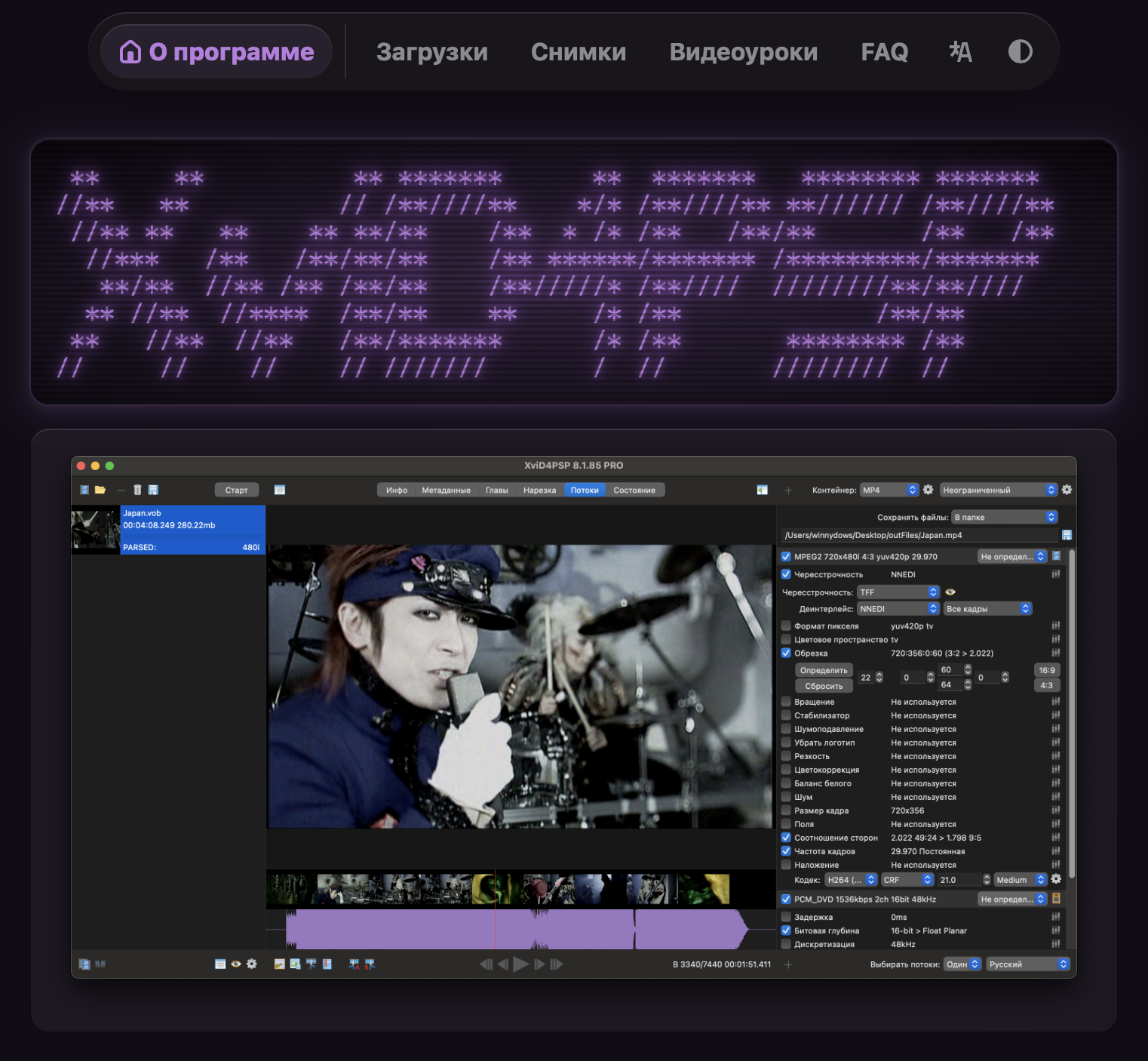


 All bots

 Registration details

 Identified technologies
User reviews (0)