

 Paid content
 Visit website
 Updated: 2026-09-30 00:41
 Language: English (default)
 Access: Normal
 Profile views 10
  Outbound visits 2
 Website Review
What is xTiles?
xTiles is a workspace app built around the idea of starting each day with your work already laid out: notes, tasks, and plans gathered in one place instead of scattered across separate apps. Its own framing is "Everything you need for the day — already organized," with the habit loop of looking back at yesterday, planning tomorrow, and never opening your day blind.
People typically use a tool like this as a flexible home base rather than a single-purpose task manager. In practice, that means a page for today's priorities, a running notes area, a project board, and a place to capture ideas — all in one workspace you can rearrange as your work changes.
Who it suits, and the trade-offs
- Best fit: freelancers, small teams, and anyone juggling several projects who wants notes and tasks side by side without maintaining three subscriptions.
- Weaker fit: people who want a rigid, opinionated methodology enforced for them, or teams that need deep, specialized features in one narrow area.
- The trade-off: flexibility means you design your own structure. If you don't enjoy setting up a system, ready-made templates are the shortcut — xTiles advertises templates aimed at "busy minds" and a free starting point.
A concrete way to judge it
Take one real week of your work. Try to rebuild it in xTiles: today's tasks, the notes you'd normally keep elsewhere, and the project it all belongs to. If that comes together in one place within an afternoon, the approach fits. If you spend that time fighting the structure, a more opinionated tool will serve you better.
For alternatives to compare against, look at Notion for database-style flexibility, Obsidian if your notes are the main event, and Todoist if you only want tasks.
How does xTiles organize my day automatically?
xTiles doesn't run your day for you. Its model is a visual workspace where notes, tasks, and links live as movable tiles on a board, and the organizing happens because your day's material is already laid out in front of you rather than scattered across apps. The page frames this as seeing yesterday, planning tomorrow, and never opening your day blind — a single surface you check instead of reconstructing your schedule from memory.
In practice, that means a daily board with tiles for meetings, tasks, notes, and reference links, arranged so the next action is visible. Some of this is manual setup; the "automatically" part comes from reuse. Once a board exists, tomorrow's version is a copy or rollover, so the structure is waiting for you. The page also points to ready-to-use templates for busy minds, which is the fastest route if you don't want to design a board yourself.
Who gets the most from it
- People juggling mixed content — a task, a client note, and a link in the same view, without switching tools.
- Visual thinkers — spatial arrangement helps when a list hides relationships between items.
- Template-first users — if you'd rather adapt an existing layout than build one, that path is on the page.
It suits lighter personal planning better than heavy project management with dependencies, resourcing, and reporting. If your day is mostly a fixed calendar, a calendar app already does this with less setup.
A concrete start
Take one real day — today, not a hypothetical one. Create a board, add tiles for each commitment, and put the notes and links you'd otherwise hunt for underneath. Tomorrow, duplicate it and delete what's done. If that takes more than a few minutes, switch to a template instead. The test is whether the board is faster than your current habit; if it isn't after a week, the friction is in the setup, not the idea.
For a second opinion on visual boards generally, Notion and Trello take different approaches worth comparing before committing.
Can I use xTiles for free or do I need a paid plan?
You can start with xTiles for free and only move to a paid plan if you need more capacity or team features. The site's own call to action is “Start for free — create your first project now,” and the pricing page exists for when you outgrow that.
What the free tier is good for
- Testing whether the visual, tile-based layout fits how you think.
- Running one or two personal projects: a weekly plan, a reading list, a simple content calendar.
- Trying the ready-to-use templates before committing.
When a paid plan usually makes sense
- You hit limits on the number of tiles, boards or collaborators.
- You want to share workspaces with a team rather than just yourself.
- You need the AI-assisted features the site highlights.
How to decide Start free, build one real project you actually care about, and use it for a week. If you keep running into a wall — not enough boards, can't invite the people you work with — that's your signal to check the pricing page. If the wall never appears, stay free.
Worth comparing against other flexible workspace tools if collaboration matters to you: Notion and Trello both have free tiers with different strengths.
What ready-to-use templates does xTiles offer for planning?
xTiles presents its templates as “ready-to-use templates for busy minds,” aimed at people who want a pre-built starting point rather than a blank page. The page does not list individual template names or categories, so the exact set of planning templates is not visible from the supplied information.
What is clear is the intended planning loop: look back at yesterday, plan tomorrow, and avoid opening your day without a plan. That suggests templates are positioned around daily and forward-looking planning, not just one-off project boards. If you are evaluating it, open the template gallery and check whether the templates match your actual rhythm — a daily review template, a weekly planning template, or a simple task-and-notes layout will be more useful than a generic project template you have to rebuild.
For a concrete test: pick one template and run it for a week alongside your current system. If you find yourself ignoring half the sections, the template is too heavy; if you keep adding the same missing field, it is too light. The best planning template is the one you will actually reopen each morning.
Start at xTiles and look for the templates section before creating a project from scratch.
How do I connect my AI tools to xTiles for daily workflows?
xTiles does not present itself as an AI integration hub. Based on its page, the AI angle is about using AI with xTiles content — the site invites you to "See what xTiles can do with your AI" — rather than plugging external AI tools directly into it. So the practical approach is to treat xTiles as the place where your day is organized, and connect your AI tools around it.
A realistic daily setup
- Keep your daily plan in xTiles: yesterday's review, today's tasks, tomorrow's outline. The product's promise is that you "never open your day blind," so the board should already hold the context.
- Export or copy the relevant block of text into your AI assistant when you need help — summarizing yesterday, drafting tomorrow, breaking a task into steps.
- Paste the AI output back into the same xTiles page so the plan stays in one place instead of scattering across chat windows.
Where each tool fits
| Need | Better handled by |
|---|---|
| Structured daily board, templates, shared planning | xTiles |
| Summarizing notes, drafting, brainstorming | Your AI assistant |
| Automatic sync between the two | Not described on the page — verify before relying on it |
Decision criterion
If your workflow depends on AI tools writing into xTiles automatically, test that first with a small project before committing your whole routine. If you mainly need a clear daily structure and occasional AI help, the copy-paste loop above is enough.
Start with one real day: build today's xTiles page, run one AI task against it, and paste the result back. That single cycle will tell you whether you need deeper integration or whether the manual loop is fast enough. For setup options and any automation features, check xTiles directly.
How can I collaborate with others in xTiles on shared projects?
xTiles is built around shared, visual project spaces: you create a page or project, then invite other people into it so everyone works from the same tiles, notes and checklists rather than passing files around. The product's own framing — "Everything you need for the day — already organized" and "Your work, finally done" — points to day-level and project-level boards that a small team or client group can co-edit.
Typical ways to collaborate
- Shared project pages: One page holds the plan, so a teammate opening it sees the current state instead of an outdated copy.
- Invite by link or email: The usual pattern in this kind of tool is to add collaborators to a specific page or workspace, then set what they can do (view, comment, edit).
- Templates as a starting point: The site advertises "Ready-to-use templates for busy minds," which is useful when several people need the same structure — a content calendar, a sprint board, a client project — before anyone starts adding their own tiles.
- AI assistance on shared content: "See what xTiles can do with your AI" suggests AI helps draft or organize material inside the page, which is most valuable when one person sets the structure and others fill it in.
A concrete scenario
A three-person marketing team keeps one xTiles page per campaign. The lead creates it from a template, invites the writer and designer, and assigns tiles for copy, assets and deadlines. Each person updates their own tiles; the lead reviews the page each morning instead of chasing status messages. A freelancer can be invited to just the one campaign page rather than the whole workspace.
How to decide
| Situation | Better fit |
|---|---|
| Small team co-editing a visual plan | Shared xTiles page |
| One-off review with an outside client | Invite to a single page with view/comment rights |
| Large org needing strict roles and audit trails | Check permission options before committing |
Start by creating one page, inviting a single collaborator, and testing the permission level you actually need. If you plan to bring in clients or contractors, confirm guest access and per-page sharing first, since that determines whether you can keep the rest of your workspace private. Pricing and seat details are listed on the site's own Pricing page.
For comparison, Notion and Coda take similar shared-document approaches, while Trello is more board-centric — worth a look if your team thinks in cards rather than pages.
 Hosting and Email
 Cloudflare
 Hosting
 Google Workspace
 Location
 Pages, Search and Sharing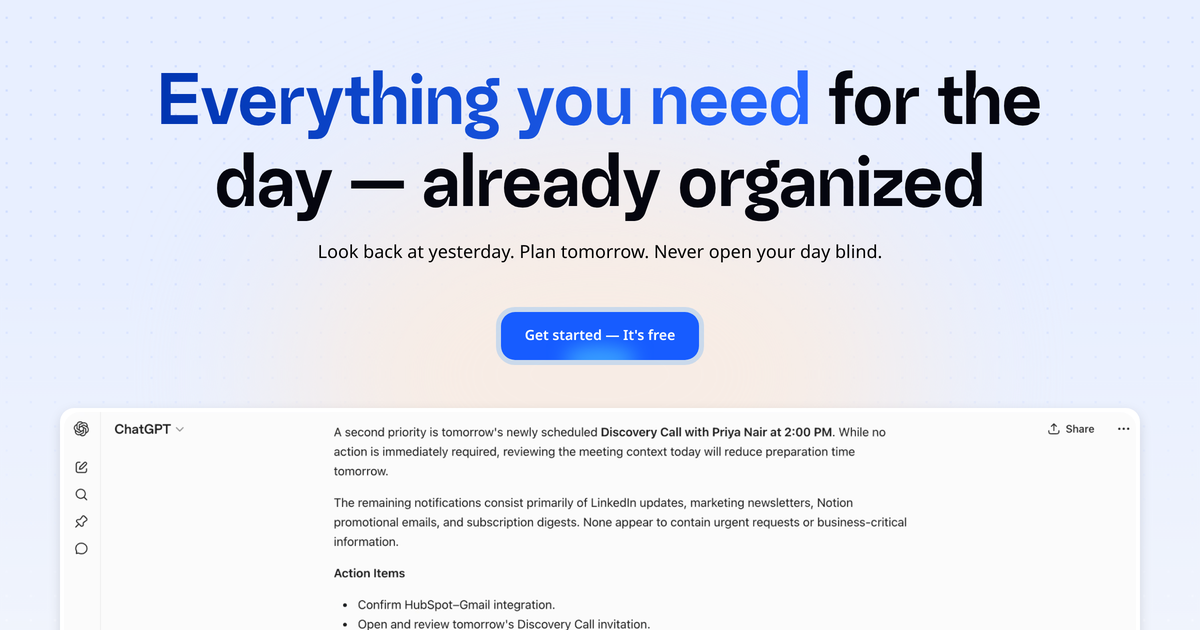



 All bots

 Registration details

 Identified technologies
User reviews (0)