
 3dsvg.design
No paid content found
3dsvg.design
No paid content found
Categories: Video & Film
Turn any SVG into interactive 3D objects. Animate and export as 4K image or video. 100% free, no account or subscription needed.
 Visit website
 Updated: 2026-09-24 11:09
 Language: English (default)
 Access: Normal
 Profile views 0
 Outbound visits 0
Related questions
More questions →How to Make Pixel Art and Animated Sprites with Piskel
Piskel is a free, open-source, browser-based editor for pixel art and animated sprites — you can design characters, animations, and tiles right in your browser, then export them as animated GIFs or spritesheet PNG/ZIP files. It works best in a desktop browser in landscape orientation, so if you're on a phone or a narrow window, expect a cramped workspace. The workflow below covers starting a sprite, drawing, animating frame by frame, and exporting.
Getting started
Open piskelapp.com and choose one of two paths:
- Start from scratch — create a blank sprite at a size you pick (small canvases like 32×32 or 64×64 are typical for characters and tiles).
- Try an example — the site's Sprite examples gallery includes characters, Gameboy retro graphics, layered backgrounds, and tilesets contributed by users such as CaptainBrosset, Ansimuz, Buch, and Surt. Opening one is the fastest way to see how frames, layers, and palettes are organized before you build your own.
If you're working with children or in a classroom, Piskel for Kids is a child-friendly version of the same editor, designed to be safe and distraction-free.
Drawing your pixel art
The editor gives you the standard pixel-art toolset: a pencil for single pixels, an eraser, fill, color picker, and shape/line tools, plus a color palette you can adjust as you work. Because everything is grid-based, zoom in before you draw — at small canvas sizes each pixel is a deliberate decision, and zooming keeps you from accidentally painting the wrong cell.
A practical order of work:
- Set your canvas size first. Changing it later means redrawing or rescaling.
- Block in the silhouette with a solid color.
- Add shading and highlights with a limited palette (3–5 colors per material reads cleanly).
- Clean up stray pixels with the eraser at high zoom.
Animating frame by frame
Piskel's timeline sits below the canvas. Each frame is a still image; the animation plays by cycling through them.
- Add frames to build a sequence — for a walk cycle, that usually means 4–8 frames.
- Duplicate a frame and edit only what changes, which keeps motion consistent between frames.
- Use layers to separate elements (for example, a character layer and a background layer) so you can edit one without disturbing the other.
- Check the live preview — Piskel shows a real-time preview of your animation as you draw, so you can judge timing without exporting.
- Adjust frame delay on the fly to speed up or slow down playback until the motion feels right.
Exporting your work
Piskel supports several export modes, and the right one depends on what you're doing next:
| Export format | Best for |
|---|---|
| Animated GIF | Sharing your animation on the web or in chat |
| PNG | A single still frame or image |
| Spritesheet PNG/ZIP | Larger projects, game engines, and anything that needs all frames in one file |
For game development, the spritesheet export is usually what you want — engines typically expect a single image containing every frame rather than a GIF.
Offline and desktop options
If you need to work without an internet connection, Piskel offers free desktop and offline applications for Windows, OSX, and Linux via its download page. The full source code is also open-source and available on GitHub at github.com/piskelapp/piskel, so you can inspect it, self-host it, or contribute.
Common snags
- Mobile or portrait orientation — the editor warns that it's best used in a desktop browser in landscape orientation. You can open it anyway, but the layout will be tight.
- Canvas size regret — pick your dimensions before drawing; resizing mid-project is the most common source of rework.
- Choppy animation — if motion looks jerky, the fix is usually more frames or a shorter frame delay, not more detail in each frame.
Cascadeur Free vs Paid Plans: What You Get and When to Upgrade
Cascadeur's site offers a free way to try the software and links to paid plans, but the public page does not spell out exactly what the free tier includes or where its limits sit. What it does confirm is the feature set — AI-assisted keyframe animation, AutoPosing, AutoPhysics, Ragdoll, Inbetweening, AI motion generation, rigging, retargeting, and UE Live Link — plus file compatibility with .FBX, .DAE, .GLB/.GLTF, and .USD. If you need a definitive free-vs-paid breakdown, treat the Plans page and the trial start as the two places to check, because the homepage itself doesn't publish export limits, watermark rules, or commercial-use terms.
What the public page actually tells you
The homepage positions Cascadeur as "the easiest way to animate" and invites you to "Try for free" or "Watch demo." It lists these capabilities without marking any as paid-only:
- Inbetweening — AI interpolation that generates motion between keyframes
- Ragdoll — procedural reactions to impacts, falls, and collisions
- AutoPosing — get natural poses by moving fewer control points
- Quadrupeds — rigging, AutoPosing, and one-click retargeting for four-legged animals
- AI Motion Generation — running, jumping, combat, acrobatics, idles, and more
- AutoPhysics — a character double showing a physically accurate result, for tuning secondary motion and inertia
- Rigging — drag-and-drop joints to auto-generate a rig for humanoids and quadrupeds
- Retargeting — copy/paste animation between characters regardless of skeleton or proportions
- UE Live Link — stream animation to Unreal Engine with real-time updates
It also names the solution areas: mocap cleanup, previz, animation editing, AI, video games, prototyping, and markerless mocap. Mocap cleanup is described as fixing foot sliding, knee pops, geometry penetration, poses via AutoPosing, weight via AutoPhysics, and edits via Animation Layers.
None of this is labeled "free" or "paid" on the page, so don't assume the list equals the free tier.
The two "free" paths are different things
The page shows two separate entry points, and mixing them up is the most common source of confusion:
| Entry point | What it is | What to expect |
|---|---|---|
| "Try for free" | A trial-style access route | Time-limited or feature-limited evaluation; check the Plans page for terms |
| A long-term free tier | A persistent no-cost version | Not described on the homepage; verify on the Plans page |
The trial link points to cascadeur.com/plans#trial, which means trial terms live on the pricing page, not the homepage. If your decision depends on whether you can keep using it indefinitely at no cost, that answer has to come from the Plans page — the homepage doesn't provide it.
When the free route is likely enough
Based on the feature list alone, a free or trial route is worth starting with if you are:
- Learning the workflow — testing AutoPosing and Inbetweening on a simple humanoid before committing
- Evaluating mocap cleanup — checking whether the foot-sliding and knee-pop fixes fit your pipeline
- Prototyping — blocking previz or game animation without a production deadline
- Testing file compatibility — confirming your .FBX, .DAE, .GLB/.GLTF, or .USD assets import cleanly
When upgrading becomes the real question
Upgrade pressure usually comes from constraints the homepage doesn't state, so verify each against the Plans page before paying:
- Export restrictions — if the free tier limits resolution, format, or adds a watermark, that alone can force an upgrade for client work.
- Commercial use — confirm whether free-tier output can be used in shipped products. The page doesn't say.
- Team or pipeline needs — UE Live Link and retargeting matter more in production; check whether they're gated.
- Volume of work — a single test animation and a full game's combat set have very different tolerance for limits.
A concrete example: if you're cleaning up a markerless mocap take for a game prototype and the free route lets you fix foot sliding and apply AutoPhysics, you may never need to pay. If you're delivering that animation into a commercial build and the free tier restricts export or licensing, the upgrade decision is made for you by the terms, not the feature list.
How to decide without guessing
- Open the Plans page and read the actual tier comparison — this is the only authoritative source in the material provided.
- Start the trial and test the specific features your project needs: AutoPosing, AutoPhysics, Ragdoll, Inbetweening, retargeting, and UE Live Link.
- Test an export end-to-end with your real file format (.FBX, .DAE, .GLB/.GLTF, or .USD) and inspect the output for watermarks or quality loss.
- Check the commercial-use terms in writing before shipping anything.
- Only then compare cost against the limits you actually hit.
The homepage is useful for understanding what Cascadeur does — AI-assisted keyframe animation for character work, mocap cleanup, and game pipelines. It is not a pricing document. For the free-vs-paid question specifically, the Plans page is the answer, and the trial is how you verify it against your own project.
What Is Cascadeur and How Does AI-Assisted Keyframe Animation Work?
Cascadeur is a 3D animation software built specifically for character animation, combining traditional keyframe work with AI-assisted tools for posing, inbetweening, and motion generation. It fits workflows where you need to block out or refine character motion — game combat animations, previz, mocap cleanup — rather than general-purpose 3D modeling or rendering. You can evaluate it through a free trial before committing.
What Cascadeur Is Designed For
The software targets a specific slice of the animation pipeline: the motion of humanoid and quadruped characters. Its stated use cases are:
- Mocap cleanup — fixing and editing motion capture data, including preventing foot sliding, knee pops, and geometry penetration.
- Previz — rapid blocking of animation for planning.
- Animation editing — making changes through Animation Layers.
- Game prototyping — producing combat, locomotion, and idle animations for games.
One documented production example: Nekki created the combat animations for Shadow Fight 4: Arena in Cascadeur. The game has surpassed 50 million downloads and 1.8 million reviews on Google Play alone.
The Core AI-Assisted Tools
Cascadeur's distinguishing feature is that its AI tools are meant to be editable rather than one-click black boxes. The CTO, Alexander Grishanin, has argued that editable AI matters more than one-click generation — worth keeping in mind if you need to iterate on results rather than accept them.
Inbetweening
AI interpolation that generates motion between your keyframes. You set the key poses; the system fills the gaps, which you can then adjust.
AutoPosing
An AI system that produces natural poses when you move fewer control points. Instead of rotating every joint, you move a few and the system infers a plausible full-body pose.
Ragdoll
A procedural tool that makes characters react to impacts, simulate falls, and handle collisions.
AutoPhysics
Displays a physically accurate result for the character, letting you quickly adjust secondary motion, inertia, and similar properties.
AI Motion Generation
Generates animation types including running, jumping, combat, acrobatics, and idles. This is generation as a starting point, not a final output — the editable framing matters here.
Rigging and Retargeting
- Rigging: drag-and-drop the joints of your character to generate a rig automatically, for both humanoids and quadrupeds (cats, dogs, horses, etc.).
- Retargeting: copy and paste animation between different characters regardless of skeletal structure or proportions. Quadrupeds get one-click retargeting.
How It Fits Into an Existing Pipeline
Cascadeur works with common interchange formats, which determines whether it can slot into your current toolchain:
| Format | Use |
|---|---|
| .FBX | Standard 3D interchange |
| .DAE | Collada |
| .GLB / .GLTF | glTF |
| .USD | Universal Scene Description |
For Unreal Engine users, UE Live Link streams animation directly into the engine, with changes updating in real time. That's the most direct integration path if your target is a UE project.
When Cascadeur Is a Good Fit — and When It Isn't
Choose it if:
- Your work is character motion: combat, locomotion, acrobatics, idles.
- You need to clean up mocap data and fix common artifacts like foot sliding.
- You want AI assistance that stays editable rather than generating a final clip you can't adjust.
- You're targeting Unreal Engine and want live streaming of animation changes.
Look elsewhere if:
- You need general 3D modeling, texturing, or rendering — Cascadeur is animation-focused.
- Your work is 2D animation or sprite-based.
- You need a fully automated one-click motion pipeline with no keyframe editing.
How to Evaluate It
- Go to the plans page and start the free trial.
- Import a character in a supported format (.FBX, .DAE, .GLB/.GLTF, or .USD).
- Use drag-and-drop rigging to generate a rig, then test AutoPosing by moving a few control points and checking whether the inferred poses are usable.
- Set two keyframes and run Inbetweening to see whether the generated motion matches your intent.
- If you use Unreal Engine, connect UE Live Link and confirm that edits update in the engine in real time.
The trial is the practical test: the value of an AI-assisted keyframe tool depends on whether its generated poses and inbetweens are close enough to your target that editing them is faster than animating from scratch.
What Is SVG and How Do You Open, Edit, and Use SVG Files?
SVG (Scalable Vector Graphics) is an XML-based vector image format: instead of storing a grid of pixels, an SVG file stores shapes, paths, text, and colors as markup that a renderer draws on demand. That means it scales to any size without pixelation, and it can be opened in a browser, edited as code, or edited visually in a vector editor such as Inkscape. Choose SVG when you need crisp scaling, small file sizes for geometric artwork, or images that must be styled and scripted on the web; choose a raster format like PNG or JPEG when the image is photographic or made of fine continuous tone.
What "XML-based vector" actually means
An SVG is a text document. A circle is not a cluster of colored pixels — it is an element with a center and a radius, and the renderer computes the pixels at whatever size you ask for.
This has three practical consequences:
- Resolution independence. The same file renders sharply as a 16 px favicon or a billboard. There is no "native resolution" to exceed.
- Small files for the right content. A logo made of a few curves can be a few kilobytes, while the equivalent PNG at high resolution may be far larger. The reverse is also true: a complex illustration with thousands of paths can be heavier than a compressed photo.
- Editable structure. Because the file is markup, you can change a color, move a shape, or add an animation by editing text or using a tool — no repainting required.
SVG vs. raster formats (PNG, JPEG)
| Dimension | SVG | PNG / JPEG |
|---|---|---|
| Data model | Shapes, paths, text as markup | Fixed grid of pixels |
| Scaling | Sharp at any size | Blurs or pixelates when enlarged |
| Typical best use | Icons, logos, diagrams, charts, UI, simple illustrations | Photos, scans, complex continuous-tone images |
| Editability | Edit shapes, text, and code | Edit pixels |
| Text | Real, selectable, searchable text | Rendered as pixels |
| Animation/interaction | Can be styled and scripted in a page | Static (or separate format) |
A useful rule: if the image is built from distinct shapes and lines, SVG is usually the better container. If it is built from millions of subtly varying colors, raster is usually better.
How to open and view an SVG file
You rarely need special software just to look at one.
- Web browser. Drag the file into a browser window, or open it directly. Browsers render SVG natively. This is the fastest way to check that a file displays correctly.
- Image viewer. Many desktop viewers open SVG, though support varies; some rasterize it at a fixed size, which can hide scaling problems.
- Vector editor. Opening in a tool like Inkscape shows the actual objects, layers, and paths rather than just the rendered result. This is what you want if you intend to change anything.
- Text editor. Since SVG is XML, a plain text editor opens it and shows the underlying structure. Useful for small fixes and for understanding what a file contains.
How to edit an SVG file
There are two complementary ways to edit, and knowing which to use saves time.
Editing visually in a vector editor
Use this when you are changing appearance: moving objects, recoloring, reshaping paths, adjusting text, or combining elements. Inkscape is a professional vector graphics application for Linux, macOS, and Windows that works directly with SVG as its native document format, so what you draw is what the file contains. The general workflow is:
- Open the SVG in the editor.
- Select and transform objects, or use path tools to reshape curves.
- Adjust fills, strokes, and text as needed.
- Save back to SVG.
Because SVG is the editor's native format, round-tripping generally preserves the structure rather than flattening it.
Editing the XML directly
Use this when you need a precise or programmatic change: setting an exact coordinate, changing a single fill value, removing metadata, or generating files from a script. Open the file in a text editor, locate the relevant element, change the attribute, and save. The expected result is an immediate change in how the file renders — but a malformed tag will break rendering entirely, so keep a backup and validate after editing.
A practical division of labor: do structural and visual work in a vector tool, and reserve hand-editing for surgical changes or automation.
Common uses and pitfalls to check
SVG is the standard choice for:
- Icons and UI elements on websites and in applications.
- Logos and brand marks that must stay sharp across sizes.
- Illustrations and diagrams built from shapes and lines.
- Charts and data graphics that need to scale or be styled dynamically.
- Text-bearing graphics, since text stays as text.
Pitfalls worth checking before you ship a file:
- Text that depends on fonts. If a font is not available where the SVG is displayed, text may reflow or substitute. Converting critical text to paths removes that dependency but also removes selectability and editability.
- Embedded raster images. An SVG can contain a raster image inside it. The file is still SVG, but that part will not scale cleanly — check whether the artwork is genuinely vector.
- Unoptimized editor output. Tools often write extra metadata, unused definitions, and verbose coordinates. Cleaning these up can shrink the file substantially.
- External references. Some SVGs point to external resources; if those are missing, parts of the image may not render.
- Viewport and viewBox settings. These control how the artwork maps to the display area. A mismatch is a common cause of unexpected cropping or scaling.
If you want to inspect or fix any of these, opening the file in a text editor alongside a visual editor gives you both views of the same document.
Website Overview
An active inbound-mail setup with incomplete authentication may leave the domain more open to impersonation. Provider hosting alone does not close that gap.
Domain and Registration
The domain was registered less than a year ago and has limited historical evidence to assess. Transfer-protection status is present, helping reduce the risk of unauthorized domain transfers. The registrar is NameCheap, Inc., a widely used domain service provider. Registration contact information is publicly available through RDAP. The domain uses the common .design extension, which is not an independent safety signal.
DNS and Email
The observed email authentication setup is incomplete: DMARC is missing. Nameservers are provided by Namecheap, indicating managed DNS hosting. MX records point to the registrar-servers.com email service. No CNAME was found; the observed records resolve directly to addresses. DNSSEC signatures were not detected, so this additional DNS authenticity protection is not confirmed.
TLS and Certificates
The certificate uses an RSA 2048-bit public key, offering broad client compatibility. The server supplied a complete certificate chain. No organization name is present in the certificate; the available fields are consistent with domain validation. The certificate was issued by Let's Encrypt, commonly associated with automated certificate services. The certificate's total validity is about 89 days, consistent with a short renewal cycle.
HTTP and Browser Security
The response lacks these common security headers: CSP, X-Content-Type-Options, Referrer-Policy, Permissions-Policy, clickjacking protection. CORS permits any origin to read this response. This is common for public resources; sensitive responses need narrower handling. No X-Powered-By header was found, reducing one common source of backend fingerprinting information. No obvious internal addresses or debug information were found in the headers. The Server header contains the custom value Vercel.
Technology Stack Analysis
The public page identifies Next.js, Vercel without precise versions, leaving fewer clues for version-specific scanning.
Search and Social Sharing
No homepage canonical URL was detected. If duplicate URLs exist, consolidation may be less explicit. Twitter Card metadata is configured. The title has 44 characters, within a common display range. A meta description is present, with 128 characters. The observed directives allow indexing and link following.
 Hosting and Email
 Namecheap
 Hosting
 Vercel
 Location
 United States
 Pages, Search and Sharing
| Meta description | Turn any SVG into interactive 3D objects. Animate and export as 4K image or video. 100% free, no account or subscription needed. |
|---|---|
| Canonical URL | Not detected |
| Language | English (default) |
| Twitter Card | summary_large_image |
Social Sharing Preview
16 fields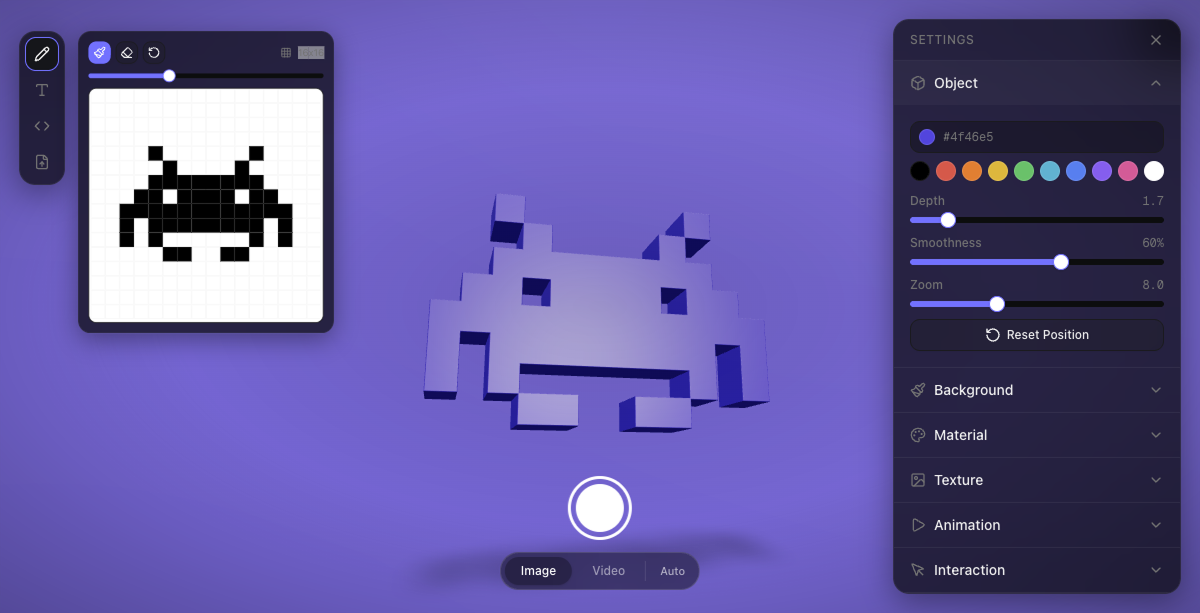

Sharing metadata
| og:url | https://3dsvg.design |
|---|---|
| og:type | website |
| og:image | https://3dsvg.design/opengraph-image.png?opengraph-image.16og9b5jmsmvd.png?dpl=dpl_DoTUkoMFgTCrAySri8dDxdBL4eNX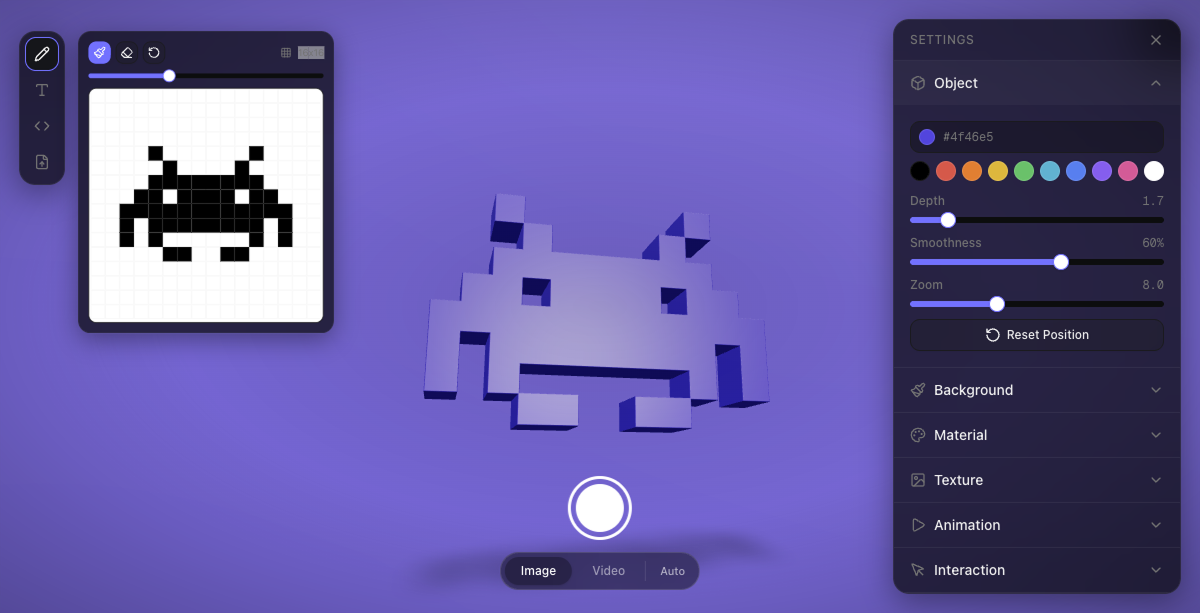 |
| og:title | 3dsvg — The easiest way to turn SVGs into 3D |
| og:site_name | 3dsvg |
| og:image:type | image/png |
| og:description | Turn any SVG into interactive 3D objects. Animate and export as 4K image or video. 100% free, no account or subscription needed. |
| og:image:width | 1200 |
| og:image:height | 613 |
| twitter:card | summary_large_image |
| twitter:image | https://3dsvg.design/opengraph-image.png?opengraph-image.16og9b5jmsmvd.png?dpl=dpl_DoTUkoMFgTCrAySri8dDxdBL4eNX |
| twitter:title | 3dsvg — The easiest way to turn SVGs into 3D |
| twitter:image:type | image/png |
| twitter:description | Turn any SVG into interactive 3D objects. Animate and export as 4K image or video. 100% free, no account or subscription needed. |
| twitter:image:width | 1200 |
| twitter:image:height | 613 |
robots.txt (opens in a new tab)
HTTP 404No robots.txt found
Sitemaps
0No sitemaps found
 Registration details RDAP / WHOIS
| Registrar | NameCheap, Inc. |
|---|---|
| Registered | 2026-04-01 |
| Expires | 2027-04-01 |
| Domain status | client transfer prohibited |
| Nameservers | dns1.registrar-servers.com、dns2.registrar-servers.com |
| DNSSEC | unsigned |
 DNS records
| Type | Name | Value | TTL | Priority |
|---|---|---|---|---|
| A | 3dsvg.design | 216.150.1.1 | 1799 | — |
| MX | 3dsvg.design | eforward1.registrar-servers.com | 1800 | 10 |
| MX | 3dsvg.design | eforward2.registrar-servers.com | 1800 | 10 |
| MX | 3dsvg.design | eforward3.registrar-servers.com | 1800 | 10 |
| MX | 3dsvg.design | eforward4.registrar-servers.com | 1800 | 15 |
| MX | 3dsvg.design | eforward5.registrar-servers.com | 1800 | 20 |
| NS | 3dsvg.design | dns1.registrar-servers.com | 1800 | — |
| NS | 3dsvg.design | dns2.registrar-servers.com | 1800 | — |
| TXT | 3dsvg.design | v=spf1 include:spf.efwd.registrar-servers.com ~all | 1800 | — |
 TLS and certificates
| Assessment | Normal configuration |
|---|---|
| Supported protocols | TLSv1.2、TLSv1.3 |
| Negotiated protocol | TLSv1.3 |
| Certificate subject | 3dsvg.design |
| Issuer | Let's Encrypt |
| Valid until | 2026-11-01T18:56 · Remaining when checked: 38 days |
| Verification details | Certificate trust: Passed · Hostname match: Passed |
 HTTP response headers
| Header | Value |
|---|---|
| content-type | text/html; charset=utf-8 |
| cache-control | public, max-age=0, must-revalidate |
| server | Vercel |
| strict-transport-security | max-age=63072000 |
| access-control-allow-origin | * |
 Identified technologies
User reviews (0)