
 简体中文
简体中文 English
Website review
This review may include AI-generated content and is not individually verified. Domain, certificate and other facts come from the observed data on this page.
What is Broomkit?
Broomkit is a Mac cleaner app for macOS 14 and later, distributed by the developer of broomkit.com. It scans your disk for reclaimable space — caches, leftovers and duplicates — and shows you what it found before anything is deleted. Its distinguishing pitch is the pricing model: every feature is unlocked for a 3-day trial, after which a one-time licence keeps the app. There is no subscription and no auto-renewal.
What it does
- Smart Care — one scan producing six cards that summarize what was found and what will run.
- Disk Map — a treemap of what is actually consuming space.
- Performance — live memory, CPU, disk and battery readings, with a Quit button next to each resource-hungry app and alerts when something is genuinely wrong.
- Uninstaller — every app with its real size, filters for unused and App Store apps, and leftovers listed first.
- Cleanup Manager — every file listed with a tick box before anything moves.
- Reclaim — a review step where nothing is erased yet (items go to the Trash first), then a confirm step showing the free-space impact.
Who it suits
Someone with a full Mac drive who wants to see the numbers before paying, and who dislikes subscription cleaners. The trial-first design means you judge it on your own machine rather than on marketing screenshots. The uninstaller and leftover handling are the parts most likely to matter if you install and remove a lot of apps.
Trade-offs to weigh
The trial is short — three days — so you need to actually run a scan during that window to get value from it. The app is macOS 14+ only, and it is a relatively small independent product rather than an established suite, so long-term update cadence is worth checking. It also does not attempt to be a full maintenance toolkit; it is focused on space reclamation and uninstalling.
Next step
Before the trial ends, run one full scan and check the Reclaim review screen against what you already know is on your disk. If the reported reclaimable space matches your own sense of where the bulk is, the one-time licence is a reasonable buy; if the numbers look inflated or the categories do not match your usage, you have lost nothing. For a second opinion on what is safe to delete on macOS, Apple's own storage guidance is at Apple Support.
How does Broomkit's 3-day free trial work before I pay?
Broomkit's trial is a full-feature unlock, not a limited demo. For 3 days after you download, every part of the app works on your own Mac — the disk scan, Disk Map treemap, large-and-old-file finder, live performance monitoring, the uninstaller, and the Reclaim steps. You see your actual reclaimable numbers before deciding, and no card is required to download.
What happens day by day
- Days 1–3: All features unlocked. You can scan, browse paths, Reveal in Finder, and run Reclaim (files go to the Trash first, with a Review step before anything moves).
- After 3 days: The app keeps working for analysis, but Reclaim and the uninstaller require a one-time licence. There is no subscription and no auto-renewal.
- Keeping it: A single payment for one Mac, activated through the app's activation page. See Broomkit for current licence terms and pricing.
A practical test plan for your 3 days
- Day 1 — Scan and read the numbers. Run Smart Care and open Disk Map. Note your total reclaimable GB and which categories dominate. If the total is small, you may not need a cleaner at all.
- Day 2 — Test the risky parts. Use Cleanup Manager to browse files before ticking anything, then run Reclaim on a modest category. Confirm the Review step lists everything and that items land in the Trash, so you can restore them.
- Day 3 — Try the uninstaller and performance view. Uninstall one app you no longer use and check that leftovers appear. Watch the live memory/CPU cards for a few minutes to see whether the alerts are useful or noisy.
Decision criterion
Pay only if the trial shows a meaningful amount of reclaimable space you actually want back, and if the Review-before-Reclaim flow matches how careful you want to be. If your reclaimable total is trivial or you are comfortable cleaning caches manually, the trial has already done its job — you can walk away without paying.
One trade-off to weigh: the one-time licence covers one Mac, so a multi-Mac household pays per machine rather than once for all. That is still cheaper than a recurring subscription if you keep the app for years, but it is worse if you only need a one-off cleanup.
Can Broomkit remove System Data or other hidden storage on a Mac?
Broomkit is built to surface and reclaim the storage macOS lumps into vague categories like "System Data," so yes — that's the core of what it does. But the honest answer is that "System Data" isn't one thing, and no cleaner can delete all of it.
What Broomkit actually targets
According to the site, a scan covers 16 reclaimable categories, and the Disk Map shows a treemap of what's physically eating space. Files are listed with paths and a tick box before anything moves, and the Reclaim step sends items to the Trash first rather than erasing outright. On one machine the site reports 84.8 GB found.
That matters because "System Data" in macOS Storage settings is a catch-all: caches, logs, app leftovers, old iOS backups, Time Machine local snapshots, and more. Broomkit is transparent about which of those it lists and where they live — you see the path before you tick it.
What it can't do
macOS protects some of that space deliberately. Local snapshots, swap files, and system-managed caches may be listed but not safely removable, and the site's own framing — "free to analyze," "nothing is erased yet" — suggests the tool is designed to show you options rather than promise a fixed number. Expect to reclaim a meaningful chunk, not necessarily every gigabyte the Storage pane counts.
A practical test before you pay
Run the scan during the free trial and compare its total against what macOS reports under System Data. If the gap is large, the difference is likely protected or snapshot-based storage — check whether Broomkit lists those items and whether they're tickable. That tells you more about fit than any headline figure.
If you want a second opinion on what's safe to remove, Apple's own guidance on storage management is at Apple Support.
How do I completely uninstall apps and their leftover files with Broomkit?
Broomkit's uninstaller is built to remove an app and its leftovers in one pass rather than dragging the app to the Trash and hoping nothing remains. According to the page, the uninstaller lists every app with its real size, includes filters for unused and App Store apps, and shows leftover files listed first. Removal requires the licence — the free 3-day trial unlocks it so you can see your own results before paying.
Typical workflow
- Open the Uninstaller from the sidebar.
- Sort or filter to find the app — "unused" and "App Store" filters help when you don't know what to remove.
- Select the app. Review the leftover files Broomkit has attached to it; these are shown first for a reason, since they're the part manual deletion usually misses.
- Confirm the removal. Per the page, nothing is erased immediately — items go to the Trash first, and you see the free-space impact before proceeding.
What "leftover" means here
When you drag an app to the Trash, macOS removes the app bundle but not the support files scattered elsewhere — preferences, caches, application support folders, containers, logs. Broomkit's claim is that it groups those with the parent app so one confirmation clears them together. The Trash-first step matters: if a leftover turns out to belong to something you still use, you can put it back before emptying the Trash.
Practical cautions
- Emptying the Trash is the irreversible step. Review the Reclaim · Review list before you do it.
- Leftovers for apps that share a framework (common with browsers, Adobe tools, or anything with a helper daemon) can be shared with other software. Check the paths before confirming.
- If you only want to reclaim space and not remove software, the cache and System Data categories are a separate path — the page treats the uninstaller as its own tool.
Decision criterion
Use Broomkit's uninstaller when you're removing several apps, or one large app you installed long ago and don't remember the layout of. For a single small app you installed last week, dragging it to the Trash and manually checking ~/Library/Application Support and ~/Library/Caches is often faster than launching a cleaner.
For comparison, AppCleaner is the long-standing free option for this exact job, and Many Tricks' AppCleaner page describes its own leftover-matching approach. CleanMyMac X bundles uninstalling into a broader suite at MacPaw. If you want to inspect leftovers by hand, Finder's Go to Folder (Shift-Command-G) reaches ~/Library directly.
Next step: run the uninstaller during the free trial on one app you genuinely want gone, and watch whether the leftover list matches what you'd have found manually. That tells you more than any feature list.
Is Broomkit a one-time purchase or a subscription?
Broomkit is a one-time purchase, not a subscription. According to the site, every feature is unlocked for a 3-day free trial, and after that you pay once to keep the app — there is no subscription and no auto-renewal.
What that means in practice
- Trial: You can scan, use the Disk Map, find large files, and try the uninstaller and Reclaim during the 3 days, so you see your own numbers before paying.
- After the trial: A single payment keeps the app. The site lists a "Buy 1 Mac" option at $34.95, but check the current checkout for exact pricing and any multi-Mac options.
- No account, no card to download: The site says you can download and analyze without signing up or entering payment details.
Why the one-time model matters
If you dislike recurring charges for a utility you may only need occasionally, this is the main draw. The trade-off is that a one-time licence usually means you get the version you paid for, and major future upgrades may or may not be included — the site does not promise ongoing feature updates, so treat that as something to confirm before buying.
Next step
Download the free trial from Broomkit and run a scan on your Mac. If the reclaimable space and the uninstaller are useful to you, the one-time licence is the decision point; if not, you have lost nothing but the 3-day window.
Can I use Broomkit without an admin password or privileged helper?
Yes. Broomkit is designed to work without an admin password and without installing a privileged helper. The page states this directly in the feature list: "No admin password · no privileged helper · no bundled software · uninstall by dragging to the Trash." So the app runs as a normal user-level application, not as a system-level tool with root access.
What that means in practice
You can install it like any other Mac app — drag it to Applications — and scan, browse, and reclaim files without being prompted for your password. That is a meaningful trade-off in both directions.
Where it works well: cleaning up your own user data. Caches, leftover files from apps you deleted, duplicates, large downloads, and old documents all live in your user folder, so Broomkit can reach them without elevated privileges. The uninstaller also works at this level for most apps.
Where it has limits: anything owned by the system or protected by macOS's privacy controls — some system-level caches, files inside other users' home folders, or protected locations like /Library subfolders with restricted permissions — may not be fully accessible. macOS itself also requires user consent for certain folders (Desktop, Documents, Downloads), which you grant through System Settings rather than a password prompt. A cleaner that asks for admin rights can sometimes reach deeper, but it also carries more risk if something goes wrong.
Why the design choice matters
Avoiding a privileged helper is generally the safer architecture. Helpers run with elevated privileges and stay installed; if they are poorly written or abandoned, they become a persistent security surface. Running entirely in user space means removing the app is as simple as dragging it to the Trash — no leftover daemon to hunt down.
A concrete test
If you want to verify this on your own machine, download the free version and run a scan on your home folder. If you are never asked for a password and the app still finds reclaimable space, the design is behaving as described. If a specific cleanup requires privileges, macOS will show its own permission dialog — that is the operating system asking, not the app.
For comparison, some Mac cleaners take the opposite approach and install a helper for deeper access; CleanMyMac is a well-known example of that model. Broomkit's stance is narrower but simpler to remove and audit.
 Cloudflare
 Google Workspace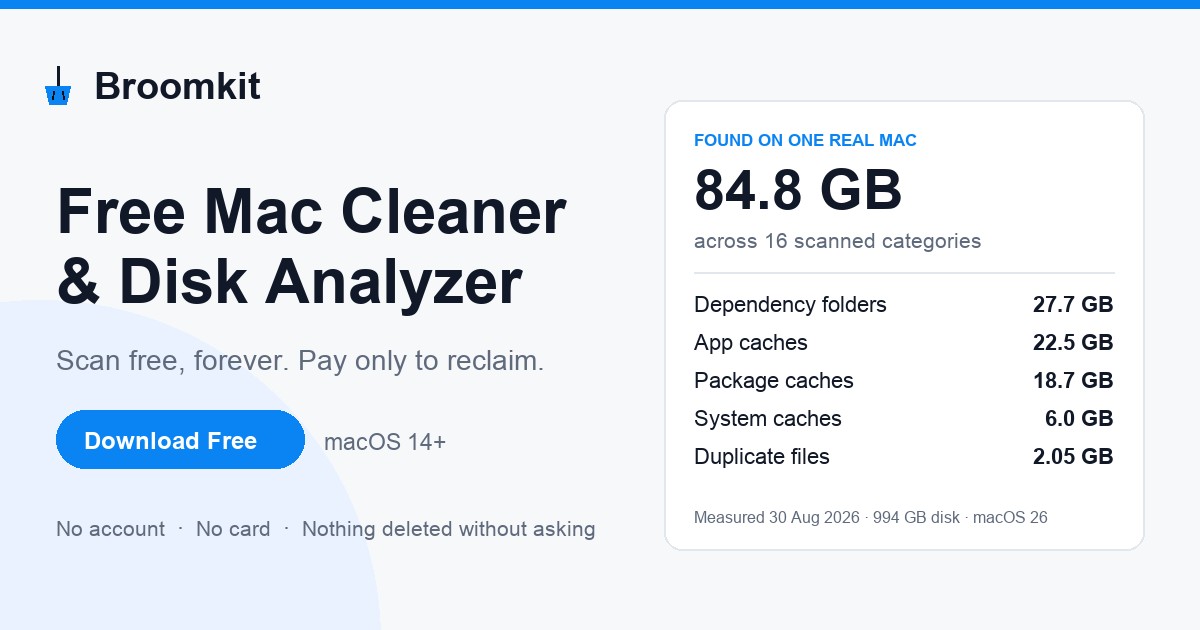

User reviews (0)