
 简体中文
简体中文 English
Website review
This review may include AI-generated content and is not individually verified. Domain, certificate and other facts come from the observed data on this page.
What is CapyBro?
CapyBro is a Windows text-rewriting utility that works inside whatever app you already use. You select text, press a hotkey, and an AI model rewrites it in place — fixing grammar, changing tone, shortening, or translating. It runs on Windows 10 and 11 and is aimed at people who write a lot in many programs: Word documents, Outlook mail, browser forms, chat apps, IDEs.
How it actually works
The workflow is deliberately small: highlight a passage, trigger a hotkey, and the result replaces your selection. The site shows a leave request being converted from a casual note into a formal message in under a second, then pasted back automatically. That "in place, in any app" design is the main differentiator from browser-based rewriters, which only reach text inside a web page.
Cloud or local models
Two paths are offered, and the choice matters more than most feature lists:
- OpenRouter — one account reaching models such as GPT-4o, Claude and Gemini. Convenient, but your text is sent to a third party.
- Ollama — a fully local model. Nothing leaves the machine, which is the sensible option for confidential drafts, legal text, or anything under an NDA.
Keys are stored encrypted locally, and history stays on the device.
Who it suits
| If you… | CapyBro is a reasonable fit | Consider something else |
|---|---|---|
| Write across many desktop apps | Yes — hotkey works system-wide | A browser extension covers only web text |
| Handle sensitive text | Yes, with Ollama local mode | Cloud-only tools send text off-device |
| Want reusable instructions | Custom prompts, one hotkey each | Built-in presets may be enough |
| Use macOS or Linux | No — Windows only | Cross-platform editors or web tools |
Practical notes before you commit
The free tier is described as permanent, with a one-time paid upgrade rather than a subscription — worth confirming on the site, since pricing details change. The free core is open source under MIT, so the behaviour can be inspected rather than trusted. A diff preview shows original versus result before replacement, which is the feature that prevents the usual AI-rewriting annoyance of silently overwriting your meaning. If you try it, start with one narrow job — grammar fixes in email — before wiring hotkeys to every writing task.
How do I set up CapyBro with Ollama for fully local, private rewriting?
Install Ollama on the same Windows PC, pull at least one model, then point CapyBro's local mode at it. CapyBro's page describes a "Local mode via Ollama" where text never goes to the network, so the whole chain stays on your machine once both pieces are running.
Steps
- Install Ollama for Windows and confirm it runs. Open a terminal and check that the service responds (Ollama serves a local API on port 11434 by default).
- Pull a model. In a terminal:
ollama pull llama3.1(or another model you prefer). Larger models give better rewrites but need more RAM/VRAM and run slower. - Open CapyBro → Settings. Look for the model/provider section and switch from the cloud option (OpenRouter) to Ollama / local mode.
- Select the model you pulled from the list CapyBro shows. If your model isn't listed, type its exact Ollama tag.
- Set your prompts. CapyBro supports custom prompt templates with a hotkey each — for example "Fix grammar," "Rewrite formally," "Translate," "Make twice shorter."
- Test in a real app. Select a sentence in Word or your browser, press the hotkey, and check the diff preview before accepting.
What to expect
| Choice | Privacy | Speed | Quality |
|---|---|---|---|
| Ollama local | Text never leaves the PC | Depends on your hardware | Good with a capable model; below frontier cloud models |
| OpenRouter cloud | Text is sent to a provider | Fast | Highest, model-dependent |
Practical notes
- Hardware matters more than settings. A 7–8B model runs comfortably on 16 GB RAM; larger models want a dedicated GPU. If rewrites feel slow, drop to a smaller model rather than changing CapyBro options.
- Diff preview is your safety net. It's on by default, so you can accept, regenerate, reject, or hand-edit before the text replaces your original.
- Keep prompts short and specific. "Rewrite formally, keep under 80 words" produces more usable output than a vague instruction.
- First run is slowest. The model loads into memory on first use; subsequent calls are quicker.
If you only handle occasional, non-sensitive text, cloud models via OpenRouter will give better results with less setup. If you regularly work with confidential documents — contracts, medical notes, internal drafts — the Ollama route is the one that keeps the text on your machine.
Can I use CapyBro to rewrite or translate text directly inside Word, Outlook, or VS Code?
Yes. CapyBro is built around exactly that workflow: you select text inside whatever program you're already using, press a hotkey, and the rewritten or translated text is pasted back in place. The page names Word, Outlook, Telegram, Chrome, VS Code and IDEs as supported environments, and describes the mechanism as "select → press → get result," with the example result "Pasted automatically."
How it fits each app
| App | Typical use | What to watch |
|---|---|---|
| Word | Tightening drafts, converting casual notes to formal tone | Review the diff preview before accepting, since formatting inside a paragraph can shift |
| Outlook | Rephrasing a blunt email, translating a reply | Keep the recipient and thread context in mind; a rewrite can change tone in ways that read oddly in a long chain |
| VS Code | Rewriting commit messages, comments, docs, or user-facing strings | Be careful with code identifiers and technical terms — a general-purpose rewrite may "fix" wording you need kept literal |
The page's own example is an email: a loose leave request becomes a formal one, with the result inserted automatically in about 0.8 seconds. That is the core value — you never leave the app or copy text into a separate chat window.
Translation and tone control
Translation is handled by the underlying model rather than a fixed language pair, so the output language is whatever you ask for. The interface itself is available in English, Ukrainian and Russian, but that setting is separate from what the AI produces.
For repeated jobs, custom prompts let you bind a hotkey to a specific instruction such as "Fix grammar," "Translate," "Rewrite formally" or "Make twice shorter." If you translate the same direction daily, that saves retyping the instruction each time.
The privacy trade-off
This is the main decision point. With OpenRouter you get GPT, Claude and Gemini through one account, but your selected text goes to a cloud service. With Ollama, the model runs locally and the text never leaves the machine. The page also states that API keys are encrypted locally via Windows DPAPI and that history stays on your computer.
If you handle confidential material — legal, medical, internal financials — local mode is the option that matches that constraint, at the cost of needing a capable machine and accepting generally weaker output than the top cloud models.
Practical next step
Pick one recurring task and test it before committing: open a real document or email, select a paragraph, run your chosen prompt, and inspect the diff preview side by side. If the result is close but not right, use regenerate or hand-edit rather than accepting. That single trial will tell you more about fit than any feature list.
Two things worth verifying yourself: whether the hotkey conflicts with shortcuts in your specific apps, and how local-mode quality compares on your hardware. CapyBro is Windows-only, so this applies to Windows 10 and 11. Comparable cross-app approaches exist elsewhere, such as OpenAI for cloud models or Ollama if you want to explore local inference directly.
What's the difference between the free version and Pro, and is Pro really a one-time payment?
The free version is a complete, permanently usable tool; Pro is a one-time unlock for extras. According to CapyBro's own page, the free version lasts forever, is free for everyone, and its core code is open source under MIT. Pro is described as a single payment with no subscription — the page shows $9 next to "Buy Pro," and states plainly: "Pro — one-time payment, no subscription." Treat that price as the vendor's listed figure at the time of writing rather than a permanent guarantee; confirm it on the checkout page before buying.
What the page does not do is itemize which features sit behind Pro. The feature list — hotkey rewriting in any app, cloud models via OpenRouter, local models via Ollama, custom prompts with individual hotkeys, encrypted API keys, local-only history, three UI languages, diff preview, streaming responses, and per-prompt model choice — is presented as the product's capabilities, not split into free vs. paid columns. So the honest answer to "what's the difference" is: the page confirms the shape of the difference (free = full working tool forever; Pro = more, paid once) but not the exact boundary. If a specific feature matters to you, verify it before paying.
Is "one-time" believable?
A one-time payment is credible for a small desktop utility like this, because there are no ongoing server costs when you run local models through Ollama — your own hardware does the work. The trade-off appears with cloud models: OpenRouter access passes through to third-party providers, so you typically pay those providers separately for usage, and that cost is not a one-time fee. The "one-time" label applies to CapyBro itself, not to the AI you connect it to.
Practical risks to weigh: a one-time price funds development only once, so major future versions could conceivably be sold separately, and support may be lighter than for a subscription product. The page gives no upgrade or update policy, so ask before buying if long-term updates matter to you.
How to decide
- Try free first if you mainly want grammar fixes, rewrites, and translation in Word, Outlook, a browser, or an IDE, and you're comfortable with a hotkey workflow. Nothing on the page suggests the free tier expires.
- Consider Pro if the paid extras turn out to cover something you'd use daily — check the current feature comparison on the site, since the page itself doesn't spell it out.
- Prefer the local route if you handle confidential text. With Ollama, the page says text never leaves your computer at all, and history stays local. That is a privacy argument, not a cost argument.
- Budget for cloud usage separately if you pick OpenRouter to reach GPT, Claude, or Gemini through one account.
If you want a second opinion on the one-time-payment model in writing tools generally, note that most mainstream assistants have moved to subscriptions — OpenAI's ChatGPT and Anthropic's Claude are subscription-based, while Ollama is free and local. That contrast is exactly why CapyBro's local mode is the more durable part of its pitch: it keeps the tool useful even if you never pay for cloud AI.
A concrete next step: install the free version, run one real task in the app you write in most — say, converting a blunt leave request into a formal email — and see whether the hotkey flow fits your habits. If it does, the only remaining question is whether the Pro extras are worth a single payment to you.
How do I create custom hotkey prompts for specific tasks like making text formal or shorter?
CapyBro treats each custom prompt as its own reusable command: you write the instruction once, bind a hotkey to it, and from then on the same key combination applies that instruction to whatever text you have selected. The page's own examples are commands like "Fix grammar," "Translate," "Rewrite formally," and "Make twice shorter," with a hotkey assigned to each. So the workflow is: create the prompt, give it a name, attach a key combination, then use it in any app.
Practical setup path
- Open CapyBro's settings and find the prompt or command section.
- Add a new prompt and write the instruction as a direct command to the AI, not as a description of what you want. "Rewrite this in a formal tone" works better than "formality."
- Assign a hotkey that does not clash with shortcuts in the apps you use most — Word, Outlook, browsers and IDEs all claim many combinations.
- Test it on a short paragraph first, then adjust the wording if the output is too aggressive or too mild.
Good prompt wording for the two tasks you named:
- Formal: "Rewrite the selected text in a formal, professional tone. Keep the meaning, names and dates unchanged. Do not add information."
- Shorter: "Rewrite the selected text at roughly half its length. Keep all key facts. Return only the rewritten text."
Adding constraints matters. Without "keep the meaning" or "return only the rewritten text," a model may explain its changes or soften specifics like deadlines and figures.
Details worth knowing
A separate model can be set per prompt, which is useful because short mechanical jobs such as trimming length do not need the same model as nuanced tone work. CapyBro also has a diff preview on by default, showing the original against the AI result before it replaces your text, with options to accept, regenerate, reject or hand-edit. For formal rewrites in email or contracts, keep that on.
Privacy depends on which mode you choose. In Ollama mode the text stays on the machine and never goes to the network; with OpenRouter you are sending selected text to a cloud model, so confidential material belongs in the local setup. The page notes API keys are encrypted locally via Windows DPAPI and history is stored only on your computer.
A realistic scenario
You handle customer replies in Outlook all day. You create one prompt for "polite formal reply," one for "shorten to two sentences," and one for "translate to Ukrainian," each on its own hotkey. You select a draft, press the shortening key, check the diff preview, and accept. That replaces the copy-paste-into-a-chat-window loop, which is the main time saving here.
One caveat: the more prompts you create, the harder the hotkeys are to remember. Group them by task type and keep the count small enough that muscle memory holds. If you want a comparison point for how other Windows writing utilities handle prompts and shortcuts, OpenRouter is the model gateway CapyBro can use, and Ollama covers the local option; general AI assistants such as ChatGPT can do the same rewrites but without the in-place hotkey workflow across any app.
Next step: create the formal-tone prompt first, assign a hotkey you can reach with one hand, and run it on three real pieces of your own writing before adding more.
Is my text safe with CapyBro—where are API keys stored and does anything get logged or sent to the cloud?
CapyBro is designed so that your text and keys stay on your PC in local mode, but cloud mode means your selected text is sent to whichever provider you choose. Here is how the two paths differ.
Local mode (Ollama)
- Your text never leaves the computer, according to the product's own description.
- API keys are not needed for a fully local model, so there is nothing to store or leak.
- History is kept only on your machine.
- The free version's core code is published under the MIT license, so a technical colleague can inspect what the program actually does.
Cloud mode (OpenRouter — GPT, Claude, Gemini)
- The text you select is sent to the model provider to be rewritten, translated or corrected. That is inherent to cloud processing, not a flaw.
- API keys are encrypted locally using Windows DPAPI, per the page.
- History stays on your computer rather than in a CapyBro account.
- Your provider's own retention and training policies apply to whatever you send. CapyBro cannot override them.
Quick comparison
| Ollama (local) | OpenRouter (cloud) | |
|---|---|---|
| Text leaves your PC | No | Yes, to the provider |
| API key needed | No | Yes, encrypted locally |
| Best for | Confidential drafts, contracts, client data | Best-quality output, speed, large models |
Practical guidance
The deciding question is simple: would you be comfortable pasting this paragraph into a third-party chat window? If not, use Ollama for that task. For a press release or a routine email, cloud models usually give the stronger rewrite.
Two habits worth adopting regardless of mode:
- Keep the diff preview on, so nothing replaces your original text until you accept it.
- Treat "history stored locally" as a statement about CapyBro's own storage, not about the provider's logs. For regulated material, check your employer's rules on external AI services before using cloud mode at all.
A sensible next step: install CapyBro, leave it in Ollama mode for a week with your most sensitive documents, and only switch on OpenRouter for work you would happily send through any online AI tool. The site is at CapyBro.
 Cloudflare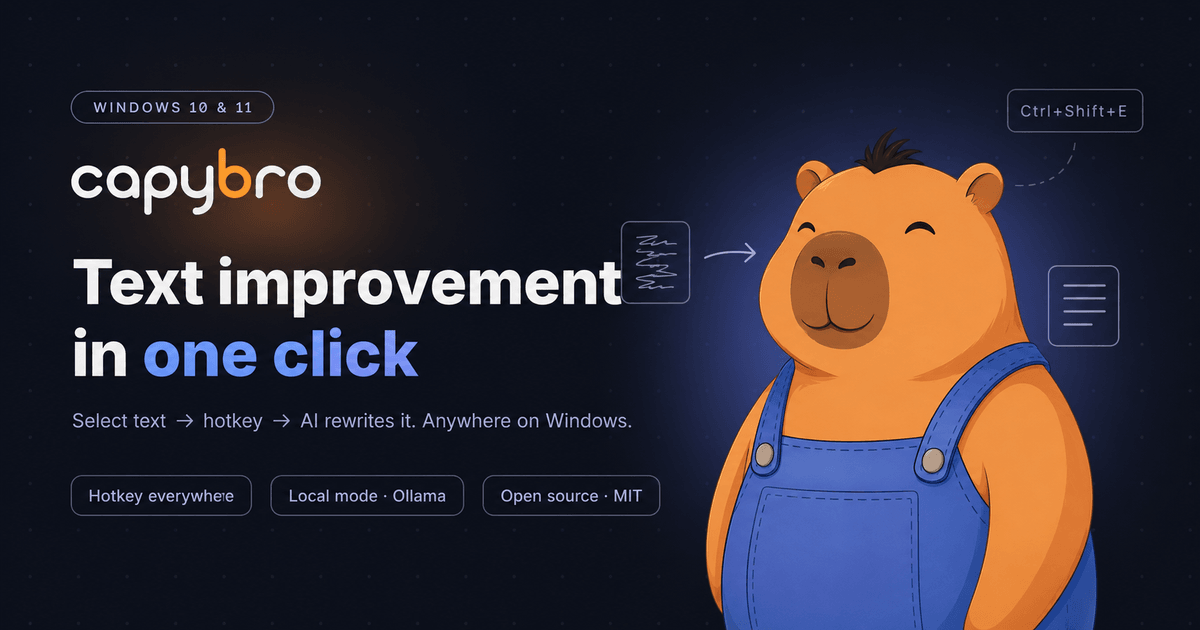

User reviews (0)