
 pygpt.net
No paid content found
pygpt.net
No paid content found
 Multilingual
Categories: Artificial Intelligence
One desktop app for cloud and local AI. Chat, build agents, connect your knowledge with RAG, and get things done with skills, tools and plugins. Free and open source.
 Visit website
 Updated: 2026-10-05 09:19
Language: English (default)
Updated: 2026-10-05 09:19
Language: English (default)
 Access: Normal
 Profile views 0
 Outbound visits 0
Related questions
More questions →How Do You Play Arx Fatalis on Linux With Arx Libertatis?
Arx Libertatis is an improved, cross-platform, open-source engine for Arx Fatalis, the 2002 first-person RPG/dungeon crawler/immersive sim from Arkane Studios. To play on Linux, you install Arx Libertatis (official Linux builds are provided), then point it at a copy of the original Arx Fatalis game data — the engine itself does not include the game. You need to own or otherwise obtain Arx Fatalis or its demo before you can play.
What Arx Libertatis actually is
Arx Libertatis is a port and modernization of the Arx Fatalis engine, based on the publicly released Arx Fatalis source code and available under the GPL 3+ license. Version 1.2.1 supports modern systems, brings the game to new platforms, and removes bugs and limitations of the original release.
Two things follow from that:
- The engine is free and open source. You can download, inspect, and redistribute the code under the GPL.
- The game data is not included. The license covers the engine only. The art, audio, levels, and other assets remain part of the commercial game, so you must supply them yourself.
The game itself features crafting, melee and ranged combat, and a distinctive spellcasting system where you draw runes in real time to cast the spell you want.
What you need before installing
| Requirement | Why |
|---|---|
| A copy of Arx Fatalis (full game or demo) | Provides the game data Arx Libertatis loads |
| Arx Libertatis for Linux | The engine that runs the game on your system |
| A Linux desktop with working graphics drivers | The engine renders the original 3D game |
The original game is sold through storefronts such as GOG.com, the Microsoft Store, and the Bethesda Store, and it also has a demo. Any of these gives you the data files the engine needs.
Installing Arx Libertatis on Linux
Arx Libertatis provides official builds for Windows and Linux. Beyond those, it has been packaged for macOS (Homebrew), FreeBSD, DragonFly BSD, NetBSD, OpenBSD, Haiku, and Pandora, and will likely compile and work on other operating systems.
On Linux, you have two practical routes:
Option 1: Use a distribution package
Check whether your distribution ships Arx Libertatis in its repositories. If it does, install it through your normal package manager. This is the least manual path and keeps updates tied to your system.
Option 2: Use the official Linux build
Download the Linux build from the project's download page and unpack it. This works regardless of whether your distribution packages the engine, and it lets you run a specific version such as 1.2.1.
If neither fits, the source is available on GitHub, so you can build it yourself — the project notes it will likely compile on other systems too.
Pointing the engine at your game data
The engine needs to find the Arx Fatalis data files. The general flow is:
- Install or unpack Arx Libertatis using one of the routes above.
- Locate your Arx Fatalis data. If you bought the game from a storefront, the installer places the data files somewhere on disk; if you have the demo, it comes as its own set of files.
- Tell Arx Libertatis where that data is when you first launch it, or place the data where the engine expects it.
- Launch the game and confirm it reaches the main menu.
The expected result at each step is simple: the engine starts, finds the data, and loads the game rather than exiting with a "data not found" style error.
If the game does not run
Check these in order:
- Data path is wrong. The most common failure is the engine not finding the Arx Fatalis data. Re-check the path you gave it.
- You installed the engine but not the game. Arx Libertatis alone cannot run — it has no assets of its own.
- Graphics/driver problems. Since the engine targets modern systems, most rendering issues trace back to drivers or to running an old build. Try the current release (1.2.1).
- Wrong build for your system. Make sure you grabbed the Linux build, not the Windows one, if you installed manually.
Where to go next
The project plans to keep improving and modernizing the engine and to enable community customizations and mods. If you want to follow development or get help, the project links to its GitHub repository, Mod DB page, and community forums such as the TTLG Forum and the GOG.com forum. There are also community projects built around the game, including the Arx Insanity Mod and other Arx mods.
How to Start Learning Python with an Interactive Tutorial as a Beginner
Start with LearnPython.org's chapter list and work through it in order, beginning with "Hello, World!" and moving through variables, lists, operators, conditions, loops, functions, classes, and dictionaries. The site is built for exactly this: it describes itself as a free interactive Python tutorial intended for everyone who wishes to learn the language, whether or not you have programmed before. The key advantage is that you write and run code directly in the browser, so you don't need to install Python locally before your first lesson.
Why an interactive tutorial works for beginners
Reading about syntax and actually typing it are different skills. An interactive tutorial closes that gap by having you complete coding challenges as you go, rather than only reading explanations. LearnPython.org's structure reflects this — you click a chapter, follow the instructions, and practice in the same place.
This matters most in the first few hours. Beginners often stall on environment setup (installing Python, choosing an editor, configuring paths) before writing a single line. Skipping that step lets you focus on the language itself.
The beginner chapter sequence
Work through these in order. Each builds on the previous one, so skipping ahead usually creates confusion rather than saving time.
| Stage | Chapters | What you should be able to do after |
|---|---|---|
| First contact | Hello, World! | Print output and understand basic syntax |
| Data | Variables and Types, Lists, Dictionaries | Store, label, and retrieve values |
| Operations | Basic Operators, String Formatting, Basic String Operations | Do math, compare values, build and manipulate text |
| Control flow | Conditions, Loops | Make decisions and repeat work |
| Structure | Functions, Classes and Objects, Modules and Packages | Organize code into reusable pieces |
| Interaction | Input and Output | Read input and display results |
A reasonable pace is one to three chapters per sitting, depending on how much the exercises slow you down. The exercises are the point — if a chapter feels easy, the practice still cements the syntax.
A note on the "Coding for Kids" section
The site includes a separate "Coding for Kids" track covering starting out, movement with functions, collecting items, pushing objects, printing on screen, and building objects. Despite the label, it's a gentler, more visual on-ramp that works for any absolute beginner who finds the standard chapters too abstract at first.
Advanced topics to tackle after the basics
Once conditions, loops, functions, and classes feel comfortable, move to the advanced tutorials. These are where Python's real expressiveness shows up:
- Generators and List Comprehensions — concise ways to produce and transform sequences
- Lambda functions and Multiple Function Arguments — flexible function definitions
- Regular Expressions — pattern matching in text
- Exception Handling — dealing with errors gracefully
- Sets and Serialization — additional data structures and saving/loading data
- Partial functions, Code Introspection, Closures, Decorators — functional and metaprogramming tools
- Map, Filter, Reduce — functional-style data processing
- Parsing CSV Files — a practical, real-world task
Don't rush this section. Decorators and closures in particular tend to require a second pass before they click.
What to do when you finish
The site states that after completing the tutorials you can get certified at LearnX and add that certification to your LinkedIn profile. If your goal is data science specifically, the site points to DataCamp's interactive Python tutorials covering data manipulation, data visualization, statistics, and machine learning. Note that DataCamp is a separate paid platform — the LearnPython.org page mentions a discount code for an annual subscription, which indicates a paid product rather than a free one.
For continued practice beyond tutorials, the site also links to a Python Tutorials and References course from After Hours Programming.
Common sticking points
- Skipping the exercises. The interactive format only pays off if you actually type the code. Watching a solution isn't the same as producing one.
- Jumping to advanced topics too early. Decorators and generators assume you're solid on functions and scope.
- Treating completion as mastery. Finishing the chapter list gives you a working vocabulary, not fluency. Build something small — a script that parses a CSV, a simple class-based program — to consolidate what you've learned.
- Assuming everything linked is free. LearnPython.org itself is presented as a free interactive tutorial, but the DataCamp resources it promotes are a commercial product with a subscription.
The fastest path for a true beginner is simple: open the first chapter, follow the instructions, and don't move on until you can write the code yourself without looking back.
What Are AI Agents and How Do You Connect Them to Real-World Tools?
An AI agent is a system that uses a language model to decide what to do next — calling tools, fetching data, and chaining steps — rather than just answering a single prompt. To act on the real world, an agent needs external tools, because its training data is frozen and it can't browse, scrape, or write to your apps on its own. The practical way to give it those capabilities is to connect it to ready-to-run tools through APIs or marketplace integrations. Apify, for example, describes itself as "a marketplace of ready-to-run tools for AI" with "73,229 tools for your AI," which is the kind of catalog you'd plug an agent into.
Agent vs. chatbot vs. single prompt
| Single prompt | Chatbot | AI agent | |
|---|---|---|---|
| Input | One question | Ongoing conversation | A goal |
| Decides next step? | No | No | Yes |
| Uses external tools? | No | Sometimes | Yes, by design |
| Example | "Summarize this text" | "Answer my follow-ups" | "Find competitor prices and update my sheet" |
The distinguishing feature is autonomy over steps. A chatbot waits for you to drive; an agent plans and executes, then reports back.
Why agents need external tools
A model's knowledge stops at its training cutoff and contains no live data about your niche, your competitors, or your own systems. Tools close that gap:
- Fresh data — current prices, posts, reviews, listings
- Actions — writing to a database, sending a message, triggering a workflow
- Structure — turning messy web pages into clean fields an agent can reason over
Without tools, an agent can only talk. With them, it can do.
How agents connect to tools
Three common patterns, from simplest to most integrated:
- Direct API calls — the agent (or your code around it) hits an endpoint and gets JSON back. You handle auth and parsing.
- Marketplace integrations — you pick a ready-made tool from a catalog and connect it to your agent. Apify's page lists this as "Easily connect with your AI agents," alongside "Ready-to-run or build your own."
- MCP / framework adapters — the tool exposes itself in a format your agent framework understands. Apify's Website Content Crawler, for instance, "integrates well with 🦜🔗 LangChain, LlamaIndex, and the wider LLM ecosystem."
The right choice depends on how much glue code you want to own. Marketplaces and adapters trade flexibility for speed.
Concrete example: crawling a site to feed an agent or RAG pipeline
Say you want an agent that answers questions about a documentation site.
- Input: the site's URL(s).
- Action: run a crawler. Apify's Website Content Crawler will "crawl websites and extract text content to feed AI models, LLM applications, vector databases, or RAG pipelines." It "supports rich formatting using Markdown, cleans the HTML, downloads files."
- Expected result: clean Markdown chunks you embed into a vector store.
- Then: your agent retrieves relevant chunks at query time and answers with citations.
The crawler does the messy part (HTML cleanup, formatting); the agent does the reasoning. This split is the whole point of connecting tools.
Criteria for choosing agent tools
Judge each candidate on the same dimensions:
- Data source — does it cover the site/platform you actually need? (TikTok, Google Maps, Instagram, e-commerce, Facebook are all separate tools in Apify's catalog.)
- Output format — JSON for structured logic, Markdown for LLM/RAG input.
- Scheduling & monitoring — can it run on a schedule, or only on demand?
- Integration — native support for your framework (LangChain, LlamaIndex) vs. raw API.
- Cost — check the provider's pricing page; don't assume free.
- Reliability signals — usage counts and ratings. Apify shows these per tool (e.g., Google Maps Scraper: 616K runs, 4.7 from 1,817 reviews; TikTok Scraper: 291K runs, 4.8 from 371).
Common failure points
- Auth — API keys and tokens expire or lack scope; the agent fails silently.
- Rate limits — high-volume agent loops hit caps fast; add backoff.
- Stale data — a cached result looks valid but isn't; timestamp everything.
- Unstructured output — raw HTML breaks parsing; prefer tools that clean and format.
- Silent errors — an agent may treat a failed call as an empty result. Validate responses explicitly.
Bottom line
An AI agent is a goal-driven system that plans and calls tools; a chatbot just responds. To make an agent useful, connect it to tools that supply live data and actions — via direct APIs, a marketplace like Apify, or framework adapters. Pick tools by data source, output format, scheduling, integration, and cost, and guard against auth, rate-limit, and staleness failures before you ship.
What Are Open-Source UI Element Libraries and How Do They Differ From UI Frameworks?
An open-source UI element library is a collection of individual, ready-made interface pieces—buttons, cards, inputs, toggles, loaders—that you copy into your own project and adapt. A UI framework, by contrast, is a structured system of components, conventions, and often a theming layer that governs how your whole interface is built. The practical difference: an element library gives you a snippet; a framework gives you a way of working. If you need a polished button in ten minutes, reach for the element library. If you're building a 40-screen product with a team, you probably want the framework.
What "open-source UI element library" actually means
The term gets used loosely, so it helps to separate the parts:
- Open-source: the code is publicly available, and the license tells you what you may do with it—copy, modify, redistribute, or use commercially.
- UI element: a single, self-contained piece of interface, usually small enough to read in one sitting. A button with hover states, a pricing card, a search field.
- Library: a browsable, searchable collection of those elements, typically contributed by many different people.
On a site like Uiverse, elements are shared by a community and written in plain CSS or Tailwind. You find one you like, copy the markup and styles, paste them into your project, and adjust colors, spacing, and text to fit. There's no package to install and no build step required—which is exactly the appeal, and also the source of most of the confusion.
Element library vs. UI framework: the core differences
| Dimension | Open-source UI element library | UI framework / design system |
|---|---|---|
| Unit of reuse | A single snippet you copy | A component you import or call |
| Installation | None; paste into your code | Package install, config, sometimes a provider |
| Consistency | Depends on you; each element may look different | Enforced by shared tokens and APIs |
| Theming | Manual edits per element | Central theme/config file |
| Updates | You own the copy; no upstream updates | Version bumps bring fixes and changes |
| Accessibility | Varies per contributor; must be checked | Usually tested and documented |
| Best for | Prototypes, landing pages, small sites, one-off needs | Multi-page apps, teams, long-lived products |
| Learning curve | Low—read the CSS | Higher—learn the API and conventions |
The table isn't a verdict. It's a map of trade-offs. Element libraries win on speed and freedom; frameworks win on consistency and maintenance.
Licensing and attribution: what to check before you paste
This is where people get into trouble, and it's worth slowing down for.
- Find the license. Every element or collection should state one. Common open-source licenses include MIT, Apache-2.0, and BSD. Some projects use copyleft licenses like GPL, which can impose obligations if you redistribute your code.
- Understand what the license permits. MIT and Apache-2.0 are permissive: you can typically use the code in commercial and closed-source projects. Copyleft licenses may require you to release derivative source under the same terms.
- Check attribution requirements. Permissive licenses usually require you to keep the copyright notice and license text somewhere in your project. That's a real obligation, not a formality.
- Look for per-element terms. On community sites, the site's overall terms and the individual contributor's stated wishes may differ. If a contributor asks for credit, honor it.
- When in doubt, ask or avoid. If a snippet has no license at all, you don't have clear permission to reuse it. Treat "no license" as "not open source," even if the code is publicly visible.
This article is general information, not legal advice. For commercial products with real exposure, have someone qualified review the licenses you're relying on.
How to use a community element in your project: a practical workflow
Here's a repeatable process that avoids most of the usual mess.
1. Start from a real need, not a browsing session
Decide what you need first—"a compact primary button with a loading state"—then search. Browsing aimlessly produces a pile of pretty snippets that don't fit together.
2. Copy the smallest version that works
Take the markup and the styles. Strip anything you don't need: demo wrappers, extra animations, decorative layers. Less code means fewer surprises.
3. Convert it to your conventions
If your project uses design tokens or CSS variables, replace hard-coded values:
/* Before: hard-coded */
.button { background: #4f46e5; border-radius: 8px; }

/* After: token-based */
.button { background: var(--color-primary); border-radius: var(--radius-md); }
This one step is what keeps a copied element from looking like a foreign object in your UI.
4. Check accessibility before you ship
Community elements vary widely here. Verify at minimum:
- Keyboard focus is visible and the element is reachable by Tab.
- Color contrast meets WCAG AA (4.5:1 for normal text).
- Interactive elements use semantic HTML (
<button>, not a clickable<div>). - Form inputs have associated labels.
- Motion respects
prefers-reduced-motion.
5. Test in context
Paste it into a real page with real content. Long labels, small screens, and dark mode break more copied elements than anything else.
6. Note where it came from
Keep a short comment or an internal credits file: source, license, date. Future you—and your legal reviewer—will be grateful.
Where element libraries genuinely shine
- Prototypes and demos: you need something clickable today, not a design system.
- Landing pages and marketing sites: a handful of distinctive elements, each custom.
- Filling gaps: your framework lacks one specific component, and you don't want to build it from scratch.
- Learning: reading well-made CSS is one of the fastest ways to improve.
- Small projects: a personal site doesn't need a theming architecture.
Where they fall short
- Consistency at scale: ten elements from ten contributors rarely look like one product.
- Maintenance: you own every copy. When your design changes, you edit each one.
- Accessibility debt: you inherit whatever the contributor did or didn't do.
- No upstream fixes: a bug fixed in the original won't reach your copy.
- Integration friction: different naming conventions, different units, different assumptions about resets.
When to choose which
Choose an element library when the scope is small, the timeline is short, or you need a few distinctive pieces rather than a whole system.
Choose a framework or design system when multiple people build multiple screens over months, when consistency is a product requirement, or when accessibility and theming need to be guaranteed rather than checked.
A hybrid works well for many teams: adopt a framework for the structural components—forms, navigation, layout—and borrow individual elements for the places where you want personality. Just route every borrowed element through the same token and accessibility checks, so it lands as part of your system rather than beside it.
The short version: open-source UI element libraries are a fast, flexible way to get good-looking interface pieces into a project. They are not a substitute for a design system, and the license and accessibility details are the part worth reading carefully.
What Is Desktop Software and When Should You Use It Instead of a Browser Extension?
Desktop software is a program you install and run directly on your computer's operating system (Windows, macOS, or Linux), rather than inside a browser tab. You should choose it over a browser extension or web app when your task needs deeper system access, steadier performance, or offline capability — for example, real-time meeting transcription that captures audio from multiple apps. Browser extensions are lighter and install in seconds, but they live inside one browser and inherit its limits.
What "desktop software" actually means
A desktop app is installed on the machine and runs as its own process. It can:
- Read and write local files without a download/upload round trip
- Access system-level resources like the microphone, speakers, camera, and other running apps
- Keep working when the browser is closed or the network drops (depending on the app)
- Persist settings and data locally
This is different from a web app, which runs in a browser tab and depends on a live connection and browser permissions, and from a browser extension, which is a small add-on that modifies or extends one browser's behavior.
Desktop app vs. browser extension vs. web app
| Dimension | Desktop software | Browser extension | Web app |
|---|---|---|---|
| Where it runs | Installed on the OS | Inside one browser | In a browser tab |
| Offline access | Often partial or full | Rarely | Usually none |
| System permissions | Broad (mic, files, other apps) | Limited to browser APIs | Limited to browser APIs |
| Performance | Uses full local resources | Constrained by browser | Constrained by browser + network |
| Updates | App-managed or manual | Auto via browser store | Automatic on reload |
| Cross-app capture | Yes (e.g., system audio) | Usually no | Usually no |
The practical takeaway: extensions and web apps are convenient and low-commitment; desktop apps trade a heavier install for capability and stability.
When a desktop app is the better choice
Pick desktop software when the task depends on one or more of these:
- Capturing audio from multiple sources at once — a meeting where you're on a call and taking notes. A desktop notetaker can tap system audio and the mic; a browser extension generally can't reach outside its tab.
- Real-time transcription and live summaries — Otter's Meeting Agent is described as supporting real-time transcription, live chat, automated summaries, insights, and action items. That kind of continuous processing benefits from a local process rather than a single browser tab.
- Long or resource-heavy sessions — recording and transcribing for an hour is more stable outside a tab you might accidentally close.
- Working across apps — if your workflow spans a video call app, a document, and a notes tool, a desktop app can sit across all of them.
Choose a browser extension instead when you only need to enhance one website (for example, adding a button to a specific web tool), want zero install friction, and don't need system-level access.
How to choose and install a desktop app safely
- Confirm the task fits a desktop app. If you only need to tweak one website, an extension is lighter. If you need system audio, local files, or offline use, go desktop.
- Check system requirements. Match the OS (Windows/macOS/Linux) and version. Download only from the vendor's official site — for Otter, that's otter.ai.
- Review permissions before granting. A meeting/transcription app will ask for microphone (and possibly screen or system audio) access. Grant only what the task needs.
- Install and sign in. Follow the vendor's installer. If the app requires an account, expect a login step.
- Verify it works. Run a short test — record 30 seconds and confirm transcription or capture appears as expected.
- Check update and pricing terms. Otter lists a pricing page at otter.ai/pricing; check it for current plan limits rather than assuming a free tier.
Troubleshooting common desktop software problems
- Install fails — confirm OS version meets requirements, free up disk space, and re-download from the official source (a corrupted installer is a common cause).
- App crashes on launch — update to the latest version, restart the machine, and check whether a security tool is blocking it.
- No audio captured — re-check microphone/system-audio permissions in OS settings, not just in the app.
- Sync or login issues — verify your network and credentials; if the app stores data locally, confirm it isn't blocked by a firewall.
- Extension works but desktop doesn't (or vice versa) — they use different permission models; a feature available in one may not exist in the other.
If your goal is AI meeting transcription with live summaries and action items, a desktop app is usually the more capable choice; if you just need a small tweak inside one website, a browser extension is the faster path.
Website Overview
Several search or sharing settings need attention. Together they may make snippets, preview images or preferred URLs less consistent across platforms.
Domain and Registration
Transfer-protection status is present, helping reduce the risk of unauthorized domain transfers. The domain has about 3 years of registration history; its current configuration provides more context than age alone. The domain uses the common .net extension, which is not an independent safety signal.
DNS and Email
Nameservers are provided by Cloudflare, indicating managed DNS hosting. MX records point to the domeny.host email service. No CNAME was found; the observed records resolve directly to addresses. SPF and DMARC are configured. DKIM status is unknown. TXT records include verification markers for Google. Such markers may also remain after a service stops being used.
TLS and Certificates
The public key uses EC with 256 bits. The server supplied a complete certificate chain. No organization name is present in the certificate; the available fields are consistent with domain validation. The certificate was issued within the Google Trust Services cloud or CDN ecosystem. The certificate's total validity is about 90 days, consistent with a short renewal cycle.
HTTP and Browser Security
The response lacks these common security headers: HSTS, CSP, Referrer-Policy, Permissions-Policy. No X-Powered-By header was found, reducing one common source of backend fingerprinting information. The cf-ray response header indicates a CDN or caching proxy in the delivery path. No obvious internal addresses or debug information were found in the headers. The Server header identifies cloudflare without an exact version.
Technology Stack Analysis
The public page identifies Google Analytics, Cloudflare without precise versions, leaving fewer clues for version-specific scanning.
Search and Social Sharing
The meta description has 166 characters and may be shortened in search results. The canonical URL points to another host: https://en.pygpt.net/. Search engines may consolidate indexing signals there. Twitter Card metadata is configured. JSON-LD includes Product or Offer data, potentially supporting eligible product search features. The page declares 27 language or regional alternatives using hreflang.
 Hosting and Email
 Cloudflare
 Hosting
 Location
 unknown
104.21.33.217
Location
Location unknown
104.21.33.217
 Pages, Search and Sharing
| Meta description | One desktop app for cloud and local AI. Chat, build agents, connect your knowledge with RAG, and get things done with skills, tools and plugins. Free and open source. |
|---|---|
| Canonical URL | https://en.pygpt.net/ |
| Language | English (default) · Multilingual |
| Twitter Card | summary_large_image |
Social Sharing Preview
14 fields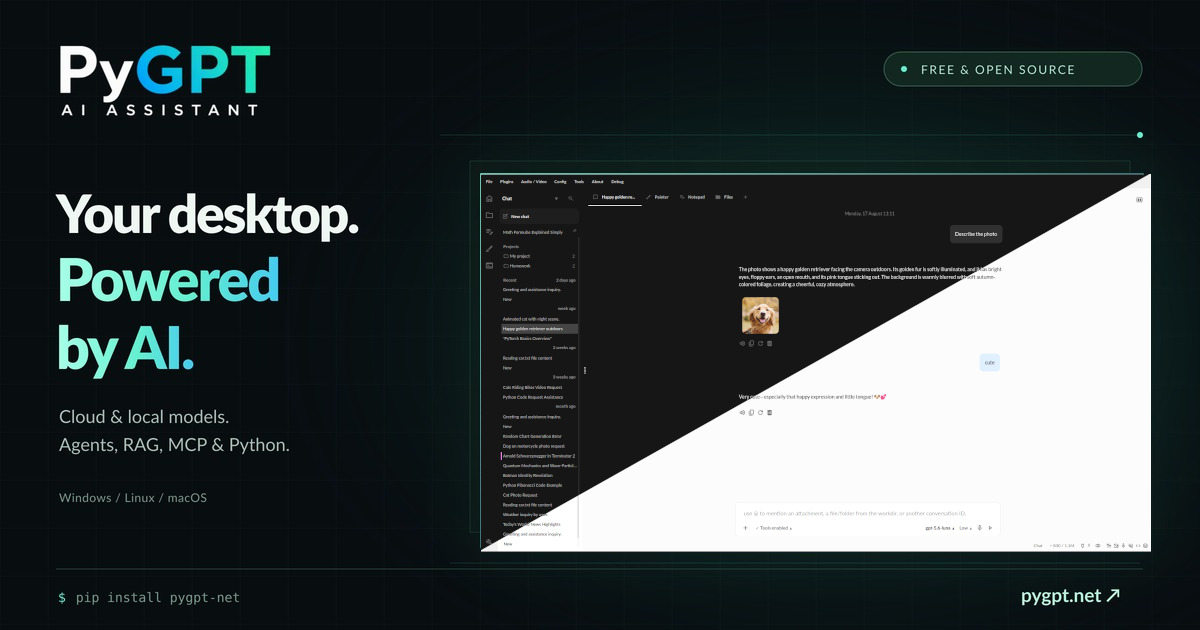

Sharing metadata
| og:url | https://en.pygpt.net/ |
|---|---|
| og:type | website |
| og:image | https://pygpt.net/v2/assets/social.jpg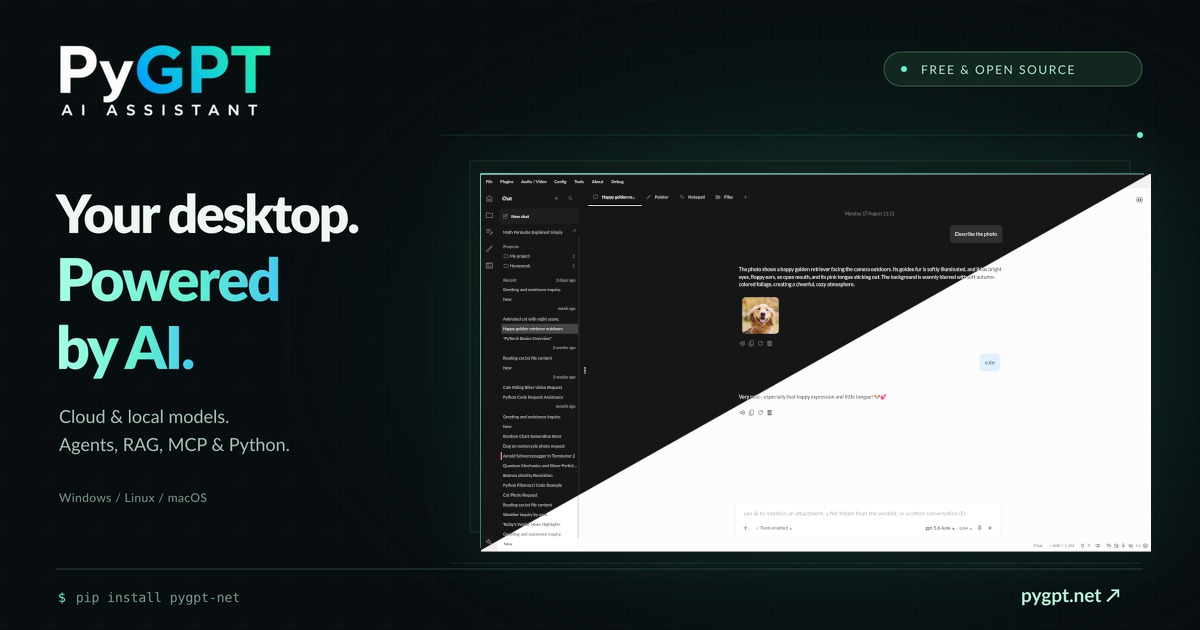 |
| og:title | PyGPT - Your free, open-source desktop AI assistant |
| og:locale | en_US |
| og:image:alt | PyGPT - Free & open source |
| og:site_name | PyGPT |
| og:description | One desktop app for cloud and local AI. Chat, build agents, connect your knowledge with RAG, and get things done with skills, tools and plugins. Free and open source. |
| og:image:width | 1200 |
| og:image:height | 630 |
| twitter:card | summary_large_image |
| twitter:image | https://pygpt.net/v2/assets/social.jpg |
| twitter:title | PyGPT - Your free, open-source desktop AI assistant |
| twitter:description | One desktop app for cloud and local AI. Chat, build agents, connect your knowledge with RAG, and get things done with skills, tools and plugins. Free and open source. |
robots.txt (opens in a new tab)
3 rulesAll bots 1 allowed · 2 disallowed

 All bots

/
/contact.php/stats.php
No matching rules.
Sitemaps
1 Registration details RDAP / WHOIS
| Registrar | PDR Ltd. d/b/a PublicDomainRegistry.com |
|---|---|
| Registered | 2023-04-07 |
| Expires | 2027-04-07 |
| Domain status | client transfer prohibited |
| Nameservers | ernest.ns.cloudflare.com、eva.ns.cloudflare.com |
| DNSSEC | unsigned |
 DNS records
| Type | Name | Value | TTL | Priority |
|---|---|---|---|---|
| A | pygpt.net | 104.21.33.217 | 300 | — |
| A | pygpt.net | 172.67.192.216 | 300 | — |
| AAAA | pygpt.net | 2606:4700:3033::ac43:c0d8 | 300 | — |
| AAAA | pygpt.net | 2606:4700:3037::6815:21d9 | 300 | — |
| MX | pygpt.net | poczta22673.domeny.host | 300 | 10 |
| NS | pygpt.net | ernest.ns.cloudflare.com | 86400 | — |
| NS | pygpt.net | eva.ns.cloudflare.com | 86400 | — |
| TXT | pygpt.net | SNAPCRAFT_IO_VERIFICATION=a89139fbdb10a9ba882a5ee63499b48d0aae061fb8fe0389727c2619fbeb67cf | 300 | — |
| TXT | pygpt.net | google-site-verification=sm8SFTeKR_DDUAVtsGUkFiw_84Qn8aAMpD3Vd5PWJuI | 300 | — |
| TXT | pygpt.net | v=spf1 a mx include:_spf.cyberfolks.pl -all | 300 | — |
| DMARC | _dmarc.pygpt.net | v=DMARC1; p=none; rua=mailto:[email protected] | 300 | — |
 TLS and certificates
| Assessment | Normal configuration |
|---|---|
| Supported protocols | TLSv1.2、TLSv1.3 |
| Negotiated protocol | TLSv1.3 |
| Certificate subject | pygpt.net |
| Issuer | Google Trust Services |
| Valid until | 2026-12-01T08:05 · Remaining when checked: 56 days |
| Verification details | Certificate trust: Passed · Hostname match: Passed |
 HTTP response headers
| Header | Value |
|---|---|
| content-type | text/html; charset=UTF-8 |
| content-language | en |
| cache-control | no-transform |
| server | cloudflare |
| x-frame-options | DENY |
| x-content-type-options | nosniff |
| set-cookie | Redacted |
 Identified technologies
User reviews (0)