Website profiles · Technology insights · Alternatives

classic.createa.meme

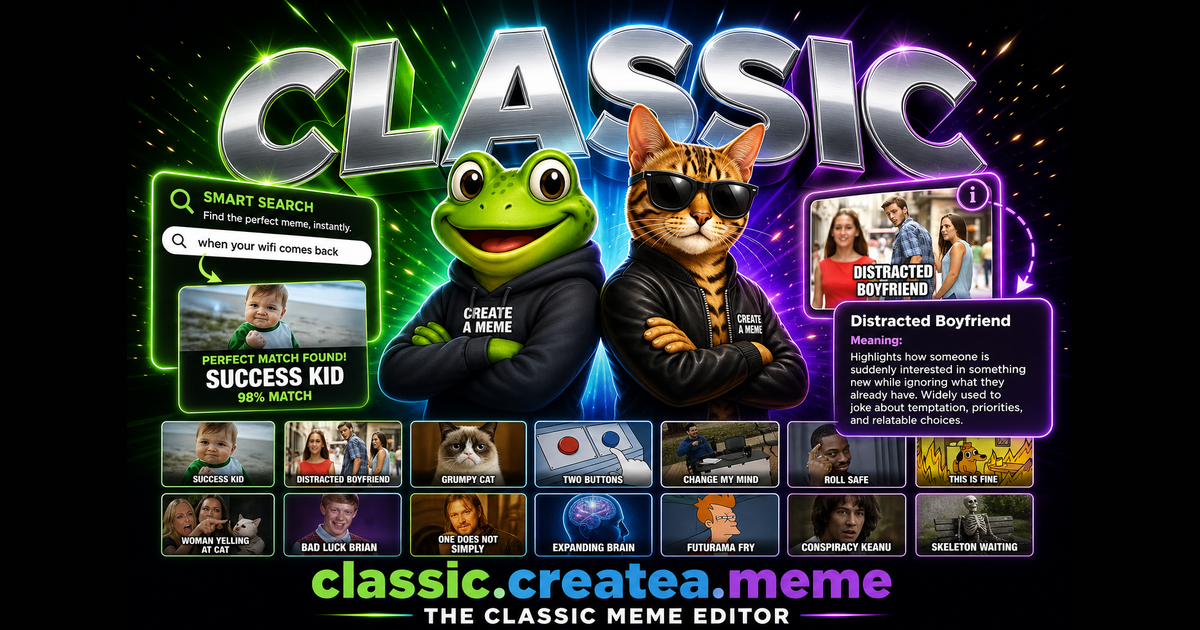
Create custom memes easily with our fast, free, user-friendly tool. Upload images, add captions, and choose from popular templates. No sign-up required.

No paid content found
Visit website
Profile views 1 Outbound visits 0 Normal
Create a Meme Classic Full homepage screenshot

At a glance

Category
Other
Language
English
Paid-content signal
No paid content foundObserved
Registered
2023
Hosting
VercelInferred
HTTPS certificate trusted
PassedObserved
Last updated

Website review

This review may include AI-generated content and is not individually verified. Domain, certificate and other facts come from the observed data on this page.

What is Create a Meme Classic?

Create a Meme Classic is a browser-based meme maker at classic.createa.meme. You upload or pick an image, add captions and emoji, then download the finished meme or copy it for sharing. The page shows it loading a "meme canvas" with template selection, caption and emoji tools, undo/redo, reset, remove-text, remove-background and expand options, plus a "Remix with AI" button and a "Copy X Post" action. The site describes it as fast, free and requiring no sign-up.

Who it suits

  • Casual sharers who want a quick reaction image for a group chat or social post without installing software.
  • People without design tools who need caption placement and template picking in one place.
  • Privacy-conscious users who prefer not to create an account for a one-off image.

Trade-offs to weigh

  • Convenience vs. control: template-driven editing is fast, but it offers less precision than a full image editor like GIMP or Photopea.
  • Built-in extras: background removal and AI remix save steps, though results may need retouching.
  • No-signup access: handy for quick jobs, but there's no account to store a library of past memes.

A practical next step

Open the site, upload your image, add your caption, then use Download Meme for a file or Copy X Post to share directly. If you need layered editing or exact typography, move the image into a dedicated editor afterward.

Do I need to create an account or sign up to make a meme?

No. You can make a meme on Create a Meme Classic without creating an account or signing up. The page loads straight into a meme canvas with upload, template, text, emoji, undo/redo and download controls, so you can go from image to finished caption in one sitting.

What that means in practice

  • Quick one-offs: Ideal if you just want to caption a photo for a group chat or a reply. No password to set, no email confirmation to wait for.
  • Shared or public computers: Nothing is tied to a login, so there is no account left behind. Still download your meme before closing the tab.
  • Recurring creators: Without an account, expect to re-upload and re-enter text each visit rather than returning to saved drafts. If you make memes often, keep a folder of your base images and standard caption formats ready.

A useful next step: open the site, upload your image first, then add text. That order lets you size the canvas and place captions against the actual picture rather than guessing.

How do I add text captions and emojis to an image I upload?

On Create a Meme Classic, upload your image, then use Add Caption to Meme to place text and Add Emoji to drop emojis onto the canvas. Both tools work on top of whatever image you upload, not just the ready-made templates.

A practical sequence

  1. Click Upload Template (or Add Image) to load your own picture.
  2. Click Add Caption to Meme to create a text field, then type your caption.
  3. Position and size the text so it sits where you want—top and bottom bands suit classic caption-style memes, while a single line works better for reaction images.
  4. Click Add Emoji to add an emoji, then place it near the text or over a face for emphasis.
  5. Use Undo/Redo to compare placements, Remove Text to drop a caption you dislike, and Reset to start over.
  6. Finish with Download Meme.

Things worth knowing

  • Keep captions short. Text that wraps across several lines gets hard to read at the small sizes memes are usually shared.
  • Add emojis sparingly—one or two reinforce a joke; a cluster can clutter the image.
  • Text placed over busy areas of a photo loses contrast, so choose plain backgrounds or edges when possible.
  • Remove Background and Expand Meme are useful when your upload has an awkward shape or a distracting backdrop.

If you want to compare approaches, Imgflip is a long-standing meme maker with a large template library, and Canva suits cases where you need finer typography and layout control rather than quick captions.

What does the 'Remix with AI' feature do to my meme?

The page labels the button "Remix with AI" (shown with a banana icon next to "Expand Meme" and "Download Meme"), but it does not describe what the AI does to your image. So the honest answer is: the site presents it as an AI-driven variation of your current meme, but the page itself gives no specifics on the transformation. Treat it as an experiment rather than a predictable edit.

What you can reasonably expect

Based on how AI remix buttons usually work on meme editors, it likely takes your current canvas — your template, caption and any emoji or uploaded image — and generates an altered or reimagined version. That could mean restyling the image, regenerating the background, or suggesting new caption text. Since the page doesn't confirm which, test it on a throwaway meme first.

A practical way to try it

  1. Build a simple meme with a template and one caption.
  2. Use Copy X Post or Download Meme first to keep your original.
  3. Click Remix with AI and compare the result.
  4. If you like the remix, download it; if not, use Undo to return to your version.

Who this suits

  • Casual users who want quick visual variety without editing skills — the surrounding tools (Undo/Redo, Reset, Remove Background) make it low-risk to experiment.
  • People who need a specific, controlled result are better served by the manual tools: Add Caption, Add Emoji, Expand Meme and Remove Background all do defined things, whereas the AI remix is the least predictable option on the page.

If exact control matters, skip the remix and use the manual caption and background tools instead; if you just want a fresh take, remix a copy and keep the original.

Can I remove the background from an uploaded image before adding a caption?

Yes. The editor includes a Remove Background button alongside the caption, emoji and text controls, so you can strip the background from an uploaded image before you add your caption and download the result. The workflow on Create a Meme Classic is: upload your image (or pick a template), use Remove Background, then add your caption and emoji, and finally download or copy the meme.

A few practical notes:

  • Check the cutout before captioning. Background removal works best on images with a clear subject against a fairly plain backdrop (a person, pet or object). Busy scenes, hair edges and transparent or glass objects often leave fringes, so zoom in before you commit.
  • Plan your caption placement around the new empty space. Once the background is gone, the transparent area is where your text will sit, so decide whether you want a top/bottom caption over the subject or text placed in the cleared space.
  • Use it for reaction-style memes. Removing the background is most useful when you want to drop a subject onto a plain canvas and let the caption carry the joke, rather than layering text over a full photo.

As a next step, try one image with a simple background and one with a cluttered background, then compare the edges. If the cluttered one looks rough, crop tighter on the subject before removing the background, or keep the original image and caption over it instead.

How do I download my finished meme or share it directly to X?

Once your meme is ready on the canvas, use the Download Meme button to save the image file to your device, or the Copy X Post button to prepare it for sharing on X. The page also offers a Copy option, which is useful if you want to paste the image or a link elsewhere.

Choosing the right option

  • Download Meme — best when you want a permanent local copy, plan to post the image yourself, or need to upload it to another platform or chat. You control the file from there.
  • Copy X Post — best for quick sharing when you're already logged into X in another tab. It prepares the post so you can paste and publish, saving the manual upload step.
  • Copy — handy for pasting into a message, document, or design tool rather than posting publicly.

A practical example

Suppose you've made a reaction meme for a group chat but also want it on your timeline. Download the meme first so you have the file saved, then use Copy X Post for the public share. That way, if the share flow doesn't behave as expected, you still have the finished image ready to attach manually.

Decision criteria

Choose Download when you need the file itself; choose Copy X Post when speed matters and you're already set up on X. If you're unsure, downloading first is the safer default—it never locks you out of sharing afterward.

Related questions

More questions →
How Do I Create a Meme Online with a Free Meme Maker?

You can create a meme online by opening Create a Meme Classic, uploading an image or choosing a template, adding captions and emoji, then downloading the result or copying it to share. The tool is described as fast, free, and user-friendly, and its page states no sign-up is required, so you can start from the canvas without creating an account.

Before You Start

  • An image file on your device if you want to use your own photo instead of a built-in template.
  • The caption text you want to place on the image.
  • A browser tab open to classic.createa.meme.

Step-by-Step: Make Your Meme

1. Start with an image or template

On the meme canvas, use Upload Template to bring in your own image, or Select Template to pick from popular meme formats. Either path loads your base image onto the canvas, which is where all editing happens.

2. Add your caption text

Use Meme Text and Add Caption to Meme to place text on the image. Type your caption, then position it where it reads best against the picture. If a caption doesn't land, use Remove Text to clear it and try again.

3. Add emoji for extra tone

Add Emoji lets you drop emoji onto the meme. This is useful when a reaction face or symbol does the comedic work that words alone can't.

4. Fix mistakes with editing controls

The canvas includes Undo, Redo, and Reset:

  • Undo steps back one change.
  • Redo restores a change you just undid.
  • Reset returns the canvas to a clean starting state.

If you want to swap the underlying image, use Add Image or Expand Meme to adjust the composition.

5. Try optional extras

The toolbar also shows Remove Background and Remix with AI. These are optional; the core meme-making flow works without them.

6. Download or share

When the meme looks right, choose Download Meme to save the image file, or Copy X Post to copy it for posting on X. Downloading gives you a file you can share anywhere; copying is faster for a single social post.

Quick Reference

Task Control
Use your own photo Upload Template / Add Image
Pick a popular format Select Template
Add or remove caption Add Caption to Meme / Remove Text
Add emoji Add Emoji
Fix a mistake Undo / Redo / Reset
Save the file Download Meme
Share to X Copy X Post

Common Snags

  • Caption hard to read: move the text to a plainer area of the image or shorten it so it doesn't crowd the frame.
  • Wrong base image: use Reset, then upload or select again rather than layering edits on top.
  • Text placement off: undo the last step and reposition before adding more elements, since each addition stacks on the canvas.

The page does not list pricing tiers or login requirements beyond stating no sign-up is required, so treat the free, no-account flow as the documented path and check the site directly if you need details on any paid or account features.

What Are Memes and How Do You Find and Share Them?

A meme is a unit of culture—an idea, joke, image, phrase, or behavior—that spreads from person to person, usually changing a little each time it's passed on. GIFs and viral images are common carriers of memes, but they aren't the same thing: a GIF is a file format, and a viral image is just a picture that got popular. A meme is defined by how it travels and gets remixed, not by its file type. If you want to find and share memes in conversations, search tools like Tenor (tenor.com) let you look up animated GIFs and videos and drop them into chats.

Memes vs. GIFs vs. Viral Images

These terms get used interchangeably, but they describe different things:

Term What it is Key trait
Meme An idea or joke that spreads and evolves Defined by transmission and remixing
GIF An image file format that supports animation A container, not a concept
Viral image A single picture that spreads widely Spreads, but usually doesn't get remixed

A meme can be a GIF, a still image, a caption, a sound, or even a gesture. The same meme often appears in several formats at once—one joke might circulate as a GIF, a screenshot, and a text phrase simultaneously.

How Memes Spread

Memes move through copying and remixing. Someone creates a template or format, others adapt it to new contexts, and the variations compete for attention. The ones that are easy to recognize and easy to adapt tend to survive.

A useful example: a reaction image format gets applied to a new situation—say, a surprising work email—by swapping the caption. The underlying image stays recognizable, but the meaning shifts. That combination of familiarity and variation is what keeps a meme alive.

Sharing is the engine. Every time you post a meme in a chat or on social media, you're participating in that spread, and often you're adding your own twist.

Finding Memes

You can find memes in two main ways:

  • Search tools — Tenor (tenor.com) lets you search animated GIFs and videos by keyword, so you can type a mood, phrase, or reference and browse results. This works well when you know the vibe you want but not the exact meme.
  • Social platforms — Memes often originate or peak on social feeds, where trending formats surface first. Browsing these shows you what's currently circulating.

For conversation use, search tools are usually faster because they're built for quick lookup and sharing rather than discovery over time.

Sharing Memes in Conversations

The basic flow with a search tool like Tenor:

  1. Enter a search term describing the reaction or idea you want (for example, a feeling or a situation).
  2. Browse the results and pick the GIF or video that fits.
  3. Share it into your chat or social post.

The expected result is a visual that conveys your meaning faster than text alone. Tenor's stated purpose is exactly this: "Find the perfect Animated GIFs and videos to convey exactly what you mean in every conversation."

Common Mistakes to Avoid

  • Misusing a meme — Using a format in a context where its established meaning doesn't fit can confuse people or land wrong. Check what a meme usually signals before you use it.
  • Sharing without context — A meme that's obvious to you may be unfamiliar to your audience. A short caption or a well-known format reduces the risk of a blank stare.
  • Assuming everyone knows it — Memes are community-specific. What's current in one group may be unknown in another.

Quick Takeaway

A meme is a spreading, remixing idea—GIFs and viral images are just ways it travels. To find them, search by keyword on tools like Tenor or browse social platforms. To share them well, match the meme to the moment and give enough context that your audience gets the joke.

What Is a Meme Generator and What Can You Do With One?

A meme generator is a tool that lets you turn an image or GIF into a shareable meme by adding text, choosing a template, and exporting the result. You can use one to caption a photo you already have, browse a template library for a familiar format, or search a meme catalog for something to remix. The main things to check before committing to a tool are whether it supports GIFs, what export formats it offers, and whether it requires an account.

What a meme generator typically does

Most generators share the same core workflow: pick or upload an image, add text, adjust placement and style, then download or share. Beyond that, features vary widely.

Capability What it means in practice
Template library Pre-made formats you can caption without sourcing an image yourself
Text controls Font, size, color, and position for top and bottom captions
Image upload Use your own photo instead of a built-in template
GIF support Animate the meme or caption an existing GIF
Search and categories Find templates or existing memes by keyword or browse by type
Export and sharing Download a file or share a link directly

The JOE Hub site, for example, describes itself as a meme collection with a built-in meme generator and catalog, and its search interface lets you filter results by All, Images, GIFs, and Videos, with video results further split by length (under 2 seconds, 2–8 seconds, over 8 seconds). That kind of filtering matters if you want a still image versus a short looping clip.

How to make a meme: the general steps

  1. Decide on your source. Either choose a template from the library or upload your own image or GIF.
  2. Add your text. Enter the caption, then adjust size, color, and position so it stays readable over the image.
  3. Preview the result. Check that text doesn't cover the subject's face or key details.
  4. Export or share. Download the file in the format the tool offers, or use its share option.
  5. Verify the output. Open the downloaded file to confirm the text rendered correctly and the resolution is usable.

The expected result at each step is simple: a template or upload gives you a canvas, text entry gives you the joke, and export gives you a file you can post. If any step produces a blank or broken result, the problem is usually the source file or the tool's loading state rather than your text.

Searching a meme catalog effectively

If you're browsing an existing collection rather than building from scratch, search behavior matters more than you'd expect. JOE Hub's own guidance suggests using simple words — examples it gives include "fun," "angry," "diagram," and "gun" — and notes that you can combine multiple words, such as "shooting angry" or "green chart."

That advice generalizes well: short, concrete keywords return better results than full sentences. If a search comes back empty, the site's own fallback message is to try a different term or simplify the query. Start broad, then narrow.

Common problems and how to handle them

  • No results found. Simplify the search term or drop modifiers. A single descriptive word usually works better than a phrase.
  • Loading fails. JOE Hub's interface shows a "Something went wrong, please try again later" message when memes fail to load. Retry first; if it persists, try a different search or a different source image.
  • Results look wrong for your goal. Use the type filters (Images, GIFs, Videos) and, for video, the length filters to narrow to what you actually need.
  • Text is unreadable. Increase contrast between text and background, or move the caption to a plain area of the image.

What to weigh when choosing a generator

There's no single best tool, so match the choice to your task:

  • If you need animated memes, confirm GIF support before anything else — many simple generators are image-only.
  • If you're making many memes, a large template library and category browsing save more time than advanced text styling.
  • If you want to share quickly, check whether the tool offers a direct share link versus requiring a download.
  • If account requirements matter to you, verify sign-up rules on the specific tool; the JOE Hub materials provided here don't state whether an account is needed, so treat that as something to confirm on the site itself.

For a one-off caption on your own photo, almost any generator will do. For browsing and remixing an existing collection, the search and filter quality is the deciding factor.

What Is an Image Editor and How Do You Use One to Edit Images?

An image editor is a tool for changing a picture after it already exists — cropping it, adding text, removing a background, or layering elements on top. You use one by loading an image into the editor, applying changes on a canvas, and exporting the result. Lightweight browser editors like Create a Meme Classic handle quick creative jobs such as meme making without installing anything; full design suites are better when you need precise control, layered files, or print-ready output.

What an image editor actually does

The core idea is simple: the editor holds your image on a working canvas, and every action you take modifies that canvas until you save or download it. Basic editors expose a small set of actions; advanced software exposes hundreds.

Capability Lightweight browser editor Full design software
Upload an image or pick a template Yes Yes
Add text and captions Yes Yes
Add emoji or stickers Usually Yes
Remove background Sometimes, often automated Yes, with manual refinement
Undo / redo / reset Yes Yes
Layers, masks, precise selection Rarely Yes
Export formats and resolution control Limited Extensive
Install required No Yes

Create a Meme Classic sits firmly in the left column. Its visible controls — Upload Template, Add Image, Select Template, Meme Text, Add Caption to Meme, Add Emoji, Undo, Redo, Reset, Remove Text, Remove Background, Expand Meme, Download Meme, and Copy X Post — describe exactly the scope of a lightweight editor: get an image in, decorate it, clean it up, and send it out.

The common editing actions, explained

Uploading. You bring an existing image onto the canvas, either from your device or by choosing a template. This is the starting point for every other action.

Adding text. Text is placed as a separate element on top of the image, which is why it can be edited or removed later without touching the pixels underneath. In meme making, captions are the whole point, so this is usually the first action after upload.

Removing a background. The editor separates the subject from what's behind it. Automated removal works well on clean, high-contrast subjects and struggles with busy or low-contrast edges — expect to redo it or accept rough edges on complicated photos.

Undo, redo, reset. These let you step backward and forward through your changes, or start over. They're the reason you can experiment freely: nothing is permanent until you download.

Expanding the canvas. Adding space around the image gives room for extra text or elements without shrinking the original.

A short walkthrough: from upload to download

  1. Open the editor and load an image. Use Upload Template for your own file, or Select Template to start from a popular layout. Expected result: your image appears on the canvas.
  2. Add your caption. Choose Meme Text or Add Caption to Meme and type. Expected result: text appears over the image, positioned and styled by the editor.
  3. Decorate if needed. Add Emoji for extra visual punch, or Add Image to layer a second picture.
  4. Clean up. Use Remove Background if the subject needs isolating, Remove Text to delete an element you no longer want, and Expand Meme if the canvas feels cramped.
  5. Fix mistakes as you go. Undo and Redo step through your history; Reset clears everything.
  6. Export. Choose Download Meme to save the file, or Copy X Post to push it straight to a social post.

Verification: before downloading, check that text is legible against the background and that nothing is cut off at the canvas edges. If it is, Expand Meme or reposition the text and repeat.

Where lightweight editors stop being enough

A browser editor is the right choice when the job is fast, visual, and destined for a screen — a meme, a quick social graphic, a captioned photo. It becomes the wrong choice when you need:

  • Precise control over selection, masking, or color, where automated tools guess wrong.
  • Layered, re-editable project files you can hand to someone else or revise months later.
  • Print-resolution output with specific color profiles.
  • Complex compositing of many elements with blend modes and adjustment layers.

If your task keeps hitting those limits, move to full design software. If it doesn't, the extra complexity is pure overhead.

Practical notes

The tool is described as fast and user-friendly with no sign-up required, and it runs in the browser — so your first edit is a matter of opening the page and uploading. Keep a copy of your original image before you start, since downloading the edited canvas replaces nothing but gives you a new file. And treat automated background removal as a first pass, not a final cut: check the edges at full size before you commit.

What Are Funny Images and How Do You Turn One Into a Meme?

Funny images are pictures whose humor comes from the visual itself—an odd expression, a badly timed photo, a ridiculous situation—rather than from a caption. You turn one into a meme by adding text or emoji that frames the joke, then downloading or copying the result to share. On Create a Meme Classic, that workflow runs entirely in the browser: upload or select a template, add captions and emoji, then download the finished image or copy it for an X post. No account is mentioned as required, and the page lists no pricing, so treat cost and login terms as unconfirmed until you check the site yourself.

Funny images vs. memes: what's the difference

A funny image can stand alone. A meme is a funny image (or any image) plus a reusable framing device—usually a caption, a reaction line, or a recognizable template—that invites others to remix it.

Funny image Meme
Source of humor The picture itself Picture + text/emoji framing
Reusability Usually one-off Built to be copied and varied
Typical use Sharing a laugh Reacting, commenting, remixing

In practice the line blurs: a funny image becomes a meme the moment you caption it and post it for others to riff on.

Step 1: Get a funny image into the editor

You have two paths on the tool:

  • Upload your own image using the "Upload Template" or "Add Image" option. Use a photo you took or one you have the right to reuse.
  • Select a built-in template via "Select Template" if you'd rather start from a known format.

Either way, the image loads onto the meme canvas. If you're starting from a template, the canvas arrives pre-filled with the layout; if you upload, you start from your own picture.

Step 2: Add the text that makes it funny

Use Add Caption to Meme to place text on the image. The humor usually comes from contrast—a serious caption on a silly image, or an understated line on a chaotic one. Keep captions short; long text gets hard to read at share size.

You can layer more than one caption, and Add Emoji lets you drop in emoji for extra tone. If a caption lands in the wrong spot or reads badly, Undo, Redo, and Reset let you walk changes back or start over, and Remove Text clears a caption you don't want.

Step 3: Clean up and finish

Before exporting, the toolbar offers a few finishing moves:

  • Remove Background if you want the subject cut out against a plain field.
  • Expand Meme to change the canvas framing.
  • Remix with AI if you want the tool to generate a variation rather than edit by hand.

Then export with Download Meme to save the file, or Copy X Post to grab it for posting on X.

Common snags and how to handle them

  • The canvas shows "Loading meme canvas…" and nothing appears. Wait for the load to finish before clicking anything; if it stalls, reload the page and try again.
  • Text is hard to read. Shorten the caption, or move it to a plainer area of the image using the text controls.
  • You uploaded the wrong picture. Use Reset or upload again—nothing is saved until you download.
  • You're unsure about rights. Use your own photo or a template the tool provides; don't caption someone else's image without permission.

What you end up with

A finished funny-image meme you can download as a file or copy for an X post. The whole loop—upload, caption, emoji, export—is designed to be fast and needs no design software. If you want to check current features or limits, open the tool and look at the toolbar options directly, since the page itself doesn't spell out pricing or account requirements.

Website Overview

The available information shows a mix of normal operation and configuration gaps. Depending on how the website is used, these gaps may affect secure access or the consistency of its public presentation.

Domain and Registration

Transfer-protection status is present, helping reduce the risk of unauthorized domain transfers. The domain has about 2 years of registration history; its current configuration provides more context than age alone. The domain uses the common .meme extension, which is not an independent safety signal.

DNS and Email

Nameservers are provided by Cloudflare, indicating managed DNS hosting. MX records point to the Google Workspace email service. No CNAME was found; the observed records resolve directly to addresses. SPF and DMARC are configured. DKIM status is unknown. TXT records include verification markers for Google. Such markers may also remain after a service stops being used.

TLS and Certificates

The public key uses EC with 256 bits. The server supplied a complete certificate chain. No organization name is present in the certificate; the available fields are consistent with domain validation. The certificate was issued within the Google Trust Services cloud or CDN ecosystem. The certificate's total validity is about 90 days, consistent with a short renewal cycle.

HTTP and Browser Security

The response lacks these common security headers: CSP, X-Content-Type-Options, Referrer-Policy, Permissions-Policy, clickjacking protection. CORS permits any origin to read this response. This is common for public resources; sensitive responses need narrower handling. No X-Powered-By header was found, reducing one common source of backend fingerprinting information. The cf-ray response header indicates a CDN or caching proxy in the delivery path. No obvious internal addresses or debug information were found in the headers.

Technology Stack Analysis

The public page identifies Next.js, Google Analytics, Cloudflare, Vercel without precise versions, leaving fewer clues for version-specific scanning.

Search and Social Sharing

No homepage canonical URL was detected. If duplicate URLs exist, consolidation may be less explicit. Twitter Card metadata is configured. The title has 21 characters, within a common display range. A meta description is present, with 152 characters. The observed directives allow indexing and link following.

Hosting and Email

DNSCloudflare
HostingVercel
EmailGoogle Workspace
Approximate IP geolocation (inferred; a CDN or proxy may differ from the origin server) Location unknown Inferred 104.21.15.211

Registration details

RDAP / WHOIS

Registrar101domain, Inc.
Registered2023-12-06
Expires2027-12-06
Domain statusclient transfer prohibited
Nameserverskatja.ns.cloudflare.com、shane.ns.cloudflare.com
DNSSECunsigned

DNS records

DNS

TypeNameValueTTLPriority
Aclassic.createa.meme104.21.15.211300—
Aclassic.createa.meme172.67.164.63300—
AAAAclassic.createa.meme2606:4700:3035::6815:fd3300—
AAAAclassic.createa.meme2606:4700:3036::ac43:a43f300—
MXcreatea.memesmtp.google.com3001
NScreatea.memekatja.ns.cloudflare.com86400—
NScreatea.memeshane.ns.cloudflare.com86400—
TXTcreatea.memegoogle-site-verification=N4fcjde_d0eUuyYkVyt_X3H2t3H-RmAdIDYe3RcAVa8300—
TXTcreatea.memev=spf1 include:_spf.google.com ~all300—
DMARC_dmarc.createa.memev=DMARC1; p=none; rua=mailto:[email protected]300—

TLS and certificates

TLS / SSL

AssessmentNormal configuration
Supported protocolsTLSv1.2、TLSv1.3
Negotiated protocolTLSv1.3
Certificate subjectcreatea.meme
IssuerGoogle Trust Services
Valid until2026-12-02T09:59 · Remaining when checked: 44 days
Verification detailsCertificate trust: Passed · Hostname match: Passed

HTTP response headers

HTTP

HeaderValue
content-typetext/html; charset=utf-8
cache-controlpublic, max-age=0, must-revalidate
servercloudflare
strict-transport-securitymax-age=63072000
access-control-allow-origin*

Identified technologies

Next.jsGoogle AnalyticsCloudflareVercel

Pages, Search and Sharing

Meta descriptionCreate custom memes easily with our fast, free, user-friendly tool. Upload images, add captions, and choose from popular templates. No sign-up required.
Canonical URLNot detected
LanguageEnglish (default)
Twitter Cardsummary_large_image

No rules found

No sitemaps found

User reviews (0)

  • No reviews yet.