Website profiles · Technology insights · Alternatives

colorpicker.fr

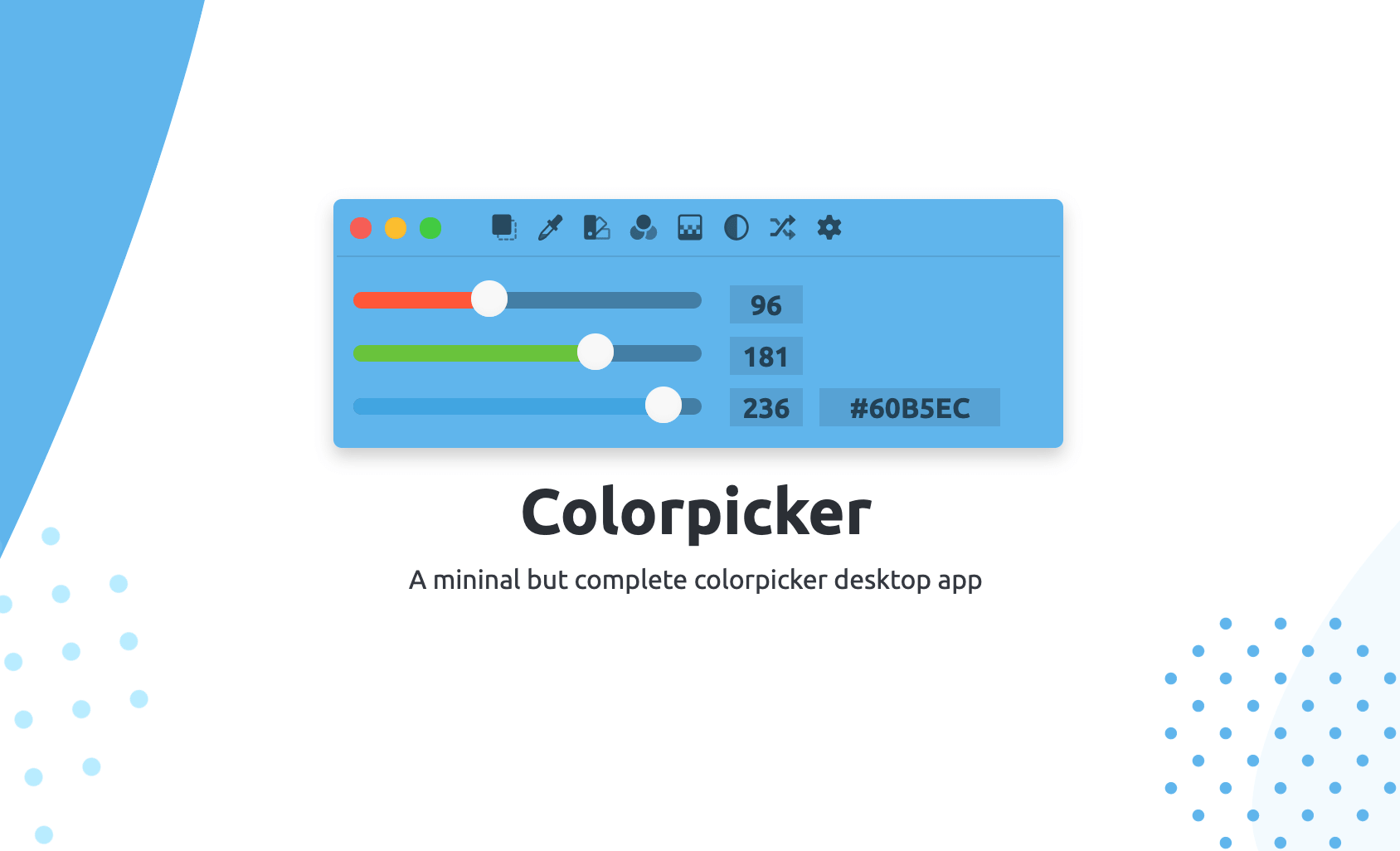
Colorpicker is a clean, easy to use, yet efficient desktop application for color management. Pick any color on your screen with Colorpicker.

No paid content found
Visit website
Profile views 25 Outbound visits 34 Normal
Colorpicker Full homepage screenshot

At a glance

Category
Development
Language
English
Paid-content signal
No paid content foundObserved
Registered
2019
Hosting
OVH SASInferred
HTTPS certificate trusted
PassedObserved
Last updated

Website review

This review may include AI-generated content and is not individually verified. Domain, certificate and other facts come from the observed data on this page.

What is Colorpicker?

Colorpicker is a desktop color-management app for picking, editing, organizing and storing colors. It is aimed at designers and developers who need to grab a color from anywhere on screen and reuse it in their work.

Its three named areas cover the main workflow:

  • Picker — grabs any color on your screen, whether from design software, a browser or an image. The hex or RGB code appears in the Colorpicker interface in real time, so you can read it without losing your last adjustments.
  • Colorsbook — a place to save colors into multiple palettes. Clicking a saved color puts it back into the main interface.
  • Tint — generates shades to fill out a palette. The current version offers three shade levels based on HSL (hue, saturation, brightness), with custom shade layers planned for later releases.

The interface keeps its features in a toolbar and shortcuts, and colors can be adjusted with three RGB sliders. The page notes that HSL and CMYK sliders are planned, so RGB is the current editing model. The app is free and open source, and the site also offers a simplified online version alongside the desktop download.

A practical example: you are building a landing page and spot a good accent color in a client's existing logo open in another window. You pick it with Picker, save it to a Colorsbook palette for that project, then use Tint to generate a few lighter shades for hover states and backgrounds.

If you only need an occasional one-off color value, the online version is probably enough. Choose the desktop app when you want palette storage and repeated picking across applications during a working session.

How do I pick a color from anywhere on my screen with Colorpicker?

Use Colorpicker's Picker to grab a color from anything visible on your screen — a design file, a browser page, or an image. Open the Colorpicker app, activate the Picker from the toolbar (or its shortcut), then click the color you want. The app shows the result in real time on its interface, so you can read the Hexadecimal or RGB value without losing your last adjustments.

A practical workflow

  1. Keep Colorpicker open alongside whatever you're sampling from.
  2. Trigger the Picker.
  3. Click the target color on screen.
  4. Read the Hex/RGB code in Colorpicker, then fine-tune it with the RGB sliders.
  5. Save it to a palette in Colorsbook so it's there next time — clicking a saved swatch sends it back into the main interface.

Where it fits and what to watch for

  • Designers and developers are the stated audience, and the picker is the core of that use: sampling a brand color from a mockup, a client's site, or a screenshot.
  • The three RGB sliders cover most editing needs; HSL and CMYK are described as coming later, so don't count on them yet.
  • Tint generates three shade levels based on HSL to help complete a palette. Custom shade layers are mentioned as a future release, not a current feature.
  • Colorsbook is described as due for further improvement, so treat it as a working store rather than a finished asset library.

If you only need a quick one-off sample, the browser-based simplified version on the site is enough. If you're building and keeping palettes across sessions, install the desktop app so Colorsbook and your shortcuts stay available. For a broader set of color utilities, Colorpicker itself is the reference point here; if you need a second opinion on a sampled value, any standard hex-to-RGB converter will confirm the numbers.

How can I save and organize colors into palettes in Colorpicker?

Colorpicker organizes saved colors in a feature it calls Colorsbook. According to the product page, Colorsbook lets you save colors into multiple palettes, and clicking a saved color sends it back into the main Colorpicker interface so you can keep working with it.

Colorpicker describes the workflow in three steps:

  1. Pick — use the Picker to grab any color visible on your screen, whether it comes from a design tool, a browser, or an image. The hex or RGB value appears in the interface in real time.
  2. Save — store that color in Colorsbook, choosing which palette it belongs to. Because Colorsbook supports multiple palettes, you can separate colors by project, client, or brand rather than keeping one long list.
  3. Reuse — click a color in Colorsbook to load it back into the editing interface, then adjust it with the RGB sliders or run it through Tint to generate lighter or darker variants.

The page notes that Colorsbook is expected to become more capable in future updates, so treat the current palette management as functional but still evolving.

Practical example. A web designer auditing a client's existing site could pick each brand color from the browser, drop them into a palette named after that client, then click back through them while building a stylesheet. The Tint tool, which produces three HSL-based shade levels, is useful for filling out hover and border states without leaving the app.

Decision criterion. If you need simple, offline palette storage tied to an on-screen picker, this fits. If you need shared team libraries, cloud sync, or export to design-tool formats, check whether those exist before committing — the page does not describe them. As a free, open-source desktop app, it is easy to test the workflow yourself before deciding whether Colorsbook is enough for your day-to-day organization.

How does the tinting tool in Colorpicker help me find matching shades?

The tinting tool helps by generating a set of lighter or darker variants from a base color, so you don't have to guess or manually nudge values to find something that fits. In Colorpicker, this takes the form of a Tint feature that produces three levels of shades derived from HSL (hue, saturation, brightness). You pick a base color, and the tool offers related shades that sit alongside it — useful when you need a coherent set rather than one isolated swatch.

How this plays out in practice

  • A UI designer building a button needs a base color plus a hover and pressed state. Instead of inventing three unrelated colors, they start from one brand color and use the tint levels as candidates, then check contrast against the background.
  • A developer extracting colors from a screenshot can pick a highlight, then generate shades to represent borders, backgrounds or disabled states without leaving the app.
  • Because the shades are HSL-based, the relationship between them stays predictable: hue is held steady while lightness moves, which is usually what makes a palette look intentional rather than random.

What it isn't (yet)

The page states there are currently three levels of shades, and that custom shade layers are planned for future releases. So if you need a long ramp — say eight steps from near-white to near-black — the built-in tool won't cover it today; you'd generate the three, then adjust manually or repeat from a shifted base.

A useful next step

Pick one color you already use, run it through the tint tool, and place the resulting shades side by side on the background they'll actually appear against. If the lightest shade disappears or the darkest one loses its hue, that tells you more about your palette than any swatch grid. The app is a free, open source desktop tool, and there's also an online version if you want to test the workflow before installing anything: Colorpicker.

Can I use Colorpicker directly in my browser without installing it?

Yes. Colorpicker offers a simplified online version you can try directly on the site, so a browser is enough for basic use. The full desktop app is a separate download; the online build is described as simplified rather than a complete replacement.

What the browser version is good for

  • Grabbing a color quickly and reading its Hex or RGB value.
  • Testing the interface and workflow before committing to an install.
  • Working on a machine where you cannot install software.

Where the desktop app still wins

The page lists capabilities tied to the desktop application: screen-wide picking across other apps and images, a Colorsbook for saving colors into multiple palettes, and a tint tool with three HSL-based shade levels. If your work depends on storing palettes or generating tints, plan on the desktop version.

How to decide

Your situation Sensible choice
Occasional one-off color checks Browser version
Locked-down or shared computer Browser version
Regular design or front-end work with saved palettes Desktop app
Need to pick colors from other applications Desktop app

Next step

Open the online version first and try picking a color from an image on your screen; if you find yourself wanting to save or revisit colors, download the desktop app from Colorpicker.

Is Colorpicker free and open source, and how can I contribute?

Yes. Colorpicker describes itself as a free and open source desktop app, so there is no paid tier implied by the page. It is available as a downloadable desktop application, with a simplified online version you can try in the browser before installing anything.

How to contribute

The page points to a few concrete paths:

  • Translation: The developer asks for help translating the interface on Crowdin, and the site itself lists many languages (French, English, German, Russian, Korean, Catalan, Polish, Spanish, and more) with an invitation to add yours.
  • Feedback and code: Feedback is invited via GitHub, which is the usual route for bug reports, feature requests, and code contributions to an open source project.
  • Donations: There is a "donate & download" option, which supports the developer without changing your access to the app.

What the app does, in short

Colorpicker is aimed at designers and developers who need to move colors between tools. Its main pieces are:

  • Picker: grab any color on your screen, whether it is inside a design app, a browser, or an image, and read the hex or RGB value immediately.
  • Colorsbook: save colors into multiple palettes and click one to send it back into the interface.
  • Tint: generate shades from a picked color, currently three levels based on HSL, with custom shade layers mentioned as a future addition.

RGB sliders are the current editing model, with HSL and CMYK noted as forthcoming. If you are deciding whether to adopt it, the practical test is whether screen picking plus saved palettes covers your workflow; if you need CMYK output today, that is a reason to wait. A reasonable next step is to open the online version, pick a color from an existing project, and save it to a palette to see whether the round trip feels faster than your current tool.

Related questions

More questions →
What color formats and adjustment controls does Colorpicker support?

Colorpicker lets you choose colors with three RGB sliders and read the result as a hexadecimal or RGB code in real time. HSL and CMYK are not available yet — the site describes them as coming in future releases. So if you need CMYK values for print work today, Colorpicker is not the tool for that step; if you need fast RGB/HEX picking and adjustment on screen, it fits.

Color formats available now

Format Status How you get it
RGB Available Three sliders for direct adjustment
Hexadecimal Available Shown live on the Colorpicker interface
HSL Not yet Listed as a planned addition
CMYK Not yet Listed as a planned addition

The practical workflow is: adjust with the RGB sliders, then copy the HEX or RGB code that updates as you move them. The site notes you can see the code "without losing your last adjustments," meaning the readout tracks your current slider positions rather than requiring you to confirm first.

Adjustment controls

RGB sliders

The three sliders are the primary way to set a color. Each slider maps to one channel, so you can dial in a value directly or nudge an existing color toward a target.

Tint

Tint is a separate adjustment tool rather than a format. It generates shade levels from a picked color, and the site states these levels are based on HSL (hue, saturation, brightness). Currently there are three levels of shades. Creating your own shade layers is described as a future release.

This is the one place HSL logic already appears in the app — as the basis for generating tints, not as an input format you can type into.

Access to controls

Every feature is reachable from the toolbar and via shortcuts, so you can switch between picking, adjusting, and storing colors without hunting through menus.

Where the formats come from

Two tools feed colors into the interface:

  • Picker grabs any color on your screen — from design software, a browser, or an image — and shows it in the Colorpicker interface in real time, so you get the HEX or RGB code immediately.
  • Colorsbook stores colors in multiple palettes. Clicking a saved color puts it back into the Colorpicker interface for further adjustment.

So a typical sequence is: Picker to capture a color from anywhere on screen → RGB sliders to adjust it → Tint to build out shades → Colorsbook to save the result.

What this means for your choice

Choose Colorpicker if your work runs on RGB and HEX — web design, UI work, quick on-screen sampling — and you want picking, adjusting, tinting, and palette storage in one desktop app. The site describes it as free and open source, with a downloadable app and an online version.

Hold off if you need CMYK output for print, or if you want to enter HSL values directly. Those formats are announced as future additions, not current features, and the site gives no release date. For those cases you would need a second tool alongside Colorpicker rather than instead of it.

What Is Desktop Software and When Should You Use It Instead of a Browser Extension?

Desktop software is a program you install and run directly on your computer's operating system (Windows, macOS, or Linux), rather than inside a browser tab. You should choose it over a browser extension or web app when your task needs deeper system access, steadier performance, or offline capability — for example, real-time meeting transcription that captures audio from multiple apps. Browser extensions are lighter and install in seconds, but they live inside one browser and inherit its limits.

What "desktop software" actually means

A desktop app is installed on the machine and runs as its own process. It can:

  • Read and write local files without a download/upload round trip
  • Access system-level resources like the microphone, speakers, camera, and other running apps
  • Keep working when the browser is closed or the network drops (depending on the app)
  • Persist settings and data locally

This is different from a web app, which runs in a browser tab and depends on a live connection and browser permissions, and from a browser extension, which is a small add-on that modifies or extends one browser's behavior.

Desktop app vs. browser extension vs. web app

Dimension Desktop software Browser extension Web app
Where it runs Installed on the OS Inside one browser In a browser tab
Offline access Often partial or full Rarely Usually none
System permissions Broad (mic, files, other apps) Limited to browser APIs Limited to browser APIs
Performance Uses full local resources Constrained by browser Constrained by browser + network
Updates App-managed or manual Auto via browser store Automatic on reload
Cross-app capture Yes (e.g., system audio) Usually no Usually no

The practical takeaway: extensions and web apps are convenient and low-commitment; desktop apps trade a heavier install for capability and stability.

When a desktop app is the better choice

Pick desktop software when the task depends on one or more of these:

  • Capturing audio from multiple sources at once — a meeting where you're on a call and taking notes. A desktop notetaker can tap system audio and the mic; a browser extension generally can't reach outside its tab.
  • Real-time transcription and live summaries — Otter's Meeting Agent is described as supporting real-time transcription, live chat, automated summaries, insights, and action items. That kind of continuous processing benefits from a local process rather than a single browser tab.
  • Long or resource-heavy sessions — recording and transcribing for an hour is more stable outside a tab you might accidentally close.
  • Working across apps — if your workflow spans a video call app, a document, and a notes tool, a desktop app can sit across all of them.

Choose a browser extension instead when you only need to enhance one website (for example, adding a button to a specific web tool), want zero install friction, and don't need system-level access.

How to choose and install a desktop app safely

  1. Confirm the task fits a desktop app. If you only need to tweak one website, an extension is lighter. If you need system audio, local files, or offline use, go desktop.
  2. Check system requirements. Match the OS (Windows/macOS/Linux) and version. Download only from the vendor's official site — for Otter, that's otter.ai.
  3. Review permissions before granting. A meeting/transcription app will ask for microphone (and possibly screen or system audio) access. Grant only what the task needs.
  4. Install and sign in. Follow the vendor's installer. If the app requires an account, expect a login step.
  5. Verify it works. Run a short test — record 30 seconds and confirm transcription or capture appears as expected.
  6. Check update and pricing terms. Otter lists a pricing page at otter.ai/pricing; check it for current plan limits rather than assuming a free tier.

Troubleshooting common desktop software problems

  • Install fails — confirm OS version meets requirements, free up disk space, and re-download from the official source (a corrupted installer is a common cause).
  • App crashes on launch — update to the latest version, restart the machine, and check whether a security tool is blocking it.
  • No audio captured — re-check microphone/system-audio permissions in OS settings, not just in the app.
  • Sync or login issues — verify your network and credentials; if the app stores data locally, confirm it isn't blocked by a firewall.
  • Extension works but desktop doesn't (or vice versa) — they use different permission models; a feature available in one may not exist in the other.

If your goal is AI meeting transcription with live summaries and action items, a desktop app is usually the more capable choice; if you just need a small tweak inside one website, a browser extension is the faster path.

How does the Tint tool in Colorpicker generate color shades?

Colorpicker's Tint tool generates shades by deriving them from a base color using HSL (hue, saturation, brightness) as its underlying model. According to the app's own description, the tool currently offers three levels of shades, and the goal is to help you find a tint that completes your palette. If you need more than three levels or want to define your own shade steps, that capability is described as planned for future releases rather than available now.

What the Tint tool does

Tint sits alongside Picker and Colorsbook as one of the app's core features. Where Picker grabs a color from anywhere on your screen and Colorsbook stores colors in palettes, Tint takes a color you already have and produces related shades from it.

The stated purpose is practical: picking a color is only half the job, and being able to tint it lets you fill out the rest of a palette. So the typical flow is pick or choose a color, then use Tint to expand it into a small set of related shades.

How the shades are generated

The mechanism the site describes is HSL-based:

  • Hue — the base color's position on the color wheel
  • Saturation — how vivid or muted the color is
  • Brightness (lightness) — how light or dark the color is

Shades are derived from these three attributes rather than from an arbitrary list of preset swatches. In practice this means the generated shades stay related to the base color's hue while varying along the lightness/saturation axis, which is what makes them read as a coherent family rather than unrelated colors.

The current implementation is limited to three levels of shades. The site does not specify the exact numeric steps applied to HSL for each level, so treat "three levels" as the reliable detail and avoid assuming precise lightness percentages.

What you can and can't do today

Capability Status
Generate shades from a base color Available
Number of shade levels Three
Model behind the shades HSL (hue, saturation, brightness)
Create your own shade layers Not yet — described as coming in future releases

If your workflow needs a custom number of steps, custom increments, or saved shade layers, the current version won't cover that. For a quick three-step tint to round out a palette, it will.

When Tint is the right tool

Tint fits situations where you already have an anchor color and need a few related variants — for example, building hover or background states around a brand color, or extending a picked color into a small palette before saving it. In those cases the three built-in levels are usually enough to get a usable set.

It's less suited to cases where you need precise, reproducible shade scales (such as a full 50–900 tonal ramp), since the level count is fixed and the exact HSL deltas aren't documented. For that kind of work you'd currently need to adjust values manually or wait for the custom shade layers mentioned for future updates.

Once you have shades you like, Colorsbook is where they can be kept — it lets you save colors into multiple palettes and click a saved color to send it back into the main interface.

How does the Picker tool in Colorpicker work?

The Picker grabs a color from anywhere on your screen and shows it live in the Colorpicker interface, so you can read its hexadecimal or RGB code without losing the adjustments you were already making. It works on colors from design software, a browser, or a plain image, which makes it useful when you need to match or extract a color from existing material rather than build one from scratch.

What the Picker does

According to the Colorpicker site, Picker "allows you to grab any color on your screen," regardless of whether the source is your favorite design software, your browser, or just an image. The color appears in the Colorpicker interface in real time, so you can see the Hexadecimal or RGB code quickly "without losing your last adjustments."

That last point is the practical difference from switching windows to a separate color tool: your current color state stays intact while you sample something new.

How to use it

  1. Open Colorpicker and set up whatever color you are currently working on, so the interface holds your existing adjustments.
  2. Activate the Picker from the toolbar or its shortcut. The site states that every feature is accessible from the toolbar and shortcuts, though it does not list the specific key combination.
  3. Move over the target color on screen — in a design app, a browser page, or an image — and sample it.
  4. Read the result in the Colorpicker interface, which updates in real time with the Hexadecimal or RGB code.

The expected result is that the sampled color replaces or joins your working color while your prior adjustments remain visible, so you can compare before committing.

What you can do with a picked color

  • Read the code directly. The interface shows Hexadecimal or RGB, so you can copy the value into CSS, a design file, or documentation.
  • Adjust it with the RGB sliders. The site notes three RGB sliders, with HSL and CMYK listed as planned ("soon").
  • Save it to Colorsbook. Colorsbook stores colors in multiple palettes; clicking a saved color puts it back into the Colorpicker interface.
  • Tint it. The Tint tool helps you find a matching shade to complete a palette. It currently offers three levels of shades based on HSL (hue, saturation, brightness), with custom shade layers listed as a future release.

When the Picker is the right choice

Use the Picker when the color already exists somewhere on screen and you need its exact value — matching a brand color from a mockup, pulling a hue out of a photo, or checking what a site actually renders. If you are starting from a blank palette and want to construct colors by hand, the RGB sliders and Tint tool are the more direct path.

Practical notes

  • The site describes Colorpicker as a free and open source desktop application, and also offers a simplified online version you can test in the browser. The download page includes a "donate & download" option alongside the standard download.
  • The interface is available in multiple languages, with translation contributions handled through Crowdin.
  • Colorsbook is described as something that "will be improved and be more efficient in the next updates," and feedback is directed to GitHub — so treat palette management as a feature still in development rather than a finished one.

One limitation to keep in mind: the source material does not specify the exact shortcut keys, platform requirements, or how the Picker behaves across multiple monitors. If those details matter for your setup, verify them in the app itself after downloading.

What is Colorpicker on colorpicker.fr?

Colorpicker is a desktop color management application for picking, editing, organizing, and storing colors. It is aimed at designers and developers who want to grab colors from anywhere on their screen and keep them in reusable palettes. The site also offers a simplified online version you can try in the browser, plus a downloadable desktop app. According to the site, it is free and open source, developed by an enthusiast.

What the app does

The site describes Colorpicker as "a minimal but complete colorpicker desktop app." Its core functions are:

  • Picker — grab any color on your screen, whether it's inside a design tool, a browser, or an image. The color appears in the Colorpicker interface in real time, so you can read the hexadecimal or RGB code without losing your last adjustments.
  • Colorsbook — save colors into multiple palettes. Clicking a saved color puts it back into the Colorpicker interface. The site notes Colorsbook "will be improved and be more efficient in the next updates."
  • Tint — generate tints to complete a palette. The site says there are currently three levels of shades based on HSL (hue, saturation, brightness), with custom shade layers planned for future releases.

Interface and controls

The site describes the interface as intuitive: every feature is accessible from the toolbar and shortcuts. Color selection is done with three RGB sliders, with HSL and CMYK listed as "soon" at the time of writing. The stated goal is to let you pick, edit, organize, and store colors easily.

Desktop vs. online version

The site offers both a downloadable desktop application and a simplified online version you can test directly on the page. The online version is presented as a way to try the tool before downloading; the full feature set described above belongs to the desktop app.

Who it's for

The site explicitly names designers and developers as its audience. If your work involves matching colors across design software, browsers, and images, and you want a place to store the results, that matches the described use case. If you only need an occasional one-off color value, the online version may be enough.

Availability and languages

The page lists interface languages including English, French, German, Russian, Korean, Catalan, Polish, and Spanish, with translation contributions handled through Crowdin. The site also links to GitHub for feedback.

What the site does not state

The page does not list pricing tiers, license terms beyond "free and open source," system requirements, or supported operating systems. If those details matter for your decision, check the download page or the project's repository before committing.

Website Overview

An established domain and managed infrastructure suggest continuity of operations and may support dependable delivery, although neither guarantees service quality. An active inbound-mail setup with incomplete authentication may leave the domain more open to impersonation. Provider hosting alone does not close that gap.

Domain and Registration

Registered in 2019, this domain has about 7 years of history. That suggests continuity, although ownership and purpose may have changed. Registration contact information is publicly available through RDAP. The domain uses the common .fr extension, which is not an independent safety signal.

DNS and Email

The observed email authentication setup is incomplete: DMARC is missing. Nameservers are provided by ovh.net, indicating managed DNS hosting. MX records point to the ovh.net email service. DNSSEC is enabled, allowing validating resolvers to authenticate signed DNS data. No CNAME was found; the observed records resolve directly to addresses.

TLS and Certificates

The public key uses EC with 256 bits. The server supplied a complete certificate chain. No organization name is present in the certificate; the available fields are consistent with domain validation. The certificate was issued by Let's Encrypt, commonly associated with automated certificate services. The certificate's total validity is about 89 days, consistent with a short renewal cycle.

HTTP and Browser Security

The response lacks these common security headers: CSP, Referrer-Policy, Permissions-Policy. CORS permits any origin to read this response. This is common for public resources; sensitive responses need narrower handling. No X-Powered-By header was found, reducing one common source of backend fingerprinting information. No obvious internal addresses or debug information were found in the headers. The Server header identifies Apache without an exact version.

Technology Stack Analysis

The public page identifies Apache without precise versions, leaving fewer clues for version-specific scanning.

Search and Social Sharing

No homepage canonical URL was detected. If duplicate URLs exist, consolidation may be less explicit. Twitter Card metadata is configured. JSON-LD includes Organization data, helping describe the organization as an entity. The title has 40 characters, within a common display range. A meta description is present, with 140 characters.

Hosting and Email

DNSovh.net
HostingOVH SAS
Emailovh.net
Approximate IP geolocation (inferred; a CDN or proxy may differ from the origin server) France flagFrance Inferred 213.186.33.3

Registration details

RDAP / WHOIS

RegistrarOVH
Registered2019-03-28
Expires2027-03-28
Domain statusactive
Nameserversdns20.ovh.net、ns20.ovh.net
DNSSECsigned

DNS records

DNS

TypeNameValueTTLPriority
Acolorpicker.fr213.186.33.33600—
AAAAcolorpicker.fr2001:41d0:1:1b00:213:186:33:33600—
MXcolorpicker.frmx4.mail.ovh.net36001
MXcolorpicker.frmx3.mail.ovh.net360010
NScolorpicker.frdns20.ovh.net3600—
NScolorpicker.frns20.ovh.net3600—
TXTcolorpicker.fr1|www.colorpicker.fr600—
TXTcolorpicker.frv=spf1 include:mx.ovh.com ~all600—
DScolorpicker.fr61411 8 2 853e8f47925e5c77229d4ecad54b6070b874331fd9cadd8a6aaa2d1be9e20e2a3600—

TLS and certificates

TLS / SSL

AssessmentNormal configuration
Supported protocolsTLSv1.2、TLSv1.3
Negotiated protocolTLSv1.3
Certificate subjectcolorpicker.fr
IssuerLet's Encrypt
Valid until2026-11-20T07:35 · Remaining when checked: 49 days
Verification detailsCertificate trust: Passed · Hostname match: Passed

HTTP response headers

HTTP

HeaderValue
content-typetext/html
serverApache
strict-transport-securitymax-age=31536000; includeSubDomains; preload
x-frame-optionssameorigin
x-content-type-optionsnosniff
access-control-allow-origin*

Identified technologies

Apache

Pages, Search and Sharing

Meta descriptionColorpicker is a clean, easy to use, yet efficient desktop application for color management. Pick any color on your screen with Colorpicker.
Canonical URLNot detected
LanguageEnglish (default)
Twitter Cardsummary_large_image
All bots 0 allowed · 0 disallowed

User reviews (0)

  • No reviews yet.