
 简体中文
简体中文 English
Website review
This review may include AI-generated content and is not individually verified. Domain, certificate and other facts come from the observed data on this page.
What is Colossyan Creator?
Colossyan Creator is an AI video generator built for workplace learning content: training videos and courses for employees, partners and customers. Its central promise is speed with editorial control—AI agents draft a video or full course from a document, PDF, slide deck, URL or prompt, and you review and approve each scene before anything is rendered.
Who it suits
- L&D and enablement teams producing onboarding, compliance or product training at volume.
- Teams without a dedicated video crew that still need on-brand output.
- Organisations that must deliver training through an LMS rather than just post clips.
What it does, per the site
- Drafts videos and courses from existing source material, scene by scene, with approval before rendering.
- Offers 300+ stock or custom avatars, voices in 100+ languages, and applies your logo and colours automatically.
- Publishes via SCORM to an LMS, as MP4, or as a shareable link.
- Tracks engagement and completion, and lets you update content when the source changes.
- Has a free trial with no credit card required, and a separate pricing page.
The trade-off to weigh The site positions itself against two alternatives: fragmented production (knowledge scattered, a team needed to assemble it) and one-click AI tools (fast but generic and hard to trust). Colossyan's answer is a middle path—AI drafts, a human approves. That control is valuable for compliance-sensitive training, but it also means someone still has to review every scene, so the time saving depends on how much rework your drafts need.
If you are evaluating it, the practical test is a single real course: take one existing onboarding document, generate the draft, and time how long the review-and-fix pass takes. That number tells you more than any feature list. Compare against other AI video tools such as Synthesia and HeyGen if avatar-led video is your main need, or an authoring tool like Articulate if LMS-native course structure matters more than generation speed.
How do I turn an existing document or slide deck into a training video with Colossyan?
Upload your file to Colossyan Creator and let its AI agent, Cora, draft a scene-by-scene video from it; you then edit and approve each scene before anything renders. That approve-before-render step is the core of the workflow described on the site: the tool drafts, you keep control.
The basic path
- Start from a doc, PDF, slide deck, URL, or a prompt.
- Let the AI agent draft the video or full course scene by scene.
- Review and edit each scene — nothing renders until you approve it.
- Apply branding: your logo, colours, and avatars.
- Pick a voice from 100+ languages and 300+ stock or custom avatars.
- Publish as SCORM to your LMS, as MP4, or as a shareable link.
- Track engagement and completion, and update the video when the source content changes.
A concrete example
Say you have a 20-slide onboarding deck. Point Colossyan at that deck and it produces a first draft with a scene per key point. You rewrite the script for the scenes that read awkwardly as narration, swap in a custom avatar that matches your brand, and approve. Then you export SCORM into your LMS so new hires get completion tracking, and keep the link version for contractors who aren't in the LMS.
Decisions to make before you start
| Your situation | Sensible choice |
|---|---|
| Content changes often | Keep the source document as the single source of truth and re-generate |
| Needs completion tracking | Publish via SCORM to your LMS |
| External partners or customers | Share a link or export MP4 |
| Strong brand guidelines | Set up custom avatars, colours, and logo up front |
| Large existing library | Convert one representative deck first, judge effort, then scale |
Practical caveats
- A drafted scene is a starting point, not a finished script. Budget time for editing narration and trimming slides that don't translate to video.
- Slide decks are usually outline-shaped, not story-shaped. Expect to reorder or merge scenes.
- Test the SCORM package in your actual LMS before rolling it out broadly.
- The site offers a free start with no credit card required, and a guided demo if you want to see the full platform first.
Next step: take one deck you already have and run it through as a pilot, then compare the editing time against your current production process. If you want a walkthrough before committing, Colossyan Creator offers a guided demo.
Can I use my own branding, avatar, or voice instead of the stock options?
Yes. Colossyan Creator supports custom branding, custom avatars, and voice options beyond the stock library, so you are not limited to generic AI presenters.
What you can customize
- Avatars: The platform offers 300+ stock avatars plus custom avatar options, so you can create a presenter that resembles a real team member or a branded character.
- Voice: You can choose voices across 100+ languages. For a consistent corporate sound, a custom or cloned voice is the more natural fit than picking a stock voice.
- Branding: Your own colors and logo are applied to the video, which keeps training content visually consistent with your organization.
How this changes your workflow
If you already have a script, deck, or document, you can start from that source and let the AI agent draft scenes. You then edit and approve each scene, so the custom avatar and voice are applied to content you control rather than to a fully automated output.
Practical decision criteria
| Option | Best for | Trade-off |
|---|---|---|
| Stock avatars and voices | Fast internal drafts, one-off explainers | Less distinctive; may feel generic to long-term learners |
| Custom avatar and voice | Onboarding, customer-facing training, localized courses | Requires setup and approval; needs a clear owner for consistency |
Next step
Decide who will appear on screen and how your brand should sound, then check whether a custom avatar or voice requires a demo or a paid plan. A guided demo is the quickest way to confirm what is included at your intended scale.
For general advice: if you plan to update training content often, invest in custom branding and a consistent voice early. It costs more upfront but avoids re-recording or re-branding later.
How do I publish a Colossyan course to my LMS or share it with external partners?
Publishing from Colossyan Creator is a distribution choice: send it into your learning management system, export a video file, or share a link. The right option depends on whether you need completion tracking and who is watching.
Three publishing routes
- SCORM to your LMS. Colossyan supports publishing to an LMS with SCORM, which is the route to take when you need enrollments, completion records and reporting inside your existing learning platform. This matters most for employee training where someone must prove who finished what.
- MP4 export. Best when the video will live somewhere without LMS integration — an intranet page, a slide deck, a live session, or a channel that only accepts video files. You lose the built-in tracking, so pair it with a separate quiz or attendance record if completion matters.
- Share a link. The fastest path for external partners and customers. No LMS account, no file transfer, no plugin — the recipient just opens it. Use this when you want feedback or a quick rollout rather than formal compliance records.
Choosing between them
| Situation | Best route | Trade-off |
|---|---|---|
| Employees must complete mandatory training | SCORM to LMS | Needs LMS admin access and correct SCORM version |
| Partners or customers outside your LMS | Shareable link | No formal completion record unless you add one |
| Reuse in a live session or another platform | MP4 export | Manual version control; updates don't propagate |
| Content that changes often | Link or LMS-hosted | Easier to update in place than a distributed file |
For external partners specifically
A link is usually the practical answer, because you cannot assume partners have access to your LMS. Keep two things in mind: decide whether you need any evidence of viewing, and set a habit of replacing the link's content rather than sending a new link, so old versions don't circulate.
Keeping published content current
Colossyan's page notes that you can update any video or course when your content changes, and that analytics track engagement and completion. That combination is what makes the LMS route worth the setup effort: you can refresh a module in place and see whether the update landed, instead of rebuilding and redistributing a file.
Next step
Start with one short module and publish it both ways — SCORM into your LMS and a link for a partner — then compare what each gives you. If your organisation already runs a learning platform, confirm which SCORM version it accepts before you build, since that decision is easier to make up front than to fix later.
What analytics does Colossyan provide to show whether training content is working?
Colossyan provides engagement and completion analytics for the videos and courses you publish. According to the site, you can "track engagement and completion, and update any video or course the moment your content changes." That means the platform reports who is watching and finishing your training, rather than only hosting the file.
H3 What this is useful for
- Completion tracking tells you whether learners actually finish a module, which matters most for compliance and onboarding.
- Engagement tracking helps you spot drop-off: if people abandon a scene, that section may be too long, unclear, or poorly localized.
- Update-on-change workflow means when source material shifts, you revise the video or course and the analytics continue on the same asset, so you can compare before and after.
H3 What the site does not specify The page does not list exact metrics such as quiz scores, per-scene heatmaps, watch time, or export formats for reports. It also does not state whether analytics live inside Colossyan or depend on your LMS. If you publish via SCORM to an LMS, your LMS may hold the deeper reporting; Colossyan's own dashboard covers engagement and completion.
H3 Practical next step Pick one existing training module, publish it through Colossyan, and check two numbers after the first cohort: completion rate and where viewers stop. If completion is low but engagement is high, the content is being watched but not finished—shorten it. If both are low, the audience may not be finding it. For a closer look at reporting depth, see Colossyan Creator.
How much does Colossyan cost, and is there a free trial?
Colossyan Creator is positioned as a training-focused AI video generator, and its own site points to a pricing page rather than listing rates in the main marketing copy. The page also invites visitors to "Get started for free" with "no credit card required," which indicates you can test the product before committing to a paid plan. For current plan tiers and exact costs, check Colossyan Creator directly, since AI video pricing often changes with usage limits, avatar options, and export needs.
What to verify before choosing a plan
- Usage limits: How many minutes of video or how many projects are included per month.
- Avatar and voice access: Whether custom avatars, 300+ stock avatars, or 100+ languages are available on your tier.
- Publishing options: SCORM export for an LMS, MP4 download, or shareable links.
- Team features: Whether multiple collaborators, brand kits, or analytics are included.
- Trial terms: What the free trial covers and whether it expires or converts automatically.
Practical next step
If your goal is employee onboarding or partner training, start with the free trial and build one short module from an existing document or slide deck. That will show you whether the scene-by-scene approval workflow and avatar quality fit your standards before you pay. If you need SCORM delivery or custom branding, confirm those features are in the tier you are considering, because those are often the deciding factors for L&D teams.
 Cloudflare
 Google Workspace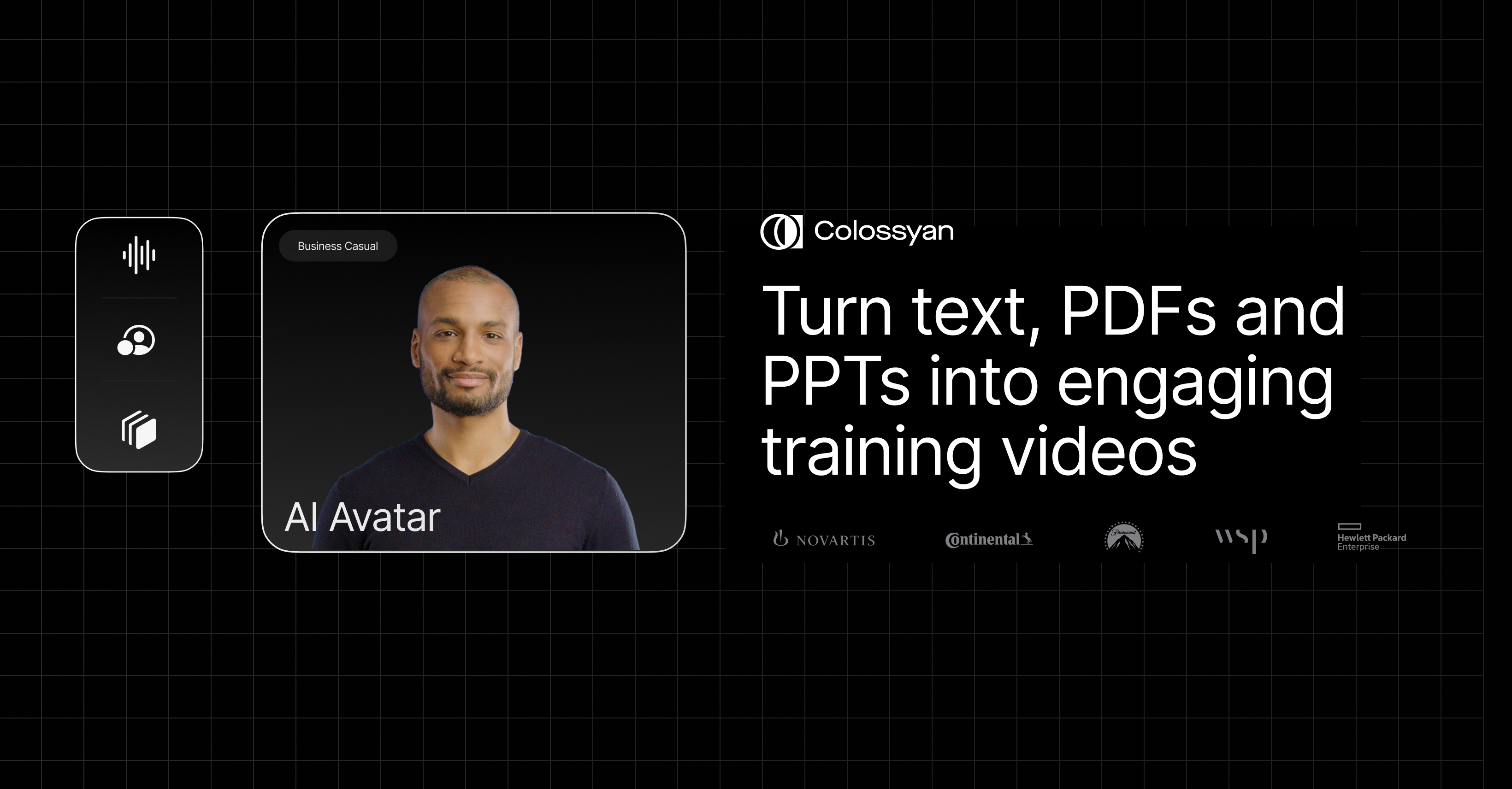

User reviews (0)