Website profiles · Technology insights · Alternatives

displaydimmer.com

Display Dimmer controls laptop and external-monitor brightness on Windows 10/11 with DDC/CI and software fallback, plus hotkeys, schedules, and app rules.

Paid content
Visit website
Profile views 17 Outbound visits 9 Normal
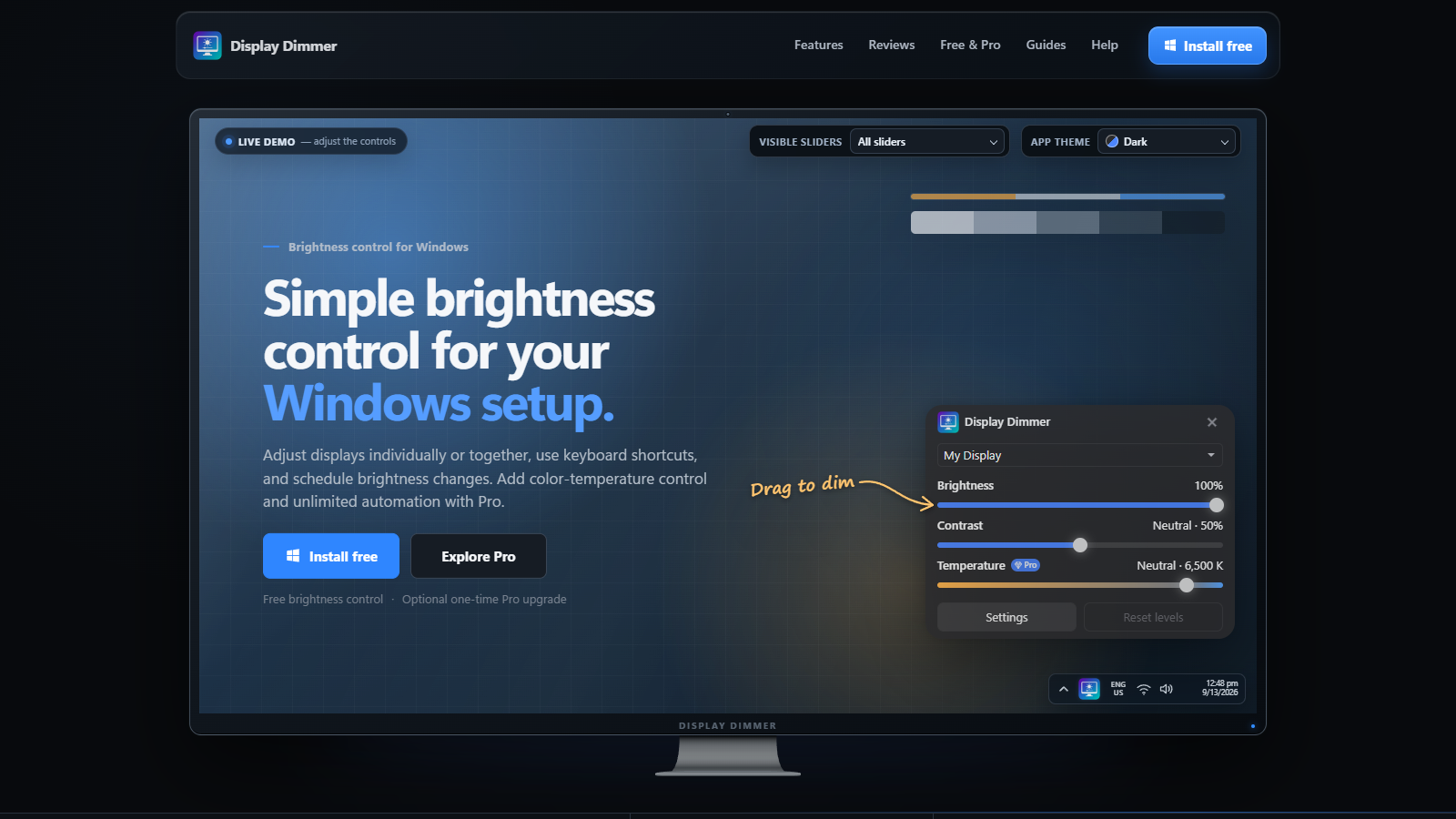
Display Dimmer Full homepage screenshot

At a glance

Category
Software & Apps
Language
English
Paid-content signal
Paid contentObserved
Registered
2025
Hosting
CloudflareInferred
HTTPS certificate trusted
PassedObserved
Last updated

Website review

This review may include AI-generated content and is not individually verified. Domain, certificate and other facts come from the observed data on this page.

What is Display Dimmer?

Display Dimmer is a Windows 10/11 app for controlling screen brightness on laptops and external monitors. Its distinguishing feature is that it tries hardware control first and falls back to software dimming when that fails — so it still works on monitors or cables that ignore standard brightness commands.

What it does

  • Adjusts brightness and contrast on one display or several at once.
  • Uses DDC/CI to change the monitor's own brightness where the display and connection support it.
  • Tracks DDC/CI results per display; after repeated failures it can pause hardware control for that monitor and switch to software (gamma-based) dimming instead.
  • Adds color temperature (blue light filtering) on the Pro tier; the free version is limited to 30 minutes per day.
  • Automates settings with schedules, per-app rules, and linked displays so grouped monitors change together.
  • Supports hotkeys and multiple themes.

Who it suits

  • Laptop users with an external monitor whose brightness keys don't reach it.
  • People who want evening dimming or warmer screens to happen automatically rather than by hand.
  • Multi-monitor setups where matching brightness across screens matters.

Trade-offs to weigh

Hardware (DDC/CI) Software (gamma)
What changes The monitor's actual backlight The image the PC sends
Coverage Only supported displays/connections Works almost anywhere
Typical downside Can fail silently on some monitors or adapters May reduce contrast or crush dark tones

Next step: if your monitor ignores brightness commands, check whether it responds at all before buying Pro — the free tier is enough to test hardware versus software dimming on your specific display. For comparison, Windows' built-in brightness slider covers laptops well but often not external monitors; Display Dimmer targets that gap.

How do I control the brightness of an external monitor on Windows 10 or 11?

The most reliable way is to use the monitor's own brightness control over DDC/CI, which Windows can drive through software. Display Dimmer is built around exactly this: it tries DDC/CI first for laptop and external displays, and falls back to software dimming (gamma adjustment) when a monitor or cable refuses to cooperate. It also tracks DDC/CI results per display and can pause hardware control for a stubborn screen after repeated failures — useful if one monitor in a multi-display setup keeps resetting.

What to try, in order

  1. Check the cable and port. DDC/CI usually works over DisplayPort, HDMI and USB-C/Thunderbolt, but some adapters, KVM switches and docking stations block it.
  2. Enable DDC/CI in the monitor's on-screen menu. Many models ship with it off or set to a limited mode.
  3. Use a tool that speaks DDC/CI. Windows' built-in brightness slider typically only affects the laptop's internal panel, not external monitors. Display Dimmer is one option; Display Dimmer handles both DDC/CI and software fallback in one app.
  4. Fall back to software dimming if hardware control fails. This overlays or adjusts gamma, so it works on almost any display but doesn't change the monitor's backlight — contrast and black levels can suffer slightly.

Hardware vs. software dimming

Hardware (DDC/CI) Software (gamma)
What changes Monitor's actual backlight Rendered image
Compatibility Depends on monitor/cable Nearly universal
Power saving Yes No
Image quality Native Can wash out dark tones

Practical scenario

If you run a laptop plus two external monitors, DDC/CI may work on one and fail on another. A tool with per-display tracking and automatic fallback saves you from manually juggling settings every time you dock. Display Dimmer's page also mentions schedules, app rules and linked-display grouping — handy if you want evening dimming to apply across all screens at once.

Next step

Open your monitor's OSD menu and confirm DDC/CI is enabled, then test with any DDC/CI-capable utility. If it works, you can automate brightness by time of day; if not, choose a tool with software dimming as a fallback.

What can I do with the free version versus the Pro upgrade?

The free version handles everyday brightness work on Windows 10 and 11: you can adjust brightness and contrast on laptops and external monitors, and the app will use DDC/CI hardware control when your display and cable support it, falling back to software dimming when they don't. You also get 30 minutes per day of color-temperature (blue light) control, plus the core automation engine for schedules, app rules, and linked multi-display groups.

Pro is a one-time upgrade that removes the temperature limit and adds "more automation and advanced tools," per the site's own framing. In practice, the dividing line is whether you rely on warmth as a permanent setting rather than a short daily dose.

Task Free Pro
Brightness & contrast on laptop/external displays Yes Yes
DDC/CI hardware control with software fallback Yes Yes
Schedules, app rules, linked displays Yes Yes, with more automation
Color temperature / blue light filtering 30 min/day Unlimited
Advanced tools No Yes

The temperature cap is the clearest reason to pay. If you want a 3,900 K screen all evening every evening, 30 minutes won't cover it; if you only warm things up briefly before bed, free may be enough.

A concrete case: someone with a laptop plus two external monitors who sets a 20:00 dimming schedule and a warmer profile for their writing app gets most of that from the free tier — but the warmer profile only runs half an hour a day, so evenings stay neutral unless they upgrade.

If you're unsure, install the free version and note how often you hit the temperature limit in a normal week. That's a better signal than the feature list. Mac users should note the page lists a Mac version as an upcoming beta with a waitlist, so this comparison currently applies to Windows. You can check the plans and the Pro activation details at Display Dimmer.

How do I set up schedules and app rules to automate my display brightness?

Display Dimmer handles automation in two separate ways: schedules change brightness by time of day, while app rules change it based on which program is in front. You can use either alone, but they work best together — a schedule sets your baseline, and app rules override it when a specific program needs different settings.

Setting up a schedule

  1. Install the app and confirm it recognizes your display (or displays).
  2. Open Settings and find the schedule section.
  3. Create a time block — for example, dim in the evening and brighten when your day starts.
  4. Set the brightness level for each block, and add color temperature if you have Pro.
  5. If you use more than one monitor, link the displays so the group follows the same schedule instead of drifting apart.

Setting up app rules

  1. In the same Settings area, add a new app rule.
  2. Pick the application you want the rule to apply to.
  3. Choose the brightness (and contrast, and temperature with Pro) you want while that app is active.
  4. Repeat for each app that needs its own look — a video editor, a reading app, a game.

How the two interact

Schedule App rule
Trigger Time of day Active application
Best for Evening wind-down, morning ramp-up Per-program comfort or color accuracy
Typical conflict Overridden while a ruled app is focused Ends when you switch away

When both apply, the app rule takes precedence while that program is in focus, then your schedule resumes. That makes app rules the more specific control and schedules the default.

A practical example

Say you want a warm, dim screen after 8 p.m., but you also color-grade video during the day. Set a schedule that brightens in the morning and warms and dims in the evening, then add an app rule for your editing software that pins neutral temperature and a fixed brightness whenever it is focused. You get comfortable evenings without wrecking your reference view.

Two things worth knowing

Hardware brightness via DDC/CI is preferable when your monitor and cable support it, because it changes the backlight itself; software dimming is the fallback. Display Dimmer tracks DDC/CI results per display and can pause hardware control for a display that keeps failing, switching that screen to software dimming. That matters for automation, since a schedule that silently fails on one monitor is worse than one that visibly falls back. Second, temperature control is the Pro feature — free covers brightness and contrast, and the temperature section is limited to a daily allowance before Pro removes the cap.

Start by building one schedule block and one app rule, live with them for a day, then add the rest. If you are on a Mac, the Windows app is what exists today; a Mac beta waitlist is open at Display Dimmer.

How does DDC/CI hardware brightness differ from software dimming, and what happens if my monitor doesn't support it?

DDC/CI hardware brightness tells the monitor to change its own backlight level. Software dimming instead overlays or adjusts the image the graphics card sends, typically by lowering gamma or applying a translucent layer. The practical difference: hardware dimming usually preserves contrast and color accuracy better, while software dimming works on almost any display but can make dark scenes look washed out or reduce effective contrast.

Display Dimmer uses DDC/CI when your display and connection support it, and falls back to software dimming when they don't. According to Display Dimmer, it tracks DDC/CI results per display; after repeated failures, it can pause hardware control for that monitor and switch to software dimming automatically. That means you don't have to diagnose the failure yourself—the app notices and keeps brightness control working.

H3 What happens if your monitor doesn't support DDC/CI

  • The app stops trying hardware control for that display after repeated failures.
  • It uses software dimming instead, so brightness and contrast still respond.
  • Color-temperature control (blue-light filtering) is a separate feature and is limited to a certain amount per day in the free version, unlimited with Pro.
  • If you use multiple displays, each one is tracked separately, so a monitor that supports DDC/CI can keep using hardware brightness while another falls back to software.

H3 Trade-offs to weigh

DDC/CI hardware brightness Software dimming
How it works Adjusts the monitor's own backlight Adjusts the image signal/gamma
Compatibility Needs monitor and connection support Works on nearly any display
Image quality Usually preserves contrast and color Can wash out dark scenes or reduce contrast
Typical failure Monitor ignores commands or drops connection Rare, but visual quality may suffer

A concrete example: you have a laptop with a built-in screen and an external monitor on a dock. The laptop panel may not expose DDC/CI, so Display Dimmer dims it in software; the external monitor supports DDC/CI, so it dims via hardware. Your evening schedule and app rules still apply to both, but the visual result differs slightly between the two screens.

Next step: check whether your monitor's OSD has a DDC/CI setting and turn it on if present. Then test brightness changes on each display and watch whether the image looks natural or slightly flat—that tells you which method is active. If you want unlimited color-temperature control and more automation, the page mentions a one-time Pro upgrade, but confirm current details on the official site before buying.

Is there a Mac version of Display Dimmer, and how can I join the beta?

No Mac version is available yet. Display Dimmer is a Windows 10/11 app, and the site states that a Mac version is in development with a free beta waitlist you can join.

How to join the Mac beta

  • Go to Display Dimmer and look for the "Display Dimmer for Mac is coming" section.
  • Use the "Join the beta waitlist" link there and submit your email.
  • The same section offers an "Open demo" link if you want to try the interface in a browser first.

What to expect

  • The waitlist is for a beta, so expect rough edges and possible missing features; the Windows version is the finished product for now.
  • The Windows app controls laptop and external monitor brightness via DDC/CI, falling back to software dimming when hardware control fails, and adds schedules, app rules and color temperature (temperature is a Pro feature). Those are Windows capabilities, not promises for the Mac build.
  • If you need Mac brightness control today, the built-in macOS brightness keys, Night Shift and display presets cover basic dimming; Display Dimmer's appeal is automation and per-app rules, which you would only get once the Mac beta ships.

Practical next step: join the waitlist, and meanwhile note which apps and times of day you would want automated so you can test those scenarios as soon as an invite arrives.

Related questions

More questions →
Display Dimmer Free vs Pro: What You Get and When Upgrading Makes Sense

Display Dimmer's free version covers everyday brightness and contrast control on Windows 10 and 11, including hardware DDC/CI adjustment where your monitor supports it and software dimming as a fallback. Pro is a one-time upgrade that removes the 30-minute daily limit on blue light filtering and adds unlimited color temperature control, more automation, and advanced tools. If you only dim screens manually, free is enough. If you want warmer screens all day, scheduled or app-based automation, or linked multi-display setups, Pro is the version you need.

The core difference at a glance

Capability Free Pro
Brightness control Yes Yes
Contrast control Yes Yes
Hardware DDC/CI control Yes (supported monitors) Yes (supported monitors)
Software dimming fallback Yes Yes
Color temperature / blue light filter 30 min/day Unlimited
Schedules (time-based dimming) Not listed as free Yes
App rules (per-app settings) Not listed as free Yes
Linked displays (grouped automation) Not listed as free Yes
Advanced tools No Yes
Pricing model $0 One-time upgrade, no subscription

The page describes the split directly: "Control brightness and contrast for free. Upgrade once for unlimited temperature control, more automation, and advanced tools."

What the free version actually does

Free is not a trial with a countdown. It gives you working brightness and contrast control on both laptop panels and external monitors.

  • Hardware brightness via DDC/CI. On monitors and connections that support it, Display Dimmer adjusts the monitor's own brightness setting rather than overlaying a dim layer.
  • Software dimming fallback. The app tracks DDC/CI results per display. After repeated failures, it can pause hardware control for that display and switch to software (gamma-based) dimming instead. This is why free still works on monitors that don't cooperate.
  • Blue light filtering, capped. You get 30 minutes per day of color temperature adjustment. That's enough to test whether warmer screens help you, but not enough to run it through an evening.

If your routine is "open the app, drag brightness down, close it," free covers the whole job.

What Pro adds

Pro is positioned as a single purchase rather than a subscription, and it unlocks three categories of functionality.

1. Unlimited color temperature control

The 30 min/day cap disappears. You can set a precise color temperature — the demo shows values like 3,900 K for a warm evening and 6,500 K for neutral — and leave it running on one screen or your entire setup. This is the feature most people upgrade for, because blue light filtering is only useful if it's on when you're actually working at night.

2. Automation: schedules, app rules, linked displays

The page groups these under "Set it once. Let Display Dimmer handle the rest."

  • Schedules — dim in the evening, brighten when your day starts, without touching anything.
  • App rules — your preferred settings applied automatically for the apps you use.
  • Linked displays — grouped displays and their automation stay in sync, so a multi-monitor setup doesn't drift out of alignment.

If you have one monitor and adjust it by hand, these add little. If you have two or more displays, or you want brightness to follow your actual day, they're the reason to upgrade.

3. Advanced tools

The page lists "advanced tools" as a Pro benefit without enumerating them. Treat this as unspecified upside rather than a purchase reason on its own.

How to decide

Stay on free if:

  • You control brightness and contrast manually and don't need it automated.
  • You want to confirm DDC/CI works on your monitor before paying.
  • You only occasionally want a warmer screen.

Upgrade to Pro if:

  • You want blue light filtering active for full work sessions, not 30 minutes.
  • You want brightness to change on a schedule or per app.
  • You run multiple displays and want them automated together.
  • You prefer a one-time purchase over a subscription — the page states "One-time Pro upgrade · No subscription."

Practical notes before you buy

  • Check DDC/CI support first. Free already tells you whether your monitor responds to hardware control. If it falls back to software dimming, that's expected behavior, not a defect — but it's worth knowing before you pay for automation built on top of it.
  • Verify the current price at checkout. The site links to a "Buy Pro" checkout page and a Pro activation guide, but the price isn't stated in the material here. Confirm it on the purchase page.
  • Mac users: a Mac version is in beta with a free waitlist, so the Free/Pro split described here applies to the Windows 10/11 app.
What Is Display Dimmer?

Display Dimmer is a Windows 10/11 app that controls the brightness of laptop screens and external monitors. It uses DDC/CI to adjust a monitor's own hardware brightness when the display and connection support it, and falls back to software dimming (gamma-based) when hardware control fails. Beyond manual brightness and contrast, it adds hotkeys, schedules, app rules, linked-display grouping, and — with Pro — color-temperature control for blue light filtering.

What it actually does

The core job is straightforward: give you one place to change display brightness across a multi-monitor setup, including monitors whose own buttons or on-screen menus are awkward to reach.

  • Brightness and contrast — available in the free version.
  • Hardware vs. software dimming — the app tries DDC/CI first, then switches to software dimming for a display after repeated hardware-control failures. This matters because DDC/CI support varies by monitor, cable, and connection type.
  • Automation — schedules (dim in the evening, brighten in the morning), app rules (your preferred settings for specific apps), and linked displays (grouped monitors and their automation stay in sync).
  • Color temperature — a Pro feature, with a free allowance of 30 minutes per day and unlimited use with Pro.

Free vs. Pro

Free Pro
Brightness & contrast Yes Yes
Schedules, app rules, linked displays Yes Yes
Color temperature 30 min/day Unlimited
Automation depth & advanced tools Limited More
Pricing model $0 One-time upgrade, no subscription

The site lists a "Buy Pro" checkout link and a Pro activation guide. It describes the upgrade as one-time and subscription-free, but the exact price is not stated in the available material — check the checkout page for the current figure.

Who it's for

It fits you if you run Windows 10 or 11 with one or more external monitors and want brightness changes without touching monitor buttons, or you want brightness to shift automatically by time of day or by which app is open. It's less relevant if you're on macOS — a Mac version is in beta, with a free waitlist rather than a released build.

What to check before installing

  • Your monitor's DDC/CI support. If hardware control isn't available over your connection, the app will use software dimming instead. Software dimming changes the rendered image rather than the backlight, so it behaves differently from a true hardware brightness change.
  • Connection type. DDC/CI reliability depends on the display and the connection, which is why the app tracks results per display and pauses hardware control after repeated failures.
  • Whether you need color temperature. If blue light filtering is the main reason you're looking, note that it's Pro-only beyond 30 minutes a day.

The free version covers everyday brightness and contrast control, so you can install it, test whether DDC/CI works on your specific monitors, and decide on Pro afterward.

How Display Dimmer Handles Monitors Without DDC/CI Support

Display Dimmer tries hardware brightness control first and falls back to software dimming when your monitor or connection can't handle it. If a display supports DDC/CI, the app adjusts the monitor's own brightness setting. If DDC/CI fails repeatedly on a given display, Display Dimmer pauses hardware control for that display and switches to software dimming instead, so you still get brightness adjustment rather than a dead control.

What DDC/CI requires

DDC/CI (Display Data Channel Command Interface) is the channel that lets software send brightness commands to the monitor itself. For it to work, three things generally need to line up:

  • The monitor supports DDC/CI and has it enabled. Many external monitors expose this as an on-screen menu option, sometimes off by default.
  • The connection carries the signal. DisplayPort and HDMI usually pass DDC/CI; some adapters, KVMs, and docking stations interrupt it.
  • The GPU driver allows it. Integrated and discrete GPUs on Windows 10/11 normally do, but virtual displays and some remote sessions do not.

When all three hold, brightness changes happen in the monitor's own backlight, which is the cleanest result: true black stays black, and the change survives reboots because it's stored in the display.

What happens when DDC/CI fails

Display Dimmer tracks DDC/CI results per display. That per-display tracking matters on multi-monitor setups, where one screen may respond and another may not. After repeated failures on a specific display, the app can pause hardware control for that display and use software dimming instead.

Software dimming works differently: it uses a gamma adjustment to darken what the system sends to the screen. The backlight itself doesn't change. Practical consequences:

Hardware (DDC/CI) Software (gamma)
What changes Monitor backlight Rendered image
Works on Supported monitors/connections Any display
Typical look True dimming Slight contrast/color shift at low levels
Needs monitor support Yes No

So the fallback is what keeps laptops, unsupported externals, and awkward adapter chains usable — at the cost of a less "pure" dim than a real backlight change.

Why the fallback is automatic

You don't have to diagnose each monitor yourself. The app's behavior is: attempt hardware control, watch whether it succeeds, and after repeated failures stop retrying that display and dim in software. This avoids the common failure mode where a tool keeps sending commands a monitor ignores, leaving you with a slider that appears to move but changes nothing.

If you want the background on the two approaches, the site links a comparison page: Hardware brightness vs. software dimming.

What this means for your setup

  • External monitor over DisplayPort/HDMI, DDC/CI enabled: expect hardware brightness control.
  • Laptop built-in panel: typically handled by the system's own brightness path; software dimming covers the rest.
  • Monitor behind a KVM, adapter, or dock: DDC/CI may or may not survive; if it doesn't, the app falls back rather than failing.
  • Mixed multi-monitor rig: each display is judged on its own, so one can run in hardware mode while another runs in software mode.

Brightness and contrast control are free; color temperature (blue light filtering) is limited to 30 minutes per day on the free tier and unlimited with the one-time Pro upgrade.

Is Display Dimmer available for Mac?

Not yet as a finished app. Display Dimmer is currently a Windows 10/11 application, and a Mac version is in development. The site states "Display Dimmer for Mac is coming" and invites you to join a free beta waitlist to help shape the Mac version. If you want to try it on macOS, the only current path is joining that waitlist; there is no downloadable Mac build described on the site.

What is available right now

Platform Status How to get it
Windows 10/11 Available Download the Windows app
macOS In development (beta waitlist open) Join the free beta waitlist

The Windows app is the shipping product. The site describes it as controlling laptop and external-monitor brightness using DDC/CI where supported, with software dimming as a fallback, plus hotkeys, schedules, and app rules.

How to join the Mac beta waitlist

  1. Go to displaydimmer.com.
  2. Find the Mac section, which shows the message "Display Dimmer for Mac is coming."
  3. Select the option to join the beta waitlist.
  4. Submit your details to be added.

Expected result: you are on the list to be contacted about the Mac beta. The site does not state a release date, so treat the waitlist as the way to get notified rather than a scheduled download.

What joining the beta gets you

The site says waitlist members can "help shape the Mac version," meaning beta participation is positioned as a way to influence which features and behaviors the Mac build prioritizes. If you rely on specific Windows features — schedules, app rules, linked displays, or color-temperature control — joining early is the way to signal that those matter to you on macOS.

What to expect from the Mac version

The site does not publish a Mac feature list, so the Windows feature set is the closest reference for what the product family does:

  • Brightness and contrast control for laptop and external displays, free.
  • DDC/CI hardware control when your display and connection support it, with automatic fallback to software dimming after repeated DDC/CI failures.
  • Automation: schedules, app rules, and linked displays that keep grouped monitors working together.
  • Color temperature / blue light filtering: 30 minutes per day free, unlimited with Pro.

Whether all of these arrive on Mac, and in what order, is not stated. The waitlist is the only confirmed mechanism for finding out.

Practical notes

  • No Mac download is offered. Don't look for a macOS installer; the site only presents the waitlist.
  • No release date is given. Plan around the waitlist, not a timeline.
  • Pricing for Mac is not stated. The Windows product has a free tier and a one-time Pro upgrade (no subscription), but the site does not say how Mac pricing will work.
  • If you need brightness control on macOS today, Display Dimmer is not yet an option — you would need another tool in the meantime.
What Can Display Dimmer Automate with Schedules and App Rules?

Display Dimmer can automate four things on Windows 10 and 11: brightness and contrast changes by time of day, per-app brightness settings, linked behavior across grouped displays, and (with Pro) color temperature for blue light filtering. Automation is the core of the paid tier — the free version covers everyday brightness and contrast control, while schedules, app rules, and unlimited temperature control sit behind a one-time Pro upgrade.

Time-based schedules

A schedule changes your display levels at set times rather than on demand. The site's own example is a dimming curve for the evening and a brighter level when your day starts, so the screen warms down as it gets dark and comes back up in the morning without you touching a slider.

What this means in practice:

  • You define the times and the target levels once; the app applies them going forward.
  • Schedules are the mechanism behind the "set it once, let Display Dimmer handle the rest" framing on the site.
  • Because schedules run on time rather than on a trigger, they suit fixed routines — a workday start, an evening wind-down — better than irregular use.

App rules

App rules apply your preferred settings to specific applications. When you switch to an app you've configured, Display Dimmer applies that app's brightness (and, with Pro, temperature) instead of leaving whatever the previous app or schedule set.

This is the feature to reach for when one program needs different levels than everything else — for example, a photo editor where you want neutral, full brightness, next to a reading app you keep dimmer. The site describes app rules as "your preferred settings for the apps you use," and shows a settings screen combining a display control, a schedule, and an app rule.

Linked displays

If you run more than one monitor, linked displays keep grouped screens and their automation working together. Grouped displays move as a unit, so a schedule or rule that fires applies across the group rather than to one screen at a time.

This matters most when your monitors are mismatched — different panels often need different raw values to look equally bright. Grouping lets the automation treat them as one target instead of you tuning each separately.

Color temperature and blue light filtering (Pro)

Temperature control shifts the screen warmer, from neutral 6,500 K down to 2,500 K. The free tier includes 30 minutes per day of temperature control; Pro removes that limit. Because temperature is part of the same automation system, it can be scheduled — the site's example is a warmer evening setting — and applied per app through app rules.

If blue light filtering is the reason you're looking at the app, the automation angle is the useful part: instead of remembering to warm the screen at night, a schedule does it, and app rules keep it from fighting with apps where you need accurate color.

What automation does not cover

Automation controls brightness, contrast, and (Pro) temperature. It does not change how the app talks to your hardware. Display Dimmer uses DDC/CI to adjust a monitor's own brightness when the display and connection support it, and falls back to software dimming (gamma-based) when they don't. The app tracks DDC/CI results per display and, after repeated failures, can pause hardware control for that display and switch to software dimming.

That fallback is worth knowing before you build a schedule around a particular monitor: a display that drops to software dimming may not respond the same way as one on hardware control, and the app handles that per display rather than globally.

Choosing between free and Pro for automation

Capability Free Pro
Brightness & contrast Yes Yes
Schedules Not listed as free Yes
App rules Not listed as free Yes
Linked displays Not listed as free Yes
Temperature / blue light 30 min/day Unlimited

The site's own summary is "control brightness and contrast for free" and "upgrade once for unlimited temperature control, more automation, and advanced tools." So if schedules, app rules, or linked displays are what you're after, those are Pro features. Pricing is a one-time upgrade with no subscription; the exact amount isn't stated in the material available here, so check the purchase page before deciding.

A Mac version is in beta and has a free waitlist if you're not on Windows.

Website Overview

Page metadata, canonical configuration and social previews work together to provide more consistent search and sharing presentation. An active inbound-mail setup with incomplete authentication may leave the domain more open to impersonation. Provider hosting alone does not close that gap.

Domain and Registration

The domain was registered less than a year ago and has limited historical evidence to assess. Transfer-protection status is present, helping reduce the risk of unauthorized domain transfers. The registrar is Cloudflare, Inc., a widely used domain service provider. The domain uses the common .com extension, which is not an independent safety signal.

DNS and Email

The observed email authentication setup is incomplete: DMARC is missing. Nameservers are provided by Cloudflare, indicating managed DNS hosting. MX records point to the Apple iCloud Mail email service. No CNAME was found; the observed records resolve directly to addresses. TXT records include verification markers for Google. Such markers may also remain after a service stops being used.

TLS and Certificates

The public key uses EC with 256 bits. The server supplied a complete certificate chain. No organization name is present in the certificate; the available fields are consistent with domain validation. The certificate was issued within the Google Trust Services cloud or CDN ecosystem. The certificate's total validity is about 90 days, consistent with a short renewal cycle.

HTTP and Browser Security

The response lacks these common security headers: HSTS, CSP, Permissions-Policy, clickjacking protection. CORS permits any origin to read this response. This is common for public resources; sensitive responses need narrower handling. No X-Powered-By header was found, reducing one common source of backend fingerprinting information. The cf-ray response header indicates a CDN or caching proxy in the delivery path. No obvious internal addresses or debug information were found in the headers.

Technology Stack Analysis

The public page identifies Google Analytics, Cloudflare without precise versions, leaving fewer clues for version-specific scanning.

Search and Social Sharing

Twitter Card metadata is configured. JSON-LD includes Organization data, helping describe the organization as an entity. The title has 55 characters, within a common display range. A meta description is present, with 154 characters. The observed directives allow indexing and link following.

Hosting and Email

DNSCloudflare
HostingCloudflare
EmailApple iCloud Mail
Approximate IP geolocation (inferred; a CDN or proxy may differ from the origin server) Location unknown Inferred 104.21.41.160

Registration details

RDAP / WHOIS

RegistrarCloudflare, Inc.
Registered2025-12-18
Expires2030-12-18
Domain statusclient transfer prohibited
Nameservershenry.ns.cloudflare.com、roxy.ns.cloudflare.com
DNSSECunsigned

DNS records

DNS

TypeNameValueTTLPriority
Adisplaydimmer.com104.21.41.160300—
Adisplaydimmer.com172.67.148.56300—
AAAAdisplaydimmer.com2606:4700:3032::ac43:9438300—
AAAAdisplaydimmer.com2606:4700:3033::6815:29a0300—
MXdisplaydimmer.commx01.mail.icloud.com360010
MXdisplaydimmer.commx02.mail.icloud.com360010
NSdisplaydimmer.comhenry.ns.cloudflare.com86400—
NSdisplaydimmer.comroxy.ns.cloudflare.com86400—
TXTdisplaydimmer.comapple-domain=emrEN537RGtnKnGE300—
TXTdisplaydimmer.comgoogle-site-verification=FIIFCkDYAqREuOKufGjq8YYo7xqejoJibhggLmlnA14300—
TXTdisplaydimmer.comv=spf1 include:icloud.com ~all300—

TLS and certificates

TLS / SSL

AssessmentNormal configuration
Supported protocolsTLSv1.2、TLSv1.3
Negotiated protocolTLSv1.3
Certificate subjectdisplaydimmer.com
IssuerGoogle Trust Services
Valid until2026-11-09T06:53 · Remaining when checked: 42 days
Verification detailsCertificate trust: Passed · Hostname match: Passed

HTTP response headers

HTTP

HeaderValue
content-typetext/html; charset=utf-8
cache-controlpublic, max-age=0, must-revalidate
servercloudflare
x-content-type-optionsnosniff
referrer-policystrict-origin-when-cross-origin
access-control-allow-origin*

Identified technologies

Google AnalyticsCloudflare

Pages, Search and Sharing

Meta descriptionDisplay Dimmer controls laptop and external-monitor brightness on Windows 10/11 with DDC/CI and software fallback, plus hotkeys, schedules, and app rules.
Canonical URLhttps://displaydimmer.com/
LanguageEnglish (default)
Twitter Cardsummary_large_image
All bots 1 allowed · 0 disallowed
  • Allow/

Recent Updates

  • Website images
  • Screenshots
  • Network details
  • Website Technologies
  • Pages and Search Information

User reviews (0)

  • No reviews yet.