Website profiles · Technology insights · Alternatives

editor.vrite.io

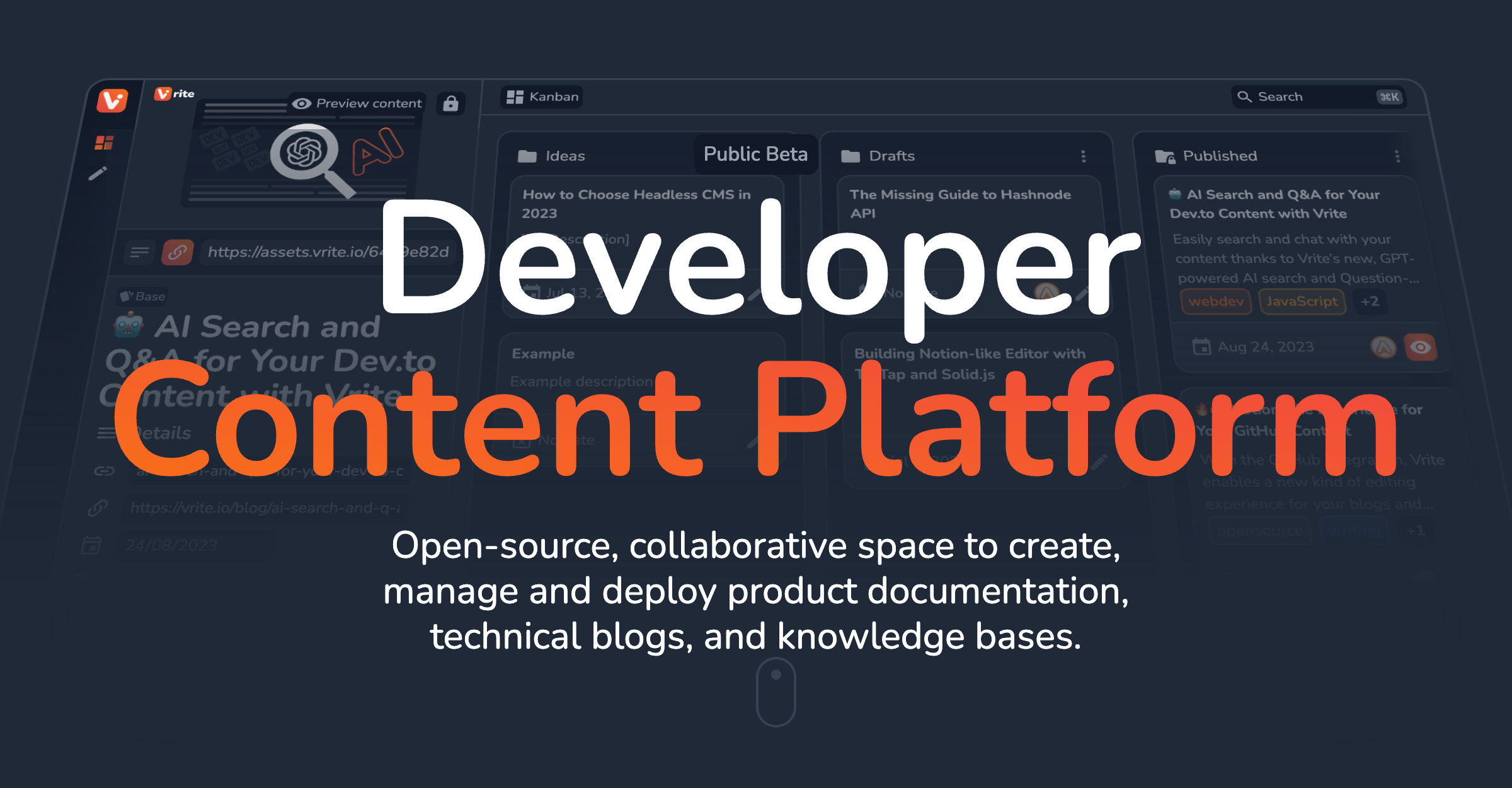
Open-Source, collaborative developer content platform for documentation, technical blogs, and more.

Paid content
Visit website
Profile views 0 Outbound visits 0 Normal
Vrite - developer content platform Full homepage screenshot

At a glance

Category
Development
Language
English
Paid-content signal
Paid contentObserved
Registered
Unknown
Hosting
CloudflareInferred
HTTPS certificate trusted
PassedObserved
Last updated

Website review

This review may include AI-generated content and is not individually verified. Domain, certificate and other facts come from the observed data on this page.

What is Vrite?

Vrite is an open-source, collaborative platform for creating and publishing developer-focused content—product documentation, technical blogs and knowledge bases. It combines a modern WYSIWYG editor with IDE-level code editing (syntax highlighting, autocompletion), Markdown support and custom XML-like elements, so technical writers and engineers can draft code-heavy content without switching tools. It is also headless: content can be managed in Vrite and delivered to any front end via its API and JavaScript SDK, with bi-directional Git sync for docs-as-code workflows.

Who it suits

  • Engineering and docs teams that want collaboration, role-based permissions and content scheduling (kanban or table views) in one place.
  • Developers building custom sites who need structured content behind an API rather than a fixed hosted theme.
  • Teams wary of lock-in: self-hosting is an option, and Git sync keeps content portable.

Trade-offs to weigh

  • The headless model means you (or your developers) handle the front-end presentation; it is not a plug-and-play themed site builder.
  • Git sync and API integration add setup effort compared with a simple hosted CMS, though they pay off in automation and docs-as-code workflows.
  • Built-in semantic search and Q&A are useful for large knowledge bases; smaller sites may not need them.

As a next step, decide whether you need a hosted editor with API delivery or a docs-as-code pipeline—Vrite's Git sync and self-hosting options are the features to evaluate first.

How does Vrite's Git sync work for a docs-as-code workflow?

Vrite describes a bi-directional Git sync for adopting a docs-as-code approach, so content can move between the platform and a Git repository in both directions rather than being exported one way. The page does not detail how conflicts are resolved, which branch model is supported, or the exact sync cadence, so treat those as things to confirm in the documentation before committing a team to it.

What the page supports

  • Bi-directional flow: edits made in Vrite and changes made in the repository are meant to stay in step, which is the core of a docs-as-code setup.
  • Docs-as-code onboarding: the framing is about getting teams started quickly with repository-based docs rather than replacing them.
  • Editor built for code: the WYSIWYG editor includes Markdown, keyboard shortcuts, IDE-level syntax highlighting and autocompletion, plus XML-like custom elements — useful when docs contain code samples or structured components.
  • Headless and open-source: you can self-host or use the hosted version, and integrate any front end through the API, so Git sync sits alongside other publishing routes rather than being the only one.
  • Supporting workflow features: metadata (members, tags, deadlines, custom JSON), content variants for localization or A/B testing, and a dashboard with kanban and table views for scheduling.

A concrete scenario

A small platform team keeps API reference pages in a repository, where engineers review changes in pull requests. Writers prefer a visual editor and want review deadlines tracked. With bi-directional sync, writers draft and reorganize in Vrite while engineers keep proposing changes in Git; the team avoids maintaining two disconnected copies. The trade-off is that a bi-directional sync is only as reliable as its conflict handling — if two people edit the same page in both places, you need a clear rule for which side wins. Before adopting it, test that exact case on a throwaway repository.

Decision criteria

Choose the Git sync route if your team already reviews documentation through pull requests and wants a docs-as-code history. If your priority is a purely headless setup with your own front end, the API and JavaScript SDK may matter more than sync. For general background on docs-as-code conventions, see GitHub Docs; to compare a repository-first documentation approach, see Docusaurus.

Next step: read Vrite's documentation section on Git sync and run a two-person test — one editing in the editor, one committing to the repo — to see how conflicts surface before rolling it out.

Can I self-host Vrite instead of using the cloud version?

Yes. Vrite is described as open-source, and the site says you can self-host it or use its cloud version without lock-in. Self-hosting is therefore a supported option rather than a workaround.

What that means in practice

  • You run the platform yourself. Your content, configuration and extensions live on infrastructure you control, which suits teams with data-residency rules or a preference for keeping developer tooling in-house.
  • You keep the same core capabilities. The editor (code editing, Markdown, keyboard shortcuts), the headless API and JavaScript SDK, Git sync, content variants and metadata are presented as platform features, not cloud-only extras. Verify each one against the self-hosting documentation before committing, since operational details aren't spelled out on this page.
  • You take on the operational work. Hosting, updates, backups and access management become your responsibility. A solo technical writer publishing a small blog may find the cloud version simpler; a platform team already running internal services will likely prefer self-hosting.

A useful next step

Read the self-hosting section of the documentation and confirm three things for your setup: how updates are applied, what the API and Git sync require from your environment, and whether the permission system fits your team structure. If those check out, start with a single documentation project before migrating an entire knowledge base.

For comparison, other developer documentation tools with self-hosting options include MkDocs for static docs-as-code sites and Docusaurus for documentation sites with versioning.

How do I integrate Vrite with my existing front-end using its API or JavaScript SDK?

Vrite is designed to plug into an existing front-end: it exposes a REST API and a JavaScript SDK so content created in the editor can be fetched and rendered by your own site. From the product's own description, the intended pattern is "headless" — Vrite handles authoring, management and publishing workflows, while your front-end decides how the content is displayed.

Two integration paths

Path What it gives you Best suited to
JavaScript SDK A packaged client for "popular frameworks," with methods for fetching content and extending Vrite's functionality Teams building a JS-based site (React, Vue, Svelte, Next.js, etc.) who want less boilerplate
Direct API calls Raw HTTP access to your content and metadata, usable from any language or stack Static site generators, non-JS back-ends, build-time content pulls, or custom automation

The SDK is the quicker route for interactive front-ends; the API is the more portable route when you want to fetch content at build time or from a server in another language.

A practical integration sequence

  1. Create your content in Vrite and note the content IDs or project identifiers you'll query.
  2. Decide whether content is fetched at build time (static output) or at request time (dynamic rendering). Static fetching suits documentation that changes on a release cadence; request-time fetching suits blogs or knowledge bases where edits should appear immediately.
  3. Install the JavaScript SDK in your front-end project, or call the API endpoints directly with your HTTP client.
  4. Map Vrite's content structure to your components — code blocks, custom XML-like elements, and metadata (tags, assigned members, deadlines, custom JSON) all come through and can drive layout, filtering, or author pages.
  5. If you already keep docs in Git, the bi-directional Git sync lets you keep a docs-as-code workflow while still using Vrite's editor and dashboard.

Concrete scenario

A small team maintaining product docs in Next.js could fetch published content through the SDK during the build, render code samples with their existing syntax-highlighting component, and use metadata tags to generate a sidebar and search index. A team on a Python-based static generator would skip the SDK and pull the same content via the API in a pre-build script.

Decision criteria

  • Choose the SDK if your front-end is JavaScript-based and you want framework-friendly helpers and less custom request code.
  • Choose the API if you need language independence, build-time generation, or automation (scheduling, CI-driven publishing) beyond simple content reads.
  • Consider self-hosting if lock-in or data control matters; Vrite is open-source, and the cloud option is positioned as an alternative rather than a requirement.
  • Check the permission system before exposing write access — role-based access should govern who can publish through any automated pipeline.

As a next step, open Vrite's documentation and look for the API reference and SDK getting-started pages; those will give you the exact endpoints and initialization code your framework needs.

How does Vrite's AI-powered semantic search and Q&A work on my content?

Vrite's semantic search and Q&A let you ask a natural-language question and get an answer drawn from your own content, rather than just a list of keyword matches. According to the site's description, the feature is built in and powered by large language models (LLMs), and the same capability can be exposed to your end users through Vrite's API.

What that means in practice

  • Search behavior: Instead of matching exact words, semantic search aims to find passages that mean the same thing as your query, so a question phrased differently from your documentation can still surface the right section.
  • Q&A behavior: The LLM layer turns retrieved passages into a direct answer, which is useful for support-style questions ("how do I configure X?") where readers want the conclusion, not a page to skim.
  • API access: Because the site says the same experience can be provided to users via the API, you could wire it into your own docs site or help widget rather than only using it inside Vrite.

A concrete scenario

A team maintains product docs in Vrite and gets repeated questions like "why does my sync fail after changing branches?" A writer can ask that in the editor and get the relevant passage to check wording; the same query can later be served to readers through an API-backed search box, reducing support tickets.

Trade-offs to weigh

  • Answer trust: LLM answers can be fluent but wrong if the underlying content is stale or ambiguous. Treat generated answers as pointers back to source passages and keep docs current.
  • Self-hosting: Vrite is open-source and can be self-hosted, but LLM-powered search implies model access and related infrastructure decisions; the site does not spell out those details, so confirm them before committing.
  • Content structure: Answers are only as good as your headings, metadata, and variants; the site's metadata and variant features help here, but they require disciplined authoring.

Next step: open the documentation from the site and look for the semantic search/Q&A setup section to see how indexing and API access are configured for your workspace. The site's own docs search is a live example of the experience. Related tools worth comparing for docs search include Algolia and Meilisearch, though those are keyword/vector search services rather than an integrated authoring platform.

What's included in Vrite's pricing and how does it compare to self-hosting?

Vrite's page lists a Pricing link but does not publish plan details, tiers or limits, so the split between its cloud offering and self-hosting is best understood from the product's open-source and headless design rather than from a price sheet. What the page does make clear: the cloud is positioned as a way to use Vrite "and not worry about a lock-in," while self-hosting is offered as the alternative for teams that want to run it themselves. Both paths lead to the same core platform — a WYSIWYG editor with Markdown and IDE-level code editing, content variants, metadata, bi-directional Git sync, a JavaScript SDK, semantic search and Q&A, an extension system and role-based permissions.

Choosing between them

  • Cloud: least setup, but you depend on the hosted service for availability and any plan limits. Suits small doc teams or writers who want to start publishing immediately.
  • Self-hosting: you control infrastructure, data location and upgrades, and can integrate deeply through the API. Suits organizations with compliance or data-residency requirements, or teams already running their own services.
  • Either way: the headless API and Git sync mean the front end and docs-as-code workflow stay yours, which is the main hedge against lock-in the page emphasizes.

A practical next step is to open the Pricing page for current plan terms and check the documentation for self-hosting requirements, then compare total effort: hosted fees versus the engineering time to deploy, secure and maintain an instance. For a concrete case, a two-person API startup would likely start on the cloud and keep Git sync enabled so content stays portable; a bank's platform team would more plausibly self-host to keep documentation inside its network.

Related questions

More questions →
What Are Open-Source UI Element Libraries and How Do They Differ From UI Frameworks?

An open-source UI element library is a collection of individual, ready-made interface pieces—buttons, cards, inputs, toggles, loaders—that you copy into your own project and adapt. A UI framework, by contrast, is a structured system of components, conventions, and often a theming layer that governs how your whole interface is built. The practical difference: an element library gives you a snippet; a framework gives you a way of working. If you need a polished button in ten minutes, reach for the element library. If you're building a 40-screen product with a team, you probably want the framework.

What "open-source UI element library" actually means

The term gets used loosely, so it helps to separate the parts:

  • Open-source: the code is publicly available, and the license tells you what you may do with it—copy, modify, redistribute, or use commercially.
  • UI element: a single, self-contained piece of interface, usually small enough to read in one sitting. A button with hover states, a pricing card, a search field.
  • Library: a browsable, searchable collection of those elements, typically contributed by many different people.

On a site like Uiverse, elements are shared by a community and written in plain CSS or Tailwind. You find one you like, copy the markup and styles, paste them into your project, and adjust colors, spacing, and text to fit. There's no package to install and no build step required—which is exactly the appeal, and also the source of most of the confusion.

Element library vs. UI framework: the core differences

Dimension Open-source UI element library UI framework / design system
Unit of reuse A single snippet you copy A component you import or call
Installation None; paste into your code Package install, config, sometimes a provider
Consistency Depends on you; each element may look different Enforced by shared tokens and APIs
Theming Manual edits per element Central theme/config file
Updates You own the copy; no upstream updates Version bumps bring fixes and changes
Accessibility Varies per contributor; must be checked Usually tested and documented
Best for Prototypes, landing pages, small sites, one-off needs Multi-page apps, teams, long-lived products
Learning curve Low—read the CSS Higher—learn the API and conventions

The table isn't a verdict. It's a map of trade-offs. Element libraries win on speed and freedom; frameworks win on consistency and maintenance.

Licensing and attribution: what to check before you paste

This is where people get into trouble, and it's worth slowing down for.

  1. Find the license. Every element or collection should state one. Common open-source licenses include MIT, Apache-2.0, and BSD. Some projects use copyleft licenses like GPL, which can impose obligations if you redistribute your code.
  2. Understand what the license permits. MIT and Apache-2.0 are permissive: you can typically use the code in commercial and closed-source projects. Copyleft licenses may require you to release derivative source under the same terms.
  3. Check attribution requirements. Permissive licenses usually require you to keep the copyright notice and license text somewhere in your project. That's a real obligation, not a formality.
  4. Look for per-element terms. On community sites, the site's overall terms and the individual contributor's stated wishes may differ. If a contributor asks for credit, honor it.
  5. When in doubt, ask or avoid. If a snippet has no license at all, you don't have clear permission to reuse it. Treat "no license" as "not open source," even if the code is publicly visible.

This article is general information, not legal advice. For commercial products with real exposure, have someone qualified review the licenses you're relying on.

How to use a community element in your project: a practical workflow

Here's a repeatable process that avoids most of the usual mess.

1. Start from a real need, not a browsing session

Decide what you need first—"a compact primary button with a loading state"—then search. Browsing aimlessly produces a pile of pretty snippets that don't fit together.

2. Copy the smallest version that works

Take the markup and the styles. Strip anything you don't need: demo wrappers, extra animations, decorative layers. Less code means fewer surprises.

3. Convert it to your conventions

If your project uses design tokens or CSS variables, replace hard-coded values:

/* Before: hard-coded */
.button { background: #4f46e5; border-radius: 8px; }

/* After: token-based */
.button { background: var(--color-primary); border-radius: var(--radius-md); }

This one step is what keeps a copied element from looking like a foreign object in your UI.

4. Check accessibility before you ship

Community elements vary widely here. Verify at minimum:

  • Keyboard focus is visible and the element is reachable by Tab.
  • Color contrast meets WCAG AA (4.5:1 for normal text).
  • Interactive elements use semantic HTML (<button>, not a clickable <div>).
  • Form inputs have associated labels.
  • Motion respects prefers-reduced-motion.

5. Test in context

Paste it into a real page with real content. Long labels, small screens, and dark mode break more copied elements than anything else.

6. Note where it came from

Keep a short comment or an internal credits file: source, license, date. Future you—and your legal reviewer—will be grateful.

Where element libraries genuinely shine

  • Prototypes and demos: you need something clickable today, not a design system.
  • Landing pages and marketing sites: a handful of distinctive elements, each custom.
  • Filling gaps: your framework lacks one specific component, and you don't want to build it from scratch.
  • Learning: reading well-made CSS is one of the fastest ways to improve.
  • Small projects: a personal site doesn't need a theming architecture.

Where they fall short

  • Consistency at scale: ten elements from ten contributors rarely look like one product.
  • Maintenance: you own every copy. When your design changes, you edit each one.
  • Accessibility debt: you inherit whatever the contributor did or didn't do.
  • No upstream fixes: a bug fixed in the original won't reach your copy.
  • Integration friction: different naming conventions, different units, different assumptions about resets.

When to choose which

Choose an element library when the scope is small, the timeline is short, or you need a few distinctive pieces rather than a whole system.

Choose a framework or design system when multiple people build multiple screens over months, when consistency is a product requirement, or when accessibility and theming need to be guaranteed rather than checked.

A hybrid works well for many teams: adopt a framework for the structural components—forms, navigation, layout—and borrow individual elements for the places where you want personality. Just route every borrowed element through the same token and accessibility checks, so it lands as part of your system rather than beside it.

The short version: open-source UI element libraries are a fast, flexible way to get good-looking interface pieces into a project. They are not a substitute for a design system, and the license and accessibility details are the part worth reading carefully.

What Is Vrite and What Is It Used For?

Vrite is an open-source, collaborative platform for creating, managing, and publishing developer content—product documentation, technical blogs, and knowledge bases. It combines a technical editor with content management and deployment features, and you can use it either through Vrite's cloud or by self-hosting to avoid lock-in. It fits teams that write code-heavy content and want an editor, a content dashboard, and publishing APIs in one place; it is less suited to simple one-off writing that a plain document tool already handles.

What Vrite is made of

Vrite is positioned as a "developer content platform," not just an editor. Its main pieces, based on the product's own description:

  • Technical content editor — a WYSIWYG editor with built-in Markdown and keyboard shortcuts, IDE-level syntax highlighting and autocompletion for code, and support for custom XML-like elements.
  • Headless and open-source architecture — content can be integrated with any front end and automated through Vrite's API; the source is open, so self-hosting is an option.
  • Content variants — built-in support for managing internationalization, A/B testing, and similar variations of the same content.
  • Metadata — store assigned members, tags, deadlines, and custom JSON alongside each piece of content.
  • Git Sync — bi-directional sync that supports a docs-as-code approach.
  • JavaScript SDK — integration with popular frameworks and extension of Vrite's functionality.
  • AI-powered semantic search and Q&A — search your content and get answers to questions, powered by LLMs; the same experience can be exposed to your users through the API.
  • Extensions and customization — an extension system plus customization of the UI, metadata, and formatting options.
  • Permission system — role-based access for team collaboration.
  • Management dashboard — kanban, table, and panel views for organizing content schedules, due dates, and switching between documents while writing.

What it is used for

The platform targets three content types: documentation, technical blogs, and knowledge bases. In practice, that means:

  1. Writing technical content where code blocks, syntax highlighting, and custom elements matter—API references, tutorials, and engineering blog posts.
  2. Managing a content operation—tracking assignments, deadlines, and tags in dashboard views rather than scattered documents.
  3. Publishing headlessly—pulling content into your own site or app via the API and JavaScript SDK instead of being tied to a hosted front end.
  4. Docs-as-code workflows—keeping content in sync with a Git repository through bi-directional Git Sync.
  5. Localization and experimentation—serving different content variants for different languages or A/B tests.
  6. Answering questions from your own content—using built-in semantic search and Q&A, or offering the same capability to your users through the API.

How to decide whether it fits

Use the same criteria you would apply to any content platform:

Question Vrite's answer (per product description)
Is it open source? Yes; self-hosting is supported alongside the cloud option.
Can I avoid vendor lock-in? The open-source and headless design is presented as the way to avoid it.
Does it handle code-heavy writing? Yes—IDE-level highlighting, autocompletion, and custom elements.
Can I publish to my own front end? Yes, via API and JavaScript SDK.
Does it support docs-as-code? Yes, through bi-directional Git Sync.
Does it handle multiple languages or tests? Yes, through content variants.
Is there team access control? Yes, a role-based permission system.

A reasonable way to test the fit: take one real piece of content you already publish—for example, an API guide with several code samples—and check whether the editor's code handling, the metadata you need (owners, deadlines, tags), and your intended publishing route (API, SDK, or Git Sync) all line up. If your content is mostly prose with no code, no variants, and no publishing pipeline, the platform's strengths are largely unused.

Getting started

The product page offers two entry points: a Get Started path to begin using the platform, and Documentation covering how to use, self-host, and integrate Vrite. There is also a standalone version of the Vrite editor you can try. The site links to a pricing page, but the available material does not state specific prices or plan limits, so check that page directly before committing. Likewise, self-hosting is described as an option, but the setup requirements are not detailed here—the documentation is the place to confirm them.

How Vrite's Editor Supports Technical Writing

Vrite's editor is built for developer content: it combines a WYSIWYG surface with built-in Markdown and keyboard shortcuts, IDE-level code editing (syntax highlighting and autocompletion), and support for custom XML-like elements. It suits teams writing documentation, technical blogs, or knowledge bases who want code-heavy content and structured formatting in one place, and who may later publish through Vrite's API or Git sync rather than only inside the editor.

The writing surface: WYSIWYG with Markdown underneath

The editor is described as a modern WYSIWYG editor with built-in Markdown and keyboard shortcuts. In practice, that means you can write and format without switching to a raw markup view, while Markdown conventions still work for people who prefer typing them.

This matters for technical writing because the same draft often needs to move between formats. A writer can compose in the visual editor, use Markdown-style input for headings, lists, and emphasis, and keep the document readable to collaborators who don't know Markdown.

What to check before relying on it: the page does not specify which Markdown syntax is supported or how round-tripping to raw Markdown behaves. If your workflow depends on exact Markdown output (for example, publishing to a static site generator), verify the export behavior in the standalone editor before committing a team to it.

Code editing at IDE level

The editor's headline feature for technical content is code handling: IDE-level syntax highlighting and autocompletion. For documentation and technical blogs, this reduces the usual friction of pasting code into a general-purpose editor that treats it as plain text.

A concrete case: a tutorial post with several fenced code blocks in different languages. Instead of pasting pre-highlighted snippets from an IDE, you write or paste code directly and get highlighting and completion as you go. The page presents this as "first-class code editing," which is the capability to evaluate — the specific list of supported languages and the depth of autocompletion are not stated in the available material.

Custom XML-like elements for structured content

Beyond standard formatting, Vrite supports custom XML-like elements to customize content. This is the mechanism for content that doesn't fit headings-and-paragraphs: callouts, embedded components, or other structured blocks defined by your team.

The trade-off is portability. Custom elements are powerful inside Vrite, but if you publish elsewhere, confirm how they render through the API or Git sync. The page lists both as integration paths but does not detail element serialization.

How the editor fits the wider platform

The editor is one part of a platform aimed at developer content. Relevant pieces from the site:

Capability What it means for editing work
Headless + API Content can be integrated with any front-end and workflows automated
Git Sync Bi-directional sync supports a docs-as-code approach
Variants Manage internationalization, A/B testing, and more
Metadata Tags, assigned members, deadlines, and custom JSON stored alongside content
JavaScript SDK Integrate with popular frameworks and extend functionality
Semantic search AI-powered search and Q&A over your content, also exposable via API
Permissions Role-based access for team collaboration

For a writer, the practical implication is that the editor is not a standalone document tool: drafts carry metadata, can exist in variants, and can sync with a Git repository. Teams already using docs-as-code should treat Git Sync as the deciding feature to test, since bi-directional sync behavior (conflict handling, what syncs) is not described in detail on the page.

Deciding whether to use it

Choose Vrite's editor if your content is code-heavy, you want visual editing with Markdown habits preserved, and you expect to publish through an API or Git-based workflow. The open-source nature means you can self-host or use the cloud without lock-in, per the site.

Be more cautious if you need guaranteed Markdown fidelity, a published list of supported languages, or detailed documentation of custom element rendering outside Vrite — none of these are specified in the available material. The fastest way to resolve them is to try the standalone editor the site links to and check the documentation for self-hosting and integration details.

How Vrite's Built-in Search Works

Vrite's search is a semantic search and Q&A layer built into the platform: you ask a question in natural language and it returns an answer drawn from your content rather than a list of keyword matches. According to Vrite's own product description, the feature is "powered by the latest LLMs," and the same experience can be passed on to your own users through Vrite's API. It is aimed at documentation, technical blogs, and knowledge bases, where readers want a direct answer instead of a page of links.

What "semantic" changes about the result

A keyword search engine matches the words you typed against the words on the page. Semantic search compares meaning, so a question phrased differently from the source text can still surface the right passage. Vrite pairs this with Q&A, meaning the output is a composed answer rather than only a ranked list of documents.

The practical consequence: search quality depends on your content being clear and self-contained. If a concept is only implied across three pages, the answer will be weaker than if one page states it plainly.

Where the search appears

Two surfaces are described in Vrite's materials:

  • Inside Vrite — the editor and dashboard environment, where the built-in search is presented as a way to "find anything" in your content. The product links to a live example in the Vrite docs.
  • In your own product — through Vrite's API, you can offer the same search and Q&A experience to your end users, for example a "ask the docs" box on a documentation site.

Because Vrite is headless, the second surface is the one most teams will care about: content lives in Vrite, and the front end you already have calls the API.

How it fits the rest of the platform

Search is not a standalone product here; it reads the content you already manage in Vrite. That matters for setup:

Platform feature Relevance to search
Headless API The channel for exposing search/Q&A to your own users
Content variants Different versions of a page (localization, A/B tests) become separate content the search must draw from
Metadata (tags, members, deadlines, custom JSON) Organizes content so the right material exists to be found
Git sync Keeps docs-as-code workflows aligned with what search indexes
JavaScript SDK The practical way to wire search into a popular front-end framework

If you publish localized or A/B-tested variants, expect to think about which variant a given user should get answers from — the platform supports variants, but the product description does not spell out how search selects among them.

A concrete use case

Say you maintain a developer documentation site with an API reference, three tutorials, and a troubleshooting page. A reader hits an error message and asks, "why does my token expire immediately?" A keyword search may return nothing if no page uses that exact phrasing. A semantic Q&A layer can connect the question to a paragraph explaining clock skew and token lifetime, and answer in a sentence with a pointer to the source.

That is the scenario the feature is designed for: reducing time-to-answer in large bodies of technical content.

What to verify before relying on it

The product page describes capabilities, not configuration details. Before committing, check in the documentation:

  • How content is indexed — whether search covers all content in a workspace or only published material, and how quickly edits become searchable.
  • API shape and limits — request format, response structure, and any rate or usage limits on the search endpoint.
  • Variant behavior — how localization and A/B variants are handled in answers.
  • Self-hosting implications — Vrite is open-source and can be self-hosted; confirm what the LLM-powered search requires in a self-hosted deployment, since the page does not state this.
  • Cost — a pricing page exists at editor.vrite.io/pricing, but the available material does not list plan details, so check it directly rather than assuming search is included at every tier.

Who benefits most

Teams already using Vrite for docs or a knowledge base get the most from this, because search works over content they are maintaining anyway. Teams evaluating Vrite primarily as a search tool should treat search as one feature of a broader content platform — the editor, headless API, Git sync, and permission system are the core offering, with semantic search as an addition on top.

What content management features does Vrite provide?

Vrite provides a built-in content dashboard with kanban and table views, structured metadata (assigned members, tags, deadlines, and custom JSON), role-based permissions, and content variants for localization and A/B testing. These features are described on the Vrite site as part of its cloud and self-hostable platform for documentation, technical blogs, and knowledge bases. The right fit depends on whether you need a managed cloud workspace or a self-hosted setup, and on whether your team already works docs-as-code.

Organizing and scheduling content

Vrite's dashboard is the management layer for content, separate from the editor itself. The site describes views and panels that let you:

  • Organize a content schedule in kanban — useful when you plan posts or docs by stage (draft, review, published) rather than by date.
  • Manage due dates in a table — useful when deadlines matter more than pipeline stage, or when you want a sortable list of everything in flight.
  • Switch between pieces while writing — the dashboard stays available as you move between documents, so you don't need a separate tab per article.

A practical example: a two-person docs team can keep a kanban board for blog drafts and a table for documentation deadlines, then open any item directly in the editor without leaving the platform.

Metadata attached to each piece of content

Metadata lives alongside the content rather than in a separate system. Vrite lists four kinds:

Metadata type What it is for
Assigned members Shows who owns a piece of content
Tags Groups content by topic, product, or type
Deadlines Tracks when a piece is due
Custom JSON Stores structured data specific to your workflow

Custom JSON is the flexible part: if you need fields Vrite doesn't model natively (for example, a target release or an external ticket ID), you can store them as JSON on the content itself. This is also what makes the metadata usable through Vrite's API when you build your own front end.

Permissions and team collaboration

Vrite uses a role-based access system, described on the site as giving teams a way to collaborate while keeping control over who can do what. The site does not publish a specific list of roles or their exact capabilities, so if you need to map Vrite roles to an existing permission model, check the documentation before committing.

Content variants for localization and testing

Variants are Vrite's built-in mechanism for managing more than one version of the same content. The site names two uses: internationalization (language or regional versions) and A/B testing. Instead of duplicating an article into separate documents, variants keep the versions grouped under one piece of content — which matters when you need to keep translations in sync with the source.

How these features connect to publishing

Management features are only half the picture; Vrite is headless, so content is published through its API rather than a fixed front end. The site lists:

  • Git Sync — bi-directional sync supporting a docs-as-code approach.
  • JavaScript SDK — integration with popular frameworks.
  • Extension system — customizations and workflow automation.
  • Built-in semantic search and Q&A — search over your content, also available to your users through the API.

This means the dashboard and metadata are the source of truth, and your site or docs build consumes them. If your team already publishes from a Git repository, Git Sync is the feature to evaluate first; if you are building a custom front end, the API and SDK are the relevant entry points.

Choosing between cloud and self-hosting

Vrite is open-source, and the site states you can self-host it or use the cloud version without lock-in. The site includes a pricing page link, but the provided material does not state prices or plan limits, so treat cost and plan details as something to confirm on that page rather than assume. In general terms:

  • Choose the cloud if you want the dashboard, editor, and collaboration without running infrastructure.
  • Choose self-hosting if you need to keep content on your own systems or integrate deeply with internal tooling.

Either way, the management features above — views, metadata, permissions, and variants — are the ones to test against your actual workflow before migrating existing content.

Website Overview

An advisory match combined with missing browser safeguards may increase exposure if the affected component is active. Deployment-specific verification and remediation deserve priority. Identifiable technologies and additional version or configuration signals make the service easier to fingerprint, which may help targeted scanners narrow their checks.

Domain and Registration

Unknown

DNS and Email

Nameservers are provided by Cloudflare, indicating managed DNS hosting. MX records point to the Google Workspace email service. No CNAME was found; the observed records resolve directly to addresses. SPF and DMARC are configured. DKIM status is unknown. TXT records include verification markers for Google. Such markers may also remain after a service stops being used.

TLS and Certificates

The public key uses EC with 256 bits. The server supplied a complete certificate chain. No organization name is present in the certificate; the available fields are consistent with domain validation. The certificate was issued within the Google Trust Services cloud or CDN ecosystem. The certificate's total validity is about 90 days, consistent with a short renewal cycle.

HTTP and Browser Security

The response lacks these common security headers: HSTS, CSP, Permissions-Policy, clickjacking protection. CORS permits any origin to read this response. This is common for public resources; sensitive responses need narrower handling. No X-Powered-By header was found, reducing one common source of backend fingerprinting information. The cf-ray response header indicates a CDN or caching proxy in the delivery path. No obvious internal addresses or debug information were found in the headers.

Technology Stack Analysis

The public page identifies Astro 2.10.15, Google Analytics, Cloudflare, with exact versions exposed for 1 technologies. These details can narrow vulnerability checks, although exposure alone is not a vulnerability. The advisory source OSV places Astro 2.10.15 in the affected range of GHSA-26w7-cxv4-gfx2, GHSA-2pvr-wf23-7pc7, GHSA-376h-93r7-7g6f, GHSA-49w6-73cw-chjr, GHSA-4g3v-8h47-v7g6 等 10 项. Verify the deployed version and relevant configuration before drawing conclusions about exploitability. Updating affected components should be a priority.

Search and Social Sharing

The Generator tag identifies Astro v2.10.15, making the publishing system easier to fingerprint. The canonical URL points to another host: https://vrite.io/. Search engines may consolidate indexing signals there. Twitter Card metadata is configured. The title has 34 characters, within a common display range. A meta description is present, with 99 characters.

Hosting and Email

DNSCloudflare
HostingCloudflare
EmailGoogle Workspace
Approximate IP geolocation (inferred; a CDN or proxy may differ from the origin server) Location unknown Inferred 104.21.59.243

Registration details

RDAP / WHOIS

Unknown

DNS records

DNS

TypeNameValueTTLPriority
Aeditor.vrite.io104.21.59.243300—
Aeditor.vrite.io172.67.185.212300—
AAAAeditor.vrite.io2606:4700:3032::ac43:b9d4300—
AAAAeditor.vrite.io2606:4700:3037::6815:3bf3300—
MXvrite.ioaspmx.l.google.com3001
MXvrite.ioalt1.aspmx.l.google.com3005
MXvrite.ioalt2.aspmx.l.google.com3005
MXvrite.ioalt3.aspmx.l.google.com30010
MXvrite.ioalt4.aspmx.l.google.com30010
NSvrite.iojakub.ns.cloudflare.com86400—
NSvrite.iotara.ns.cloudflare.com86400—
TXTvrite.iogoogle-site-verification=OHdOQ-kMBpJKUCEJI5UeRNMrvS4YvS0TpbEAzyZdP9I300—
TXTvrite.iov=spf1 include:_spf.google.com ~all300—
DMARC_dmarc.vrite.iov=DMARC1; p=none; pct=90300—

TLS and certificates

TLS / SSL

AssessmentNormal configuration
Supported protocolsTLSv1.2、TLSv1.3
Negotiated protocolTLSv1.3
Certificate subjecteditor.vrite.io
IssuerGoogle Trust Services
Valid until2027-01-06T06:30 · Remaining when checked: 69 days
Verification detailsCertificate trust: Passed · Hostname match: Passed

HTTP response headers

HTTP

HeaderValue
content-typetext/html; charset=utf-8
cache-controlpublic, max-age=0, must-revalidate
servercloudflare
x-content-type-optionsnosniff
referrer-policystrict-origin-when-cross-origin
access-control-allow-origin*

Identified technologies

Astro 2.10.15Google AnalyticsCloudflare

Pages, Search and Sharing

Meta descriptionOpen-Source, collaborative developer content platform for documentation, technical blogs, and more.
Canonical URLhttps://vrite.io/
LanguageEnglish (default)
Twitter Cardsummary_large_image
All bots 0 allowed · 1 disallowed
  • Disallow/frame/

User reviews (0)

  • No reviews yet.