Website profiles · Technology insights · Alternatives

emailtriager.com Paid content

Categories: Artificial Intelligence

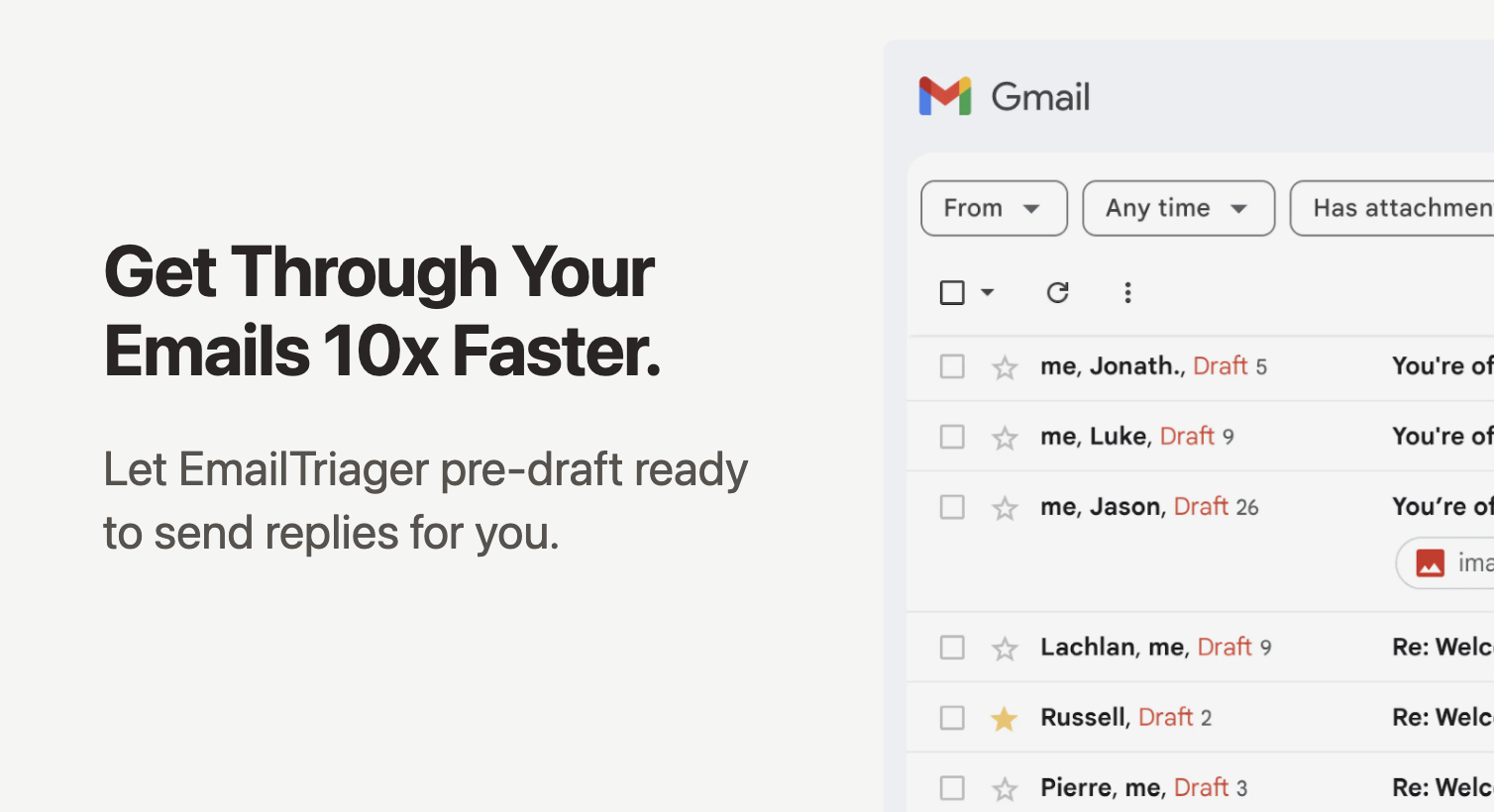
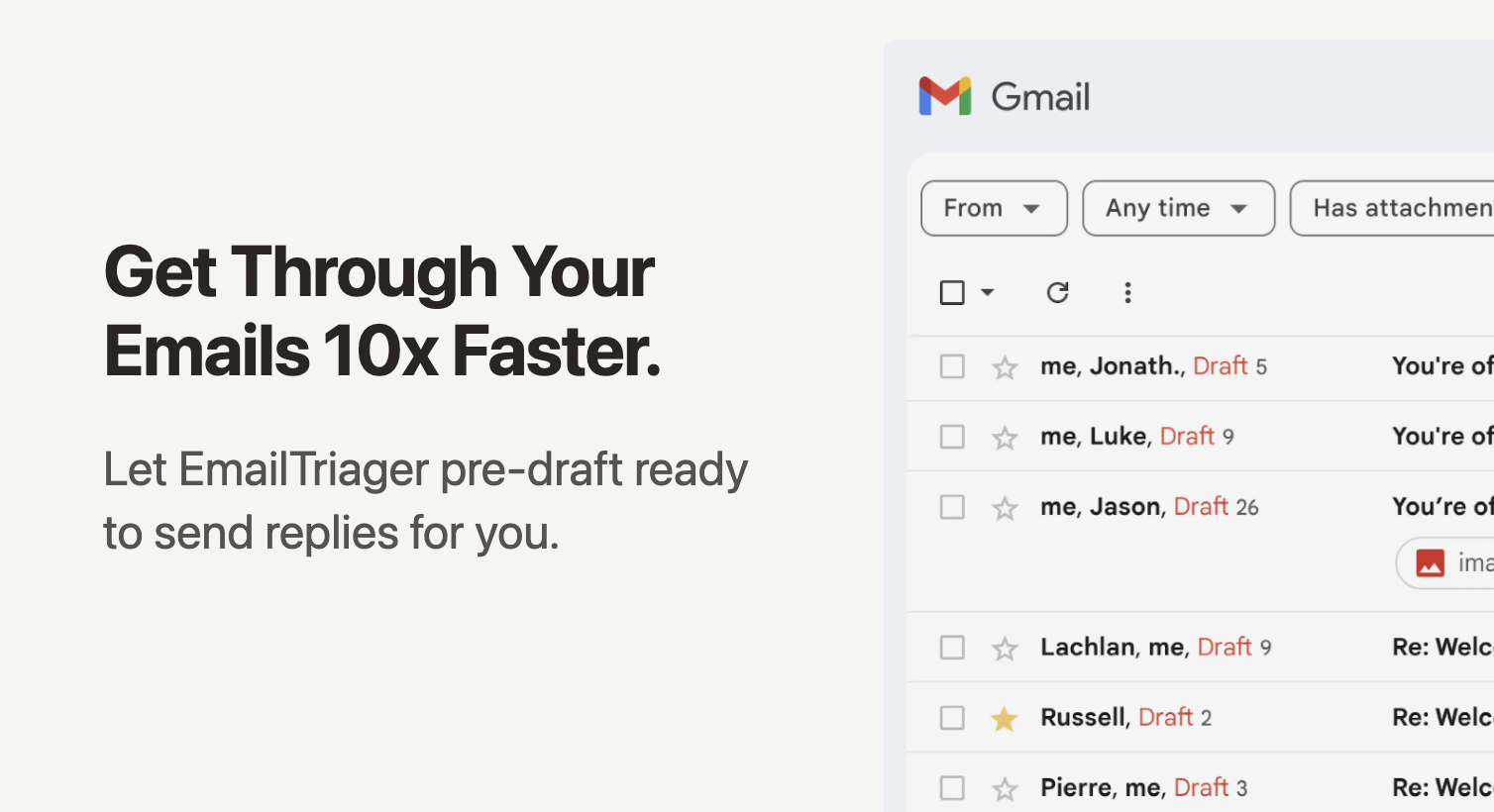
EmailTriager is an AI assistant that automatically organizes your incoming emails and drafts ready to send replies in the background. Get started with one click.

Visit website

Updated: 2026-10-01 09:32 Language: English (default) Access: Normal

Profile views 2 Outbound visits 0
EmailTriager Full homepage screenshot
Editorial Review

Website Review

What is EmailTriager?

EmailTriager is an AI email assistant that works inside Gmail. It sorts incoming messages and writes draft replies for you in the background, so your inbox becomes a queue of drafts to review and send rather than a wall of messages to answer from scratch.

Its distinguishing claim is voice matching: it trains on your past emails and sign-offs so drafts sound like you, and it plugs into Gmail directly, so you keep your existing workflow instead of learning a separate app. The page also states that emails are never used to train general AI models and that the service holds CASA Tier 2 accreditation verified by a Google-designated third-party auditor.

Who it fits

  • Support, sales or admin inboxes where most replies follow recognizable patterns.
  • People who already live in Gmail and want drafts in place, not another dashboard.
  • Teams that care about replies sounding personal rather than obviously machine-written.

Where it fits less well

  • You use Outlook or another client and can't switch.
  • Your email is highly sensitive and you want to keep any third party out of the loop entirely.
  • Most of your messages need original judgment rather than a fast, well-phrased answer.

Practical test: pick a week of your sent mail and check how many replies were variations on a handful of themes. If most were, a drafting assistant will save real time; if each one was bespoke, the drafts will mostly be starting points you rewrite anyway.

For a broader view of options in this category, see Superhuman and Shortwave.

How does EmailTriager integrate with Gmail to draft replies automatically?

EmailTriager plugs into Gmail and works in the background: it reads your incoming messages, sorts them, and places pre-written draft replies directly in your Gmail interface for you to review and send. The page describes this as a "plug and play" setup with no new workflow to learn — you keep using Gmail, and drafts simply appear there. It also says the assistant trains on your past emails so drafts match your tone, sign-off and typical phrasing, and can draw on your help docs for factual answers.

A concrete example from the product page: a customer asks how to credit an image for a magazine cover. EmailTriager labels the message "Needs Response," drafts a reply that acknowledges the request, states the credit format, and signs off as the user — leaving the human to check it and hit send.

H3 What this means in practice

  • Where it lives: inside Gmail, not a separate inbox app, so adoption is low-friction for Gmail-based teams.
  • What it automates: sorting/labeling and first-draft composition — not sending. You stay the decision-maker.
  • What it learns: your voice from past sent mail, plus reference material such as help-center content.
  • Trade-off: useful for high-volume, repetitive support or sales replies; less useful if your mail is highly varied, sensitive, or rarely needs a written answer.

H3 Practical next step Before committing, test it against your real workload: pick your five most common incoming email types and check whether the drafts are send-ready with light editing or need rewriting. If you handle regulated or confidential correspondence, confirm how data is stored and whether your organization permits third-party access to Gmail. For broader context on how AI drafting fits into an existing inbox, see Google Workspace for Gmail's native features and Gmail itself.

What is the pricing structure for EmailTriager?

EmailTriager does not publish its pricing structure on the page evidence provided here. The site links to a dedicated pricing page at EmailTriager, which is where plan tiers and costs would be listed, but no specific figures, tiers or billing terms appear in the material available to me. I won't guess at numbers.

What the available material does confirm is the product's shape: an AI assistant that plugs into Gmail, trains on your past emails, organizes incoming messages and pre-drafts replies in your own voice for you to review and send. It also notes CASA Tier 2 accreditation via a Google-designated third-party auditor, and states your emails are not used to train general AI models.

Practical next step: open the pricing page directly and check three things before committing — whether billing is per mailbox or per seat, whether there's a free trial or a cap on drafts per month, and whether the plan you'd need includes the Gmail integration you rely on. If you handle a shared inbox, confirm whether each teammate needs a separate paid seat.

Decision criterion: compare the monthly cost against the hours you currently spend on routine replies. If most of your email is short, repetitive and templated, a lower tier is usually enough; if you need nuanced, long-form replies written in a consistent brand voice, that's where higher tiers tend to sit.

Is EmailTriager secure and private for handling sensitive email content?

EmailTriager makes explicit security and privacy claims aimed at exactly this concern: it says your emails are never used to train general AI models, that it has been verified by a Google-designated third-party security auditor, and that it holds CASA Tier 2 accreditation. It also states that it plugs into Gmail and trains on your past emails to learn your writing voice — so the sensitivity question is really about that connection between your mailbox and its drafting engine.

EmailTriager

H3 What the claims cover, and what they don't

  • Not used for general model training. This is the most important commitment for sensitive content, because it limits your mail being folded into a shared model. It is a policy statement, not something you can verify from outside.
  • Third-party verification and CASA Tier 2. CASA is a Google-linked app security assessment tier, so this speaks to how the app is built and reviewed rather than to your day-to-day data handling. Tier 2 is a meaningful bar but not the highest tier.
  • Gmail integration. Access to your mailbox is the core of the product, so the practical question is scope: read-only versus send-on-your-behalf, and whether you can revoke access cleanly.

H3 A practical test before you connect a sensitive inbox

Try it on a secondary or shared inbox first, then check these in your Google account's third-party access settings:

  1. What permissions the app requested (reading mail, sending mail, or full account access).
  2. Whether drafts stay inside Gmail or are stored on the vendor's side.
  3. Whether you can disconnect and have stored data deleted, and on what timeline.
  4. Whether your organisation's own policies or client confidentiality rules permit an outside AI tool at all.

H3 Who this suits

If your inbox is mostly routine customer or support mail, the drafting workflow is low-risk and the privacy posture is reasonable. If you handle legal, medical, financial or client-confidential material, treat the vendor's statements as a starting point and confirm data-retention and deletion terms directly, or keep those threads out of the connected account. For comparison on how other assistants handle mailbox access, see Superhuman and Shortwave.

A useful next step: read EmailTriager's own privacy and security documentation alongside its pricing page, then decide based on your most sensitive message category rather than your average one.

How does EmailTriager learn my writing style to draft emails in my voice?

EmailTriager learns your voice by training on your past emails, then writing drafts that read like something you would have sent. The site describes this as "True Voice" and says there is no learning curve: you plug it into Gmail, and it automatically trains on your existing messages rather than asking you to configure or fine-tune a model.

What that means in practice

  • Training source: Your own sent and received email history in Gmail, not a generic writing sample you paste in.
  • Where drafts appear: Directly in Gmail, so you review and send without switching apps.
  • What it picks up: Tone, phrasing, sign-off and how you typically answer common questions. The site's example shows a draft signed the way the user signs off, and it credits learning from help docs and past emails.
  • Privacy claim: The site says your emails are never used to train general AI models and that it holds CASA Tier 2 accreditation via a Google-designated third-party auditor.

Where it fits and where it doesn't

If your inbox is mostly repeated questions, support requests or scheduling threads, an assistant that mirrors your past replies can remove the blank-page problem. If your emails are highly varied, legally sensitive or need original judgment each time, a style-matching draft still needs your review before sending.

A useful next step

Before committing, test it on a low-risk label or folder for a week. Check two things: whether drafts match your sign-off and tone, and whether the replies to routine questions are accurate enough to send with light edits. If you regularly write in more than one register, for example formal client emails versus quick internal notes, see whether the drafts distinguish between them.

For comparison, Gmail's own Smart Reply and Gemini features are built into Google Workspace, while Superhuman focuses on speed and keyboard-driven triage rather than voice cloning.

Can EmailTriager handle multiple email accounts or only Gmail?

EmailTriager is presented as a Gmail-focused tool, so the practical answer is: it is built for Gmail accounts rather than as a universal inbox for any provider. Its page evidence describes it as plugging “right into Gmail,” with drafts appearing directly in Gmail, and it mentions Google security verification. That points to a Gmail-first workflow, not a multi-provider client.

The page evidence does not state that it supports multiple Gmail accounts, Outlook, or other providers. So if you need one assistant across several inboxes, treat that as unconfirmed rather than assumed.

H3 How to decide

  • If your work happens mainly in one Gmail inbox, EmailTriager fits the described setup: it trains on past emails and places drafts where you already work.
  • If you manage several accounts, ask support directly whether multiple Gmail accounts can be connected under one login.
  • If you use Outlook or a company system outside Google, this likely is not the right fit based on the available description.

A useful next step is to test it with your main Gmail account and see whether the drafts match your tone before considering broader rollout. For a fuller picture of how it positions itself, see EmailTriager.

Related questions

More questions →
What Is an AI Email Assistant and How Does It Help You Get Through Email Faster?

An AI email assistant is a tool that connects to your inbox, sorts incoming messages, and writes draft replies for you to review and send. It helps most when you get a steady flow of similar, answerable emails — support questions, sales inquiries, scheduling requests — and you'd rather approve drafts than write from scratch. EmailTriager, for example, plugs into Gmail, trains on your past emails, and drops pre-written drafts directly into your inbox.

What an AI email assistant actually does

Two jobs sit at the core of every email assistant:

  1. Triage — reading each incoming message and deciding what it is and what it needs. EmailTriager's example shows a customer question labeled "Needs Response," so you can see at a glance which threads require action.
  2. Drafting — producing a reply you can send, edit, or discard. In the same example, the draft answers the question, cites the relevant help-doc format, and ends with the sender's usual sign-off.

The point isn't to send email for you. It's to turn "write a reply" into "review a reply," which is a much faster task.

How organizing incoming email speeds up triage

Manual triage means opening every message to find out whether it matters. An assistant does that pass for you and surfaces the result — typically a label or status like "Needs Response" — so you can work down a short list instead of a full inbox.

This matters most when:

  • Volume is high but the types of email repeat.
  • Many messages are answerable from existing docs or past replies.
  • You lose time just deciding what to open first.

If your inbox is mostly unique, high-stakes correspondence, triage labels help less, because you'd read each message carefully anyway.

How background drafting works

The workflow is deliberately simple: the assistant drafts in the background, and drafts appear where you already work. EmailTriager's stated approach is "plug and play" — no separate app to learn, drafts show up in Gmail.

A concrete example from the product's own demo: a customer asks how to credit an image for a magazine cover. The assistant produces a reply that confirms commercial and editorial use, supplies the exact credit format, and signs off as the sender would. You then send, tweak, or ignore it.

Expect to still review drafts. The value is in the first 90% of the writing, not in removing you from the loop.

Why voice matching is the deciding feature

A draft that doesn't sound like you creates new work: rewriting it. That's why "learns your voice" is the feature to scrutinize hardest.

EmailTriager markets this as True Voice, claiming it trains on your past emails so drafts sound like you, and that no model training is required on your part. The claim to test during a trial is narrow and checkable: do the drafts read like something you'd actually send, or do they need heavy editing? If it's the latter, the time savings shrink fast.

Privacy and security: what to check

Connecting an assistant to your inbox means granting access to your mail. EmailTriager states it has been verified by a Google-designated third-party security auditor and holds CASA Tier 2 accreditation, and that your emails are never used to train general AI models.

Those are the right categories of assurance, but verify them yourself before connecting a work account:

  • Access scope — what the assistant can read, and whether it can send without your approval.
  • Training use — whether your data trains shared models, and how to opt out.
  • Audit status — current accreditation, not just a past claim.
  • Data retention — how long your emails and drafts are stored, and how to delete them.

For personal Gmail, the risk is lower; for a company inbox, check with whoever owns your data policy first.

What to check before choosing one

Check Why it matters
Inbox compatibility EmailTriager works with Gmail; confirm yours is supported.
Draft quality in your voice The main driver of real time savings.
Triage accuracy Wrong labels cost more time than no labels.
Review-before-send control You should approve anything that goes out.
Security posture Audit status, training use, retention.
Pricing and plan limits Check the pricing page for current terms.

EmailTriager lists a pricing page, so confirm cost and any usage limits there rather than assuming a free tier.

Who gets the most from it

An AI email assistant pays off when your email is high-volume and repetitive, and you're comfortable approving drafts instead of composing them. It pays off least when messages are few, unique, or sensitive enough that you'd rewrite anything generated. Start with a trial on a real slice of your inbox, judge the drafts on whether you'd send them with light edits, and decide from there.

What Does It Mean When an AI Email Assistant Drafts Emails for You?

When an AI email assistant drafts emails for you, it reads each incoming message and writes a reply that is waiting for you to review and send — usually inside the email client you already use. EmailTriager describes exactly this workflow: it "organize[s] your incoming emails and draft[s] ready to send replies in the background," turning email into "a simple task of reviewing and sending drafts." The practical effect is that you stop writing replies from a blank page and start editing ones that already exist. This applies to routine, repeatable messages; anything sensitive, unusual, or high-stakes still deserves your full attention before you hit send.

How a draft gets generated

The process has three inputs and one output:

  1. The incoming message — sender, subject, and body are read to determine what is being asked.
  2. Your past emails — the assistant trains on your previous replies to pick up phrasing, structure, and tone.
  3. Your help docs or reference material — product or policy content can be pulled in so the reply is factually grounded.

The output is a reply draft, not a sent message. In the EmailTriager example shown on its site, a customer asks how to credit an image for a magazine cover. The incoming message sits in the inbox marked "Needs Response," and a draft is prepared that:

  • Opens with a matching greeting ("Hi Kevin,")
  • Answers the actual question using the help documentation
  • Reproduces the required credit format
  • Closes with the sign-off the user normally uses

That last point matters more than it sounds. A draft that answers correctly but sounds like a stranger creates editing work instead of removing it.

What "sounds like you" actually means

EmailTriager markets this as True Voice, claiming it is "the only email assistant that actually learns your True Voice by training on your past emails." Whether or not that claim holds up against competitors, the mechanism is worth understanding: the assistant is not applying a generic professional tone. It is imitating patterns it observed in your own sent mail.

Concretely, that can include:

Element Where it comes from
Greeting style How you usually open replies
Level of formality Your typical phrasing in past emails
Sign-off The closing you consistently use
Answer content Your help docs and prior responses

The site states there is "no learning curve, just plug and play" — you are not expected to train a model manually. Training happens automatically on your past emails.

Where the drafts appear

Drafts show up directly in Gmail, according to the site. EmailTriager says it "plugs right into Gmail" and that you should not "worry about changing your email workflow." That is the main practical advantage of this category of tool: you are not managing a separate inbox or a second app. You open Gmail, see the pre-written draft, and either send it or adjust it.

The site also references a user reaction describing the experience of opening email after an hour and finding pre-written drafts waiting.

What you still have to do before sending

A draft is a starting point, not a finished reply. Before you send, check:

  • Factual accuracy — does the answer match your current policy, pricing, or product state? Help docs go stale.
  • Tone fit — a draft trained on casual internal email may read wrong for a customer or a legal contact.
  • Completeness — did the incoming message ask two things while the draft answered one?
  • Commitments — anything that promises a timeline, a refund, or a decision should be your call, not the model's.
  • Names and details — verify the recipient, any referenced order numbers, and attached context.

The workflow EmailTriager describes is reviewing and sending. That framing is honest: the value is in skipping the blank page, not in skipping judgment.

Privacy and security considerations

Because the assistant trains on your past emails, the obvious question is what happens to that data. EmailTriager states:

  • It has been "verified by a Google designated third-party security auditor and is CASA Tier 2 accredited."
  • "Your emails are never used to train general AI model[s]."

Those are the vendor's claims as published on its site. If email content is sensitive in your organization — legal, medical, financial, or regulated client data — treat these as starting points for your own review rather than settled answers, and check whether your workplace permits connecting a third-party tool to your mailbox at all.

When this is worth using

Drafting assistants fit best when a large share of your inbox is repetitive: support questions with documented answers, scheduling confirmations, standard follow-ups, and routine acknowledgments. That is the scenario the EmailTriager example illustrates — a common question with a known, format-specific answer.

They fit poorly when most of your email requires original judgment, negotiation, or context that is not written down anywhere. In those cases the draft becomes something to delete, and you have added a step rather than removed one.

If you want to evaluate a tool like this, the useful test is simple: connect it, let it draft a week of real replies, and count how many you send with only minor edits. That number tells you more than any feature list.

What Is an AI Assistant and What Can It Do for Your Meetings and Work?

An AI assistant is software that doesn't just answer questions but takes action on your behalf across the tools you already use—joining meetings, writing notes, tracking tasks, and updating records. In the meeting context specifically, it records and transcribes calls, produces summaries and action items, and makes every past conversation searchable. It differs from a plain chatbot in that it connects to your calendar, conferencing apps, CRM, and files rather than waiting for you to paste in text. It's worth adopting if your team loses decisions in meetings, spends time on manual notes, or can't remember what was agreed months ago.

How an AI assistant differs from a chatbot or search tool

A chatbot responds to prompts. A search tool retrieves what already exists. An AI assistant sits in the workflow and produces output without being asked each time:

  • It attends the event. A bot joins your live meeting or auto-joins calendar invites, so capture happens whether or not anyone remembers to hit record.
  • It generates structured output. Notes, bullet-point overviews, action items, and custom summary formats appear after the meeting, not a raw transcript dump.
  • It retains context over time. Past conversations become a searchable knowledge base you can query later.
  • It acts across apps. Tasks, contacts, and CRM records get updated from what was said, not from manual entry.

The practical difference: a chatbot helps you think; an assistant helps you finish.

Core meeting tasks it handles

Transcription and recording

Fireflies positions itself on transcription accuracy (it claims 95% and describes itself as the industry leader), with speaker recognition that labels who said what, support for 100+ languages, and auto-language detection that switches between meetings. Speaker recognition also applies to uploaded audio files, not just live calls.

Summaries and action items

After each meeting you get detailed notes, action items, and customizable summary formats—overview, bullet points, action items, or custom notes. This is the part most teams actually use: the summary is the deliverable, the transcript is the backup.

Searchable memory

Meeting search lets you find what was discussed months ago down to the specific sentence and timestamp. A separate feature, AskFred, lets you ask questions and have the assistant review your meetings to return answers. This is the capability that changes behavior over time—once past conversations are queryable, "didn't we decide this already?" stops being a recurring argument.

Ways to capture conversations

Different situations need different capture methods, and a mature assistant covers more than one:

Method How it works Best for
Note taker bot Invite the bot to a live meeting, or let it auto-join calendar meetings Scheduled video calls
Chrome extension Automatically records Google Meet calls with real-time transcripts Browser-based calls without inviting a bot
Mobile app Transcribes and summarizes in-person conversation In-person meetings and hallway conversations
Desktop app Transcribes and summarizes calls Calls that don't run through a browser
Dialers & API Transcribes calls from Aircall, RingCentral, and other dialers; API processes audio files Phone-heavy sales and support teams
Audio & video files Upload MP3, MP4, WAV, M4A for transcription and summaries Recordings you already have

If your meetings happen in one place only, a single method is enough. If your team mixes video calls, phone dialers, and in-person conversations, check that the assistant covers all three before committing—otherwise you'll end up with a searchable archive that has holes in it.

Beyond notes: tasks, contacts, and workflows

The "assistant" label usually implies work that continues after the meeting ends. Fireflies describes tasks, contacts, and a feed in one place, plus 200+ AI Skills that automatically extract key details and generate follow-up output. Conversation intelligence adds analytics across calls: speaker talk-time tracking, sentiment analysis, topic trackers, and AI filters.

For teams that live in a CRM, the value is in the update happening automatically rather than a rep reconstructing the call from memory on Friday afternoon.

Real-time help during the meeting

Live Assist provides real-time suggestions, coaching, and answers while the meeting is still running. This is a different job from post-meeting notes—it's aimed at influencing the conversation as it happens, useful for coaching newer reps or handling objections live. Treat it as a separate capability when evaluating tools: strong transcription doesn't guarantee useful real-time coaching.

What to check before adopting one

  • Accuracy on your audio. Published accuracy figures are measured under specific conditions. Test with your own recordings—accents, crosstalk, and poor connections are where transcription breaks down.
  • Language coverage. Confirm the specific languages your team speaks are supported, not just the total count.
  • Capture coverage. Does it handle your video platform, your dialer, and in-person conversations?
  • Integration depth. "Integrates with your CRM" can mean anything from a link to a full record update. Ask what actually gets written and where.
  • Privacy and compliance. Fireflies lists GDPR and SOC2 compliance. Check what your own legal or security requirements demand, especially for recorded calls with customers.
  • Pricing and seats. Fireflies has a pricing page; confirm which features sit on which tier before assuming the capabilities above are all included.

The honest test: pick one recurring meeting, run the assistant on it for two weeks, and check whether the summaries and action items are accurate enough that you'd skip writing your own. That answers more than any feature list.

How Does an AI Email Assistant Organize Your Inbox and Draft Replies?

An AI email assistant like EmailTriager works in the background to sort incoming messages and pre-write replies, so your job shifts from composing to reviewing and sending. It plugs into Gmail and trains on your past emails, which means the drafts it produces are meant to sound like you rather than like a generic chatbot. The trade-off is that you still review every draft before it goes out — the tool removes the writing, not the judgment.

How incoming emails get organized

The core job is triage: deciding what each email is and what it needs from you. Based on EmailTriager's own example, an incoming message from a customer asking how to credit an image gets labeled "Needs Response" and paired with a draft reply. That label is the organizing signal — it separates mail that requires action from mail that doesn't.

In practice this means:

  • Categorization — messages are grouped by what they are (a question, a request, a notification), not just by sender or date.
  • Response flagging — emails that expect an answer are marked so they don't get buried.
  • Draft pairing — each flagged email arrives with a suggested reply already attached.

The result described on the site is turning email "from a mental burden into a simple task of reviewing and sending drafts." You're not starting from a blank page for each message.

How pre-drafted replies are generated

The drafts aren't written from scratch. EmailTriager builds them from two sources:

  1. Your past emails — it learns your tone, phrasing, and sign-off (the example shows a learned sign-off: "Sam - OpenAI Dall-E Team").
  2. Your help docs — factual answers are pulled from your documentation. In the example, the draft correctly states that images can be used for commercial and editorial purposes with proper credit, and supplies the exact credit format.

So the draft combines what to say (from your docs) with how you say it (from your history). That's why the example reply reads like a real support response rather than a template.

What "True Voice" means

"True Voice" is EmailTriager's term for voice matching — the assistant trains on your past emails so drafts sound like you. The site frames this as the differentiator: "the only email assistant that actually sounds like you," versus tools whose output "don't sound anything like you."

Why it matters: a reply that sounds off-tone creates editing work, which defeats the purpose. If the draft already matches your voice, reviewing is faster than rewriting.

Privacy and security

This is a legitimate concern when a tool reads your inbox. According to the site:

  • EmailTriager has been verified by a Google-designated third-party security auditor and holds CASA Tier 2 accreditation.
  • Your emails are never used to train general AI models.

The second point is the one to check on any email AI tool you consider — whether your data feeds a shared model or stays scoped to your account.

What still requires your review

The workflow is explicitly review-and-send, not autopilot. The example ends at "Ready to send!" with a Send button — a human still presses it. Practical limits to expect:

  • Accuracy of facts — drafts drawn from help docs are only as correct as those docs. If a policy changed and the doc didn't, the draft will be wrong.
  • Edge cases — unusual requests, complaints, or anything needing a judgment call won't map cleanly to a past email or a doc.
  • Tone in sensitive threads — a voice-matched draft can still miss context that only you have.

Treat the drafts as a strong first pass, not a final answer.

Deciding whether it fits your workflow

EmailTriager is aimed at people drowning in repetitive inbound mail — support inboxes, customer questions, routine requests. It fits if:

  • You use Gmail (the site states it plugs directly into Gmail).
  • A large share of your email is answerable from existing docs and past replies.
  • You want drafts in your existing workflow rather than a separate app — the site emphasizes "no learning curve, just plug and play."

It fits less well if most of your email is novel, high-stakes, or requires context that isn't in your history or documentation. Pricing details aren't specified in the material reviewed here, so check the pricing page directly before committing.

AI Email Assistant: How It Organizes Your Inbox and Drafts Replies in Your Voice

An AI email assistant is a tool that works in the background of your existing inbox: it sorts incoming messages and writes reply drafts that are waiting for you to review and send. EmailTriager, for example, plugs into Gmail, trains on your past emails, and produces drafts in your tone rather than a generic one. It fits best if you already live in Gmail, receive a steady volume of repeatable questions, and want to keep your current workflow instead of adopting a new email client.

What the assistant actually does

Two jobs run automatically, without you opening a separate app:

  • Organizes incoming email. New messages are triaged as they arrive, so the inbox is grouped by what needs a response rather than sitting as one undifferentiated list.
  • Drafts ready-to-send replies. For messages that need an answer, a draft is written and placed where you'd normally reply. You review, edit if needed, and hit send.

The point is to convert email from "write everything from scratch" into "review and approve." EmailTriager frames this as turning email into "a simple task of reviewing and sending drafts."

How the drafts end up sounding like you

The mechanism is training on your own history, not on a prompt you write each time.

EmailTriager's "True Voice" feature learns from your past emails, so drafts pick up your phrasing and your sign-off. In the product's own example, a support question about crediting an image gets a draft that opens with the customer's name, answers the question directly, supplies the exact credit format, and closes with the sender's usual sign-off — all before the human touches it.

The practical consequence: there's no model-training step for you to perform. You don't write instructions about how you like to sound. The tool infers it from mail you've already sent.

What setup looks like

  1. Connect your inbox. EmailTriager plugs directly into Gmail, so drafts appear inside Gmail rather than in a separate dashboard.
  2. Let it train on past emails. This happens automatically; the product describes it as "plug and play" with no learning curve.
  3. Review incoming drafts. When a message needs a reply, a pre-written draft is waiting.
  4. Edit and send. You stay the final checkpoint — nothing goes out until you send it.

Because the drafts surface in Gmail, you aren't asked to change your email workflow or learn a new interface.

Privacy and data handling

Two claims matter if you're deciding whether to connect a real inbox:

  • Your emails are not used to train general AI models. EmailTriager states this explicitly.
  • Third-party security verification. The company says it has been verified by a Google-designated third-party security auditor and holds CASA Tier 2 accreditation.

If your organization has its own data-handling requirements, treat these as the vendor's stated position and check them against your own policy before connecting a work account.

Who this suits — and who it doesn't

A good fit if:

  • You use Gmail as your primary inbox.
  • A meaningful share of your email is repetitive — support questions, routine requests, standard follow-ups.
  • You want to stay in control of what's sent, with review rather than full automation.

A weaker fit if:

  • You don't use Gmail, since the product's described integration is Gmail-specific.
  • Your email is mostly one-off, high-stakes correspondence where a draft saves little time.
  • You need fully autonomous sending with no human review — the described flow is review-then-send.

FAQ

Do I have to train the AI myself? No. It trains on your past emails automatically; the product describes the setup as plug and play.

Will the drafts sound generic? The stated goal is the opposite — drafts are generated in your voice from your own sent mail, including your sign-off.

Does it send email without me? No. Drafts are prepared for you to review and send.

Where do the drafts appear? Directly in Gmail, so your existing workflow stays intact.

Are my emails used to train other AI models? EmailTriager says your emails are never used to train general AI models, and that it holds CASA Tier 2 accreditation from a Google-designated third-party auditor.

For current plan details and any usage limits, check the vendor's pricing page directly, since terms can change.

Website Overview

The available information shows a mix of normal operation and configuration gaps. Depending on how the website is used, these gaps may affect secure access or the consistency of its public presentation.

Domain and Registration

Transfer-protection status is present, helping reduce the risk of unauthorized domain transfers. The domain has about 3 years of registration history; its current configuration provides more context than age alone. The registrar is Squarespace Domains II LLC, a widely used domain service provider. The domain uses the common .com extension, which is not an independent safety signal.

DNS and Email

Nameservers are provided by Google Cloud DNS, indicating managed DNS hosting. MX records point to the Google Workspace email service. DNSSEC is enabled, allowing validating resolvers to authenticate signed DNS data. SPF and DMARC are configured. DKIM status is unknown. TXT records include verification markers for Google. Such markers may also remain after a service stops being used.

TLS and Certificates

The certificate uses an RSA 2048-bit public key, offering broad client compatibility. The server supplied a complete certificate chain. No organization name is present in the certificate; the available fields are consistent with domain validation. The certificate was issued by Let's Encrypt, commonly associated with automated certificate services. The certificate's total validity is about 89 days, consistent with a short renewal cycle.

HTTP and Browser Security

The response lacks these common security headers: CSP, X-Content-Type-Options, Referrer-Policy, Permissions-Policy, clickjacking protection. CORS permits any origin to read this response. This is common for public resources; sensitive responses need narrower handling. No X-Powered-By header was found, reducing one common source of backend fingerprinting information. No obvious internal addresses or debug information were found in the headers. The Server header contains the custom value Vercel.

Technology Stack Analysis

The public page identifies Next.js, Google Tag Manager, Vercel without precise versions, leaving fewer clues for version-specific scanning.

Search and Social Sharing

The meta description has 161 characters and may be shortened in search results. Twitter Card metadata is configured. The title has 48 characters, within a common display range. The observed directives allow indexing and link following. No Generator meta tag is publicly exposed.

Hosting and Email

DNSGoogle Cloud DNS
HostingVercel
EmailGoogle Workspace
Location United States flagUnited States 66.33.60.66

User reviews (0)

  • No reviews yet.

Pages, Search and Sharing

Meta descriptionEmailTriager is an AI assistant that automatically organizes your incoming emails and drafts ready to send replies in the background. Get started with one click.
Canonical URLhttps://www.emailtriager.com
LanguageEnglish (default)
Twitter Cardsummary_large_image

No robots.txt found

Registration details RDAP / WHOIS

RegistrarSquarespace Domains II LLC
Registered2022-12-23
Expires2026-12-23
Domain statusclient delete prohibited、client transfer prohibited
Nameserversns-cloud-d1.googledomains.com、ns-cloud-d2.googledomains.com、ns-cloud-d3.googledomains.com、ns-cloud-d4.googledomains.com
DNSSECsigned

DNS records

TypeNameValueTTLPriority
Acname.vercel-dns.com66.33.60.66300—
Acname.vercel-dns.com76.76.21.142300—
MXemailtriager.comaspmx.l.google.com144001
MXemailtriager.comalt1.aspmx.l.google.com144005
MXemailtriager.comalt2.aspmx.l.google.com144005
MXemailtriager.comalt3.aspmx.l.google.com1440010
MXemailtriager.comalt4.aspmx.l.google.com1440010
NSemailtriager.comns-cloud-d1.googledomains.com21600—
NSemailtriager.comns-cloud-d2.googledomains.com21600—
NSemailtriager.comns-cloud-d3.googledomains.com21600—
NSemailtriager.comns-cloud-d4.googledomains.com21600—
TXTemailtriager.comgoogle-site-verification=d6LNW3XujpWpRKBy3pVN4Z8m2xSvAP5d9-4wkmFZ0ds14400—
TXTemailtriager.comv=spf1 include:_spf.google.com ~all14400—
CNAMEwww.emailtriager.comcname.vercel-dns.com14400—
DSemailtriager.com53762 8 2 695754c2b0e77f3725f01b3b36725cc4f48fdeadc209362d64cd70cab7957af286400—
DMARC_dmarc.emailtriager.comv=DMARC1; p=none; rua=mailto:[email protected]14400—

TLS and certificates

AssessmentNormal configuration
Supported protocolsTLSv1.2、TLSv1.3
Negotiated protocolTLSv1.3
Certificate subjectwww.emailtriager.com
IssuerLet's Encrypt
Valid until2026-12-16T21:39 · Remaining when checked: 76 days
Verification detailsCertificate trust: Passed · Hostname match: Passed

HTTP response headers

HeaderValue
content-typetext/html; charset=utf-8
cache-controlpublic, max-age=0, must-revalidate
serverVercel
strict-transport-securitymax-age=63072000
access-control-allow-origin*

Identified technologies

Next.jsGoogle Tag ManagerVercel

Recent Updates

  • Website images