
 简体中文
简体中文 English
Website review
This review may include AI-generated content and is not individually verified. Domain, certificate and other facts come from the observed data on this page.
What is FontBase?
FontBase is a font manager for designers, available for Mac, Windows and Linux. It organises the fonts already on your computer and lets you activate them with a single click, so you can browse, preview and compare typefaces without installing each one permanently.
What it does
- Collections: group fonts by project, client or style, and activate a whole collection at once.
- Watched folders: point FontBase at any folder on your machine (a Downloads folder, for example) and its fonts appear inside the app while staying where they are.
- Preview and playground: apply styling to sample headings and body text, adjust size, line height, colour and alignment, then export the generated CSS for web work.
- Glyphs and OpenType: inspect and copy individual glyphs, and access OpenType features.
- Google Fonts: pull in any font from Google's library in a click, as if it were local.
- Search: instant search across large libraries.
Who it suits
A freelance designer juggling several client identities can keep a collection per client and switch active sets in seconds, rather than scrolling a single flat font list. A web designer can test heading and body pairings in the preview and carry the CSS straight into a project. Teams have a separate offering, and there is a paid "Awesome" tier alongside the free core.
Trade-offs to weigh
The free version covers the essentials, so check whether the extra features in the paid tier match how you actually work before subscribing. Font management also depends on how your fonts are licensed: FontBase organises and activates files you already have, but it does not grant rights to use them. If your library is small and rarely changes, your operating system's built-in font handling may be enough.
Next step
Download the free version and add one real project folder as a watched folder. If browsing and activating that set feels faster than your current habit within a day, it is worth exploring the paid tier; if not, you have lost little.
Is FontBase really free, or what does the subscription unlock?
FontBase is genuinely free for its core font-management work: organizing fonts into collections, watching local folders, activating fonts with one click, searching, previewing, and inspecting glyphs and OpenType features. The subscription, called Awesome, is an optional add-on layer rather than a gate on basic use. According to the site, the free tier already covers Mac, Windows, and Linux, and the paid tier is presented as "even more features" on top of that.
What the free version covers
- Collections and one-click activation
- Watched folders, so fonts stay where they are on disk
- Search and preview, including applying styling to headings and paragraphs and exporting CSS
- Glyph viewing and OpenType features
- Google Fonts access in one click
What the subscription adds
The page names the Awesome tier and links to its pricing page but does not itemize the paid features in the text provided, so treat any specific list of subscription-only capabilities as something to confirm on that pricing page rather than assume. The practical reading: if you mainly need to see, sort, and switch fonts on your own machine, the free tier should be enough. If your workflow leans on team features, shared libraries, or advanced licensing and font-usage tracking — areas the site signals with "For Teams" and "Font Licensing" sections — the subscription is the part worth checking.
A concrete way to decide
A freelance designer juggling 300 downloaded fonts across client folders gets most of the value from watched folders and collections alone. A studio where several people need the same curated set and consistent activation is the scenario where the paid tier's extra features start to matter.
Next step: open FontBase and compare the free feature list against the Awesome pricing page, then install the free version and test your own folders before deciding whether to pay.
How do I organize my existing font folders into collections in FontBase?
FontBase can use your existing font folders directly: its watched folders feature lets you add any folder from your computer, and the folder stays where it is while its fonts appear inside FontBase. Collections are then the layer you create on top for grouping fonts by project, client or style, activated with a single click.
A workable routine
- Add each existing folder as a watched folder rather than moving files into FontBase. Keeping folders in place means your current structure and any other software that reads them keep working. FontBase's own example is a Downloads folder, which suits a loose pile of new downloads.
- Let watched folders stay broad; use collections for meaning. A folder like "Client work" or "Brand assets" can hold hundreds of files. Create a collection for the subset you actually reach for, such as one per client or per project, and activate it in one click.
- Use the default collections as a starting point. FontBase ships with default collections you can explore, which is a quick way to see how the grouping model works before building your own.
- Search instead of over-filing. With thousands of fonts, instant search is often faster than digging through nested folders, so keep collections purposeful and few rather than mirroring every directory.
Choosing between folders and collections
| Need | Better fit |
|---|---|
| Fonts already live in a project or download directory | Watched folder, left in place |
| A set you switch on for one client or campaign | Collection |
| A quick lookup of a font whose name you half-remember | Search |
| Browsing everything installed or added | The main font list |
A concrete case: a designer with a "Brands" folder containing subfolders for several clients can watch the whole "Brands" folder once, then create one collection per active client. When a client project starts, activating that collection limits the visible set to relevant families, which makes font pairing decisions faster than scrolling a list of hundreds.
As a next step, start with your two or three most-used folders rather than your entire drive. Add them as watched folders, build one collection per recurring project, and only expand once you notice yourself searching for the same group repeatedly.
Can I preview and export CSS for web typography using FontBase?
Yes. FontBase includes a Preview tab that works like a small typography playground: you apply styling to page elements such as H1 and H2, adjust font, size, line height, max width and padding, and then export the generated CSS for web projects. It also supports OpenType features in that preview, so you can test ligatures, alternates and similar settings before taking the CSS into a site.
What this is good for
- Choosing and pairing type: compare a heading face against body text at realistic sizes and line heights, then copy the CSS that matches your decision.
- Testing OpenType features: check how a font's alternates or ligatures behave in context rather than guessing from a specimen.
- Quick handoff: export CSS as a starting point for a prototype or a style guide, then refine it in your codebase.
Where it stops
The exported CSS reflects the styling you set in the preview. It is a starting point, not a complete responsive type system: you will still need to handle breakpoints, fallback stacks, loading strategy and accessibility checks such as contrast and minimum sizes in your own code. FontBase is a desktop font manager, so the preview is a design aid rather than a browser-based testing tool.
A practical next step: pick one real page pattern, such as an article with an H1, H2 and body copy, style it once in the Preview tab, export the CSS, and compare it side by side with the live page at desktop and mobile widths. If you also want to inspect how other type systems are built, Google Fonts is useful for checking families and licensing before you commit.
How does FontBase handle Google Fonts and OpenType features compared to other font managers?
FontBase treats Google Fonts as if they were installed locally: you can browse Google's library inside the app and add a font with a single click, then use it like any other font in your collections. For OpenType, the page claims the "largest set of supported OpenType features of any font software," with the features exposed in a preview/test area where you can apply styling to headings and body text and export the generated CSS.
What that means in practice
- Google Fonts: the useful part is not downloading font files manually or juggling a separate browser tab; the trade-off is that a cloud-synced library depends on the app's catalogue staying current, and fonts you only use occasionally can clutter your list unless you organise them into collections.
- OpenType features: these matter most for designers working with ligatures, small caps, stylistic alternates or language-specific glyphs. FontBase's edge is that you can inspect and test them visually and copy glyphs, rather than guessing at feature names. The claimed "largest set" is the vendor's comparison, so verify it against the specific features your project needs.
How it compares
Other font managers also handle Google Fonts and OpenType, but usually with different priorities:
| Aspect | FontBase (per its page) | Typical alternatives |
|---|---|---|
| Google Fonts | One-click access, treated as local | Often a manual download or a separate plugin |
| OpenType testing | Preview playground plus CSS export | Varies; some focus on activation, not testing |
| Platforms | Mac, Windows, Linux | Many are Mac/Windows only |
| Price model | Free core, with a paid "Awesome" tier | Often subscription-only |
For a concrete case: a web designer choosing a heading/body pairing could test Google fonts and OpenType alternates in FontBase's preview, export the CSS, and hand it to a developer. Someone who mainly needs to activate large local libraries may find the Google integration less central.
As a next step, list the OpenType features and Google families your current projects actually use, then check whether FontBase's free tier covers them before considering the paid tier described on FontBase.
What are the differences between FontBase's free and paid plans for teams?
FontBase's free tier covers the core font-management workflow, while the paid "Awesome" subscription adds features aimed at heavier, more collaborative use. Based on the site, the free version already includes collections with one-click activation, watched folders, OpenType features, a preview playground with CSS export, glyph viewing, styling controls and instant search, on Mac, Windows and Linux. The page presents "Awesome: even more features!" as a separate tier and links to its pricing page, but it does not spell out the exact feature-by-feature differences or team-specific terms, so treat the split below as a general guide rather than a confirmed list.
| Area | Free plan (as described) | Paid "Awesome" plan |
|---|---|---|
| Core management | Collections, watched folders, search, glyphs, preview/CSS export | Presumably builds on these; check the pricing page for extras |
| Team use | Not described on the homepage | A "For Teams" section exists, but details aren't shown |
| Cost | Stated as totally free | Subscription |
A practical way to decide
Start with the free plan if you are an individual designer managing a local font library—the homepage features are enough for organising, previewing and activating fonts. If you work in a studio where several people share type libraries, licensing records and brand collections, the team-oriented tier is the one to investigate, since shared libraries and licence tracking are the usual pain points in that setting.
Next step: open the pricing page linked from the site and compare the "Awesome" feature list against what your team actually needs—particularly shared collections and font licensing oversight—before committing to a subscription.
 Cloudflare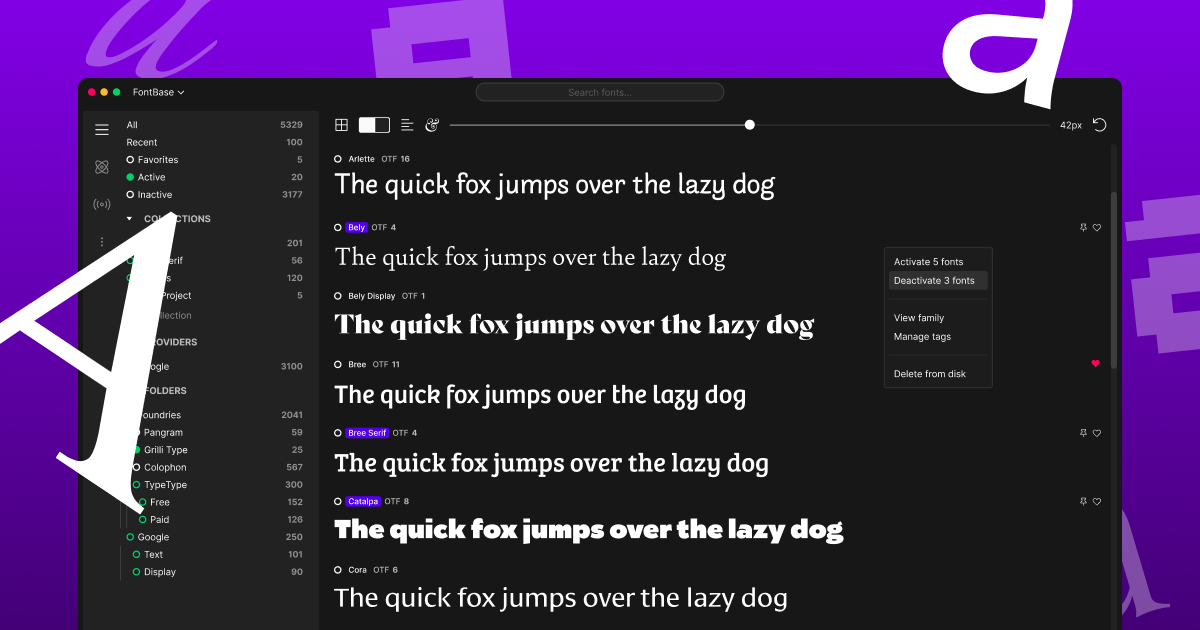

User reviews (0)