Website profiles · Technology insights · Alternatives

freeqrapp.com

Create professional QR codes instantly with FreeQRApp. Customize colors, add logos, generate WiFi QR codes, v-cards, and more. 100% free, no login required.

No paid content found
Visit website
Profile views 14 Outbound visits 0 Normal
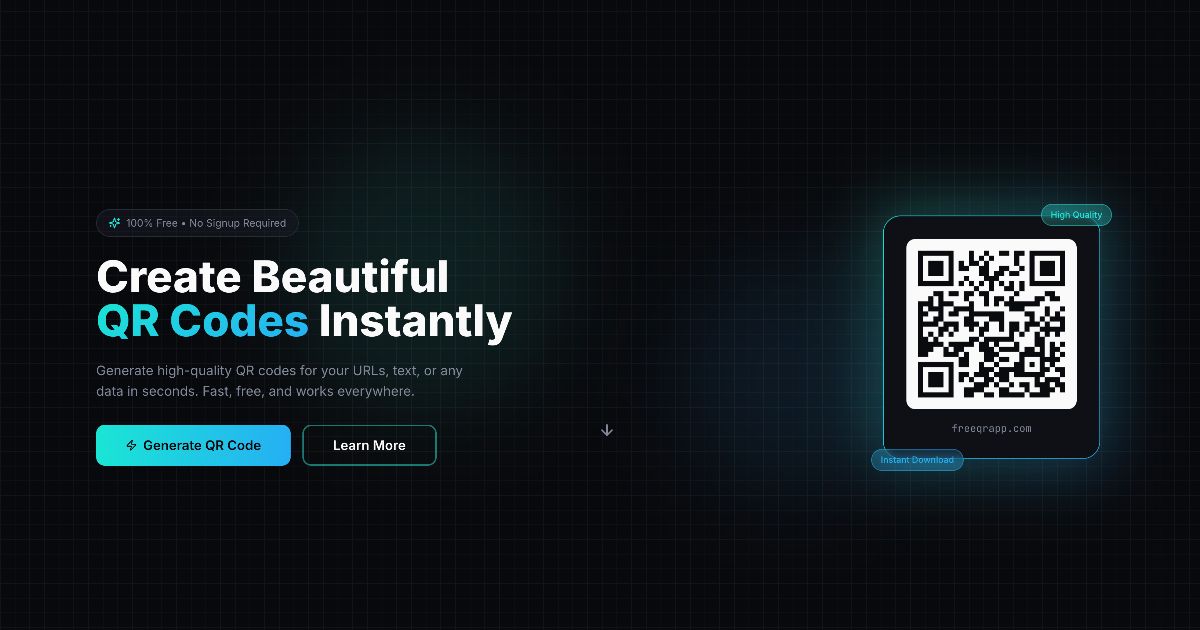
FreeQRApp Full homepage screenshot

At a glance

Category
Resources & Utilities
Language
English
Paid-content signal
No paid content foundObserved
Registered
2024
Hosting
CloudflareInferred
HTTPS certificate trusted
PassedObserved
Last updated

Website review

This review may include AI-generated content and is not individually verified. Domain, certificate and other facts come from the observed data on this page.

What is FreeQRApp?

FreeQRApp is a browser-based QR code generator at FreeQRApp. You type or paste content, watch the code render as you type, then download it as a PNG. It covers the common everyday formats: URL, WiFi network, contact (vCard), email, phone and social links. The stated model is free with no signup and no login.

What you can do with it

  • Encode a URL, plain text, WiFi credentials, a contact card, an email address, a phone number or a social profile.
  • Adjust colors and add a logo, per the customization options on the page.
  • Download a high-resolution PNG and copy the code for reuse.
  • Test the result by scanning it with a phone camera or scanner app.

Who it suits

Someone who needs one or two codes quickly and does not want an account: a café owner printing a WiFi code for the counter, a freelancer putting a contact card on a slide, a teacher adding a link to a handout. The real-time preview is genuinely useful here, because you see immediately whether a long URL produces a dense, hard-to-scan pattern.

Trade-offs to weigh

The page describes static codes generated and downloaded on the spot; there is no mention of editable destinations or scan analytics, so treat it as a straightforward encoder rather than a campaign-tracking tool. Because the output is a PNG image, you cannot change where it points after printing — get the final URL right before you commit it to a poster or menu. Colored codes and logo overlays look better but reduce contrast and cover part of the pattern, so keep testing with a real phone rather than trusting the on-screen preview. For print, export at the largest size available and place the code on a light background with clear space around it.

Next step

Open the site, choose the data type that matches your goal, and scan the downloaded PNG with two different phones before you print or publish it. If you later need to change the destination without reprinting, look for a generator that offers editable links.

How do I create a WiFi QR code that guests can scan to join my network?

Create a WiFi QR code by encoding your network name (SSID), password, and encryption type into the QR code. Guests then scan it with their phone camera and join without typing anything. FreeQRApp lists WiFi as one of its supported types alongside URL, contact, email, phone, and social links, and it generates the code as you type with no signup.

What you need before you start

  • Network name (SSID), exactly as it appears, including capitalisation
  • Password
  • Security type: usually WPA/WPA2/WPA3 for home and small-business networks, or "none" for an open network
  • A decision on whether to hide the password

Steps

  1. Open FreeQRApp and choose the WiFi option in the generator.
  2. Enter the SSID, password, and encryption type. The preview updates in real time as you type.
  3. Test it before you print: scan the on-screen code with a phone that is not already on the network, and confirm it connects.
  4. Download the PNG and place it where guests will see it — a table card, a wall sign by the door, or a laminated sheet in a rental unit.

Practical choices worth thinking about

  • Print size and placement. Codes need contrast and enough physical size to scan from a comfortable distance. A code on a wall usually needs to be larger than one on a table card.
  • Password exposure. Anyone who can photograph the sign can read the password, since the credential is encoded in the code itself. For a home guest network this is usually fine; for a business, change the password periodically or put guests on a separate network.
  • Long or awkward passwords. Long passwords work, but if you ever need to tell someone verbally, a shorter guest-network password is easier. FreeQRApp notes long URLs are supported, and the same practical logic applies to WiFi credentials.
  • Open networks. If you skip the password, the code still works, but anyone nearby can join. Treat that as a deliberate choice, not a default.

A concrete scenario

A holiday-let owner prints one card per bedroom with the WiFi code, plus a spare in the welcome folder. Guests scan once on arrival and never ask for the password. The owner keeps a separate admin network for their own devices so a password change does not disrupt the guest sign.

Next step

Generate the code, then test it on two different phones before printing. If it fails, the usual culprits are a mistyped SSID, the wrong security type, or a hidden network that some phones handle poorly.

For general QR code background and scanning tips, FreeQRApp publishes guides including how to create an email QR code and a short history of QR codes. Other generators with comparable WiFi features include QR Code Generator and QRCode Monkey.

Can I add a logo or custom colors to my QR code for branded marketing materials?

Yes. FreeQRApp includes customization controls for colors and logos, so you can match a QR code to brand guidelines rather than settling for a plain black-and-white square. Based on the site's own description, you generate the code first, then style it; the preview updates as you type, which makes it easy to test whether a color combination still scans.

What you can typically adjust here

  • Foreground and background colors
  • Adding a logo or image in the center
  • Choosing the data type before styling (URL, WiFi, contact card, email, phone, social)

Where branding actually matters

Use case Useful customization Main trade-off
Print flyers, posters, packaging Logo plus brand colors Low contrast or a large logo can break scanning
Event badges or table tents Colored code on white Dark backgrounds scan less reliably
Restaurant WiFi access WiFi code with simple styling Keep it plain; guests scan fast and don't need branding
Business cards Contact card with logo Small print sizes demand high contrast

Practical rule: keep the code darker than its background, leave a clear quiet zone around the edges, and keep any center logo small. Then scan the exported PNG with two or three different phones before sending it to print. For a reader scenario: a café owner putting a code on a window decal should test it in direct sunlight and at arm's length, because glare and distance expose contrast problems that look fine on a monitor.

Next step: build one test code with your logo and brand colors, export the PNG, and scan it from a printed proof at the final size. If it fails, simplify the logo or darken the foreground before adjusting anything else.

Do the QR codes I generate expire or require an account to keep working?

No. QR codes generated on FreeQRApp encode your URL, WiFi credentials, contact card or other data directly into the pattern itself, and the page states no signup or login is required to create or download them. There is no account holding the code alive, so nothing expires and nothing stops scanning if you never return to the site.

The practical trade-off is that a static code like this is permanent but frozen. Once you download the PNG, the destination is fixed: changing the URL means generating and printing a new code. If you need to point the same printed code at a different page later, that requires a redirect-based (often called dynamic) service, and those typically tie the code to an account and a subscription — the opposite of what you get here.

A quick scenario: a café prints a WiFi QR code for the counter. With a static code, the password is embedded, so changing the WiFi password means reprinting. A static code also has no scan analytics, so you cannot see how many people used it.

To confirm longevity, scan your downloaded PNG with two different phones before printing, then keep the original file backed up.

What resolution should I use when printing a QR code on a poster or business card?

For print, aim for a QR code that is at least 2 cm (0.8 in) square on a business card and 3–5 cm (1.2–2 in) on a poster, and export the image at the highest resolution the generator offers. The real constraint is not a fixed pixel count but the relationship between code size, scanning distance and print quality.

Practical sizing rules

  • Business card: keep the code around 2–2.5 cm wide, with clear white space (quiet zone) around it. At this size, a 300 DPI print means roughly 240–300 pixels across.
  • Poster: size the code so it is readable from the expected scanning distance. A rough guide is 1 cm of code width for every 10 cm of viewing distance, so a poster read from 3 m needs a code around 30 cm wide.
  • General print export: 300 DPI at the final printed size is the safe standard. If you can only download a fixed-size PNG, choose the largest available and scale it down rather than up.

Why resolution alone is not enough

A high-resolution file still fails if the code is printed too small, if contrast is poor, or if the quiet zone is cropped. Use dark modules on a light background, avoid placing the code over busy imagery, and test-scan a printed proof before committing to a full run.

FreeQRApp generates codes as you type and lets you download a high-resolution PNG, which suits this workflow; its page also notes codes work with any smartphone camera and that no account is needed. For a poster, generate the code, place it in your layout at the final physical size, and print a single test copy to scan from the intended distance.

Decision criterion

If the code will be scanned from arm's length (business card, flyer), 2–2.5 cm at 300 DPI is enough. If it will be scanned from across a room or a street, scale the code up until it is about one-tenth of the viewing distance, and always verify with a real print and a real phone.

How can I test if my QR code actually works before sharing it?

Generate the code, then scan it with a real phone camera before you send it anywhere. That single step catches the most common failures: a typo in the URL, an incomplete WiFi password, or a code that's too small to read at a distance.

FreeQRApp's own FAQ lists "How can I test if my QR code works?" among its questions, and the page notes codes work with any smartphone camera or scanner app — so a plain camera scan is the intended test, not a special tool.

A quick pre-share test routine

  1. Scan with your own phone camera, not just a scanner app. Most modern phones read codes natively, and that's how your audience will meet it.
  2. Open the destination, not just the code. For a URL, confirm the page loads and isn't a login wall or a 404. For WiFi, check the network actually connects with the encoded password.
  3. Test at the real distance and size. If it's going on a poster, print a draft and scan from where a reader would stand. Codes that look fine on screen often fail at arm's length on paper.
  4. Try a second device. A different phone brand or an older model exposes contrast and resolution problems your own phone may hide.
  5. Test in the lighting you expect. Dim restaurant tables and glossy surfaces are harder than a bright desk.

Matching the test to the code type

Code type What to verify
URL Link opens the exact page, no redirect to an unrelated site
WiFi Network joins automatically; password and encryption type correct
Contact / vCard Name, phone and email fields import cleanly into a phone's contacts
Email or phone Composer opens with the right address or number pre-filled

FreeQRApp generates a live preview as you type, which helps you confirm you've entered the right data — but a preview only proves the encoding, not that the destination works.

Before you commit to print

Print a test copy on the actual material and scan it. Contrast matters: the page describes "optimal contrast and clarity," so keep dark modules on a light background and avoid low-contrast color combinations, especially if you customize colors. If the code will sit on a curved or reflective surface, allow extra size.

If you need a code you can change later without reprinting, that's a different feature set from what this page describes — check whether the tool supports editable destinations before you design around it.

Related questions

More questions →
How to Create a QR Code with a Logo That Still Scans Reliably

You can put a logo in the center of a QR code and still have it scan reliably if you keep the logo small, raise the error correction level, and test the result on real phones before you print or share it. FreeQRApp supports logo and color customization and exports high-resolution PNG files, so it fits this workflow. The steps below apply whether you use that tool or another generator — the reliability rules are the same.

Why a logo doesn't automatically break the code

QR codes carry built-in redundancy called error correction. Part of the code's data is repeated so a scanner can reconstruct it even when some modules (the small black/white squares) are damaged, dirty, or covered.

Higher correction levels tolerate more damage:

Level Rough recovery capacity When to use
L ~7% Clean digital display, no logo
M ~15% General use
Q ~25% Some obstruction
H ~30% Logo overlay, harsh print conditions

A centered logo covers modules, so you're deliberately damaging the code. Level H gives you the most headroom, which is why it's the standard choice for logo QR codes. FreeQRApp's FAQ includes "What is error correction level?" as a topic, confirming the setting matters for this use case.

Step-by-step: logo QR code that scans

  1. Enter your data first. Paste the URL, WiFi credentials, contact info, or text you want to encode. In FreeQRApp the code updates as you type, so you can see the result immediately.
  2. Set error correction to H. This is the single most important setting when adding a logo. If your generator hides this option, look for "advanced" or "customization" settings.
  3. Add your logo and keep it small. A safe rule: the logo should cover no more than about 20–25% of the code's width, and stay centered. Leave a clear margin (quiet zone) around the logo so it doesn't touch the data modules.
  4. Check contrast. Dark modules on a light background scan best. If you recolor, keep strong contrast — light gray on white, or a logo with a transparent background over a busy pattern, is a common failure.
  5. Test before you commit. Scan the code with at least two different phones and, ideally, two different scanner apps. Test at the size you'll actually use it — a code that scans on a bright screen may fail when printed small.
  6. Download the high-resolution PNG. FreeQRApp exports PNG, which is what you want for print. Avoid screenshots, which reduce resolution and can blur module edges.

Common reasons a logo QR code fails

  • Logo too large. Covering more than ~25% of the width eats into the error-correction budget.
  • Low contrast. Light or pastel module colors, or a logo that blends into the background.
  • No quiet zone. The blank border around the code is required for scanners to lock on. A logo or text touching the edge breaks this.
  • Too small when printed. A dense code with a logo needs more physical size to stay readable. Test at final print dimensions.
  • Colored logo on colored modules. If the logo and the code share similar tones, the scanner can't separate them.

Quick pre-flight checklist

  • [ ] Error correction set to H
  • [ ] Logo ≤ ~25% of code width, centered
  • [ ] Strong dark-on-light contrast
  • [ ] Quiet zone intact on all four sides
  • [ ] Scanned successfully on 2+ phones / apps
  • [ ] Exported as high-resolution PNG (not a screenshot)

If a code passes all of these, it will hold up for printing on flyers, packaging, business cards, or signage. If it fails any one, fix that item and re-test rather than guessing.

How Do I Create a Customizable QR Code with Colors and a Logo?

You can create a customizable QR code with colors and a logo on FreeQRApp in three steps: pick your content type (URL, WiFi, contact, email, phone, or social), enter the data, then customize colors and add a logo before downloading a high-resolution PNG. No signup or login is required, and the code updates in real time as you type. The main constraint is contrast: colors and a logo both reduce the scanner's ability to read the code, so you need to test before printing.

Step 1: Choose the content type before you customize

The content type determines what happens when someone scans. FreeQRApp supports these options:

Type Use it for What the scanner shows
URL Websites, landing pages, menus Opens the link in a browser
WiFi Guest or office networks Prompts to join the network
Contact (vCard) Business cards, name badges Offers to save contact details
Email Support or sales contact Opens a pre-filled email
Phone Call buttons, flyers Dials the number
Social Profile links Opens the social profile

Pick the type first, because switching later means re-entering your data. For a logo-and-colors design, URL and vCard are the most common choices.

Step 2: Enter your data and watch the preview

Type or paste your content into the generator. The preview updates as you type, so you can confirm the code is being built correctly before you touch any design settings.

Two things to watch at this stage:

  • Long URLs create denser codes. More data means more modules (the small squares), which makes the code harder to scan when you later shrink it or add a logo. If your URL is very long, consider a shorter link first.
  • WiFi and vCard data is longer than a simple URL. Expect a denser pattern, which matters more once you add design elements.

Step 3: Add colors without breaking scannability

Colored QR codes work as long as the dark modules stay clearly darker than the light background. Practical rules:

  • Keep strong contrast. Dark modules on a light background is the safe default. Light modules on a dark background can work but is riskier on some scanners.
  • Avoid low-contrast pairs like yellow-on-white, light gray-on-white, or red-on-green.
  • Don't invert only part of the design. A mixed scheme confuses the scanner's ability to find the code's position markers.
  • Test after every color change, not just at the end.

Step 4: Add a logo and understand error correction

QR codes include error correction, which lets them still scan when part of the pattern is damaged or covered. That's the mechanism that makes logos possible: the logo covers part of the code, and error correction fills in the missing data.

The trade-off is direct:

  • A small logo in the center is usually safe.
  • A large logo covers more modules and can push past what error correction can recover.
  • A dense code (long URL, vCard) has less room to spare than a short one.

If you're adding a logo, keep it centered, keep it modest in size, and leave a clear margin around it. If the code stops scanning after you add the logo, shrink the logo before you change anything else.

Step 5: Test before you print or share

Test with more than one device and more than one app:

  1. Scan with at least two different phone cameras.
  2. Scan with a dedicated scanner app as well as the built-in camera.
  3. Test at the actual size you plan to use — a code that scans on screen may fail when printed small.
  4. Test in the lighting conditions where it will live (dim restaurant, bright window, etc.).

If it fails, the usual culprits in order of likelihood are: insufficient contrast, an oversized logo, a code printed too small, or a damaged/creased print surface.

Step 6: Download and use the PNG

FreeQRApp exports your code as a high-resolution PNG, which works for both digital use and printing. PNG is a raster format, so if you plan to print very large (posters, banners), check that the exported resolution holds up at your target size before committing to a print run.

Common problems and fixes

Problem Likely cause Fix
Won't scan at all Low contrast between modules and background Switch to dark-on-light
Scans on screen, fails in print Printed too small or low print quality Increase print size, use higher-resolution export
Stopped scanning after adding logo Logo covers too much of the pattern Shrink the logo, re-center it
Scans on one phone, not another Borderline contrast or density Increase contrast, shorten the encoded data
Fails on a dense code Long URL or vCard data Shorten the URL or simplify the content

Quick checklist

  • Content type chosen and data entered
  • Colors have strong contrast (dark modules, light background)
  • Logo is small, centered, and doesn't crowd the pattern
  • Tested on at least two phones and one scanner app
  • Tested at final print size and in final lighting
  • High-resolution PNG downloaded
What Are Free QR Codes and How Do You Create One Without Paying?

A free QR code is a QR code you can generate and use at no cost, without creating an account. On FreeQRApp, for example, you enter a URL or other data, watch the code generate as you type, and download it as a high-resolution PNG — the site states it is "100% Free • No Signup Required" and "No hidden costs, no premium tiers." The important catch to understand is that free codes are almost always static: the data is baked into the pattern, so it works forever but can't be edited after you print it. If you need to change the destination later or track scans, that usually means a dynamic code, which is typically a paid product.

What "free" actually covers

When a generator says free, check which of these it means:

  • No cost to create — you can generate and download without paying.
  • No signup or login — FreeQRApp states no account is needed; you start creating immediately.
  • No watermark — the downloaded image isn't branded with the generator's logo.
  • No expiration on the code itself — a static QR code encodes data directly, so it keeps working as long as the pattern is intact. It doesn't "stop" because a trial ended.
  • Unlimited use — FreeQRApp's FAQ addresses whether it is "really free and unlimited," and the site describes it as completely free to use.

What "free" does not automatically include: editing the destination after creation, scan analytics, or a hosted redirect. Those are dynamic-code features and are normally where paid tiers live.

Static vs. dynamic: the decision that matters most

Static QR code Dynamic QR code
Cost Free Usually paid
Data location Encoded directly in the pattern Stored on a server; code points to a short URL
Editable after printing? No Yes
Scan tracking No Typically yes
Lifespan Works as long as the code is readable Depends on the provider keeping the link alive
Best for Menus, WiFi, vCards, permanent links, one-off print runs Campaigns, changing URLs, marketing measurement

Choose static if your destination is stable — a website, a WiFi network, a contact card. Choose dynamic only if you genuinely need to change the link or count scans, and accept that you're depending on a third party staying in business.

How to create a free QR code, step by step

  1. Pick your data type. FreeQRApp supports URL, WiFi, contact (vCard), email, phone, social, and plain text/website entries. The type determines what the scanner does — a WiFi code joins the network, a vCard prompts a contact save.
  2. Enter the content. Paste the link or type the text. On FreeQRApp the code updates in real time as you type, so you see the result before committing.
  3. Customize if you want. The site lists customizable QR codes, including colors and adding a logo. Keep contrast high — dark modules on a light background scans most reliably.
  4. Download. FreeQRApp exports a high-resolution PNG, which is suitable for both screen use and printing. You can also copy the code directly.
  5. Test before you print. Scan the downloaded image with at least two different phones or scanner apps. Do this at the final print size, not just on screen.

Testing and troubleshooting a code that won't scan

  • Scan at real size. A code that works on a monitor may fail on a small printed sticker. Test the actual dimensions.
  • Check contrast. Light-colored modules on a white background, or a logo covering too much of the center, are the most common causes of failure. Error correction tolerates some damage, but not unlimited.
  • Verify the encoded data. Open the decoded result in your scanner app and confirm it matches exactly what you intended — a truncated URL is a frequent mistake with long links.
  • Mind the quiet zone. Leave a clear margin around the code; don't crop it tight or place it against a busy background.
  • Re-scan after any edit. If you change colors or add a logo, test again — customization is where scannability is most often lost.

Common questions, answered briefly

Do free codes expire? A static code doesn't expire on its own; it fails only if the pattern is damaged or the destination stops existing.

Can I use long URLs? Yes — longer data just makes the pattern denser, which is why testing at final print size matters more for long links.

Are free codes good for printing? Yes, provided you download a high-resolution file like the PNG FreeQRApp offers and test the printed result.

Is my data secure? FreeQRApp's FAQ covers data security; for static codes the data lives in the image itself, so treat anything you encode as public — anyone who scans it can read it.

Can I customize for free? FreeQRApp lists colors and logos among its customization options at no cost, but always re-test after customizing.

Dynamic QR Codes: What They Are and When You Actually Need One

A dynamic QR code stores a short redirect URL instead of your actual content, which means you can change the destination after printing and track how many people scan it. You need one when the link will change, when you want scan data, or when you're managing many codes at once. For a fixed URL, a WiFi password, or a v-card that never changes, a free static code is enough and avoids the risk of a third-party service going down.

Static vs. dynamic: the core difference

The distinction comes down to what's physically encoded in the pattern.

Static QR code Dynamic QR code
What's encoded Your actual content (URL, text, WiFi credentials) A short redirect link owned by a provider
Can you edit the destination later? No — you'd have to generate and reprint Yes — change it in the provider's dashboard
Scan tracking None Typically yes (counts, sometimes location/time)
Account required Usually not Usually yes
Cost Often free Usually a subscription
Lifespan Works as long as the pattern is readable Works as long as the provider keeps the redirect alive

A static code is self-contained: the scanner reads the URL directly out of the pattern. A dynamic code is a two-step hop — the scanner reads the provider's short link, then the provider forwards the visitor to wherever you've pointed it. That middle step is what buys you editability and analytics, and it's also what creates the dependency.

Why dynamic codes can be edited and tracked

Because the printed pattern only contains the redirect link, the destination lives on the provider's server. Changing it is a database update, not a reprint. The same mechanism lets the provider log each scan before forwarding.

This is genuinely useful in situations like:

  • A menu, price list, or event schedule that changes seasonally but is printed on permanent signage
  • A campaign where you want to compare scans across posters, flyers, and packaging
  • A fleet of codes — one per location, product, or sales rep — that you need to manage from one place

If none of those apply, the editability is a feature you're paying for and never using.

When a free static code is the better choice

For content that is fixed by nature, static is simpler and more durable. FreeQRApp, for example, generates static codes for URLs, WiFi networks, contacts, email, phone, and social links — no account, no login, and the code updates as you type so you can preview it before downloading. You export a high-resolution PNG, which is what you want for print.

Good static use cases:

  • WiFi access — the network name and password don't change often, and a static code keeps working with no service in the loop
  • A v-card or contact code — your phone number and email are stable
  • A permanent homepage or landing page you control and won't repoint
  • One-off print runs where tracking isn't a goal

The trade-off is real: once a static code is printed, the content is locked. If the URL breaks, every printed copy breaks with it. That's a reason to use a URL you control rather than a link you might lose access to.

The main risk with dynamic codes

A dynamic QR code is only as durable as the company running the redirect. If the provider shuts down, changes its pricing, or you let a subscription lapse, the short link can stop resolving — and every printed code pointing at it goes dead. Because the pattern itself contains no useful information, there's no fallback.

Before committing a dynamic code to something expensive or long-lived (signage, packaging, vehicle wraps), check:

  • What happens to the redirect if you cancel or the plan expires
  • Whether the provider offers a way to export or migrate your links
  • Whether the redirect is on a domain you'd be comfortable depending on for years

For short campaigns, this risk is minor. For anything meant to last, weigh it seriously.

How to decide

Ask two questions:

  1. Will the destination ever change, or do I need scan data? If yes to either, a dynamic code earns its cost. If no, use a static one.
  2. How long will this code be in the wild, and what's the cost of it failing? Long lifespan plus high replacement cost pushes you toward a reputable provider with clear terms — or toward static, which has no server dependency.

A practical middle path: use static codes for stable, permanent content, and reserve dynamic codes for the campaigns and materials where editing or measurement actually matters. That keeps most of your codes free and independent while still giving you flexibility where it pays off.

What Is AI Programming and How Are Developers Actually Using It?

AI programming is the practice of using machine-learning models to generate, complete, review, or test code inside a developer's existing workflow. It covers everything from a single-line autocomplete suggestion in an IDE to a chat assistant that explains an unfamiliar function to an autonomous agent that opens a pull request on its own. The practical dividing line is not the model but the level of human oversight: the more a tool acts without review, the narrower the tasks it should be trusted with.

The four things AI actually does in a codebase

Most day-to-day use falls into a few recognizable activities:

  • Completion — predicts the next line or block as you type, based on the file and surrounding context.
  • Generation — produces a function, class, config file, or migration script from a natural-language description.
  • Explanation and review — summarizes what a piece of code does, flags suspicious patterns, or suggests a refactor.
  • Testing and debugging — writes unit tests for existing code, proposes fixes for a failing test, or traces a stack trace back to a likely cause.

These are not separate products so much as separate modes. The same assistant that autocompletes a loop can also be asked to write the test for it.

Tool categories and where each fits

Category Typical form Best for Main trade-off
IDE copilot Inline suggestions in the editor Boilerplate, repetitive patterns, unfamiliar syntax Suggestions arrive without context about your architecture
Chat-based assistant Side panel or separate window Explaining code, drafting a design, debugging a stack trace You must paste or describe context manually
Autonomous agent Runs commands, edits files, opens PRs Multi-file changes, dependency upgrades, test scaffolding Highest blast radius; needs the tightest review

The categories overlap, and many tools now span more than one. The useful question is not which category is best but how much of the change you are willing to accept without reading it line by line.

What a realistic workflow looks like

A common pattern, for example when adding a new API endpoint:

  1. Describe the endpoint in a comment or chat prompt — method, path, expected input and output.
  2. Let the assistant draft the handler and the data model.
  3. Read the draft and correct the parts that assume an API or library version you don't use.
  4. Ask the assistant to generate tests for the happy path and at least one failure case.
  5. Run the tests, then review the diff as you would any teammate's pull request.

The assistant compresses the first draft; it does not remove steps 3 and 5. Teams that skip the review step are the ones that report the worst outcomes.

Where it breaks down

The limitations are consistent enough to plan around:

  • Hallucinated APIs. Models invent function names, parameters, and library methods that look plausible and compile-fail or, worse, silently do the wrong thing.
  • Insecure suggestions. Generated code may interpolate user input into queries, disable certificate checks, or hardcode credentials because the training data contained those patterns.
  • Licensing and provenance. Suggestions may closely resemble licensed source; teams need a policy on what is acceptable to commit.
  • Data privacy. Pasting proprietary code into a hosted assistant may send it to a third party. Check whether your tool runs locally, offers an enterprise tier with data controls, or is approved for your codebase.
  • Stale knowledge. Models have a training cutoff and will confidently describe an older version of a framework.

None of these make the tools unusable. They make verification mandatory.

How to verify AI-generated code

Treat every suggestion as an untrusted contribution:

  • Compile and run it. A suggestion that doesn't build is a cheap failure; catch it before review.
  • Check every external call. Confirm the function exists, the signature matches, and the version is the one you depend on.
  • Read for security. Look specifically at input handling, authentication, secrets, and anything touching the network or filesystem.
  • Test the edges. Ask for failure cases, not just the happy path, and add the ones the model missed.
  • Keep the diff small. A 20-line suggestion is reviewable; a 400-line agent-generated refactor is not, at least not in one pass.

How teams adopt it gradually

The lowest-risk entry point is tasks where a mistake is cheap and visible: writing tests for existing code, generating documentation comments, scaffolding a config file, or translating a snippet between languages. From there, teams typically move to in-editor completion for routine code, then to chat-based assistance for debugging and design questions. Autonomous agents that modify multiple files tend to come last, and usually behind a branch-and-review gate rather than direct commits.

The pattern that holds up: start where you would notice an error immediately, expand only after the review habit is established, and keep a human accountable for anything that reaches production.

Website Overview

An advisory match combined with missing browser safeguards may increase exposure if the affected component is active. Deployment-specific verification and remediation deserve priority. Identifiable technologies and additional version or configuration signals make the service easier to fingerprint, which may help targeted scanners narrow their checks.

Domain and Registration

Transfer-protection status is present, helping reduce the risk of unauthorized domain transfers. The domain has about 1 years of registration history; its current configuration provides more context than age alone. The registrar is Cloudflare, Inc., a widely used domain service provider. The domain uses the common .com extension, which is not an independent safety signal.

DNS and Email

Nameservers are provided by Cloudflare, indicating managed DNS hosting. DNSSEC is enabled, allowing validating resolvers to authenticate signed DNS data. No CNAME was found; the observed records resolve directly to addresses. No MX record was found. A conventional explicit inbound-mail route is not configured. TXT records include verification markers for Google. Such markers may also remain after a service stops being used.

TLS and Certificates

The public key uses EC with 256 bits. The server supplied a complete certificate chain. No organization name is present in the certificate; the available fields are consistent with domain validation. The certificate was issued within the Google Trust Services cloud or CDN ecosystem. The certificate's total validity is about 90 days, consistent with a short renewal cycle.

HTTP and Browser Security

The response lacks these common security headers: HSTS, CSP, Permissions-Policy, clickjacking protection. CORS permits any origin to read this response. This is common for public resources; sensitive responses need narrower handling. No X-Powered-By header was found, reducing one common source of backend fingerprinting information. The cf-ray response header indicates a CDN or caching proxy in the delivery path. No obvious internal addresses or debug information were found in the headers.

Technology Stack Analysis

The public page identifies Astro 5.16.16, Cloudflare, with exact versions exposed for 1 technologies. These details can narrow vulnerability checks, although exposure alone is not a vulnerability. The advisory source OSV places Astro 5.16.16 in the affected range of GHSA-26w7-cxv4-gfx2, GHSA-2pvr-wf23-7pc7, GHSA-376h-93r7-7g6f, GHSA-4g3v-8h47-v7g6, GHSA-7pw4-f3q4-r2p2 等 10 项. Verify the deployed version and relevant configuration before drawing conclusions about exploitability. Updating affected components should be a priority.

Search and Social Sharing

The Generator tag identifies Astro v5.16.16, making the publishing system easier to fingerprint. Twitter Card metadata is configured. JSON-LD includes Organization data, helping describe the organization as an entity. The title has 62 characters, within a common display range. A meta description is present, with 156 characters.

Hosting and Email

DNSCloudflare
HostingCloudflare
EmailUnknown
Approximate IP geolocation (inferred; a CDN or proxy may differ from the origin server) Location unknown Inferred 104.21.59.70

Registration details

RDAP / WHOIS

RegistrarCloudflare, Inc.
Registered2024-11-18
Expires2026-11-18
Domain statusclient transfer prohibited
Nameserversneil.ns.cloudflare.com、paige.ns.cloudflare.com
DNSSECsigned

DNS records

DNS

TypeNameValueTTLPriority
Afreeqrapp.com104.21.59.70300—
Afreeqrapp.com172.67.217.155300—
AAAAfreeqrapp.com2606:4700:3035::6815:3b46300—
AAAAfreeqrapp.com2606:4700:3036::ac43:d99b300—
NSfreeqrapp.comneil.ns.cloudflare.com86400—
NSfreeqrapp.compaige.ns.cloudflare.com86400—
TXTfreeqrapp.comgoogle-site-verification=JtsryvqiIzlwmqBm7Vr-GKZMMa9r0AoUYvs55Kl_c-Y3600—
DSfreeqrapp.com2371 13 2 708a309ab1aba90a122b8db52c54e1a7018d7be42a249fb80cf725b91d8f760a86400—

TLS and certificates

TLS / SSL

AssessmentNormal configuration
Supported protocolsTLSv1.2、TLSv1.3
Negotiated protocolTLSv1.3
Certificate subjectfreeqrapp.com
IssuerGoogle Trust Services
Valid until2026-12-21T08:20 · Remaining when checked: 81 days
Verification detailsCertificate trust: Passed · Hostname match: Passed

HTTP response headers

HTTP

HeaderValue
content-typetext/html; charset=utf-8
cache-controlpublic, max-age=0, must-revalidate
servercloudflare
x-content-type-optionsnosniff
referrer-policystrict-origin-when-cross-origin
access-control-allow-origin*

Identified technologies

Astro 5.16.16Cloudflare

Pages, Search and Sharing

Meta descriptionCreate professional QR codes instantly with FreeQRApp. Customize colors, add logos, generate WiFi QR codes, v-cards, and more. 100% free, no login required.
Canonical URLhttps://freeqrapp.com/
LanguageEnglish (default)
Twitter Cardsummary_large_image
All bots 1 allowed · 2 disallowed
  • Allow/
  • Disallow/404
  • Disallow/api/
googlebot 1 allowed · 0 disallowed
  • Allow/
  • IntervalCrawl delay 0 seconds
bingbot 1 allowed · 0 disallowed
  • Allow/
  • IntervalCrawl delay 1 seconds
twitterbot 1 allowed · 0 disallowed
  • Allow/
facebookexternalhit 1 allowed · 0 disallowed
  • Allow/

User reviews (0)

  • No reviews yet.