Website profiles · Technology insights · Alternatives

gamevau.lt

Host your own DRM-free game library, track your stats, and share the experience with friends. It's like having your own personal Steam, but you're the one in control.

No paid content found
Visit website
Profile views 0 Outbound visits 0 Normal
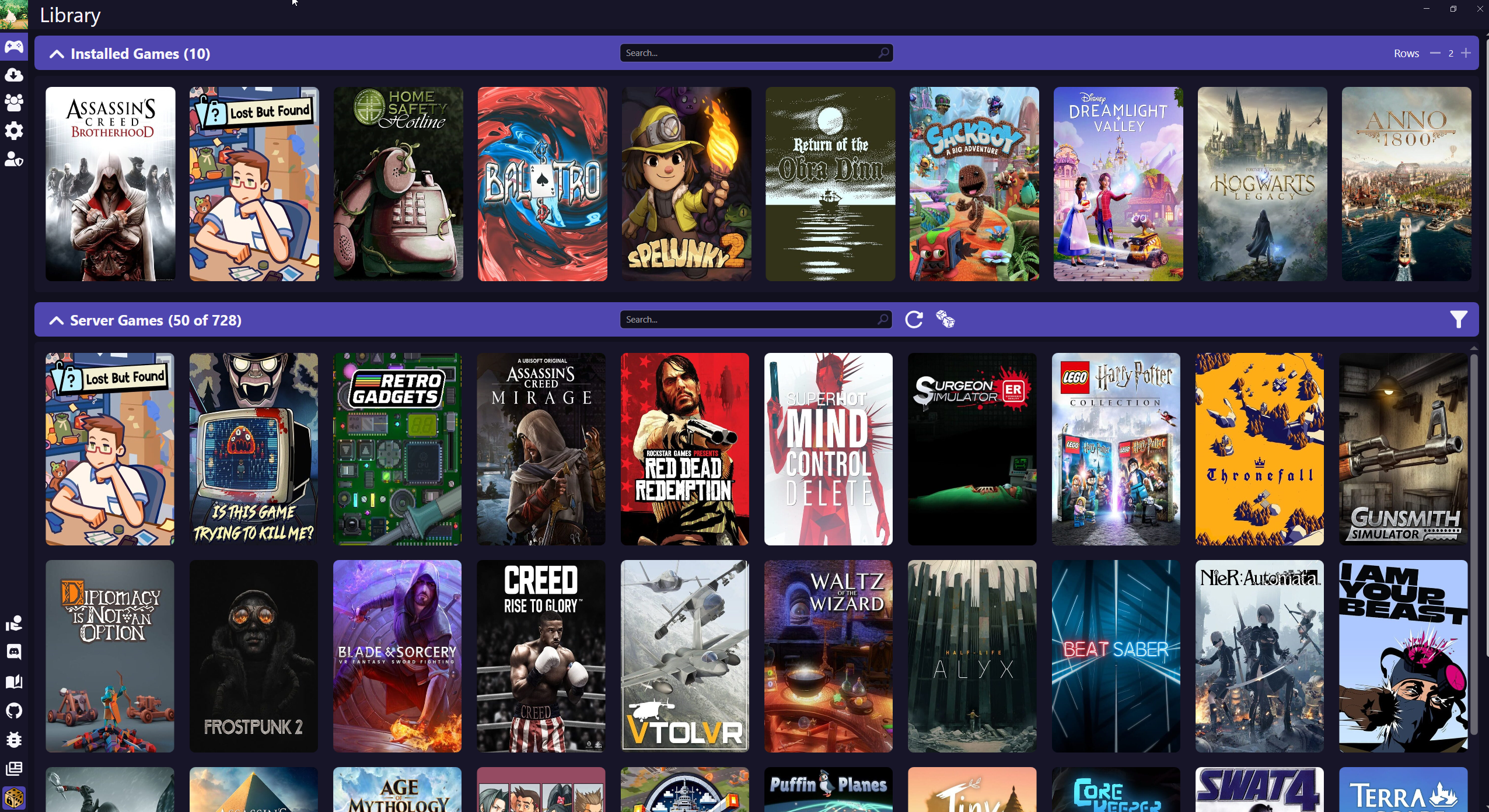
GameVault Full homepage screenshot

At a glance

Category
Games & Board Games
Language
English
Paid-content signal
No paid content foundObserved
Registered
Unknown
Hosting
FastlyInferred
HTTPS certificate trusted
PassedObserved
Last updated

Website review

This review may include AI-generated content and is not individually verified. Domain, certificate and other facts come from the observed data on this page.

What is GameVault?

GameVault is a self-hosted gaming platform for DRM-free game collections. Rather than aggregating storefronts, it lets you host, manage, and distribute your own game files from your own server, then access them through a native client or a built-in WebUI. The pitch is essentially "your own personal Steam," with you in control of the hardware and the library.

What it actually does

  • Hosts your library on your own hardware. You run the server; your games live there rather than on a storefront's infrastructure.
  • Multi-user access. You can create accounts for friends and family and run the server as a small private gaming hub.
  • Playtime and progress tracking. It records detailed playtime statistics, so you can watch your backlog and see what others on the server are playing.
  • Automatic metadata. Cover art, descriptions, and other metadata are fetched automatically, so you are not hand-editing entries.
  • Two ways in. A native client (installable from the Microsoft Store, per the site) or the WebUI. A public demo with shared credentials is available if you want to look before installing anything.

Who it suits, and who it does not

Fits well Fits poorly
Homelab owners with a DRM-free collection (GOG, Humble Bundle, itch.io-style files) Anyone whose library is mostly Steam, Epic, or other DRM storefronts
People who want friends to share one library without handing over accounts People who want a launcher that unifies existing stores in one place
Tinkerers comfortable running and maintaining a server Anyone wanting a zero-maintenance, install-and-play experience

The site is explicit on the key limitation: GameVault is not a multi-platform launcher and does not support Steam or Epic Games, because those storefronts use proprietary DRM incompatible with independent hosting. That single constraint decides most of the fit. If your games are DRM-free files you already own, this is a plausible home for them; if they are store-locked, it is not.

A concrete scenario. You have a folder of DRM-free installers and a spare machine or NAS. You deploy the server, point it at the files, let metadata populate, create accounts for two friends, and they connect through the client or browser. You get playtime stats and a shared library without a subscription or a storefront in the middle.

Next step: open the live demo first. It requires no installation and shows the interface, library management, and stats directly, which tells you faster than any description whether the workflow matches how you actually store and play games. If you already run other services, compare it against what you use for media or file hosting at GameVault before committing hardware to it.

How do I install and set up a GameVault server for my homelab?

GameVault is positioned as a self-hosted platform for DRM-free games, so "setup" means two separate things: deploying the server on your homelab hardware, and installing the client on the machine you actually play from. The page describes the client as installable from the Microsoft Store and the server as deployable "in minutes" with an easy setup guide for any environment, but it does not publish the concrete commands, container images or port details on this page — so treat the official setup guide as your starting point rather than improvising.

What you need before you start

  • A host machine that stays on when you want to play: a spare PC, a NAS that can run containers, or a small always-on box. Storage should comfortably exceed your current library size, since game files are large.
  • DRM-free game files. The FAQ is explicit that GameVault is not a multi-platform launcher and does not aggregate Steam or Epic libraries; it is built for DRM-free content such as GOG or Humble Bundle installers. If your collection is mostly Steam keys, this is the wrong tool.
  • A client device. The page mentions a native client plus a built-in WebUI. The WebUI is useful for browsing and administration; the native client is what you would use for actual play on a Windows machine.

A sensible order of operations

  1. Look before you build. The site hosts a public demo with shared credentials (username demo, password demodemo). Log in there first and check whether the library view, user management and stats screens match how you actually want to browse your games.
  2. Deploy the server following the official setup guide for your environment, then confirm the WebUI loads from another device on your network.
  3. Create your own accounts rather than leaving any default credentials in place, and decide which friends or family members get access.
  4. Point it at your game files and let the automatic metadata enrichment fetch cover art and descriptions. Spot-check a handful of obscure titles — automatic matching tends to be weakest for indie and older releases.
  5. Install the client on your gaming machine and connect it to your server.
  6. Test from outside your LAN if remote play matters to you, and think about how you will expose the server safely.

Where the trade-offs sit

What you gain What it costs you
Full ownership of the library and who can access it You are the administrator: updates, backups and uptime are your job
Multi-user accounts and shared playtime stats Your server must be reachable whenever friends want to play
Automatic cover art and metadata Only works for DRM-free titles, not Steam or Epic purchases
Native client plus browser access Client availability is narrower than the server's "any environment" claim

The most common practical mistake is underestimating the operational side. A homelab game server is not a one-evening project if you want it reliable: budget for a backup of the game files and the database, and decide early whether remote access goes through a VPN such as WireGuard or Tailscale rather than opening ports directly. If you already run other self-hosted services, GameVault slots in alongside them; if this would be your first container deployment, start with the demo and a single test game before migrating a whole collection.

Can GameVault import or launch games from Steam, Epic Games, or GOG?

GameVault is not a launcher that imports or launches games from Steam or Epic Games. Its own FAQ states plainly that it is not a multi-platform launcher and does not aggregate existing stores; instead it is a self-hosted ecosystem for hosting, managing and distributing your own DRM-free game files from a private server. Steam and Epic titles are generally wrapped in proprietary DRM, which the site says is incompatible with independent hosting and distribution.

GOG is the partial exception, but only in practice, not through store integration. GameVault is built for DRM-free content "like that from GOG or Humble Bundle," so a GOG installer you have downloaded and that carries no DRM can be added to your library and launched through the native client or the built-in WebUI. That is a file you host yourself, not a connection to the GOG Galaxy client or your GOG account.

What this means in practice

Source Import/launch via GameVault? Why
Steam No Storefront DRM and client dependency
Epic Games No Storefront DRM and client dependency
GOG (DRM-free installers) Yes, as your own files Fits the DRM-free, self-hosted model
Humble Bundle (DRM-free downloads) Yes, as your own files Same reason
Itch.io DRM-free builds Yes, as your own files Same reason

If your goal is one interface that pulls together Steam, Epic and GOG accounts, GameVault is the wrong tool; a storefront aggregator such as Playnite or SteamGridDB-supported frontends serve that purpose. If your goal is a private, server-hosted library of DRM-free files with metadata, playtime tracking and multi-user access, GameVault fits.

A useful test before committing: pick one GOG or Humble game you already own, confirm you can download a standalone installer rather than only a client-bound copy, and try adding it to the public demo. If that file appears with fetched cover art and launches cleanly, the rest of your DRM-free collection will behave the same way.

How does GameVault handle multi-user access and sharing my library with friends?

GameVault treats multi-user access as a core feature, not an afterthought: you run the server, and the people you invite connect to it as accounts on your instance. The site describes turning your server into "a private gaming center," with user account management and shared access for friends and family, plus real-time visibility into what your community is playing.

What sharing actually looks like

  • Accounts on your server. You create and manage user accounts rather than handing out a single password everyone shares. That gives each person their own presence in the library.
  • One library, multiple players. Friends and family connect to the same hosted collection, so a game you add once is available to everyone you've granted access to.
  • Community stats. Playtime tracking is framed as social: you can see what others are playing in real time and compare progress, which is the closest thing here to Steam's friends activity feed.
  • Your rules. Because the server is yours, access decisions — who gets in, and presumably what they can reach — rest with you rather than a platform operator.

The trade-offs worth knowing before you invite anyone

Sharing a self-hosted library is not the same as sharing a store account, and a few practical points follow from the product's own description:

Consideration What it means for you
DRM-free only GameVault is built for DRM-free files, such as GOG or Humble Bundle content. Steam and Epic titles generally won't work, so your shareable catalog is limited to what you own without DRM.
You are the host Availability depends on your hardware and network being up. If your server is off, your friends' access is off.
Not a store aggregator It doesn't launch games from other storefronts, so invitees won't see their own Steam purchases inside your instance.
Bandwidth and storage Every friend you add is another client pulling files from your connection, which matters most for large installs.

A concrete scenario

Say you have a shelf of DRM-free indie games from GOG and a home server already running other services. You install the server, point it at your game files, let the automatic metadata enrichment fill in cover art and descriptions, then create accounts for two or three friends. They install the client and log in to your instance; you can all see who's playing what and how long they've spent. Nobody buys anything twice, and nobody's library disappears if a store changes its terms.

Next step

Use the public demo before you commit. The site offers a live demo with no installation required — the page lists the demo username as demo and the password as demodemo. Log in, create a test user or two, and check whether the account model matches how you'd actually want to hand out access. If you want to compare notes with other self-hosters or contribute, the project points to its Discord and GitHub, and the source is available if you'd rather read the access-control implementation yourself.

What hardware or server requirements do I need to self-host GameVault?

GameVault's own pages do not publish a hardware or server specification, so the honest answer is that no official minimum CPU, RAM or storage figure can be quoted from the site. What the material does establish is the shape of the deployment: a server component you run on your own hardware, a native client installed from the Microsoft Store, and a built-in WebUI that works without the client. The page also points to a setup guide "for any environment," which suggests the intended audience is people already comfortable running services on a home server rather than a fixed appliance.

What actually drives your requirements

Since the vendor gives no numbers, size the machine from your own library and usage pattern:

  • Storage dominates. DRM-free game installers and archives are large, so plan for the size of your collection plus headroom for new additions. This is the one requirement you can estimate accurately before installing anything.
  • CPU and RAM matter mainly for concurrent users, metadata enrichment and any transcoding-style work, not for idle hosting. A small library with one or two users is a very different load from a household streaming and downloading simultaneously.
  • Network matters more than raw compute if friends and family connect remotely. Upload bandwidth on a home connection is usually the real bottleneck, not the server.
  • Client side is light: the native client runs on Windows via the Microsoft Store, and anything with a browser can use the WebUI.

A practical way to decide

Start by measuring, not guessing. Run the server on hardware you already have — an old desktop, a mini PC or a NAS that supports containers — point it at a small subset of your library, and watch memory and disk growth as metadata is fetched and users connect. Scale up only when you see a real constraint. This matches the project's own framing of being built for self-hosters and installable in minutes, and it avoids buying hardware for a workload you have not yet measured.

If you want to compare approaches before committing, look at how established self-hosted media projects document their requirements, for example Jellyfin or Nextcloud; their sizing guidance is a reasonable mental model for a self-hosted library service, even though it is not GameVault's own documentation. For anything specific to GameVault, the setup guide, Discord and GitHub linked from the site are the places where an exact figure would come from.

How does GameVault automatically fetch cover art and metadata for my games?

GameVault enriches your library automatically rather than making you edit entries by hand. According to the site's own description, it "automatically fetches high-quality cover art, descriptions, and metadata to keep your collection looking stunning and professional." The site does not document the exact matching mechanism, so treat the specifics below as general self-hosted media practice rather than confirmed GameVault behavior.

What "automatic" usually means in practice

Most self-hosted libraries match a game to an online database using its title, and sometimes a release year or platform, then pull down a cover image, description, genre tags, and similar fields. The workflow you should expect:

  1. You add DRM-free game files to your server.
  2. GameVault identifies the title and retrieves matching artwork and metadata.
  3. The entry appears in the client or built-in WebUI with that enriched presentation.

Where it works well, and where it won't

Automatic matching is strongest for well-known commercial releases with clean, standard filenames. It struggles with:

  • Fan translations, ROM hacks, and region variants
  • Indie or obscure titles missing from the metadata source
  • Ambiguous names that match the wrong game entirely

If your collection leans heavily on those categories, budget time for manual correction. GameVault's metadata enrichment is a convenience layer, not a guarantee.

A practical check before you commit

The site offers a public demo with the username demo and password demodemo, requiring no installation. Add a game with a deliberately messy filename and see how the resulting cover art and description look. That single test tells you more about metadata quality for your library than any feature list.

Related reading

  • GameVault — confirm current metadata behavior and setup details directly.
  • GitHub — the project's source and issue tracker, useful for checking which metadata sources are supported.
  • GOG — the kind of DRM-free catalogue GameVault is built to host.

Related questions

More questions →
What Does Self-Hosted Mean, and When Should You Run Software on Your Own Server?

Self-hosted means the software runs on hardware you control — your own server, a spare PC, or a rented machine — instead of on a vendor's cloud. You get direct control over the data and the running environment; in exchange, you take on setup, storage, backups, and updates. It's a good fit when privacy, data ownership, or long-term control matter more to you than zero-maintenance convenience, and a poor fit when you want something that works in five minutes with no upkeep.

Self-hosted vs. cloud/SaaS

The core difference is where the software and data live, and who is responsible for keeping them running.

Dimension Self-hosted Cloud / SaaS
Where it runs Hardware you control (own server, spare machine, VPS) Vendor's infrastructure
Who maintains it You (setup, updates, backups) The vendor
Data ownership You hold the files and the database Vendor holds them on your behalf
Access Whatever you expose (LAN, VPN, public URL) Vendor's app and login
Upfront effort Higher — install, configure, secure Minimal — sign up and go
Ongoing effort Updates, monitoring, backups, disk space Usually none

Neither is universally better. The trade is control and responsibility versus convenience.

What "privacy-first" actually means here

A self-hosted app keeps your files on your own infrastructure, so they aren't sitting in a third party's account by default. PhotoPrism describes itself as "AI-powered, privacy-first" and states it was "built from the ground up to run wherever you need it, without compromising freedom, privacy, or functionality." It also says your data "will never be shared with Google, Amazon, Microsoft or Apple unless you intentionally upload files to one of their services."

That last clause is the important nuance: self-hosting removes the default dependency on a big cloud, but it doesn't stop you from choosing to send files somewhere else. Privacy here is a property of where the software runs, not an automatic guarantee about everything you do with it.

What you actually need to run it

Self-hosting a photo library is a concrete checklist, not an abstract idea:

  • A machine to run it on — a home server, a spare computer, or a rented virtual private server.
  • Storage — enough disk for your photos and videos, plus room to grow. Photo libraries get large fast, especially with RAW files and video.
  • Backups — a self-hosted library is only as safe as your backup plan. Losing the disk means losing the library unless you've copied it elsewhere.
  • Updates and monitoring — someone has to apply updates and notice when something breaks. That someone is you.
  • Network access — decide whether it's reachable only on your local network, through a VPN, or over the internet, and secure it accordingly.

What the software handles for you

The point of picking a capable self-hosted app is that the hard parts of organizing a library are automated. PhotoPrism's feature set illustrates what a self-hosted photo manager can do once it's running:

  • Browse everything without format friction — "Browse all your photos and videos without worrying about RAW conversion, duplicates or video formats."
  • Search — "Quickly find specific pictures using powerful search filters."
  • Places — "Includes six high-resolution world maps to bring back memories of your favorite trips."
  • Live Photos — "Play Live Photos by hovering over them in albums and search results."
  • People — "Recognizes the faces of your family and friends."
  • Automatic classification — "Automatic classification of pictures based on their content and location."

So the effort you spend on setup buys you a private library with search, face recognition, maps, and automatic tagging — the same category of features people expect from a cloud photo service, running on your hardware.

The trade-offs, stated plainly

In favor of self-hosting:

  • Your files and database stay on infrastructure you control.
  • No dependency on a vendor's account or continued goodwill.
  • You can run it "wherever you need it," as PhotoPrism puts it.

Against it:

  • Setup takes real time and some technical comfort.
  • You own the maintenance: updates, disk space, backups, and troubleshooting.
  • If your server goes down, your library is unavailable until you fix it.

When self-hosting is the right call

Self-hosting tends to fit when several of these are true:

  • You have a machine you can dedicate (or already run a home server).
  • You're comfortable with basic installation, updates, and backups — or willing to learn.
  • Your library is large enough that you want long-term control over storage and formats.
  • Privacy and data ownership are priorities, not nice-to-haves.
  • You're replacing a cloud photo service and want to keep the features without the account.

It tends to be the wrong call when you want zero maintenance, have no spare hardware, or aren't prepared to own backups. In those cases a cloud service is the more honest choice.

A concrete example: photo management

PhotoPrism is a clear illustration of the self-hosted model in practice. It's an "AI-powered, privacy-first, self-hosted app for browsing, organizing, and sharing photos and videos" — a self-hosted alternative in the photo-management and digital-asset-management space. You run it on your own infrastructure, point it at your library, and get browsing, search, maps, face recognition, and automatic classification without uploading your collection to a third party.

For teams and organizations, PhotoPrism also offers a Pro tier: "PhotoPrism® Pro provides your organization with access to additional configuration and deployment options — all fully GDPR-compliant, hosted on your own infrastructure, and backed by our team." Note the structure — even the paid tier stays self-hosted on your own infrastructure, which is the defining trait of this model. The site does not list prices, so check current plan details directly if cost matters to your decision.

How to decide

Ask three questions:

  1. Do I have the hardware and the willingness to maintain it? If no, self-hosting will become a chore.
  2. Does data ownership or privacy outweigh convenience for this use case? If yes, self-hosting is worth the effort.
  3. Can I commit to backups? If not, don't put your only copy of anything important on a self-hosted server.

If you answered yes to all three, self-hosting — with something like PhotoPrism for photos — gives you control and privacy in exchange for setup and upkeep. If you answered no to any of them, a cloud service is the more practical fit.

What Does DRM-Free Mean for Games, and Why Does It Matter for Self-Hosting?

DRM-free means the game files you download can be installed and run without online activation, a store client, or a persistent license check. You own the copy you bought, and it keeps working offline and after a storefront shuts down. This matters for self-hosting because a self-hosted library can only distribute and serve files that don't depend on someone else's authentication servers. If your games require Steam or Epic to launch, you can't host them yourself. If they're DRM-free, you can put them on your own hardware and serve them to your own users.

DRM-Free vs. Store-Locked: The Core Difference

A DRM (digital rights management) system ties a game to a store account and often to an online check. DRM-free games skip that layer entirely.

Dimension DRM-Free Store-Locked (Steam, Epic)
Launch requirement Run the executable directly Store client must be installed and signed in
Online check None Usually required at least periodically
Offline play Always works Limited or dependent on offline mode
Backup and transfer Copy files anywhere Tied to account and client
Access if store closes Unaffected Uncertain
Self-hosting Possible Not compatible with independent hosting

GameVault's own FAQ states it is built specifically for DRM-free content, and that most major storefronts use proprietary DRM incompatible with independent hosting and distribution. That's the dividing line: if a game needs a store client to prove you own it, it can't live in a self-hosted library.

Where DRM-Free Games Come From

Not every store sells DRM-free titles. The sources most commonly associated with DRM-free installers are:

  • GOG — sells DRM-free games as a core policy
  • Humble Bundle — many bundles include DRM-free downloads alongside store keys
  • Developer and publisher direct sales — some studios sell installers from their own sites

GameVault's page names GOG and Humble Bundle as examples of DRM-free sources. A Steam or Epic purchase, by contrast, generally gives you a license tied to that client, not a standalone installer.

What DRM-Free Enables for a Self-Hosted Library

Once your files are DRM-free, a self-hosted platform like GameVault can do things a store client can't:

  • Host your own game cloud. Keep your entire collection on your own hardware and access it through a native client or the built-in WebUI.
  • Multi-user and social sharing. Turn your server into a private gaming center: share access with friends and family, manage accounts, and run your own community.
  • Playtime and progress tracking. Track detailed playtime statistics, monitor progress, manage your backlog, and see what your community is playing in real time.
  • Automatic metadata enrichment. GameVault fetches cover art, descriptions, and metadata automatically, so you don't hand-edit every entry.
  • Easy installation. The client installs from the Microsoft Store, and the server deploys in minutes using the setup guide.

The through-line: because the files don't phone home, you can store, serve, and share them on infrastructure you control.

Limitations to Expect

DRM-free and self-hosted also means you take on work that stores normally handle:

  • No automatic updates. You manage patches and new versions yourself.
  • No built-in multiplayer or matchmaking. Those services come from platforms, not from the files.
  • Manual library management. You organize, import, and maintain the collection.
  • No store features. Wishlists, refunds, cloud saves tied to a store, and similar conveniences don't carry over.

These aren't flaws in DRM-free itself — they're the trade-off for ownership and control.

How to Check a Game Is Truly DRM-Free

Before buying or hosting, verify rather than assume:

  1. Check the store's DRM-free labeling. GOG marks titles explicitly; Humble Bundle lists DRM-free downloads per bundle.
  2. Look for a standalone installer. If the only download is a store key, it's likely store-locked.
  3. Test offline. Install the game, disconnect from the internet, and try to launch it. If it runs, it's DRM-free in practice.
  4. Read the license or store FAQ. Some titles ship DRM-free installers but still require a one-time online activation — that's not fully DRM-free for hosting purposes.

If a game passes these checks, it's a candidate for a self-hosted library. If it fails, no amount of server setup will make it work there.

What Is a Self-Hosted Game Library, and How Does It Differ from Steam or Epic?

A self-hosted game library is a collection of game files stored and served from hardware you control, rather than from a store account like Steam or Epic. You install a server component on your own machine, point it at your DRM-free game files, and access the library through a client app or a web interface. This setup fits you if your games are DRM-free (for example, from GOG or Humble Bundle) and you're comfortable running a small server. It does not fit if your collection lives mainly in DRM-protected storefronts, because those files generally can't be hosted this way.

The core idea: your files, your server

In a store-based launcher, the library is tied to your account. You don't hold the game files in a form you can freely move, and access depends on the store's servers and terms.

In a self-hosted library, you hold the files. The server software indexes them, enriches them with metadata, and streams or distributes them to the people you allow. GameVault describes itself as "the self-hosted gaming platform for your DRM-free collection," with the tagline "Your Games. Your Server. Your Rules." — a personal game cloud rather than a storefront.

Why DRM-free is the deciding factor

This is the part that trips people up, so it's worth being precise.

  • DRM-free games are distributed without technical restrictions that tie them to a specific account or launcher. GOG and Humble Bundle are the examples GameVault names.
  • DRM-protected games from most major storefronts use proprietary protection that is incompatible with independent hosting and distribution.

GameVault states this directly in its FAQ: it is built specifically for DRM-free content, and most major storefronts use proprietary DRM that is incompatible with independent hosting. So the question "can I host my Steam or Epic games?" has a practical answer of no — not because of a missing feature, but because the files themselves aren't built to be served from your own hardware.

How it compares to Steam or Epic

Dimension Store launcher (Steam, Epic) Self-hosted library (e.g., GameVault)
Where files live Store's infrastructure, tied to your account Your own hardware
What you own A license bound to your account The files you host
DRM Proprietary protection DRM-free content only
Multi-user Friends list and store accounts You manage user accounts on your own server
Access Store client Native client or built-in WebUI
Metadata Provided by the store Automatically fetched by the server
Control Governed by the store's terms You set the rules

The trade-off is clear: you gain ownership and control, and you take on the job of running and maintaining the server. You also can't fold in DRM-protected purchases, so a self-hosted library complements rather than replaces a store account.

What you can actually do with one

GameVault's feature set illustrates the practical capabilities of this kind of setup:

  • Host your collection on your own hardware, with a client app or a built-in WebUI for access.
  • Multi-user and social access — share with friends and family, manage accounts, and run a private gaming center.
  • Playtime and progress tracking — detailed playtime statistics, backlog management, and visibility into what your community is playing in real time.
  • Automatic metadata enrichment — cover art, descriptions, and metadata fetched automatically so you don't hand-edit entries.
  • Easy installation — the client is available from the Microsoft Store, and the server deploys with a setup guide.

What you need to run one

Before deciding, check that you have:

  1. A server or homelab machine to host the files and run the server software.
  2. A DRM-free collection — the content requirement that determines whether this works at all.
  3. A way to access it — a native client or the built-in WebUI.
  4. Willingness to set it up and maintain it — GameVault advertises a guided setup and quick deployment, but self-hosting always carries some operational responsibility.

If you want to see the interface before committing, GameVault offers a public demo with no installation required, using the credentials demo / demodemo.

How to decide

Choose a self-hosted library if your games are DRM-free, you want to own and control the files, and you're comfortable running a server — especially if you want to share a private library with a small group.

Stay with a store launcher if your collection is mostly DRM-protected, you'd rather not maintain server hardware, or you value the store's convenience and social features over ownership. Many people reasonably do both: keep store purchases where they are, and self-host the DRM-free portion.

Gaming Buying Guide: Prebuilt PC, Gaming Laptop, or Custom Build?

Choose a prebuilt gaming PC if you want the most performance per dollar and easy future upgrades, a gaming laptop if you need to move it, and custom parts if you want control over every component and are willing to handle compatibility yourself. On Newegg you can shop all three paths in one place, so the real decision comes down to portability, upgradeability, and how much time you want to spend on the build.

Start With the Decision, Not the Specs

The three paths trade off against each other in predictable ways:

| Factor | Prebuilt gaming PC | Gaming laptop | Custom build (parts) | |---|---|---|---|---| | Portability | None (stays on a desk) | High (built-in display, battery) | None | | Upgradeability | Usually good (standard desktop parts) | Limited (RAM/storage, sometimes GPU) | Full control | | Performance per dollar | High | Lower (you pay for compactness) | Highest if you shop carefully | | Time to first game | Minutes | Minutes | Hours, plus troubleshooting | | Risk of mistakes | Low | Low | Compatibility and assembly errors |

If you never move your setup, a desktop form factor (prebuilt or custom) is the better starting point. If you game in different rooms, travel, or share a living space, a laptop earns its price premium.

Match Specs to the Games and Resolution You Actually Play

The GPU does most of the work in gaming, so pick it first, then balance the CPU, RAM, and storage around it.

  • 1080p, esports and mainstream titles: a mid-range GPU is enough; prioritize a high-refresh display (144Hz or more) over raw resolution.
  • 1440p, modern AAA games: step up the GPU tier and pair it with a current mid-to-high CPU so the GPU isn't waiting on the processor.
  • 4K or high-refresh 1440p: this is where GPU cost climbs fastest. Budget accordingly and don't overspend on the CPU relative to the GPU.

Supporting specs:

  • RAM: 16GB is the practical floor for modern gaming; 32GB helps with heavy multitasking, streaming, or large mod packs.
  • Storage: an NVMe SSD for the OS and games you play most; add a second drive for a library that keeps growing.
  • Display (laptops): refresh rate and panel type matter as much as the GPU. A strong GPU behind a 60Hz screen wastes its potential.

Set a Budget and Know Where to Spend

Spend on the GPU first, then the CPU, then the display (for laptops). Save on the case, fans, and cosmetic extras unless they solve a real problem like airflow or noise.

  • Tight budget: a prebuilt or a modest custom build at 1080p gives the best frame rate per dollar.
  • Mid budget: this is the sweet spot for 1440p. Put the extra money into the GPU tier rather than RGB or a larger case.
  • High budget: 4K and high-refresh gaming. Diminishing returns set in fast, so decide whether you want maximum frames or maximum resolution before you spend.

A laptop at the same price as a desktop will generally deliver fewer frames, because part of the cost goes into the chassis, battery, and display. That's a trade for portability, not a flaw.

Buying Parts for a Custom Build: Check Compatibility First

Before ordering individual components, confirm these fit together:

  1. CPU and motherboard socket must match.
  2. Motherboard form factor (ATX, micro-ATX, mini-ITX) must fit the case.
  3. GPU length must clear the case interior.
  4. Power supply wattage and connectors must cover the GPU and CPU.
  5. RAM type (DDR4 vs DDR5) must match what the motherboard supports.
  6. Cooler height must fit the case and clear the RAM.

Newegg's catalog lets you filter parts by these attributes, and product pages list the specifications you need to cross-check. Read the specs rather than relying on a category name.

Use Reviews, Filters, and Policies to Avoid Mistakes

  • Filter before you browse. Narrow by GPU, price range, and form factor so you're comparing like with like.
  • Read reviews for failure patterns, not just star ratings—recurring complaints about thermals, coil whine, or dead-on-arrival parts are more useful than a single bad experience.
  • Check the return and warranty terms on the specific item before buying, since these vary by product and seller.
  • Watch for subscription options at checkout. Newegg lists a subscriptions orders page, so review any recurring charge before confirming if one is offered for your order.

A Quick Way to Decide

  • Want to game today with minimal effort and upgrade later? Prebuilt desktop.
  • Need to carry it with you? Gaming laptop, accepting lower performance per dollar.
  • Want the best value and full control, and don't mind assembly? Custom build from parts.

Whichever path you pick, lock in the GPU and display first, set your budget around them, and verify compatibility or return terms before you check out.

What Is GameVault and How Does It Work for Self-Hosted DRM-Free Game Libraries?

GameVault is a self-hosted gaming platform for DRM-free game collections. You run the server on your own hardware, then access your library through a native client or the built-in WebUI. It is not a launcher that aggregates Steam or Epic; it hosts, manages, and distributes your own game files. It fits if your games are DRM-free (for example from GOG or Humble Bundle) and you want a private, multi-user library with playtime tracking and automatic metadata.

What GameVault Is (and What It Is Not)

GameVault describes itself as "the ultimate ecosystem for the modern self-hoster," built for performance, reliability, and total ownership of your digital library. The core idea is a personal game cloud: your collection lives on your hardware, and you control access.

It is not a multi-platform launcher. The FAQ states plainly that unlike tools which aggregate existing stores, GameVault is a self-hosted ecosystem for hosting, managing, and distributing your own DRM-free game files from your own private server.

That distinction matters because it changes what you need to bring:

Storefront launcher (Steam, Epic) GameVault
Where games live Vendor's platform Your server
Content type Proprietary DRM DRM-free files you own
Account model Vendor account User accounts you manage
Access Vendor client Native client or built-in WebUI

How It Works: Server Plus Client

The architecture is two-part:

  • A server deployed on your own hardware. This holds the library and serves it to users.
  • A client or WebUI for access. You can use the native client or go directly through the built-in WebUI.

Because the server is yours, the "Your Games. Your Server. Your Rules." framing is literal: user accounts, sharing, and library contents are all under your control rather than a storefront's.

Key Features

Your personal game cloud. Host your entire DRM-free collection on your own hardware, with an interface intended to bring Steam-like convenience to a homelab.

Multi-user and social. Turn the server into a private gaming center: share access with friends and family, manage user accounts, and build a small gaming community.

Playtime and progress tracking. Detailed playtime statistics let you monitor progress, manage a backlog, and see what your community is playing in real time.

Automatic metadata enrichment. GameVault fetches high-quality cover art, descriptions, and metadata automatically, so you are not editing entries by hand.

Community-driven development. The project invites users to its Discord to shape the roadmap, and the source code is on GitHub for contributions.

DRM-Free Compatibility: The Main Constraint

This is the deciding factor for most people. GameVault is built specifically for DRM-free content, such as games from GOG or Humble Bundle. Most major storefronts use proprietary DRM, which the project states is incompatible with independent hosting and distribution.

So before setting anything up, check your library: if a meaningful share of your games are DRM-free files you can store yourself, GameVault is a candidate. If your collection is locked to Steam or Epic, it is not the tool for those titles.

Installation and Trying It First

Two paths, depending on how much commitment you want up front:

  1. Explore the live demo. GameVault offers a public demo with no installation required. The published credentials are username demo and password demodemo. This is the fastest way to see the interface, library view, and features before touching your own hardware.
  2. Install for real. The client is available from the Microsoft Store, and the project provides a setup guide for deploying the server "in minutes" across environments. The site positions this as built for self-hosters, so expect a server deployment step rather than a single desktop install.

A practical sequence: log into the demo, confirm the interface and metadata handling match what you want, then follow the setup guide to deploy the server on your homelab hardware and install the client.

When GameVault Fits Your Setup

It is a reasonable fit when you already run a homelab or home server, your games are DRM-free, and you want shared access with household members or friends plus playtime stats. It is a poor fit if your library depends on Steam or Epic DRM, or if you want a launcher that pulls together existing storefront accounts rather than hosting files yourself.

For questions the site does not answer directly, the project points to Discord, GitHub, and email as contact channels.

Website Overview

Identifiable technologies and additional version or configuration signals make the service easier to fingerprint, which may help targeted scanners narrow their checks. Several search or sharing settings need attention. Together they may make snippets, preview images or preferred URLs less consistent across platforms.

Domain and Registration

The domain uses the common .lt extension, which is not an independent safety signal.

DNS and Email

Nameservers are provided by ovh.ca, indicating managed DNS hosting. No CNAME was found; the observed records resolve directly to addresses. No MX record was found. A conventional explicit inbound-mail route is not configured. TXT records include verification markers for Google. Such markers may also remain after a service stops being used. The lowest observed DNS TTL is 3600 seconds.

TLS and Certificates

The certificate uses an RSA 2048-bit public key, offering broad client compatibility. The server supplied a complete certificate chain. No organization name is present in the certificate; the available fields are consistent with domain validation. The certificate was issued by Let's Encrypt, commonly associated with automated certificate services. The certificate's total validity is about 89 days, consistent with a short renewal cycle.

HTTP and Browser Security

The response lacks these common security headers: CSP, X-Content-Type-Options, Referrer-Policy, Permissions-Policy, clickjacking protection. CORS permits any origin to read this response. This is common for public resources; sensitive responses need narrower handling. No X-Powered-By header was found, reducing one common source of backend fingerprinting information. The x-cache, x-served-by, via response header indicates a CDN or caching proxy in the delivery path. No obvious internal addresses or debug information were found in the headers.

Technology Stack Analysis

The public page identifies Docusaurus 3.10.2, Fastly, with exact versions exposed for 1 technologies. These details can narrow vulnerability checks, although exposure alone is not a vulnerability.

Search and Social Sharing

The meta description has 166 characters and may be shortened in search results. The Generator tag identifies Docusaurus v3.10.2, making the publishing system easier to fingerprint. Open Graph is partially configured; og:type is missing. Twitter Card metadata is configured. The page declares 2 language or regional alternatives using hreflang.

Hosting and Email

DNSovh.ca
HostingFastly
EmailUnknown
Approximate IP geolocation (inferred; a CDN or proxy may differ from the origin server) United States flagUnited States Inferred 185.199.109.153

Registration details

RDAP / WHOIS

RegistrarOVH
RegisteredUnknown
ExpiresUnknown
Domain statusregistered
NameserversUnknown
DNSSECunknown

DNS records

DNS

TypeNameValueTTLPriority
Agamevau.lt185.199.109.1533600—
AAAAgamevau.lt2606:50c0:8000::1533600—
NSgamevau.ltdns10.ovh.ca3600—
NSgamevau.ltns10.ovh.ca3600—
TXTgamevau.ltgoogle-site-verification=6EkmjHFayjrn3rMeMLeem6tRbmywEwvVRdgWjgbipic3600—

TLS and certificates

TLS / SSL

AssessmentNormal configuration
Supported protocolsTLSv1.2、TLSv1.3
Negotiated protocolTLSv1.3
Certificate subjectgamevau.lt
IssuerLet's Encrypt
Valid until2026-11-18T17:16 · Remaining when checked: 34 days
Verification detailsCertificate trust: Passed · Hostname match: Passed

HTTP response headers

HTTP

HeaderValue
content-typetext/html; charset=utf-8
cache-controlmax-age=600
serverGitHub.com
strict-transport-securitymax-age=31556952
access-control-allow-origin*

Identified technologies

Docusaurus 3.10.2Fastly

Pages, Search and Sharing

Meta descriptionHost your own DRM-free game library, track your stats, and share the experience with friends. It's like having your own personal Steam, but you're the one in control.
Canonical URLhttps://gamevau.lt/
LanguageEnglish (default)
Twitter Cardsummary_large_image

No robots.txt found

Recent Updates

  • Website images
  • Screenshots
  • Network details
  • Website Technologies
  • Pages and Search Information
  • TLS and certificates
  • DNS Information
  • Domain Registration

User reviews (0)

  • No reviews yet.