
 简体中文
简体中文 English
Website review
This review may include AI-generated content and is not individually verified. Domain, certificate and other facts come from the observed data on this page.
What is Icon Shelf?
Icon Shelf is a free, open-source desktop app for macOS, Windows and Linux that keeps icon files in one place and turns them into ready-to-paste code. It is aimed at web developers and designers who work with SVG icon sets across several projects and want to stop hunting through folders or re-typing import statements.
What it actually does
- Manages collections. You create separate collections per project and switch between them, so work icons and side-project icons don't mix.
- Connects to a project folder. Point it at your web project's assets folder and it reads what's there without adding extra files to that folder.
- Copies framework-ready code. Icons can be copied to the clipboard as import statements for React, Vue, Svelte and Ember, and the copy text is customizable per project.
- Searches and previews. Icons are previewable at a large size, sorted by date added, and searchable from a bar you can focus with Ctrl/Cmd+F.
- Optimizes SVGs. A built-in optimizer strips SVGs down to production-ready markup.
- Drags into design tools. You can drag icons straight from a set into your design application.
- Syncs with a team. A collections folder can be linked to GitHub, Dropbox or Drive so collaborators stay on the same set.
The page quotes two users: Abhilash L R, a frontend architect, says it speeds up his web development flow, and a UX designer posting as Lamenace says they had been looking for this kind of tool for years. Both are describing workflow convenience rather than deep feature comparisons, which fits the tool's scope — it is a clipboard and organization layer, not a design system or a build tool.
Who gets the most out of it
| If you are… | Icon Shelf helps most with | Where it won't help |
|---|---|---|
| A frontend developer juggling several repos | Switching collections and pasting correct import syntax | Automating icon bundling in your build pipeline |
| A designer handing icons to developers | Dragging optimized SVGs into design tools | Managing non-SVG assets like fonts or raster sprites |
| A small team sharing one icon set | Syncing a collections folder through GitHub or Drive | Fine-grained permissions or review workflows |
A practical next step
Pick one active project, connect its assets folder, and build a single collection from the icons already in it. Then copy one icon into a component and check whether the generated import matches your project's conventions — if it doesn't, adjust the customizable copy text before adding more icons. That one-icon test tells you quickly whether the tool fits your stack. If you already rely on a component library such as Heroicons or Lucide, Icon Shelf is most useful for the custom and legacy icons those libraries don't cover.
How does Icon Shelf connect to my project's assets folder?
Icon Shelf connects by pointing it at your web project's existing assets folder, then reading the icon files already there. Its page states that it does not add any extra files to the connected assets folder, so the connection is a read-and-preview relationship rather than a copy or import step. Once connected, the icons appear inside Icon Shelf sorted by date added, with a search bar (focusable with cmd/ctrl+f) and a large preview area.
What the connection gives you
- Framework-ready copy: icons can be copied to the clipboard as import statements for React, Vue, Svelte and Ember, with the copy text customizable per project.
- Collections: you can group icons into collections for different projects and switch between them.
- Team sync: a collections folder can be connected to GitHub, Dropbox or Drive so collaborators stay in sync.
- Cross-platform: macOS, Windows and Linux are supported, and the tool is free and open source.
Practical scenario
Say you keep brand and UI SVGs in src/assets/icons. You connect that folder, and Icon Shelf lists everything in it. When you need the logo in a React component, you search for it, preview it large, then copy the generated import statement instead of hand-writing the path. If you later add a new SVG to the folder, it shows up in the list by date added — no manual re-import.
Trade-offs to weigh
The no-extra-files promise keeps your assets folder clean, but it also means Icon Shelf is a viewer and copy helper, not a build tool. It won't bundle, tree-shake or transform icons for you; the SVG optimizer is a separate action you apply before copying. Team sync depends on the folder you choose and the third-party service hosting it, so access control lives with GitHub, Dropbox or Drive rather than Icon Shelf itself.
Next step: if you're evaluating it, connect a throwaway folder containing a handful of SVGs first, copy one icon as a React and a Vue import, and confirm the generated paths match how your project actually resolves assets. If they don't, the customizable copy text is where you adjust the template. For a broader icon source alongside your local assets, Iconify and Lucide are worth knowing, though neither replaces the local-folder workflow described here.
Can I use Icon Shelf with my team and sync icons across our devices?
Yes. Icon Shelf is built for that scenario: you create collections, point the app at a folder in your web project, and keep that folder in a shared location so everyone sees the same icons. The page describes connecting a collection folder to GitHub, Dropbox or Drive so icons stay in sync with your team, and notes that Icon Shelf does not add extra files to the connected assets folder.
What team sync looks like in practice
- One person maintains the collection folder; the others connect to the same synced folder.
- New or updated SVGs land in the folder, and teammates pick them up through their normal sync client.
- Because the connected folder is your project's assets folder, the icons are already where the code expects them.
- Copy actions produce framework-ready snippets (React, Vue, Svelte, Ember), so each developer pastes code that fits their stack.
Trade-offs to plan for
- Sync quality depends on the folder host you choose (Git, Dropbox, Drive), not on Icon Shelf itself. Conflicting edits or large binary changes follow that service's rules.
- If two people rename or delete the same icon between syncs, you can get the usual merge friction.
- A shared collection folder works best when one person owns icon naming and structure.
A concrete setup
- Create a collection for the project.
- Connect it to a folder inside the repo or to a shared cloud folder.
- Invite teammates to connect the same folder in their copy of Icon Shelf.
- Agree on a naming convention before the collection grows.
If your team already keeps design assets in Git, syncing through the repo is usually the least surprising option. If designers need drag-and-drop access without touching the repo, a shared cloud folder is easier. Icon Shelf is free and open source and runs on macOS, Windows and Linux, so mixed-device teams are covered. For a broader look at how teams manage shared design assets, see GitHub for repository-based workflows.
How do I copy an icon as React, Vue, Svelte, or Ember code?
Open the icon you want in Icon Shelf, then use its copy action to place framework-ready code on your clipboard. The page says the copied text is formatted as import statements for popular frameworks, and that you can fully customize the “copy to clipboard” text. It also lists React, Vue, Svelte and Ember as supported embed targets, so the exact syntax depends on which framework you choose or configure.
What the copy action gives you
| Framework | What to expect from the copied text |
|---|---|
| React | An import statement you can paste into a component file |
| Vue | An import statement suited to a Vue file or component |
| Svelte | An import statement for a Svelte component |
| Ember | An import statement for Ember code |
The page does not spell out the exact generated line for each framework, so treat the clipboard content as the source of truth rather than memorizing a template. If you use a framework-specific convention, such as a particular icon component library, customize the copy text once so every future copy matches your project.
A practical workflow
- Connect Icon Shelf to your web project’s assets folder. The page says it does not add extra files to that folder, so your asset tree stays as it is.
- Create a collection for the project you are working on, then switch between collections as needed.
- Use the search bar, or
cmd/ctrl+f, to find an icon quickly. - Open the icon preview, choose the copy action, and paste the import statement into your component or module.
- If you need a cleaner SVG before committing, run it through the SVG optimizer first.
- For team work, sync the collection folder with a service such as GitHub or Dropbox so collaborators see the same icons.
Choosing the right copy format
Pick the format that matches the file you are editing. A React import pasted into a Vue single-file component will not work, and an Ember import will not help in a Svelte file. If your project uses one framework throughout, set the copy action once and keep it consistent. If you maintain several projects, use separate collections so you do not mix icon sets or copy settings between them.
For a concrete example: a frontend developer building a React dashboard can connect the project assets folder, create a “dashboard” collection, search for a settings icon, copy the React import, and paste it into the component that renders the toolbar. The same icon can then be copied again as a Vue or Svelte import for another project without leaving the tool.
The page describes Icon Shelf as free and open source and cross-platform across macOS, Windows and Linux. One quoted user, Abhilash L R, a frontend architect, says it speeds up their web development flow; Lamenace, a user experience designer, says they had been looking for this kind of tool for years. Those are their observations, not independent benchmarks. In practice, the main trade-off is that the copy action saves typing and keeps syntax consistent, but you still need to verify the generated import matches your project’s module resolution and component naming.
Is Icon Shelf free and open source, and does it work on macOS, Windows, and Linux?
Yes. Icon Shelf is described as a free and open source tool, and it is listed as working on macOS, Windows and Linux. The page also says you can download it for free.
What that means in practice
- Free to use: No paid tier is mentioned on the page, and the tool is presented as free.
- Open source: The page explicitly calls it open source and links to GitHub. You can inspect the code, report issues or contribute there.
- Cross-platform: The same tool is intended to run on all three desktop systems, so a mixed Mac/Windows/Linux team can standardize on one icon workflow.
A quick decision check
If your main need is copying icons as React, Vue, Svelte or Ember import code, the free/open-source and cross-platform points remove the usual cost and OS barriers. The remaining question is whether its workflow fits your project: it connects to a web project's assets folder without adding extra files, organizes icons into collections, supports search, and can sync a collections folder through services such as GitHub or Dropbox for team collaboration.
Next step
Download it from the official site, connect it to a small test project's assets folder, and try the copy action for your framework. If the generated import statements match your code style, adopt it for a real project; if not, customize the copy-to-clipboard text first.
How do I optimize SVG icons and drag them into design tools?
Icon Shelf handles both halves of that workflow in one place: it includes an SVG optimizer to make icons production-ready, and it supports dragging icons straight from a collection into a design tool. For a typical task — say you downloaded a mixed set of brand and UI icons — you would import them into a collection, run the optimizer on the ones you plan to ship, then drag the cleaned versions into Figma, Sketch or wherever you are laying out screens.
Optimizing SVG icons
The goal is a file that looks identical but carries as little markup as possible. Practical steps:
- Strip editor metadata. Design tools embed layer names, IDs and generator comments. None of it affects rendering, all of it bloats the file.
- Convert strokes and text to paths before optimizing, or the optimizer may drop elements it cannot resolve.
- Round coordinates to one or two decimals; sub-pixel precision rarely survives rendering anyway.
- Remove hidden and empty groups, and collapse unnecessarily nested
<g>wrappers. - Keep
viewBoxand remove fixedwidth/heightif the icon needs to scale in CSS. - Check accessibility attributes after optimizing. A decorative icon needs
aria-hidden="true"; a meaningful one needs a<title>or an accessible label. Optimizers sometimes strip these. - Re-test at small sizes. Aggressive precision reduction can make thin strokes look uneven at 16px.
Icon Shelf's optimizer is positioned for exactly this production-readiness step, so it fits between "I collected these icons" and "I committed them to the repo."
Dragging into design tools
Drag-and-drop is the fast path for one-off placement, and Icon Shelf supports dragging icons from the icon set into a design tool. A few things worth knowing:
- Dragged SVGs usually arrive as editable vectors, which is what you want for recoloring and resizing. If a tool pastes a raster preview instead, import the file directly.
- Dragging does not update the file on disk. If you later re-optimize or replace the icon in the collection, the copy already sitting in your design file stays as it was. Treat the design file as a snapshot, not a live link.
- Naming matters when you drag many icons. Rename layers as you place them, or you will be hunting through "icon-1, icon-2, icon-3" later.
- For repeated components (a nav bar, a button set), building them as components in the design tool and swapping the vector is faster than dragging each icon individually.
Choosing which approach to use
| Situation | Better approach |
|---|---|
| Exploring layouts, quick mockups | Drag from the collection |
| Icons that will ship in code | Optimize, then copy as framework code |
| Large icon library, many contributors | Keep the collection synced and drag from the shared source |
| One-off icon in a slide or doc | Drag, or export a single SVG |
A concrete next step
Pick five icons from a real project, run them through the optimizer, and compare file sizes and rendering at 16px, 24px and 48px before and after. Then drag the optimized versions into your design tool and confirm they still recolor and scale cleanly. That test tells you quickly whether your optimization settings are too aggressive for your icon style.
For the code side of the same workflow, Icon Shelf copies icons as import statements for React, Vue, Svelte and Ember, with customizable copy text — useful if your team has a house import convention. If you also pull icons from open libraries, Feather Icons and Heroicons both ship already-clean SVGs, which reduces how much optimizing you need to do in the first place.
 Amazon Route 53
 Fastly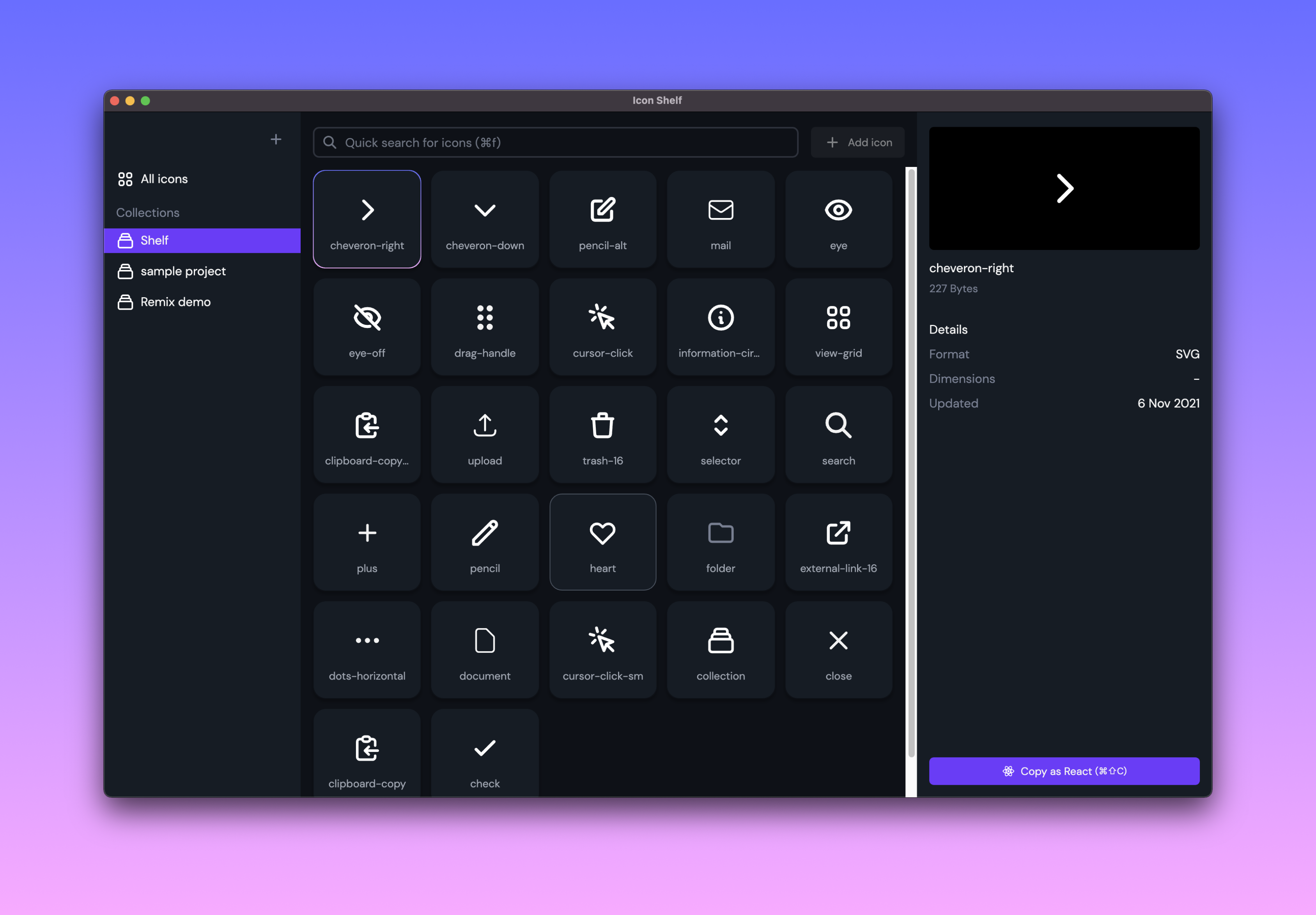

User reviews (0)