
 简体中文
简体中文 English
Website review
This review may include AI-generated content and is not individually verified. Domain, certificate and other facts come from the observed data on this page.
What is iKeyMonitor?
iKeyMonitor is a parental control app for Android and iPhone/iPad that combines phone monitoring with control tools. According to its own site, it lets parents see text messages, call logs, browsing history, chat messages on apps like WhatsApp and Snapchat, GPS location, surroundings audio, and real-time screenshots. It also offers blocking of inappropriate apps and games, screen time limits, and instant alerts. The site says more than 400,000 parents across 100 countries use it and mentions a free plan.
A practical way to think about it: it leans more toward monitoring than simple restriction. If your main goal is setting bedtime limits or blocking a few apps, a lighter control app may be enough. If you want visibility into messages and locations, iKeyMonitor is built for that.
Who it suits
- Parents who want to review messages, call logs, and locations, not just set time limits.
- Families with both Android and iOS devices, since it covers both.
- Parents concerned about cyberbullying or contact from strangers, given its alert-word and chat-monitoring features.
Trade-offs to weigh
- Monitoring features can raise privacy and trust issues with older kids; talk about it openly where possible.
- Chat monitoring and surroundings audio depend on the platform and permissions, so check compatibility for your exact device before buying.
- A free plan is available, but the fuller monitoring features sit in paid plans; compare tiers on the official plans page rather than assuming everything is included.
Next step
Before committing, make a short list of the two or three things you actually need — for example, reading WhatsApp messages, GPS alerts, or app blocking — then verify each one is supported on your child's phone model and OS version. Start with the free plan or demo, test those specific features, and only then decide whether a paid tier is worth it. You can compare options at iKeyMonitor.
How does iKeyMonitor help protect my child from cyberbullying?
iKeyMonitor addresses cyberbullying mainly by making a child's phone activity visible to a parent and by turning certain words into alerts. According to the product's own page, it monitors text messages, chat messages on apps such as WhatsApp and Snapchat, browsing history, call logs and GPS location, and it lets you add alert words to detect cyberbullying. It also supports blocking inappropriate apps and games, setting screen time limits and receiving instant alerts. So the protection is not a single filter; it combines monitoring, keyword detection and controls.
What that looks like in practice
A parent worried about bullying usually wants three things: to notice a problem early, to understand what is actually happening, and to respond without making things worse.
- Early notice: Alert words are the most direct cyberbullying feature. You choose terms that concern you, and the app flags them when they appear in monitored messages. This is useful for catching repeated insults or threats that a child may not report.
- Context: A flagged word alone can mislead. Reading the surrounding chat messages and browsing history helps you judge whether a message is a joke between friends, a one-off argument or a pattern.
- Control: Blocking apps and setting time limits can reduce exposure on a specific platform, but it does not remove bullying that happens at school or moves to another app.
- Location and calls: GPS and call logs are less about bullying directly, but they can help confirm where a child was and who they were in contact with when an incident occurred.
Where it fits and where it does not
iKeyMonitor is aimed at parents who want an all-in-one monitoring and control tool for Android and iPhone/iPad, and the page presents a free plan alongside paid plans. That makes it reasonable to try the core monitoring before committing. The trade-off is familiar with monitoring apps: the more visibility you gain, the more you rely on your own judgment and on your child's willingness to accept the arrangement. A hidden monitoring setup can damage trust if discovered, while an open one can become a shared safety agreement. The page also cites broad statistics about cyberbullying and social media, but those are context, not evidence that the app will prevent a specific incident.
A practical next step
Before installing anything, write down what you actually want to catch: threats, sexual grooming, exclusion from group chats, or late-night conflict. Then check whether the specific apps your child uses are covered, and decide in advance how you will respond to an alert. If you want to compare the approach with other parental-control tools, official starting points include iKeyMonitor, Common Sense Media for age and app guidance, and ConnectSafely for family conversation advice. The most useful setup is usually one where your child knows monitoring exists and you have agreed what happens when an alert appears.
What steps do I need to take to install iKeyMonitor on my child's phone?
Installing iKeyMonitor means matching the setup method to the child's device. Android and iPhone/iPad differ in what you must do on the phone and what the app can then see, so plan around the device type first.
Before you start
- Confirm which phone your child uses and whether you have physical access to it. Android setup normally requires installing the app on the phone; iPhone/iPad setup may rely on iCloud credentials or a jailbroken device depending on the features you want.
- Decide which features matter most. iKeyMonitor's page lists text messages, call recording, browsing history, GPS location, surroundings listening, screenshots, and chat monitoring for WhatsApp, Snapchat and others, plus blocking, screen-time limits and alerts. Not every feature is available on every platform or setup method, so check compatibility before buying.
- Have the child's device passcode or Apple ID/iCloud credentials ready if the chosen method needs them, and keep the phone connected to Wi-Fi during setup.
Setup steps
- Create an iKeyMonitor account on the website and choose a plan. The site lists a free plan and a plans page at iKeyMonitor.
- Download the app to the target phone. The homepage offers a "Download Free" option and a demo, which is useful for seeing the control panel before committing.
- Install and grant the permissions the app requests. On Android this typically includes accessibility, notification access, and disabling battery optimisation so monitoring keeps running.
- Follow the in-app or dashboard instructions for your platform. Android usually completes inside the app; iPhone/iPad setup often differs and may require iCloud credentials rather than a direct install.
- Log in to the web control panel to confirm data appears. The page describes an "easy-to-use and powerful" panel where you view messages, locations, and set rules.
- Configure alerts and blocking rules, such as alert words for cyberbullying, app blocks, and screen-time limits.
Practical considerations
The main trade-off is depth versus simplicity. Android installations generally expose more monitoring features but need hands-on access and ongoing permissions. iPhone/iPad setups can be less invasive but may restrict what is captured unless the device is jailbroken. Test on a spare device or use the demo first if you are unsure.
Also think about the conversation with your child. Covert monitoring is legally and ethically sensitive and varies by region; many families get better results by explaining what is monitored and why. As a next step, open the demo on the site and compare it against your child's actual phone model and OS version before installing.
Can I monitor my child's WhatsApp and Snapchat messages with iKeyMonitor?
Yes. iKeyMonitor lists WhatsApp and Snapchat among the chat apps you can view messages from, alongside text messages, call logs, browsing history and GPS location. That is the headline answer, but the practical picture depends on your child's phone type and on how you plan to use what you see.
How it works in practice
You install the app on your child's device, then read the collected activity from a web-based control panel rather than on the phone itself. The page describes the panel as easy to use and powerful, and the setup as all-in-one for Android and iPhone/iPad.
For WhatsApp and Snapchat specifically, expect the useful material to be message content and chat activity, not a live mirror of the screen. iKeyMonitor also mentions real-time screenshots, which can fill gaps when a chat app's own storage is limited or messages disappear.
Android vs iPhone: the trade-off that matters
| Android | iPhone/iPad | |
|---|---|---|
| Chat monitoring | Typically the fuller set, since the app can read more on the device | Usually more restricted because of iOS sandboxing |
| What you may need | The app installed on the phone | Sometimes account credentials or a backup-based method |
| Best fit | Families wanting broad chat and app coverage | Families who accept narrower coverage |
The page does not spell out these per-platform limits, so treat the table as general guidance about how phone monitoring usually works, and confirm the exact WhatsApp and Snapchat support for your model before buying. Compatibility is a listed section on the site, and there is a free plan plus a demo you can try.
A realistic scenario
Suppose your 13-year-old is being contacted by a stranger on Snapchat. With chat viewing plus alert words, you could see the exchange and get flagged when threatening language appears, then act. The same setup is far less useful if your child uses a disappearing-message feature or switches apps, so pair monitoring with an open conversation about why you are checking.
Decide before you buy
- Confirm your child's exact phone model and OS version are supported for the chat apps you care about.
- Check whether the free plan or demo covers WhatsApp and Snapchat, or only basic monitoring.
- Ask whether you need message content, screenshots, or both.
- Weigh privacy: broad chat access is powerful, and it works best when your child knows it exists.
Start with the free plan or demo on iKeyMonitor, test one chat app, and only then choose a paid plan. For a second opinion on platform limits, compare with Qustodio or Norton Family, which take different approaches to social app monitoring.
How do I set screen time limits and block inappropriate apps using iKeyMonitor?
iKeyMonitor handles both tasks from the same control panel, but the two features work differently: screen time limits are schedule-based, while app blocking is rule-based against specific apps or categories.
Setting screen time limits
The page describes this as setting "healthy time limits" and "blocking rules" to manage a child's screen usage. In practice, that means you choose a device, then define time windows — for example, no phone use during school hours or after a set bedtime. The schedule applies to the child's device, so the restriction holds even when you are not actively watching.
A workable starting point: begin with one window (school nights), confirm it does not cut off calls or messages your child genuinely needs, then add a second window.
Blocking inappropriate apps
The product page lists "block inappropriate apps and games" alongside instant alerts. You select the apps or categories you want unavailable on the device, and the block is enforced from the panel rather than by removing the app manually. Because the same panel also surfaces chat messages from WhatsApp, Snapchat and similar apps, you can review what prompted a block instead of guessing.
How the two compare
| Task | What you configure | Best suited to |
|---|---|---|
| Screen time limits | Time windows per device | Bedtime, homework hours, overall daily usage |
| App blocking | Specific apps or categories | Games, social apps, age-inappropriate content |
| Alert words | Keywords that trigger notifications | Catching cyberbullying or predatory contact early |
Practical next step
Decide your goal first. If the problem is "too much time on the phone," set a schedule. If it is "this specific app," block it. If it is "I do not know what is happening," start with alert words and chat monitoring, then add limits once you see patterns. The site offers a free plan and a demo, so you can test the panel's layout before committing — useful, since a control panel you find confusing will not get used consistently.
One caution: monitoring and blocking work best as a known arrangement with your child. Covert monitoring tends to produce conflict rather than protection, and the page's own framing — stopping cyberbullying, predators and phone addiction — is easier to achieve when your child understands why the limits exist.
What are the pricing plans and free options available for iKeyMonitor?
iKeyMonitor does not publish its plan prices on the page you provided; the only pricing-related link points to its PLANS page, where current tiers and rates are listed. What the page does confirm is that a Free Plan exists and that you can Download Free or View Demo before committing. In other words, you can test the app and see the monitoring panel before paying, but you need to open the plans page to compare paid tiers.
What the free option likely means in practice
A free tier in a parental-control app usually serves as a trial: you get the app installed and a limited look at the dashboard, while advanced monitoring features (chat capture, screen time rules, alerts) sit behind a paid plan. Treat the free plan as an evaluation window, not a long-term setup.
How to decide which plan fits
- Number of children/devices — most vendors price per device or per child; check this on the plans page.
- Platform mix — the page targets both Android and iPhone/iPad, but feature sets often differ between them, so confirm what each platform includes at each tier.
- Feature depth — decide whether you need just location and screen-time limits, or also message monitoring, screenshots and alert words.
- Billing length — longer commitments typically lower the effective monthly cost.
Next step
Open the PLANS page, note the price for the tier that covers your number of devices, then start with the free download or demo to verify the features work on your child's specific phone model before paying.
 Cloudflare
 Google Workspace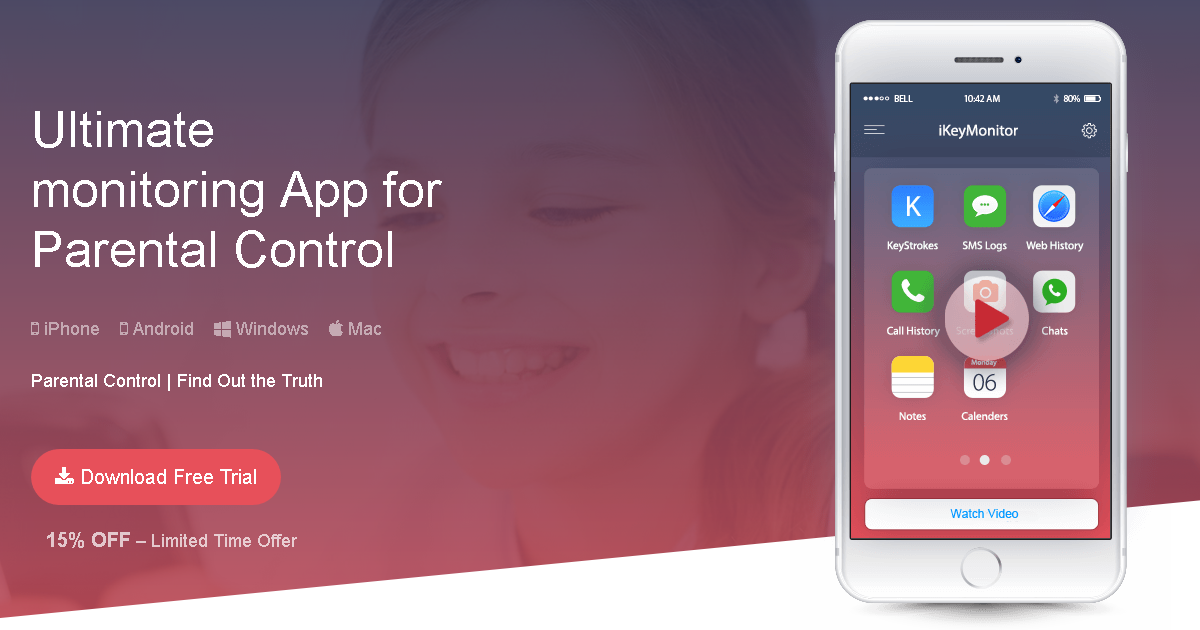

User reviews (0)