
 简体中文
简体中文 English
Website review
This review may include AI-generated content and is not individually verified. Domain, certificate and other facts come from the observed data on this page.
What is Lex?
Lex is an AI-powered word processor and collaborative writing app. Its pitch is a minimalist document editor with AI assistance built in: you can ask the AI for feedback on a draft, brainstorm ideas, rewrite passages, generate title ideas, and use shortcuts to find a better word. Alongside that, it offers the document basics many writers expect—comments, version history so you can try a different phrasing without losing your current text, live collaboration via a shared link (no app download needed), and read-only publishing links so others can read your work.
Who it suits
Lex is aimed at individual writers and small teams who want a distraction-light editor and are comfortable having AI help shape their drafts. The page's testimonial, from Amanda Natividad of SparkToro, frames it as a Google Docs replacement with a cleaner interface and AI acting as a real-time editor for faster iteration. That reflects her experience, not a guarantee; in practice, the fit depends on how much you want AI in the drafting loop versus keeping it out of your way.
The practical catch
The most important detail on the page is that Lex is no longer accepting new customers. Existing accounts keep working, but you cannot sign up as a new user. So "What is Lex?" has two answers:
- For existing users: a working collaborative AI writing tool you can keep using.
- For everyone else: a product you can't currently adopt, however appealing the feature list looks.
If you're evaluating it as a new option, treat it as unavailable and compare current alternatives instead—for example Google Docs for familiar collaboration, or Notion if you want writing and notes in one workspace. As a next step, decide whether your priority is AI-assisted drafting or plain collaborative documents, then check that a candidate is actually open to new signups before investing time in it.
How does Lex's AI feedback feature compare to using a general chatbot for editing drafts?
Lex's AI feedback feature is an editing tool built into the document itself: you ask the AI for feedback on your draft, brainstorm ideas, or rewrite passages without leaving the page. The core difference from a general chatbot is context and workflow. In Lex, the AI sees the draft where it lives, so feedback can be applied in place, and companion features like suggested versions let you try a different phrasing without losing what you had. A general chatbot is better when you want a fresh, outside perspective, a back-and-forth conversation about structure or argument, or help with material that isn't a single document.
Where each fits
| Need | Lex's built-in AI feedback | General chatbot |
|---|---|---|
| Editing an existing draft | Strong: feedback and rewrites happen in the document | Workable, but requires copying text back and forth |
| Trying alternative phrasings | Strong: versions let you compare without losing the original | Possible, but versions live in the chat, not the draft |
| Open-ended brainstorming or debate | Limited to the document's context | Strong: conversational, can challenge assumptions |
| Working across many files or sources | Not the focus | Strong: you can paste or upload varied material |
| Keeping edits and text together | Strong: one workspace | Weak: chat history and draft drift apart |
A concrete scenario: you've finished a 900-word product announcement and want tighter sentences. In Lex, you select a paragraph, ask for feedback, and accept a rewrite in place; the draft stays the source of truth. If instead you're unsure whether the announcement's angle is right, a general chatbot is the better sounding board, because you can talk through audience and message before touching the text.
One practical note: Lex's page states it is no longer accepting new customers, though existing accounts keep working. So this comparison matters mainly if you already have an account; otherwise, weigh a general chatbot or another writing tool. For a broader look at AI-assisted writing options, OpenAI and Anthropic document their chatbots' editing capabilities.
Decision criterion: choose in-document AI feedback when the task is revising text you've already written and you want changes applied where you work; choose a general chatbot when the task is thinking, planning, or editing material spread across sources.
What happens to my writing and account now that Lex is no longer accepting new customers?
Existing accounts keep working as usual, and your writing stays accessible through them. Lex's page states that it has stopped accepting new customers while existing accounts continue to function normally. So if you already have an account, you can log in and write as before; the change affects new sign-ups, not current users.
What this means in practice
- Your documents: Nothing on the page suggests existing writing is removed. The practical assumption is that your drafts remain in your account, but it is worth exporting anything critical as a backup.
- Features: The page still describes AI feedback, comments, version history, live collaboration, publishing read-only links and mobile web access. These are presented as part of the product for existing users, not as a guarantee of indefinite support.
- Collaborators: People you share links with can still collaborate without downloading an app, according to the page. New collaborators do not need a new Lex account to join through a link.
A sensible next step
If Lex holds work you rely on, export your key documents now and keep copies elsewhere. Then decide whether to keep using Lex for drafting while it works for you, or move long-term projects to a tool with clearer continuity. For a writer mid-project, the low-effort move is to finish current drafts in Lex, export them, and start new work wherever you plan to stay.
For questions about your specific account, the page directs existing users to email the address listed there.
How does live collaboration in Lex work without requiring collaborators to download an app?
Lex handles this by making collaboration run through a shared link in the browser rather than through installed software. According to the page, you share a link, the other person logs in with one click, and you can both see what each other is typing in real time. The mobile web point reinforces it: a collaborator can open the link on a phone's browser and work with you "no app download required." A separate read-only publishing link lets you send finished work to readers who only need to view it.
How the two link types differ
| Link type | What the recipient can do | Typical use |
|---|---|---|
| Live collaboration link | Log in and edit alongside you in real time | Co-drafting a memo, editing a shared draft with a colleague |
| Read-only publishing link | View the document without editing | Sending a finished piece to a client or reviewer |
The practical trade-off is that the no-download convenience depends on a browser session and a one-click login, so collaborators still need an account or login step—it just isn't an install. For a quick example: a marketing lead sends a draft link to a freelance editor; the editor opens it on a laptop or phone browser, signs in, and edits live while the lead watches the changes appear.
One thing to check before planning around this: the page states Lex is no longer accepting new customers, though existing accounts keep working. If you're setting up a new team, confirm whether your collaborators already have accounts, since a live link is only useful to people who can log in. For teams starting fresh, mainstream browser-based editors such as Google Docs cover the same link-and-edit model.
When should I use Lex's version history versus track changes to compare edits?
Use Lex's version history when you want to revisit a whole draft as it existed at a point in time; use track changes when you want to see and accept or reject specific edits. The key distinction is scope: versions snapshot the document, while track changes annotate the changes themselves.
What each is for
- Version history suits comparing broader revisions: you rewrote an introduction, restructured sections, or want to recover an earlier direction without losing the current draft. On Lex, the page describes versions as a way to "try a different way of saying it without losing what you've got," which fits this snapshot-and-restore use.
- Track changes suits line-level review: a collaborator tightened sentences, and you need to accept or reject each suggestion. Lex's page lists track changes as "coming soon," so for now, the practical route for line-level comparison is version history plus comments.
A concrete scenario
Suppose a colleague edits your draft and you're unsure whether their cuts improved it. With version history, open the earlier version alongside the current one and read both in full—useful for judging overall flow and tone. With track changes (once available), you'd see each deletion and insertion in place and decide individually—useful for precision and accountability in a review cycle.
Decision criteria
| Situation | Better tool |
|---|---|
| Comparing overall direction or structure | Version history |
| Recovering text you deleted | Version history |
| Reviewing a collaborator's specific edits | Track changes (when available) |
| Deciding whether to keep a rewrite | Version history, then compare |
| Formal editorial sign-off | Track changes, paired with comments |
A practical next step: for now, rely on version history plus Lex's AI feedback and comments for review, and treat track changes as an upcoming addition rather than a current workflow. If your team depends on line-by-line acceptance today, Google Docs offers established suggestion mode as a fallback for that specific step.
How can I get one-click title ideas and AI command shortcuts to speed up my writing workflow?
Lex is a web-based writing tool built around AI-assisted drafting, and its page lists two features that match your request: Title Ideas, which generates a list of title suggestions from the AI in one click, and Commands, described as handy AI shortcuts for tasks like finding the best word or generating a list of ideas. These are the closest things to a "one-click" workflow on the site.
One practical caveat shapes everything else: the page states Lex is no longer accepting new customers, and that existing accounts keep working as usual. So if you don't already have an account, you can't sign up to use these shortcuts—this matters more than any feature comparison.
What the page actually promises
| Feature | What it does per the page | Best for |
|---|---|---|
| Title Ideas | One click produces a list of title suggestions from the AI | Headlines, subject lines, naming drafts |
| Commands | Keyboard-driven AI shortcuts, e.g., finding a better word or listing ideas | Mid-draft fixes without leaving the page |
| AI Feedback | Ask the AI to critique a draft, brainstorm, or rewrite | Early revision passes |
| Versions | Try a different phrasing without losing the original | Comparing rewrites safely |
A realistic scenario
Say you've finished a blog draft and are stuck on a headline. You'd open the document, trigger Title Ideas, scan the list, and pick one—then use Commands to tighten a clumsy sentence or two without breaking your flow. The appeal is staying inside the editor rather than bouncing between a chatbot and your document.
If you're starting fresh
Since new signups are closed, treat Lex as a reference point rather than an option. Look for editors that pair an inline AI assistant with a one-click title or outline generator, and test one thing before committing: whether the AI acts on your selected text or only on the whole document. Selection-aware tools are far faster for word-level fixes. Established alternatives worth evaluating include Notion (AI blocks inside documents) and Grammarly (inline suggestions), though neither is a like-for-like replacement—check each one's current feature set yourself.
Decision criterion
Choose a tool based on how few steps separate "I want a better title" from "I have five options in front of me." If that takes more than a click or a shortcut, the workflow gain is mostly cosmetic.
 Cloudflare
 Google Workspace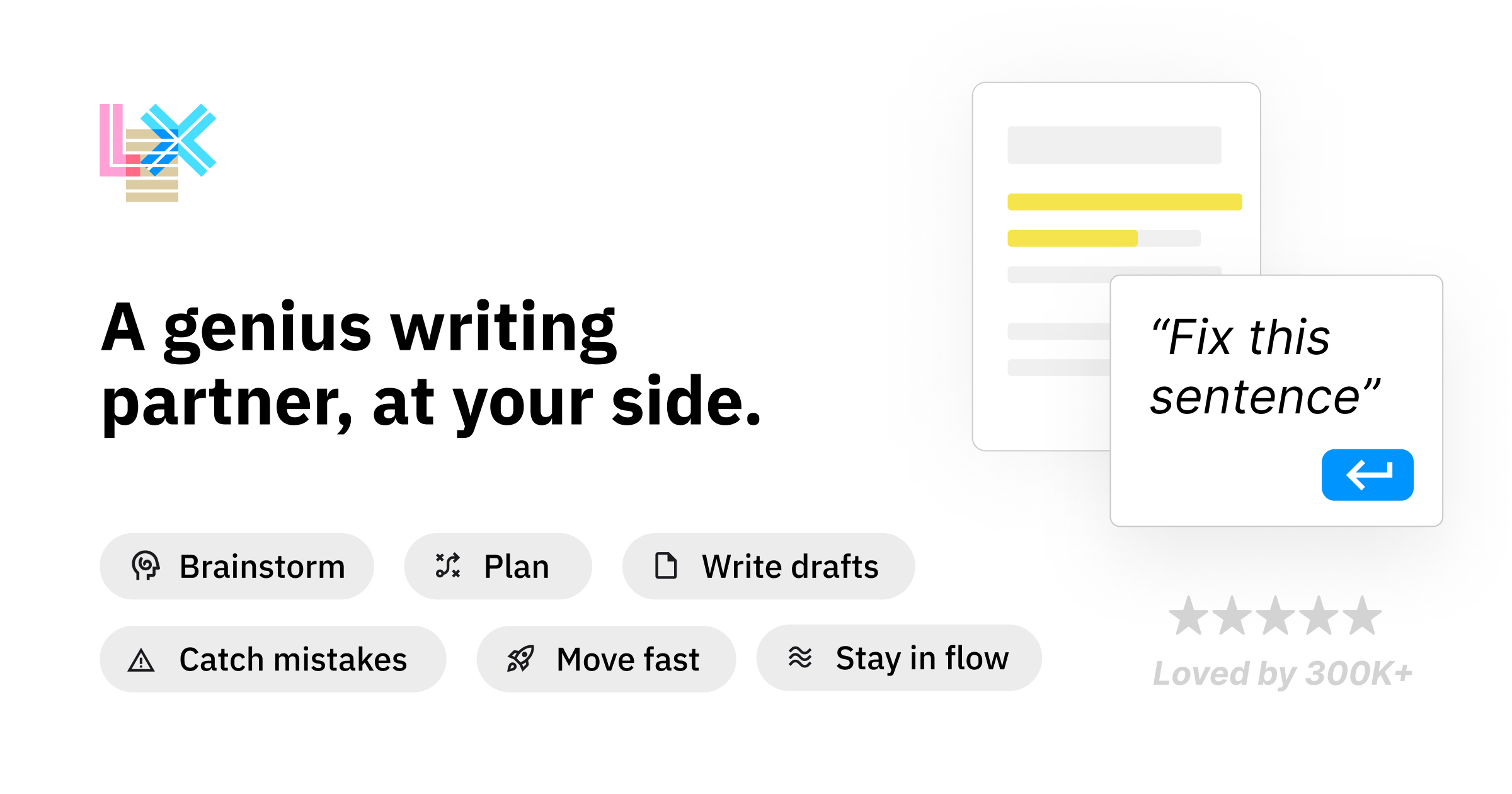
User reviews (0)