Website profiles · Technology insights · Alternatives

maketext.io

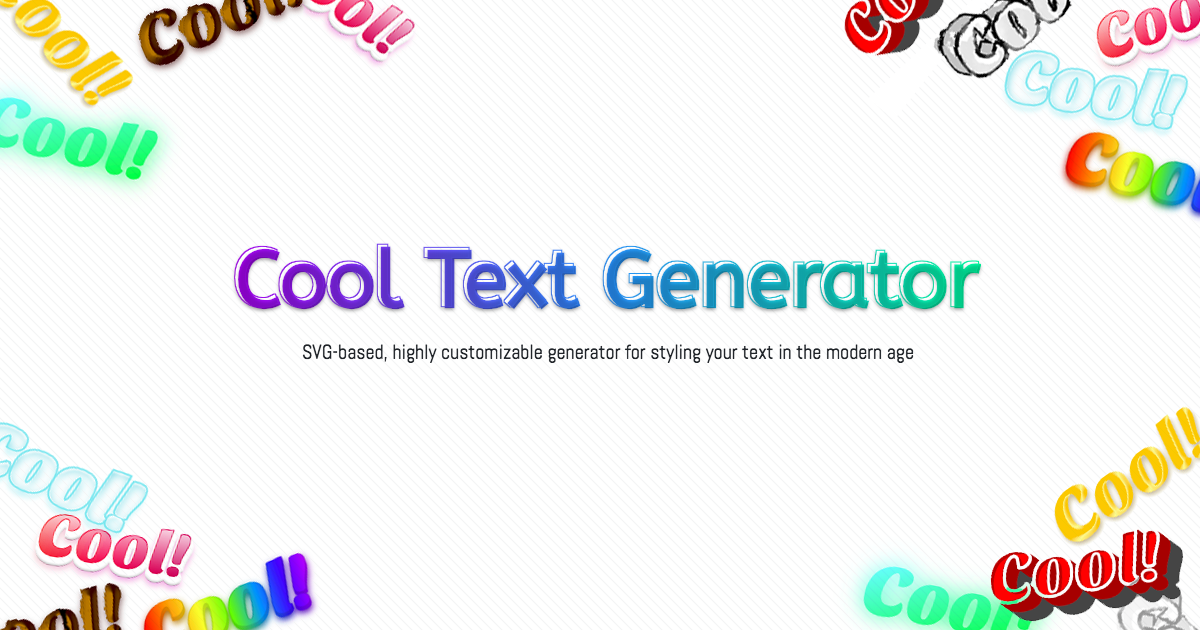
style your words and logos with tons of fonts and customizable effects within seconds.

No paid content found
Visit website
Profile views 1 Outbound visits 11 Normal
maketext.io Full homepage screenshot

At a glance

Category
Other
Language
English
Paid-content signal
No paid content foundObserved
Registered
Unknown
Hosting
CloudflareInferred
HTTPS certificate trusted
PassedObserved
Last updated

Website review

This review may include AI-generated content and is not individually verified. Domain, certificate and other facts come from the observed data on this page.

What is maketext.io?

maketext.io is a browser-based tool for turning plain words into styled text and simple logos. You type your text, browse a library of effects and fonts, adjust details like color, font size and background, then download the result as SVG or PNG. The site describes it as aimed at people who need a decent-looking styled word or logo quickly without Photoshop or a design background.

What you can actually do with it

  • Create a styled heading, badge or wordmark for a small project, slide deck or prototype.
  • Try a look by browsing effects rather than building one from scratch.
  • Export vector (SVG) for use in HTML or further editing, or raster (PNG) when you need an image file that displays consistently.

The main trade-off: SVG vs PNG

The site itself flags this distinction, and it matters in practice.

Format Good for Watch out for
SVG Web pages, scalable logos, later editing Filter rendering can vary in older browsers; can be CPU-heavy with complex effects
PNG Fixed images, sharing, places that don't handle SVG well Not scalable without losing quality

Who it suits

It fits a quick, one-off need: a solo maker, student or small team that wants a stylish text image in minutes. Someone needing precise brand control, print-ready artwork or a full design system would likely outgrow it.

As a next step, decide your output first: if the text will live on a website or need resizing, start with SVG and test it in your target browsers; if it's going into a document or chat, PNG is the safer default.

How do I download a text effect as SVG or PNG for use in my project?

Type your text into the generator, pick an effect and font, then use the download control and choose SVG or PNG from the "Download As…" options. On maketext.io both formats are offered for every effect, so the real decision is which format suits your project.

Choosing between SVG and PNG

SVG PNG
Best for Logos, headings and graphics that must stay sharp at any size; use directly in HTML Fixed-size images, quick previews, or places that don't accept SVG
Scaling Stays crisp when resized Can look soft or pixelated when enlarged
Browser support Modern Chrome, Firefox and Safari render the filters well; older browsers such as IE9 are a risk Widely supported everywhere
Performance Rendering complex filters can be CPU-intensive, especially with several instances on one page Lighter to render as a flat image

The site itself notes that its effects rely on complex SVG filters and that rendering SVG can be heavier than raster images—worth knowing if you plan to repeat a styled heading many times on a page.

A practical next step

For a website header or logo, download SVG and test it in your target browsers first. For a slide deck, email image or a platform that blocks SVG uploads, take the PNG. If you're unsure how a specific effect will hold up, download both and compare at the sizes you'll actually use.

For plain, copy-and-paste styled characters rather than image files, the site also points to a separate fancy text generator; maketext.io is the image-based option.

What are the differences between SVG and PNG downloads, and which should I choose for browser compatibility?

The main difference is that SVG is a vector format that keeps your text and effects editable and sharp at any size, while PNG is a fixed-resolution raster image. For browser compatibility, choose PNG when you need the widest, most predictable rendering—especially for older browsers like IE9—because SVG filters can render differently across browsers. Choose SVG when your audience uses current Chrome, Firefox, or Safari and you want scalable, crisp output for web use.

When each format makes sense

  • SVG: Best for logos, headers, and graphics that must stay sharp when resized or viewed on high-density screens. It suits modern web projects where you control the target browsers. The trade-off is that complex SVG filters can be more CPU-intensive to render and may not look identical everywhere.
  • PNG: Best for guaranteed visual consistency, sharing on social media, email, or places that don't handle SVG well. The trade-off is fixed resolution—enlarging it can blur the edges—and larger file sizes at high resolutions.

A practical decision rule

If your text will appear on a public site with unknown or older browsers, download PNG to avoid rendering surprises. If it's for a modern site, an app, or print-style scaling, SVG gives you more flexibility. When in doubt, download both: use SVG on the live site and keep PNG as a fallback for compatibility-sensitive contexts.

As a next step, test your chosen effect in the browsers your audience actually uses before publishing, since the SVG filter rendering is where differences are most likely to appear.

How can I use maketext.io to create a logo without design software?

Use maketext.io as a quick text-and-effects logo maker: type your brand name, pick a font and an effect, adjust color, size and background, then download the result as SVG or PNG. The site describes itself as a browser-based "Cool Text Generator" built around SVG filters and 800+ open-licensed web fonts, aimed at people who want a decent-looking styled wordmark in minutes without Photoshop or a design background. For a simple text logo, that is often all you need.

A practical workflow

  1. Open the generator and type your brand or product name. Keep it short; a logo has to stay legible at small sizes.
  2. Choose a font from the large library that matches your tone — a clean sans-serif for a tech or service brand, something more decorative for a craft or event brand.
  3. Apply an effect and tune color, font size and background using the on-screen controls.
  4. Download SVG if you will use the logo on a website, in print or at multiple sizes; choose PNG when you need a raster image for social profiles, slides or places that don't accept SVG.

SVG or PNG?

Format Best for Trade-off
SVG Websites, scalable print, further editing in vector tools Rendering depends on SVG filter support; the site itself warns that older browsers such as IE9 may render effects differently, and that its complex filters can be CPU-intensive to render
PNG Social media avatars, documents, quick mockups Fixed resolution; enlarging it later loses sharpness

Where it fits and where it doesn't

This approach suits a side project, a prototype, a small shop's social header or a temporary event logo — anything where speed matters more than a bespoke identity. It is less suitable for a logo that must work as a single-color mark on merchandise, or one you plan to trademark and refine over years; for those, a designer working in vector software gives you cleaner control. A sensible test: shrink your downloaded logo to favicon size and check it is still readable. If it isn't, simplify the effect rather than the name.

As a next step, export both an SVG for your site header and a PNG at a size suited to your main social profile, then view them side by side on light and dark backgrounds before committing.

Which browsers support the SVG filters used by maketext.io's text effects?

Modern versions of Chrome, Firefox and Safari should render maketext.io's SVG-filter effects correctly, according to the site's own technical notes. Older browsers, Internet Explorer in particular (the site singles out IE9), are where you should expect differences or breakage, because SVG filter support varies between implementations. The site itself recommends checking current SVG filter support data before relying on it for a project that must serve old browsers.

What this means in practice

  • SVG download: best when the text effect will live on a modern website and you want crisp scaling. Treat anything older than current Chrome, Firefox or Safari as unverified until you test it.
  • PNG download: the safer fallback for email, print, social posts or audiences on legacy browsers, since it is a flat raster image that renders the same everywhere.
  • Performance: the site also warns that SVG filters are CPU-intensive to render, especially the complex ones it offers, so heavy effects may feel sluggish even in browsers that support them.

A sensible next step

If you are producing a logo or banner for a general audience, download both formats: use the SVG on your own modern site and keep the PNG for everywhere else. If you specifically need IE9-era support, plan on the PNG as your primary asset and test the SVG in the browsers your analytics actually show. For up-to-date compatibility, consult Can I Use rather than assuming uniform support.

Does rendering maketext.io's SVG text effects impact performance, and how can I optimize it?

Yes—SVG text effects from maketext.io can cost more to render than a flat PNG, and the site says so itself: its own technical notes warn that SVG rendering can be more CPU-intensive than raster images, "especially" with complicated filters, and that almost all of its effects are complicated. So the performance question is real, not theoretical.

What actually drives the cost

  • Filter complexity. Each effect is built on SVG filters. Blurs, glows, shadows and layered distortions are the expensive ones; a plain fill or simple outline is cheap.
  • How often it repaints. A static logo drawn once is fine. The same effect re-rendered on scroll, hover, resize or animation is where you feel it.
  • Browser differences. maketext.io notes that SVG filter implementations vary between browsers and flags older ones like IE9 as a risk. Test on the browsers your audience actually uses rather than assuming uniform behavior.
  • Size on screen. A large filtered graphic scaled up repaints more pixels than a small one.

Practical ways to optimize

  1. Export PNG for heavy effects. The site offers both SVG and PNG downloads. For a complex filter used as a fixed logo or hero image, the PNG is the lower-risk choice; keep SVG for cases where you need crisp scaling or editable vectors.
  2. Render SVG once, not continuously. Avoid animating or re-triggering the filter. If the graphic sits still, the browser has little to redo.
  3. Reduce the filtered area. Crop tight, avoid full-bleed filtered text, and don't stack multiple filtered layers.
  4. Use will-change sparingly. The site's notes point toward the CSS will-change property as a lever; applying it to the specific element can help the browser prepare, but overusing it on many elements backfires.
  5. Prefer simpler effects for interactive or repeated elements. Save the showiest filters for one-off hero graphics.
  6. Test with the effect you chose. Measure in your target browsers rather than generalizing from one effect to another.

Decision rule

If the text is decorative, static and complex → export PNG. If it must scale sharply, stay editable, or match surrounding vector artwork and the effect is moderate → keep SVG, render it once, and verify in the browsers you support.

As a next step, pick your two or three most complex candidate effects, export both formats, and compare load and scroll smoothness on a mid-range phone—that tells you more than any general rule. For broader context on SVG filter support you can check Can I Use.

Related questions

More questions →
Is maketext.io Free, and Do You Need an Account?

Yes, maketext.io is free to use, and you can generate and download styled text without creating an account. The site states plainly, "Don't Worry, It's Free!" and its workflow—type text, pick an effect, customize, download—is presented as an open, browse-and-pick tool. Sign-up and login exist, but the page does not tie downloading to being signed in.

What you can do without an account

The core loop is available to any visitor:

  1. Enter your text in the "First, type some texts to start with" field.
  2. Pick one of the 30+ effects and a font from the 800+ web fonts.
  3. Adjust color, font size, and background palette.
  4. Choose Download As… SVG or PNG and click the download button.

The generated image appears in a preview panel with a download button, so the free path covers creation and export.

What the account options are for

The page shows SIGNUP and LOGIN forms (email, display name, password) plus "login with Facebook / Google," along with a "forgot password?" link. It also offers a newsletter subscribe option. The available page content does not specify which features require an account—for example, whether saved designs or history are gated. Treat login as optional unless you hit a feature that asks for it.

Question Answer from the page
Is it free? Yes—"Don't Worry, It's Free!"
Account required to download? Not indicated; download is part of the main tool flow
Login methods Email/password, Facebook, Google
Paid tiers mentioned None on the page

A note on the two download formats

The choice between SVG and PNG matters more than the account question for most users. The site explains that every effect is offered in both formats, and that SVG is vector-based and suited to HTML5 use, while PNG is raster. Two caveats it raises:

  • Browser compatibility: SVG filters may render differently in older browsers such as IE9; current Chrome, Firefox, and Safari should render them correctly.
  • Rendering performance: complicated SVG filters can be more CPU-intensive than raster images, so consider this if you are placing many effects on one page.

If you need a logo or text graphic for print or a design file, SVG keeps it scalable; if you need a quick image for a slide or social post, PNG is the simpler drop-in.

In short: start using it without signing up, and only create an account if a specific feature prompts you to.

Browser Compatibility and Performance Limits on maketext.io

maketext.io generates styled text as SVG or PNG, and the format you choose determines what can go wrong. SVG output relies on SVG filters, which modern Chrome, Firefox, and Safari should render correctly but older browsers — Internet Explorer 9 is the example the site itself names — may not. SVG rendering can also be more CPU-intensive than raster images, especially with the complex filters the tool uses, so heavy pages or low-powered devices may feel it. If you need broad browser support or predictable performance, download PNG instead.

What the site says about browser support

maketext.io states that every fancy text effect is available in both SVG and PNG. It also warns that, like CSS properties with uneven support, browser implementations of the SVG filters it uses can differ — particularly in old browsers such as IE9.

The site's own guidance:

  • Latest Chrome, Firefox, and Safari should render the SVG filters correctly.
  • Older browsers, including IE9, may not — check before relying on SVG output if you must support them.
  • For a detailed support list, the site points to Can I Use for "SVG filter."

That last point is the practical check: before committing an SVG asset to a page that serves older or unusual browsers, look up SVG filter support on Can I Use and compare it with your audience's browsers.

Why SVG can be slower than PNG

The site explains that rendering SVG can be more CPU-intensive than rendering raster images like PNG or JPG. This is "especially true when using complicated SVG filters, and almost all filters here are complicated."

In practice, that means:

  • An SVG text graphic is re-rendered by the browser rather than displayed as fixed pixels, so the filter work happens on the viewer's device.
  • Pages with several large SVG effect images, or animations that force re-rendering, can become sluggish on weaker hardware.
  • PNG is a flat raster image — once downloaded, it costs the browser almost nothing extra to display.

The page's excerpt also begins to mention the CSS property will-change as a performance consideration, though the text is cut off there. The general idea is standard: hint the browser about elements that will change so it can optimize rendering.

Choosing SVG or PNG with these limits in mind

Your situation Better choice Why
Modern browsers only, need crisp scaling SVG Renders correctly in current Chrome, Firefox, Safari; stays sharp at any size
Must support IE9 or other old browsers PNG SVG filter support is unreliable there
Many graphics on one page, or low-power devices PNG Avoids repeated CPU-intensive SVG filter rendering
Logo or asset that will be resized often SVG Vector output scales without quality loss
Quick share on social media or chat PNG Universally displayable, no filter rendering needed

A reasonable default: design and preview in the tool, download SVG when your audience is on current browsers and you need scalability, and fall back to PNG whenever compatibility or performance is in doubt. If you are unsure, download both — the site offers both formats for every effect.

Practical checks before you publish

  1. Identify your audience's browsers. If analytics show anything older than current Chrome, Firefox, or Safari, treat SVG as risky.
  2. Test the actual file. Open the downloaded SVG in the browsers you support and confirm the effect looks as intended — filter differences can change appearance, not just break it.
  3. Watch page weight and smoothness. If a page with several SVG effects scrolls poorly on a modest device, switch the heaviest ones to PNG.
  4. Use Can I Use for edge cases. The site explicitly recommends it for SVG filter support details.

The core trade-off is simple: SVG gives you scalable, editable-quality vector output that depends on modern browser filter support and costs more rendering effort; PNG gives you a universally displayable, cheap-to-render image that is fixed in resolution. Knowing which constraint matters more for your project is the whole decision.

Should I download my maketext.io design as SVG or PNG?

Choose SVG when the text will be used on a modern website or anywhere it needs to scale cleanly, and choose PNG when you need a raster image that renders consistently across older browsers and software. maketext.io offers both formats for every effect, and the right pick depends on where the image will live and how much compatibility you need.

What each format gives you

Consideration SVG PNG
Image type Vector, built for HTML5 use Raster image
Scaling Stays sharp when resized Can soften when enlarged
Browser support Depends on SVG filter support; older browsers such as IE9 may differ Broadly compatible as a standard image
Rendering cost Can be more CPU-intensive, especially with complex filters Generally lighter to render
Best for Modern web pages, responsive layouts, logos that need to scale Older environments, places that only accept raster images, predictable rendering

When SVG is the better download

Pick SVG if the design is going onto a site viewed in current Chrome, Firefox, or Safari and you want the text to remain crisp at any size. The site describes SVG as "well-prepared for everyone to use in HTML5 era," which fits logos, headings, and other web graphics that may be displayed at different dimensions.

The tradeoff is that maketext.io builds its effects with SVG filters, and filter support is not identical across every browser. The site notes that modern browsers should render them correctly but recommends checking if you must support older browsers like IE9. If your audience includes legacy browsers, verify the effect in those environments before committing to SVG.

When PNG is the safer choice

Pick PNG if you need an image that behaves like a normal picture file: email attachments, documents, social posts, or any tool that does not handle SVG. It is also the more cautious option when you cannot confirm that every viewer's browser handles the SVG filter used by your chosen effect.

The site also warns that rendering SVG can be more CPU-intensive than rendering raster images like PNG or JPG, and that this is especially true with complicated filters—which describes almost all of the effects offered. If the graphic will appear many times on a page or on lower-powered devices, PNG avoids that rendering load.

A practical way to decide

  1. Identify where the file will be used. A live website points toward SVG; a document, message, or unknown platform points toward PNG.
  2. Check the browsers you must support. If only current Chrome, Firefox, and Safari matter, SVG is reasonable. If older browsers are in scope, test the effect or default to PNG.
  3. Consider how often and how large the image appears. Repeated or complex-filter graphics may be better as PNG to reduce rendering cost.
  4. Download both if unsure. maketext.io lets you download each design as SVG or PNG, so you can compare the result in its actual destination before finalizing.

The core rule: SVG for scalable, modern web use with confirmed browser support; PNG for compatibility and predictable rendering everywhere else.

How to Create and Download a Styled Text Image on maketext.io

To create a styled text image on maketext.io, type your text into the generator, pick an effect, adjust the font, size, color, and background palette, then click download and choose SVG or PNG. The whole flow runs in the browser and requires no design software. The site describes the tool as free, though it also shows sign-in and sign-up options.

Step 1: Enter your text

Open the Cool Text Generator on maketext.io and type your words into the starting text field. The page prompts you with "First, type some texts to start with." This text becomes the base for every effect you preview, so enter the final wording or a close placeholder before styling.

Step 2: Pick an effect

Choose an effect from the available set. The site advertises 30+ effects built on SVG filters. Effects are the visual core of the tool, so browse a few before committing — switching later is quick, but each effect interacts differently with fonts and colors.

If you only need plain, copyable fancy characters rather than an image, the site points to a separate fancy text generator instead.

Step 3: Adjust font, size, color, and background

Use the controls to refine the look:

  • Font — pick from 800+ web fonts, described as open-font-licensed.
  • Font size — scale the text within the canvas.
  • Color — set the text color.
  • Background palette — choose the backdrop behind your text.

Change one setting at a time and watch the preview, since some SVG filter effects render differently depending on font weight and color contrast.

Step 4: Download as SVG or PNG

Click the download button, then select the format under "Download As …":

Format Best for Trade-offs
SVG Logos, web use in HTML5, anything you may resize or edit later Vector filters can render differently across browsers; rendering is more CPU-intensive than raster images
PNG Sharing, pasting into apps that don't handle SVG, consistent appearance Fixed resolution; not scalable without quality loss

The site's own guidance: modern Chrome, Firefox, and Safari should render the SVG filters correctly, but check compatibility if you must support older browsers such as IE9. Because nearly all effects use complicated SVG filters, SVG rendering can be heavier than PNG — relevant if the image appears on a performance-sensitive page.

Common snags

  • Effect looks different after download — browser SVG filter support varies; compare in your target browser before publishing.
  • Text is hard to read — adjust color and background palette together rather than changing the effect first.
  • Need editable plain text instead of an image — use the linked fancy text generator, not the image download.

What you get

A downloadable styled text image in SVG or PNG, generated from your own wording with a chosen effect, font, size, color, and background — suitable for quick logo drafts, headings, or social graphics without Photoshop.

What Is maketext.io and What Can You Create With It?

maketext.io is a browser-based text styling tool that turns plain words into downloadable SVG or PNG images using 30+ effects and 800+ open-licensed web fonts. It fits quick jobs where you need a decent-looking wordmark, title graphic, or logo draft in minutes and don't have Photoshop or design skills. You type text, pick an effect and font, adjust size, color, and background, then download.

What you can make

The tool is built around styling short text rather than laying out full designs. Typical outputs:

  • Logo drafts and wordmarks — a project or brand name with a filter effect applied, exported as vector for later use.
  • Titles and headings — styled text for a web page, slide, or video thumbnail.
  • Social or promo graphics — short phrases rendered with a chosen font and effect.
  • Copyable fancy text — the site also points to a separate fancy text generator for plain-text stylized characters you can paste into bios or posts.

The site describes its goal as getting "a decent stylish text in 10 minutes" by browsing and picking an effect, customizing, downloading, and using it.

How it works

  1. Type your text into the generator.
  2. Pick an effect from the available set.
  3. Choose a font from the 800+ web fonts, then set font size, color, and background palette.
  4. Preview the result, then download as SVG or PNG.

Effects are implemented with SVG filters, which is why the output is vector-first with raster support.

SVG vs PNG: which to download

Both formats are offered for every effect. The site's own technical notes give the trade-offs:

Consideration SVG PNG
Scaling Vector, scales cleanly Raster, fixed resolution
Use in HTML5/web Well suited Works everywhere
Browser rendering Depends on SVG filter support Universally consistent
Rendering cost Can be CPU-intensive, especially with complex filters Lighter to render

Two practical takeaways from the site's guidance:

  • Check browser support if you must serve older browsers. Modern Chrome, Firefox, and Safari should render the SVG filters correctly, but the site explicitly warns about older browsers such as IE9 and recommends checking Can I Use for "SVG filter" if legacy support matters.
  • Watch performance with complex filters. The site notes that almost all of its filters are complicated and that SVG rendering can be more CPU-intensive than raster images, suggesting CSS will-change as a mitigation.

Choose SVG when you need to scale the graphic or edit it as vector later and your audience is on modern browsers. Choose PNG when you need guaranteed identical rendering or a lightweight file.

Practical limits to know before you start

  • It's a text-styling generator, not a full design editor — expect to bring your own layout and composition elsewhere.
  • Font choice is limited to the site's open-licensed web font collection, so a specific brand typeface may not be available.
  • The site presents itself as free ("Don't Worry, It's Free!"), and it also offers account signup/login and social login; the available material doesn't detail any paid tiers or feature limits behind an account.

If your task is "I need this phrase to look good as an image in the next few minutes," maketext.io covers it directly. If you need precise typography control or a multi-element layout, plan to use the downloaded SVG as a starting asset in another tool.

Website Overview

Several search or sharing settings need attention. Together they may make snippets, preview images or preferred URLs less consistent across platforms. An active inbound-mail setup with incomplete authentication may leave the domain more open to impersonation. Provider hosting alone does not close that gap.

Domain and Registration

Unknown

DNS and Email

MX records exist, but SPF, DKIM and DMARC were not detected. Protection against domain impersonation may be incomplete. Nameservers are provided by Cloudflare, indicating managed DNS hosting. MX records point to the bluehost.com email service. No CNAME was found; the observed records resolve directly to addresses. TXT records include verification markers for Google. Such markers may also remain after a service stops being used.

TLS and Certificates

The public key uses EC with 256 bits. The server supplied a complete certificate chain. No organization name is present in the certificate; the available fields are consistent with domain validation. The certificate was issued within the Google Trust Services cloud or CDN ecosystem. The certificate's total validity is about 90 days, consistent with a short renewal cycle.

HTTP and Browser Security

The response lacks these common security headers: HSTS, CSP, Referrer-Policy, Permissions-Policy, clickjacking protection. No X-Powered-By header was found, reducing one common source of backend fingerprinting information. The cf-ray response header indicates a CDN or caching proxy in the delivery path. No obvious internal addresses or debug information were found in the headers. The Server header identifies cloudflare without an exact version.

Technology Stack Analysis

The public page identifies Google Analytics, Cloudflare without precise versions, leaving fewer clues for version-specific scanning.

Search and Social Sharing

The title has 77 characters and may be truncated in search results. No homepage meta description was detected, leaving snippet selection more dependent on page text. No homepage canonical URL was detected. If duplicate URLs exist, consolidation may be less explicit. Twitter Card metadata is configured. The observed directives allow indexing and link following.

Hosting and Email

DNSCloudflare
HostingCloudflare
Emailbluehost.com
Approximate IP geolocation (inferred; a CDN or proxy may differ from the origin server) Location unknown Inferred 104.21.54.242

Registration details

RDAP / WHOIS

Unknown

DNS records

DNS

TypeNameValueTTLPriority
Amaketext.io104.21.54.242300—
Amaketext.io172.67.169.165300—
AAAAmaketext.io2606:4700:3030::6815:36f2300—
AAAAmaketext.io2606:4700:3037::ac43:a9a5300—
MXmaketext.iobox590.bluehost.com3000
NSmaketext.iojim.ns.cloudflare.com86400—
NSmaketext.iomary.ns.cloudflare.com86400—
TXTmaketext.iogoogle-site-verification=n3KtTamLlLRvTtHndc1OkNw3GeDAy0-dMlOnk-JqlPY300—

TLS and certificates

TLS / SSL

AssessmentNormal configuration
Supported protocolsTLSv1.2、TLSv1.3
Negotiated protocolTLSv1.3
Certificate subjectmaketext.io
IssuerGoogle Trust Services
Valid until2027-01-04T09:39 · Remaining when checked: 73 days
Verification detailsCertificate trust: Passed · Hostname match: Passed

HTTP response headers

HTTP

HeaderValue
content-typetext/html
servercloudflare
x-content-type-optionsnosniff

Identified technologies

Google AnalyticsCloudflare

Pages, Search and Sharing

Meta descriptionNot detected
Canonical URLNot detected
LanguageEnglish (default)
Twitter Cardsummary

No rules found

No sitemaps found

Recent Updates

  • Website images
  • Screenshots

User reviews (0)

  • No reviews yet.