Website profiles · Technology insights · Alternatives

markpad.sftwr.dev

A simple, lightweight markdown viewer, editor, and tabbed Notepad alternative for Windows, macOS, and Linux. The perfect simple text editor with real-time markdown preview.

No paid content found
Visit website
Profile views 1 Outbound visits 0 Normal
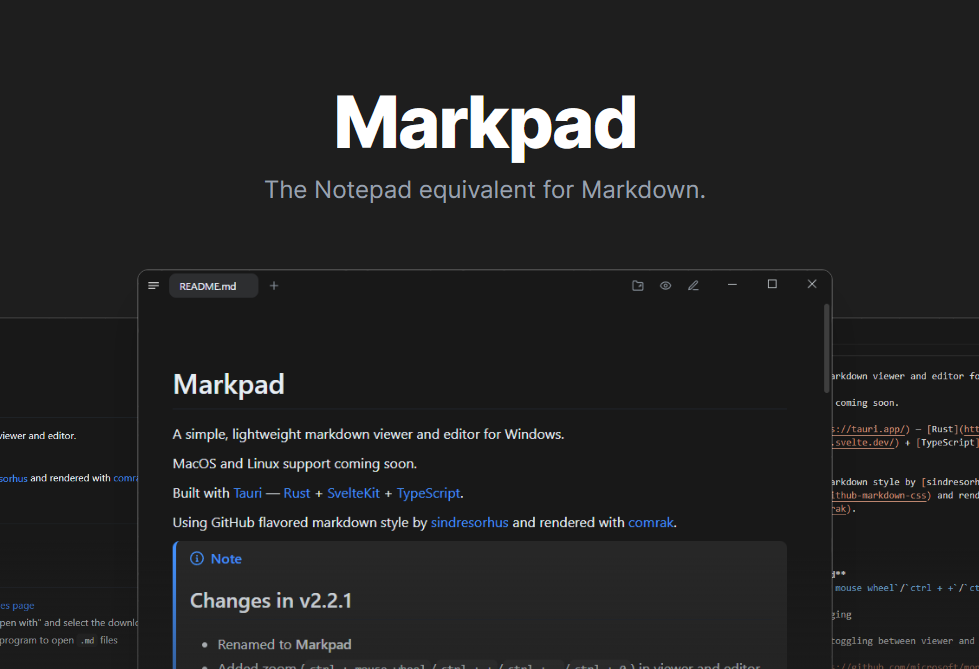
Markpad Full homepage screenshot

At a glance

Category
Development
Language
English
Paid-content signal
No paid content foundObserved
Registered
2024
Hosting
CloudflareInferred
HTTPS certificate trusted
PassedObserved
Last updated

Website review

This review may include AI-generated content and is not individually verified. Domain, certificate and other facts come from the observed data on this page.

What is Markpad?

Markpad is a free, open-source Markdown editor and Notepad alternative for Windows, macOS and Linux. It pairs a plain-text editor with a live rendered preview, so it suits people who write in Markdown but want to see the formatted result as they type rather than switching to a separate viewer.

What it does well

  • Side-by-side editing and preview kept in sync line for line, which helps when checking tables, code blocks or long documents.
  • GitHub-flavoured Markdown with syntax-highlighted code blocks, plus KaTeX maths and Mermaid diagrams for technical notes.
  • A VS Code-based editor engine (Monaco) with optional Vim keybindings, heading folding and a Zen mode for distraction-free writing.
  • Document handling such as tabs, multiple windows, session restoration and automatic reload when a file changes on disk.
  • Output options: one-click HTML export and print-to-PDF formatting.
  • Extras like wikilinks, callouts, a floating outline and paste-or-drag image insertion.

Who it suits

A developer jotting release notes, a student drafting lecture summaries with formulas, or anyone replacing Windows Notepad with something that renders Markdown. The stated lightweight design and near-instant startup matter most for quick-capture use; the maths and diagram support matters more for technical documentation.

Trade-offs to weigh

A general-purpose Markdown editor with heavy features can feel busier than a minimal notepad, and advanced syntax like wikilinks and embeds may not render the same way in other tools. If your priority is portability of plain .md files across apps, stick to standard Markdown and treat the extended syntax as a convenience.

Next step: install it (on Windows, choco install markpad-app is listed), open one of your existing .md files, and check that the preview matches how you expect it to look elsewhere. If it does, make it your default editor for Markdown; if not, keep it for previewing only. For comparison, Visual Studio Code covers Markdown editing alongside full development work, and Obsidian focuses on linked note-taking.

How does Markpad's real-time Markdown preview compare to editing in a plain notepad?

Markpad's real-time preview shows the rendered document beside the raw Markdown as you type, whereas a plain notepad shows only unformatted text. The practical difference is that formatting errors, broken tables, and failed code blocks become visible immediately instead of after you paste the text somewhere else to check it.

Where the difference matters

  • Writing with structure: Headings, lists, and tables appear as formatted output while the source stays editable, so you catch a mistyped table pipe or a skipped heading level on the spot.
  • Technical notes: Per the page, code blocks get syntax highlighting and math and diagrams render through KaTeX and Mermaid. In a plain notepad, a formula or diagram stays as raw text.
  • Editing existing files: The page describes line-for-line synchronized split view and automatic reload when a file changes on disk, which suits people editing the same document in another tool.
  • Long documents: A floating outline and heading folding help navigate a lengthy file; a notepad offers only find-and-replace.

Trade-offs

Preview adds screen space and rendering overhead. On a small laptop screen, the split view leaves little room for either pane, so single-pane writing with occasional preview may suit you better. A plain notepad also starts faster and has no rendering to get wrong, which matters for quick scratch notes or plain-text logs where Markdown syntax would be noise. Markpad's own positioning is "light as Notepad," but that is a claim about startup and resource use, not a guarantee it matches a bare text editor for every task.

If you write README files, notes with code, or documentation, the preview pays for itself. If you mostly jot plain text, the notepad is simpler. A quick test: open one of your real documents in Markpad and see whether the preview catches a mistake you would otherwise have missed.

Can I install Markpad on Windows, macOS, and Linux, and is there a package manager option like Chocolatey?

Yes. Markpad is presented as a native desktop app for Windows, macOS, and Linux, so the same editor is intended to run on all three platforms. Installation files are offered for each OS on the site, and the page also shows a Chocolatey command for Windows: choco install markpad-app. Chocolatey is a Windows package manager, so treat that command as Windows-only; the page does not list Homebrew, apt, Flatpak, or other package-manager routes for macOS or Linux.

What this means in practice

Platform What the page supports Practical note
Windows Downloadable installer plus Chocolatey Chocolatey suits scripted or repeat installs; the installer suits a one-off setup
macOS Downloadable installer No package-manager command is listed on the page
Linux Downloadable installer No distro package or Flatpak command is listed on the page

If you manage several machines, use Chocolatey on Windows to keep installs repeatable, and keep the direct downloads for macOS and Linux. Before relying on the Chocolatey route, check that the package name matches what the page shows and that your Chocolatey setup is current. For users who prefer a familiar notepad-style tool, the cross-platform availability and the page's emphasis on lightweight startup are the main draws; the trade-off is that package-manager coverage is uneven across platforms.

A sensible next step: install on your primary OS first, confirm the Markdown preview and file auto-reload behave as expected, then roll out to the other platforms using their direct downloads.

Does Markpad support advanced Markdown features like KaTeX math, Mermaid diagrams, and GitHub-style callouts?

Yes. Markpad lists KaTeX for mathematical formulas, native Mermaid diagrams, and GitHub-style callouts among its supported features, alongside standard GFM preview with syntax highlighting and extended syntax such as wikilinks and embeds. It also provides heading folding, a floating table-of-contents outline, and a synchronized side-by-side preview that stays aligned line for line.

What this means in practice

  • Technical notes and study material: You can write equations in KaTeX syntax and flowcharts or sequence diagrams in Mermaid code blocks, then check the rendered result in the preview pane as you type.
  • Documentation and README-style pages: GitHub-style callouts let you mark notes, warnings, and tips the way GitHub renders them, so drafts look closer to their published form.
  • Long documents: The floating outline and heading folding help you navigate and collapse sections without leaving the editor.

A sensible next step is to paste a short test document containing one KaTeX expression, one Mermaid block, and one callout into Markpad and confirm that each renders as expected in the split preview before committing to it for a larger writing project. If your work depends heavily on one of these formats, test that format first, since rendering details can differ from what GitHub or a static-site generator produces.

Is Markpad free and open source, and does it collect any telemetry or user data?

Yes. Markpad describes itself as 100% free and open source, with zero telemetry and no bloatware. The project also points to its source on GitHub, so you can inspect the code and build it yourself rather than taking the privacy claim on trust.

What the privacy claim covers

  • Telemetry: the site states none is collected, which matters if you edit notes containing client names, draft articles or personal records.
  • Cost: no paid tier is mentioned; it is presented as free software across Windows, macOS and Linux.
  • Openness: because the code is public, a technical user can verify behaviour or check what network calls the app makes.

Practical check for a privacy-sensitive user

If you handle confidential material, install it, then watch outbound connections with a firewall or network monitor during a normal editing session. That turns a marketing statement into something you have observed. Also check the repository's issue tracker for reports about unexpected network activity, since open-source claims are only as good as the code's actual behaviour.

For comparison, other free editors exist but differ in privacy posture: Notepad++ is open source and Windows-only, while Obsidian is free for personal use but not open source. Markpad's distinguishing offer is the combination of open code, cross-platform desktop support and a Markdown preview in one lightweight package.

How does Markpad handle large files and disk changes, such as auto-reload and session restoration?

Markpad's page presents disk auto-reload as automatic: when a file changes on disk, the open document updates itself. Session restoration is described as seamless, alongside multi-window tabs and window tags, so reopening the app is meant to bring back your working setup. For large files, the page only claims lightweight resource usage and near-instant startup; it gives no file-size limits or performance figures, so treat large-file handling as unverified until you test it.

What the page supports vs. what it doesn't

Area What Markpad states What's left to check
Disk changes Auto-reload when a file changes on disk Whether unsaved edits are protected or prompt a conflict warning
Sessions Session restoration with tabs, windows and tags Whether restored tabs reopen cleanly after files move or are deleted
Large files Lightweight, fast startup Actual behavior with multi-megabyte notes or long logs
Editing engine Embedded Monaco (VS Code engine) with Vim mode Scroll and preview lag on very long documents

A practical test

If you keep notes synced across devices or edit files that other tools also write to, auto-reload matters most. Open a long document in Markpad, make an unsaved edit, then change the same file externally and see whether Markpad overwrites your work or flags the conflict. Then quit with several tabs open and reopen to confirm restoration. For a comparison point, Obsidian and Visual Studio Code are common alternatives for Markdown editing with external file changes, though neither is described here as matching Markpad's specific reload behavior.

Decision criterion: choose Markpad if automatic reload and session recall fit a sync-heavy workflow; verify large-file performance yourself before relying on it for big documents.

Related questions

More questions →
What Is Markpad and What Kind of App Is It?

Markpad is a lightweight desktop Markdown editor and viewer that doubles as a tabbed Notepad alternative. It runs natively on Windows, macOS, and Linux, pairs a Monaco-based editor (the engine behind VS Code) with real-time side-by-side preview, and is free and open source with zero telemetry. It fits you if you want a fast, minimal writing app that renders Markdown properly without the weight of a full IDE or the plainness of Notepad.

What Markpad actually is

The project describes itself as "light as Notepad, elegant as Markdown." That framing captures its two roles:

  • A Markdown editor and viewer — you write in one pane and see rendered output in the other, kept in sync line for line.
  • A tabbed Notepad replacement — multi-window tabs, window tags, and session restoration mean you can keep many plain-text documents open the way you would in a tabbed notepad.

It is a native desktop application, not a web app or browser extension. The interface is available in 26 languages.

Core capabilities

Area What you get
Editing Monaco editor engine with built-in Vim keybindings
Preview Standard GFM rendering with syntax-highlighted code blocks
Math and diagrams KaTeX for formulas, native Mermaid diagrams
Navigation Floating table-of-contents outline that follows your scroll position
Focus tools Heading folding, Zen mode, VS Code theme imports
Input Paste images directly into documents, drag files in to open
Documents Multi-window tabs, window tags, session restoration
File handling Automatic reload when a file changes on disk
Output One-click HTML export, print-to-PDF formatting
Extended syntax Wikilinks, embeds, GitHub-style callouts

How it is built

Markpad is built with Rust, Tauri, SvelteKit, and TypeScript. That stack is why the project can claim efficient resource usage and near-instant startup while still shipping a native desktop experience across all three major platforms. The embedded Monaco engine is the same editor core many developers already know from VS Code, so familiar editing behavior and Vim mode carry over.

Who it suits

  • Writers who want live preview without configuring a static site generator or opening a code editor.
  • Note-takers who want tabs and session restore but find full note apps too heavy.
  • Developers who want a quick Markdown scratchpad with Vim keys, math, and Mermaid diagrams.
  • Privacy-conscious users — the project states zero telemetry and no bloatware.

It is less suited if you need a database-style knowledge base, collaboration, or cloud sync; the feature set centers on local files and a fast single-user editing loop.

How to get it

Installers are offered for macOS, Windows, and Linux from the project site. On Windows there is also a Chocolatey package:

choco install markpad-app

After installing, open or create a .md file, and the split view shows source and rendered preview together. Paste an image to embed it, or drag a file in to open it. If a file changes on disk from another tool, Markpad reloads it automatically.

The short version

Markpad is a free, open-source, cross-platform desktop app that combines a Notepad-style tabbed editor with real-time GFM Markdown preview, math, diagrams, and export. Choose it when you want a fast local Markdown workspace; look elsewhere if you need collaboration or synced knowledge management.

Which platforms can run Markpad and how is it installed?

Markpad runs as a native desktop app on Windows, macOS, and Linux. On Windows you can install it with the Chocolatey package manager using choco install markpad-app, or download a build for your OS from the project's site or GitHub page. It is built with Rust, Tauri, SvelteKit, and TypeScript, and the project describes it as lightweight with near-instant startup.

Supported platforms

Platform Support Install route shown on the site
Windows Native desktop build Chocolatey (choco install markpad-app) or download
macOS Native desktop build Download
Linux Native desktop build Download

The site lists all three as "first-class native desktop" targets, so this is not a web app you open in a browser tab — it is an installed application.

How to install

Windows (Chocolatey)

  1. Make sure Chocolatey is installed on your machine.
  2. Open a terminal and run:
    choco install markpad-app
    
  3. Launch Markpad from your Start menu or app list after the install completes.

Windows, macOS, and Linux (direct download)

  1. Go to the Markpad site (markpad.sftwr.dev) or its GitHub page.
  2. Pick the build for your operating system.
  3. Install or run it the way your OS normally handles desktop apps, then open Markpad.

The site does not spell out per-OS download steps beyond the platform buttons, so follow your system's usual install flow for a downloaded desktop application.

What you get once it runs

  • Editor: an embedded VS Code editor engine (Monaco) with optional Vim keybindings.
  • Preview: standard GFM markdown with code syntax highlighting, KaTeX math, and Mermaid diagrams.
  • Layout: synchronized side-by-side editing and preview, plus a floating table-of-contents outline.
  • Documents: multi-window tabs, session restoration, and automatic reload when a file changes on disk.
  • Output: one-click HTML export and print-to-PDF.
  • Privacy: the project states zero telemetry and open-source code.

Things to check before installing

  • Chocolatey is Windows-only. The choco install command won't work on macOS or Linux; use the download route there.
  • Package name matters. The command is markpad-app, not markpad.
  • Pricing and licensing: the site describes Markpad as "100% free and open source." No paid tiers or account requirements are mentioned in the available material.
  • Language support: the interface is localized into 26 languages, which may matter if you work in a non-English UI.

If your goal is simply to confirm compatibility: any current Windows, macOS, or Linux desktop should be able to run it, with Windows offering the most scriptable install path via Chocolatey.

What Markdown Features Does Markpad Support?

Markpad supports standard GitHub Flavored Markdown (GFM) with syntax-highlighted code blocks, plus KaTeX math, native Mermaid diagrams, and extended syntax such as wikilinks, embeds, and GitHub-style callouts. It also adds editing aids: a floating table-of-contents outline, heading folding, heading completion for links, a customizable formatting toolbar, and a synchronized split view. These features are available in the desktop app for Windows, macOS, and Linux.

Core Markdown and Preview

Markpad renders standard GFM, so the syntax you already use in GitHub READMEs and issues works without conversion. Code blocks get syntax highlighting in the preview.

The editor is built on Monaco, the same editor engine behind VS Code, with Vim keybindings available. Editing and preview run side by side and stay in sync line for line, so the preview reflects your position as you scroll.

Math and Diagrams

  • KaTeX renders mathematical formulas.
  • Mermaid diagrams are supported natively, so flowchart and diagram blocks render in the preview rather than appearing as plain code.

If your documents include formulas or diagrams, this removes the need to export to another tool just to check rendering.

Extended Syntax

Beyond standard GFM, Markpad adds:

Feature What it does
Wikilinks Link between notes using wiki-style link syntax
Embeds Embed content within a document
GitHub-style callouts Render note, warning, and similar callout blocks

These are extensions, so documents relying only on standard Markdown remain portable to other GFM viewers.

Editing Aids

  • Floating outline: a table-of-contents navigation panel that follows your scroll position, useful in long documents.
  • Heading folding: collapse sections to focus on one part of a document.
  • Smart completions: heading completion when writing links, reducing broken anchors.
  • Formatting toolbar: customizable, for users who prefer buttons over typing syntax.
  • Zen mode and themes: a distraction-free mode, plus VS Code theme imports.

Practical Considerations

  • Platform: native desktop app for Windows, macOS, and Linux. There is no indication of a browser-based version, so plan on installing it locally.
  • Installation: the site lists a Chocolatey command, choco install markpad-app, for Windows; macOS and Linux builds are also listed.
  • Privacy: the project states zero telemetry and is open source, which matters if you handle sensitive notes.
  • File handling: tabs, multi-window sessions, session restoration, and automatic reload when a file changes on disk support editing files that other tools also modify.

Is It the Right Fit?

Choose Markpad if you want a lightweight desktop Markdown editor with live GFM preview and you need math, diagrams, or wiki-style linking in the same tool. If you only need plain-text notes with no rendering, a simpler notepad-style editor will do. If you need to collaborate in a browser or publish directly to the web, check whether those workflows exist before adopting it—the available information covers local editing, preview, HTML export, and print-to-PDF, not online collaboration.

Is Markpad Free, Private, and Available in Other Languages?

Yes on all three counts, based on the product's own description: Markpad is presented as 100% free and open source, with zero telemetry and no bloatware, and its interface is fully localized into 26 languages. These claims come from the Markpad website itself, so treat them as the vendor's stated position rather than an independent audit. If you need hard verification, the source is public on GitHub, which is where you should check.

Cost: Free and Open Source

Markpad describes itself as "100% free and open source," with the code available on GitHub (the site links to it directly). That means:

  • No subscription model is described. The site positions Markpad as a lightweight desktop tool, not a paid service.
  • The source is inspectable. Because it's open source, you can review the code, build it yourself, or check the license terms on the GitHub repository before committing.
  • Installation is straightforward on each platform. The site lists macOS, Windows, and Linux builds, plus a Chocolatey package for Windows (choco install markpad-app).

One caution: the site does not publish a pricing page or payment details, which is consistent with a free tool but is not the same as a formal guarantee. If cost certainty matters for a team deployment, confirm the license on the GitHub repo.

Privacy: Zero Telemetry, No Bloatware

The site states Markpad has "zero telemetry, no bloatware." In practical terms, that means the app is described as not sending usage data back to the developers and not bundling extra software.

What this does not automatically cover:

  • Your files stay local by default — Markpad is a local editor for local Markdown files, so documents aren't uploaded anywhere as part of normal editing.
  • Network features you opt into — pasting images or dragging files in works on your machine; the site doesn't describe cloud sync or accounts.
  • Verification — "zero telemetry" is a vendor claim. Since the project is open source, the reliable way to confirm it is to inspect the code or check community reports on the GitHub repository.

For a privacy-sensitive workflow (e.g., editing internal notes on a work laptop), the combination of local files, no account requirement, and open source is a reasonable basis — but verify the telemetry claim yourself if it's a hard requirement.

Languages: 26 Localized Interfaces

The site states the user interface is "fully localized" and available in 26 languages. That covers menus, dialogs, and UI labels — it does not mean the Markdown content you write is translated, and the site doesn't list which 26 languages specifically.

If you need a particular language, check the app's language settings after install, or look for the localization files in the GitHub repository, which will show the exact set.

Quick Reference

Question Answer (per Markpad site) How to verify
Is it free? Yes, 100% free and open source License on GitHub
Is there a subscription? None described GitHub / site
Telemetry? Zero telemetry claimed Inspect source on GitHub
Bloatware? None claimed Install and review
Interface languages 26 App settings / repo locale files
Platforms Windows, macOS, Linux Download page

Bottom Line

If your decision hinges on cost, privacy, and localization, Markpad's stated profile fits: free, open source, no telemetry, 26 UI languages, and native builds for all three major desktop platforms. The one step worth taking before you rely on it is a quick look at the GitHub repository — it's the only place where the free/open-source and zero-telemetry claims can be checked directly rather than taken on trust.

How Markpad Manages Documents, Tabs, and Files

Markpad organizes work around multi-window tabs, window tags, and session restoration, and keeps open documents in sync with changes on disk. You can paste or drag images and files straight into a document, and export finished work as HTML or a print-to-PDF. These features are available on the Windows, macOS, and Linux desktop builds; the site presents Markpad as free and open source with zero telemetry, though no separate pricing or login terms are stated.

Tabs, Windows, and Session Restoration

Markpad treats document organization as a first-class feature rather than an afterthought:

  • Tabs let you keep several documents open in one window and switch between them.
  • Multi-window support means you can spread documents across separate windows, which suits side-by-side work on different files.
  • Window tags give those windows labels so you can tell them apart at a glance.
  • Session restoration brings back your open tabs and windows the next time you launch the app, so an interrupted writing session doesn't mean reopening files one by one.

The practical effect: you can set up a workspace for a project — a notes file, a draft, and a reference document in tagged windows — close the app, and return to the same arrangement later.

Keeping Files in Sync with Disk

Markpad includes disk auto-reload: when a file changes on disk, the open document updates automatically. This matters if you edit the same file in another editor, receive an updated file from a collaborator, or generate content with a script. Instead of a stale buffer, the tab reflects the current file contents.

A reasonable workflow is to keep Markpad open on a file that another tool writes to — for example, a changelog generated by a build step — and let auto-reload surface each change without manual reopening.

Adding Images and Files by Paste or Drag

You don't need a separate upload step to bring assets into a document:

  • Paste images directly into the document from the clipboard.
  • Drag files in to open them in Markpad.

This is useful for screenshot-heavy notes or documentation drafts where you capture an image and drop it into the Markdown source in one motion. The site describes this as "paste and drop" support; it does not specify where pasted images are stored on disk, so check the resulting Markdown link path after your first paste if file location matters to you.

Exporting and Printing

Two output paths are documented:

Output What it produces Typical use
One-click HTML export A clean HTML file Sharing a rendered document or publishing to a site
Print-to-PDF A PDF via the print dialog Archiving, sending a fixed-layout copy, printing

Both are described as "clean," meaning the output is intended to reflect the rendered document rather than raw Markdown. If you need a PDF, use the print path and choose your system's PDF printer option.

How This Fits the Rest of the Editor

Document management works alongside Markpad's editing features, which affect how you move through long files:

  • A floating table-of-contents outline follows your scroll position, so navigation stays available in long documents.
  • Heading folding collapses sections you aren't working on.
  • Zen mode reduces interface clutter for focused writing.
  • Synchronized split view keeps source and preview aligned line for line.

The editor engine is Monaco (the VS Code editor component) with built-in Vim keybindings, and the app is built with Rust, Tauri, SvelteKit, and TypeScript — relevant if startup speed and resource use matter to you, since the site claims near-instant startup and efficient resource usage.

A Concrete Scenario

Suppose you maintain a project README plus a separate notes file:

  1. Open both files as tabs; put the README in its own tagged window.
  2. Paste screenshots into the notes file as you capture them.
  3. Edit the README in another tool; Markpad's auto-reload picks up the change.
  4. Use the outline to jump between sections while folding finished ones.
  5. Export HTML for the repo's docs site and print a PDF for review.
  6. Close the app; session restoration returns both windows and tabs next launch.

Limits to Keep in Mind

The site does not document a file browser or folder-tree sidebar, so organization relies on tabs, windows, tags, and your operating system's file dialogs rather than an in-app project explorer. It also doesn't specify image storage behavior for pasted content. If either matters for your workflow, test with a sample document before committing a large project to the app.

Website Overview

Several search or sharing settings need attention. Together they may make snippets, preview images or preferred URLs less consistent across platforms. An active inbound-mail setup with incomplete authentication may leave the domain more open to impersonation. Provider hosting alone does not close that gap.

Domain and Registration

Transfer-protection status is present, helping reduce the risk of unauthorized domain transfers. The domain has about 2 years of registration history; its current configuration provides more context than age alone. The registrar is CloudFlare, Inc., a widely used domain service provider. The domain uses the common .dev extension, which is not an independent safety signal.

DNS and Email

The observed email authentication setup is incomplete: DMARC is missing. Nameservers are provided by Cloudflare, indicating managed DNS hosting. MX records point to the Cloudflare Email Routing email service. No CNAME was found; the observed records resolve directly to addresses. TXT records include verification markers for Google. Such markers may also remain after a service stops being used.

TLS and Certificates

The public key uses EC with 256 bits. The server supplied a complete certificate chain. No organization name is present in the certificate; the available fields are consistent with domain validation. The certificate was issued within the Google Trust Services cloud or CDN ecosystem. The certificate's total validity is about 90 days, consistent with a short renewal cycle.

HTTP and Browser Security

The response lacks these common security headers: HSTS, CSP, Permissions-Policy, clickjacking protection. CORS permits any origin to read this response. This is common for public resources; sensitive responses need narrower handling. No X-Powered-By header was found, reducing one common source of backend fingerprinting information. The cf-ray response header indicates a CDN or caching proxy in the delivery path. No obvious internal addresses or debug information were found in the headers.

Technology Stack Analysis

The public page identifies SvelteKit, Cloudflare without precise versions, leaving fewer clues for version-specific scanning.

Search and Social Sharing

The meta description has 172 characters and may be shortened in search results. No homepage canonical URL was detected. If duplicate URLs exist, consolidation may be less explicit. Twitter Card metadata is configured. The title has 54 characters, within a common display range. The observed directives allow indexing and link following.

Hosting and Email

DNSCloudflare
HostingCloudflare
EmailCloudflare Email Routing
Approximate IP geolocation (inferred; a CDN or proxy may differ from the origin server) Location unknown Inferred 104.21.24.198

Registration details

RDAP / WHOIS

RegistrarCloudFlare, Inc.
Registered2024-03-08
Expires2027-03-08
Domain statusclient transfer prohibited
Nameserverskelly.ns.cloudflare.com、nash.ns.cloudflare.com
DNSSECunsigned

DNS records

DNS

TypeNameValueTTLPriority
Amarkpad.sftwr.dev104.21.24.198300—
Amarkpad.sftwr.dev172.67.220.36300—
AAAAmarkpad.sftwr.dev2606:4700:3031::6815:18c6300—
AAAAmarkpad.sftwr.dev2606:4700:3035::ac43:dc24300—
MXsftwr.devroute2.mx.cloudflare.net3009
MXsftwr.devroute3.mx.cloudflare.net30020
MXsftwr.devroute1.mx.cloudflare.net30079
NSsftwr.devkelly.ns.cloudflare.com86400—
NSsftwr.devnash.ns.cloudflare.com86400—
TXTsftwr.devgoogle-site-verification=zKfsblEKNYMym2gYOHgd1rSyv0H_84V9bstx79Hv0QA300—
TXTsftwr.devv=spf1 include:_spf.mx.cloudflare.net ~all300—

TLS and certificates

TLS / SSL

AssessmentNormal configuration
Supported protocolsTLSv1.2、TLSv1.3
Negotiated protocolTLSv1.3
Certificate subjectmarkpad.sftwr.dev
IssuerGoogle Trust Services
Valid until2026-12-19T06:43 · Remaining when checked: 52 days
Verification detailsCertificate trust: Passed · Hostname match: Passed

HTTP response headers

HTTP

HeaderValue
content-typetext/html; charset=utf-8
cache-controlpublic, max-age=0, must-revalidate
servercloudflare
x-content-type-optionsnosniff
referrer-policystrict-origin-when-cross-origin
access-control-allow-origin*

Identified technologies

SvelteKitCloudflare

Pages, Search and Sharing

Meta descriptionA simple, lightweight markdown viewer, editor, and tabbed Notepad alternative for Windows, macOS, and Linux. The perfect simple text editor with real-time markdown preview.
Canonical URLNot detected
LanguageEnglish (default)
Twitter Cardsummary_large_image
All bots 1 allowed · 0 disallowed
  • Allow/
amazonbot 0 allowed · 1 disallowed
  • Disallow/
applebot-extended 0 allowed · 1 disallowed
  • Disallow/
bytespider 0 allowed · 1 disallowed
  • Disallow/
ccbot 0 allowed · 1 disallowed
  • Disallow/
claudebot 0 allowed · 1 disallowed
  • Disallow/
diffbot 0 allowed · 1 disallowed
  • Disallow/
google-extended 0 allowed · 1 disallowed
  • Disallow/
gptbot 0 allowed · 1 disallowed
  • Disallow/
omgili 0 allowed · 1 disallowed
  • Disallow/
anthropic-ai 0 allowed · 1 disallowed
  • Disallow/
claude-web 0 allowed · 1 disallowed
  • Disallow/
cohere-ai 0 allowed · 1 disallowed
  • Disallow/
mistralai-training 0 allowed · 1 disallowed
  • Disallow/
meta-externalagent 0 allowed · 1 disallowed
  • Disallow/
googleother 0 allowed · 1 disallowed
  • Disallow/
baiduspider 0 allowed · 1 disallowed
  • Disallow/
petalbot 0 allowed · 1 disallowed
  • Disallow/
awariosmartbot 0 allowed · 1 disallowed
  • Disallow/
awariorssbot 0 allowed · 1 disallowed
  • Disallow/
google-cloudvertexbot 0 allowed · 1 disallowed
  • Disallow/
qualifiedbot 0 allowed · 1 disallowed
  • Disallow/
cotoyogi 0 allowed · 1 disallowed
  • Disallow/
icc-crawler 0 allowed · 1 disallowed
  • Disallow/
atlassian-bot 0 allowed · 1 disallowed
  • Disallow/
fishbot 0 allowed · 1 disallowed
  • Disallow/
borderxbot 0 allowed · 1 disallowed
  • Disallow/
navubot 0 allowed · 1 disallowed
  • Disallow/
semrushbot-swa 0 allowed · 1 disallowed
  • Disallow/
wardbot 0 allowed · 1 disallowed
  • Disallow/
magpie-crawler 0 allowed · 1 disallowed
  • Disallow/
kimibot 0 allowed · 1 disallowed
  • Disallow/
citibotsitecrawler 0 allowed · 1 disallowed
  • Disallow/

No sitemaps found

User reviews (0)

  • No reviews yet.