
 简体中文
简体中文 English
Website review
This review may include AI-generated content and is not individually verified. Domain, certificate and other facts come from the observed data on this page.
What is Three.js Sketches?
Three.js Sketches is a personal gallery of small browser-based 3D experiments, built with the Three.js Editor and hosted on Neocities. The page is essentially an index: a numbered list of sketches running from 001 up to 039, each with a date, such as 039 ~ 21 03 17 or 001 ~ 15 11 11. The numbering and dates show an ongoing practice of making and publishing short experiments rather than a single finished product.
What you'll find
- Numbered sketches: Entries are labeled in sequence, so you can browse chronologically and see how the work develops.
- Dates as context: Each entry carries a date, mostly in YY MM DD form, spanning roughly 2015 to 2021.
- A consistent toolchain: The description says the sketches were made with the Three.js Editor and uploaded to Neocities, which points to lightweight, static hosting of WebGL scenes.
- No product framing: There is no pricing, signup or commercial pitch here; it reads as a maker's archive.
Who it suits
This is most useful if you are learning Three.js or WebGL and want to see many small, dated experiments rather than polished demos. It also suits anyone curious about early-to-mid-2010s browser 3D culture on free static hosts. If you need documentation, tutorials or a maintained library, this is not that kind of site.
A practical next step
Open the highest-numbered sketch first, then compare it with an early one such as 001. The gap between them is the real value: you can observe how a single creator's handling of scenes, lighting and motion changed over several years. For structured learning alongside it, the official Three.js documentation at Three.js is the natural companion, and Neocities explains the hosting model behind the page.
How do I open and interact with a specific sketch on this site?
Open the numbered entry that matches the sketch you want, then interact with it directly in the page.
What you're looking at
The site is a dated archive of sketches made with the Three.js Editor and uploaded to Neocities. Each item is listed as a number plus a date, for example 039 ~ 21 03 17 or 021 ~ 16 03 10. The number is the sketch ID; the date is when it was uploaded or last touched.
How to open one
- Scan the list for the number you want.
- Click the entry title or its date link.
- The sketch should load as its own page or embedded canvas.
- If the page seems blank at first, give it a moment — WebGL sketches often need a few seconds to initialize.
How to interact
Because these are Three.js Editor exports, typical interactions include:
- Drag to orbit the camera.
- Scroll to zoom in or out.
- Move the mouse to trigger hover or pointer-based effects.
- Click to start, reset or toggle an animation, depending on the sketch.
- Keyboard keys may control movement or camera modes in some pieces.
If a sketch doesn't respond, try clicking once inside the canvas to give it focus, then try again. Reloading the page also helps if the WebGL context failed to start.
Practical next step
Start with the most recent entry, 039 ~ 21 03 17, since later sketches tend to be more polished. If you want to see how the style evolved, open 001 ~ 15 11 11 next and compare the two side by side.
Trade-off to keep in mind
This is a personal sketch archive, not a gallery with descriptions, controls or instructions. You get raw experiments and a date, but no explanation of what each piece does — so expect some trial and error. That's also the appeal: it's a quick way to see a developer's Three.js Editor experiments over time without any interface getting in the way.
Can I reuse or remix the code from these Three.js sketches in my own projects?
The page itself does not state a license, so there is no explicit permission to copy, remix or redistribute the sketch code. By default, copyright applies: you can study the sketches and learn from the techniques, but reusing the code in your own project is legally uncertain unless you get permission from the author.
That distinction matters in practice:
- Learning from them: safe. Reading how a scene, camera, light or animation is set up, then writing your own version, is normal practice.
- Copying code verbatim into a project: not safe without permission, especially for anything public or commercial.
- Remixing into something clearly your own: still legally grey if you started from their files, even if the result looks different.
What to do next
If you want to reuse a specific sketch, the cleanest path is to contact the author and ask. A short message naming the sketch number and how you intend to use it is usually enough. If you cannot reach them, treat the code as reference only and rebuild the effect yourself.
For comparison, some Three.js creators publish under permissive terms. The official Three.js project uses an MIT license, which does allow reuse with attribution — see Three.js. That license covers the library, not this sketch collection, so do not assume it applies here.
A practical decision rule
Ask yourself: "Could I rebuild this effect from scratch after studying it, without their file open?" If yes, do that and you avoid the question entirely. If no, you need permission before you ship it.
What types of 3D effects or scenes can I find among the sketches?
The sketches are small, dated Three.js experiments rather than finished scenes or tutorials. From the titles and numbering alone, the consistent pattern is a numbered archive of editor-made sketches, uploaded over several years, so you should expect a variety of short, self-contained 3D tests rather than one large world.
What to expect
- Experiment-style scenes: Each numbered sketch is likely a compact 3D setup built in the Three.js Editor, not a documented project. That usually means a single camera, a few objects, and a specific visual or technical idea per sketch.
- Visual effects and motion studies: Editor sketches commonly explore lighting, materials, geometry, camera movement, particles, or simple animation loops. The dated sequence suggests the author returned to the tool repeatedly to try new variations.
- A range of dates from 2015 to 2021: The archive spans roughly six years, so earlier and later sketches may show different techniques or levels of polish. Treat them as a timeline of experiments rather than a curated gallery.
- No categories or descriptions: The page evidence shows only numbers and dates, so you cannot tell from the listing whether a sketch is a particle system, a shader test, or an abstract object study until you open it.
How to use the archive If you are learning Three.js, open a few sketches from different years and compare how the same basic setup changes. Start with an early one and a late one side by side; the differences in lighting, object count, or camera handling will tell you more than any description. If you are looking for a specific effect, be prepared to click through several entries, since the numbering is chronological, not thematic.
For broader context on the library behind these sketches, see Three.js.
How can I use the Three.js Editor to create my own sketches like these?
The short answer: use the Three.js Editor as a scene builder, not as a code editor. You assemble objects, lights, materials and cameras in its viewport, then export the scene and host the exported file yourself. The sketches on Three.js Sketches are exactly that kind of output — dated scene experiments made in the editor and uploaded to a static host, with entries running from 2015 to 2021.
H3 A realistic workflow
- Open the Three.js Editor and start a new scene.
- Add geometry from the built-in primitives, then position, rotate and scale with the transform controls.
- Set up lighting and a camera; the editor gives you a viewport view and a separate camera preview.
- Assign materials and tweak colour, roughness, metalness and similar values visually until the look holds up.
- Add simple animation or interaction through the editor's scripting panel if you need movement, otherwise keep it static.
- Export the scene as JSON or as a self-contained HTML page.
- Publish the exported file to a static host such as Neocities, GitHub Pages or any plain web server.
H3 What the editor is good at, and what it isn't
| Task | Editor fits well | Hand-written code fits better |
|---|---|---|
| Placing and arranging objects | Yes — direct manipulation | Slower for layout work |
| Trying lighting and camera angles | Yes — instant feedback | Requires reload cycles |
| Custom shaders, physics, game logic | Limited | Yes |
| Reusable, parameterised scenes | Awkward | Yes |
| Quick one-off visual studies | Yes | Overkill |
If your goal is a dated series of small studies, the editor's speed wins. If you want the same sketch to run with different parameters or respond to complex input, plan to move into code once the composition is settled.
H3 A concrete first sketch
Pick one primitive and one light. Rotate the object slowly, set a dark background, and export. That single decision — one object, one light, one motion — is what makes a sketch series readable rather than a pile of unrelated scenes. Numbering and dating each export, as the sketches on Three.js Sketches do, also gives you a visible progression to look back on.
H3 Practical trade-offs
The editor produces exported files that are easy to host but harder to maintain: once you edit the JSON by hand, re-importing can overwrite your changes. Keep the editor file as the source of truth and treat the export as a build artifact. Also check performance on a mid-range phone early — a scene that runs smoothly on a desktop can stutter once you add several lights or high-polygon models.
For learning the underlying API, the official documentation at three.js is the natural companion to the editor, and MDN Web Docs covers the WebGL and canvas basics you'll meet when embedding an exported scene in a page.
Are these sketches compatible with mobile devices and different browsers?
The sketches are likely to work on many mobile devices and modern browsers, but compatibility depends on what each sketch actually does rather than on the site as a whole. The page is a dated index of numbered sketches (001 through 039, spanning 2015 to 2021) made with the Three.js Editor and uploaded to Neocities, so the underlying technology is WebGL-based 3D content.
In practice, that means:
- Modern mobile browsers (Safari on iOS, Chrome on Android) generally support WebGL, so simple sketches should load and render.
- Older or low-end devices may struggle with heavier scenes, higher polygon counts, or post-processing effects.
- Desktop browsers (Chrome, Firefox, Edge, Safari) are the safest bet, especially for anything created in the Three.js Editor without mobile-specific tuning.
- Feature phones or browsers with WebGL disabled will not display the 3D content.
A useful next step: open a specific sketch on your phone and watch for frame rate drops, touch-control issues, or a blank canvas. If a sketch fails, try it on desktop to determine whether the problem is the device or the sketch itself.
For deeper context on Three.js browser support, see three.js. For general WebGL compatibility, Can I use tracks which browsers and versions support it.
 Proton Mail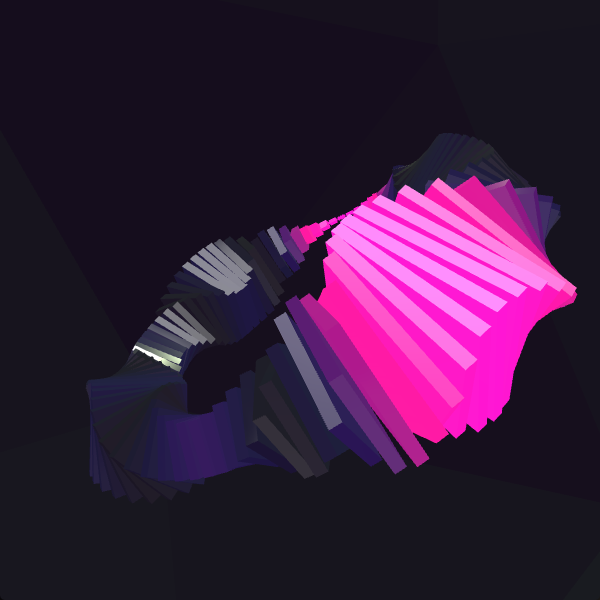
User reviews (0)