Website profiles · Technology insights · Alternatives

muetab.com

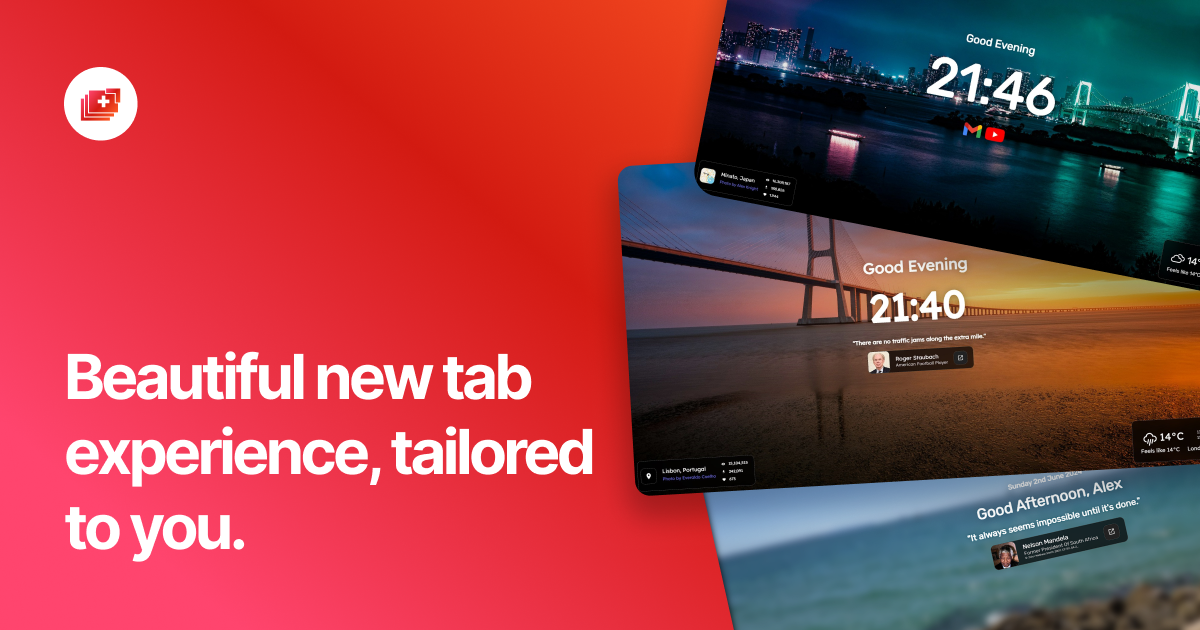
A fast, open and free-to-use browser extension that gives a new, fresh and customisable tab page to modern browsers.

No paid content found
Visit website
Profile views 0 Outbound visits 0 Normal
Mue - Modifiable. User-centric. Experience. Full homepage screenshot

At a glance

Category
Development
Language
English
Paid-content signal
No paid content foundObserved
Registered
2020
Hosting
CloudflareInferred
HTTPS certificate trusted
PassedObserved
Last updated

Website review

This review may include AI-generated content and is not individually verified. Domain, certificate and other facts come from the observed data on this page.

What is Mue?

Mue is a free, open-source browser extension that replaces the default new tab page with a customizable one built around productivity and wellbeing. Instead of a blank tab, it shows a background you choose, motivational quotes, and widgets. It runs on Chrome, Edge, Firefox and Whale, and the project has been maintained since 2018.

What it actually gives you

  • Backgrounds: a curated in-house photo library, your own images, or community-made packs from a Marketplace.
  • Quotes: multi-language quote packs, including movie quotes and memes, with more available in the Marketplace.
  • Privacy posture: no tracking, data stored on the device, and the code is public on GitHub. The project reports 50+ collaborators and 700+ GitHub stars.

Who it suits

  • People who open dozens of tabs a day and want a calm, personal starting point rather than a search box on white.
  • Users who care about open source and local-only data storage.
  • Tinkerers who want to suggest features or contribute code through GitHub.

Trade-offs to weigh

  • A decorated new tab adds a small amount of visual load; if you want the fastest possible blank tab, a plain one wins.
  • Customization means setup time—picking packs and widgets—before it feels right.
  • Community Marketplace content varies in quality compared with the in-house selection.

A useful next step: install it, keep the default background and one quote pack for a week, then decide whether widgets earn their place on your tab. If you want to compare alternatives, Chrome Web Store extension listings show similar new-tab tools.

How does Mue keep my new tab data private and secure?

Mue's privacy model rests on three claims from its own page: it is open-source, it contains no tracking, and all data stays on your device and is never shared without your consent. There is no personal data collection described.

What that means in practice

  • Open source on GitHub. The code is publicly available, so anyone with the skills can inspect what the extension actually does rather than trusting a description. The page notes 50+ collaborators and 700+ GitHub stars, which suggests active community review.
  • On-device storage. Your settings, chosen backgrounds and quote preferences are stored locally in the browser rather than synced to a Mue server. For a typical user, that means uninstalling the extension removes the data with it.
  • No tracking. The page states there is no tracking and no personal data collection, so your new-tab habits are not being profiled for advertising or analytics.

A concrete scenario

If you use a shared or work machine and set a personal photo as your background, on-device storage is the relevant detail: the image is not uploaded anywhere by Mue, but it does live in your browser profile, so anyone using the same profile could see it. Clearing the browser profile or removing the extension is the practical cleanup step.

Where to verify rather than assume

The strongest check is the source itself: browse the repository and issue tracker at GitHub to see how data handling is implemented and whether privacy-related issues have been raised. If you want to compare approaches, Chrome Web Store listings show each extension's stated data-use disclosures, which is a useful cross-check against a developer's own page.

Decision criterion: if you need an auditable privacy story, treat "open source plus on-device storage" as a good starting point but confirm it in the code; if you mainly want convenience, the no-tracking and local-storage design is already a reasonable default for a new-tab page.

How do I install Mue on Chrome, Edge, Firefox, or Whale?

Install Mue from your browser's own extension store, then open a new tab to confirm the custom page appears. The official site lists support for Chrome, Edge, Firefox and Whale, and its "Get Started" path points to the relevant store listing. Because Mue is open-source and stores data on your device, there is no account setup step in the described workflow.

Practical steps

  1. Open the extension gallery for your browser: Chrome Web Store, Microsoft Edge Add-ons, Firefox Add-ons, or Whale's extension store.
  2. Search for "Mue" and check that the listing matches the project at Mue before installing.
  3. Add the extension and accept any permission prompt the browser shows.
  4. Open a new tab. If your old new-tab page still appears, check the extension's settings or your browser's new-tab settings.
  5. Optionally visit the Marketplace from the new tab to choose background and quote packs.

Choosing your browser

Browser Where to install Practical note
Chrome Chrome Web Store Most common route; sign in to sync the extension across devices
Edge Edge Add-ons Edge can also install from the Chrome Web Store if the listing is unavailable
Firefox Firefox Add-ons Firefox may ask you to confirm new-tab override permissions
Whale Whale extension store Less common outside Korea; confirm the listing is the official Mue entry

If you want to verify the project first, the site links to its GitHub repository, where you can review code, open issues and see community activity before installing.

A useful next step: after installing, set one preferred background pack and one quote pack, then leave the rest at defaults. That keeps the new tab fast and makes it easier to tell whether the extension suits your daily routine.

Can I customize Mue with my own backgrounds and quotes, or do I need to use the built-in library?

Yes. Mue supports both your own content and the built-in library. You can add your own background images, and the quote system has multiple packs in several languages, so you are not limited to a single default set. The page also mentions a Marketplace for community packs, which suggests you can install additional background and quote collections rather than relying only on the in-house selection.

Practical implications

  • Backgrounds: choosing your own image is the most direct way to make the new tab feel personal; the in-house photography selection is a fallback when you do not want to hunt for images.
  • Quotes: built-in packs cover motivation, humour and wisdom, and the Marketplace adds movie quotes, memes and other community options. If you want a specific tone, check the pack list before assuming the default set fits.
  • Data handling: the page states that data is stored on device and that there is no tracking, which matters if your custom backgrounds or quotes are personal.

Decision criterion

If you want a quick, curated look, start with the built-in library. If the new tab is part of your daily workspace and you have specific images or quote styles in mind, plan to use your own backgrounds and browse the Marketplace packs. For a broader comparison of new-tab replacements, see Chrome Web Store listings and GitHub for the open-source project.

How can I contribute to the Mue open-source project on GitHub?

Start by visiting the project's GitHub repository, which the site links as "View Mue on GitHub," and read its contribution guidelines and open issues before changing anything. The page describes a community of 50+ collaborators and invites people to contribute code, suggest ideas, or report issues.

Practical ways to contribute

  • Report bugs: Open an issue with your browser and version, steps to reproduce, expected vs. actual behavior, and console errors if available.
  • Suggest features: Check existing issues first to avoid duplicates, then describe the use case and who it helps.
  • Contribute code: Fork the repo, create a branch, make a focused change, and open a pull request referencing the related issue. Keep pull requests small and explain the reasoning.
  • Improve translations or content: The site mentions quote packs in multiple languages and community background packs in the Marketplace, so localization and content contributions fit the project's model.
  • Help with documentation or triage: Clarifying setup steps or reproducing reported bugs is useful work that doesn't require deep familiarity with the codebase.

A sensible first step

Pick one small, well-scoped issue labeled for newcomers, or file a clear bug report if you've found a problem. Read the repository's README and any contributing file, since maintainers there set the actual workflow, coding style, and review expectations—the website only states the general invitation.

For context on how similar open-source browser projects organize contributions, you can compare conventions at GitHub or look at how other extension projects document their process, such as Mozilla for extension development guidance.

Does Mue collect any personal data or track my browsing activity?

No. According to Mue's own description, the extension contains no tracking, collects no personal data, and stores all data on your device; nothing is shared without your consent. It is also fully open source, so the claim can be checked rather than taken on trust.

What this means in practice

  • Settings and preferences (backgrounds, widgets, quote packs) live locally in your browser rather than on a Mue server.
  • No account or sign-in is described, so there is no profile tied to your identity.
  • Browsing activity is not described as logged or transmitted. The extension changes the new tab page; it is not presented as a history or analytics tool.

A reasonable next step

If privacy is the deciding factor, open the project's GitHub repository via Mue and look for the privacy policy and the permissions listed in the browser store page. A new-tab extension that asks for broad permissions such as "read and change all your data on all websites" deserves a second look even when its code is public — the permission list tells you what it could access, while the source tells you what it does. For a stricter baseline, compare with a minimalist alternative such as GitHub-hosted open-source tab pages, checking each one's permission scope before installing.

For most people, the combination of on-device storage, no tracking and public source code is a strong privacy position for a cosmetic new-tab tool. The one caveat: features that pull community packs from a Marketplace may involve network requests, so review what the extension fetches if you enable those.

Related questions

More questions →
How to Customize Backgrounds and Quotes in Mue

Mue lets you change two things on your new tab page: the background image and the quote that appears with it. You can pick from Mue's built-in library, use your own image, or browse the Marketplace for community packs. Quote packs come in multiple languages and include options like movie quotes and memes. All of this is available in the extension for Chrome, Edge, Firefox, and Whale.

Backgrounds: Three Ways to Change What You See

Mue describes three sources for backgrounds, and each fits a different situation.

1. The in-house library

Mue's photography team hand-picks a selection of exclusive backgrounds. This is the fastest option if you want something polished without searching: open the background settings and choose from the built-in collection.

Best for: a quick change with no setup.

2. Your own image

You can choose your own background instead of using the library. This suits people who want a personal photo, a work-related image, or a specific color scheme.

Best for: a personal or branded look.

3. The Marketplace

The Marketplace holds community-submitted packs. If the in-house selection feels limited, this is where you find more variety contributed by other users.

Best for: browsing a wider range of styles.

Source Who provides it Good fit when…
In-house library Mue's photography team You want a curated, ready-made look
Your own image You You have a specific image in mind
Marketplace Community contributors You want more variety than the default library

Quotes: Pick a Pack That Fits Your Mood

Quotes in Mue are organized as packs rather than single quotes. The built-in library covers inspiration, humor, and wisdom, and packs are available in multiple languages. The Marketplace adds options such as movie quotes and memes.

To change your quote, open the quote settings and select a pack. The page then draws from that pack each time you open a new tab.

Choosing a pack:

  • Motivation or focus → pick from the inspirational or wisdom packs in the main library.
  • A lighter tone → look for humor packs, or movie quotes and memes in the Marketplace.
  • Non-English display → select a pack in your preferred language from the multi-language library.

What Else You Can Adjust

Backgrounds and quotes sit alongside Mue's widgets. Mue describes its widgets and design as tailored toward productivity and wellbeing, so the new tab page is meant to be more than a static image. The same customization principle applies: the page is built to be modified to your preferences rather than fixed.

A Privacy Note That Affects Customization

Mue states that it is open-source, contains no tracking, and stores all data on your device. It says data is never shared without your consent and that it does not collect personal data. In practice, this means the backgrounds and quote packs you choose stay local to your browser. If you sync settings across devices, check Mue's own documentation for how that works, since the site only states that data is stored on device.

Common Questions

Do I need an account to customize? The site does not describe an account requirement for changing backgrounds or quotes. It only states that data stays on your device.

Is customization free? Mue describes itself as free-to-use and open-source. The site lists no pricing tiers or paid features for backgrounds or quotes.

Where do I report a problem or suggest a pack? Mue points users to GitHub for contributing code, suggesting ideas, and reporting issues. The project lists 50+ collaborators and 700+ GitHub stars, so the Marketplace and libraries are actively shaped by the community.

Which browsers support this? Chrome, Edge, Firefox, and Whale, per the site's browser list.

What Can an Amazon Seller Browser Extension Actually Do for Your Listings?

An Amazon seller browser extension is a small piece of software that runs inside Chrome, Edge, or Firefox and adds information or shortcuts directly onto Amazon pages you already visit. In practice, it can overlay demand and competition data on a product page, pull quick numbers while you browse a niche, flag missing or weak listing elements, and save you from switching between tabs. What it cannot do is replace a full listing engineering or growth platform: extensions are lightweight, page-level helpers, while serious listing work — keyword architecture, AI-readiness, bulk optimization, and performance tracking over time — needs a dedicated toolset. The useful question is not "extension or platform" but "which jobs belong to each."

What a browser extension typically does well

Most seller extensions cluster around a few repeatable, on-page tasks. If your workflow involves a lot of browsing, these are where the time savings are real.

On-page data overlays

While you're on a product detail page, the extension can display estimated sales, revenue, review velocity, seller count, and price history in a panel next to the listing. This turns "open a separate research tab and paste the ASIN" into "read the number where you already are." For quick sanity checks on a competitor or a potential product, that's a genuine speed gain.

Quick product and niche research

Extensions often let you scan a search results page and see metrics for every listing at once, or export a batch of ASINs. This is useful for early filtering: you can spot which results have thin review counts, unstable pricing, or a dominant seller, and decide which few are worth deeper analysis.

Listing checks and basic audits

Some extensions highlight on-page elements — title length, bullet presence, image count, whether A+ content appears, whether key fields look empty. This is a fast visual audit, not a scoring system. It tells you what's there, not whether your listing is engineered to match how Amazon discovery works now.

Convenience features

Coupon and deal finders, price-drop alerts, review-request shortcuts, and quick links to seller tools fall into this bucket. They're small quality-of-life wins rather than strategy.

Where extensions fall short

This is the part sellers most often underestimate. An extension sees the page in front of you; it doesn't hold your catalog, your history, or your strategy.

Job Browser extension Full listing/growth platform
On-page competitor snapshot Yes, fast Yes, often deeper
Keyword architecture across a listing No Yes
AI-readiness / discovery optimization Rarely Core function
Bulk edits across many ASINs No Yes
Tracking your own listings over time Limited Yes
Historical trend and seasonality Usually shallow Yes
Team workflows and permissions No Yes

The pattern: extensions are read-and-react tools for pages you're already on. Platforms are build-and-manage tools for your own catalog. If your bottleneck is "I need to know if this niche is worth entering," an extension helps. If your bottleneck is "my listings aren't converting or aren't being surfaced the way Amazon discovery now works," an extension won't fix that — you need listing engineering, not a data overlay.

Scenarios: when an extension earns its place

  • Early product research. You're scanning dozens of search pages a day. An overlay that shows demand and competition inline saves hours of tab-switching. Worth it.
  • Competitor spot-checks. You want a fast read on a rival's pricing and review momentum before a pricing decision. An extension gives you that in seconds.
  • Quick listing sanity checks. You're about to publish and want to confirm images, bullets, and title are all present. A visual audit extension is handy.
  • Ongoing listing optimization. You need to align titles, bullets, and backend terms with how Amazon's discovery systems interpret intent, and to keep that consistent across a catalog. This is platform territory — an extension can't hold or apply that structure.
  • Scaling a catalog. Once you're managing many ASINs, bulk operations, version history, and team access matter more than any single-page overlay.

What to check before installing any extension

Extensions can read the pages you visit, and some request broad permissions. Before you install:

  1. Read the permission list. Does it need access to all sites, or only Amazon domains? Broader access than the job requires is a yellow flag.
  2. Check what data leaves your browser. Does it send your browsing or seller data to a server? Is that disclosed?
  3. Confirm the vendor. Prefer extensions from established sellers/tool providers with a real product behind them, not anonymous one-off add-ons.
  4. Test on a non-critical account first. If it touches your Seller Central session, verify behavior before relying on it.
  5. Know the exit. Can you disable it cleanly, and does uninstalling remove stored data?

How to decide if it fits your stage

Ask three questions:

  • Is my main pain "I browse a lot and want data inline"? An extension is likely worth it.
  • Is my main pain "my listings underperform and I need to engineer them properly"? Skip the extension-first mindset; look at a listing/growth platform.
  • Am I managing more than a handful of ASINs? You'll outgrow page-level tools quickly; extensions become a supplement, not the system.

A practical setup for many sellers is both: an extension for fast on-page research, and a dedicated platform for the listing work that actually moves rankings and conversion. ZonGuru, for example, positions its toolset around listing engineering and AI-readiness rather than page overlays — the kind of work an extension structurally can't do. If you want to see where a full platform picks up, its pricing page outlines the options, and there's a free trial to test the workflow before committing.

The short version: a browser extension is a fast, cheap way to see more while you browse. It is not a listing strategy. Use it for the browsing jobs, and bring in a real platform for the engineering jobs — that division is what keeps your time and your listings both working.

What Are Open-Source UI Element Libraries and How Do They Differ From UI Frameworks?

An open-source UI element library is a collection of individual, ready-made interface pieces—buttons, cards, inputs, toggles, loaders—that you copy into your own project and adapt. A UI framework, by contrast, is a structured system of components, conventions, and often a theming layer that governs how your whole interface is built. The practical difference: an element library gives you a snippet; a framework gives you a way of working. If you need a polished button in ten minutes, reach for the element library. If you're building a 40-screen product with a team, you probably want the framework.

What "open-source UI element library" actually means

The term gets used loosely, so it helps to separate the parts:

  • Open-source: the code is publicly available, and the license tells you what you may do with it—copy, modify, redistribute, or use commercially.
  • UI element: a single, self-contained piece of interface, usually small enough to read in one sitting. A button with hover states, a pricing card, a search field.
  • Library: a browsable, searchable collection of those elements, typically contributed by many different people.

On a site like Uiverse, elements are shared by a community and written in plain CSS or Tailwind. You find one you like, copy the markup and styles, paste them into your project, and adjust colors, spacing, and text to fit. There's no package to install and no build step required—which is exactly the appeal, and also the source of most of the confusion.

Element library vs. UI framework: the core differences

Dimension Open-source UI element library UI framework / design system
Unit of reuse A single snippet you copy A component you import or call
Installation None; paste into your code Package install, config, sometimes a provider
Consistency Depends on you; each element may look different Enforced by shared tokens and APIs
Theming Manual edits per element Central theme/config file
Updates You own the copy; no upstream updates Version bumps bring fixes and changes
Accessibility Varies per contributor; must be checked Usually tested and documented
Best for Prototypes, landing pages, small sites, one-off needs Multi-page apps, teams, long-lived products
Learning curve Low—read the CSS Higher—learn the API and conventions

The table isn't a verdict. It's a map of trade-offs. Element libraries win on speed and freedom; frameworks win on consistency and maintenance.

Licensing and attribution: what to check before you paste

This is where people get into trouble, and it's worth slowing down for.

  1. Find the license. Every element or collection should state one. Common open-source licenses include MIT, Apache-2.0, and BSD. Some projects use copyleft licenses like GPL, which can impose obligations if you redistribute your code.
  2. Understand what the license permits. MIT and Apache-2.0 are permissive: you can typically use the code in commercial and closed-source projects. Copyleft licenses may require you to release derivative source under the same terms.
  3. Check attribution requirements. Permissive licenses usually require you to keep the copyright notice and license text somewhere in your project. That's a real obligation, not a formality.
  4. Look for per-element terms. On community sites, the site's overall terms and the individual contributor's stated wishes may differ. If a contributor asks for credit, honor it.
  5. When in doubt, ask or avoid. If a snippet has no license at all, you don't have clear permission to reuse it. Treat "no license" as "not open source," even if the code is publicly visible.

This article is general information, not legal advice. For commercial products with real exposure, have someone qualified review the licenses you're relying on.

How to use a community element in your project: a practical workflow

Here's a repeatable process that avoids most of the usual mess.

1. Start from a real need, not a browsing session

Decide what you need first—"a compact primary button with a loading state"—then search. Browsing aimlessly produces a pile of pretty snippets that don't fit together.

2. Copy the smallest version that works

Take the markup and the styles. Strip anything you don't need: demo wrappers, extra animations, decorative layers. Less code means fewer surprises.

3. Convert it to your conventions

If your project uses design tokens or CSS variables, replace hard-coded values:

/* Before: hard-coded */
.button { background: #4f46e5; border-radius: 8px; }

/* After: token-based */
.button { background: var(--color-primary); border-radius: var(--radius-md); }

This one step is what keeps a copied element from looking like a foreign object in your UI.

4. Check accessibility before you ship

Community elements vary widely here. Verify at minimum:

  • Keyboard focus is visible and the element is reachable by Tab.
  • Color contrast meets WCAG AA (4.5:1 for normal text).
  • Interactive elements use semantic HTML (<button>, not a clickable <div>).
  • Form inputs have associated labels.
  • Motion respects prefers-reduced-motion.

5. Test in context

Paste it into a real page with real content. Long labels, small screens, and dark mode break more copied elements than anything else.

6. Note where it came from

Keep a short comment or an internal credits file: source, license, date. Future you—and your legal reviewer—will be grateful.

Where element libraries genuinely shine

  • Prototypes and demos: you need something clickable today, not a design system.
  • Landing pages and marketing sites: a handful of distinctive elements, each custom.
  • Filling gaps: your framework lacks one specific component, and you don't want to build it from scratch.
  • Learning: reading well-made CSS is one of the fastest ways to improve.
  • Small projects: a personal site doesn't need a theming architecture.

Where they fall short

  • Consistency at scale: ten elements from ten contributors rarely look like one product.
  • Maintenance: you own every copy. When your design changes, you edit each one.
  • Accessibility debt: you inherit whatever the contributor did or didn't do.
  • No upstream fixes: a bug fixed in the original won't reach your copy.
  • Integration friction: different naming conventions, different units, different assumptions about resets.

When to choose which

Choose an element library when the scope is small, the timeline is short, or you need a few distinctive pieces rather than a whole system.

Choose a framework or design system when multiple people build multiple screens over months, when consistency is a product requirement, or when accessibility and theming need to be guaranteed rather than checked.

A hybrid works well for many teams: adopt a framework for the structural components—forms, navigation, layout—and borrow individual elements for the places where you want personality. Just route every borrowed element through the same token and accessibility checks, so it lands as part of your system rather than beside it.

The short version: open-source UI element libraries are a fast, flexible way to get good-looking interface pieces into a project. They are not a substitute for a design system, and the license and accessibility details are the part worth reading carefully.

How Established and Actively Maintained Is Mue?

Mue is an established, actively developed open-source new tab extension. The project has been maintained since 2018, reports 10,000+ monthly active users, and shows public development activity on GitHub through 50+ collaborators, 700+ GitHub stars, 70+ forks, and an open issue tracker. That combination—years of continuous maintenance, a real user base, and transparent development—makes it a reasonable choice if you want a customizable new tab page and value community-backed, open-source software. If you need enterprise support contracts or a vendor with formal SLAs, Mue is not positioned as that kind of product.

What the maturity signals mean

Mue's own site presents several indicators that are useful for judging whether a project is alive and worth adopting:

Signal Reported value What it tells you
Maintained since 2018 The project has survived multiple browser release cycles, a common failure point for extensions
Monthly active users 10,000+ A real, if modest, user base rather than a launch-day experiment
Tabs opened 10M+ Sustained usage over time, not just installs
Collaborators 50+ More than a single maintainer, reducing bus-factor risk
GitHub stars 700+ Community interest and visibility
GitHub forks 70+ Some level of code reuse and contribution interest
First version 2018 Consistent with the "maintained since" claim

These figures come from the project's homepage. They are self-reported, so treat them as directional rather than audited metrics. The GitHub repository is the place to verify current activity directly.

How to check that it is actively maintained today

Before adopting any extension, confirm activity yourself rather than relying on a homepage counter. A practical check:

  1. Open the Mue GitHub repository (linked from the site as "View Mue on GitHub").
  2. Look at the date of the most recent commit and the most recent release. Recent activity within the last few months suggests active maintenance.
  3. Open the issues list ("See open issues" on the site) and check whether maintainers respond to reports. A high number of open issues is normal for a popular project; what matters is whether they are being triaged and closed.
  4. Check the contributor graph to confirm the 50+ collaborator claim and see whether contributions are spread across people or concentrated in one maintainer.
  5. Confirm the extension is still listed and updated on your browser's official store, since store review dates reflect ongoing releases.

Expected result: you should see commits, releases, and issue responses within a recent window. If the newest activity is many months old, treat the "actively maintained" claim with caution.

Who should feel comfortable adopting it

  • You want a free, open-source new tab replacement. The site describes Mue as free to use and open source, with no tracking and data stored on device. The open codebase means you or others can inspect what it does.
  • You care about community input. Development is described as open, with users contributing code, ideas, and issue reports. If you like the idea of influencing a tool's direction, that model fits.
  • You want a track record. A project running since 2018 with 10,000+ monthly users has passed the "will this disappear next month" test better than a new release.

Where the signals are weaker

  • Scale is modest. 10,000+ monthly users and 700+ stars indicate a healthy niche project, not a mass-market product. Support comes from the community, not a dedicated support team.
  • Metrics are self-reported. The user and tab counts are marketing figures on the homepage. Verify code activity on GitHub if maintenance cadence matters to you.
  • No pricing or paid tier is mentioned. The site describes the extension as free; nothing in the provided material indicates paid plans or account requirements. Do not assume additional paid services exist.

Bottom line

Mue looks like a genuinely maintained, community-driven open-source project with a multi-year track record and real usage. The sensible next step is a five-minute check of its GitHub commit and issue activity, then installing it from your browser's official store if the recent activity looks healthy.

Is Mue Safe and Private to Use?

Mue is designed to be a low-risk browser extension for privacy-conscious users: its code is open source on GitHub, the site states it contains no tracking and collects no personal data, and all data is stored on your device and not shared without your consent. These claims make it reasonable to try if you want a customizable new tab page and are willing to do a quick check of the repository yourself. It is not a guarantee of security—open source means the code can be reviewed, not that every user has reviewed it.

What Mue says about privacy and openness

Mue describes itself as a "fast, open and free-to-use browser extension" that replaces the new tab page with customizable backgrounds, quotes, and widgets. On privacy, the site makes three concrete statements:

  • No tracking and no personal data collection. The site says Mue "contains no tracking" and does not collect personal data.
  • On-device storage. All data is stored on your device and "is never shared without your consent."
  • Fully open source. The code is published on GitHub, so anyone can inspect what the extension actually does.

These are the vendor's own claims. The value of the open-source point is that you don't have to take them on faith—you can verify them.

How to check the claims before installing

  1. Open the GitHub repository linked from muetab.com ("View Mue on GitHub"). Confirm the repository is active and matches the extension you plan to install.
  2. Look at recent activity. The site lists 50+ collaborators, 700+ GitHub stars, 70+ forks, and a first version in 2018. Check that commits and issue responses are recent rather than years old.
  3. Scan the issues tab ("See open issues") for privacy- or permission-related reports and how maintainers responded.
  4. Compare permissions after install. Install from your browser's official store (Chrome, Edge, Firefox, or Whale are listed as supported), then open the extension's permission details and confirm they match what a new tab replacement needs.
  5. Test the data behavior. Change a setting, then check whether it persists locally; the site's claim is that settings stay on your device.

Expected result: you can confirm the repository exists, is maintained, and that the extension's stated behavior is consistent with its permissions. If any step doesn't line up, treat that as a reason to pause.

Where the limits are

  • Open source is not an audit. Community review and issue reporting help, but no independent security audit is mentioned on the page.
  • "No tracking" is a stated policy, not something this page proves. The GitHub code is the place to verify it.
  • Pricing and account requirements aren't specified beyond "free-to-use" and "open-source"; don't assume anything about future paid tiers or login requirements from this page alone.
  • Marketplace content is community-submitted. Background and quote packs from the Marketplace come from other users, so treat them as user content rather than vetted material.

Who this fits

Mue is a sensible choice if you want a customizable new tab page and value being able to inspect the code and report issues publicly. If you need a formally audited extension or a vendor with a dedicated privacy policy document, the page doesn't provide that—look for those specifics before installing.

Website Overview

An established domain and managed infrastructure suggest continuity of operations and may support dependable delivery, although neither guarantees service quality.

Domain and Registration

Registered in 2020, this domain has about 6 years of history. That suggests continuity, although ownership and purpose may have changed. Transfer-protection status is present, helping reduce the risk of unauthorized domain transfers. The registrar is Cloudflare, Inc., a widely used domain service provider. The domain uses the common .com extension, which is not an independent safety signal.

DNS and Email

Nameservers are provided by Cloudflare, indicating managed DNS hosting. MX records point to the Cloudflare Email Routing email service. DNSSEC is enabled, allowing validating resolvers to authenticate signed DNS data. No CNAME was found; the observed records resolve directly to addresses. SPF and DMARC are configured. DKIM status is unknown.

TLS and Certificates

The public key uses EC with 256 bits. The server supplied a complete certificate chain. No organization name is present in the certificate; the available fields are consistent with domain validation. The certificate was issued within the Google Trust Services cloud or CDN ecosystem. The certificate's total validity is about 90 days, consistent with a short renewal cycle.

HTTP and Browser Security

The response lacks these common security headers: CSP, Referrer-Policy, Permissions-Policy, clickjacking protection. No X-Powered-By header was found, reducing one common source of backend fingerprinting information. The cf-ray response header indicates a CDN or caching proxy in the delivery path. No obvious internal addresses or debug information were found in the headers. The Server header identifies cloudflare without an exact version.

Technology Stack Analysis

The public page identifies Cloudflare without precise versions, leaving fewer clues for version-specific scanning.

Search and Social Sharing

No homepage canonical URL was detected. If duplicate URLs exist, consolidation may be less explicit. Twitter Card metadata is configured. JSON-LD includes Organization data, helping describe the organization as an entity. The title has 43 characters, within a common display range. A meta description is present, with 116 characters.

Hosting and Email

DNSCloudflare
HostingCloudflare
EmailCloudflare Email Routing
Approximate IP geolocation (inferred; a CDN or proxy may differ from the origin server) Location unknown Inferred 104.21.82.47

Registration details

RDAP / WHOIS

RegistrarCloudflare, Inc.
Registered2020-10-15
Expires2027-10-15
Domain statusclient transfer prohibited
Nameserverscheryl.ns.cloudflare.com、skip.ns.cloudflare.com
DNSSECsigned

DNS records

DNS

TypeNameValueTTLPriority
Amuetab.com104.21.82.47300—
Amuetab.com172.67.153.105300—
AAAAmuetab.com2606:4700:3031::ac43:9969300—
AAAAmuetab.com2606:4700:3033::6815:522f300—
MXmuetab.comlinda.mx.cloudflare.net30019
MXmuetab.comamir.mx.cloudflare.net30041
MXmuetab.comisaac.mx.cloudflare.net30084
NSmuetab.comcheryl.ns.cloudflare.com86400—
NSmuetab.comskip.ns.cloudflare.com86400—
TXTmuetab.comca3-b1e276e763eb4ed9b3e038936fbee97c300—
TXTmuetab.comgoogle-site-verification=Jqrmc9FwCesJHksMVS7AYKGRxW1UlTBOiCZ4x4eY51s300—
TXTmuetab.comv=spf1 include:_spf.mx.cloudflare.net ~all300—
DSmuetab.com2371 13 2 eb721fe56b1ca8abaec44838ff1c5e13a371c16df797a5a5ed4768fbb80a502b86400—
DMARC_dmarc.muetab.comv=DMARC1; p=none; rua=mailto:[email protected]300—

TLS and certificates

TLS / SSL

AssessmentNormal configuration
Supported protocolsTLSv1.2、TLSv1.3
Negotiated protocolTLSv1.3
Certificate subjectmuetab.com
IssuerGoogle Trust Services
Valid until2027-01-03T21:39 · Remaining when checked: 75 days
Verification detailsCertificate trust: Passed · Hostname match: Passed

HTTP response headers

HTTP

HeaderValue
content-typetext/html
cache-controlpublic, max-age=0, must-revalidate
servercloudflare
strict-transport-securitymax-age=15552000; includeSubDomains; preload
x-content-type-optionsnosniff

Identified technologies

Cloudflare

Pages, Search and Sharing

Meta descriptionA fast, open and free-to-use browser extension that gives a new, fresh and customisable tab page to modern browsers.
Canonical URLNot detected
LanguageEnglish (default)
Twitter Cardsummary_large_image
All bots 1 allowed · 0 disallowed
  • Allow/

User reviews (0)

  • No reviews yet.