
 Multilingual
 Visit website
 Updated: 2026-09-24 03:40
 Access: Normal
 Profile views 2
  Outbound visits 0
 Website Review
What is MuMuPlayer?
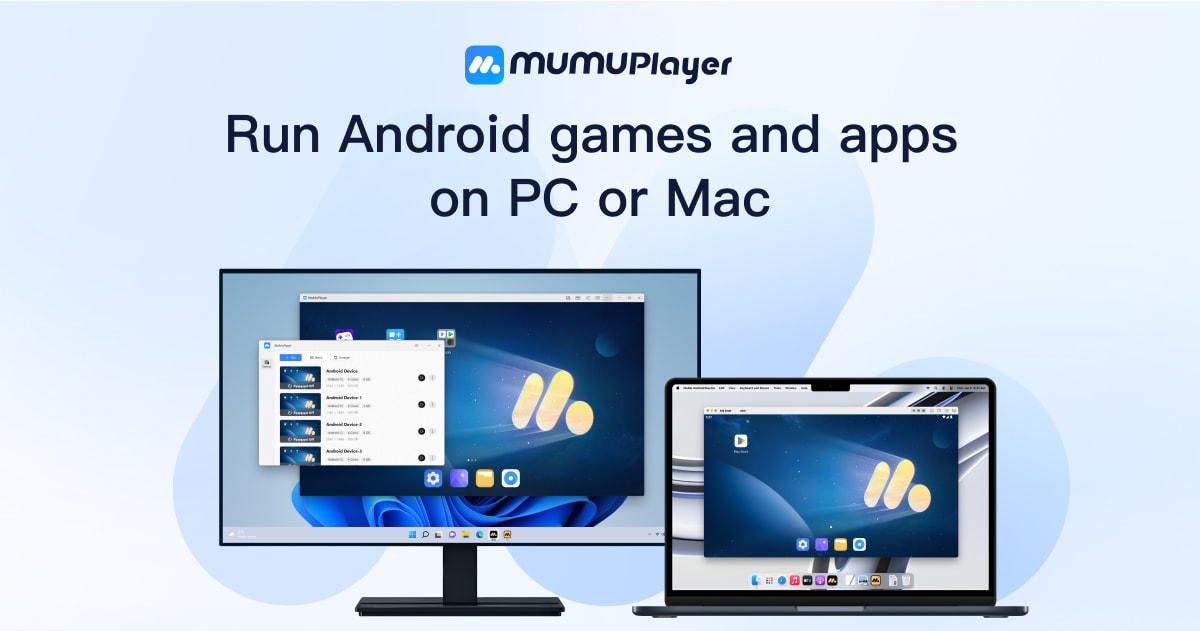
MuMuPlayer is an Android emulator that lets you run Android games and apps on a Windows PC, Windows on ARM device, or Mac. Its pitch is performance and compatibility rather than being a general-purpose utility: the page highlights Android 15 support, one-click launching, multi-instance play, key-mapping with keyboard and mouse, joystick support, and up to 4K graphics with high frame rates on capable hardware.
Who it is for
- Mobile gamers who want a bigger screen, keyboard-and-mouse controls, or multiple game accounts open at once.
- Mac users, including Apple Silicon owners, who need Android apps without a physical Android device.
- People on lower-end PCs who want smoother gameplay through GPU acceleration rather than maxed-out visuals.
What it actually does
- Runs Android games and apps in a window on your computer.
- Supports multiple instances at the same time, including Android 15 and Android 12 side by side.
- Maps keyboard, mouse, and mainstream joysticks to touch controls, with Mac touchpad gesture support.
- Offers a game library, guides, news, and redeem codes alongside the emulator itself.
Practical trade-offs
Emulators depend heavily on your hardware. A machine with a decent GPU and enough RAM will get closer to the advertised frame rates and 4K visuals; an older or low-power laptop will still run apps but with reduced settings. Multi-instance play also consumes memory and CPU per instance, so running several games at once is best on a desktop-class machine. The page mentions an "upgrade" keyword, so some features or tiers may sit behind a paid option, but the free download is the starting point.
Next step
If you mainly play one demanding game, install it, set a moderate resolution, and test frame stability before enabling multiple instances. If you juggle several accounts, start with two instances and watch your RAM usage before adding more. The official site is MuMuPlayer.
Is MuMuPlayer free to use or does it require a paid upgrade?
MuMuPlayer is positioned as a free Android emulator you can download and run on PC or Mac; the site's own messaging centers on downloading it and playing, not on a subscription or mandatory purchase. The only pricing-related signal on the page is a passing mention of "upgrade," which is not enough to establish what a paid tier would include.
In practice, emulators like this typically make money in ways that don't block basic play — optional premium tiers, in-app purchases inside the games you run, or ads — so "free to use" usually means the emulator itself costs nothing, not that everything inside it is free.
What to check before assuming
- Whether any feature is gated. Multi-instance, 4K/480 FPS output, and controller support are advertised capabilities; confirm on the official download or pricing page whether all of them are included at no cost or reserved for a higher tier.
- What "upgrade" refers to. It could mean a paid plan, a newer version, or an in-app prompt. The distinction matters if you're budgeting.
- Your platform. The emulator supports Windows, Windows on ARM, and macOS, including Apple Silicon Macs — a genuinely useful differentiator if you're on an M-series Mac, where emulator support has historically been thinner.
Practical next step
If cost is the deciding factor, install it and test your main game first, then look for any in-app prompts asking for payment. For a second opinion on compatibility and performance, community discussions and coverage from outlets such as Reddit can tell you whether a paid tier actually gates anything you need.
How does MuMuPlayer perform on Apple Silicon Macs compared to other Android emulators?
MuMuPlayer is positioned as a strong option for Apple Silicon Macs, mainly because its developer states it was the first emulator to be adapted for Apple Silicon rather than relying on slower translation layers. That matters: native Apple Silicon support usually means smoother frame pacing, faster launch and lower battery drain than emulators running through Rosetta-style compatibility.
What the page supports
- Native macOS support alongside Windows and Windows on ARM.
- Android 15 integration, with Android 12 also available for multi-instance setups.
- Claimed launch in about 3 seconds, 30% faster game loading and 25% higher average FPS.
- Support for up to 480 FPS and 4K visuals with GPU acceleration.
- Keyboard-and-mouse mapping, mainstream joysticks and Mac touchpad gestures.
- Unlimited multi-instance running Android 15 and Android 12 at the same time.
Those figures come from MuMuPlayer's own marketing, so treat them as vendor claims rather than independent measurements. The practical takeaway is that the feature set is aimed at Mac users who want a desktop-like control scheme and high-refresh gaming, not just basic app compatibility.
How it compares in practice
| Consideration | MuMuPlayer on Apple Silicon | Typical alternatives |
|---|---|---|
| Apple Silicon optimisation | Stated as first to adapt | Often via translation or later native builds |
| Android version | Android 15 focus | Commonly older Android bases |
| Performance ceiling | Up to 480 FPS, 4K claimed | Often capped lower |
| Multi-instance | Unlimited, mixed Android 15/12 | Limited or single-instance |
| Mac input | Keyboard, mouse, joystick, touchpad gestures | Varies, sometimes basic mapping |
The trade-off is that raw performance claims are hard to verify without testing your own games, and an emulator tuned for high-end Macs may not be the best fit for an older Intel Mac. If you use an M-series machine and play demanding titles like Arknights or Love and Deepspace, native support and multi-instance are the features most likely to affect your daily experience.
A useful next step: install it, run one game you know well, and compare launch time, frame stability and fan noise against your current emulator before committing. For official details, see MuMuPlayer.
Can MuMuPlayer run multiple game instances at the same time on one PC?
Yes. MuMuPlayer is built to run multiple Android instances simultaneously on a single PC, and the page presents this as a core feature rather than an add-on.
H3 What the page says about multi-instance
- "Unlimited Multi-Instance" is listed among the main capabilities.
- Instances can run Android 15 and Android 12 at the same time, so you are not limited to one Android version across all windows.
- The page ties this to an "upgraded architecture" meant to bring faster support for future Android versions.
H3 What that means in practice Running several instances is the standard way to play more than one account of the same mobile game, or to keep a farming/alt account open while you play your main. Because each instance behaves like a separate Android device, your logins, save data and settings stay separate per window.
The trade-off is hardware. Each instance consumes its own share of CPU, RAM and GPU, so the practical limit depends on your machine rather than the software. A high-end desktop can comfortably hold several windows; a thin laptop may manage two before frame rates drop. The page also notes performance claims such as 30% faster game loading, 25% higher average FPS and support for up to 480 FPS and 4K visuals — treat these as the vendor's own figures for well-specced hardware, not a guarantee for every setup.
H3 A quick way to decide If your goal is two or three accounts of a lightweight game, most modern PCs will handle it. If you plan to run four or more instances of a heavy 3D title, check your RAM first: allocate roughly 2–4 GB per instance as a starting estimate, then watch Task Manager while all windows are active.
Next step: open one instance of your heaviest game, note CPU and RAM usage, and use that number to work out how many instances your PC can realistically sustain before you commit to a multi-account setup.
MuMuPlayer is available at MuMuPlayer.
What Android version does MuMuPlayer support and how does that affect game compatibility?
MuMuPlayer's page states it is "First with Android 15," and it also supports Android 12, including running Android 15 and Android 12 instances at the same time. That means the emulator's Android version can be chosen per instance rather than being fixed for the whole installation.
Why the Android version matters for compatibility
Most mobile games declare a minimum Android version in their store listing. If the emulator's Android version is lower than that minimum, the game may refuse to install or fail to launch. Newer Android also tends to bring updated APIs and security behaviour that newer games assume. MuMuPlayer's page connects its Android 15 integration to "broader game compatibility" and a "true native Android experience," and it lists titles such as Arknights, Love and Deepspace, Mobile Legends: Bang Bang, eFootball and MapleStory: Idle RPG as running on the platform.
That said, a newer Android version is not automatically better for every game. Some older titles were built and tested against Android 7–9 and can behave oddly on newer runtimes. This is where multi-instance with two Android versions helps: you can keep a modern Android 15 instance for current games and an Android 12 instance for a legacy title, rather than choosing one version for everything.
Practical decision guide
| Situation | Sensible choice |
|---|---|
| Game lists a high minimum Android version | Use the Android 15 instance |
| Older game with known issues on new Android | Try the Android 12 instance |
| Running several games at once | Separate instances, matched to each game |
| Unsure | Start on the newest version, drop back only if the game misbehaves |
A concrete next step
Pick the one or two games you actually play, check their store pages for the stated Android requirement, then create an instance at or above that version. If a game installs but crashes on launch, that is the signal to test it on the Android 12 instance before assuming the emulator is at fault. For the current version list and instance options, see MuMuPlayer.
How do I set up keyboard and mouse controls for mobile games in MuMuPlayer?
Open the game in MuMuPlayer, then use the emulator's key-mapping tool to draw on-screen controls and bind them to keyboard keys or mouse buttons. MuMuPlayer's page evidence highlights a "new keyboard and mouse plan" that restores a PC-style control scheme, plus support for mainstream joysticks and Mac touchpad gestures, so you are not limited to a single input style.
H3 Practical setup flow
- Launch MuMuPlayer and start the game so its controls are visible.
- Open the key-mapping/control editor (usually a keyboard icon in the side toolbar).
- Drag a control element over each on-screen button you need: movement stick, attack, skill, jump, camera.
- Click the element and press the keyboard key or mouse button you want to assign.
- For camera or aiming, bind mouse movement to a swipe/drag area rather than a single tap.
- Save the scheme, give it a game-specific name, and test in a low-stakes area first.
H3 What to bind where
| Game action | Typical binding | Why |
|---|---|---|
| Movement | WASD | Familiar PC layout, leaves the right hand free |
| Primary attack/fire | Left mouse | Fast repeated input |
| Aim/camera | Mouse movement over a drag zone | Mimics PC look controls |
| Skills | Q, E, R, or number keys | Easy reach without moving off WASD |
| Interact/pick up | F or Space | Standard PC convention |
H3 Trade-offs and tips
- Mouse-to-touch mapping works well for shooters and MOBAs but can feel imprecise in games with complex gesture controls; adjust sensitivity and the drag zone size until it feels natural.
- Key-mapping is per game, so build separate profiles for each title rather than one universal layout.
- If a game detects emulator input or restricts third-party controls, key mapping may not work; check the game's own rules.
- MuMuPlayer's stated multi-instance support means you can run several games or accounts at once, but each instance needs its own tested control scheme.
Next step: pick your most-played game, create one profile, and spend five minutes in a practice mode tuning sensitivity before playing ranked or competitive content. If you want broader setup context, the official MuMuPlayer site is MuMuPlayer.
 Hosting and Email
 netease.com
 Hosting
 Alibaba Mail
 Location
 Chantilly, Virginia, United States
 Pages, Search and Sharing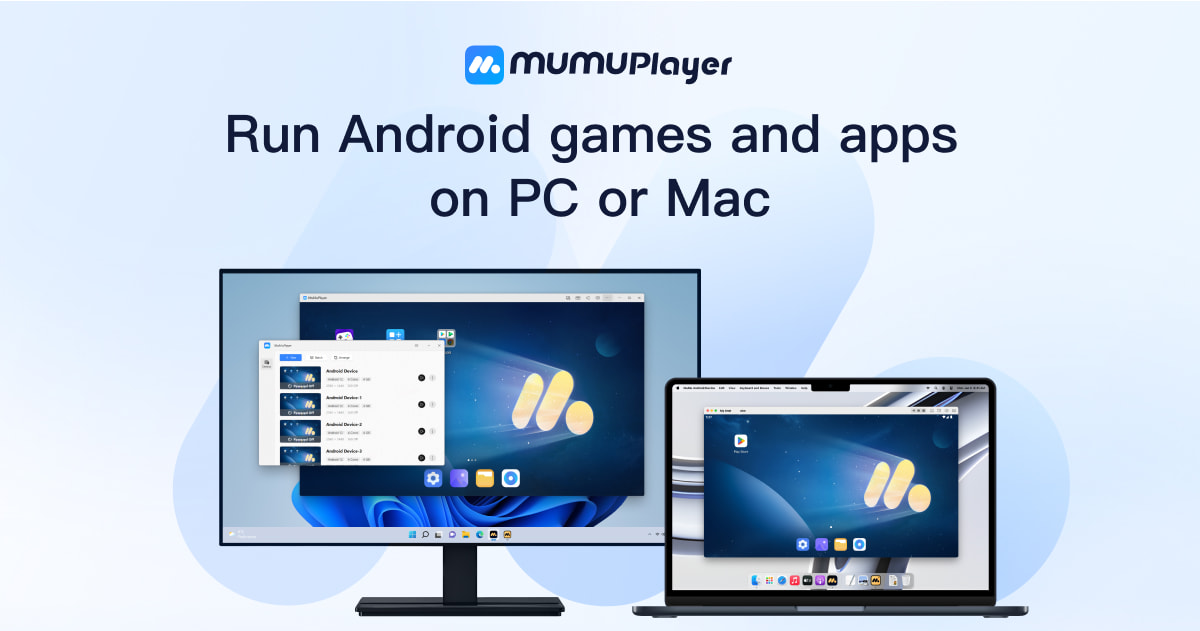



 yeti
yeti

 Registration details

 Identified technologies
User reviews (0)