
 简体中文
简体中文 English
Website review
This review may include AI-generated content and is not individually verified. Domain, certificate and other facts come from the observed data on this page.
What is Nyrna?
Nyrna is a free, open-source utility that lets you suspend and resume PC games, similar to the suspend mode on consoles. According to its page, you can pause a running game with a hotkey — either for the active window or for specific applications — and resume it later, using a Material-style graphical interface or a command-line interface.
It is aimed at players who want to step away from a game without closing it, or who want to free up system resources temporarily without losing their session. Because it is open source, it can be used and modified freely, and the page states there are no ads, no telemetry, and no data collection.
If you want to try it, the practical next step is to check whether your game and operating system are supported, then test the hotkey on a single game before relying on it for a long session. Keep in mind that suspending a game is not the same as saving it — treat it as a pause, not a substitute for in-game saves.
How do I set up a hotkey to suspend or resume a specific game window with Nyrna?
Nyrna is built around the idea of suspending and resuming a game the way a console does: the process is frozen in place, then unfrozen later. The page evidence describes hotkey support for "the active window or for specific applications," plus a Material-style GUI and a CLI interface. So the setup path is: bind a hotkey, then tell Nyrna whether it should act on whatever window is focused or on a named application.
The two targeting modes
| Mode | What it acts on | When it fits |
|---|---|---|
| Active window | Whatever window has focus when you press the hotkey | You keep one game in front and want a single "pause this" key |
| Specific application | A chosen app/process, regardless of focus | You want a dedicated key per game, or you suspend while another window is focused |
The active-window mode is the quicker one to configure and is usually enough for a single-game session. The specific-application mode takes more setup because you have to identify the game, but it gives you a predictable target and lets you assign different keys to different games.
Practical setup steps
- Open Nyrna and look for its hotkey or shortcut settings; the GUI is described as the primary friendly interface, with a CLI as an alternative.
- Add a new hotkey binding and choose the target: active window, or browse/select the specific application you want.
- Assign the key combination. Pick something the game itself does not already use, since a conflict means the game receives the input instead of Nyrna.
- Test it with the game running and focused. Suspend, confirm the game freezes rather than closes, then press again (or use the resume binding) to bring it back.
If the GUI does not expose a per-application binding, the CLI is the fallback: the page lists a CLI interface alongside the GUI, and command-line invocation is the usual route for scripting a specific target or wrapping it in a launcher shortcut.
Two things to decide before you start
- One key or two? Some tools use a single toggle; others separate suspend and resume. Check which Nyrna exposes, then decide whether a toggle or two distinct keys suits how you play.
- Focus behavior. With active-window targeting, the hotkey only works when the game is focused. If you alt-tab away and press it, you may suspend the wrong thing. Specific-application targeting avoids that failure mode.
A concrete scenario
You play a single-player game in borderless windowed mode and want to pause instantly when someone walks in. Bind one key to active-window suspend/resume. You press it, the game freezes exactly where it is, you deal with the interruption, press again, and continue from the same frame. No save, no menu, no lost progress.
If you instead juggle two games and a browser, give each game its own specific-application binding so a stray keypress never freezes your browser or a chat client.
Can Nyrna suspend and resume games from the command line or in scripts?
Yes. Nyrna is designed to suspend and resume games, and it explicitly offers a CLI interface alongside its hotkey and GUI options, so it can be driven from the command line and called inside scripts.
The practical value is automation: you can tie suspend/resume to a launcher, a timer, or a workflow that pauses a game when you step away and resumes it when you return, without interacting with the GUI. The page also notes it works on the active window or specific applications, which matters for scripts because you can target the exact process rather than whatever happens to be focused.
A concrete scenario: a user runs a long single-player session and wants a desktop shortcut or scheduled task that suspends the game when they leave their desk and resumes it on return. With CLI access, that becomes a small script rather than a manual button press.
For comparison, if you prefer a GUI-first tool, Nyrna itself provides a Material GUI; if you want a broader game-management front end, Playnite is a known option, though it is not a suspend/resume utility. The deciding factor is whether you need unattended, repeatable control: if yes, the CLI path is the reason to choose Nyrna over a GUI-only suspend tool.
Next step: check Nyrna's documentation or --help output for the exact command syntax and process-targeting flags before wiring it into a script.
Is Nyrna safe and truly open source with no ads, telemetry, or data collection?
Yes, based on the project's own description, Nyrna presents itself as open source software that is free to use and modify, with no ads, no telemetry, and no data collection. The page also describes a "friendly Material GUI" and a CLI interface, plus hotkey control for the active window or specific applications.
The practical caveat: "open source" and "no telemetry" are claims you can verify rather than take on faith. For a utility that suspends and resumes games, the meaningful checks are whether the source code is publicly available and whether the build you install matches it.
What to verify before trusting it
- Source availability: Confirm the code is published and inspectable, not just described as open source.
- Build provenance: Prefer downloading from the official project page rather than a third-party mirror.
- Network behavior: Since the page claims no telemetry or data collection, you can confirm this with a network monitor or firewall while running it.
- Permissions: A suspend/resume tool needs system-level access, so review what it requests.
Who this suits
- Privacy-conscious players who want a console-style suspend/resume without background reporting.
- Tinkerers who want to read or modify the code, or drive it from the CLI.
- Users wanting a simple GUI for hotkey-based suspension of the active window.
If you want to check it yourself, start at Nyrna, look for the repository link, and compare the released build against the source.
How does Nyrna's suspend and resume compare to console suspend mode for PC games?
Nyrna deliberately copies the console experience: pressing a button pauses your game and lets you pick up later, except on PC you choose the trigger. According to its own description, you can suspend and resume with a hotkey for the active window or for specific applications, through a Material-style GUI, or via a command-line interface.
Where it matches consoles
- One action, no save menu: suspend and resume are the whole interaction, like putting a console into rest mode.
- Works on the running game rather than a save file, so you return to the same spot.
- The GUI keeps it approachable if you do not want to remember commands.
Where the PC version differs
| Aspect | Console suspend | Nyrna on PC |
|---|---|---|
| Trigger | Hardware button or menu | Hotkey, GUI, or CLI |
| Scope | Whole console | Active window or specific applications |
| Setup | None | You install and configure it |
| Reliability | Guaranteed by the platform | Depends on the game and your system |
The trade-off is control versus certainty. A console suspends everything in a known, closed environment. On PC, suspending one application is more flexible — you can pause a game while leaving other programs running — but some games handle suspension poorly, and results vary by title and hardware.
If you want to test it, start with a single-player game you can afford to lose progress in, suspend it for a few minutes, and confirm it resumes cleanly before relying on it for longer breaks.
For background on how suspend and resume behave at the operating-system level, see The Linux Kernel Archives and Microsoft.
Can I modify or contribute to Nyrna's source code for my own use?
Yes. Nyrna is described as open source software that is free to use and modify, with no ads, no telemetry, and no data collection. That means you can adapt it for your own use, and you can contribute changes back to the project.
H3 Practical next steps
- Find the project's source repository from the official site Nyrna and read its license first; the license defines exactly how you may modify and redistribute it.
- Check for contribution guidelines, issue templates, and build instructions before changing code.
- For a personal fork, keep your changes on a branch and document what you altered so future updates are easier to merge.
H3 What to consider
- Personal use: Modifying for yourself is generally straightforward, but the license may still require you to preserve copyright notices.
- Contributing back: Bug fixes and small, focused pull requests are usually easier to review than large rewrites.
- Redistribution: If you plan to publish a modified version, verify the license terms rather than assuming they match your intent.
If your goal is simply to tweak behavior, start with a local fork and one small change; if your goal is to get a fix into the main project, open an issue describing the problem before writing the patch.
 Cloudflare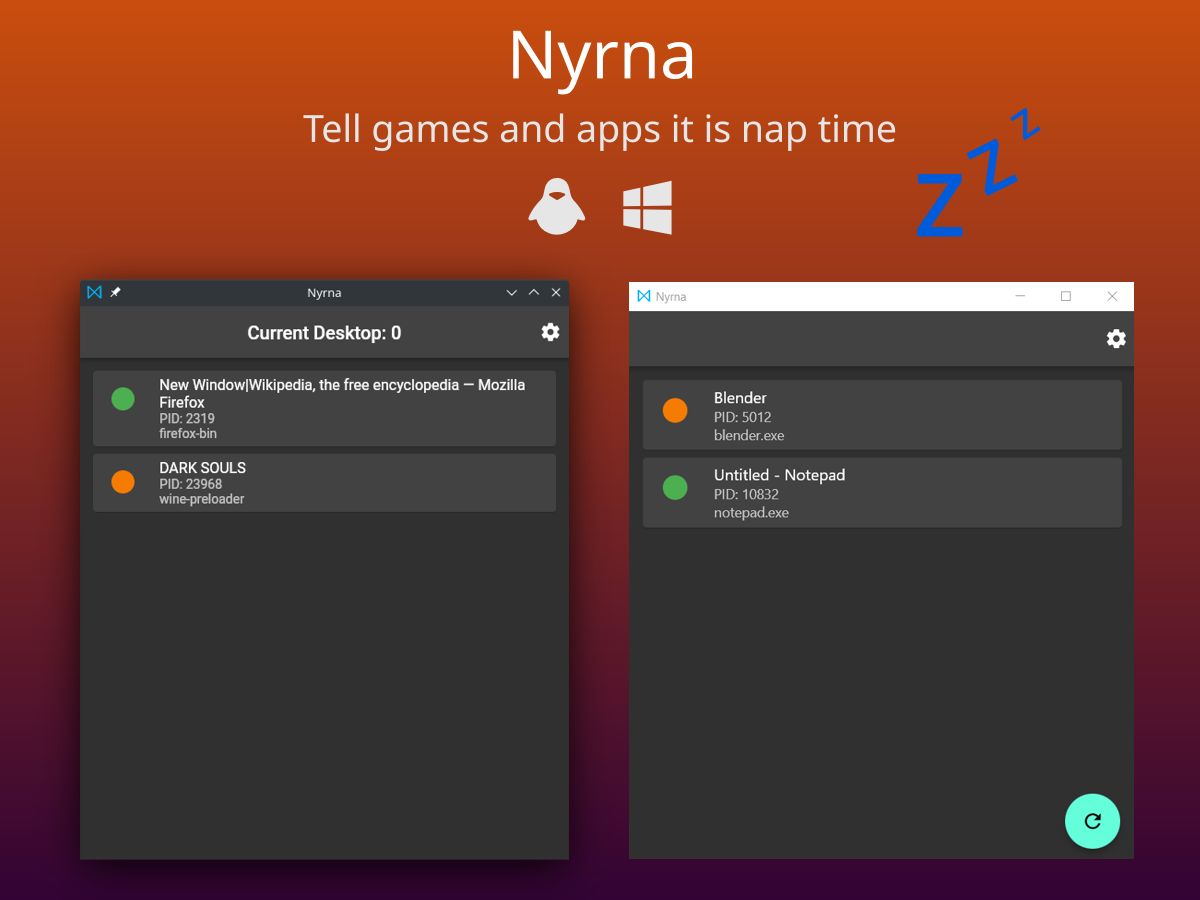

User reviews (0)