Website profiles · Technology insights · Alternatives

ogi.nat3z.com

Install, organize, and launch games from multiple sources with OpenGameInstaller's addon-powered desktop experience for Windows and Steam Deck workflows.

No paid content found
Visit website
Profile views 0 Outbound visits 0 Normal
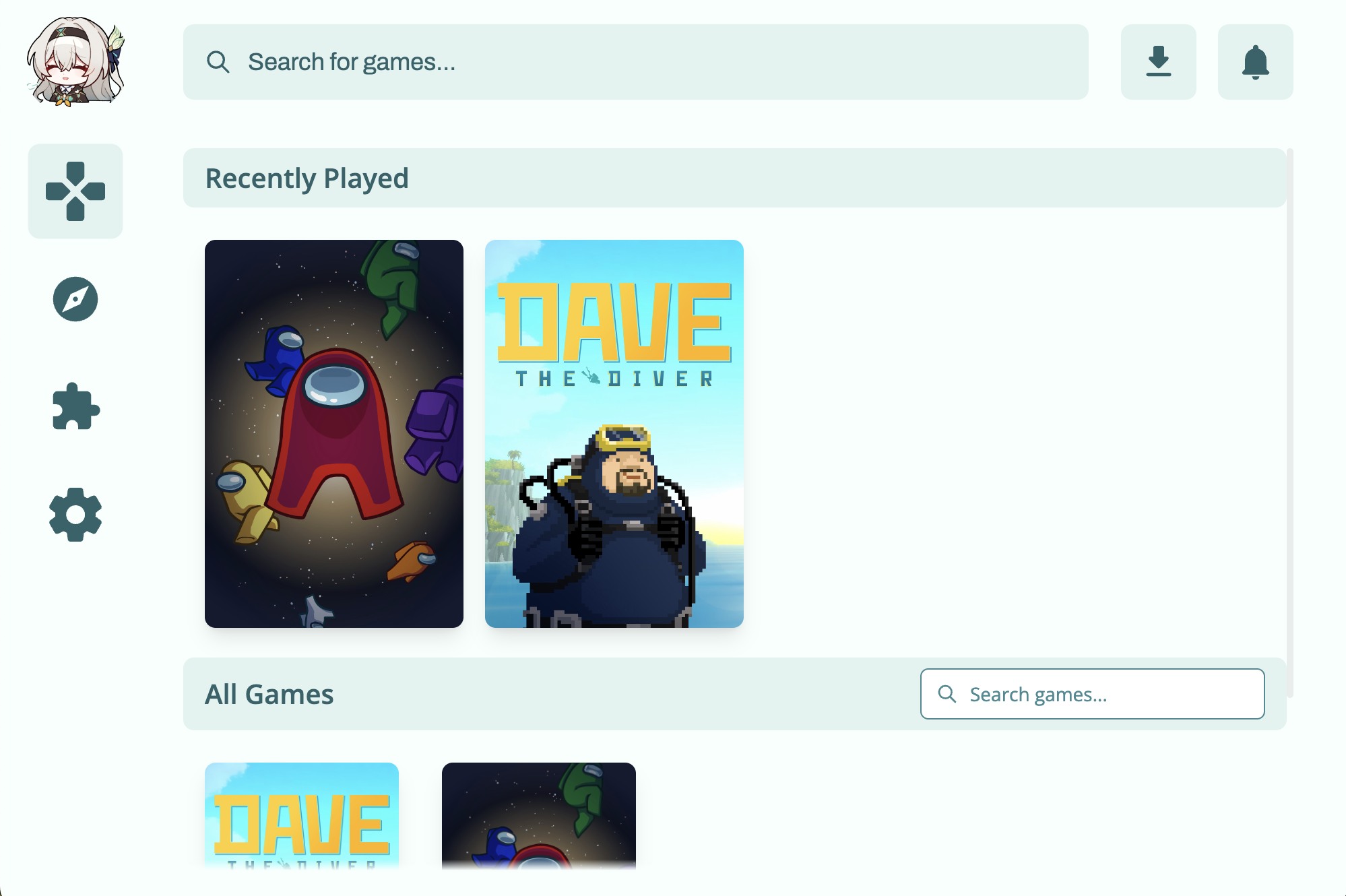
OpenGameInstaller | Next-Generation Game Manager Full homepage screenshot

At a glance

Category
Games & Board Games
Language
English
Paid-content signal
No paid content foundObserved
Registered
2022
Hosting
VercelInferred
HTTPS certificate trusted
PassedObserved
Last updated

Website review

This review may include AI-generated content and is not individually verified. Domain, certificate and other facts come from the observed data on this page.

What is OpenGameInstaller?

OpenGameInstaller is a desktop game manager for Windows and Steam Deck workflows, positioned as a way to install, organize and launch games from multiple sources through addons. The page presents it as an addon-powered "next-generation game manager" with download, documentation, releases and addon list links; it does not spell out a storefront, pricing or the exact sources it supports.

What that means in practice

  • One launcher instead of several: you keep a single library view rather than jumping between separate installers and folders.
  • Addons extend sources: the "Addons List" suggests support for additional game sources is added modularly, so what you can install depends on which addons exist and are maintained.
  • Built for handheld and desktop use: the Windows and Steam Deck framing matters if you switch between a PC and a Deck and want the same library on both.

Who it suits

Someone with games from scattered sources who wants them installed and launched from one place, especially on a Steam Deck where a tidy launcher reduces friction. It is less appealing if you only use one storefront, since Steam and similar clients already handle install and launch well.

What to check before committing

The page is thin on specifics, so verify these first:

  • Which sources the current addon list actually covers.
  • Whether addons are actively maintained, since a stale addon breaks that source.
  • How it handles updates and uninstalls for games it manages.
  • Whether Steam Deck support means native Linux operation or a compatibility layer.

A practical next step: open the addon list and releases page and confirm your main game sources are covered before installing anything. If you want a baseline for comparison, Steam itself is documented at Steam.

How does OpenGameInstaller compare to Steam's built-in library management for organizing games from multiple sources?

OpenGameInstaller is aimed at people who collect games from several stores and launchers and want one place to install, organize and launch them, including on Windows and Steam Deck workflows. Steam's built-in library is narrower by design: it organizes what you own or add through Steam and lets you add non-Steam shortcuts, but it is not built as a general manager for multiple external sources.

Where the difference shows up

Task Steam library OpenGameInstaller (per its page)
Organizing Steam games Native, automatic Supported as one source among several
Games from other sources Manual non-Steam shortcuts Multi-source install and launch, via addons
Extending functionality Limited to Steam features Addon-based
Platform focus Steam client platforms Windows and Steam Deck workflows

The practical trade-off is convenience versus control. Steam requires no setup and keeps cloud saves, friends and workshop features integrated; OpenGameInstaller asks you to trust an addon-driven tool to handle installs and launches across sources, which suits tinkerers more than people who want a zero-configuration library.

A concrete case: someone with Steam purchases plus games from a few other storefronts could use OpenGameInstaller as the single launcher and keep Steam for its own catalog and social features. Someone who mostly buys on Steam gains little. Check the addon list and documentation on OpenGameInstaller before committing, and confirm your OS is supported in its releases list.

Can OpenGameInstaller run on Steam Deck, and what setup does it require?

Yes—OpenGameInstaller is positioned for Steam Deck workflows as well as Windows, though the page itself doesn't spell out the exact installation steps. What it does say is that the app is a desktop game manager for installing, organizing, and launching games from multiple sources, with addons extending what it can handle. On a Steam Deck, that means you'd be running it in desktop mode rather than as a native SteamOS app.

What the setup likely involves

  • Desktop Mode first. Switch the Deck to Desktop Mode, since this is a desktop application rather than something launched from Game Mode.
  • Check your OS support. The page shows a "Your OS isn't supported yet" message with a link to view releases, so confirm a build exists for your system before downloading.
  • Install from the releases list. Use the download and releases links on the site rather than assuming a store package.
  • Add addons for extra sources. The addon system is what lets it pull games from multiple sources, so set those up after the base install.
  • Optionally add it to Steam. Once running, you can add it as a non-Steam shortcut so it's reachable from Game Mode.

A practical example

Imagine you keep games from a few different launchers and stores. On a Deck, you'd boot into Desktop Mode, install OpenGameInstaller from its releases page, configure the addons for your sources, then add the app to Steam so you can launch it without switching modes each time. The appeal is one place to install and launch instead of juggling separate launchers.

Decision criteria

  • If you want a single addon-driven hub for games from several sources on a Deck, this fits that use case.
  • If you'd rather stay entirely in Game Mode with no Desktop Mode tinkering, expect more friction.
  • Verify your specific OS build is listed in the releases before committing, since support is presented as conditional.

For the exact steps and any Deck-specific notes, the site's Documentation and Addons List are the places to check.

What are addons in OpenGameInstaller and how do they extend its functionality?

Addons are the mechanism OpenGameInstaller uses to connect the game manager to different game sources and workflows. The base application handles the shared desktop experience—installing, organizing and launching games—while addons supply the source-specific logic that tells it where games come from and how they should be handled. The site lists an "Addons List" alongside download and documentation links, which suggests addons are a discoverable, separate catalog rather than something baked into a single fixed store.

What this means in practice

  • Source coverage: Instead of the app hardcoding one storefront or library, each addon can represent a different source. Adding or removing an addon changes which sources the manager can work with.
  • Shared interface, variable backends: Your library view, install flow and launch actions stay consistent; the addon is what varies underneath.
  • Extensibility over time: New sources can be supported by adding an addon rather than waiting for a full application rewrite.

A concrete scenario: someone running Windows and a Steam Deck wants one place to install and launch games from several sources. They would install the core app, then enable the addons matching the sources they actually use, keeping the library unified.

Trade-offs to weigh

Approach Strength Cost
Addon-based sources Flexible; you enable only what you need You must find, install and keep addons current
Built-in single source Nothing extra to configure Limited to that one source

The practical next step is to open the Addons List on OpenGameInstaller and check whether the specific sources you rely on are represented before committing. If a source you need has no addon, the manager's flexibility won't help you there—so match the addon catalog to your actual library first.

Which operating systems and releases are available for OpenGameInstaller?

OpenGameInstaller is presented as a desktop game manager for Windows and Steam Deck workflows, so those are the two platforms to plan around. The site does not list specific version numbers or release dates in the material provided, and the page itself shows an "OS isn't supported yet" notice with a link to a releases list, which suggests availability is tracked on that list rather than stated up front.

What to do next

  • Windows users: check the releases list on OpenGameInstaller for the current downloadable build before installing.
  • Steam Deck users: treat it as a SteamOS/Steam Deck-oriented workflow and confirm the latest release notes mention Deck support, since the page frames it as a Deck workflow rather than a separate store listing.
  • Other systems: if the page reports your OS as unsupported, the releases list is the place to verify whether a build exists for your platform.

Decision criterion

If you need a guaranteed, versioned download for a specific OS, rely on the releases list rather than the main page; the main page signals platform intent (Windows and Steam Deck), while the releases list is where concrete builds are enumerated.

How do I install and launch a game from a third-party source using OpenGameInstaller?

OpenGameInstaller is presented as a desktop game manager that installs, organizes and launches games from multiple sources, with an addon system and workflows for Windows and Steam Deck. The site itself does not publish a step-by-step install guide; it points visitors to a download, documentation and an addons list. So the reliable path is: install the app from the official site, add the addon for the source you use, then let the manager handle installation and launching.

A practical sequence

  1. Check platform support first. The landing page notes that your OS may not be supported yet and offers a releases list. Confirm your Windows build or Steam Deck setup is covered before downloading.
  2. Install OpenGameInstaller from OpenGameInstaller and open it once to let it set up its library.
  3. Add the relevant addon. Third-party sources are reached through addons rather than built in, so open the addons list and enable the one matching your source.
  4. Install the game through the manager so it lands in the managed library rather than an arbitrary folder. This is what makes later launching and organization work.
  5. Launch from the library. On Steam Deck, the usual approach is to add the manager or the installed game to Steam as a non-Steam app so it appears in Game Mode.

Who this suits

A Steam Deck owner juggling games from several storefronts or community sources gets the most value: one library, one launch point, and addons that can be swapped as sources change. A Windows user with a single storefront may find a dedicated launcher simpler.

Trade-offs to weigh

Consideration What it means in practice
Addon dependency A source works only while its addon is maintained; a broken addon blocks installs.
Third-party sources Provenance and safety rest with the source, not the manager — verify files yourself.
Setup effort More initial configuration than a single-storefront launcher, repaid by a unified library.
Platform gaps Unsupported systems need the releases list, not the main download.

Decision criterion

If you regularly install from more than one non-Steam source and want them launched from one place, the addon model is worth the setup. If you only need one storefront, its native client involves fewer moving parts. Start with the documentation linked on the site to confirm the exact addon and install steps for your source before your first install.

Related questions

More questions →
What to Consider Before Using OpenGameInstaller to Manage Your Games

OpenGameInstaller is worth considering if you want one desktop place to install, organize, and launch games from multiple sources, but only if your setup matches its stated platform support and you are willing to rely on addons for source coverage. Before committing, confirm two things on the site: that your OS is supported, and that the addon list covers the stores or sources you actually use.

What OpenGameInstaller Is Built to Do

The site describes it as a "Next-Generation Game Manager" for installing, organizing, and launching games from multiple sources, with an "addon-powered desktop experience" aimed at Windows and Steam Deck workflows. That framing tells you where the value sits: consolidation. Instead of juggling separate launchers and folders, you get one interface for the whole lifecycle of a game — getting it installed, keeping it organized, and starting it.

The trade-off is equally clear. The product's usefulness scales with its addons, not with a fixed built-in catalog.

The Two Checks That Decide Fit

1. Platform support

The homepage includes a note that your OS isn't supported yet, alongside links to a releases list. That is a signal to verify support for your specific machine rather than assume it. If you are on Windows or a Steam Deck workflow, you are in the described target audience; if you are on anything else, check the releases list before planning around it.

2. Addon coverage

Because sources are handled through addons, the practical question is not "does it support game managers" but "does an addon exist for each source I use." The site exposes an Addons List for exactly this purpose. Review it against your own sources before installing.

Consideration What to check Why it matters
Operating system Whether your OS appears as supported, or the releases list The page itself flags unsupported OSes
Game sources The Addons List for each source you use Source coverage depends on addons
Workflow Whether a single install/organize/launch flow fits how you play The core benefit is consolidation
Documentation The Documentation link Confirms setup steps and current behavior

How to Evaluate It Without Wasting Time

  1. Open the site and read the Documentation to understand the install and addon model.
  2. Open the Addons List and tick off each source you rely on. Any missing source is a real gap, not a detail.
  3. Check the releases list if your OS is not obviously supported.
  4. Only then download and test with a small number of games before migrating your whole library.

Expected result: you either have a confirmed match between your sources, your OS, and the available addons — or you have found the specific reason it won't fit, before investing setup time.

Common Pitfalls

  • Assuming broad source support. Addons determine coverage; the base app does not guarantee it.
  • Skipping the OS check. The unsupported-OS notice on the page is easy to scroll past.
  • Migrating everything at once. Test the install-organize-launch loop on a few titles first.
  • Ignoring documentation. Addon-powered tools often behave differently per addon, and the docs are where that is explained.

The Decision in Short

Choose OpenGameInstaller if you are on Windows or a Steam Deck workflow, your sources are represented in the Addons List, and you want one place to install, organize, and launch games. Hold off if your OS is not supported or a source you depend on has no addon — in that case, manual management remains the more predictable option until coverage changes.

Where to Download OpenGameInstaller and Find Its Documentation

OpenGameInstaller's download, documentation, and release-list links all live on the project's own site at ogi.nat3z.com. The homepage presents the app as "The Next-Generation Game Manager" and offers a Download option alongside Documentation, an article link, a View releases list link, and an Addons List. Use the download link to get the app, the documentation and article links for setup guidance, and the releases list when your OS isn't supported.

Downloading the App

The site's primary action is the Download button on the homepage. That is the intended entry point for getting the desktop application.

Before you click, note the platform context the site itself states: OpenGameInstaller is described as an addon-powered desktop experience built for Windows and Steam Deck workflows. If you are on one of those platforms, the download path is straightforward.

If Your OS Isn't Supported

The homepage surfaces a message that your OS isn't supported yet, paired with a View releases list link. That releases list is the place to check when:

  • The download button doesn't offer a build for your system.
  • You want to see what builds exist before installing.
  • You're on a platform outside the stated Windows/Steam Deck focus and want to confirm whether anything applies to you.

Treat the releases list as the authoritative check rather than assuming a build exists for your device.

Finding Documentation and Setup Guidance

Two separate resources are linked from the homepage:

Resource What it's for
Documentation Reference material for installing, organizing, and launching games through the app
article Background and explanatory reading on the tool

The site's own description frames the app's purpose as installing, organizing, and launching games from multiple sources. The documentation link is where to go for the how-to detail behind that, and the article link is the lighter-weight read if you want context before committing to a setup.

What Else Is on the Page

  • Addons List — a dedicated link to the addon catalog. Addons are central to how the app works ("addon-powered desktop experience"), so this list is worth opening if you want to see what extends the base install.
  • The Next-Generation Game Manager — the site's own tagline, useful mainly as a quick confirmation you're on the right project page.

A Practical Sequence

  1. Open ogi.nat3z.com.
  2. Check whether your OS is in the supported set (Windows or Steam Deck workflows per the site).
  3. If yes, use Download; if not, open View releases list first.
  4. Read Documentation for install and launch steps, or the article for an overview.
  5. Browse the Addons List once the base app is in place.

Common Sticking Points

  • No download offered for your system. The site explicitly handles this case with the releases list — go there instead of hunting for an alternative installer.
  • Confusing documentation with the article. They are separate links; the documentation is the operational reference, the article is explanatory.
  • Skipping addons. Since the app is addon-powered, the Addons List is part of understanding what it can do, not an optional extra.

The site does not publish pricing details in the material available here, so treat cost and licensing as something to confirm on the site itself rather than assumed.

Which Operating Systems and Devices Does OpenGameInstaller Support?

OpenGameInstaller is presented as a desktop game manager for Windows and Steam Deck workflows, according to the site's own description. The site also displays an "Your OS isn't supported yet" message and directs visitors to a releases list, so the practical answer is: check the releases list for the current platform availability before downloading. The page evidence does not enumerate every supported OS version or device model, so treat Windows and Steam Deck as the stated targets rather than a complete compatibility guarantee.

What the Site States

The homepage describes OpenGameInstaller as an "addon-powered desktop experience for Windows and Steam Deck workflows." That gives two clear target environments:

  • Windows — the primary desktop platform implied by "desktop experience."
  • Steam Deck — a handheld device that runs SteamOS (a Linux-based system), which the site groups under its workflow support.

The page does not list minimum Windows versions, specific Steam Deck models, or other Linux distributions. It also does not mention macOS, iOS, Android, or console platforms.

The "Unsupported OS" Message

The homepage includes the text "Your OS isn't supported yet. View releases list." This is a runtime or browser-side check that appears when the visitor's detected operating system is not among the supported set. Two things follow from this:

  1. Support is conditional on your device. If you see this message, the site believes your current OS is outside the supported range.
  2. The releases list is the authoritative source. The site points to a releases list rather than publishing a static compatibility table, which suggests platform availability may change between releases.

How to Check Before Downloading

  1. Open the OpenGameInstaller site and note whether the "Your OS isn't supported yet" message appears on your device.
  2. Follow the View releases list link on the page.
  3. In the releases list, look for build assets or release notes that name your platform (for example, a Windows installer or a Steam Deck/Linux package).
  4. Only download a build whose listed platform matches your device.

Expected result: you either find a matching release asset and can proceed, or you find none and should not expect the app to run on that device yet.

Common Pitfalls

  • Assuming Steam Deck support means all Linux desktops. The site frames Steam Deck as a workflow, not general Linux. Do not assume a standard Linux distribution is covered unless the releases list says so.
  • Ignoring the on-page OS check. The unsupported-OS message is the fastest signal; if it appears, verify against the releases list before troubleshooting a download.
  • Treating the description as a spec sheet. The site's wording describes intended workflows, not certified hardware or OS versions. For exact requirements, the releases list is the place to look.

Bottom Line

If you are on Windows or using a Steam Deck workflow, OpenGameInstaller is aimed at your device — but confirm with the releases list, since the site itself gates access with an OS check and does not publish a full compatibility matrix. If you are on any other platform, the page gives no indication of support, and the "unsupported OS" message is likely what you will see.

What Is OpenGameInstaller and What Is It Used For?

OpenGameInstaller (ogi.nat3z.com) is a desktop game manager for Windows and Steam Deck workflows. It is used to install, organize, and launch games that come from multiple sources, with an addon system that extends what it can handle. It is a management layer, not a store: it does not sell games or supply game content itself, so what you can install depends on the sources and addons you connect to it.

What the tool actually does

The site describes three core jobs, and they map to the everyday problem of game libraries scattered across different launchers and folders:

  • Install — bring games in from the sources you use, rather than juggling each source's own installer.
  • Organize — keep those games in one managed library instead of across separate folders and clients.
  • Launch — start games from that single library.

The "addon-powered" part is the key mechanism. Instead of hardcoding support for specific stores or sources, OpenGameInstaller relies on addons to define what it can work with. That means the tool's usefulness grows with the addons available to it, and a source without a corresponding addon is outside what the manager can handle.

Who it fits

Your situation Fit
You run games from several sources and want one place to install, list, and launch them Good fit — this is the stated purpose
You use Windows or a Steam Deck-style workflow Good fit — both are named as target workflows
You want a storefront to buy games Not a fit — it is a manager, not a store
Your OS is not among the supported ones Not yet — the site shows an "OS isn't supported yet" notice and points to a releases list

How to evaluate it before committing

  1. Check your OS. The download page states plainly when your operating system isn't supported and directs you to the releases list. Confirm support there before planning a setup.
  2. Read the documentation. The site links a Documentation section; use it to see how addons are added and how sources are configured.
  3. Review the Addons List. This tells you which sources are actually covered. If a source you rely on isn't represented, the manager won't help with it.
  4. Start with one source. Install and launch a single game through the manager first, then expand — this surfaces addon or configuration problems early.

Limits worth knowing up front

The available site information does not state pricing, account requirements, or a full list of supported sources. Treat those as unknowns to verify on the site rather than assumptions. The practical takeaway: OpenGameInstaller is worth trying if your problem is consolidation across multiple game sources on a supported platform, and the Addons List is the first thing to check, because it defines what the manager can actually do for you.

What Are Addons in OpenGameInstaller and What Do They Do?

Addons are the components that let OpenGameInstaller support different game sources. Rather than shipping with a fixed set of built-in stores, the tool is described as an "addon-powered" game manager: the addon layer is how it installs, organizes, and launches games "from multiple sources." If you want to know which sources you can use, the answer lives in the addon list rather than in a fixed catalog baked into the app.

How the addon model works

OpenGameInstaller presents itself as a desktop game manager for Windows and Steam Deck workflows. Its core job is to install, organize, and launch games; the addon layer is what connects that core to a particular source.

A useful way to think about it: the manager provides the shared plumbing — the install flow, the library organization, and the launch step — while each addon supplies the source-specific part. That separation is why the product describes itself as handling "multiple sources" instead of listing stores as native features.

For example, if you wanted to manage games from two different sources, you would not look for two separate built-in storefronts inside the app. You would look for the addons that correspond to those sources, and the manager would then handle installing, organizing, and launching them through the same workflow.

Where to find the available addons

The site exposes an Addons List entry alongside its main navigation (which also includes download, documentation, and a releases list). That list is the place to check what addons exist and, by extension, which sources the tool can currently work with.

Practical steps:

  1. Open the site and go to the Addons List.
  2. Review which addons are listed there — these define the sources you can manage.
  3. Use the Documentation for setup details on how addons are added and used.
  4. Use the releases list if your OS is not yet supported, since the download area notes when your operating system isn't supported yet.

Expected result: you end up with a concrete picture of which sources are covered, instead of assuming a store is built in.

What addons do and do not tell you

  • They define source coverage. The set of available addons is the practical limit on which sources you can manage. There is no separate built-in store catalog described on the site.
  • They sit inside a shared workflow. Installing, organizing, and launching are presented as the manager's functions, with addons supplying the source side.
  • They are not a pricing signal. The site materials do not state pricing, licensing terms, or whether addons or the app are free, so treat cost and access conditions as unconfirmed until you check the documentation or the addon entries themselves.

When this model fits your needs

Choose an addon-based manager like this if you expect to pull games from more than one source and want one place to install, organize, and launch them, and if you are on Windows or a Steam Deck workflow. Check the addon list first: if the sources you care about are not represented there, the tool will not cover them regardless of other features. If your OS shows as unsupported on the download page, check the releases list before planning around it.

Website Overview

An advisory match combined with missing browser safeguards may increase exposure if the affected component is active. Deployment-specific verification and remediation deserve priority. Identifiable technologies and additional version or configuration signals make the service easier to fingerprint, which may help targeted scanners narrow their checks.

Domain and Registration

Transfer-protection status is present, helping reduce the risk of unauthorized domain transfers. The domain has about 3 years of registration history; its current configuration provides more context than age alone. The registrar is Cloudflare, Inc., a widely used domain service provider. The domain uses the common .com extension, which is not an independent safety signal.

DNS and Email

Nameservers are provided by Cloudflare, indicating managed DNS hosting. MX records point to the Cloudflare Email Routing email service. DNSSEC is enabled, allowing validating resolvers to authenticate signed DNS data. No CNAME was found; the observed records resolve directly to addresses. SPF and DMARC are configured. DKIM status is unknown.

TLS and Certificates

The public key uses EC with 256 bits. The server supplied a complete certificate chain. No organization name is present in the certificate; the available fields are consistent with domain validation. The certificate was issued within the Google Trust Services cloud or CDN ecosystem. The certificate's total validity is about 90 days, consistent with a short renewal cycle.

HTTP and Browser Security

The response lacks these common security headers: CSP, X-Content-Type-Options, Referrer-Policy, Permissions-Policy, clickjacking protection. CORS permits any origin to read this response. This is common for public resources; sensitive responses need narrower handling. No X-Powered-By header was found, reducing one common source of backend fingerprinting information. The cf-ray response header indicates a CDN or caching proxy in the delivery path. No obvious internal addresses or debug information were found in the headers.

Technology Stack Analysis

The public page identifies Astro 4.16.19, Cloudflare, Vercel, with exact versions exposed for 1 technologies. These details can narrow vulnerability checks, although exposure alone is not a vulnerability. The advisory source OSV places Astro 4.16.19 in the affected range of GHSA-26w7-cxv4-gfx2, GHSA-2pvr-wf23-7pc7, GHSA-376h-93r7-7g6f, GHSA-4g3v-8h47-v7g6, GHSA-5ff5-9fcw-vg88 等 10 项. Verify the deployed version and relevant configuration before drawing conclusions about exploitability. Updating affected components should be a priority.

Search and Social Sharing

The Generator tag identifies Astro v4.16.19, making the publishing system easier to fingerprint. Twitter Card metadata is configured. The title has 48 characters, within a common display range. A meta description is present, with 153 characters. The observed directives allow indexing and link following.

Hosting and Email

DNSCloudflare
HostingVercel
EmailCloudflare Email Routing
Approximate IP geolocation (inferred; a CDN or proxy may differ from the origin server) Location unknown Inferred 104.21.42.228

Registration details

RDAP / WHOIS

RegistrarCloudflare, Inc.
Registered2022-12-25
Expires2026-12-25
Domain statusclient transfer prohibited
Nameserversjason.ns.cloudflare.com、samara.ns.cloudflare.com
DNSSECsigned

DNS records

DNS

TypeNameValueTTLPriority
Aogi.nat3z.com104.21.42.228300—
Aogi.nat3z.com172.67.167.169300—
AAAAogi.nat3z.com2606:4700:3035::6815:2ae4300—
AAAAogi.nat3z.com2606:4700:3035::ac43:a7a9300—
MXnat3z.comroute3.mx.cloudflare.net30012
MXnat3z.comroute1.mx.cloudflare.net30026
MXnat3z.comroute2.mx.cloudflare.net30069
NSnat3z.comjason.ns.cloudflare.com86400—
NSnat3z.comsamara.ns.cloudflare.com86400—
TXTnat3z.com0d094d711c0983a994dc27660c51330a49219087c4358b49929bfbd123edf9d8300—
TXTnat3z.comgoogle-site-verification=bkRDbqsJ-E52AfNJ8eV6NHtb8ZEMsEc_kNH4GmLtvLw300—
TXTnat3z.comv=spf1 include:_spf.mx.cloudflare.net ~all300—
DSnat3z.com2371 13 2 da7159cd0fed29a61ad35c138db5282e13d451494f7ce50de51974fc30a741fa86400—
DMARC_dmarc.nat3z.comv=DMARC1; p=none; rua=mailto:[email protected]300—

TLS and certificates

TLS / SSL

AssessmentNormal configuration
Supported protocolsTLSv1.2、TLSv1.3
Negotiated protocolTLSv1.3
Certificate subjectnat3z.com
IssuerGoogle Trust Services
Valid until2026-12-28T01:28 · Remaining when checked: 67 days
Verification detailsCertificate trust: Passed · Hostname match: Passed

HTTP response headers

HTTP

HeaderValue
content-typetext/html; charset=utf-8
cache-controlpublic, max-age=0, must-revalidate
servercloudflare
strict-transport-securitymax-age=63072000
access-control-allow-origin*

Identified technologies

Astro 4.16.19CloudflareVercel

Pages, Search and Sharing

Meta descriptionInstall, organize, and launch games from multiple sources with OpenGameInstaller's addon-powered desktop experience for Windows and Steam Deck workflows.
Canonical URLhttps://ogi.nat3z.com/
LanguageEnglish (default)
Twitter Cardsummary_large_image

No rules found

No sitemaps found

User reviews (0)

  • No reviews yet.