Website profiles · Technology insights · Alternatives

presenton.ai Paid content

Categories: Productivity

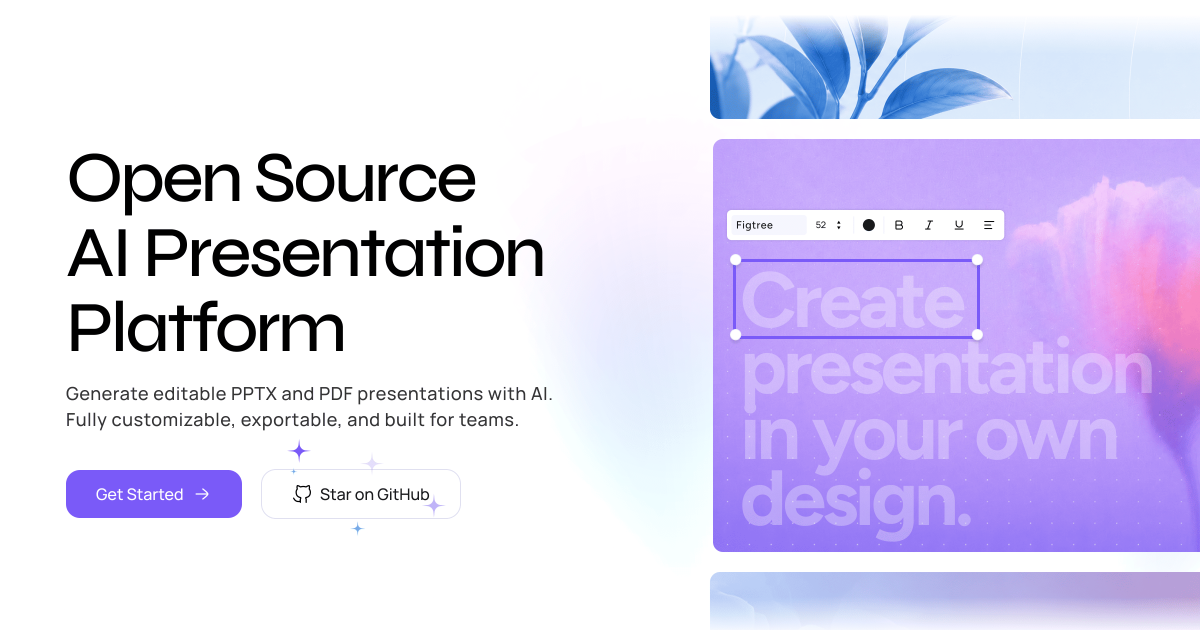
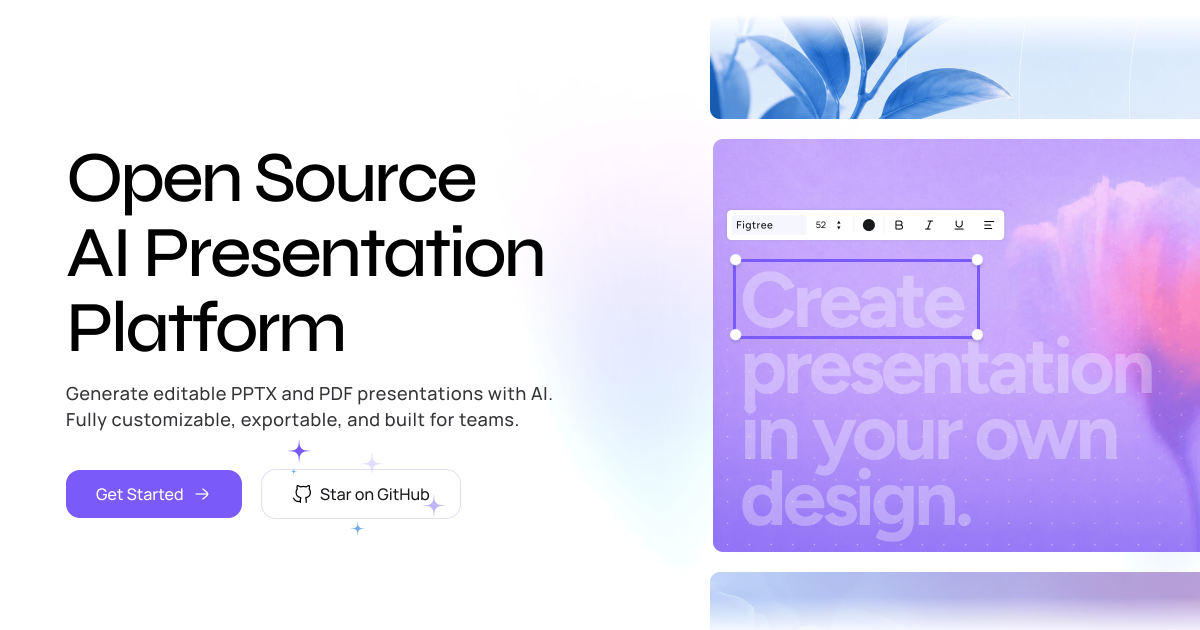
Turn prompts and documents into editable PPTX or PDF slide decks with Presenton. Use the cloud app, self-host the open-source software, or automate presentations through the API.

Visit website

Updated: 2026-10-03 06:42 Language: English (default) Access: Normal

Profile views 3 Outbound visits 0
Presenton Full homepage screenshot
Editorial Review

Website Review

What is Presenton?

Presenton is an AI presentation maker that turns prompts and documents into editable PPTX or PDF slide decks. Its distinguishing feature is flexibility in how you run it: a cloud app for quick use, self-hosted open-source software for control, or an API for automated generation at scale.

Ways to use it

  • Cloud app — describe what you need or supply a document, and get an editable deck back.
  • Self-hosted — run the open-source software inside your own environment, useful when slides contain sensitive material or you need to customize the pipeline.
  • API — generate presentations programmatically, for example from a reporting system that produces decks on a schedule.
  • Enterprise deployment — the site mentions a pilot option to validate Presenton in your environment with a limited deployment and technical support.

Who it suits

Situation Best fit
Occasional one-off decks Cloud app
Confidential or regulated content Self-hosted
Many decks generated automatically API
Teams evaluating before rollout Pilot deployment

A practical next step

If you are comparing tools, decide first where your content is allowed to live. A marketing team producing public decks can start with the cloud app and see whether the output needs light editing or heavy rework. A company generating client reports from internal data should test the self-hosted or API route instead, since that is where control over data and repeatability matter more than convenience.

How do I turn a document into a presentation with Presenton?

Presenton converts a document into a slide deck by reading its content and generating editable slides you can refine. The workflow is: supply the document, let Presenton draft the structure and slide content, then edit the output as PPTX or PDF.

Typical steps

  1. Open Presenton's cloud app (or your self-hosted instance).
  2. Upload or paste your source document — a report, brief, or notes.
  3. Let it generate a draft deck from that content.
  4. Edit the slides directly, adjusting text, order, and layout.
  5. Export to PPTX (for further editing in PowerPoint/Keynote) or PDF (for sharing).

Which route fits you

Route Best for Trade-off
Cloud app Quick, one-off decks Less control over environment
Self-hosted open source Teams with data/privacy requirements You manage setup and maintenance
API Automating decks at scale Requires development work

Practical scenario: A consultant with a 10-page client report uploads it, generates a draft, then spends time refining wording and visuals rather than building slides from scratch. The document-to-deck step handles the first pass; your judgment handles the final polish.

Next step: Decide whether you need a single deck (use the cloud app) or repeated, automated generation (use the API or self-hosting). If you're evaluating options, compare against Gamma and Canva, which also generate presentations but differ in editing model and hosting.

Can I self-host Presenton and what are the deployment requirements?

Yes. Presenton is explicitly designed to be self-hosted — the page describes it as open-source software that you can run in your own environment, alongside a cloud app and an API option. The same page also mentions an enterprise path where a limited deployment is piloted in your environment with technical support.

What self-hosting actually means here

Self-hosting gives you control over where presentation data lives and how the service is reached, which matters if you feed it internal documents, client material or regulated content. The trade-off is that you take on the operational work: keeping the deployment running, applying updates, and managing access yourself. If your team has no one to own that, the cloud option is the lower-effort route.

Deployment requirements

The public page does not list specific hardware, container or runtime requirements, so treat any exact figures as something to confirm from the project's own installation documentation before you commit. What you can reasonably plan around:

  • A container-friendly host. Open-source presentation tools of this kind are typically shipped as container images, so a machine or cluster that can run containers is the usual baseline.
  • Model access. Generation runs on AI models, so you will need either API credentials for a model provider or enough local compute to run one yourself. This is often the deciding factor.
  • Storage and export handling. Because output is editable PPTX or PDF, plan for file storage and a way to retrieve generated decks.
  • A network entry point. If others on your team will use it, you need a URL, TLS and some form of authentication in front of it.
  • An update path. Open-source projects move; someone should be able to pull new versions and redeploy.

A practical way to decide

Try a small pilot first: deploy it for one team, feed it a handful of real documents, and check how well the generated decks survive editing in PowerPoint. That single test tells you more than any specification list, because the value of an AI deck generator is whether the output is genuinely editable rather than a pretty dead end.

If you would rather not run infrastructure at all, compare against a hosted tool such as Gamma before investing in a self-hosted setup.

How does Presenton's API work for automating presentation generation?

Presenton's API lets you generate presentations programmatically rather than through its editor: you send a request describing the deck you want, and the service returns a finished file — the site states output is editable PPTX or PDF. The same generation engine also powers the cloud app and the self-hosted open-source version, so the API is the automation layer over that engine.

What you can send

Based on the page, the API accepts two main kinds of input:

  • Prompts — a text description of the deck you want.
  • Documents — source material that gets turned into slides.

The page frames this as "turn prompts and documents into editable PPTX or PDF slide decks" and lists "Generate presentations through API" as a core capability, alongside document-to-presentation AI.

Where it fits in a workflow

A practical pattern is: your app or script assembles the prompt or attaches the source document, calls the API, and stores the returned PPTX/PDF. Typical uses:

  • Generating client-ready decks from structured data or reports on demand.
  • Producing branded slide sets at scale from a template plus variable content.
  • Letting an internal tool or chatbot create slides without a human opening a design app.

Three ways to run it

Approach Who it suits Trade-off
Cloud app Individuals and teams wanting a hosted editor Least control over infrastructure
Self-hosted open source Teams with data-residency or customization needs You run and maintain it
API Developers automating generation inside another product Requires integration work

The page also mentions "Enterprise Deployment" and a pilot option to "validate Presenton in your environment with a limited deployment and technical support," which is aimed at organizations that need to test self-hosting before committing.

A next step

If you are evaluating the API, start with a small pilot: pick one recurring deck type (for example, a weekly metrics report), feed it as a document or prompt, and check whether the returned PPTX opens cleanly in PowerPoint and survives editing. That single test tells you more about fit than any feature list — and if it passes, the pilot path mentioned on the site is the natural way to scale it.

For concrete request formats, endpoints and authentication details, check the documentation linked from Presenton.

What are the pricing options for the Presenton cloud app?

The page evidence I have does not include Presenton's actual price points, tiers or billing terms. It only confirms that a pricing page exists at Presenton under a "Pricing" link. So the honest answer to "what are the pricing options" is: check that page directly, because the numbers are not in the material supplied here.

What I can tell you from the page is how Presenton is structured, which is usually the bigger cost decision:

  • Cloud app — the hosted route, presumably where a pricing page applies.
  • Self-hosting — the software is open source, so you can run it in your own environment instead of paying per seat or per deck.
  • API access — for generating decks programmatically from prompts or documents.
  • Enterprise deployment — the page mentions a pilot option to validate Presenton in your environment with a limited deployment and technical support.

That structure matters more than a sticker price for many buyers. A team producing a handful of decks a month will usually find the cloud app simplest, since there is nothing to maintain. A team generating presentations inside an existing pipeline, or handling material that cannot leave its infrastructure, will care more about the self-hosted and API routes.

Next step: open the pricing page and compare it against your own volume. Ask two questions: how many decks per month, and can your content leave your environment? If the answer to the second is no, self-hosting is the option to price out, including the engineering time to run it — that cost is real even when the licence is free.

How do Presenton's AI-generated slides compare to manually created PowerPoint presentations?

Presenton produces editable PPTX and PDF decks from prompts or documents, so the practical difference from manual PowerPoint work is where the effort sits: you spend time reviewing and refining a draft instead of building every slide from a blank canvas.

Where AI generation wins

  • First-draft speed. A prompt or an existing document becomes a structured deck, which is most useful when the content already exists and only the layout is missing — a report, a proposal, a training doc.
  • Consistency. Generated decks tend to keep one template, font set and layout logic across slides, which manual decks often lose by slide 20.
  • Repeatability. The API route means the same input style produces the same deck structure every time, which matters for recurring reports or client-facing templates.
  • Self-hosting option. Teams with data-residency or compliance constraints can run it in their own environment rather than sending content to a third-party cloud tool.

Where manual creation still wins

  • Nuanced narrative. Persuasive decks for a specific audience — a funding pitch, an executive disagreement, a sensitive internal change — depend on judgement about what to omit. Generated drafts tend to include rather than curate.
  • Custom visual storytelling. Bespoke diagrams, annotated screenshots, hand-placed data callouts and brand-specific chart styling usually need a human in PowerPoint or Keynote.
  • Fine typographic control. Precise spacing, alignment and animation timing remain faster to do directly than to correct in a generated file.

A practical comparison

Dimension Presenton-generated Manually created
Starting point Prompt or document Blank or template
Time to first draft Minutes Hours
Structural consistency High across slides Depends on discipline
Narrative judgement Needs human review Author-controlled
Automation Available via API Manual each time
Best fit Recurring, content-heavy decks Bespoke, high-stakes decks

A realistic workflow

Export your source document, generate a deck, then treat the output as a structural skeleton: fix the argument, cut slides that do not earn their place, and rebuild the two or three visuals that carry the message. That keeps the speed benefit without shipping a generic result.

How to decide

Choose generation when the deck is a delivery format for content you have already written and will produce again. Choose manual when the deck is the argument. For teams weighing alternatives, Canva and Gamma cover lighter design-led and prompt-led workflows, while SlidesGo is useful mainly for templates you would edit yourself.

Next step: run one real document through Presenton and one through your normal manual process, then compare the time spent on structure versus the time spent on message. That ratio tells you which decks in your workload should be generated.

Related questions

More questions →
How Do You Choose the Best Presentation Generator for AI Slide Decks?

The best presentation generator depends on how you need to produce slides, not on a single feature checklist. If you want the fastest path from a prompt or document to an editable deck, a cloud AI presentation maker fits. If data must stay inside your own environment, an open-source, self-hosted tool fits. If you need to generate decks repeatedly at scale, an API-driven workflow fits. Presenton, for example, supports all three paths: a cloud app, self-hosted open-source software, and an API that turns prompts and documents into editable PPTX or PDF decks.

The Three Delivery Models, Compared

Most "best presentation generator" decisions come down to choosing among three delivery models. They differ in who runs the software, how you interact with it, and what kind of control you keep.

Dimension Cloud AI presentation maker Open-source / self-hosted API automation
Who runs it Vendor Your team or infrastructure Vendor or your own deployment
Primary input Prompt or document Prompt or document Prompt or document sent programmatically
Output format Editable slides (e.g., PPTX/PDF) Editable slides (e.g., PPTX/PDF) Editable slides returned to your pipeline
Best for Individuals and small teams wanting speed Teams with privacy, compliance, or customization needs Products and workflows generating decks at volume
Main trade-off Less control over hosting and data path Setup and maintenance effort Requires engineering work to integrate

A useful way to read this table: the cloud option trades control for convenience, the self-hosted option trades convenience for control, and the API option trades manual effort for repeatability.

When a Cloud AI Presentation Maker Is the Right Choice

Choose a cloud tool when your goal is to go from a prompt or an existing document to a finished, editable deck with minimal setup. You type or upload, the tool generates slides, and you refine them in a familiar editor.

This fits:

  • One-off or occasional decks where speed matters more than infrastructure control.
  • Users who don't want to install or maintain anything.
  • Teams evaluating whether AI-generated slides meet their quality bar before committing further.

The trade-off is that generation happens on the vendor's side, so you should confirm how your data is handled before uploading sensitive material.

When Open-Source or Self-Hosted Wins

Choose an open-source, self-hosted presentation generator when the data path matters as much as the output. Running the software in your own environment keeps prompts and documents inside your infrastructure, which is often the deciding factor for regulated industries or internal-only content.

Presenton is positioned as an open-source AI presentation maker, and its page describes a pilot path: validating the tool in your environment with a limited deployment and technical support. That pilot framing is worth noting because self-hosting decisions usually fail on operational fit, not on features. Before committing, check:

  • Whether your team can deploy and maintain the software.
  • Whether the output format (editable PPTX/PDF) matches what your downstream tools accept.
  • Whether a limited pilot surfaces integration or performance issues early.

When API Automation Beats Manual Use

If you generate presentations repeatedly — for clients, reports, or product features — manual slide creation becomes the bottleneck. An API lets you send a prompt or document programmatically and receive an editable deck back into your pipeline.

This is the right model when:

  • Volume is high enough that manual generation doesn't scale.
  • Decks follow a repeatable pattern you can template.
  • You're embedding presentation generation into another product or internal tool.

The cost is engineering effort: someone has to build and maintain the integration. Presenton exposes presentation generation through an API, which makes it a candidate when automation is the priority rather than a nice-to-have.

How to Evaluate Output Quality and Editability

Whatever model you pick, the output has to be usable after generation. Two things matter most:

  1. Editability. A deck you can't adjust is a dead end. Look for editable PPTX or PDF output so you can refine text, layout, and branding after generation.
  2. Input flexibility. The ability to start from either a prompt or an existing document covers more real scenarios than prompt-only generation.

Test both with your own material rather than demo content. A generator that handles a generic prompt well may struggle with your actual documents, terminology, or structure.

A Practical Selection Path

  1. Define the constraint first. Is it speed, data control, or scale? That single answer usually eliminates two of the three models.
  2. Match the model to the constraint. Speed → cloud. Data control → self-hosted. Scale → API.
  3. Run a limited pilot. Presenton's own page suggests validating in your environment with a limited deployment and technical support — a sensible pattern for any tool, since it tests real conditions before full commitment.
  4. Check the output in your workflow. Confirm the generated PPTX/PDF opens and edits correctly in the tools your team already uses.
  5. Confirm pricing and deployment terms. Presenton lists a pricing page, so review current terms directly rather than assuming a cost model.

FAQ

Is a cloud or self-hosted presentation generator better?

Neither is universally better. Cloud wins on speed and zero setup; self-hosted wins when data must stay in your environment. Pick based on your constraint, not on general reputation.

Can I generate presentations from documents, not just prompts?

Yes — document-to-presentation is a common capability. Presenton, for instance, turns both prompts and documents into editable PPTX or PDF decks.

Do I need an API to generate presentations at scale?

If you're producing decks repeatedly or embedding generation into another product, an API is the practical route. For occasional decks, manual use of a cloud or self-hosted app is simpler.

What should I check before committing to a tool?

Output editability (PPTX/PDF), input flexibility (prompt and document), deployment fit (cloud vs. self-hosted), and current pricing terms. A limited pilot in your own environment is the most reliable way to validate all four.

What Is an Open-Source AI Presentation Generator and When Should You Self-Host One?

An open-source AI presentation generator is software whose source code you can inspect, modify, and run yourself, and which uses AI models to turn a prompt or document into an editable slide deck (typically PPTX or PDF). You should self-host one when you need data to stay inside your own infrastructure, want to customize the generation pipeline, or need to call presentation generation from your own code. You should stay on a hosted cloud app when you want zero setup and don't have constraints on where your content is processed. Presenton is an example of a tool that offers both paths: a cloud app, a self-hostable open-source version, and an API for automation.

How an open-source AI presentation generator works

The pipeline is usually the same regardless of vendor:

  1. Input — you provide a prompt, an outline, or a source document (for example a report or spec).
  2. Content structuring — the tool uses a language model to expand the input into slide titles, bullet content, and a narrative order.
  3. Layout and rendering — a templating or layout engine places that content into slide layouts and exports a file format.
  4. Output — you get an editable deck (PPTX) or a fixed-format file (PDF).

The "open source" part matters at steps 2 and 3: because you can read and change the code, you can swap models, change prompts, adjust templates, and control where the model runs. In a closed cloud tool, those steps are a black box you can only influence through the vendor's settings.

Open-source self-hosted vs. closed cloud tools

Dimension Open-source / self-hosted Closed cloud tool
Data control Content stays on your infrastructure (subject to any external model calls you configure) Content is sent to the vendor's servers
Cost model You pay for your own compute and any model API usage Typically a subscription or per-seat plan
Customization Full — prompts, templates, models, output pipeline Limited to exposed settings
Setup effort You install, configure, and maintain it None beyond signing up
Automation Usually via a documented API you call directly Varies; API may be limited or gated
Maintenance Yours — updates, dependencies, model changes Vendor's responsibility

The tradeoff is control versus effort. Self-hosting buys you data residency and customization at the cost of running and updating the stack yourself.

What to check before self-hosting

Before committing, verify these four things — they are the usual blockers:

  • License — confirm the license permits your intended use (internal, commercial, redistribution). Open source does not automatically mean unrestricted for every scenario.
  • Model dependencies — does it require an external model API (which sends content off-site), or can it run a local model? This determines whether "self-hosted" actually keeps your data local.
  • Hardware requirements — local model inference needs meaningful CPU/GPU and memory; API-based generation needs far less but adds a network dependency.
  • API availability — if you plan to automate, check that the project exposes an API and that its endpoints cover your workflow (create deck, pass a document, retrieve the file).

Presenton's own materials describe three usage paths — cloud app, self-hosted open-source software, and an API for automation — and mention an enterprise deployment option framed as a limited pilot with technical support. That structure is a useful checklist pattern: confirm which of these paths your chosen tool actually supports before you build around it.

When the API path makes sense

Use the API instead of the UI when deck generation is one step in a larger automated flow — for example, generating a client-ready deck from a document your system already produces. The API is the right fit when you need to:

  • Trigger generation programmatically from another application or pipeline.
  • Generate decks at volume without manual steps.
  • Keep the presentation step inside your own product or internal tooling.

If you only make a handful of decks a month by hand, the UI is usually faster than wiring up an API.

Common problems and how to troubleshoot them

  • Formatting breaks in the exported deck — usually a template or layout mismatch. Check that your template placeholders match what the generator expects, and test with a minimal prompt first.
  • Missing images or assets — the generator may reference assets it can't fetch. Confirm asset paths or URLs are reachable from the environment where generation runs.
  • Model access errors — if the tool calls an external model, verify API keys, quotas, and network access from the host. If it runs a local model, confirm the model is downloaded and the hardware meets its requirements.
  • Output isn't editable — check the export format. PPTX is editable; PDF is not. If you need to edit, select PPTX.

How to decide

Choose self-hosted open source if data must stay in your environment, you need to customize the generation pipeline, or you want to avoid per-seat costs and can absorb the setup and maintenance. Choose a hosted cloud app if you want to start immediately and have no data-residency constraint. Choose the API if generation needs to run inside your own automated workflow. For many teams the practical answer is a combination: evaluate on the cloud app, then move to self-hosting or the API once the workflow is proven.

What Is an AI Presentation Maker and How Do You Create a Slide Deck From a Prompt?

An AI presentation maker is a tool that turns a prompt, pasted text, or an uploaded file into a structured slide deck — outline, slide content, and often design and images — that you then review and refine. It fits best when you need a first draft fast and are willing to edit: you supply the topic or source material, the tool proposes an outline, and you adjust the slides before exporting. It is a poor fit when every slide must follow a locked brand template or when charts and claims need to be verified line by line.

Julius AI is one example: its workspace lists Slides alongside Excel, Website, Video, Image, and data connectors, so slide creation sits next to the data and research tasks that often feed a deck.

What an AI presentation maker actually handles

Most tools in this category cover four jobs, and it helps to know which ones you are delegating:

  • Outline and structure — grouping your topic into a logical sequence of sections and slides.
  • Slide content — writing titles, bullet points, and speaker notes from your prompt or source document.
  • Design and layout — applying a theme, arranging text and visuals on each slide.
  • Images and charts — generating or placing visuals, and in data-aware tools, building charts from numbers you provide.

The more of these the tool handles, the less manual work — but also the more you need to check the output, especially anything numeric.

The typical workflow

The steps below describe the general pattern. Exact button names vary by product, so treat the labels as descriptions of the action rather than a menu map.

  1. Start from your input. Enter a topic prompt, paste existing text, or upload a document. In a workspace like Julius, you can also pull from connected data or files already in the workspace.
  2. Review the generated outline. The tool proposes a slide-by-slide structure. This is the cheapest place to make changes — reorder, cut, or add sections before content is written.
  3. Generate the slides. Confirm the outline and the tool fills in titles, body text, and visuals.
  4. Edit slide by slide. Tighten wording, replace generic images, fix any chart that misreads your data, and add anything the tool could not know.
  5. Export. Most tools output to PowerPoint, Google Slides, or PDF so you can present or keep editing in your usual app.

Expected result: a presentable draft deck in minutes, not a finished deck. Budget your time for step 4 — it is where the deck becomes yours.

What input works best

Input type Good for Watch out for
Short topic prompt Quick drafts, brainstorming, internal updates Vague prompts produce vague slides; add audience and goal
Pasted text Turning a report or notes into slides Long text may be over-summarized; check key points survive
Uploaded document Decks grounded in a specific source Formatting and tables may not carry over cleanly
Spreadsheet or data Chart-driven decks Verify every number and axis against the source

The pattern: the more specific and structured your input, the less editing the output needs. A prompt that names the audience, the length, and the key message beats a one-line topic.

Editing and exporting

Plan on editing in two passes. First, fix substance — facts, numbers, and anything the tool invented or dropped. Second, fix form — slide count, text density, and visual consistency. Then export to PowerPoint, Google Slides, or PDF depending on whether you need to keep editing or just present.

If your team has a required template or brand colors, check whether the tool can apply them before you commit; template control is one of the most common gaps.

Common limitations to check

  • Template and branding control — can you enforce a house style, or only pick from presets?
  • Chart accuracy — does it read your data correctly, or does it approximate?
  • Fact verification — generated text can be plausible but wrong; verify claims, especially in external-facing decks.
  • Image relevance — generated visuals may be generic; swap in real screenshots or photos where they matter.
  • Export fidelity — fonts and layouts can shift when moving between tools.

None of these make the tool unusable — they tell you where to spend your review time. For a low-stakes internal draft, a quick skim may be enough. For a client or investor deck, treat the AI output as a starting point and verify everything that carries a number or a claim.

How Do You Choose the Best Open-Source Presentation Generator for Self-Hosting or API Use?

Start by deciding how you will run it. If you need full data control, pick a project you can self-host and maintain; if you mainly need speed, a cloud app with an open-source core is usually faster to adopt. Then check three things before committing: whether it exports editable PPTX or PDF, whether it exposes an API for automation, and whether it supports a pilot deployment so you can test quality in your own environment. Presenton, for example, is positioned around all three — prompt- and document-to-deck generation, self-hosting, and API-driven automation — which makes it a reasonable candidate to evaluate against other open-source options.

The criteria that actually separate these tools

Most open-source presentation generators look similar in a demo. The differences show up in deployment, output format, and integration.

Dimension What to check Why it matters
Input Prompt, document, or both Determines whether you can reuse existing content
Output format Editable PPTX, PDF, or both PDF is final; PPTX is what you can still edit
Hosting Self-hosted vs. cloud Data control vs. setup and maintenance effort
API Available or not Needed to automate generation inside your workflow
Customization Templates, themes, brand styles Decides whether output looks like your organization
License & community License terms, activity level Predicts long-term maintainability
Enterprise support Pilot deployment, technical support Reduces risk for larger rollouts

Self-hosted vs. cloud: the real trade-off

Self-hosting gives you control over where documents and generated decks live, which matters if your inputs contain internal or client material. The cost is that you own installation, upgrades, and uptime.

A cloud app removes that maintenance burden and gets you to a first deck faster, but your content passes through someone else's infrastructure.

A middle path is to validate in your own environment first. Presenton describes a pilot option — a limited deployment with technical support — which is a useful pattern when you want to test a self-hosted setup before a full rollout.

Choose self-hosting if: your content is sensitive, you have someone who can maintain a deployment, and you want generation to stay inside your network.

Choose cloud if: you need results quickly, your inputs are not sensitive, and you would rather not run infrastructure.

Check the API before you commit

If presentation generation is meant to be one step in a larger pipeline — for example, turning a report into a deck automatically — the API is the deciding factor, not the UI.

Presenton exposes presentation generation through an API, alongside the cloud app and self-hosted software. When evaluating any candidate, confirm:

  • Authentication: how you get and manage credentials.
  • Input shape: what you send (prompt, document, or structured data).
  • Output: what you get back and in which format.
  • Rate and size limits: whether they fit your volume.

If a tool has no API, you are limited to manual or UI-driven generation, which usually rules it out for automation.

Confirm the export is actually editable

"AI slides" can mean a rendered image, a PDF, or a real PPTX file. Only the last one lets you keep editing in PowerPoint or similar tools.

Presenton's stated output is editable PPTX or PDF. When comparing options, generate a test deck and open the PPTX in your editor: check that text boxes, layouts, and placeholders are editable rather than flattened images. This single test eliminates a lot of tools that look good in screenshots.

Test customization and brand fit

Templates, themes, and brand styles determine whether generated decks are usable as-is or need heavy rework. Look for:

  • Reusable templates or themes
  • Control over fonts, colors, and layout
  • Whether branding can be applied consistently across decks

If your organization has strict brand guidelines, test whether a candidate can honor them before you standardize on it.

Run a small pilot before deciding

The cheapest way to choose is to test with your own content. A practical pilot:

  1. Pick one real document or prompt you would actually use.
  2. Generate a deck and export both PPTX and PDF.
  3. Open the PPTX and edit it — confirm it behaves like a normal file.
  4. If you need automation, call the API once and inspect the response.
  5. If self-hosting, deploy in a limited environment and note setup time and issues.

Presenton's pilot framing — limited deployment with technical support — matches this approach: validate in your environment before committing.

Common pitfalls

  • Assuming "open source" means free to run anywhere. Hosting, maintenance, and support still cost time or money.
  • Judging by the demo only. Demos use clean inputs; your documents may not.
  • Skipping the editability test. A beautiful PDF is not an editable deck.
  • Ignoring the license and community. An inactive project becomes your maintenance problem.
  • No pilot. Rolling out without testing integration and output quality is the most expensive mistake.

Bottom line

Pick the tool that matches how you will run it: self-host if you need data control and can maintain it, use cloud if you need speed. Then verify editable PPTX/PDF output, an API for automation, and customization for your brand. Presenton is a candidate worth testing on all of these — its open-source core, self-hosting option, API, and pilot deployment cover the criteria above — but the right choice depends on your content sensitivity, maintenance capacity, and automation needs. Run a one-deck pilot before you decide.

PDF Invoices in Legal Billing: What to Include and When to Use Them

A PDF invoice in legal billing is a fixed-format document that presents the fees and costs owed on a matter in a layout that looks the same on every device. It is the digital equivalent of a printed bill: readable, portable, and easy to attach to an email or upload to a client portal. Its main limitation is that it is not machine-readable in the way a LEDES file is, so a client's e-billing system cannot automatically ingest it. PDF works best for flat-fee matters, small or one-off engagements, and clients who do not run an automated billing platform.

What "PDF" means in a legal billing context

When a billing tool offers to send an invoice "in PDF," it is generating a rendered document rather than a structured data file. The distinction matters:

  • PDF is a presentation format. A human reads it. Line items, totals, and matter details appear as text and tables on a page.
  • LEDES (Legal Electronic Data Exchange Standard) is a structured, delimited text format. An e-billing system parses it, validates it against outside counsel guidelines, and routes it for review.
  • Email delivery is a transport method, not a format. You can email a PDF, email a LEDES file, or email a link to an online invoice.

These three are often confused because a single invoice can combine them: a LEDES file delivered by email, or a PDF attached to an email. The format is what the client's systems can read; the delivery method is how it arrives.

When a PDF invoice is the right choice

PDF is usually appropriate when the client does not require electronic submission through a billing platform. Common scenarios:

  • Flat-fee and fixed-price matters. When the invoice is one or two lines, a structured file adds no value.
  • Small businesses and individuals. Clients without an accounts payable system can open a PDF and pay from it.
  • Retainers and replenishment requests. A simple statement of the retainer balance is easy to read as a PDF.
  • Pro bono or courtesy bills. Where no formal e-billing review applies.
  • Backup documentation. Even when a LEDES file is submitted, a PDF is often attached for the reviewer's convenience.

If the client has outside counsel guidelines requiring LEDES submission, a PDF alone will typically be rejected or returned for manual entry. Check the client's billing requirements before choosing the format.

PDF versus LEDES versus emailed invoice: a quick comparison

Factor PDF LEDES Email (as delivery)
Machine-readable No Yes N/A
Accepted by e-billing platforms Rarely Yes Depends on attachment
Setup effort Low Higher (mapping fields) Low
Best for Flat fees, small clients, backup Corporate and insurer clients Any format
Risk Manual re-entry by client Format rejection if fields are wrong Lost or filtered messages

Core elements of a compliant legal PDF invoice

A PDF invoice should stand on its own. If a client's AP department picks it up with no context, it should still answer who, what, when, and how much.

Firm and client identification

  • Firm name, address, and contact details
  • Tax or VAT identification number where applicable
  • Client name and billing contact
  • Invoice number and invoice date
  • Client matter number or reference

Matter and timekeeper detail

  • Matter name and description
  • For each timekeeper: name, initials, and billing rate
  • Time entries with date, narrative description, and time recorded in tenths of an hour
  • Clear separation of fee earners if rates differ

Fees, expenses, and totals

  • Fees subtotal
  • Disbursements and expenses, itemized with dates
  • Taxes applied
  • Prior payments, credits, or trust retainer applied
  • Total amount due and currency

Payment terms

  • Due date and payment window
  • Accepted payment methods
  • Remittance details or a payment link
  • Late-payment terms if the engagement letter specifies them

A useful test: hand the PDF to someone who has never seen the matter and ask them to confirm the amount due and the period covered. If they hesitate, the invoice is missing something.

Practical limitations to plan around

PDF invoices shift work to the recipient. Someone at the client has to read the document and key the data into their system, which introduces delay and transcription errors. PDFs also cannot be validated against billing guidelines automatically, so a reviewer may reject a line item that a LEDES rule would have caught before submission.

Two habits reduce the friction:

  1. Send a consistent template. Clients learn where to find the total, the matter number, and the payment terms.
  2. Keep a LEDES version in reserve. If a client later adopts an e-billing platform, you can convert rather than rebuild.

Choosing between PDF, LEDES, and email delivery

Work from the client's requirements backward:

  • Does the client mandate LEDES submission? If yes, PDF is a supplement, not a substitute.
  • Is the matter flat-fee or very small? PDF is usually sufficient.
  • Does the client have no billing system? PDF delivered by email or portal is the simplest path.
  • Is the invoice complex with many timekeepers and expenses? A structured format reduces disputes, even if the client accepts PDF.

When in doubt, ask the client's billing contact which format they prefer and whether a PDF attachment is acceptable alongside any required file. That one question prevents most rejected invoices.

Easy Legal Billing supports sending or scheduling invoices in LEDES, email, or PDF formats, which lets you match the format to each client's requirements rather than forcing one approach across every matter.

Website Overview

The available information shows a mix of normal operation and configuration gaps. Depending on how the website is used, these gaps may affect secure access or the consistency of its public presentation.

Domain and Registration

Transfer-protection status is present, helping reduce the risk of unauthorized domain transfers. The domain has about 1 years of registration history; its current configuration provides more context than age alone. The registrar is NameCheap, Inc., a widely used domain service provider. Registration contact information is publicly available through RDAP. The domain uses the common .ai extension, which is not an independent safety signal.

DNS and Email

The lowest TTL is 30 seconds, supporting rapid record changes at the cost of more frequent lookups. Nameservers are provided by Cloudflare, indicating managed DNS hosting. MX records point to the Google Workspace email service. No CNAME was found; the observed records resolve directly to addresses. SPF and DMARC are configured. DKIM status is unknown.

TLS and Certificates

The certificate uses an RSA 2048-bit public key, offering broad client compatibility. The server supplied a complete certificate chain. No organization name is present in the certificate; the available fields are consistent with domain validation. The certificate was issued within the Amazon cloud or CDN ecosystem. The certificate is valid for about 197 days in total, with 133 days remaining.

HTTP and Browser Security

X-Powered-By exposes backend information: Next.js. All six checked browser-security headers are present. Their effectiveness still depends on the policy values and application behavior. The x-cache, via response header indicates a CDN or caching proxy in the delivery path. No obvious internal addresses or debug information were found in the headers. No CORS permission header was found, so browsers normally restrict cross-origin script access.

Technology Stack Analysis

The public page identifies Next.js, Amazon CloudFront without precise versions, leaving fewer clues for version-specific scanning.

Search and Social Sharing

The meta description has 178 characters and may be shortened in search results. Twitter Card metadata is configured. JSON-LD includes Organization data, helping describe the organization as an entity. The title has 56 characters, within a common display range. The observed directives allow indexing and link following.

Hosting and Email

DNSCloudflare
HostingAmazon CloudFront
EmailGoogle Workspace
Location United States flagUnited States 3.171.61.5

User reviews (0)

  • No reviews yet.

Pages, Search and Sharing

Meta descriptionTurn prompts and documents into editable PPTX or PDF slide decks with Presenton. Use the cloud app, self-host the open-source software, or automate presentations through the API.
Canonical URLhttps://presenton.ai
LanguageEnglish (default)
Twitter Cardsummary_large_image
oai-searchbot 5 allowed · 1 disallowed
  • Allow/
  • Allow/llms.txt
  • Allow/llms-small.txt
  • Allow/llms-full.txt
  • Allow/.well-known/ai.txt
  • Disallow/api/
chatgpt-user 5 allowed · 1 disallowed
  • Allow/
  • Allow/llms.txt
  • Allow/llms-small.txt
  • Allow/llms-full.txt
  • Allow/.well-known/ai.txt
  • Disallow/api/
gptbot 5 allowed · 1 disallowed
  • Allow/
  • Allow/llms.txt
  • Allow/llms-small.txt
  • Allow/llms-full.txt
  • Allow/.well-known/ai.txt
  • Disallow/api/
claudebot 5 allowed · 1 disallowed
  • Allow/
  • Allow/llms.txt
  • Allow/llms-small.txt
  • Allow/llms-full.txt
  • Allow/.well-known/ai.txt
  • Disallow/api/
claude-searchbot 5 allowed · 1 disallowed
  • Allow/
  • Allow/llms.txt
  • Allow/llms-small.txt
  • Allow/llms-full.txt
  • Allow/.well-known/ai.txt
  • Disallow/api/
claude-user 5 allowed · 1 disallowed
  • Allow/
  • Allow/llms.txt
  • Allow/llms-small.txt
  • Allow/llms-full.txt
  • Allow/.well-known/ai.txt
  • Disallow/api/
perplexitybot 5 allowed · 1 disallowed
  • Allow/
  • Allow/llms.txt
  • Allow/llms-small.txt
  • Allow/llms-full.txt
  • Allow/.well-known/ai.txt
  • Disallow/api/
perplexity-user 5 allowed · 1 disallowed
  • Allow/
  • Allow/llms.txt
  • Allow/llms-small.txt
  • Allow/llms-full.txt
  • Allow/.well-known/ai.txt
  • Disallow/api/
google-extended 5 allowed · 1 disallowed
  • Allow/
  • Allow/llms.txt
  • Allow/llms-small.txt
  • Allow/llms-full.txt
  • Allow/.well-known/ai.txt
  • Disallow/api/
ccbot 5 allowed · 1 disallowed
  • Allow/
  • Allow/llms.txt
  • Allow/llms-small.txt
  • Allow/llms-full.txt
  • Allow/.well-known/ai.txt
  • Disallow/api/
bytespider 5 allowed · 1 disallowed
  • Allow/
  • Allow/llms.txt
  • Allow/llms-small.txt
  • Allow/llms-full.txt
  • Allow/.well-known/ai.txt
  • Disallow/api/
cohere-ai 5 allowed · 1 disallowed
  • Allow/
  • Allow/llms.txt
  • Allow/llms-small.txt
  • Allow/llms-full.txt
  • Allow/.well-known/ai.txt
  • Disallow/api/
All bots 5 allowed · 1 disallowed
  • Allow/
  • Allow/llms.txt
  • Allow/llms-small.txt
  • Allow/llms-full.txt
  • Allow/.well-known/ai.txt
  • Disallow/api/

Registration details RDAP / WHOIS

RegistrarNameCheap, Inc.
Registered2024-11-24
Expires2028-11-24
Domain statusclient transfer prohibited
Nameserverslia.ns.cloudflare.com、mark.ns.cloudflare.com
DNSSECunsigned

DNS records

TypeNameValueTTLPriority
Apresenton.ai3.171.61.560—
Apresenton.ai3.171.61.5460—
Apresenton.ai3.171.61.760—
Apresenton.ai3.171.61.8860—
AAAApresenton.ai2600:9000:28a3:3c00:0:321a:8340:93a140—
AAAApresenton.ai2600:9000:28a3:3e00:0:321a:8340:93a140—
AAAApresenton.ai2600:9000:28a3:4000:0:321a:8340:93a140—
AAAApresenton.ai2600:9000:28a3:6400:0:321a:8340:93a140—
AAAApresenton.ai2600:9000:28a3:7600:0:321a:8340:93a140—
AAAApresenton.ai2600:9000:28a3:9c00:0:321a:8340:93a140—
AAAApresenton.ai2600:9000:28a3:c400:0:321a:8340:93a140—
AAAApresenton.ai2600:9000:28a3:f400:0:321a:8340:93a140—
MXpresenton.aismtp.google.com601
NSpresenton.ailia.ns.cloudflare.com86400—
NSpresenton.aimark.ns.cloudflare.com86400—
TXTpresenton.aiMS=ms40041193300—
TXTpresenton.aigoogle-site-verification=4VxofNElj2pVyWEF2JQfgk3BNbZUSdcW_H4iXZ_0eBM300—
TXTpresenton.aigoogle-site-verification=Gu8-ouIBDs9992yW0mxoZBTu2iVsNVDtIXNK178J3l4300—
TXTpresenton.aigoogle-site-verification=eValxCshbUYb2STrG7abLzTB1XRWMM8RoUJ2_bE9V5g300—
TXTpresenton.aigoogle-site-verification=uokEbG8wwcZFrfR7zEZ8XRwOpCNJJG4DKC0kdC3ryp4300—
TXTpresenton.aigoogle-site-verification=vyX5oxGY02GJSQlxP7cb-LjJuIY0zqHok956FUYgWyo300—
TXTpresenton.aimailerlite-domain-verification=fbac749e3e8cc05b8f7f9f1e83894eb4bc4cf80a300—
TXTpresenton.aistripe-verification=060556fd45a5ebf87600a13f06db33a0d8c9bcf2402ba0cc838fbc51b9cdfcd0300—
TXTpresenton.aiv=spf1 include:_spf.google.com -all300—
DMARC_dmarc.presenton.aiv=DMARC1; p=reject; pct=100; rua=mailto:[email protected]; fo=130—

TLS and certificates

AssessmentNormal configuration
Supported protocolsTLSv1.2、TLSv1.3
Negotiated protocolTLSv1.3
Certificate subject*.presenton.ai
IssuerAmazon
Valid until2027-02-13T23:59 · Remaining when checked: 133 days
Verification detailsCertificate trust: Passed · Hostname match: Passed

HTTP response headers

HeaderValue
content-typetext/html; charset=utf-8
cache-controls-maxage=31536000
strict-transport-securitymax-age=63072000; includeSubDomains; preload
content-security-policyframe-ancestors 'self'
x-frame-optionsSAMEORIGIN
x-content-type-optionsnosniff
referrer-policystrict-origin-when-cross-origin
permissions-policycamera=(), microphone=(), geolocation=(), browsing-topics=()

Identified technologies

Next.jsAmazon CloudFront