
 简体中文
简体中文 English
Website review
This review may include AI-generated content and is not individually verified. Domain, certificate and other facts come from the observed data on this page.
What is react-pdf?
react-pdf is a React renderer for creating PDF files. Instead of drawing PDFs with a low-level library, you describe the document as React components (think <Document>, <Page>, <View>, <Text>) and react-pdf turns that tree into an actual PDF file. It runs both in the browser and on the server, so the same document code can produce a downloadable file in a web app or a generated file in a Node backend.
What you get
- React-style composition. You build documents the way you build UI, reusing components and passing props, rather than issuing imperative drawing commands.
- Flexbox layout. Yoga gives you rows, columns, wrapping and absolute positioning, so spacing and alignment follow a model most React developers already know instead of a PDF-specific coordinate system.
- Richer content than plain text. Custom fonts, images, SVG, form fields, hyphenation and page-break control are part of the rendering surface.
- Flexible output. The same document can render to a file, a stream or a blob, in Node or directly in the client.
Where it fits
It suits teams already working in React who need generated documents: invoices, reports, tickets, certificates or downloadable summaries. Because the layout language is familiar, a developer can often build a first document quickly without learning a separate PDF templating system.
The trade-off is that you are working within react-pdf's component and style model, not full PDF or HTML/CSS fidelity. If your requirement is pixel-exact reproduction of an existing web page, or heavy print-publishing features, the constraints of the flexbox-based layout may get in the way. For structured, data-driven documents, that same constraint is usually an advantage.
A concrete next step
Install it and render a minimal document in the environment you actually need:
npm install @react-pdf/renderer
Then decide based on your target: if the PDF must be produced on demand in the browser (for example, a user clicks "Download invoice"), test the client path; if it must be generated in a job or API response, test the Node path. Start with the official docs and the playground at react-pdf to see the component set before committing to it.
How do I install and start using react-pdf in a React project?
Install the renderer package, import its components, and render a <Document> that contains one or more <Page> elements. That is the whole mental model: react-pdf is a React renderer for PDF files, so you compose PDFs with components rather than drawing coordinates.
npm install @react-pdf/renderer
A minimal document looks like this:
import { Document, Page, Text, View, StyleSheet } from '@react-pdf/renderer';

const styles = StyleSheet.create({
  page: { padding: 32, flexDirection: 'column' },
  heading: { fontSize: 18, marginBottom: 12 },
  row: { flexDirection: 'row', justifyContent: 'space-between' },
});

const Invoice = () => (
  <Document>
    <Page size="A4" style={styles.page}>
      <Text style={styles.heading}>Invoice</Text>
      <View style={styles.row}>
        <Text>Item</Text>
        <Text>Amount</Text>
      </View>
    </Page>
  </Document>
);
Where the PDF actually goes
The same document can be produced in the browser or on the server, and you choose the output shape at the point of use. This is the part that most often trips people up, because "react-pdf" is used for two different jobs.
| Output | Typical use | Where it runs |
|---|---|---|
| Blob | Download button or preview in the client | Browser |
| Stream | Pipe into an HTTP response | Node server |
| File | Save to disk, e.g. in a script or job | Node server |
In the browser, wrap the document in a download or blob provider component rather than expecting a raw PDF object back. On the server, render to a stream and pipe it to the response so you never hold the whole file in memory.
Practical starting steps
- Build one page with static content first and confirm it renders before adding data.
- Move styles into
StyleSheet.createearly; inline style objects are harder to reuse across pages. - Add dynamic data by passing props into your document component, exactly as you would with any React component.
- Test pagination with real content lengths, not placeholder text.
- Only then add fonts, images or SVG.
Things to decide before you commit
- Layout engine. Flexbox is the layout model here, including rows, columns, wrapping and absolute positioning, so existing CSS knowledge transfers but not existing CSS. Plain CSS files, media queries and browser layout quirks do not apply.
- Rendering location. Client-side rendering keeps your server simple but shifts work to the user's device and makes large documents feel slow. Server-side rendering is better for batch jobs, emails and anything you want to cache, but it needs a Node environment.
- Beyond text. Custom fonts, images, SVG, form fields, hyphenation and page-break control are supported, which covers invoices, reports and certificates comfortably. If you need complex charts or heavy print production features, check whether the output matches what your design tool produces.
A concrete next step
Pick the smallest real document you already produce, such as a one-page receipt, and rebuild it as a document component with two or three props. Render it as a blob in a button click handler. If that works end to end, the rest is styling and data plumbing.
For component APIs and server examples, work through the official documentation at react-pdf. If your team already renders PDFs in Node with a different library, PDFKit is the lower-level alternative worth comparing, since it gives you imperative drawing rather than a component tree.
Can react-pdf generate PDFs on the server as well as in the browser?
Yes. react-pdf is explicitly built to render the same document in both environments: the page states that a document can render "to a file, a stream or a blob — in Node or straight in the client." So server-side generation is a first-class use case, not a workaround.
What that means in practice
- Server: use it for scheduled reports, invoices, emails or batch jobs where the PDF must be created without a user's browser. The stream output is convenient for piping into an HTTP response or writing to storage.
- Browser: use it when the user should preview or download immediately, or when the data already lives client-side and you want to avoid a round trip.
- Same code path: because the layout engine is shared, a document component written once can be reused on both sides. That is the main practical benefit — you maintain one template rather than two.
Trade-offs to decide between them
| Consideration | Server | Browser |
|---|---|---|
| Works without a user session | Yes | No |
| Data access | Direct to database or internal APIs | Only what the client already has |
| Compute cost | Uses server CPU/memory per render | Offloads work to the user's machine |
| Delivery | Stream, file or blob to send onward | Immediate download or preview |
| Fonts and assets | Must be available server-side | Loaded in the client |
A concrete scenario: a monthly billing statement can be generated server-side and streamed into an email attachment, while the same template powers an in-app "Download PDF" button. One component, two delivery routes.
Next step
Install with npm install @react-pdf/renderer, then confirm your target environment — Node for server rendering, or a bundler-based client app — before structuring the document. If you want to test layout quickly without wiring either one up, the project's playground is the fastest way to iterate. See react-pdf for the current documentation.
How does react-pdf handle layout and styling compared to HTML and CSS?
react-pdf borrows the mental model of CSS but not the browser's rendering engine. You write components (Document, Page, View, Text, Image) and style them with JavaScript objects, using a Flexbox layout engine (Yoga) rather than the full CSS cascade.
What carries over from CSS
- Flexbox as the default layout model. Rows, columns, wrapping, and absolute positioning all work, so if you already think in
flexDirection,justifyContent, andalignItems, the transition is short. - Familiar property names. Spacing, borders, typography, and color properties look like their CSS counterparts, applied via a
StyleSheet.create()object. - Component composition instead of selectors. Where CSS targets elements with class names, react-pdf nests components and passes styles down.
What does not carry over
| HTML/CSS | react-pdf |
|---|---|
| Block/inline flow, floats, grid | Flexbox only |
| Stylesheets, classes, cascade, inheritance quirks | Style objects and arrays; explicit inheritance |
Units like %, em, rem, vh |
Numeric points; percentage support is limited |
@media queries, pseudo-classes |
None — output is a fixed-size page |
| Browser text reflow | Explicit page-break control and hyphenation |
The key difference is that a PDF page has fixed dimensions. There is no viewport to resize into, so responsive design becomes pagination design: you decide where content breaks rather than letting text reflow.
Practical consequences
Debugging shifts from DevTools to the playground and print output. Text that overflows a page will not silently reflow the way a browser would; you manage it with page-break rules and hyphenation. Fonts must be registered explicitly rather than inherited from the system. On the plus side, the same document definition can render to a file, stream, or blob in Node or in the browser, which is unusual for PDF tooling.
Next step: if you have an existing React component tree styled with Flexbox, try porting one screen's layout into a single Page and render it in the playground at react-pdf to see where your CSS assumptions break. For broader context on generating PDFs from web content, MDN Web Docs documents the underlying layout concepts.
What advanced features does react-pdf support, such as custom fonts, images, and form fields?
react-pdf's advanced features cluster around three areas: layout control, rich content, and document interactivity. According to its own documentation, it supports custom fonts, images, SVG, form fields, hyphenation, and page-break control beyond plain text. Layout uses Yoga, which brings flexbox to PDF pages, including rows, columns, wrapping, and absolute positioning—so you can reuse mental models from web layout rather than learning a PDF-specific coordinate system.
What each feature is good for
- Custom fonts: Embed brand or multilingual typefaces. Practical criterion: subset and test file size, since embedding large families increases output size.
- Images and SVG: Logos, charts, and vector diagrams. SVG is the better choice for anything that must stay sharp when scaled.
- Form fields: Fillable fields suit invoices, onboarding packets, and internal forms that recipients complete before returning.
- Hyphenation and page-break control: These matter most for long, text-heavy documents where orphaned headings or awkward gaps undermine readability.
- Browser and server rendering: The same document can render to a file, stream, or blob in Node or directly in the client. If you generate on the server, you avoid shipping layout logic to users; if you generate in the browser, you can preview instantly without a round trip.
A concrete scenario: a small team building invoice generation could define one document component, render it server-side to a stream for emailing, and reuse the same component in a browser preview. Form fields would only be worth adding if customers need to edit before submitting.
For comparison, PDFKit is a lower-level imperative library often used in Node, while python-pdfkit wraps a different toolchain entirely—useful context if your stack is not React-based.
Next step: open the playground mentioned on the site and test one custom font plus one page break before committing to a document architecture.
How does react-pdf compare to other JavaScript PDF libraries for React applications?
react-pdf (the @react-pdf/renderer package) is best understood as a React renderer that outputs PDF, not a general-purpose PDF toolkit. If your goal is to author documents as React components and render them to a file, stream or blob on either the server or the client, it is a strong fit. If your goal is to read, parse, merge, annotate or fill existing PDFs, it is largely the wrong tool.
Where it differs from typical JavaScript PDF libraries
Most JavaScript PDF libraries fall into one of three camps, and the trade-off is mostly about authoring model versus document manipulation.
| Camp | Typical examples | Authoring model | Best for |
|---|---|---|---|
| Declarative React renderer | react-pdf (react-pdf) |
JSX components, flexbox layout | Generating new documents from app data |
| Imperative drawing API | pdfkit, jspdf |
Canvas-like x/y coordinates, manual flow | Fine-grained control, simple documents |
| PDF manipulation / parsing | pdf-lib, pdfjs (PDF.js) |
Load and edit existing files | Merging, splitting, form filling, extraction |
The distinguishing feature of react-pdf is its layout engine: Yoga brings flexbox to the page, so rows, columns, wrapping and absolute positioning behave like the CSS you already write. The imperative libraries generally make you compute positions and handle page breaks yourself. The page evidence also lists custom fonts, images, SVG, form fields, hyphenation and page-break control, which covers most of what a report, invoice or certificate generator needs.
When it is the right choice
- You already build your UI in React and want documents defined in the same mental model.
- You need the same document to render server-side (for email attachments or batch jobs) and client-side (for instant download), which the project explicitly supports.
- Your layout maps naturally to flexbox: headers, repeating rows, tables, footers.
When to look elsewhere
- You must read or modify an existing PDF — reach for
pdf-libor PDF.js instead. - You need pixel-perfect, absolutely positioned output with precise typographic control; an imperative API may be less friction than fighting a layout engine.
- You want a drag-and-drop visual designer rather than code.
A practical decision criterion: if the document is derived from data you control, react-pdf fits; if the document already exists, it does not.
A concrete next step: take one real template — say a monthly invoice — and build it in the react-pdf playground before committing. If the flexbox model expresses your table and page breaks without hacks, the library will scale with your app; if you find yourself fighting the layout for every element, an imperative library like pdfkit will cost you less in the long run.
 vercel-dns.com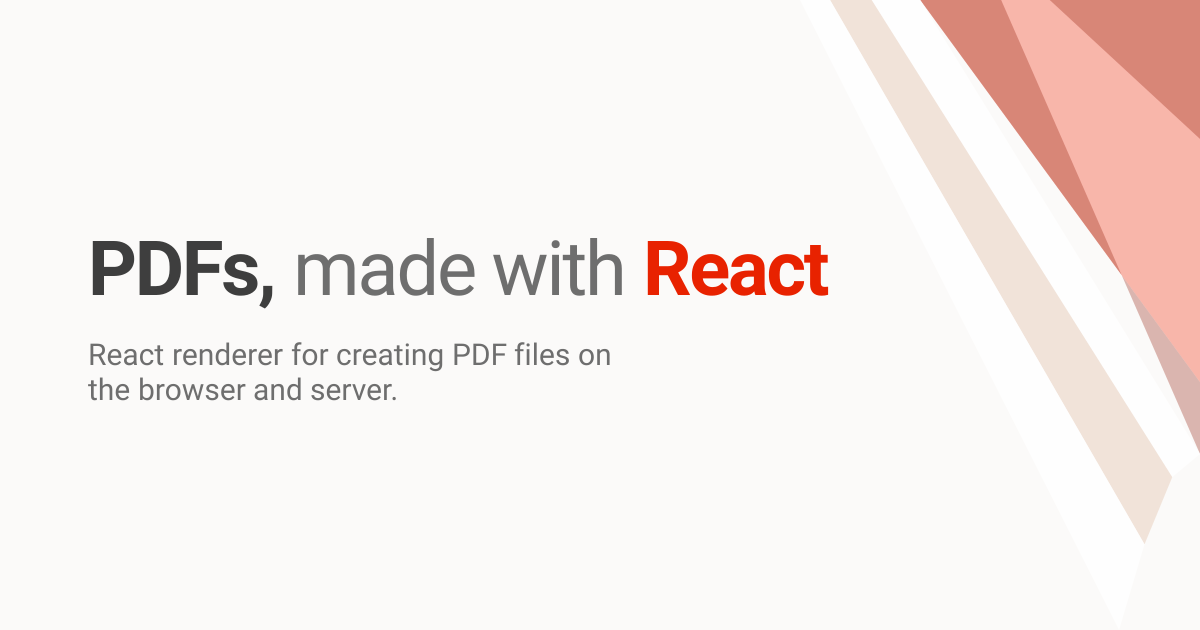

User reviews (0)