Website profiles · Technology insights · Alternatives

markdownlivepreview.dev

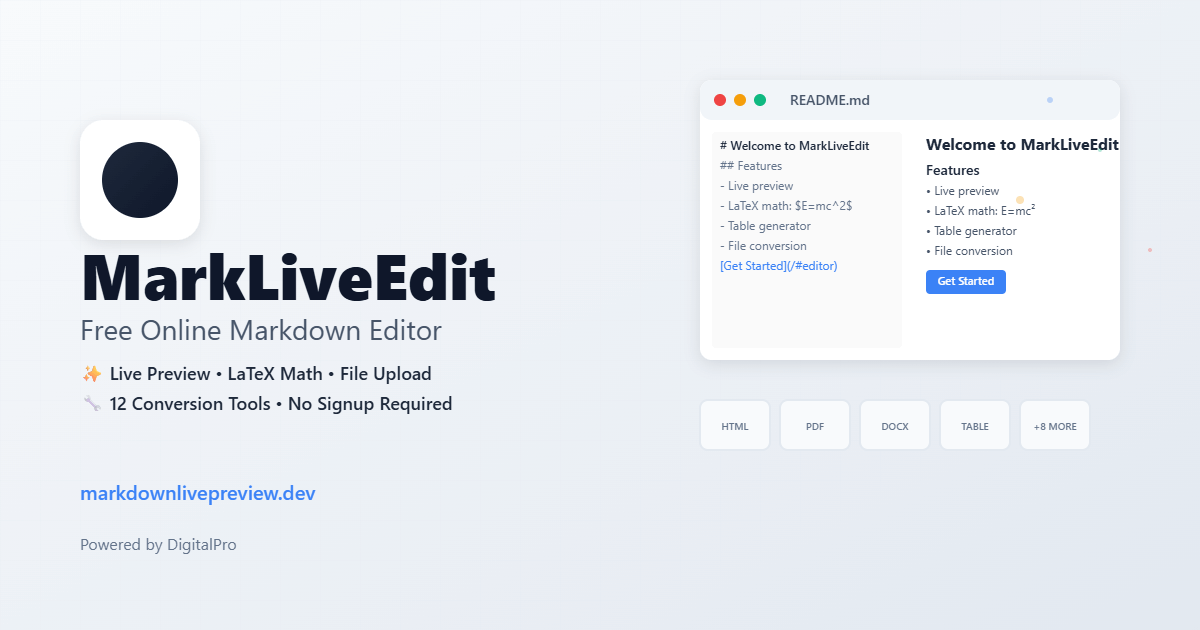
Write and preview markdown in real time. Export to PDF, Word, or HTML instantly — no login required. Supports LaTeX math, tables, code highlighting, and file upload.

No paid content found
Visit website
Profile views 2 Outbound visits 1 Normal
Markdown Editor Online – Free, Live Preview, Export PDF & Word Full homepage screenshot

At a glance

Category
Development
Language
English
Paid-content signal
No paid content foundObserved
Registered
2024
Hosting
CloudflareInferred
HTTPS certificate trusted
PassedObserved
Last updated

Website review

This review may include AI-generated content and is not individually verified. Domain, certificate and other facts come from the observed data on this page.

What is Markdown Editor Online?

Markdown Editor Online is a browser-based writing tool that splits the screen into two panes: a plain-text editor on the left and a live rendered preview on the right. You type Markdown syntax and watch it render as formatted text with every keystroke — no installation, no account, and no desktop app to configure. The site describes itself as a free editor with autosave in the browser, so a draft survives between visits on the same device.

What it handles

The page lists several capabilities worth knowing before you commit to it:

  • Live preview of the rendered Markdown as you type
  • Opening existing .md files so you can continue editing rather than starting over
  • LaTeX math, both inline and display equations
  • Mermaid diagrams, drawn from plain text
  • Syntax highlighting for fenced code blocks
  • GitHub-flavored Markdown features such as tables, task lists, strikethrough and footnotes
  • Export options including downloading the .md file, plus conversion to PDF, Word or HTML

Who it suits

The tool is aimed at people producing Markdown rather than maintaining a long-term knowledge base. That includes GitHub README authors, bloggers and technical writers, students writing papers with equations, and anyone drafting a report that will later become a PDF or Word document. It also works as a syntax testing ground before committing Markdown to a repository.

The trade-off is the opposite of a desktop app. A browser tab opens instantly and works identically on Windows, Mac, Linux, tablets and phones, which is exactly what you want for a quick draft or a file someone sent you. But if you rely on a local vault, plugins, offline access or deep linking between notes, a desktop editor will serve you better. This is a writing surface, not a second brain.

A practical starting point

If you have a .md file already and only want to read it, the site points to a separate viewer where you drag the file in and it opens formatted. For writing, open the editor, paste or upload your content, and keep the cheat sheet in another tab if you are unsure of syntax. When the draft is done, export to the format your audience needs rather than hand-converting. For general Markdown reference beyond this tool, the CommonMark specification is the canonical description of the syntax, and GitHub documents its own flavored extensions.

How do I export a Markdown file to PDF or Word without installing software?

Use a browser-based Markdown editor that includes export tools. On Markdown Editor Online, you write or upload a .md file in the left pane, see the rendered preview on the right, then convert it from the same page: the site links to dedicated tools for turning your draft into a PDF, a Word document or clean HTML. No install and no account are required, and your draft autosaves in the browser between visits.

A practical workflow

  1. Open the editor and either start typing or upload your existing .md file.
  2. Check the live preview as you go — tables, task lists, footnotes, fenced code blocks and LaTeX math render as you type, so layout problems surface early rather than after conversion.
  3. When the preview looks right, use the PDF or Word conversion tool linked from the editor.
  4. Keep the original .md file as your master copy. Converted PDFs and Word files are outputs; editing the Markdown and re-exporting is usually cleaner than fixing the converted file.

PDF or Word — which to pick

Need Better choice Trade-off
Fixed layout, sharing, printing, archiving PDF Harder for others to edit or comment on
A file colleagues will revise or comment on Word Layout can shift from the preview; complex tables and math may need a check
Publishing to a website or CMS HTML You lose print-style pagination and page breaks

A common approach for reports is to export to PDF for distribution and to Word only when someone specifically needs to edit it.

Things worth checking after conversion

  • Tables and footnotes: reflow differently in Word than in the browser preview.
  • Math: inline and display equations may render differently once converted; verify a sample.
  • Code blocks: long lines can overflow a PDF page — keep them reasonably short.
  • Images: local image paths may not resolve after conversion, so confirm they appear.

If you only need to read a .md file rather than edit it, the site's file viewer opens it formatted without going through the editor at all. For syntax you're unsure about, keep the site's cheat sheet open in a second tab while you write.

Can I open and edit an existing .md file in the browser?

Yes. The editor accepts an uploaded .md file and opens it in the left pane, so you continue editing where the file left off rather than retyping it. The right pane renders the same content as formatted Markdown while you type.

How this fits a real workflow

A practical case: you have a README you drafted on another machine, or a notes file someone sent you. You open Markdown Editor Online, upload the .md file, fix the wording or add a section, then download the .md again or convert it to PDF, Word, or HTML. Because the tool needs no account, this works on a borrowed or locked-down machine where you cannot install a desktop editor.

What to weigh before choosing it over a desktop app

Situation Browser editor (this tool) Desktop app
Quick open, edit, re-export one file Fast, nothing to install Install and configure first
Ongoing multi-file project with folders Weaker fit Better fit
Work that must stay on your machine Autosaves in the browser Local files by default
Device switching Same behavior on any OS Needs syncing set up

The page also notes LaTeX math, Mermaid diagrams, GitHub-flavored tables and task lists, code highlighting, and autosave in the browser. Treat the autosave as a convenience, not a backup: download the .md when you finish anything you would hate to lose.

Next step

If you only need to read a file rather than change it, the site offers a separate viewer built for that purpose. If you do plan to edit, upload the file, make your changes, and export to .md before closing the tab.

How do I preview LaTeX math and Mermaid diagrams in Markdown?

Both render automatically in the preview pane on Markdown Editor Online — no plugins or extensions to install. The page evidence states that inline math like $E = mc^2$ and display equations render instantly, and that Mermaid flowcharts and sequence diagrams are drawn from plain text as you type.

LaTeX math

Wrap expressions in dollar signs: single $...$ for inline math inside a sentence, double $$...$$ on their own lines for display equations. Keep the delimiters tight against the formula — a stray space after the opening $ is the most common reason math shows up as literal text.

Mermaid diagrams

Use a fenced code block tagged mermaid, then write the diagram in Mermaid's own syntax. The tag is what triggers rendering; a plain code fence will just show the source.

```mermaid
graph TD
  A[Draft] --> B[Preview]
  B --> C[Export]

### What to expect

| Content | Syntax | Renders in preview |
|---|---|---|
| Inline math | `$E = mc^2$` | Yes |
| Display math | `$$...$$` | Yes |
| Mermaid diagram | ` ```mermaid ` fence | Yes |
| Ordinary code | ` ```python ` fence | Highlighted, not drawn |

### A practical check

Paste one small working example of each before you write a long document. If the math or diagram fails there, you know it's a syntax issue rather than something buried deeper in the file. For syntax you're unsure of, keep the site's own cheat sheet open in a second tab.

One trade-off worth knowing: preview rendering and export are separate steps. The math and diagrams look right on screen, but if the final PDF or Word file matters, check that output before you rely on it — conversion tools vary in how faithfully they carry math and diagram rendering across.

Is my Markdown draft saved automatically if I close the tab?

Yes. This editor autosaves your draft in the browser, so closing the tab shouldn't lose your work — reopen the page and it should still be there.

What "autosave in the browser" actually means

The draft is stored locally in the browser rather than on a server account, since the editor requires no login. That has two practical consequences:

  • Same browser, same device: your draft reappears when you return to the editor on that device and browser.
  • Different browser or device: the draft generally won't follow you, because there's no account syncing it.

It also means clearing your browser's site data or using private/incognito mode can wipe the draft. Autosave is a safety net, not a backup.

A safer habit for anything important

If you're writing a README, report or paper, don't rely on autosave alone:

  1. Download the .md file from the editor periodically — that gives you a real copy you control.
  2. For documents headed to PDF or Word, export once you're happy with the content.
  3. Keep the Markdown Editor Online tab open for long sessions, but treat the downloaded file as the master copy.

For quick notes or testing syntax, autosave is plenty. For work you'd hate to rewrite, download the file before you close the tab.

What is the difference between the Markdown editor and the Markdown file viewer?

The editor is for writing and changing Markdown; the viewer is for reading a file you already have. Both live on the same site, and the difference is mostly intent rather than features.

Editor vs. viewer

Task Editor Viewer
Start from a blank page Yes Not its purpose
Open an existing .md file Yes, to keep editing Yes, to read formatted
Live preview as you type Yes, side-by-side Renders the file
Export to PDF, Word or HTML Yes Not its purpose
Best for Drafting READMEs, notes, reports Checking a downloaded or shared file

When each makes sense

Use the editor when the file is still in motion. A concrete case: you are drafting a GitHub README, want to see how tables and fenced code blocks render, and then need a PDF copy for a colleague who does not use Git. The editor covers the whole path — write, preview, export — and autosaves in the browser, so a refresh does not lose the draft. The page names LaTeX math, Mermaid diagrams, GitHub-flavored Markdown, and code highlighting as supported, which matters if your document has equations or diagrams rather than plain prose.

Use the viewer when the file is finished and you only need to read it. If someone sends you a .md file and you want to see it formatted rather than as raw text with asterisks and pipes, dragging it into the viewer is the shorter route. Editing it there would be the wrong tool for the job.

How to decide

Ask one question: will you change the text? If yes, open the editor. If no, open the viewer. The two overlap on file upload, so the tiebreaker is whether you need an editing surface and export afterward.

A practical next step: open the editor, paste a few lines with a heading, a table and a code block, and watch the right pane. That single test tells you whether the live preview matches the way you write before you commit a real document to it. If you only need to confirm what a received file says, skip the test and use the viewer.

Related questions

More questions →
What Is a Browser-Based Markdown Editor and What Can You Do With It?

A browser-based Markdown editor is a web page that splits into two panes: you type plain-text Markdown on the left, and the rendered result appears on the right as you type. It suits anyone who needs to write or check Markdown without installing a desktop app — a quick README, a blog draft, a note with equations — and it works the same on Windows, Mac, Linux, tablets, and phones. The trade-off is that you're working inside a browser tab rather than a full local workspace, so it fits short-to-medium writing sessions better than a permanent knowledge base.

How the two-pane model works

The left pane is a plain-text editor; the right pane is a real-time preview. Every keystroke updates the rendered output, so you see formatting, tables, and math resolve immediately instead of guessing at syntax.

That loop is the main reason to use one in a browser. Desktop apps like Typora or Obsidian are strong once they're set up, but setup is exactly the step a browser tab skips: open the page and start typing, with no account to create.

What you can produce with it

The same editor covers documents that all end up as Markdown:

  • GitHub README files — write the file, then commit it
  • Blog posts, notes, and technical writing
  • Academic papers with equations — inline math like $E = mc^2$ and display equations render instantly
  • Reports you'll later export to PDF or Word
  • Syntax testing before you commit Markdown to a repository

Capabilities to check for

Not every online editor supports the same feature set. The ones worth using typically cover:

Capability What it means in practice
Live preview Rendered output updates on every keystroke
Open existing files Upload a .md file and continue editing it
LaTeX math Inline and display equations render immediately
Mermaid diagrams Flowcharts and sequence diagrams drawn from plain text
Syntax highlighting Fenced code blocks in 50+ languages
GitHub-flavored Markdown Tables, task lists, strikethrough, footnotes
Autosave Your draft stays in the browser between visits
No signup Open the page and type

If a feature you depend on — say, Mermaid or footnotes — isn't listed, assume it isn't supported until you test it with a small sample.

Getting your work out

Writing is only half the job; decide the exit path before you start.

  • Download the .md file if the Markdown itself is the deliverable (a README, a docs page).
  • Convert to PDF for reports and anything meant to be read as a fixed document.
  • Convert to Word when a collaborator needs to edit in a word processor.
  • Convert to clean HTML when the output goes onto a web page.
  • Rely on autosave for drafts in progress — but treat it as a browser-local convenience, not a backup. Download the file when a draft matters.

When a browser editor is the right call, and when it isn't

Choose the browser editor when you need to write or check Markdown right now, on a machine where you can't or don't want to install software, or when you're producing a single document rather than maintaining a linked set of notes.

Choose a desktop app instead when you need a local file tree, cross-document linking, plugins, offline access as a hard requirement, or version control integrated into the writing environment.

A practical middle path: draft and preview in the browser, then move the .md file into your desktop tool or repository once the content is settled.

Common snags

  • Hand-writing tables is tedious. Build the table in a generator and paste the result into the editor.
  • Syntax slips. Keep a cheat sheet open in a second tab while you write.
  • Reading vs. editing. If you only need to read an existing .md file, a dedicated file viewer that formats it on drop is faster than opening it in an editor.
  • Browser-local autosave isn't portable. It won't follow you to another device or survive a cleared browser profile — export anything you want to keep.
PDF Invoices in Legal Billing: What to Include and When to Use Them

A PDF invoice in legal billing is a fixed-format document that presents the fees and costs owed on a matter in a layout that looks the same on every device. It is the digital equivalent of a printed bill: readable, portable, and easy to attach to an email or upload to a client portal. Its main limitation is that it is not machine-readable in the way a LEDES file is, so a client's e-billing system cannot automatically ingest it. PDF works best for flat-fee matters, small or one-off engagements, and clients who do not run an automated billing platform.

What "PDF" means in a legal billing context

When a billing tool offers to send an invoice "in PDF," it is generating a rendered document rather than a structured data file. The distinction matters:

  • PDF is a presentation format. A human reads it. Line items, totals, and matter details appear as text and tables on a page.
  • LEDES (Legal Electronic Data Exchange Standard) is a structured, delimited text format. An e-billing system parses it, validates it against outside counsel guidelines, and routes it for review.
  • Email delivery is a transport method, not a format. You can email a PDF, email a LEDES file, or email a link to an online invoice.

These three are often confused because a single invoice can combine them: a LEDES file delivered by email, or a PDF attached to an email. The format is what the client's systems can read; the delivery method is how it arrives.

When a PDF invoice is the right choice

PDF is usually appropriate when the client does not require electronic submission through a billing platform. Common scenarios:

  • Flat-fee and fixed-price matters. When the invoice is one or two lines, a structured file adds no value.
  • Small businesses and individuals. Clients without an accounts payable system can open a PDF and pay from it.
  • Retainers and replenishment requests. A simple statement of the retainer balance is easy to read as a PDF.
  • Pro bono or courtesy bills. Where no formal e-billing review applies.
  • Backup documentation. Even when a LEDES file is submitted, a PDF is often attached for the reviewer's convenience.

If the client has outside counsel guidelines requiring LEDES submission, a PDF alone will typically be rejected or returned for manual entry. Check the client's billing requirements before choosing the format.

PDF versus LEDES versus emailed invoice: a quick comparison

Factor PDF LEDES Email (as delivery)
Machine-readable No Yes N/A
Accepted by e-billing platforms Rarely Yes Depends on attachment
Setup effort Low Higher (mapping fields) Low
Best for Flat fees, small clients, backup Corporate and insurer clients Any format
Risk Manual re-entry by client Format rejection if fields are wrong Lost or filtered messages

Core elements of a compliant legal PDF invoice

A PDF invoice should stand on its own. If a client's AP department picks it up with no context, it should still answer who, what, when, and how much.

Firm and client identification

  • Firm name, address, and contact details
  • Tax or VAT identification number where applicable
  • Client name and billing contact
  • Invoice number and invoice date
  • Client matter number or reference

Matter and timekeeper detail

  • Matter name and description
  • For each timekeeper: name, initials, and billing rate
  • Time entries with date, narrative description, and time recorded in tenths of an hour
  • Clear separation of fee earners if rates differ

Fees, expenses, and totals

  • Fees subtotal
  • Disbursements and expenses, itemized with dates
  • Taxes applied
  • Prior payments, credits, or trust retainer applied
  • Total amount due and currency

Payment terms

  • Due date and payment window
  • Accepted payment methods
  • Remittance details or a payment link
  • Late-payment terms if the engagement letter specifies them

A useful test: hand the PDF to someone who has never seen the matter and ask them to confirm the amount due and the period covered. If they hesitate, the invoice is missing something.

Practical limitations to plan around

PDF invoices shift work to the recipient. Someone at the client has to read the document and key the data into their system, which introduces delay and transcription errors. PDFs also cannot be validated against billing guidelines automatically, so a reviewer may reject a line item that a LEDES rule would have caught before submission.

Two habits reduce the friction:

  1. Send a consistent template. Clients learn where to find the total, the matter number, and the payment terms.
  2. Keep a LEDES version in reserve. If a client later adopts an e-billing platform, you can convert rather than rebuild.

Choosing between PDF, LEDES, and email delivery

Work from the client's requirements backward:

  • Does the client mandate LEDES submission? If yes, PDF is a supplement, not a substitute.
  • Is the matter flat-fee or very small? PDF is usually sufficient.
  • Does the client have no billing system? PDF delivered by email or portal is the simplest path.
  • Is the invoice complex with many timekeepers and expenses? A structured format reduces disputes, even if the client accepts PDF.

When in doubt, ask the client's billing contact which format they prefer and whether a PDF attachment is acceptable alongside any required file. That one question prevents most rejected invoices.

Easy Legal Billing supports sending or scheduling invoices in LEDES, email, or PDF formats, which lets you match the format to each client's requirements rather than forcing one approach across every matter.

What Does a Postal Code API Return? Fields, Formats, and Common Use Cases

A postal code API returns structured location data for a given ZIP Code or Canadian postal code. A typical response includes the code itself, city, state or province, county, latitude/longitude, and — where available — ZIP+4 detail. More complete services add time zone, area codes, boundary geometry, and demographic fields. You send a code (or an address), and the API sends back a machine-readable record you can store, validate, or display.

This article explains what those responses contain, how requests are usually shaped, and where postal code data fits into real applications.

First, clear up the word "code"

The keyword "code" is overloaded, and that causes real confusion for developers:

  • Postal code — the ZIP Code (U.S.) or postal code (Canada) that identifies a delivery area.
  • API key — the credential you use to authenticate your requests. It is not postal data.
  • Source code — the program you write to call the API.

When someone searches for "postal code API code," they usually want example request/response code for a postal code service. The rest of this article treats it that way.

What a postal code API actually returns

Response fields vary by provider and endpoint, but the core set is fairly consistent. A single-code lookup commonly returns:

Field Example Notes
Postal code 90210 The code you queried
City Beverly Hills May be one of several acceptable place names
State / Province CA Two-letter abbreviation
County Los Angeles Useful for tax, territory, and reporting logic
Latitude / Longitude 34.0901, -118.4065 Usually the centroid of the area
ZIP+4 90210-1234 Present only when a specific delivery segment is known
Time zone America/Los_Angeles Helps with scheduling and display
Area codes 310, 424 Regional phone context

Richer datasets add 90+ fields: boundaries, population, income, elevation, and more. You rarely need all of them — request only what your application uses.

A representative JSON response

{
  "postal_code": "90210",
  "city": "Beverly Hills",
  "state": "CA",
  "county": "Los Angeles",
  "latitude": 34.0901,
  "longitude": -118.4065,
  "timezone": "America/Los_Angeles",
  "area_codes": ["310", "424"]
}

XML responses carry the same information in tag form. Choose based on what your stack parses most easily; JSON is the common default.

Common request patterns

Most postal code APIs support four patterns. Knowing which one you need prevents wasted calls.

1. Lookup by code

You have a code and want its details. This is the simplest and fastest call.

GET /lookup?code=90210

2. Reverse lookup by address

You have a street address and want to confirm or complete the code. This is the pattern behind checkout address validation.

GET /validate?street=...&city=...&state=...

3. Radius search

You have a center point and want all codes within a distance. Useful for store locators and delivery zones.

GET /radius?code=90210&miles=10

4. Batch validation

You have a file of addresses and want them cleaned in bulk. Batch endpoints trade latency for throughput and usually have their own limits.

Handling missing and ambiguous matches

Real data is messy. Plan for these cases:

  • No match — the code doesn't exist or the address is malformed. Return a clear error rather than a silent empty object.
  • Multiple matches — a city name may map to several codes, or a code may span several acceptable city names. Decide whether to pick the primary or return a list.
  • Partial match — the street is valid but the ZIP+4 isn't. Fall back to the 5-digit code.
  • Stale data — codes are added, retired, and reassigned. Refresh your dataset on a regular schedule.

A practical rule: validate at the point of entry, store the normalized result, and never re-derive it later from raw user input.

Practical use cases

  • Checkout address validation — catch typos before shipping, reduce failed deliveries.
  • Shipping zone lookup — map a code to a zone, carrier route, or rate table.
  • Data enrichment — append county, coordinates, or demographics to existing records.
  • Store and service locators — radius search to find nearby branches or coverage areas.
  • Territory and tax logic — county and boundary data drive jurisdiction rules.

Licensing and data-source considerations

Postal code data originates with national authorities — USPS in the United States and Canada Post in Canada. Providers license and repackage it, which is why accuracy, update frequency, and field coverage differ between services. Before committing:

  • Confirm the data source and how often it refreshes.
  • Check whether ZIP+4 and boundary data are included or sold separately.
  • Review usage limits and whether batch processing is allowed.
  • Read the license terms for redistribution and storage.

Pricing and plan details change, so check the provider's current documentation rather than relying on secondhand figures.

Getting started

  1. Decide which request pattern you need (lookup, reverse, radius, or batch).
  2. Pick the fields you'll actually store.
  3. Write a small test call and inspect the raw response.
  4. Add error handling for no-match and ambiguous cases.
  5. Cache results where the same codes repeat.

A postal code API is ultimately a translation layer: you give it a code or an address, and it gives back structured location facts. Understand the fields, match them to your use case, and handle the messy edges — that's most of the work.

What Is an Online Markdown Editor and How Do You Use One?

An online Markdown editor is a browser-based tool that splits the screen into a plain-text editor on the left and a live rendered preview on the right, so you see formatted output as you type. It suits anyone who needs to write or check Markdown without installing a desktop app — you open the page, start typing, and your draft autosaves in the browser. No account is required to begin, and when you're done you can export to PDF, Word, or HTML, or download the .md file itself.

How the editor works

The core mechanic is a two-pane loop: every keystroke in the left pane updates the rendered preview on the right. That means you never have to guess whether a table, equation, or code block will render correctly — you watch it happen.

On markdownlivepreview.dev, the editor also:

  • Opens existing files — upload a .md file and continue editing where you left off.
  • Autosaves — your work stays in the browser between visits.
  • Runs on any device — the same behavior on Windows, Mac, Linux, tablets, and phones.

Because it's a browser tab, it's faster than a desktop app when you only need to write or verify a small amount of Markdown.

What syntax and features it supports

The editor handles the Markdown most people actually write, plus a few extras:

Feature What it means for you
GitHub-flavored Markdown Tables, task lists, strikethrough, footnotes
Syntax highlighting Fenced code blocks in 50+ languages
LaTeX math Inline like $E = mc^2$ and display equations render instantly
Mermaid diagrams Flowcharts and sequence diagrams drawn from plain text

If you're unsure of a syntax, the site's cheat sheet is meant to sit open in another tab while you write.

Common ways people use it

An online Markdown editor works as a quick creation tool for anything that ends up in Markdown:

  • GitHub README files
  • Blog posts, notes, and technical writing
  • Academic papers with equations
  • Reports you'll later export to PDF or Word
  • Testing Markdown syntax before you commit it

For one specific case — when you already have a .md file and only want to read it — the site offers a separate file viewer where you drag the file in and it opens formatted.

Getting from draft to finished document

When your draft is ready, you have several exits:

  1. Download the .md file if you're keeping it as source.
  2. Convert to PDF for a shareable, fixed-layout document.
  3. Convert to Word if the recipient needs an editable .docx.
  4. Convert to clean HTML for pasting into a site or CMS.

The editor links directly to each of these conversion tools, so you don't have to leave the workflow to find them.

A practical tip for tables

Writing a Markdown table by hand is tedious and error-prone. The site suggests building it visually in a table generator and pasting the result back into the editor — a small step that saves a lot of fiddling with pipe characters and alignment rows.

When a browser editor is the right choice

Use an online editor when you want speed and zero setup: quick notes, checking how a snippet renders, editing a file someone sent you, or drafting something you'll export. If you live in Markdown all day and want local files, plugins, and offline access, a desktop app like Typora or Obsidian becomes worth the install. For everything in between, a browser tab is the shorter path.

What Is a Free Online Markdown Editor and How Do You Use One?

A free online Markdown editor is a browser-based tool that lets you write Markdown in one pane and see the rendered result in real time in another, with no installation and no account required. You open the page, start typing, and the preview updates with every keystroke. It's the right choice when you need to write or check Markdown quickly — drafting a README, testing syntax, or producing a document you'll export to PDF or Word — rather than when you want a full writing environment with local file management and plugins.

How a browser-based editor differs from desktop apps

Desktop apps like Typora or Obsidian are powerful once they're installed and configured: they manage local vaults, support plugins, and work offline. A browser editor trades that depth for zero setup. There's nothing to install, it behaves the same on Windows, Mac, Linux, tablets, and phones, and your draft stays in the browser between visits through autosave.

The practical rule: if you already live in a desktop app, keep using it. If you need to write, preview, or convert a single Markdown document right now — on a machine that isn't yours, or without committing to a tool — a browser tab is faster.

What you can do as you type

The core loop is simple: the left pane is a plain-text editor, the right pane is a live preview. Everything below happens without a save step or a rebuild.

  • Live preview — every keystroke updates the rendered output, so you catch broken syntax immediately.
  • Syntax highlighting — fenced code blocks render with highlighting across 50+ languages.
  • GitHub-flavored Markdown — tables, task lists, strikethrough, and footnotes are supported.
  • LaTeX math — inline expressions like $E = mc^2$ and display equations render instantly.
  • Mermaid diagrams — flowcharts and sequence diagrams are drawn from plain text.
  • Autosave — your work stays in the browser between visits.

If you're unsure of a syntax detail, keep a Markdown cheat sheet open in another tab and paste test snippets into the editor to confirm how they render.

Opening an existing .md file

You don't have to start from scratch. Upload a .md file and keep editing where you left off — the editor loads the content into the left pane and renders it on the right.

If you only need to read a Markdown file rather than edit it, a dedicated file viewer is the better fit: drag the file in and it opens formatted, without the editing pane in the way.

Export options and when to use each

Once the document reads the way you want, you can download the raw .md file or convert it. The choice depends on who's receiving it:

Format Use it when What you get
.md The recipient will edit it, or it's going into a repo The raw Markdown source
PDF You need a fixed-layout document to share or print A rendered, non-editable file
Word The recipient needs to comment, track changes, or restyle An editable document
HTML It's going onto a web page or into a CMS Clean markup you can paste or host

A common workflow: draft in the editor, export to PDF for a report or to Word when a colleague needs to revise it, and keep the .md as your source of truth.

When a browser editor is the right call

Choose the browser editor when:

  • You need to write or verify Markdown right now, with no setup.
  • You're on a shared or unfamiliar device.
  • You want math, diagrams, or tables rendered without configuring anything.
  • You're producing a one-off document destined for PDF, Word, or HTML.

Choose a desktop app instead when you need offline access as a hard requirement, local file organization across many documents, or a plugin ecosystem. The two aren't mutually exclusive — many people draft in the browser and archive the .md in a desktop app or repository afterward.

Getting started

  1. Open the editor in a browser tab — no signup.
  2. Type or paste your Markdown in the left pane and watch the right pane update.
  3. To continue an existing document, upload the .md file.
  4. Check tables, code blocks, math, and diagrams render as intended.
  5. Download the .md, or convert to PDF, Word, or HTML depending on the recipient.

Your draft autosaves in the browser, so you can close the tab and return later — but treat that as a convenience, not a backup. For anything important, download the .md file once it's in good shape.

Website Overview

An active inbound-mail setup with incomplete authentication may leave the domain more open to impersonation. Provider hosting alone does not close that gap.

Domain and Registration

Transfer-protection status is present, helping reduce the risk of unauthorized domain transfers. The domain has about 1 years of registration history; its current configuration provides more context than age alone. The registrar is CloudFlare, Inc., a widely used domain service provider. The domain uses the common .dev extension, which is not an independent safety signal.

DNS and Email

The observed email authentication setup is incomplete: DMARC is missing. Nameservers are provided by Cloudflare, indicating managed DNS hosting. MX records point to the registrar-servers.com email service. No CNAME was found; the observed records resolve directly to addresses. TXT records include verification markers for Google. Such markers may also remain after a service stops being used.

TLS and Certificates

The public key uses EC with 256 bits. The server supplied a complete certificate chain. No organization name is present in the certificate; the available fields are consistent with domain validation. The certificate was issued within the Google Trust Services cloud or CDN ecosystem. The certificate's total validity is about 90 days, consistent with a short renewal cycle.

HTTP and Browser Security

The response lacks these common security headers: HSTS, CSP, Permissions-Policy, clickjacking protection. CORS permits any origin to read this response. This is common for public resources; sensitive responses need narrower handling. No X-Powered-By header was found, reducing one common source of backend fingerprinting information. The cf-ray response header indicates a CDN or caching proxy in the delivery path. No obvious internal addresses or debug information were found in the headers.

Technology Stack Analysis

The public page identifies Next.js, Google Tag Manager, Cloudflare without precise versions, leaving fewer clues for version-specific scanning.

Search and Social Sharing

The meta description has 165 characters and may be shortened in search results. Twitter Card metadata is configured. The title has 62 characters, within a common display range. The observed directives allow indexing and link following. No Generator meta tag is publicly exposed.

Hosting and Email

DNSCloudflare
HostingCloudflare
Emailregistrar-servers.com
Approximate IP geolocation (inferred; a CDN or proxy may differ from the origin server) Location unknown Inferred 104.21.86.113

Registration details

RDAP / WHOIS

RegistrarCloudFlare, Inc.
Registered2024-10-29
Expires2027-10-29
Domain statusclient transfer prohibited
Nameserversmark.ns.cloudflare.com、nia.ns.cloudflare.com
DNSSECunsigned

DNS records

DNS

TypeNameValueTTLPriority
Amarkdownlivepreview.dev104.21.86.113300—
Amarkdownlivepreview.dev172.67.218.148300—
AAAAmarkdownlivepreview.dev2606:4700:3030::ac43:da94300—
AAAAmarkdownlivepreview.dev2606:4700:3033::6815:5671300—
MXmarkdownlivepreview.deveforward1.registrar-servers.com30010
MXmarkdownlivepreview.deveforward2.registrar-servers.com30010
MXmarkdownlivepreview.deveforward3.registrar-servers.com30010
MXmarkdownlivepreview.deveforward4.registrar-servers.com30015
MXmarkdownlivepreview.deveforward5.registrar-servers.com30020
NSmarkdownlivepreview.devmark.ns.cloudflare.com86400—
NSmarkdownlivepreview.devnia.ns.cloudflare.com86400—
TXTmarkdownlivepreview.devgoogle-site-verification=GNquS0YHn1b-EvPZbguLKNI0KUaRR6qXtRV5cIJTeCI300—
TXTmarkdownlivepreview.devv=spf1 include:spf.efwd.registrar-servers.com ~all300—

TLS and certificates

TLS / SSL

AssessmentNormal configuration
Supported protocolsTLSv1.2、TLSv1.3
Negotiated protocolTLSv1.3
Certificate subjectmarkdownlivepreview.dev
IssuerGoogle Trust Services
Valid until2026-11-17T13:34 · Remaining when checked: 34 days
Verification detailsCertificate trust: Passed · Hostname match: Passed

HTTP response headers

HTTP

HeaderValue
content-typetext/html; charset=utf-8
cache-controlpublic, max-age=0, must-revalidate
servercloudflare
x-content-type-optionsnosniff
referrer-policystrict-origin-when-cross-origin
access-control-allow-origin*

Identified technologies

Next.jsGoogle Tag ManagerCloudflare

Pages, Search and Sharing

Meta descriptionWrite and preview markdown in real time. Export to PDF, Word, or HTML instantly — no login required. Supports LaTeX math, tables, code highlighting, and file upload.
Canonical URLhttps://markdownlivepreview.dev
LanguageEnglish (default)
Twitter Cardsummary_large_image
All bots 1 allowed · 0 disallowed
  • Allow/

User reviews (0)

  • No reviews yet.