Website profiles · Technology insights · Alternatives

recordly.dev

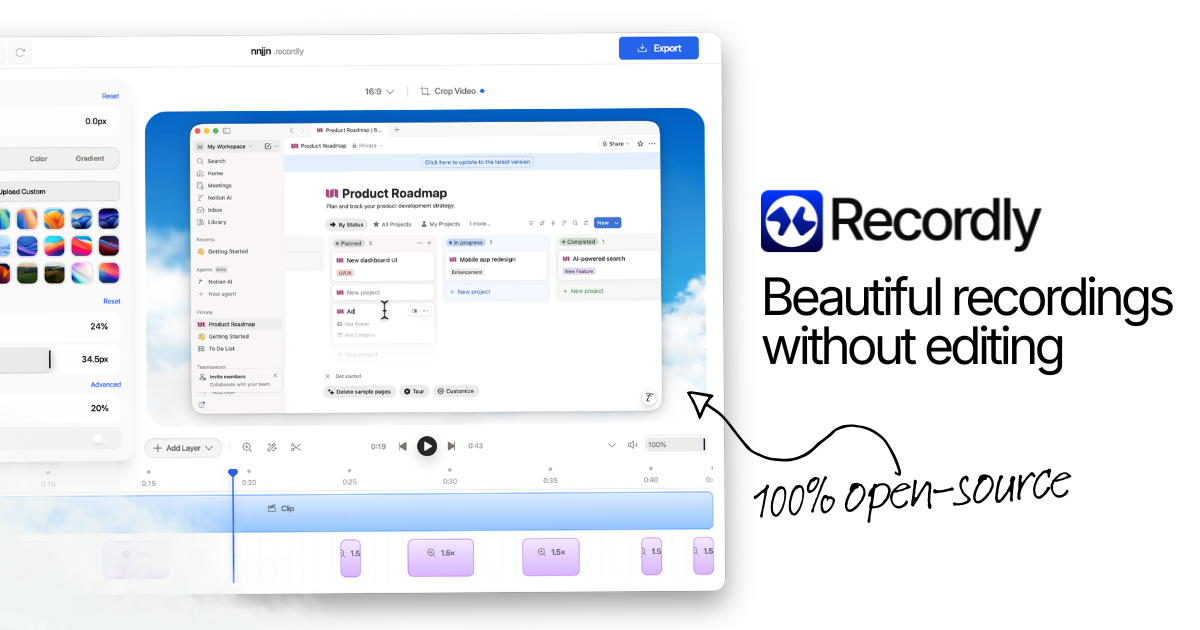
Recordly is an open‑source screen recorder for MacOS/Windows/Linux with auto-zoom, motion blur animated cursors, and minimal interface. Used to create product demos, guided walkthroughs and more. A free alternative to Screen Studio.

No paid content found
Visit website
Profile views 9 Outbound visits 11 Normal
Recordly Full homepage screenshot

At a glance

Category
Development
Language
English
Paid-content signal
No paid content foundObserved
Registered
2026
Hosting
Amazon.com, Inc.Inferred
HTTPS certificate trusted
PassedObserved
Last updated

Website review

This review may include AI-generated content and is not individually verified. Domain, certificate and other facts come from the observed data on this page.

What is Recordly?

Recordly is an open-source screen recorder for macOS, Windows and Linux, positioned as a free alternative to polished commercial tools like Screen Studio. Its focus is on recordings that look finished without heavy editing: auto-zoom that follows what you're doing, smooth animated cursor movement, background styling, and a webcam bubble that expands and shrinks depending on when you're speaking.

What it does

  • Auto-zoom and cursor effects — the recorder adds zooms and cursor animation automatically, so demos and walkthroughs feel guided rather than static.
  • Timeline editing — drag-and-drop clips control speed, zooms, annotations, audio tracks and length; projects save as .recordly files you can reopen and keep editing.
  • Audio capture — records microphone and system audio together with synchronized timing, and lets you import separate audio files onto the timeline.
  • Webcam and overlays — import webcam footage, use the dynamic bubble, and layer external media alongside your screen capture.
  • Export options — MP4 for standard playback or looping GIF for short social clips, with a looped cursor path so GIFs don't visibly jump.

Who it suits

The clearest fit is someone producing product demos, tutorials, or short social clips who wants a presentable result quickly and prefers not to pay for a subscription. Because it's open source and the site states there are no paywalls or hidden limits, it also appeals to people who want to inspect, modify or self-manage their tools. If you need multi-camera production, heavy color work or collaborative review workflows, a full editor will serve you better; Recordly is aimed at screen-first content.

A practical next step

Download it for your platform and record a two-minute demo of something you already know well — a settings screen or a short task — then try one auto-zoom and one webcam bubble on the timeline. That single test tells you whether the automatic styling matches your taste before you commit a real project to it. If you'd rather compare first, Screen Studio is the commercial tool Recordly explicitly positions itself against.

How does Recordly compare to Screen Studio for creating screen recordings?

Recordly targets the same job as Screen Studio — polished, auto-zoomed screen recordings — but positions itself as the free, open-source route rather than a paid Mac-first product. The practical difference is less about the concept and more about platform reach, editing depth, and how much you want to rely on community development.

Where they line up

Both aim to cut editing time by automating the tedious parts. Recordly's page describes auto-zoom, animated cursors, background framing, a webcam bubble that expands and shrinks, timeline editing with draggable pieces, dual audio capture (microphone plus system audio), and export to MP4 or looping GIF. Screen Studio is widely known for the same core appeal: automatic zoom on click targets and smooth cursor motion that make a demo feel produced rather than raw.

Where they differ

Aspect Recordly Screen Studio
Cost model Free and open-source, stated as no paywalls or hidden limits Commercial paid product
Platforms macOS, Windows, Linux Primarily macOS
Editing Timeline with speed, zooms, annotations, audio tracks, importable external audio and webcam video Focused on automatic zoom and cursor polish, with lighter manual editing
Project files Saves and reloads .recordly projects Not comparable from the supplied information
Support Community-driven, GitHub issues Vendor support

Choosing between them

  • If you work on Windows or Linux, Recordly is the more realistic option; Screen Studio's Mac focus rules it out for many teams.
  • If you want zero licence cost and don't mind filing GitHub issues when something breaks, Recordly's model fits.
  • If you need a vendor to call when a client deadline is close, a paid commercial tool is usually the safer bet.

A concrete scenario

A small SaaS team records weekly feature walkthroughs. On a mixed Mac and Windows team, one editor can standardise on Recordly, save each walkthrough as a project file, and re-export as MP4 for the docs site and GIF for the changelog. A solo Mac-based designer selling courses might prefer Screen Studio for its tighter, more automatic polish, accepting the licence fee for less manual timeline work.

Next step

Download Recordly and record the same two-minute demo you'd normally send to Screen Studio, then compare how much time you spend in the timeline afterwards. That edit-time difference, not the feature list, is what will decide it for your workflow. If you want a broader look at the category, Screen Studio is the direct comparison point.

Can I use Recordly for commercial projects without paying?

Yes. Recordly is described as fully free and open-source, with no paywalls or hidden limits, and its FAQ explicitly covers commercial use. So using it for client work, product demos, tutorials, or marketing videos doesn't require a payment to the project.

Two practical caveats:

  • "Free to use" isn't the same as "no obligations." Open-source licenses often require attribution or sharing changes if you redistribute the software itself. Check the license on the project's repository before shipping anything that bundles or modifies Recordly.
  • Your commercial context still matters. If you're recording someone else's software, music, or footage, their permissions are a separate question from Recordly's price.

A quick way to decide

If your use is "I record my screen and publish the video," you're almost certainly fine. If your use is "I repackage or modify Recordly and sell it," read the license first.

Suggested next step

Download it and test one real project end-to-end: record a short demo, add an auto-zoom and a webcam bubble, export an MP4, then reopen the saved .recordly project to confirm the workflow holds up. That tells you more about fit than any feature list.

For context on the paid tools it positions itself against, see Screen Studio.

What platforms can I run Recordly on?

Recordly runs on macOS, Windows and Linux. The site lists a Windows download button and describes it as a MacOS/Windows/Linux app, so all three desktop platforms are covered.

If you're choosing between them, the practical differences are usually in capture permissions and audio routing rather than the editing features: macOS asks for Screen Recording and microphone permissions, Windows handles system audio differently from per-app capture, and Linux depends on your display server (Wayland vs X11) and PipeWire setup. Test a short recording with both microphone and system audio before relying on it for a demo.

For comparison, OBS Studio is also free and cross-platform but geared toward live streaming and scene-based capture, while Screen Studio is a Mac-only commercial tool in the same polished-recording space.

How do I edit a screen recording in Recordly to add auto-zooms and cursor effects?

Recordly handles auto-zoom and cursor effects as part of its editing timeline rather than as a separate effects pass. According to the site, recordings arrive with "built-in auto-zooms, smooth cursor" and "beautiful cursor animations," so the starting point is a clip that already has these applied automatically. Your editing job is mostly refining them.

A practical workflow

  1. Open your recording in Recordly and save the project as a .recordly file so your audio, video and layout choices persist and you can reopen it later.
  2. Work in the timeline editing interface, which the site describes as drag-and-drop pieces for video speed, zooms, annotations, audio tracks and video length.
  3. Adjust zoom segments to match what you are demonstrating — auto-zoom guesses at emphasis, but a product demo usually needs zooms landing on the exact control or menu you are describing.
  4. Refine the cursor: the "silky cursor" and motion-blur styling are applied for you, so check that cursor motion reads clearly at your export size rather than fighting it.
  5. Add or trim audio. Recordly records microphone and system audio together with sample-accurate sync, and you can also import external audio tracks and webcam footage for full timeline control.
  6. If you are making a GIF or autoplay clip, enable the loop cursor path so motion stays continuous with no jump at the loop point.
  7. Export as MP4 or GIF, choosing format and quality at export time.

How the pieces differ

Element What Recordly does by default What you typically adjust
Auto-zoom Adds zooms automatically Timing and target of each zoom
Cursor Smooth animation and motion blur Whether motion reads well at output size
Background Beautiful background added Framing around the recorded content
Webcam Smart bubble that expands and shrinks Placement and when it takes the spotlight
Audio Mic plus system audio, synced Imported tracks, levels, trims

A concrete scenario

Say you are recording a five-minute SaaS walkthrough. Auto-zoom will likely highlight several moments, but a viewer following along needs zooms that pause long enough to read a field label. Use the timeline to stretch those zoom segments, then shorten zooms over transitions where nothing needs scrutiny. If you narrate over system audio, check sync at the start and near the end of the clip, since drift is easier to spot at a distance from the alignment point.

A decision criterion

If your goal is a quick demo or social clip, accept the automatic zooms and cursor styling and spend your time on audio and export format. If the recording is a guided walkthrough or documentation, treat auto-zoom as a first draft and hand-tune each zoom, because misplaced emphasis is more confusing than no zoom at all.

For support or to see how others handle specific cases, the project points to its GitHub issue tracker. If you want to compare against a paid tool with a similar auto-zoom approach, Screen Studio is the one Recordly positions itself as a free alternative to.

How can I contribute to the Recordly open-source project?

You can contribute to Recordly in several ways, and the project's own page points to its GitHub presence and community channels for exactly this.

Start with the official project hub. The page lists a GitHub link alongside Discord, Twitter, and a contact option, and its FAQ directs support requests to GitHub issues. That makes GitHub the primary place where contributions actually land.

Ways to contribute

  • Report bugs and request features. Open an issue on GitHub. The FAQ explicitly asks for support requests to go there, so it is the intended channel rather than email or social media.
  • Improve the code. Since Recordly is fully free and open-source with no paywalls or hidden limits, the source is available to fork and modify. Look for issues labeled as good first tasks, or areas tied to the features the page highlights: auto-zoom, cursor animation, webcam bubbles, timeline editing, dual-source audio capture, and MP4/GIF export.
  • Help with docs and translation. The page is in English and the tool targets MacOS, Windows, and Linux, so localized documentation and setup guides are useful for non-English users.
  • Join the community. The Discord link is the fastest route to asking maintainers where help is needed before you write code.
  • Spread the word. The page has a "Tip" and blog section, and community backing is called out prominently, so writing a tutorial or sharing a demo recording fits the project's stated ethos.

A practical first step

Pick one narrow thing you can finish this week. For example, install Recordly, record a short demo, and note anything confusing or broken. Then search the GitHub issue tracker for that problem before filing it, so you add information rather than duplicate an existing report. If you want to code, comment on an open issue to claim it before starting, which avoids two people solving the same problem.

Choosing where to spend effort

Contribution Best if you Where it happens
Bug report Use the app and hit friction GitHub issues
Code fix Can read and build the project GitHub repository
Docs or translation Write clearly, know another language Repository docs
Community help Enjoy answering questions Discord

If you are unsure which fits, ask in Discord first. That one question usually saves hours of work on something the maintainers already have covered.

Related questions

More questions →
What Are Open-Source UI Element Libraries and How Do They Differ From UI Frameworks?

An open-source UI element library is a collection of individual, ready-made interface pieces—buttons, cards, inputs, toggles, loaders—that you copy into your own project and adapt. A UI framework, by contrast, is a structured system of components, conventions, and often a theming layer that governs how your whole interface is built. The practical difference: an element library gives you a snippet; a framework gives you a way of working. If you need a polished button in ten minutes, reach for the element library. If you're building a 40-screen product with a team, you probably want the framework.

What "open-source UI element library" actually means

The term gets used loosely, so it helps to separate the parts:

  • Open-source: the code is publicly available, and the license tells you what you may do with it—copy, modify, redistribute, or use commercially.
  • UI element: a single, self-contained piece of interface, usually small enough to read in one sitting. A button with hover states, a pricing card, a search field.
  • Library: a browsable, searchable collection of those elements, typically contributed by many different people.

On a site like Uiverse, elements are shared by a community and written in plain CSS or Tailwind. You find one you like, copy the markup and styles, paste them into your project, and adjust colors, spacing, and text to fit. There's no package to install and no build step required—which is exactly the appeal, and also the source of most of the confusion.

Element library vs. UI framework: the core differences

Dimension Open-source UI element library UI framework / design system
Unit of reuse A single snippet you copy A component you import or call
Installation None; paste into your code Package install, config, sometimes a provider
Consistency Depends on you; each element may look different Enforced by shared tokens and APIs
Theming Manual edits per element Central theme/config file
Updates You own the copy; no upstream updates Version bumps bring fixes and changes
Accessibility Varies per contributor; must be checked Usually tested and documented
Best for Prototypes, landing pages, small sites, one-off needs Multi-page apps, teams, long-lived products
Learning curve Low—read the CSS Higher—learn the API and conventions

The table isn't a verdict. It's a map of trade-offs. Element libraries win on speed and freedom; frameworks win on consistency and maintenance.

Licensing and attribution: what to check before you paste

This is where people get into trouble, and it's worth slowing down for.

  1. Find the license. Every element or collection should state one. Common open-source licenses include MIT, Apache-2.0, and BSD. Some projects use copyleft licenses like GPL, which can impose obligations if you redistribute your code.
  2. Understand what the license permits. MIT and Apache-2.0 are permissive: you can typically use the code in commercial and closed-source projects. Copyleft licenses may require you to release derivative source under the same terms.
  3. Check attribution requirements. Permissive licenses usually require you to keep the copyright notice and license text somewhere in your project. That's a real obligation, not a formality.
  4. Look for per-element terms. On community sites, the site's overall terms and the individual contributor's stated wishes may differ. If a contributor asks for credit, honor it.
  5. When in doubt, ask or avoid. If a snippet has no license at all, you don't have clear permission to reuse it. Treat "no license" as "not open source," even if the code is publicly visible.

This article is general information, not legal advice. For commercial products with real exposure, have someone qualified review the licenses you're relying on.

How to use a community element in your project: a practical workflow

Here's a repeatable process that avoids most of the usual mess.

1. Start from a real need, not a browsing session

Decide what you need first—"a compact primary button with a loading state"—then search. Browsing aimlessly produces a pile of pretty snippets that don't fit together.

2. Copy the smallest version that works

Take the markup and the styles. Strip anything you don't need: demo wrappers, extra animations, decorative layers. Less code means fewer surprises.

3. Convert it to your conventions

If your project uses design tokens or CSS variables, replace hard-coded values:

/* Before: hard-coded */
.button { background: #4f46e5; border-radius: 8px; }

/* After: token-based */
.button { background: var(--color-primary); border-radius: var(--radius-md); }

This one step is what keeps a copied element from looking like a foreign object in your UI.

4. Check accessibility before you ship

Community elements vary widely here. Verify at minimum:

  • Keyboard focus is visible and the element is reachable by Tab.
  • Color contrast meets WCAG AA (4.5:1 for normal text).
  • Interactive elements use semantic HTML (<button>, not a clickable <div>).
  • Form inputs have associated labels.
  • Motion respects prefers-reduced-motion.

5. Test in context

Paste it into a real page with real content. Long labels, small screens, and dark mode break more copied elements than anything else.

6. Note where it came from

Keep a short comment or an internal credits file: source, license, date. Future you—and your legal reviewer—will be grateful.

Where element libraries genuinely shine

  • Prototypes and demos: you need something clickable today, not a design system.
  • Landing pages and marketing sites: a handful of distinctive elements, each custom.
  • Filling gaps: your framework lacks one specific component, and you don't want to build it from scratch.
  • Learning: reading well-made CSS is one of the fastest ways to improve.
  • Small projects: a personal site doesn't need a theming architecture.

Where they fall short

  • Consistency at scale: ten elements from ten contributors rarely look like one product.
  • Maintenance: you own every copy. When your design changes, you edit each one.
  • Accessibility debt: you inherit whatever the contributor did or didn't do.
  • No upstream fixes: a bug fixed in the original won't reach your copy.
  • Integration friction: different naming conventions, different units, different assumptions about resets.

When to choose which

Choose an element library when the scope is small, the timeline is short, or you need a few distinctive pieces rather than a whole system.

Choose a framework or design system when multiple people build multiple screens over months, when consistency is a product requirement, or when accessibility and theming need to be guaranteed rather than checked.

A hybrid works well for many teams: adopt a framework for the structural components—forms, navigation, layout—and borrow individual elements for the places where you want personality. Just route every borrowed element through the same token and accessibility checks, so it lands as part of your system rather than beside it.

The short version: open-source UI element libraries are a fast, flexible way to get good-looking interface pieces into a project. They are not a substitute for a design system, and the license and accessibility details are the part worth reading carefully.

What Is Recordly?

Recordly is a free, open-source screen recorder for macOS, Windows, and Linux that bakes editing effects into the recording process. It is built for product demos, guided walkthroughs, and product videos, and it positions itself as a free alternative to Screen Studio. If you want polished recordings without spending time in a separate editor, Recordly is aimed at you; if you need a hosted collaboration platform or a tool with paid support tiers, it is not.

What Recordly does

The core idea is that effects you would normally add in post-production are applied automatically or through a lightweight timeline:

  • Auto-zoom and cursor animation — Recordly adds auto-zooming, a smooth cursor, and animated cursor paths plus a background to your recordings, so less manual editing is needed.
  • Webcam bubble overlay — A smart webcam bubble expands and shrinks to keep you in the spotlight when relevant.
  • Timeline editing — A drag-and-drop interface controls video speed, zooms, annotations, audio tracks, and video length.
  • Project files — Work is saved as .recordly files, so you can save progress and reopen or edit projects later.
  • Dual-source audio — Records microphone and system audio together with sample-accurate sync.
  • Export options — Export to MP4 or looping GIF, with control over format and quality.
  • Cursor path looping — Loops the cursor path so GIFs and autoplay clips stay continuous without jumps.
  • External media import — Import audio files and webcam footage and layer, sync, and refine them on the timeline.

Who it is for

Use case Why Recordly fits
Product demos Auto-zoom and cursor effects draw attention to UI actions without manual keyframing
Guided walkthroughs Timeline annotations and speed control let you pace a tutorial
Short social clips GIF export and cursor looping suit autoplay and looping formats
Multi-source recordings Microphone plus system audio, and webcam import, cover narration and face cam

Platform and licensing facts

  • Platforms: macOS, Windows, and Linux.
  • Cost: The site states Recordly is fully free and open-source, with no paywalls or hidden limits.
  • Commercial use: The FAQ includes a question about commercial purposes; the page evidence does not state the answer, so check the GitHub repository or open an issue before relying on it for commercial work.
  • Support: For support, the project asks users to open an issue on GitHub.

How to decide

Choose Recordly if you want an open-source recorder that handles zoom, cursor, and background polish automatically and lets you finish edits on a timeline, and if you are comfortable getting support through GitHub issues. Look elsewhere if you need vendor-backed support contracts, or if commercial licensing terms matter to you and you have not yet confirmed them from the repository.

Is Recordly Free, and Can You Use It for Commercial Purposes?

Yes. According to Recordly's own site, the app is "fully free and open-source, with no paywalls or hidden limits." The site also states it is "transparent, community-driven, and built for creators who value control." The FAQ section explicitly asks both "Is Recordly really free?" and "Can I use Recordly for commercial purposes?" — the site's stated position is that it is free and that commercial use is permitted. The practical caveat: because Recordly is open-source, the exact terms of commercial use are governed by its license, which you can review in the GitHub repository.

What "free and open-source" means here

Recordly is positioned as a free alternative to Screen Studio, a paid screen recorder. The site's description of its own model is straightforward:

  • No paywalls — the site says there are no paid tiers or locked features.
  • No hidden limits — the site says there are no usage caps or feature gates.
  • Open-source — the code is publicly available, so the license terms are verifiable rather than taken on trust.

This matters for commercial use because "free to download" and "free to use commercially" are not the same thing in general. Many free tools restrict commercial use in their license. Recordly's site addresses this directly by listing commercial use as a FAQ topic, and its open-source nature means you can confirm the terms yourself rather than relying on a marketing page.

What you get for free

The site lists the following capabilities as part of the free product:

Feature What it does
Auto-zoom Adds automatic zooming to recordings so you spend less time editing
Animated cursor Smooth cursor animation and motion blur
Backgrounds Adds a background to your recordings
Webcam bubble A smart overlay that expands and shrinks based on the moment
Timeline editing Drag-and-drop control over speed, zooms, annotations, audio tracks, and length
Dual-source audio Records microphone and system audio with sample-accurate sync
Project save/load Saves projects as .recordly files so you can resume or edit later
Export options MP4 or looping GIF
Cursor path looping Keeps GIFs and autoplay clips continuous without jumps
Media import Import audio files and webcam footage with full timeline control

None of these are listed as paid add-ons. The site presents them as the standard feature set.

Platform support

Recordly runs on macOS, Windows, and Linux, per the site's description. Downloads are offered for Windows on the page, and the open-source distribution model means builds for other platforms are available through the project's channels.

How to verify the license yourself

Because the site's claim is "open-source," the authoritative answer on commercial use lives in the repository, not the landing page. To confirm:

  1. Open the GitHub repository linked from recordly.dev.
  2. Find the LICENSE file in the repository root.
  3. Read the license terms — look specifically for any clause restricting commercial use, redistribution, or modification.
  4. If the license is a permissive one (e.g., MIT, Apache 2.0), commercial use is generally allowed with attribution requirements. If it is a copyleft license (e.g., GPL), commercial use is still allowed, but derivative distribution carries obligations.

The site itself does not name a specific license, so this step is the reliable way to get a definitive answer for your situation.

Getting support and contributing

The site directs support requests to GitHub issues: "For support, please open an issue on GitHub." It also lists Discord, Twitter, and a blog as community channels. If you want to help the project, the FAQ includes "How can I help Recordly?" — the open-source model means contributions, bug reports, and community participation are the intended paths.

Bottom line

If your question is "can I use Recordly for paid client work or in a commercial product," the site's answer is yes, and the open-source license is where you confirm the specifics. If your question is "will I hit a paywall or a feature limit later," the site says no. The one thing the landing page does not do is name the license, so check the repository before relying on it for a commercial workflow where license terms matter to your legal or procurement process.

Which platforms does Recordly support and how do I download it?

Recordly runs on macOS, Windows, and Linux, and you can get it from the official website or its GitHub repository. The download page surfaces a Windows download button, so if you're on Windows you can grab the installer directly; macOS and Linux users should head to the GitHub repo for builds and source. Before downloading, confirm your OS is one of those three desktop platforms, since Recordly is a desktop screen recorder rather than a browser or mobile tool.

Supported platforms

Recordly is an open-source screen recorder built for the three major desktop operating systems:

Platform Supported Where to get it
Windows Yes Download button on the Recordly website
macOS Yes GitHub repository
Linux Yes GitHub repository

The site describes Recordly as "an open-source screen recorder for MacOS/Windows/Linux," so all three are first-class targets. There's no mention of a web app, mobile app, or browser extension, so plan on installing a desktop application.

How to download and install

The exact steps depend on your platform, but the flow is short:

  1. Identify your OS. Windows, macOS, or Linux. If you're on something else, Recordly isn't the right tool.
  2. Go to the source.
    • Windows: Use the "Download for Windows" button on the Recordly website.
    • macOS / Linux: Open the GitHub repository linked from the site and look for the release/build for your platform.
  3. Download the build. Grab the installer or package for your OS.
  4. Install and launch. Run the installer (or unpack the build), then open Recordly.
  5. Verify it works. Start a short test recording to confirm screen capture and audio are functioning before you rely on it for a real demo.

Expected result: Recordly opens with its timeline editing interface, and you can record your screen with auto-zoom, cursor animation, and background effects applied.

What you get once it's installed

Knowing what the app does helps you decide whether the download is worth it. Recordly's feature set, per the site, includes:

  • Auto-zoom, smooth cursor, and backgrounds — applied automatically so you spend less time editing.
  • Dynamic webcam bubble overlay — the bubble expands and shrinks to keep you in frame.
  • Timeline editing — drag-and-drop controls for speed, zooms, annotations, audio tracks, and video length.
  • Dual-source audio — record microphone and system audio together with sample-accurate sync.
  • Project save/load — projects are saved as .recordly files so you can resume or edit later.
  • Export options — MP4 or looping GIF, with adjustable format and quality.
  • External media import — bring in audio files and webcam footage with full timeline control.

Common snags to expect

  • No download button for your OS. The website's visible download CTA is for Windows. If you're on macOS or Linux, don't assume the app is Windows-only — go to GitHub instead.
  • Confusing "free" with "no install." Recordly is free and open-source with no paywalls, but it's still a desktop app you install locally.
  • Skipping the test recording. Auto-zoom and cursor effects are the headline features; a quick test clip confirms they behave the way you want before a longer session.

Quick decision guide

  • On Windows and want the fastest path? Use the website's download button.
  • On macOS or Linux? Go straight to the GitHub repository.
  • Need commercial use? Recordly is open-source and free; check the project's license on GitHub for the specific terms before commercial deployment.
  • Want to contribute or inspect the code? The GitHub repo is also where you'd help the project, per the site's support note.
How Does Recordly Compare to Screen Studio?

Recordly is positioned as a free, open-source alternative to Screen Studio for making polished screen recordings. If your priority is avoiding a paid license and you're comfortable with a community-supported tool, Recordly is the more attractive option. If you need a mature commercial product with dedicated support, Screen Studio remains the safer choice. The two tools aim at the same job — turning raw screen captures into smooth demo videos with auto-zoom, animated cursors, and backgrounds — but they differ in cost model, support, and ecosystem maturity.

Where the two tools overlap

Both Recordly and Screen Studio target the same use case: product demos, guided walkthroughs, and tutorial videos that look edited without heavy manual work. According to Recordly's own site, its core effects are:

  • Auto-zoom that adds zooms automatically so you spend less time editing.
  • Smooth cursor animations with motion blur, described as a "silky cursor."
  • Backgrounds applied to recordings.
  • Dynamic webcam bubble overlay that expands and shrinks to keep you on screen when relevant.

These are the same categories of "polish" features that made Screen Studio popular for demo videos, so the comparison is fair: you're choosing between two tools that solve the same problem, not between a recorder and an editor.

Where they differ

Dimension Recordly Screen Studio
Cost model Free and open-source, stated as having "no paywalls or hidden limits" Commercial paid software
Support Community-driven; the site directs support requests to GitHub issues Vendor-provided commercial support
Source & control Open-source, so the code is inspectable and community-backed Closed commercial product
Maturity & ecosystem Community-backed, newer positioning Established commercial tool

The cost difference is the headline. Recordly's site explicitly states it is "fully free and open-source, with no paywalls or hidden limits," and that it is "backed by the community." Screen Studio is a commercial product, which typically means paid licensing and vendor support — but also a more predictable, maintained experience.

What Recordly actually gives you

Beyond the visual effects, Recordly's feature set covers the practical parts of producing a demo video:

  • Dual-source audio capture — microphone and system audio together, with what the site calls "sample-accurate sync."
  • Timeline editing — drag-and-drop control over video speed, zooms, annotations, audio tracks, and video length.
  • Project files — save work as .recordly files so you can reopen and continue, or edit other projects.
  • Export options — MP4 or looping GIF.
  • Cursor path looping — keeps GIFs and autoplay clips continuous with no jumps.
  • Import external media — bring in audio files and webcam footage and layer them on the timeline.

Platform support spans macOS, Windows, and Linux, and downloads are offered directly from the site (the page shows a "Download for Windows" button).

How to decide

Choose Recordly if:

  • You want a free tool with no paywall and are fine relying on GitHub issues and community help.
  • You value open-source code and community-driven development.
  • You record on Linux, or you want one tool across macOS, Windows, and Linux.
  • Your needs match its feature set: auto-zoom, cursor animation, backgrounds, webcam bubble, timeline editing, MP4/GIF export.

Choose Screen Studio if:

  • You want a commercially supported product with a vendor behind it.
  • Predictable maintenance and a polished, established ecosystem matter more to you than cost.
  • You'd rather pay than depend on community support.

A practical way to test the trade-off: record one short demo in Recordly, apply an auto-zoom and a background, export an MP4, and check whether the result meets your bar. If it does, the free option has already proven itself for your workflow. If you hit gaps that only paid support can close, that's your signal to look at the commercial alternative.

One caveat on "free"

Recordly's site states it is free and open-source with no paywalls. That claim comes from the product's own page; verify current licensing and any commercial-use terms on the project's GitHub before relying on them for business work. The site's FAQ includes an entry on commercial use, so check that answer directly rather than assuming.

Website Overview

The available information shows a mix of normal operation and configuration gaps. Depending on how the website is used, these gaps may affect secure access or the consistency of its public presentation.

Domain and Registration

The domain was registered less than a year ago and has limited historical evidence to assess. Transfer-protection status is present, helping reduce the risk of unauthorized domain transfers. The domain uses the common .dev extension, which is not an independent safety signal.

DNS and Email

Nameservers are provided by Cloudflare, indicating managed DNS hosting. No CNAME was found; the observed records resolve directly to addresses. No MX record was found. A conventional explicit inbound-mail route is not configured. DNSSEC signatures were not detected, so this additional DNS authenticity protection is not confirmed. The lowest observed DNS TTL is 300 seconds.

TLS and Certificates

The public key uses EC with 256 bits. The server supplied a complete certificate chain. No organization name is present in the certificate; the available fields are consistent with domain validation. The certificate was issued by Let's Encrypt, commonly associated with automated certificate services. The certificate's total validity is about 89 days, consistent with a short renewal cycle.

HTTP and Browser Security

The response lacks these common security headers: CSP, Referrer-Policy, Permissions-Policy, clickjacking protection. No X-Powered-By header was found, reducing one common source of backend fingerprinting information. No obvious internal addresses or debug information were found in the headers. The Server header contains the custom value Framer/26fa766. No explicit CDN or WAF marker was found in the response headers.

Technology Stack Analysis

The public page identifies Framer ddc5e5f without precise versions, leaving fewer clues for version-specific scanning.

Search and Social Sharing

The meta description has 232 characters and may be shortened in search results. The Generator tag identifies Framer ddc5e5f, making the publishing system easier to fingerprint. Twitter Card metadata is configured. The title has 60 characters, within a common display range. A viewport declaration is present, providing a basis for mobile layout.

Hosting and Email

DNSCloudflare
HostingAmazon.com, Inc.
EmailUnknown
Approximate IP geolocation (inferred; a CDN or proxy may differ from the origin server) The Netherlands flagAmsterdam, North Holland, The Netherlands Inferred 31.43.160.6
Registration details

RDAP / WHOIS

RegistrarName.com, Inc.
Registered2026-03-06
Expires2027-03-06
Domain statusclient transfer prohibited
Nameserversernest.ns.cloudflare.com、teagan.ns.cloudflare.com
DNSSECunsigned

DNS records

DNS

TypeNameValueTTLPriority
Arecordly.dev31.43.160.6300—
Arecordly.dev31.43.161.6300—
NSrecordly.devernest.ns.cloudflare.com86400—
NSrecordly.devteagan.ns.cloudflare.com86400—

TLS and certificates

TLS / SSL

AssessmentNormal configuration
Supported protocolsTLSv1.2、TLSv1.3
Negotiated protocolTLSv1.3
Certificate subjectrecordly.dev
IssuerLet's Encrypt
Valid until2026-11-29T03:31 · Remaining when checked: 59 days
Verification detailsCertificate trust: Passed · Hostname match: Passed

HTTP response headers

HTTP

HeaderValue
content-typetext/html
cache-controlpublic, max-age=0, must-revalidate
serverFramer/26fa766
strict-transport-securitymax-age=31536000
x-content-type-optionsnosniff

Identified technologies

Framer ddc5e5f

Pages, Search and Sharing

Meta descriptionRecordly is an open‑source screen recorder for MacOS/Windows/Linux with auto-zoom, motion blur animated cursors, and minimal interface. Used to create product demos, guided walkthroughs and more. A free alternative to Screen Studio.
Canonical URLhttps://recordly.dev/
LanguageEnglish (default)
Twitter Cardsummary_large_image
All bots 1 allowed · 0 disallowed
  • Allow/

User reviews (0)

  • No reviews yet.