Website profiles · Technology insights · Alternatives

screenshotx.com

Free screenshot tool and snipping tool for Windows. Capture, blur and share beautiful screenshots without ads or an account. Download ScreenshotX.

No paid content found
Visit website
Profile views 8 Outbound visits 1 Normal
ScreenshotX Full homepage screenshot

At a glance

Category
Software & Apps
Language
English
Paid-content signal
No paid content foundObserved
Registered
2022
Hosting
Telehouse EADInferred
HTTPS certificate trusted
PassedObserved
Last updated

Website review

This review may include AI-generated content and is not individually verified. Domain, certificate and other facts come from the observed data on this page.

What is ScreenshotX?

ScreenshotX is a free screenshot and snipping tool for Windows. It captures a selected area or a single window, opens the snip in an editor, and helps you turn a plain capture into a presentable image — centered content, a clean background, blurred sensitive details — then copy, save or share it through an instant link without creating an account. It is aimed at people who share screenshots often: support replies, bug reports, tutorials, documentation, social posts or quick explanations to colleagues.

What it does

  • Capture: free-form area or a single window.
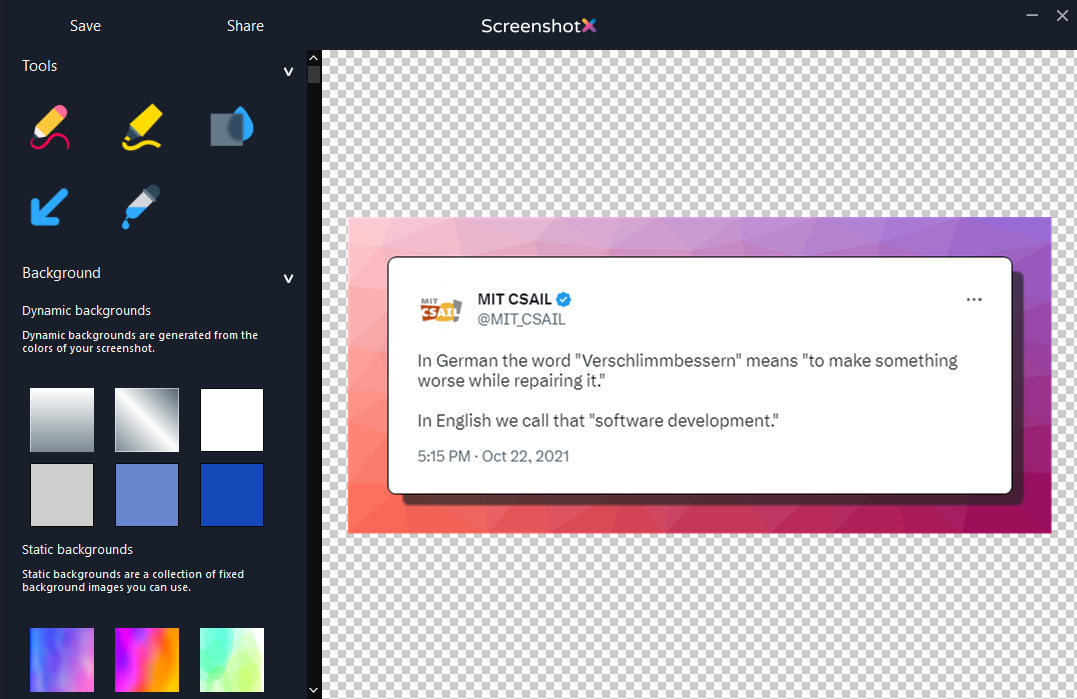
  • Tidy up: automatic balancing that centers content on detected solid backgrounds, plus one-click pretty backgrounds.
  • Annotate: brush, highlighter and color picker.
  • Redact: a blur tool for hiding emails, names and keys before sharing.
  • Share or save: copy, save locally, or click Share for a public link. You also get a private admin link to view stats or delete the image. Shared screenshots are removed automatically after 30 days.
  • Fit and finish: dark and light mode, 21 built-in languages switchable in settings, and a small Windows app (3.0 MB) that works on Windows 11, 10, 8 and 7. The page describes it as freeware with no ads, no spyware and no account required.

Where it fits, and where it may not

The one-click public link is the standout convenience: it removes the friction of attaching files to chat or email. The trade-off is that a public link is easy to forward, so treat anything you share that way as effectively public even after you blur details — check the blur covers everything before you click Share. The 30-day expiry also means links are not a permanent archive; if a screenshot needs to last, save the file locally or store it somewhere you control.

For a quick decision: if you mostly need fast, good-looking, no-signup sharing on Windows, ScreenshotX is built for exactly that. If you need long-term hosting, team libraries or heavy annotation with text callouts, note that its page lists labels and callouts as "soon," so they are not available yet.

If you want alternatives to compare against, Windows' own Snipping Tool and ShareX cover overlapping ground with different priorities.

How do I download and install ScreenshotX on Windows?

ScreenshotX is a free, lightweight Windows screenshot tool, and installing it is a straightforward download-and-run process. The official site is ScreenshotX, where the Windows download is offered directly, with no account or sign-up required.

How to download and install ScreenshotX

  1. Go to the official site — Open ScreenshotX in your browser.
  2. Download the Windows version — Look for the "Download for Windows" option on the page. The download is a small file (the site lists it as 3.0 MB).
  3. Run the downloaded file — Open it from your browser's downloads or your Downloads folder. Because it's a small freeware app, installation should be quick.
  4. Launch ScreenshotX — Once installed, open the app from the Start menu or its desktop shortcut.
  5. Take your first screenshot — Use the app to snip an area or a window, then use the built-in editor to center the content, add a background, blur sensitive details, or share it with one click.

What to expect

ScreenshotX is described as working on Windows 11, 10, 8 and 7, so it should run on most current Windows machines. It's positioned as a native, lightweight app with no ads and no account needed, and it includes features like automatic balancing, a blur tool for redacting, a brush, a highlighter, and one-click sharing via a public link.

A practical note

If you only need a quick, no-frills capture, the built-in Windows Snipping Tool may be enough. ScreenshotX is aimed at people who want their screenshots to look polished—centered, framed, and safe to share—without installing a heavier editor. For a quick comparison of screenshot utilities, you can also check Microsoft for the built-in Windows options, though ScreenshotX's main draw is its automatic balancing and one-click sharing.

Next step

After installing, try a single area snip and use the automatic balancing and blur tools once. If that workflow fits how you share screenshots (for example, in chats, docs, or bug reports), keep it; if you need advanced annotations, note that text and callouts are listed as "soon," so they aren't available yet.

How does ScreenshotX automatically balance and center my screenshot content?

ScreenshotX’s “automatic balancing” works on screenshots that have a solid background: it detects that background, then repositions and pads the captured content so it sits centered with even margins rather than off to one side. In practice, you snip an area or window, and the editor applies the balancing step before you save or share.

What the feature actually does

  • Detects solid backgrounds in the snip.
  • Centers the content on that background.
  • Adds even padding around the content so the result looks deliberate rather than cropped awkwardly.
  • Pairs with other editor tools such as pretty backgrounds, brush, highlighter, color picker and blur for redaction.

Where it helps most

This is aimed at people who share screenshots in docs, chat, bug reports, tutorials or social posts and want them to look tidy without opening a full design app. A developer pasting a UI snip into a ticket, or a support agent sending a cropped error message, gets a centered image with less manual nudging.

Where it won’t help

If your screenshot is a busy photo, a gradient, a game scene or any non-solid background, automatic centering has no reliable edge to detect. You would still need to crop or frame it manually. The same applies if you want the content deliberately off-center for a specific layout.

Practical check

Take one snip with a plain background and one with a complex background, then compare the results in the editor before sharing. If the plain one centers cleanly and the busy one does not, that tells you when to rely on the automatic step and when to adjust by hand.

ScreenshotX is a free Windows snipping tool with a 3.0 MB download, no account required for sharing, and a public link plus a private admin link that can show stats or delete the upload; shared screenshots are removed automatically after 30 days. For a broader comparison of capture tools, Example is not relevant here; instead, check the official ScreenshotX page for the current download and changelog.

How can I blur or redact sensitive information in a screenshot before sharing it?

Use a blur or redaction step as part of the capture-and-share workflow, not as an afterthought. In ScreenshotX, the feature is described directly: after you snip an area or a window, the editor includes a "Blur to redact" tool for hiding sensitive details before sharing, and the page gives emails, names and keys as examples. The same editor also includes a brush, highlighter and color picker, but those are for annotation, not for hiding data.

A practical redaction routine

  1. Capture with enough margin. A free-form area snip or a single-window snip gives you room to blur edges of a dialog or table without cutting off context.
  2. Blur before annotating. If you highlight or draw first, you may draw attention to the very field you meant to hide.
  3. Check at full size. Zoom in on the blurred region before sharing; a small blur can leave characters readable.
  4. Prefer covering over blurring for the most sensitive items. A solid block or an opaque shape is harder to reverse than a soft blur, even when the tool offers blur.
  5. Share through a link only after that check. ScreenshotX describes one-click sharing that creates a public link plus a private admin link for stats or deletion, with shared screenshots removed automatically after 30 days. Treat any public link as public for its lifetime.

Blur versus other options

Method Best for Trade-off
Blur tool Emails, names, keys, account numbers in a mostly readable screenshot Blur strength and image scaling can leave text partly legible
Solid block or shape Passwords, tokens, full addresses Hides context around the field, so the screenshot can look odd
Crop the capture Removing an entire panel or sidebar You lose surrounding context that may matter to the reader
Highlighter or brush Pointing to the important part Does not hide anything; use only after redaction

A concrete example

A support agent captures a settings window to show a misconfigured option. The window also shows an email address and an API key. They snip the window, blur the email and key, then add a highlighter over the wrong setting. They copy the image for a ticket, or use Share to get an instant link with no account. Before sending, they open the link once to confirm the blurred fields are unreadable, then keep the admin link in case the screenshot needs deleting.

For a second opinion on blur limits, general guides such as OWASP cover data exposure risks, and FTC Consumer Advice explains why shared images can outlive the moment you post them. Both are useful when deciding whether blur is enough for the data in your screenshot.

How do I share a screenshot with ScreenshotX without creating an account, and how long do shared links last?

Click Share in the ScreenshotX editor after you snip. The image is uploaded and you receive a public link you can send to anyone, plus a separate private admin link for viewing stats or deleting the upload. No sign-up is required.

Shared screenshots are removed automatically after 30 days, so treat the link as temporary. If you need a screenshot to stay available longer, save it to your own device or storage and share that file instead.

What happens to the two links

Link Who gets it What it does
Public share URL Anyone you send it to Opens the screenshot
Private admin URL Only you Shows stats and lets you delete the upload

Keep the admin link to yourself. Anyone holding it can see the upload's stats or remove it, so don't paste it into the same chat as the public link.

A practical scenario

You need to send a bug report screenshot to a colleague, but it contains a customer email address. Snip the area in ScreenshotX, use the blur tool to redact the address, then click Share. Send the public link to your colleague and keep the admin link in case you need to delete the image before the 30-day cleanup.

If the screenshot contains anything you would not want publicly reachable, even briefly, skip the upload and save the file locally instead.

Is ScreenshotX really free and safe, or does it contain ads or spyware?

ScreenshotX is described on its own site as a freeware Windows app with no ads, no spyware and no account requirement, so "free and safe" is the claim the publisher is making about itself. That is a starting point, not an independent audit: the site states the terms, and the meaningful check is whether the downloaded file matches them.

What the page actually commits to

  • Price: Listed as freeware, with no pricing signals, payment links or subscription tiers on the page. Nothing indicates a paid tier or trial limit.
  • Ads and tracking: The page explicitly says "No spyware, no ads." No bundled offers, upsells or advertising placements are described.
  • Account: Sharing produces an instant public link with no sign-up. A separate private admin link lets you view stats or delete the upload.
  • Footprint: A 3.0 MB download that runs on Windows 11, 10, 8 and 7 — small enough that a bundled installer payload would be conspicuous.
  • Retention: Shared screenshots are removed automatically after 30 days, which limits how long anything you upload stays reachable.

The safety trade-off worth understanding

The real risk here is not the app itself but the sharing model. Captures are uploaded to a public URL, and the admin link is the only thing standing between the image and deletion. "No account" cuts both ways: there is no login to protect you, so anyone holding the link can view the image until it expires. The built-in blur tool exists precisely for this — redact emails, names and keys before you hit Share, not after.

How to verify it yourself

  1. Download only from ScreenshotX rather than a third-party software portal, which often wraps installers in their own adware.
  2. Before running it, submit the setup file to a multi-engine scanner such as VirusTotal and check the signature and publisher details.
  3. Watch the install screens for pre-ticked extras; a clean freeware release should offer none.
  4. If you only need local captures and never want an image to leave your machine, use Save or Copy instead of Share, and the upload question disappears entirely.

For a quick, ad-free snip-and-annotate workflow on a personal Windows machine, the stated terms are reasonable and the small file size is reassuring. If you handle client documents, medical records or credentials, treat the Share button as publishing to a temporary public page and redact first — or skip it.

Related questions

More questions →
Does ScreenshotX Support Multiple Languages and Dark Mode?

Yes. ScreenshotX ships with 21 built-in languages and offers both dark and light mode, and the app follows your system preference. You can switch languages at any time under General Settings, so non-English Windows users and anyone who prefers a dark interface can adjust the app to their taste.

Language support

ScreenshotX includes 21 languages built into the app. According to the developer, you can switch between them at any time under General Settings — there's no separate language pack to download or install.

This matters if you:

  • Use a Windows installation that isn't in English and want the app's menus and labels to match
  • Share a machine with someone who prefers a different language
  • Simply find it easier to work in your first language

The exact list of 21 languages isn't published on the page, so if you need one specific language, check the General Settings section after installing to confirm it's included.

Dark and light mode

ScreenshotX offers a dark mode and a light mode. The page notes that the app "follows your taste, like this page" — meaning the interface adapts to your preference rather than locking you into one look.

If you work at night or in a low-light environment, dark mode keeps the editor and menus from glaring at you. If you prefer a bright, high-contrast interface, light mode is there too.

Where to find these settings

Both options live in the app's General Settings section:

  1. Open ScreenshotX.
  2. Go to General Settings.
  3. Pick your language and your light/dark preference.

The page doesn't describe the exact menu path or toggle names beyond "General Settings," so treat the steps above as the general location rather than a click-by-click map.

What else comes with the app

For context, these appearance and language options sit alongside ScreenshotX's core capture features:

Feature What it does
Area and window snips Capture a free-form area or a single window
Automatic balancing Centers content on detected solid backgrounds
Pretty backgrounds Frames a snip on a clean color in one click
Blur to redact Hides sensitive details before sharing
One-click sharing Generates an instant link, no account needed
Native and lightweight A 3.0 MB Windows app, no ads or spyware

ScreenshotX is freeware and works on Windows 11, 10, 8, and 7. The current version listed is 1.1, with a download size of 3.0 MB.

Bottom line

If language or interface theme was your deciding factor: ScreenshotX covers both. You get 21 languages and a dark/light mode, both adjustable in General Settings, on top of a free, lightweight Windows screenshot tool. The only open question is whether your specific language is among the 21 — worth a quick check in the settings after you install.

Which Windows Versions Does ScreenshotX Support?

ScreenshotX runs on Windows 11, 10, 8, and 7. If your PC is on any of those four versions, the app is listed as compatible, so you can download and install it without checking for a separate build. The download is 3.0 MB, and the license is freeware.

Compatibility at a glance

Item Detail
Supported Windows versions Windows 11, 10, 8, 7
Download size 3.0 MB
License Freeware
Latest version 1.1 (changelog available)
Account required No
Ads / spyware None mentioned

What this means for your machine

The version list covers every mainstream Windows release from 7 onward, so the practical question isn't usually "will it run" but "is my Windows version still current." Two things are worth noting:

  • Windows 7 and 8 are listed as supported, even though Microsoft no longer services them. ScreenshotX will install there, but you're running an unsupported OS regardless of the app.
  • Windows 8.1, 10, and 11 users are covered by the same download — there's no separate installer to pick.

Before you download

  1. Confirm your Windows version: open Settings → System → About and check the "Windows specifications" line, or run winver from the Run dialog.
  2. If it reads Windows 11, 10, 8, or 7, you're within the supported range.
  3. Download the installer (3.0 MB) and run it. The app is described as native and lightweight, so it shouldn't need a heavy install footprint.

Common snags

  • "My version isn't listed." Windows 8.1 isn't named explicitly — only 8 is. The page doesn't state whether 8.1 is treated as covered, so treat that as unconfirmed rather than guaranteed.
  • Assuming a newer build exists for newer Windows. The page presents one download for all listed versions, not per-version packages.
  • Expecting a paid tier. The license is freeware with no account needed; the page mentions no pricing, so there's nothing to purchase or sign up for to use the core tool.

If you're on Windows 11, 10, 8, or 7, ScreenshotX is a direct download away. If you're on an older or unlisted build, the page doesn't promise support, so test it before relying on it.

What is ScreenshotX and what can it do?

ScreenshotX is a free screenshot and snipping tool for Windows that captures an area or window, opens it in a built-in editor, and lets you share it with one click — no account required. It's a fit if you're on Windows 11, 10, 8, or 7 and want quick, presentable screenshots without ads or sign-up. It's not a full image editor; it's built around a snip → prettify → share workflow.

The core workflow

ScreenshotX is organized around three steps:

  1. Snip — Capture an area or a single window. The capture opens directly in the editor.
  2. Prettify — The app automatically balances the image, and you can add a background or blur sensitive parts.
  3. Share or save — Copy it, save it, or click Share to get an instant link.

The point of this flow is speed: you go from capture to a shareable image without opening a separate editor or creating an account.

What it can do

Capture and automatic balancing

  • Area and window snips — Free-form area selection or a single window, your choice.
  • Automatic balancing — Detects solid backgrounds automatically and centers your content with even padding. If a raw snip is off-center, the app rebalances it.

Editing tools

  • Pretty backgrounds — Frame any snip on a clean color in one click.
  • Blur to redact — Hide emails, names, keys, and other sensitive details before sharing.
  • Brush tool — Draw freehand on the screenshot.
  • Highlighter — Pull attention to the part that matters.
  • Color picker — Grab any color, with complementing colors shown.
  • Text and annotations — Listed as coming soon, not yet available.

Sharing

Clicking Share uploads the screenshot and gives you two links:

Link type What it's for
Public share URL Send to anyone (format: https://screenshotx.com/i/111111)
Private admin URL Keep for yourself to see stats or delete the image

Shared screenshots are removed automatically after 30 days. No account is needed to share.

App basics

  • Size and footprint — A 3.0 MB Windows app; the site states no spyware and no ads.
  • Windows support — Works on Windows 11, 10, 8, and 7.
  • Dark and light mode — The app follows your system preference.
  • 21 languages — Switchable at any time under General Settings.
  • Version — Latest listed version is 1.1, licensed as freeware.

Is it right for you?

Choose ScreenshotX if you want fast, good-looking screenshots on Windows and value one-click sharing without an account. The automatic balancing and background framing are the main differentiators — they save manual centering work.

Look elsewhere if you need a full image editor with layers, advanced retouching, or annotation features like labels and callouts right now, since those are marked as coming soon. Also note that shared links are public and expire after 30 days, so it isn't a permanent hosting solution.

To get started, download the app for Windows from screenshotx.com, run it, and capture your first area or window snip.

Are ScreenshotX Shared Screenshot Links Private, and How Long Do They Last?

ScreenshotX shared links are public but unlisted, and they expire automatically after 30 days. When you click Share, the screenshot is uploaded and you get two URLs: a public link you can send to anyone, and a private admin link that lets you see stats or delete the image. No account is required for either. If you need a shareable link that stays up longer than 30 days, or one that requires authentication to view, ScreenshotX is not the right tool for that job.

What actually happens when you click Share

The flow is a single action with no sign-up step:

  1. Snip an area or a window — it opens in the editor.
  2. Optionally blur or annotate the parts you don't want seen.
  3. Click Share. The screenshot is uploaded to ScreenshotX's servers.
  4. You receive two links:
    • A public share URL (the documented format is https://screenshotx.com/i/111111) — send this to whoever should see the image.
    • A private admin URL — keep this for yourself.

The public link is what the name suggests: anyone who has it can open the image. There is no password, no viewer list, and no account gate mentioned on the site. "Private" here applies to the admin link, not the share link.

How long do shared screenshots last?

30 days, then automatic removal. The site states that shared screenshots are removed automatically after 30 days. There is no documented option to extend that window, and no documented "permanent link" feature. Treat every ScreenshotX share link as temporary.

Practical consequences:

  • Don't use it for anything you need to reference months later — save a local copy instead.
  • If you're sending a link to someone who may not open it soon, 30 days is your deadline.
  • The admin link is your only way to delete the image early, so keep it until you no longer need the share.

What the admin link gives you

The admin URL is the control side of the share:

  • View stats on the shared screenshot.
  • Delete the shared screenshot before the 30-day expiry.

Losing the admin link means losing the ability to delete early — the 30-day auto-removal still applies, but you can't shorten it. If you share something sensitive, save the admin link somewhere you'll find it again.

Reducing what you expose before sharing

Because the share link is public, the editor's redaction tools matter more than the link mechanics. ScreenshotX includes:

  • Blur tool — for hiding emails, names, and keys.
  • Brush, highlighter, and color picker — for drawing attention or covering areas.
  • Automatic balancing and pretty backgrounds — cosmetic, applied to detected solid backgrounds.

Blur the sensitive region before clicking Share. Once uploaded, the only remedies are the admin link's delete option or waiting out the 30 days.

When ScreenshotX sharing is a reasonable fit

Your need Does ScreenshotX fit?
Quick link to send in a chat, no account Yes
Public-but-unlisted image, short-lived Yes
Delete the image yourself afterward Yes, via the admin link
Link that stays live beyond 30 days No
Link that requires a login or password to view No
Guaranteed private/encrypted sharing Not supported by the described features

The short version

Share links are public to anyone holding the URL, the admin link is your private control for stats and deletion, and everything disappears after 30 days. That combination works well for casual, short-term sharing of non-sensitive screenshots — and poorly for anything you need to keep reachable or genuinely access-controlled. Blur first, keep the admin link, and don't rely on the share outliving the month.

How to Take and Share a Screenshot with ScreenshotX

ScreenshotX is a free Windows snipping tool that captures an area or a window, opens it in an editor, and lets you copy, save, or share it as an instant link — no account required. It works on Windows 11, 10, 8, and 7, and the download is a 3.0 MB freeware app (version 1.1). The three-step flow below covers capture, editing, and sharing, plus what happens to the link afterward.

Step 1: Capture an area or a window

ScreenshotX gives you two snip types:

  • Area snip — free-form selection of any region on screen.
  • Window snip — captures a single window.

Either way, the capture opens directly in the editor, so there's no separate save-then-open step. If you want to see the flow before installing, the site offers a screenshot demonstration video showing the tool in action.

Step 2: Edit in the editor

The editor is where most of the work happens. Available tools:

Tool What it does
Automatic balancing Detects solid backgrounds and centers your content with even padding
Pretty backgrounds Frames the snip on a clean color in one click
Blur Redacts emails, names, keys, and other sensitive details
Brush Draw freehand on the screenshot
Highlighter Pulls attention to the part that matters
Color picker Grabs any color and shows its complementing colors

The automatic balancing is the feature the tool leans on most: it detects solid backgrounds and re-centers off-center content with even padding, so a raw snip that sits off to one side comes out balanced without manual cropping. Text and annotation tools (labels and callouts) are listed as "on the way," so don't count on them yet.

The app also has dark and light mode and ships with 21 built-in languages, switchable at any time under General Settings.

Step 3: Copy, save, or share

Once the screenshot looks right, you have three options:

  • Copy — puts it on the clipboard.
  • Save — writes it to a file.
  • Share — uploads the screenshot and returns an instant link.

Sharing needs no sign-up. Clicking Share produces two URLs:

  • A public link you send to others, in the form https://screenshotx.com/i/111111
  • A private admin link you keep, which shows the screenshot's stats and lets you delete it

Shared screenshots are removed automatically after 30 days, so treat the link as temporary rather than a permanent host.

Common snags to expect

  • Annotations aren't there yet. If your workflow depends on labels and callouts, the site says they're still coming — plan around brush, highlighter, and blur for now.
  • The share link expires. Thirty days is the ceiling; save a local copy if you need the image long-term.
  • Keep the admin link. It's the only way to check stats or delete a shared screenshot, and it isn't the same as the public URL.
  • Blur before you share, not after. Redaction happens in the editor, before upload — once the public link exists, anyone with it can view the image.

Website Overview

Page metadata, canonical configuration and social previews work together to provide more consistent search and sharing presentation.

Domain and Registration

Transfer-protection status is present, helping reduce the risk of unauthorized domain transfers. The domain has about 3 years of registration history; its current configuration provides more context than age alone. The registrar is Porkbun LLC, a widely used domain service provider. The domain uses the common .com extension, which is not an independent safety signal.

DNS and Email

Nameservers are provided by managed-vps.net, indicating managed DNS hosting. MX records point to the screenshotx.com email service. No CNAME was found; the observed records resolve directly to addresses. SPF and DMARC are configured. DKIM status is unknown. TXT records include verification markers for Google. Such markers may also remain after a service stops being used.

TLS and Certificates

The certificate uses an RSA 4096-bit public key, offering broad client compatibility. The server supplied a complete certificate chain. No organization name is present in the certificate; the available fields are consistent with domain validation. The certificate was issued by Let's Encrypt, commonly associated with automated certificate services. The certificate's total validity is about 89 days, consistent with a short renewal cycle.

HTTP and Browser Security

X-Powered-By exposes backend information: PHP/8.1.34. The response lacks these common security headers: Permissions-Policy. No obvious internal addresses or debug information were found in the headers. The Server header identifies Apache without an exact version. No explicit CDN or WAF marker was found in the response headers.

Technology Stack Analysis

The public page identifies Apache, PHP without precise versions, leaving fewer clues for version-specific scanning.

Search and Social Sharing

The title has 46 characters, within a common display range. A meta description is present, with 146 characters. The observed directives allow indexing and link following. No Generator meta tag is publicly exposed. A viewport declaration is present, providing a basis for mobile layout.

Hosting and Email

DNSmanaged-vps.net
HostingTelehouse EAD
Emailscreenshotx.com
Approximate IP geolocation (inferred; a CDN or proxy may differ from the origin server) Bulgaria flagBulgaria Inferred 79.124.76.236

Registration details

RDAP / WHOIS

RegistrarPorkbun LLC
Registered2022-10-24
Expires2028-10-24
Domain statusclient delete prohibited、client transfer prohibited
Nameserversns1.cloud-03189d.managed-vps.net、ns2.cloud-03189d.managed-vps.net
DNSSECunsigned

DNS records

DNS

TypeNameValueTTLPriority
Ascreenshotx.com79.124.76.23614400—
MXscreenshotx.commail.screenshotx.com144000
NSscreenshotx.comns1.cloud-03189d.managed-vps.net86400—
NSscreenshotx.comns2.cloud-03189d.managed-vps.net86400—
TXTscreenshotx.comgoogle-site-verification=IPEUyM9LVySyDBr5pTT9bp6gvf7KTufQwyYn_MQqkBE14400—
TXTscreenshotx.comv=spf1 +a +mx +ip4:79.124.76.236 -all14400—
DMARC_dmarc.screenshotx.comv=DMARC1; p=reject; sp=none; rf=afrf; pct=100; ri=8640014400—

TLS and certificates

TLS / SSL

AssessmentNormal configuration
Supported protocolsTLSv1.2
Negotiated protocolTLSv1.2
Certificate subjectscreenshotx.com
IssuerLet's Encrypt
Valid until2027-01-07T03:03 · Remaining when checked: 85 days
Verification detailsCertificate trust: Passed · Hostname match: Passed

HTTP response headers

HTTP

HeaderValue
content-typetext/html; charset=UTF-8
cache-controlpublic, max-age=300
serverApache
strict-transport-securitymax-age=15552000; includeSubDomains
content-security-policydefault-src * data:; script-src https: 'unsafe-inline' 'unsafe-eval'; style-src https: 'unsafe-inline'
x-frame-optionssameorigin
x-content-type-optionsnosniff
referrer-policyno-referrer-when-downgrade

Identified technologies

ApachePHP

Pages, Search and Sharing

Meta descriptionFree screenshot tool and snipping tool for Windows. Capture, blur and share beautiful screenshots without ads or an account. Download ScreenshotX.
Canonical URLhttps://screenshotx.com/
LanguageEnglish (default)
Twitter CardNot detected
All bots 0 allowed · 2 disallowed
  • Disallow/i/
  • Disallow/admin/

User reviews (0)

  • No reviews yet.