Website profiles · Technology insights · Alternatives

step.parts

16,000+ open source STEP parts for your next CAD project

No paid content found
Visit website
Profile views 7 Outbound visits 1 Normal
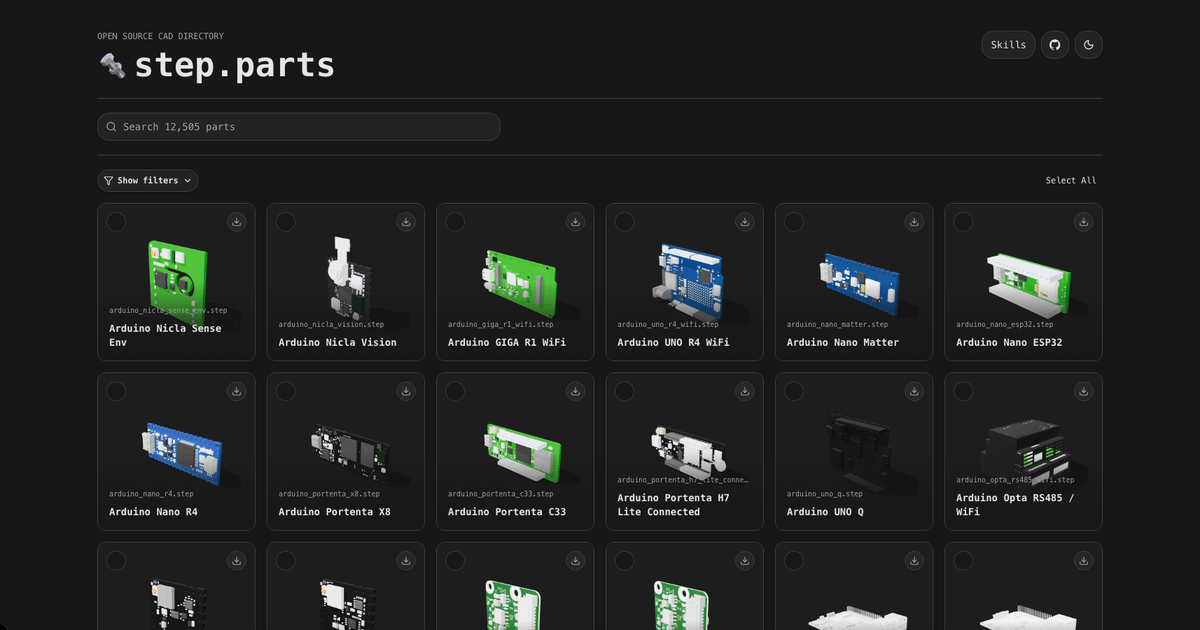
step.parts Full homepage screenshot

At a glance

Category
Other
Language
English
Paid-content signal
No paid content foundObserved
Registered
2024
Hosting
VercelInferred
HTTPS certificate trusted
PassedObserved
Last updated

Website review

This review may include AI-generated content and is not individually verified. Domain, certificate and other facts come from the observed data on this page.

What is step.parts?

step.parts is a directory of open-source STEP files—over 16,000 CAD parts—that you can download and drop into your next mechanical design. It exists to save you from modeling common components from scratch.

What you'll find there

  • Standard mechanical hardware: fasteners, bearings, nuts, bolts, washers
  • Electronics and dev-board parts, judging by the listed examples: an Arduino Nicla Sense Env, an Adafruit MotorShield, a MacroPad keyplate
  • Actuators and motors, such as a RobStride 06 and a Feetech HL-3955 servo

Who it suits

  • Mechanical engineers assembling enclosures or fixtures who need accurate off-the-shelf part geometry
  • Robotics and hardware hobbyists building around dev boards and hobby servos
  • Anyone who needs a reference model for fit-checking rather than designing a part from zero

Trade-offs to keep in mind

STEP is a neutral solid format, so it imports cleanly into most CAD tools, but it carries no feature history—you can measure and mate parts, not edit their sketches. Directory listings also vary in origin, so treat each model as a starting point and verify critical dimensions against the manufacturer's drawing before committing to a build.

Next step

Search the catalog for the exact part number you're using (for example, the motor or board you've already bought). If it's listed, download the STEP file and confirm its mounting holes and envelope in your assembly. If it isn't, check the vendor's own site first—many publish official CAD—and only model the part yourself as a last resort.

How can I download or access the STEP files on step.parts?

Visit step.parts and use its catalog to reach a part page, then download the STEP file from that page. The homepage is a directory rather than a download page, so the practical path is: browse or search the catalog, open the entry for the part you need, and look for its file link or download control there.

Example entries visible on the site include "5128 MacroPad RP2040-Keyplate", "Arduino Nicla Sense Env", "RobStride 06 motor", "1438 Adafruit MotorShield", and "Feetech HL-3955", which shows the range runs from small electronics plates to motors.

A sensible workflow for a CAD user:

  1. Identify the exact part and variant (for example, a specific motor model, not just "motor").
  2. Open that part's page and download the STEP file.
  3. Import it into your CAD tool as a reference component, then check critical dimensions against the manufacturer's own drawing before committing to an enclosure or mounting pattern.

If a part you need is not in the catalog, treat the site as one source among several: check the original manufacturer's site first, since they often publish official CAD, and use community libraries for commodity items such as fasteners and bearings. STEP files are neutral, so they generally open in most mechanical CAD packages, but always verify units and scale after import.

What types of mechanical parts and components are available in the step.parts catalog?

The catalog centers on mechanical and electronics-adjacent hardware rather than finished consumer products. Its stated scope is 16,000+ open-source STEP parts, and the visible entries mix small fastening and motion components with dev-board accessories.

Part categories you can expect

  • Fasteners and small hardware: bolts, nuts, washers, and similar items — the keywords point directly at these.
  • Motion and power-transmission parts: bearings appear in the keyword set, and the visible catalog includes a motor (RobStride 06) and a servo-style actuator (Feetech HL-3955).
  • Electronics and dev-board hardware: the sample headings include an Arduino Nicla Sense Env, an Adafruit MotorShield, and a MacroPad RP2040 keyplate — so PCB modules, shields, and enclosure plates are represented.
  • Project-specific mechanical parts: the MacroPad keyplate shows that custom plates and brackets for a named build are part of the mix, not just generic catalog components.

Practical takeaway

If you are building a mechanical assembly and need a STEP model to drop into CAD, this is most useful for standard hardware, motors, and board-level parts where you would otherwise model the geometry yourself. The trade-off is that "open source" parts vary in modeling quality and origin, so check tolerances and units before committing to a design.

Next step: search the catalog by the exact part number or component name you need (for example, a motor model or board revision) rather than browsing by category, then verify the model's dimensions against the manufacturer's drawing. For related open hardware models, GrabCAD and GitHub host community CAD repositories worth cross-checking.

Are the STEP files on step.parts compatible with my CAD software?

Yes—STEP is a vendor-neutral interchange format, so files from step.parts should open in mainstream CAD programs that support it, including SolidWorks, Fusion 360, Onshape, FreeCAD, Inventor and Creo. The site's catalog is built around STEP parts, so compatibility is the point rather than an afterthought.

The practical caveat is version and export quality, not the site itself. STEP comes in AP203, AP214 and AP242 flavors, and older or cheaper CAD tools may import one but not another. Some files also arrive as single solids with no feature history, so you can measure, mate and 3D-print them but not edit a fillet or change a hole pattern.

H3 What to check before downloading a batch

  • Format variant: if your CAD only reads AP203/AP214, test one file before grabbing a whole assembly.
  • Body structure: a part exported as one solid is fine for fit checks; multi-body or surface-only files can be harder to constrain.
  • Units and origin: confirm the model is in millimeters and sits at a sensible origin so it drops into your assembly without rescaling.
  • Detail level: catalog parts such as fasteners, bearings, nuts, bolts, washers and motor models are usually simplified for clearance checks, not for manufacturing drawings.

H3 A quick test workflow

Download one representative part—say a fastener and a motor—and import both into your CAD. Try mating them to an existing component and checking dimensions against the manufacturer's drawing. If that works, the rest of the catalog likely will too.

If your software struggles, convert the STEP to a neutral mesh or a native format using a tool like FreeCAD, then re-import. For teams standardized on one CAD package, that extra conversion step is the main trade-off of using an open, format-agnostic library.

Can I use the STEP parts from step.parts in commercial or open source projects?

Yes, you can use STEP parts from step.parts in both commercial and open-source projects, based on the site's stated purpose as an "open source CAD directory." The catalog is built around open-source hardware parts, and the page names specific components such as the "RobStride 06 motor," "Feetech HL-3955," "Arduino Nicla Sense Env," and "Adafruit MotorShield" — all of which are open-source or community-documented hardware ecosystems.

What "open source" means here

The directory aggregates STEP files, but the license belongs to each part's original creator, not to step.parts itself. Open-source hardware licenses vary widely:

  • Permissive licenses (MIT, Apache, CC-BY) let you use, modify and redistribute parts commercially with attribution.
  • Copyleft licenses (GPL, CC-BY-SA, CERN-OHL-S) require derivative designs to carry the same license.
  • Non-commercial licenses (CC-BY-NC) block commercial use entirely.

Practical next step

Before dropping a part into a commercial product, check the individual part's source link and license. For an open-source project, almost any of these licenses works — just preserve the attribution and share-alike terms.

Decision criterion

If you are designing a product to sell, treat step.parts as a search index: use it to find candidate parts, then verify each part's license at its original repository. If you are building an open-source design, the same parts are generally safe to reuse as long as you credit the original authors.

For cross-checking licenses of common ecosystems, official sources include GitHub and Creative Commons.

How can I contribute my own STEP files to step.parts?

The page evidence for step.parts does not show a submission form, upload button, or contribution instructions — it presents a catalog of open source STEP parts and nothing about how files get added. So the honest answer is: check the site itself for a contribution route, and expect that the practical path runs through the project's public repository rather than a direct upload widget.

What to look for on the site

Open step.parts and scan for a footer, an "About" or "Contribute" link, or a GitHub/GitLab link. The excerpt credits the catalog to a maker handle, which suggests the project is maintained by an individual or small group and likely lives in a public code repository. That repository — not the catalog page — is where file submissions, naming rules, and licensing requirements would be documented.

A realistic contribution workflow

If the project follows the common pattern for open CAD directories, your steps would look like this:

  1. Confirm the license you can release the part under. Open source CAD directories generally expect a permissive or copyleft license that allows redistribution, so a part pulled from a vendor's proprietary library is usually not eligible.
  2. Export a clean STEP file. Remove construction geometry, suppress unused bodies, and make sure units and origin are sensible — a part that imports at the wrong scale or offset causes more work than it saves.
  3. Name the file descriptively and consistently with what you see in the catalog, for example "5128 MacroPad RP2040-Keyplate," where a part number or project identifier leads and the descriptive name follows.
  4. Include source and attribution. Note where the dimensions came from (your own measurement, a manufacturer drawing, a datasheet) and who made the model.
  5. Submit via the project's stated channel — a pull request, an issue with the file attached, or an email address listed on the site.

Decision criteria before you invest effort

  • Is the part genuinely open? If it is a reverse-engineered model of a proprietary connector, check whether the manufacturer permits redistribution.
  • Is it useful to others? Generic fasteners and common bearings are already abundant; a specific bracket, adapter, or board outline is more valuable.
  • Can you maintain it? If a reviewer asks for a revision, will you respond?

If there is no contribution path

Some catalogs are curated by the maintainer alone. In that case, a polite message through the contact method on the site, offering the file with its license and provenance, is the appropriate next step. For broader open hardware work, communities such as GitHub host CAD repositories where you can publish your STEP files independently and link back to the catalog.

Related questions

More questions →
What Are CAD Parts and How Do You Use STEP Files for Open-Source CAD Models?

CAD parts are individual mechanical component models—bolts, bearings, washers, motors, keyplates—that you import into an assembly or design. STEP is the neutral 3D exchange format that lets those parts move between CAD programs without vendor lock-in. Open-source directories like step.parts host downloadable STEP files you can drop into a project, 3D print, or modify. This guide covers what the format does, how to find parts, and the checks that keep an assembly from breaking.

What counts as a "CAD part"

A CAD part is a single solid or assembly-level component with defined geometry, usually modeled to real dimensions so it can be mated to other parts. In practice, the term covers:

  • Fasteners — bolts, nuts, screws, washers
  • Power transmission — bearings, gears, pulleys
  • Actuators and electronics — motors, motor shields, dev boards
  • Structural and enclosure pieces — keyplates, brackets, feet

A directory like step.parts lists entries such as a 5128 MacroPad RP2040 keyplate, an Arduino Nicla Sense Env board, a RobStride 06 motor, an Adafruit MotorShield, and a Feetech HL-3955 servo. Each is a discrete part you can pull into a larger design rather than a finished product.

Why STEP is the format to look for

STEP (ISO 10303) stores exact boundary geometry—surfaces, curves, solids—not a triangle mesh. That difference decides what you can do with a downloaded part.

Format Stores Editable in CAD? Best for
STEP Exact B-rep solids/surfaces Yes Assemblies, mating, modification
STL Triangle mesh Poorly 3D printing, visualization
Native (e.g. SLDPRT, F3D) Full feature tree Yes, but only in that app Authoring in one toolchain

Because STEP is vendor-neutral, a part downloaded from step.parts opens in SolidWorks, Fusion 360, FreeCAD, Onshape, and others. You get the shape and dimensions, but not the original feature history—so you edit the solid, not a sketch-and-extrude tree.

How to find and reuse an open-source STEP part

  1. Search by part name or function. Use the component name (e.g. "RobStride 06 motor") or a category term like fastener, bearing, or keyplate. Directories index by both.
  2. Download the STEP file. Confirm the entry is the part you need, not a similar variant. Note the source and any stated license.
  3. Import into your CAD tool. Use File → Import/Open and select the .step or .stp file. The part arrives as a solid body or component.
  4. Check units and scale. STEP carries unit metadata, but imports sometimes land at 1:1 mm when you expected inches, or vice versa. Measure a known dimension—a bolt's shank diameter, a board's mounting-hole spacing—against the datasheet.
  5. Verify critical dimensions. Confirm hole diameters, pitch, and mating faces before you build around the part. A 0.2 mm error compounds across an assembly.
  6. Mate, modify, or print. Constrain the part to your assembly, edit the solid if you need a variant, or export to STL for printing.

Expected result: a correctly scaled solid in your assembly that mates to your other parts without interference.

Common snags and how to handle them

  • Wrong scale on import. Re-measure and apply a uniform scale factor, or set the import unit explicitly.
  • Mesh instead of solid. Some "STEP" downloads are actually STL renamed. If you can't select faces or measure radii, it's a mesh—find a true STEP source.
  • Missing license info. Open-source parts still carry terms. If a directory entry doesn't state a license, treat reuse as unresolved and check the original source before commercial use.
  • Version drift. A part may be revised; a newer STEP file can differ from the one your assembly was built on. Pin the version you validated.
  • No feature tree. You can't tweak the original sketch. Model your modification as a new body or cut/extrude on top of the imported solid.

When to use a downloaded part vs. model your own

Download a STEP part when the geometry is standard or complex and someone has already modeled it accurately—fasteners, bearings, off-the-shelf motors, dev boards. Model your own when the part is custom, when you need a clean feature tree for downstream edits, or when no trustworthy source exists. For a one-off bracket, modeling takes minutes; for a 50-part fastener set, downloading saves hours and reduces dimension errors.

What Are 3D CAD Models and How Do You Find and Use STEP Models in Your CAD Project?

A 3D CAD model is a digital three-dimensional representation of a part or assembly that you can measure, modify, and combine with other components inside CAD software. STEP (.step or .stp) is the format you want when a model needs to keep exact geometry — real dimensions, cylindrical holes, threads, and mating surfaces — rather than just look right on screen. Use STEP models when you are designing around existing hardware (a motor, a bearing, a dev board) or when you need to hand a precise part to a manufacturer. Use mesh formats like STL only when the goal is visual or 3D-printing output where exact parametric geometry does not matter.

What makes a 3D CAD model different from a mesh or a drawing

A 3D CAD model stores geometry as mathematical surfaces (B-rep) or as a feature history, so a hole is a true cylinder with a defined diameter, not a collection of triangles. That distinction drives everything downstream:

  • STEP — an open, neutral exchange format for exact solid and surface geometry. It carries units and coordinate placement, and it opens in essentially any professional CAD tool. This is the format for mechanical parts you intend to design around.
  • STL / OBJ — triangle meshes. Fine for printing or rendering, poor for measuring or editing, because there is no underlying feature to change.
  • IGES — an older neutral surface format. Still seen in legacy data, but STEP is generally preferred for solids.
  • Native formats (.sldprt, .f3d, .FCStd) — editable feature trees, but locked to one vendor's software.

If your task is "make this bracket fit around that motor," you need the motor as an exact STEP solid, not a mesh.

Where open-source STEP parts come from

Open-source CAD libraries publish parts under licenses that let you download, use, and often redistribute them. step.parts is one such directory: it describes itself as an open source CAD directory with 16,000+ open source STEP parts, built by @earthtojake, and its catalog includes named components such as a MacroPad RP2040 keyplate, an Arduino Nicla Sense Env board, a RobStride 06 motor, an Adafruit MotorShield, and a Feetech HL-3955 servo. Those examples show the typical content of an open-source parts library: development boards, motors, servos, and mechanical hardware you would design an enclosure or mount around.

The practical difference between open-source and commercial libraries:

Dimension Open-source library (e.g. step.parts) Commercial library
Cost Free to download under the stated license Usually subscription or per-part purchase
License Varies per part — check before redistributing Governed by vendor terms
Coverage Strong on hobby/maker electronics, fasteners, common hardware Strong on industrial and vendor-specific catalogs
Accuracy Depends on the contributor; verify critical dimensions Usually manufacturer-verified

Neither is automatically "better." For a one-off enclosure around a dev board, an open-source STEP part is usually enough. For a production assembly where a wrong dimension is expensive, manufacturer-supplied models are the safer source.

How to find a usable STEP model

  1. Search by the exact part number, not a generic description. "Feetech HL-3955" returns the specific servo; "small servo" returns noise.
  2. Confirm the format is STEP before downloading. A listing that only offers STL will not give you editable geometry.
  3. Check the license on the part page. Open-source does not mean unrestricted — some licenses require attribution or restrict commercial use.
  4. Note the units and origin. A model authored in inches will import at the wrong scale into a millimeter project if you ignore the unit setting.
  5. Download and open it in isolation first, before inserting it into your assembly, so any geometry problems surface early.

How to import and verify a STEP file

The steps are similar across Fusion 360, SolidWorks, FreeCAD, and Onshape:

  1. Import/Open the STEP file. In most tools this is a file-open or an "Insert → Import" action. Expected result: the part appears as a solid body in the model tree.
  2. Check the units. If the part looks 25.4× too large or small, the import interpreted inches as millimeters (or vice versa). Re-import with the correct unit setting rather than scaling the body.
  3. Verify the geometry. Measure a known dimension — a mounting hole spacing, an overall length — against the datasheet or the part's own listing. Expected result: measurements match the real component.
  4. Check for missing faces or open shells. A valid solid has a closed volume. If your tool reports a surface body or shows gaps, the export was faulty.
  5. Position and constrain it. Move the part to the origin or a mating face, then fix or constrain it so it does not drift when you edit the assembly.
  6. Save in your native format if you plan to modify it, keeping the original STEP as a reference.

Common failure points and what causes them

  • Model imports but cannot be edited. STEP is a geometry exchange format, not a feature history. You get a solid, not a timeline of sketches and extrudes. To edit parametrically, you rebuild features on top of the imported body.
  • Wrong scale. Almost always a unit mismatch at import, not a bad model. Fix the import setting, do not scale the body.
  • Missing faces or a non-solid result. Usually an export error on the source side, or a STEP version your software reads imperfectly. Try re-downloading, or ask the source for a re-export.
  • Part will not mate cleanly. Check the coordinate system and origin of the imported model — contributors place parts differently, so you may need to re-align before constraining.
  • Threads look like plain cylinders. Many STEP models simplify threads to a smooth bore for file size. That is normal; model the thread separately if you need it for manufacturing.

Choosing your source and format

For designing around electronics, motors, and standard hardware, start with an open-source STEP directory like step.parts and verify the few dimensions that matter to your fit. For production parts where the manufacturer publishes a model, use theirs. Keep STEP as your interchange format, keep native files for editing, and treat every downloaded model as unverified until you have measured at least one critical dimension against a real reference.

What Are Mechanical Parts in CAD and How Do You Find and Use STEP Models?

Mechanical parts in CAD are the individual, manufacturable components that make up an assembly — fasteners, bearings, nuts, bolts, washers, motors, brackets, and similar hardware. You find them as STEP files in open-source directories such as step.parts, which lists 16,000+ open source STEP parts, then download and import them into your CAD software to place, mate, and check fit. This works well when you need standard or reference geometry quickly; it does not replace verifying dimensions and licensing before you commit a part to a real design.

What counts as a mechanical part in CAD

A mechanical part is a single solid or component with defined geometry, as opposed to an assembly (multiple parts mated together) or a drawing (documentation of a part). In CAD workflows, "mechanical parts" usually means off-the-shelf or standard hardware you would otherwise model from scratch or look up in a supplier catalog.

Common categories include:

  • Fasteners — bolts, screws, nuts, washers
  • Bearings — rotary and linear support components
  • Motors and actuators — e.g. the RobStride 06 motor and Feetech HL-3955 listed on step.parts
  • Electronic and dev-board hardware — e.g. the 5128 MacroPad RP2040 keyplate, Arduino Nicla Sense Env, and 1438 Adafruit MotorShield entries
  • Structural and mounting parts — brackets, plates, feet

The distinction matters because each category carries different tolerances. A washer can be approximated; a bearing seat or a motor mounting pattern usually cannot.

Why STEP files are the common format for mechanical parts

STEP (Standard for the Exchange of Product model data, ISO 10303) is a neutral 3D exchange format. Unlike a native CAD file, it is not tied to one vendor's software, so a STEP part exported from one tool can be opened in another without conversion loss in most cases.

Practical advantages for mechanical parts:

  • Vendor-neutral — import into most mainstream CAD packages
  • Solid geometry, not a mesh — you can measure, section, and mate it
  • Widely supported in open-source directories — step.parts is built around STEP as its primary format

The trade-off: a STEP file carries geometry, not design intent. You cannot edit a downloaded STEP part the way you edit a native feature tree, and it will not update if the source changes.

How to find a mechanical part on step.parts

step.parts is an open source CAD directory. Its catalog is loaded dynamically, and the page evidence shows entries such as "5128 MacroPad RP2040-Keyplate," "Arduino Nicla Sense Env," "RobStride 06 motor," "1438 Adafruit MotorShield," and "Feetech HL-3955."

A workable search approach:

  1. Identify the part by function first, not by name. Decide whether you need a fastener, a bearing, a motor, or a board outline.
  2. Search by category or keyword. Use the part type (e.g. "bolt," "bearing," "motor") or a known part number.
  3. Match the exact variant. A "bolt" is not enough — you need diameter, pitch, and length. A motor needs the specific model, since mounting patterns differ between models.
  4. Confirm the entry matches your target. Check the listed name against the datasheet or your BOM before downloading.

If the directory does not have your exact part, model it from the manufacturer datasheet rather than substituting a visually similar model.

Importing and using a STEP part in your CAD assembly

The general workflow is the same across most CAD tools. Exact menu names differ by software, so treat the steps below as the sequence rather than literal commands.

  1. Download the STEP file for the part you selected.
  2. Import it into your CAD project as a new component or part. Expect a solid body, not an editable feature tree.
  3. Verify scale and units. STEP files carry units, but confirm the part measures as expected — a bolt that imports at 10x size usually means a unit mismatch.
  4. Insert it into your assembly and apply mates or constraints (concentric, coincident, distance) to position it.
  5. Check fit and interference. Run an interference check where the part meets your design, especially for bearings, motor mounts, and threaded interfaces.
  6. Fix the part in place or make it read-only so it is not accidentally edited.

Expected result: the part appears as a positioned solid in your assembly and can be measured, sectioned, and used for clearance checks.

Common snags and what to check

  • Unit mismatch — the part imports at the wrong scale. Check document units before mating.
  • Mesh instead of solid — some downloads are tessellated; you cannot measure or mate them cleanly.
  • Missing threads — STEP models often show simplified or cosmetic threads, so do not rely on them for thread engagement checks.
  • Licensing — "open source" covers many licenses. Check the terms on the specific part before using it in a commercial design; the directory listing alone does not tell you the license.
  • Version drift — a downloaded model may not match the current revision of the physical part. Cross-check against the manufacturer datasheet.

When to use a downloaded STEP part vs. model it yourself

Situation Use a downloaded STEP part Model it yourself
Standard hardware (bolts, washers) Yes — saves time Only if a specific non-standard variant is needed
Bearings and motor mounts Yes, if the exact model is available If fit is critical and no exact model exists
Custom or modified parts No Yes
Parts needing design intent / editability No Yes
Quick layout and clearance checks Yes Not necessary

Use downloaded STEP parts for standard hardware and reference geometry. Model your own parts when the geometry is custom, when tolerances are tight, or when you need an editable feature tree.

What Is Open Source CAD and How Do You Find and Use Open Source STEP Parts?

Open source CAD means CAD models, part libraries, or CAD software whose source files are published under a license that lets you view, reuse, modify, and redistribute them. You use open source STEP parts by downloading a .step file, importing it into your CAD tool, checking units and geometry, and confirming the license allows your intended use. This applies to mechanical design work where you need standard or community-published parts — fasteners, bearings, motors, dev-board mounts — rather than designing every component from scratch.

Open source CAD vs. free CAD vs. proprietary CAD

These three things get mixed up, but they answer different questions.

Term What it refers to What you actually get
Open source CAD (models) Part and assembly files published under an open license STEP/other files you can reuse and modify
Open source CAD (software) CAD programs with published source code A tool you can inspect, build, and fork
Free CAD Software with no cost A tool, but possibly closed-source and with usage limits
Proprietary CAD Commercial software and vendor-locked libraries A tool plus parts you generally can't redistribute

A part library can be open source even if you open it in commercial CAD software, and a free CAD tool can still produce files you have no right to redistribute. The license attached to the files is what governs reuse, not the price of the tool.

What a STEP file is and why it dominates open part sharing

STEP (Standard for the Exchange of Product model data, ISO 10303) is a neutral 3D exchange format. Unlike a native CAD file, it isn't tied to one vendor's kernel, so a part exported from one program imports into another with geometry intact.

That neutrality is exactly why open source part libraries standardize on STEP:

  • It carries solid/surface geometry, not just a mesh, so it stays editable in CAD.
  • It survives round-trips between different CAD systems.
  • It doesn't embed the original program's feature history, which keeps it portable.

The trade-off: a STEP file is usually a "dumb solid." You get the shape, not the parametric sketch tree that built it. If you need to change a dimension, you often remodel rather than edit a feature.

Where to find open source STEP parts

step.parts is a directory of open source STEP parts for CAD projects, describing itself as hosting 16,000+ open source STEP parts. Its catalog includes mechanical and electronics-adjacent components — the page lists items such as a MacroPad RP2040 keyplate, an Arduino Nicla Sense Env board, a RobStride 06 motor, an Adafruit MotorShield, and a Feetech HL-3955 servo. That mix of fasteners, bearings, nuts, bolts, washers, motors, and dev-board hardware is typical of what you'd pull into an assembly instead of modeling by hand.

When evaluating any open source CAD source, check:

  • Format — is it STEP, or a mesh format like STL/3MF that won't stay editable?
  • License — is it stated per part, per library, or not at all?
  • Provenance — who published it, and is there a source model or drawing to verify against?
  • Coverage — does it have the specific part number you need, or just a similar one?

Check the license before you reuse a part

Open source does not mean "no rules." Before a part goes into a design you'll share or sell, confirm what the license permits.

  • Attribution — many open licenses require crediting the original creator.
  • Share-alike — some licenses require derivative work to carry the same license.
  • Commercial use — not all open licenses allow it; check explicitly.
  • Redistribution — confirm you can ship the part inside your own assembly files.

If a part has no stated license, treat it as "all rights reserved" and don't assume you can redistribute it. When in doubt, contact the publisher or model the part yourself from a datasheet.

Import and verify a STEP part in your assembly

The workflow is short, but the verification step is where most problems surface.

  1. Download the .step file for the part you need.
  2. Import it into your CAD tool (usually File → Import/Open, selecting STEP as the type). Expect a solid body, not a feature tree.
  3. Check units. STEP files carry a unit declaration, but a part authored in millimeters can land in an inch-based assembly at the wrong scale. Measure a known dimension — a bolt diameter, a mounting-hole spacing — against the datasheet.
  4. Check geometry integrity. Look for missing faces, non-manifold edges, or hollow shells that should be solid.
  5. Check the origin and orientation. Confirm the part's insertion point and axis align with how you'll mate it.
  6. Mate it in a test assembly before committing it to a real design, so a bad reference doesn't propagate.

Expected result: a solid, correctly scaled part that mates cleanly. If any of those fail, fix or replace the file before continuing.

Common problems and how to handle them

  • Unit mismatch — the part imports 25.4× too large or small. Rescale, or re-export with the correct unit setting.
  • Missing or broken geometry — thin walls or small features drop out during export. Ask the publisher for a re-export, or repair the solid.
  • No feature history — you can't edit dimensions parametrically. Remodel the part if you need to change it.
  • Broken external references — an assembly that linked to a part at its original path fails when the file moves. Keep parts in a stable project folder and re-link.
  • License ambiguity — no license means no reuse rights. Verify before shipping.

Choosing a source: what to weigh

There's no single best library — it depends on your part and your constraints.

  • If you need standard mechanical hardware (fasteners, bearings, washers), a broad open directory like step.parts is a reasonable first stop.
  • If you need a specific vendor component, the manufacturer's own CAD download is usually more accurate than a community re-model.
  • If license clarity matters for a commercial product, prefer sources that state a license per part.
  • If you need to edit dimensions, expect to remodel regardless of source, since STEP parts are typically non-parametric.

Match the source to whether you need coverage, accuracy, or clear licensing — and verify the file in your own assembly before trusting it.

What Are STEP Files and How Do You Use Open-Source STEP Parts in CAD?

STEP files are the standard neutral format for exchanging precise 3D CAD geometry between different programs. They store solid and surface models as mathematical definitions rather than meshes, so a part downloaded as a STEP file keeps its exact dimensions, curves, and feature structure when you open it in SolidWorks, Fusion 360, FreeCAD, Onshape, or any other CAD tool that supports the format. Use STEP when you need to edit, measure, or assemble a part with real precision — not when you only need a shape for visualization or 3D printing.

What a STEP file actually is

STEP stands for Standard for the Exchange of Product model data, formally published as ISO 10303. The format describes a 3D object through its boundary representation (B-rep): faces, edges, vertices, and the surfaces and curves that connect them, plus metadata like units and coordinate systems.

That structure is what makes STEP different from a screenshot or a mesh. A cylinder in a STEP file is a true cylinder with a defined radius and axis, not a ring of triangles approximating one.

STEP vs. mesh formats (STL, OBJ, 3MF)

Aspect STEP (.step, .stp) Mesh formats (.stl, .obj)
Geometry type Exact B-rep solids/surfaces Triangulated mesh
Editable features Yes — fillets, holes, sketches recoverable in many cases No — one fused surface
Dimensions Precise, unit-aware Approximate, scale often ambiguous
Best for Mechanical parts, assemblies, manufacturing 3D printing, rendering, scanning
File size for the same part Usually smaller for simple mechanical parts Grows with surface detail

If you plan to modify a bracket, mate it to another part, or send it to a machinist, STEP is the right choice. If you only need to print a shape, STL is often sufficient.

Finding open-source STEP parts

Directories of open-source CAD models let you skip modeling common components yourself. step.parts is one such directory, describing itself as hosting 16,000+ open source STEP parts for your next CAD project, with a catalog that includes items such as the 5128 MacroPad RP2040-Keyplate, Arduino Nicla Sense Env, RobStride 06 motor, 1438 Adafruit MotorShield, and Feetech HL-3955. The site presents itself as an open-source CAD directory and shows a loading catalog on entry.

When browsing any such directory, evaluate a part before you commit to it:

  • Source and license — who published it, and under what terms. Open source does not automatically mean unrestricted commercial use.
  • Units — confirm whether the model is in millimeters or inches.
  • Completeness — is it a single body, a multi-part assembly, or a simplified envelope?
  • Version match — for electronics and motors, the model may correspond to a specific revision of the physical part.

Importing a STEP part into your CAD tool

The general workflow is the same across programs:

  1. Download the .step or .stp file.
  2. Import or open it. In most CAD tools this is a dedicated Import command rather than a plain Open, because STEP is a translation, not a native format.
  3. Check the units. Many importers ask you to confirm or override the unit system. A part that should be 40 mm but appears 40 inches is a unit mismatch, not a modeling error.
  4. Verify scale against a known dimension — measure a hole diameter or an overall length and compare it to the datasheet.
  5. Check orientation and origin. The part may import rotated or offset from where you expect. Reorient it before mating.
  6. Inspect the geometry. Look for missing faces, open shells, or imported-as-surface rather than solid bodies. These usually indicate a translation problem.

Expected result: a solid body you can measure, mate, and cut against. If you get a surface body or a body full of errors, try re-importing with different translation options or ask the source for a different export.

Common snags

  • Unit mismatch — the single most frequent STEP import problem.
  • Surface instead of solid — the original model may have had gaps, or the exporter wrote surfaces only.
  • Huge file, slow import — complex assemblies with thousands of faces; consider importing only the sub-part you need.
  • No feature tree — STEP is a geometry exchange, not a history exchange. You get the shape, not the original sketches and features, unless the tool recognizes them.

Practical checks before using a downloaded part in a real design

  • Fit and tolerances — a downloaded model rarely carries manufacturing tolerances. A hole modeled at nominal diameter may not match your fastener's real clearance. Add your own tolerances.
  • Interfaces — confirm mating dimensions (hole spacing, shaft diameter, thread) against the physical component's datasheet, not just the model.
  • Licensing — check whether the license permits your intended use, including commercial and redistribution.
  • Provenance — for critical parts, prefer models from the manufacturer or a verified contributor over anonymous uploads.

STEP files exist precisely so that a part modeled in one program can be used, measured, and edited in another without losing precision. Open-source directories like step.parts make it faster to start a project, but the responsibility for units, tolerances, and licensing still sits with you before the part goes into a real design.

Website Overview

The available information shows a mix of normal operation and configuration gaps. Depending on how the website is used, these gaps may affect secure access or the consistency of its public presentation.

Domain and Registration

Transfer-protection status is present, helping reduce the risk of unauthorized domain transfers. The domain has about 2 years of registration history; its current configuration provides more context than age alone. The registrar is GoDaddy.com, LLC, a widely used domain service provider. The domain uses the common .parts extension, which is not an independent safety signal.

DNS and Email

Nameservers are provided by Cloudflare, indicating managed DNS hosting. No MX record was found. A conventional explicit inbound-mail route is not configured. DNSSEC signatures were not detected, so this additional DNS authenticity protection is not confirmed. The lowest observed DNS TTL is 300 seconds. No CAA record was found; there is no additional DNS-based restriction on certificate issuers.

TLS and Certificates

The certificate uses an RSA 2048-bit public key, offering broad client compatibility. The server supplied a complete certificate chain. No organization name is present in the certificate; the available fields are consistent with domain validation. The certificate was issued by Let's Encrypt, commonly associated with automated certificate services. The certificate's total validity is about 89 days, consistent with a short renewal cycle.

HTTP and Browser Security

X-Powered-By exposes backend information: Next.js. The response lacks these common security headers: CSP, X-Content-Type-Options, Referrer-Policy, Permissions-Policy, clickjacking protection. No obvious internal addresses or debug information were found in the headers. The Server header contains the custom value Vercel. No explicit CDN or WAF marker was found in the response headers.

Technology Stack Analysis

The public page identifies Next.js, Shopify, Vercel without precise versions, leaving fewer clues for version-specific scanning.

Search and Social Sharing

The title has 69 characters and may be truncated in search results. Twitter Card metadata is configured. A meta description is present, with 56 characters. The observed directives allow indexing and link following. No Generator meta tag is publicly exposed.

Hosting and Email

DNSCloudflare
HostingVercel
EmailUnknown
Approximate IP geolocation (inferred; a CDN or proxy may differ from the origin server) United States flagUnited States Inferred 216.150.1.1

Registration details

RDAP / WHOIS

RegistrarGoDaddy.com, LLC
Registered2024-09-02
Expires2027-09-02
Domain statusclient delete prohibited、client renew prohibited、client transfer prohibited、client update prohibited
Nameserversleia.ns.cloudflare.com、rodney.ns.cloudflare.com
DNSSECunsigned

DNS records

DNS

TypeNameValueTTLPriority
Afa66e4816a328909.vercel-dns-016.com216.150.1.1300—
Afa66e4816a328909.vercel-dns-016.com216.150.16.1300—
NSstep.partsleia.ns.cloudflare.com86400—
NSstep.partsrodney.ns.cloudflare.com86400—
CNAMEwww.step.partsfa66e4816a328909.vercel-dns-016.com600—

TLS and certificates

TLS / SSL

AssessmentNormal configuration
Supported protocolsTLSv1.2、TLSv1.3
Negotiated protocolTLSv1.3
Certificate subjectwww.step.parts
IssuerLet's Encrypt
Valid until2026-12-14T03:12 · Remaining when checked: 70 days
Verification detailsCertificate trust: Passed · Hostname match: Passed

HTTP response headers

HTTP

HeaderValue
content-typetext/html; charset=utf-8
cache-controlprivate, no-cache, no-store, max-age=0, must-revalidate
serverVercel
strict-transport-securitymax-age=63072000

Identified technologies

Next.jsShopifyVercel

Pages, Search and Sharing

Meta description16,000+ open source STEP parts for your next CAD project
Canonical URLhttps://www.step.parts
LanguageEnglish (default)
Twitter Cardsummary_large_image
All bots 1 allowed · 0 disallowed
  • Allow/

User reviews (0)

  • No reviews yet.