Website profiles · Technology insights · Alternatives

super.so Paid content

Categories: Marketing

Create a custom website in less than a minute with instant page loads, SEO optimization, and customized theming. All your content is kept and managed in Notion so you can focus on creating while Super handles the rest.

Visit website

Updated: 2026-09-27 20:33 Language: English (default) Access: Normal

Profile views 0 Outbound visits 0
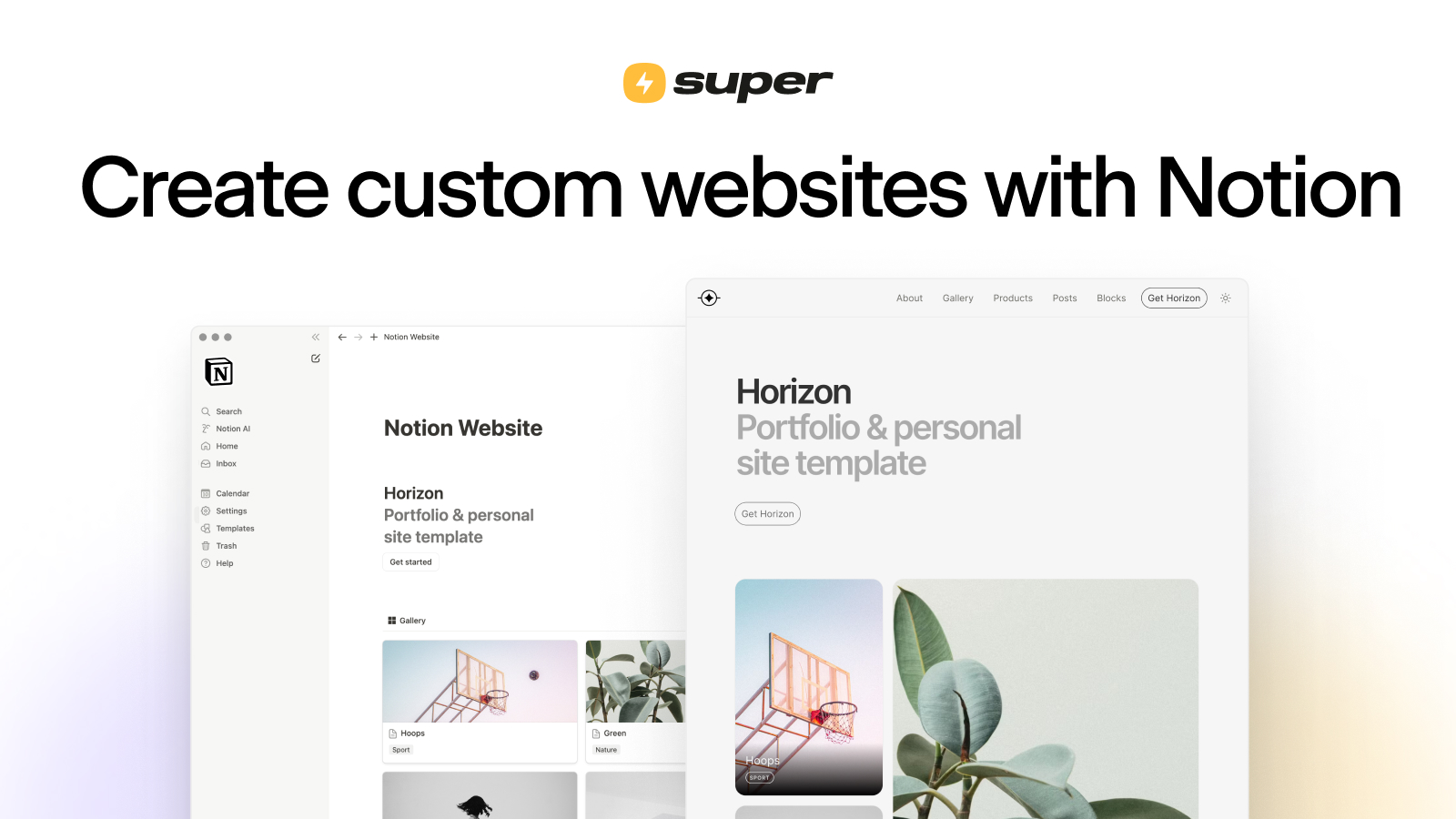
Super Full homepage screenshot
Editorial Review

Website Review

What is Super?

Super is a tool that turns a Notion page into a standalone, publicly accessible website. Instead of building pages in a traditional site builder or CMS, you keep writing and editing in Notion, paste the page's public web link into Super, and Super renders it as a fast, branded site on your own domain. Edits made in Notion sync to the live site automatically.

It fits people who already treat Notion as their content home and want a real website without maintaining a separate publishing workflow. Typical uses include personal sites and portfolios, landing pages, documentation, blogs, and simple marketing or lead-generation pages. The site notes that over 100,000 creators use it, and one quoted customer, Ernesto (@emandowsky), says he generated leads and reached $10,000 in sales in his first month — that's his reported experience, not a guaranteed outcome; treat it as an illustration of what a lean landing page can support.

What you get, per the site:

  • Content stays in Notion — Super works with any Notion page, so your existing docs, databases and templates can become pages.
  • Fast, SEO-friendly delivery — the product emphasizes instant page loads, search optimization and a polished user experience.
  • Brand customization — theming and layout controls let the site look like yours rather than like Notion.
  • Quick setup — the documented flow is three steps: choose or create a Notion page, publish it via Notion's Share menu and paste the link into Super, then share the live site.

Trade-offs to weigh: your site's structure and editing experience are tied to Notion's model, so highly custom layouts, complex e-commerce or app-like interactivity may be awkward compared with a general-purpose platform. You're also depending on two services at once — if Notion or Super has an outage, your site can be affected. For a content-driven site that changes often, that's usually an acceptable trade; for a heavily customized web app, it isn't.

If you're deciding, a useful test is to pick one real page you'd want live — say a services page with a contact form and a few images — and run it through the three-step flow. If the result looks close to what you'd want to publish, Super is likely a good fit; if you find yourself fighting the Notion structure, a conventional site builder will serve you better. You can compare plans on the official pricing page at Super.

How do I turn a Notion page into a custom website using Super?

Paste your Notion page's public web link into Super, and Super renders that page as a live site at its own domain. Your Notion page stays the source of truth: edit the page, and the site updates without you touching the site builder. Super's own three-step flow is: choose or create a Notion page, share it publicly and paste the link into Super, then publish.

What the workflow actually looks like

  1. Prepare the Notion page. In Notion, open the page you want as your site and use Share → Publish to web. Copy the public link. Super works with any Notion page, so you can start from an existing doc or a template.
  2. Create the site in Super. Paste that link when creating a new site. Super maps the Notion page's structure — headings, text, images, databases — onto a web layout.
  3. Style it. Super's customization layer lets you apply themes, fonts, colors, navigation and custom domains so the result doesn't read as a raw Notion page.
  4. Publish and iterate. Content edits happen in Notion and sync automatically; design and settings changes happen in Super.

Where this fits and where it doesn't

Use case Good fit? Why
Docs, guides, knowledge bases, portfolios, landing pages Yes Content-heavy pages that change often benefit from Notion editing
Personal sites and small marketing pages Yes Fast to launch, no separate CMS to maintain
Sites needing complex app logic, logins, checkout flows Usually not Notion is a content store, not an application backend
Teams with non-technical editors Yes Writers keep working in a tool they already know

Super's page evidence emphasizes instant page loads, SEO optimization and theming, and cites over 100,000 creators — treat that as the vendor's claim rather than an independent benchmark. The customer quotes on the page (Ben, James, Ernesto, Matt, Yusuf) are Super's own testimonials; Ernesto's mention of $10,000 in first-month sales is his reported experience, not a typical outcome.

A concrete scenario

Say you run a small consultancy and want a services site plus a public resource library. You keep a Notion page for services and a Notion database for articles. You publish both, connect them in Super, apply a theme and your domain, and from then on you write new articles directly in Notion — no redeploys, no CMS training for whoever writes.

Next step

Before committing, build one test site from a real page you already have, then check three things: how a Notion database renders as a list or table, whether your custom domain and navigation behave as expected, and whether the published page's speed and metadata meet your needs. If your content is mostly static and rarely edited, a conventional site builder may give you more layout control; if it changes weekly and lives in Notion anyway, this approach saves the most time. Compare plans on Super and, if you want a baseline for the alternative, look at Notion's own publishing options.

Can I use my own custom domain with a Super website?

Yes. Super is built to put a Notion page on your own address, and the setup is deliberately short: you publish a Notion page, paste its link into Super, then point your domain at the site. Edits you make in Notion sync automatically, so the domain stays the same while the content changes underneath it.

The practical sequence, based on Super's own three-step description:

  1. Choose or create the Notion page you want as your site.
  2. Share that page publicly in Notion, copy the web link, and paste it into Super.
  3. Connect your domain and publish; later edits happen in Notion, not in a separate editor.

What to decide before you start

  • Root domain vs. subdomain. A custom domain can mean yourname.com or something like docs.yourname.com. A subdomain is often the lower-risk first move if you already have a main site elsewhere.
  • One page or many. Super works with any Notion page, so a single landing page and a multi-page site are both possible. Decide whether you want one long page or a set of linked pages, because that shapes your Notion structure from the beginning.
  • Who edits. If a non-technical teammate will update copy, keeping everything in Notion is the main advantage. If you need complex forms, logins, or a storefront, expect to add separate tools.

A concrete scenario

A freelance consultant wants a portfolio at her own domain. She builds the content as a Notion page, publishes it, pastes the link into Super, and connects the domain. When she raises her rates or adds a case study, she edits the Notion page and the live site reflects it without touching hosting settings.

Next step: check Super's own documentation for the exact DNS records and domain-connection steps, since those are provider-specific. If you are weighing alternatives, Notion covers the content side, while Webflow and Framer suit people who want full visual design control rather than writing in Notion.

How does Super handle SEO for Notion-based websites?

Super handles SEO mainly by making the Notion page itself the source of truth for content, then presenting it through a hosted website layer that is designed for search engines. According to the site's own description, the product provides "SEO optimization" and "instant page loads" while your content stays in Notion, so metadata and content changes can propagate from the same page you edit.

The practical SEO workflow implied by the page is:

  1. Write and structure content in Notion. Headings, page titles, and page hierarchy in Notion become the basis of the site's pages.
  2. Publish the Notion page and paste its web link into Super. Super then renders that page as a site.
  3. Edit in Notion, and the site syncs. Because edits are automatically synced, SEO-relevant changes such as updated headings and body copy do not require a separate CMS workflow.

For a concrete scenario: a freelance consultant keeps service pages, case studies, and a FAQ in Notion. After connecting them to Super, they can update an FAQ answer or add a case study in Notion and have the live page reflect it without rebuilding the site. That is useful for long-tail search queries and for keeping service pages current.

A comparison helps clarify the trade-off:

Aspect Notion page alone Super-hosted Notion site
Content editing In Notion In Notion, synced to the site
Presentation Notion's own layout Custom theming and branding
Page experience Notion interface Designed for public site visitors
SEO-relevant controls Limited by Notion's public page rendering Product advertises SEO optimization and performance

The main decision criterion is whether you want Notion to remain the editorial interface while a separate layer handles public presentation and search-facing performance. If your SEO depends on fine-grained control over every meta tag, URL pattern, or redirect, verify those specifics against Super's current documentation before committing, because the page evidence emphasizes syncing, theming, SEO optimization, and performance rather than listing every technical SEO control.

A useful next step is to test one representative page: publish a Notion page with a clear title, descriptive headings, and internal links, connect it to Super, then check how the live page appears in search results and page-speed tooling. If that matches your needs, expand to your key landing pages. For broader context on Notion-to-website approaches, you can also compare Notion's own public page sharing with a dedicated builder like Super.

What are the pricing options for Super?

Super's pricing is listed on its own pricing pages, with both a standard and an annual option: Super shows a "Pricing" link and a separate "Pricing - Annual" link, and the site states you can "Get started for free" with no credit card required. Beyond those signals, the page evidence doesn't include specific tiers, dollar amounts or feature limits, so treat exact figures as something to confirm on the pricing page itself rather than assume.

H3 What this means in practice

  • There is a free entry point, which suits testing whether a Notion page renders well as a public site before committing.
  • An annual billing path exists, which usually implies a discount versus paying monthly — but verify the actual numbers.
  • The pricing pages are the only reliable source for current plan names, seat limits and custom-domain rules.

H3 A concrete reader scenario Suppose you run a small consultancy and want a landing page plus a handful of service pages, all edited by a non-technical colleague in Notion. Start on the free tier, publish one page, and check load speed and mobile layout. If it holds up, compare the monthly and annual prices against how long you expect to keep the site live; annual billing only pays off if you're confident you'll stay past the break-even point.

H3 How to decide

  1. Open the pricing page and note the free plan's limits (custom domain, page count, branding).
  2. Compare monthly versus annual totals for the tier that removes whichever limit blocks you.
  3. Check whether the features you need — SEO controls, theming, analytics — sit in the lower or upper tier before upgrading.

Next step: visit the pricing page, list your three must-have features, and match them to the cheapest tier that includes all three.

Can I customize the design and theme of my Super site?

Yes. Super is built around turning a Notion page into a website, and customization is one of its main selling points: its own page lists "Customize to match your brand" alongside content staying in Notion and performance. In practice, the design layer sits on top of your Notion content, so you style the site in Super while writing and editing in Notion.

H3 What you can realistically change

  • Branding and theme: colors, typography and overall look are handled through Super's theming rather than Notion itself.
  • Reusable building blocks: the site's navigation includes a Components section, which points to prebuilt design elements you can adapt instead of styling every page from scratch.
  • Templates: Super offers templates, useful if you would rather start from a finished design and swap in your content.
  • Custom domain: you can present the result as your own site rather than a Notion link.

H3 Where the trade-off is Because Notion remains the content source, your design freedom is bounded by how Notion structures pages. Complex, highly bespoke layouts are harder than on a general-purpose site builder; simple content sites, landing pages, docs and portfolios are where this approach pays off. If your design depends on unusual interactions or a heavily art-directed layout, test a representative page before committing.

H3 A quick way to decide Pick one page you already have in Notion, apply a theme and a template, then check whether the result matches your brand without manual rebuilding. If it does, the Notion-first workflow will save you time on every future edit. If it does not, you have learned that cheaply.

For the exact theming controls and current plan limits, check Super directly, since feature sets on tools like this change over time.

Related questions

More questions →
How to Use Ahrefs for Your First SEO Audit: A Step-by-Step Tutorial

If you're new to Ahrefs and want to run your first SEO audit, the fastest path is: open Site Explorer, enter your target URL, review the Overview for a health snapshot, then dig into Organic Keywords, Top Pages, and Site Audit to find specific problems. From there, build a short prioritized to-do list instead of trying to fix everything at once.

This tutorial walks through that workflow using a realistic starting scenario, explains what the numbers mean, and shows how to turn findings into actions.

Before You Start: Pick a Narrow Scope

A common beginner mistake is auditing an entire large website on day one. The reports become overwhelming, and you can't tell which issues matter.

Instead, choose one of these starting points:

  • A single important page (your homepage or a key product/service page)
  • A small site (under ~50 pages, e.g., a personal blog or small business site)
  • One section of a bigger site (e.g., /blog/)

For this tutorial, assume you're auditing a small business site with about 30 pages. The same steps scale up later.

You'll need an Ahrefs account to follow along. Ahrefs offers paid plans, and pricing and feature limits change over time, so check the current Pricing page for what's included in each tier before committing.

Step 1: Enter Your Target in Site Explorer

Site Explorer is Ahrefs' core tool for analyzing any website or URL.

  1. Open Site Explorer from the top navigation.
  2. In the search box, paste your domain (e.g., example.com).
  3. Choose the Exact URL or Domain mode depending on scope. For a full-site view, use Domain or Prefix; for a single page, use Exact URL.
  4. Press Enter.

You'll land on the Overview report. Don't try to absorb everything — focus on four numbers first.

Reading the Overview Snapshot

Metric What it tells you How to use it
Ahrefs Rank (AR) Relative strength of the site's backlink profile vs. others in the database Useful for comparing against competitors, not as a standalone goal
Organic traffic Estimated monthly visits from search A rough trend indicator, not exact analytics
Organic keywords Estimated number of keywords the site ranks for Shows breadth of visibility
Backlinks / Referring domains Total links and unique sites linking to you Referring domains matter more than raw backlink count

Important caveat: Ahrefs' traffic and keyword numbers are estimates based on its own data. They won't match Google Search Console or your analytics exactly. Treat them as directional, not absolute.

Step 2: See What You Already Rank For

Go to Organic Keywords in the left sidebar. This shows queries where your site appears in search results.

Sort by Traffic (descending) to see which pages bring the most estimated visitors. Then look for:

  • Keywords ranking in positions 4–15 — these are often the easiest wins. A small content or on-page improvement can push them onto page one.
  • Keywords with high volume but low position — potential opportunities if the topic is relevant.
  • Irrelevant keywords — if you rank for something off-topic, it may signal thin or mismatched content.

Write down 5–10 of the position 4–15 keywords. These become your first optimization targets.

Step 3: Find Your Best and Weakest Pages

Open Top Pages. This ranks your URLs by estimated organic traffic.

Look for two things:

  1. Your top performers — understand what topics and formats work. Can you create more content like this?
  2. Pages with traffic but poor rankings — these may need on-page fixes (title, headings, internal links).

If a page gets zero traffic and targets a topic you care about, it's a candidate for a rewrite or consolidation.

Step 4: Run a Technical Site Audit

Now move to Site Audit. This crawls your site and flags technical and on-page issues.

  1. Click Site Audit → New project.
  2. Enter your domain and set crawl settings (default is usually fine for a small site).
  3. Start the crawl and wait for it to finish.

Once complete, you'll see a Health Score and a list of issues grouped by category.

Which Issues to Fix First

Not all issues are equal. Prioritize in this order:

Priority Issue type Why it matters
1 Broken links (404s) Bad for users and crawl efficiency
2 Pages blocked from indexing They can't rank at all
3 Missing or duplicate title tags Directly affects click-through and relevance
4 Slow-loading pages Affects experience and rankings
5 Thin content Low value to users and search engines

Ignore low-impact warnings (like minor meta description length) until the big items are handled.

Step 5: Turn Findings Into a To-Do List

You now have raw data. Convert it into a short, actionable list. Example:

  1. Fix 3 broken links found in Site Audit.
  2. Rewrite title tags on 5 pages with duplicate titles.
  3. Improve 4 pages ranking in positions 6–12 by adding missing subtopics and internal links.
  4. Remove or update 2 thin pages with no traffic.

Keep the list to 5–10 items max for your first audit. Finishing a short list beats starting a long one.

Common Beginner Mistakes

  • Chasing every red flag. Site Audit flags many minor issues. Fix what affects rankings and users first.
  • Trusting estimates as exact numbers. Ahrefs data is modeled, not measured from your analytics.
  • Auditing a huge site too early. Start small to learn the interface.
  • Ignoring search intent. A page can be technically perfect but still fail if it doesn't match what searchers want.
  • Forgetting to re-crawl. After fixes, run Site Audit again to confirm improvements.

Where to Go Next

Once your first audit is done:

  • Compare with competitors using Site Explorer's Competing Domains and Content Gap reports.
  • Track keyword rankings over time with Rank Tracker.
  • Explore backlink opportunities in the Backlinks and Link Intersect reports.
  • Set up recurring Site Audit crawls so new issues surface automatically.

Your first audit isn't about perfection — it's about building a repeatable habit: enter a target, read the key reports, pick the highest-impact fixes, and act. Do that once a month and your site's health compounds.

How Content Syncing Works Between Notion and a Super Website

Super treats your published Notion page as the single source of truth for your site's content. You edit in Notion, and the changes appear on your live site automatically — there is no separate upload, re-publish, or rebuild step inside Super. This suits anyone who wants to update a site frequently without touching a CMS or writing code.

The sync model in one sentence

Your Super site does not store a copy of your content that you then maintain. It renders the Notion page you connected, so whatever that page says is what your site shows.

That single design decision explains almost everything about how updates behave:

  • One place to edit. Content lives in Notion; Super handles hosting, theming, and delivery.
  • No manual re-upload. You never push content into Super after the initial setup.
  • Edits propagate on their own. When you change the Notion page, the site reflects it without you rebuilding anything.

How to set up the connection

The setup is what creates the sync in the first place, so it is worth doing carefully.

  1. Choose or create a Notion page. Super works with any Notion page — an existing one, a new one, or a template.
  2. Publish the page via Notion's Share menu. The page must be shared publicly for Super to read it.
  3. Paste the Notion page's web link into Super when creating the site.
  4. Share your site. Your content is now live on a site you control.

From this point on, the link between the Notion page and the Super site is what keeps them in sync.

What happens when you edit in Notion

Once the site is live, editing follows a simple loop:

You do this in Notion What happens on your Super site
Change text, add blocks, reorder sections The site reflects the updated page
Add or remove content The site shows the current version of the page
Keep editing over time No re-upload or rebuild needed in Super

Super's own description puts it plainly: edits in Notion are automatically synced. One customer quoted on the site, James, describes making changes in seconds that go live "without me having to touch a thing." Another, Matt, frames it as updating your Notion doc and watching changes appear on the site.

Why this matters for frequently updated sites

If your content changes often — pricing notes, announcements, a changelog, a resource list — the sync model removes the usual friction. You are not logging into a separate dashboard, formatting content twice, or waiting on a deploy. You edit the document you already work in.

This is the main reason people choose Super over a conventional site builder: the update path is short. The trade-off is that your site's content is only as current as the Notion page it points to, so the page you connected needs to be the one you actually maintain.

Common points to watch

  • The connected page is the one that syncs. If you edit a different Notion page than the one you linked, the site will not change.
  • Publishing is a prerequisite. The page has to be shared from Notion before Super can use it.
  • You are not rebuilding anything. There is no "sync now" button to press in the workflow described — the connection does the work.

If your goal is a site you can update by editing a document, this is exactly the behavior you want. If you need content that lives outside Notion, that content is not part of this sync path.

Who is Super for and what can you build with it?

Super (super.so) is a hosting tool that turns a Notion page into a live website. It fits people who already keep their content in Notion and want a public site without rebuilding that content elsewhere. According to Super's own site, you paste a published Notion page's web link into Super, and edits you make in Notion sync to the site automatically. If your content does not live in Notion, or you need a site that isn't driven by Notion pages, Super is not the right starting point.

Who Super is for

Super's homepage states it is used by "over 100,000 creators." Based on the use cases it presents, it suits:

  • Individuals publishing personal sites — portfolios, personal landing pages, or a simple presence built from a Notion page.
  • Creators and small teams — people who want to update a site by editing a Notion doc rather than logging into a separate CMS.
  • Teams that already work in Notion — the site lists "Trusted by teams at" as a signal, and its pitch is that content stays where it is managed.
  • Anyone who wants speed over full control — Super emphasizes "instant page loads," SEO optimization, and theming rather than a fully custom-built codebase.

If you need a database-driven web app, custom server logic, or content that isn't in Notion, Super's model does not cover that.

What you can build

Super's core promise is turning a Notion document into a "fully customized, professional website." In practice that means sites where the pages and content come from Notion:

Site type Why it fits Super
Portfolio Content lives in a Notion page; theming matches your brand
Landing page Fast to publish; edits sync from Notion
Documentation or content site Notion pages act as the source; SEO optimization is built in
Personal or creator site Low friction, no separate CMS to maintain

Super also lists templates, themes, and Notion icons/illustrations as resources, which suggests it supports visual customization on top of the Notion content.

How it works (three steps)

Super's own "How to use Notion as a website" section describes the flow:

  1. Choose or create a Notion page. It works with any Notion page — an existing one, a new one, or a template.
  2. Paste the Notion page's web link in Super. You publish the Notion page via its Share menu, then paste that web link into Super when creating a site.
  3. Share your site. Your content goes live on a site you can call your own, and edits in Notion sync automatically.

The expected result: a live site whose content you keep managing in Notion, with Super handling hosting, performance, and theming.

What users report

Super quotes several users on its homepage. Ben (@mrbenjaminhoppe) calls it "one of the fastest ways to create a website" and notes that building on Notion "reduces friction." James (@jmckinven) says he can "spin up quick, beautiful, effective websites in minutes" and make changes "in seconds." Matt (@mattdowney) describes updating a Notion doc and seeing changes "appear live on your site like magic." Ernesto (@emandowsky) says he "generated leads" and "created $10,000 in sales in my first month." These are individual testimonials, not guarantees — treat the sales figure as one person's reported outcome.

What to check before committing

  • Pricing and plan limits — Super links to pricing pages (/pricing and /pricing-annual), but the specific tiers, limits, and whether a paid plan is required for a custom domain are not detailed in the material here. Check those pages directly.
  • Custom domain and branding — Super advertises "customize to match your brand," but confirm domain support and theming depth on the pricing/features pages.
  • Notion dependency — Your site's content is tied to Notion. If you later move off Notion, the site's source moves with it.
  • Free start — The homepage says "Get started for free" and "No credit card required," which describes the entry point, not the full feature set.

If you already run your content in Notion and want a fast, branded public site with minimal setup, Super is built for exactly that. If you need custom application logic or content outside Notion, look elsewhere.

Do You Need Coding Skills to Build a Website with Super?

No. Super is built around pasting a Notion page link, so you don't write code to get a site online. You need a Notion page and a Super account, and the editing happens in Notion. Coding only becomes relevant if you want to go beyond Super's built-in customization options.

Why no coding is required

Super's own workflow has three steps, none of which involve a code editor:

  1. Choose or create a Notion page. You can use an existing page, make a new one, or start from a template. Super works with any Notion page.
  2. Paste the Notion page's web link in Super. You publish the Notion page via its Share menu, then paste that web link into Super when creating a site.
  3. Share your site. Your content is live on a site you can call your own, and edits in Notion sync automatically.

The input is a Notion share link; the action is pasting it into Super; the expected result is a published site. There is no build step, no HTML file, and no deployment pipeline to configure.

Where the "technical" work actually happens

The skills you use are Notion skills, not programming skills:

  • Content structure — headings, pages, and databases are organized in Notion.
  • Publishing — you use Notion's Share menu to make the page accessible.
  • Branding — Super provides theming and customization options so the site matches your brand, rather than requiring you to write CSS from scratch.

This is why Super describes its audience as creators and says its mission is to be a hosting platform — the product handles performance, SEO optimization, and page loads while you focus on creating.

What you give up by not coding

The trade-off is control. Because the site is generated from a Notion page and shaped by Super's theming options, you are working within what Super exposes. If you need behavior or layouts outside those options, that is the point where custom code would enter the picture — not to launch, but to extend. For most people who just want a site live quickly, that line is never crossed.

Who this fits

Super suits you if:

  • You already keep content in Notion and want it on the web without rebuilding it.
  • You want to update a live site by editing a Notion doc, with changes syncing automatically.
  • You have no development experience but still want a site with your own branding.

It fits less well if your requirements depend on custom code from day one, since the no-code path is the intended one.

A quick check before you start

Confirm two things: that the Notion page you want to publish can be shared, and that you're comfortable managing content inside Notion long-term, since that's where edits live. If both are true, you can go from Notion page to live site without writing a line of code.

What is Super (super.so)?

Super is a tool that turns a Notion page into a custom website. You keep writing and editing in Notion, paste the page's public web link into Super, and Super publishes it as a live site with its own domain, theme, and SEO settings. It fits people who already organize content in Notion and want a real website without moving that content into a separate CMS.

How Super works

The core mechanism is a one-way sync from Notion to the published site. Super reads the Notion page you point it at and renders it as a website. When you edit the Notion page, the site updates automatically — you don't touch the website builder again.

That means Notion stays the single source of truth. You are not copying content into Super; you are hosting a view of it.

Setting up a site, step by step

Super's own documentation describes three steps:

  1. Choose or create a Notion page. Any existing Notion page works, or you can start from a template.
  2. Publish the page and paste its link into Super. In Notion, use the Share menu to publish the page, then paste the Notion web link into Super when creating the site.
  3. Share your site. The content goes live on a site you control, and later edits in Notion sync automatically.

Expected result: a public website whose pages mirror your Notion content, with your own theming and domain rather than a notion.site address.

What you get

  • Custom theming so the site matches your brand instead of looking like a default Notion page.
  • SEO optimization for search visibility.
  • Instant page loads — Super markets performance as a core feature.
  • Content managed in Notion, so your existing editing workflow doesn't change.

Super states it is used by over 100,000 creators, and its site lists templates, themes, components, and a showcase of example sites.

Who it's for

Super suits creators, small teams, and solo builders who already run their content in Notion and want a polished public site — landing pages, docs, portfolios, or content hubs — without maintaining a separate CMS. It's less suited if you need deep custom application logic or a database-driven site that Notion can't express.

Cost and getting started

Super's site links to both a standard pricing page and an annual pricing page, so paid plans exist; check those pages for current tiers and features. The homepage advertises a free start with "no credit card required," which is the fastest way to test whether the Notion-to-website workflow fits your needs before committing to a plan.

Website Overview

An established domain and managed infrastructure suggest continuity of operations and may support dependable delivery, although neither guarantees service quality. Several search or sharing settings need attention. Together they may make snippets, preview images or preferred URLs less consistent across platforms.

Domain and Registration

Registered in 2020, this domain has about 6 years of history. That suggests continuity, although ownership and purpose may have changed. Transfer-protection status is present, helping reduce the risk of unauthorized domain transfers. The domain uses the common .so extension, which is not an independent safety signal.

DNS and Email

Nameservers are provided by Amazon Route 53, indicating managed DNS hosting. MX records point to the Google Workspace email service. No CNAME was found; the observed records resolve directly to addresses. SPF and DMARC are configured. DKIM status is unknown. TXT records include verification markers for Google. Such markers may also remain after a service stops being used.

TLS and Certificates

The certificate uses an RSA 2048-bit public key, offering broad client compatibility. The server supplied a complete certificate chain. No organization name is present in the certificate; the available fields are consistent with domain validation. The certificate was issued by Let's Encrypt, commonly associated with automated certificate services. The certificate's total validity is about 89 days, consistent with a short renewal cycle.

HTTP and Browser Security

The response lacks these common security headers: CSP, X-Content-Type-Options, Referrer-Policy, Permissions-Policy, clickjacking protection. No X-Powered-By header was found, reducing one common source of backend fingerprinting information. No obvious internal addresses or debug information were found in the headers. The Server header contains the custom value Vercel. No explicit CDN or WAF marker was found in the response headers.

Technology Stack Analysis

The public page identifies Super, Next.js, Google Tag Manager, Intercom, Vercel without precise versions, leaving fewer clues for version-specific scanning.

Search and Social Sharing

The meta description has 218 characters and may be shortened in search results. The Generator tag identifies Super, making the publishing system easier to fingerprint. No homepage canonical URL was detected. If duplicate URLs exist, consolidation may be less explicit. Twitter Card metadata is configured. The title has 42 characters, within a common display range.

Hosting and Email

DNSAmazon Route 53
HostingVercel
EmailGoogle Workspace
Location United States flagWalnut, California, United States 76.76.21.21

User reviews (0)

  • No reviews yet.

Pages, Search and Sharing

Meta descriptionCreate a custom website in less than a minute with instant page loads, SEO optimization, and customized theming. All your content is kept and managed in Notion so you can focus on creating while Super handles the rest.
Canonical URLNot detected
LanguageEnglish (default)
Twitter Cardsummary_large_image
All bots 1 allowed · 2 disallowed
  • Allow/_next/static
  • Disallow/api
  • Disallow/_next

Registration details RDAP / WHOIS

Registrar101domain
Registered2020-01-30
Expires2027-01-30
Domain statusactive https://icann.org/epp#active、clientTransferProhibited https://icann.org/epp#clientTransferProhibited
Nameserversns-1462.awsdns-54.org、ns-1717.awsdns-22.co.uk、ns-730.awsdns-27.net、ns-80.awsdns-10.com
DNSSECunsigned

DNS records

TypeNameValueTTLPriority
Asuper.so76.76.21.21300—
MXsuper.soaspmx.l.google.com3001
MXsuper.soalt1.aspmx.l.google.com3005
MXsuper.soalt2.aspmx.l.google.com3005
MXsuper.soalt3.aspmx.l.google.com30010
MXsuper.soalt4.aspmx.l.google.com30010
NSsuper.sons-1462.awsdns-54.org172800—
NSsuper.sons-1717.awsdns-22.co.uk172800—
NSsuper.sons-730.awsdns-27.net172800—
NSsuper.sons-80.awsdns-10.com172800—
TXTsuper.sogoogle-site-verification=OyqR-Sg-5fwmEI-G99RNKmdIfOGF6J9yQDCiAfHN9Rg300—
TXTsuper.sostripe-verification=d6707cffea356038f1db14c78b61c5f92d2da5ba56a617e961204f352d4d3938300—
TXTsuper.sov=spf1 a mx include:_spf.mlsend.com ~all300—
DMARC_dmarc.super.sov=DMARC1; p=none; fo=1; rua=mailto:[email protected], mailto:[email protected]300—

TLS and certificates

AssessmentNormal configuration
Supported protocolsTLSv1.2、TLSv1.3
Negotiated protocolTLSv1.3
Certificate subjectsuper.so
IssuerLet's Encrypt
Valid until2026-11-26T03:00 · Remaining when checked: 59 days
Verification detailsCertificate trust: Passed · Hostname match: Passed

HTTP response headers

HeaderValue
content-typetext/html; charset=utf-8
cache-controlpublic, max-age=0, must-revalidate
serverVercel
strict-transport-securitymax-age=63072000

Identified technologies

SuperNext.jsGoogle Tag ManagerIntercomVercel

Recent Updates

  • Website images