
 简体中文
简体中文 English
Website review
This review may include AI-generated content and is not individually verified. Domain, certificate and other facts come from the observed data on this page.
What is TagSpaces?
TagSpaces is a free, open-source file organizer for Windows, macOS and Linux (plus a web version) that lets you tag and annotate files and folders directly on your own device. It is aimed at people who want to organize documents, notes and collected web content without a cloud account, a login, or a vendor database: tags, colors and descriptions are stored as plain files alongside your documents, so they travel with the files and remain readable outside the app.
What you can actually do with it
- Tag files and folders with color-coded tags, and browse by tag rather than relying only on folder structure.
- Write notes in Markdown, HTML or plain text, each saved as a standard file you control.
- Clip web content with a browser extension for Chrome, Edge and Firefox, saving pages, screenshots or bookmarks as local files.
- Preview many formats in place — images, PDFs, audio, video, spreadsheets and source code among them.
- Chat with files offline: per-folder AI chat through local tools such as Ollama, llama.cpp or LM Studio.
- Sync on your own terms via Google Drive, Dropbox, Syncthing or Nextcloud, optionally with encryption tools like Cryptomator.
Who it suits, and the trade-offs
It fits researchers, writers and privacy-minded users who accumulate local files and want lightweight structure without importing everything into a proprietary library. The trade-off is that you manage the files and any syncing yourself, and tag data lives beside your documents — convenient for portability, but it means backups should include those sidecar files. A paid Pro edition exists alongside the free core; check the official site for current terms.
As a next step, install it and tag one real project folder — for example, a set of PDFs and notes for a report — then try the Web Clipper on a few pages you would otherwise leave in browser bookmarks. If you prefer a hosted, database-driven approach, compare it with alternatives such as Evernote or Obsidian before committing.
How does TagSpaces store tags with my files without a database?
TagSpaces stores tags as part of the file or folder name itself, rather than in a separate database. When you tag a file, the tag is appended to its filename using a special delimiter (by default a space followed by the tag in brackets, such as report.pdf [finance] [2024]). The tags are therefore plain text that travels with the file wherever it goes—across devices, operating systems and syncing tools—because any system that can read filenames can see them. Color-coded tags are handled the same way: the color is stored in the tag definition (a small sidecar file that TagSpaces keeps alongside your data), while the tag name lives in the filename. Notes, descriptions and other metadata are also kept as plain, readable files next to your documents, so nothing depends on a proprietary index.
What this means in practice
- Portability: Copy a tagged file to a USB stick, a NAS or a colleague's laptop and the tags come along, even if TagSpaces isn't installed there.
- No lock-in: If you stop using TagSpaces, your tags are still visible in the filename and your metadata files remain readable.
- Sync-friendly: Because tags are just filenames, Google Drive, Dropbox or Syncthing sync them without any special handling—though renaming conflicts can occur if two devices tag the same file at once.
Trade-offs to weigh
| Aspect | Filename-based tags | Database-based tags (typical alternative) |
|---|---|---|
| Portability | Tags travel with files | Tags stay in the app's database |
| Visibility outside the app | Visible in any file manager | Invisible without the app |
| Filename length | Tags consume filename characters | No filename impact |
| Renaming/sync conflicts | Possible when tagging on multiple devices | Rarely an issue |
| Recovery if app is abandoned | Tags remain readable | Tags may be lost |
The main practical constraint is filename length: heavily tagged files can hit OS limits (often around 255 characters), and some tools or email attachments may mangle bracket characters. For a reader who wants a simple, durable system—say, tagging scanned receipts by year and category—this approach works well; for someone tagging thousands of files with many tags each, the filename overhead becomes noticeable.
Next step: try tagging a handful of files in a test folder, then open that folder in your operating system's file manager to confirm the tags appear in the names. That quick check tells you whether filename-based tagging fits how you already browse and back up files.
Is TagSpaces free, and what do the Pro subscription and pricing options include?
TagSpaces is free to download and use in its core form: the site describes it as a free, open-source file organizer for Windows, macOS, Linux, and the web, with no login and no backend. The product is open source under AGPL, so the base application itself costs nothing.
Paid options exist alongside it. The site links to a TagSpaces Pro product page and to subscription terms that mention a 14-day money-back guarantee and cancellation terms, which indicates Pro is sold as a subscription. The page evidence provided does not list Pro's specific features or prices, so treat any feature split between free and Pro as something to confirm on the Pro page itself rather than assume.
What the free version covers, per the page
- Color-coded tags on files and folders, stored with the files rather than in a database
- Notes in Markdown, HTML, or plain text, saved as standard files
- A Web Clipper for Chrome, Firefox, and Edge that saves pages, screenshots, and bookmarks as local files
- Preview of 50+ file formats
- Offline AI chat per folder via Ollama, llama.cpp, or LM Studio
- Optional syncing through services you choose, such as Google Drive, Dropbox, or Syncthing
Deciding whether Pro is worth it
A practical reader scenario: you are organizing a research archive of a few thousand PDFs and clippings, tagging them locally, and syncing the folder through your own cloud account. The free version's file-based tagging and offline preview already cover that workflow. Pro becomes relevant if you hit limits in the free edition or need capabilities the Pro page lists—check that page directly, since features and prices are the parts most likely to change.
For comparison, other local-first note and file tools include Obsidian (notes-first, with paid sync and publish add-ons) and Logseq (outliner-style notes). TagSpaces differs by treating your existing folders and arbitrary file types as the starting point rather than a notes database.
How do I use the Web Clipper to save web pages and screenshots as local files?
Install the TagSpaces Web Clipper extension in Chrome, Edge or Firefox, then use it while browsing to save a page, a selection, a screenshot or a bookmark directly to a folder on your own drive. The saved items are ordinary files (HTML, MHTML/PDF, PNG or a URL bookmark), so they stay readable and editable outside TagSpaces, and you can tag them afterward like any other file. This suits people who want a personal, offline research archive without an account or cloud service.
A practical workflow
- Create a folder for clippings, for example
Research/2025, and point the clipper at it. - Save complete pages as MHTML or PDF when layout matters; save HTML when you want to edit or extract text later.
- Capture screenshots for content that changes often or sits behind interactive elements.
- Save bare URLs as bookmarks when you only need the link, not the content.
- Tag each item as you save it (topic, source, date) so the folder stays searchable rather than becoming a dumping ground.
Choosing what to save
| Goal | Best format | Trade-off |
|---|---|---|
| Faithful copy of a page | MHTML or PDF | Harder to edit; larger files |
| Text you may reuse | HTML | Layout may break; needs cleanup |
| Visual evidence | PNG screenshot | No text, not searchable |
| Quick reference | URL bookmark | Breaks if the page disappears |
Decision criteria
Use the clipper when offline access and file ownership matter more than automatic sync and full-text search across the web. If you mostly need to reread articles across devices, a read-later service may be simpler; if you need durable local copies, clipping to files is the stronger choice. For browsing and managing what you have saved, TagSpaces itself handles tagging and previews, and pairing it with a sync tool such as Syncthing keeps the archive consistent across machines.
Start small: clip five pages today, tag them consistently, and check a week later whether the format you chose is still usable. That test tells you more than any feature comparison.
Can I use TagSpaces fully offline, and how do I sync files across devices without a cloud account?
Yes. TagSpaces is designed to run fully offline on your device: the page describes a local-first, offline-first workspace with no account, no backend and no tracking, and tags, descriptions and colors are stored in plain files beside your documents rather than in a database. You can browse, tag, annotate and take notes without an internet connection; the optional AI chat is also described as running locally via Ollama, llama.cpp or LM Studio.
Syncing without a cloud account
TagSpaces itself does not sync for you. Because your data is ordinary files in folders, syncing is just a matter of replicating those folders with a tool you choose:
- Local network or peer-to-peer: Syncthing is named on the page as an option and keeps data on your own devices without a hosted account.
- Your own server: Nextcloud is suggested for self-hosted syncing.
- Consumer storage: Google Drive and Dropbox are listed as options if you already use them, but these are cloud services with accounts, so they are not the "no account" path.
- Encryption: Cryptomator is mentioned for encrypting files before they leave your device.
A practical setup for a two-laptop user: keep one master folder of documents and notes, install Syncthing on both machines, share that folder, and point TagSpaces at the synced copy on each device. Tags travel with the files, so they appear on both sides without any import step.
Trade-offs to weigh
| Approach | Account needed | Works offline | Main risk |
|---|---|---|---|
| Syncthing between devices | No | Yes, syncs when devices meet | Both devices must be online at the same time to exchange changes |
| Nextcloud on your own server | Server you control | Yes for local access | You maintain the server |
| Google Drive / Dropbox | Yes | Cached access only | Provider holds your data |
Two cautions. First, simultaneous edits to the same file on two devices can create conflict copies, so avoid editing the same note on both machines at once. Second, if tags are stored in filenames or sidecar files, renaming or moving files outside TagSpaces can break the association, so do file reorganization inside the app where possible.
If your priority is strict privacy, start with Syncthing plus Cryptomator for anything leaving your home network. If you need shared access for a family or team with minimal setup, a self-hosted Nextcloud instance is the more controllable middle ground. See TagSpaces for the current feature list and Syncthing for the sync tool's own setup guidance.
How does TagSpaces compare to other file tagging or note-taking apps for organizing files with tags?
TagSpaces is best understood as a file organizer that adds tags to your existing files and folders, rather than a notes app that stores everything in its own database. The page states that tags, descriptions and colors are written beside your documents, with no database, so they travel with the files across devices. That is the key difference from most tag-based note tools, where tags live inside an app's internal library and are hard to reuse elsewhere.
Where it fits compared with other approaches
| Approach | How tags are stored | Best for | Main trade-off |
|---|---|---|---|
| TagSpaces, as described on its page | Beside the files, in plain readable form | People with large existing folder structures who want tags without moving data | Tagging discipline matters; you manage the files yourself |
| Note apps with internal databases | Inside the app's library | Fast capture, linking notes, mobile-first writing | Exporting and reusing tags outside the app is harder |
| Plain folders plus search | Filenames and folder paths | Simple, zero-setup archiving | No cross-cutting labels; one file, one location |
Concrete uses
- Research and web collecting: the Web Clipper for Chrome, Edge and Firefox saves pages, parts of pages, screenshots and bookmarks as plain files, so collected material stays readable offline instead of being locked into an online service.
- Mixed-format project folders: previewing 50+ formats, including images, PDFs, audio, video, spreadsheets and source code, means you can browse a tagged folder without opening each file in a separate program.
- Private local work: the page describes folder-level AI chat through Ollama, llama.cpp or LM Studio, which suits people who want summaries of local documents without sending them to a cloud service.
- Notes alongside files: Markdown, HTML and plain-text notes are standard files, so a note can sit in the same tagged folder as the material it describes.
Who should choose something else
If your priority is a polished writing environment with backlinks and mobile sync built in, a dedicated note app will feel more natural; TagSpaces expects you to bring your own sync, such as Google Drive, Dropbox or Syncthing, and your own encryption, such as Cryptomator. If you only need to search filenames, plain folders are less effort.
Next step: take one real folder, add color-coded tags to about twenty files, and check whether the tags remain useful when you open that folder on a second device or in another program. If they do, the file-based model fits your workflow; if you find yourself wanting app-managed linking and search instead, a note-centric tool is the better match. For comparison, see Obsidian for file-based Markdown notes and Evernote for a database-style notes library.
 Cloudflare
 Zoho Mail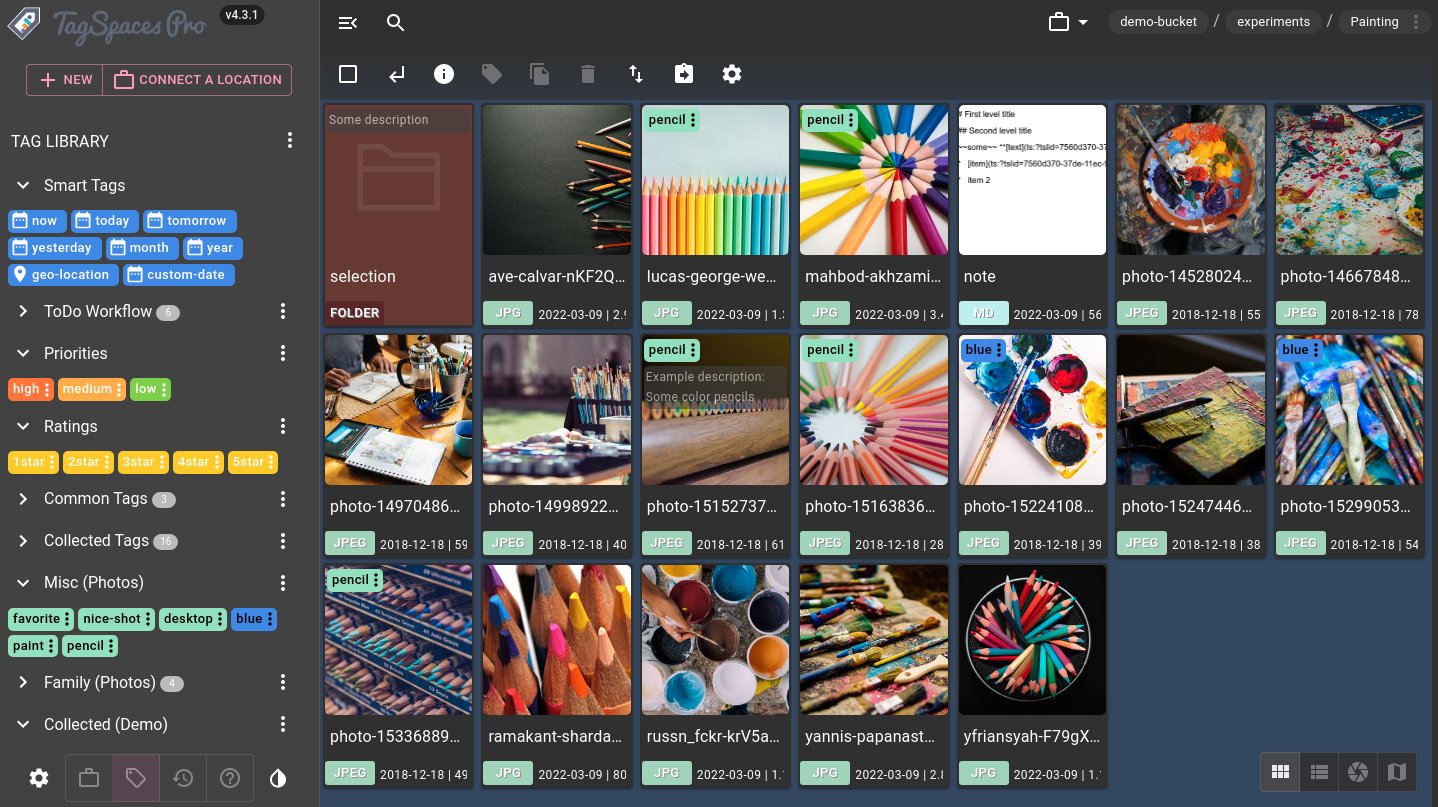

User reviews (0)