Website profiles · Technology insights · Alternatives

tryzulu.com

Collaborative bookmark and content manager for work, teams, and productivity. Bookmarks reimagined.

No paid content found
Visit website
Profile views 0 Outbound visits 0 Normal
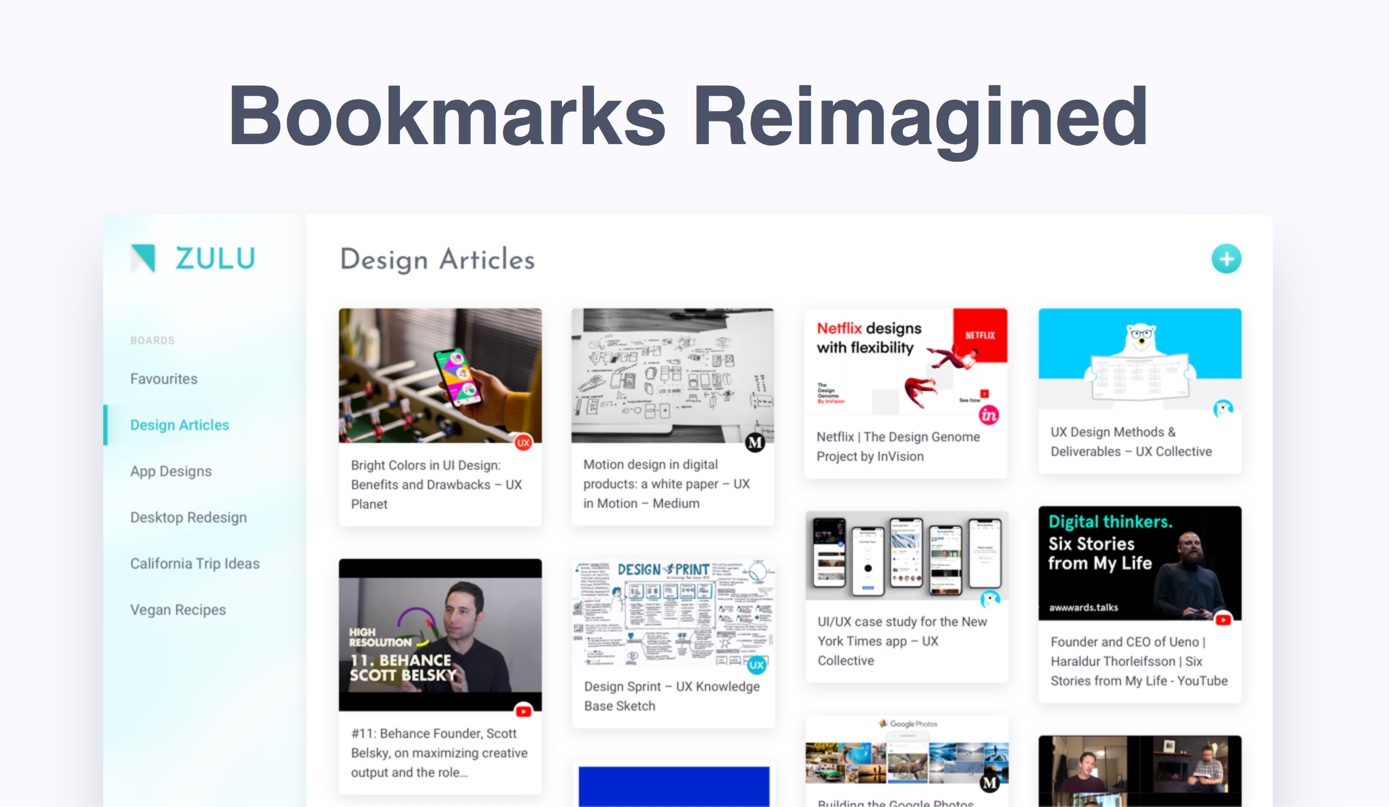
Zulu - Bookmarks Reimagined | Collaborative Content Manager Full homepage screenshot

At a glance

Category
Productivity
Language
English
Paid-content signal
No paid content foundObserved
Registered
2018
Hosting
FastlyInferred
HTTPS certificate trusted
PassedObserved
Last updated

Website review

This review may include AI-generated content and is not individually verified. Domain, certificate and other facts come from the observed data on this page.

What is Zulu?

Zulu is a collaborative bookmark and content manager that presents itself as a better alternative to browser bookmarks and tab clutter. Its core idea is "bookmarks reimagined": instead of a flat, private list buried in a browser menu, you save links to visual boards that you can share with other people. The site describes it as working on any browser and any device, with sharing aimed at both work teams (collaborating on a project) and personal groups (planning a trip with friends).

What it does

  • Curate and share bookmarks: Bookmarks live on boards that can be shared, so you don't have to keep resending links. This is the main differentiator from built-in browser bookmarks.
  • Save open tabs quickly: A browser extension lets you save any open tab in two clicks, or via a keyboard shortcut, to a board while you keep browsing. This targets tab overload and browser clutter.
  • Browser support: The extension is listed for Chrome, Opera and Brave.

Who it suits

Zulu fits people who treat links as shared working material: a small team collecting references for a project, friends gathering options for a trip, or anyone who regularly sends the same links to the same people. The "visual boards" framing suggests it is aimed at people who want links to look organized and presentable rather than as a plain list.

It is less compelling if your bookmarks are purely private and simple; a browser's built-in bookmarks may be enough, and adding another tool and extension is a real cost. Its usefulness also depends on whether the people you share with are willing to use the same platform.

Background

The site says Zulu was created by two designers who found no practical or fun way to save and share everyday useful content found on the web. It also mentions a public roadmap and a way to suggest features, which suggests an early-stage, actively developed product.

Next step: if you often collaborate on links, install the extension in Chrome, Brave or Opera and try one shared board with a real project or trip before committing your existing bookmarks.

How do I share a bookmark board with my team or friends?

Zulu is built around shareable bookmark boards, so the sharing step is meant to happen from the board itself: open the board you want to pass on and use its share option, then send the resulting link to teammates or friends so they can view it in any browser or on any device. The page describes boards as the unit you "easily share," whether you are collaborating on a project with a team or planning a trip with friends, and it frames the payoff as ending the "send me that link again" loop.

A practical first run

  1. Create one board per purpose — for example "Q3 launch research" for your team and "Lisbon trip" for friends — rather than one mixed board.
  2. Save the relevant open tabs into that board with the browser extension, which the page says works in two clicks or via a keyboard shortcut.
  3. Share the board link with the right group and ask one person to add the first missing link, so you can confirm editing works as expected before relying on it.

Choosing how to share

Situation Better fit Trade-off
Project team adding links over weeks A shared, collaborative board Needs light curation so it does not become a dumping ground
Friends planning a trip A single board shared once Fewer people will bother editing; expect mostly viewing
Sending one article to one person A plain link A board adds overhead for a one-off

If your team already lives in a chat tool, pair the board link with a short message naming what belongs on it; the board stays useful only if everyone agrees on its scope. For readers comparing options, Raindrop.io is a well-known bookmark manager with shared collections, and Pocket focuses on saving articles for later reading rather than team curation.

How does the browser extension save all my open tabs at once?

The page describes saving open tabs through a browser extension that works in two clicks, with a keyboard shortcut that can activate it, save to a board, and return you to browsing. It does not detail the mechanics—whether it captures every tab in the current window, all windows, or a selection—so treat "save all open tabs at once" as the intended workflow rather than a confirmed behavior for every case.

What this means in practice

  • Two-click capture: The extension is positioned as a quick way to move open tabs into a board without leaving the page you're on.
  • Board-based storage: Saved tabs go to a board, which is the same unit you can later share or collaborate on.
  • Browser support: The page lists Chrome, Opera, and Brave as install targets.

A useful next step

Before relying on it for a heavy tab session, test the boundary: open several tabs across two windows, trigger the shortcut, and check whether the board contains all of them or only the active window. That single test tells you whether it fits a "clear my whole session" habit or a "save this window's research" habit.

Who benefits most

Reader Fit
Someone with dozens of research tabs per project Strong, if capture spans windows; verify first
A team sharing links repeatedly Strong, since boards are shareable
A casual saver of a few links Modest; ordinary bookmarks may suffice

For a broader comparison of tab-management approaches, Chrome Web Store lists extensions with stated tab-saving behavior, which is useful for checking scope claims side by side.

Which browsers can I install the Zulu extension on?

The Zulu browser extension is listed for Chrome, Opera and Brave. The page's install section names only those three, so treat Firefox and Safari as unconfirmed rather than supported—check the site directly before planning around them.

What this means in practice

Chrome, Opera and Brave are all Chromium-based, so a single extension build can cover all three. If your team standardises on Chrome or Brave, Zulu fits without workarounds; Edge is also Chromium-based but isn't named by Zulu, so don't assume it works.

A concrete case: a small design team using Chrome for research and Brave for personal browsing could install Zulu on both and share the same boards, which is the collaborative use the page describes. A colleague on Safari or Firefox, however, may not be able to use the extension at all.

Decision criterion

  • All-Chromium team: install on Chrome/Brave/Opera and use boards as the shared link library.
  • Mixed browsers: confirm support for the non-Chromium browser first, or plan for those members to use the web app rather than the extension.

For comparison, other bookmarking tools publish their own browser support: Raindrop.io and Pocket.

How does Zulu differ from standard browser bookmarks for organizing work content?

Zulu is built around visual, shareable boards rather than the flat folder tree a browser gives you. The page describes it as "collaborative, visual bookmarks" that work "on any browser and any device," with sharing framed around two concrete cases: collaborating on a project with a team, or planning a trip with friends. The stated goal is to end the "send me that link again" loop.

Where the difference shows up in practice

Task Standard browser bookmarks Zulu as described on the page
Saving a link Bookmark the current page Save open tabs "in two clicks" or via a keyboard shortcut, into a chosen board
Organizing Folders you create and maintain yourself Boards you curate and can share
Sharing Export a file or paste links one by one Share a board with teammates or friends
Tab clutter Tabs stay open until you close them Save open tabs to de-clutter the browser
Cross-device use Depends on browser sync Any browser and any device, per the page
Setup Nothing to install Browser extension, listed for Chrome, Opera and Brave

The trade-off is real. Browser bookmarks require no account, no extension and no new habit, and they stay inside the browser where you already work. Zulu asks you to adopt a separate tool and install an extension, and its value depends on the people you share with actually using it. For a solo researcher who just needs a quick "save for later," the browser is probably enough. For a small team passing links back and forth in chat, a shared board removes the repeated re-sending.

A concrete scenario

Imagine a three-person content team tracking sources for a launch. Each person saves relevant pages to the same board as they browse, so the board becomes the team's working reading list, and anyone preparing a draft opens the board instead of scrolling chat history. The page itself was created by two designers who wanted "a practical or fun medium to save and share everyday useful content," which suggests the product is aimed at exactly this kind of everyday curation.

How to decide

Try one real project first: install the extension, create a board, and invite one colleague. If sharing a board is faster than pasting links into chat, keep it; if you find yourself the only one saving, stick with browser bookmarks and a shared note.

How can I suggest a feature idea or get involved with Zulu's development?

Use the Suggest feature ideas link in the site footer, or email the team via the Drop us a mail link. Both are listed as ways to get involved, alongside the public Roadmap and Announcements pages, which are worth checking first so you can see whether your idea is already planned or in progress.

Zulu is a small, designer-run project: the site says it was created by two designers, @djheez and @oana_design, because they found no practical, enjoyable way to save and share useful web content. That context shapes how to contribute. A short note describing the problem you hit, the browser and device you use, and how you currently work around it will land better than a broad request, because a two-person team has to weigh each idea against their existing roadmap.

A practical way to frame a suggestion

  • State the workflow, not just the feature. For example: "I share research links with three teammates; I want a board that only they can add to." That tells the team who the feature serves.
  • Say where it fits. Zulu's stated focus is visual, collaborative bookmark boards plus saving open tabs from a browser extension (Chrome, Opera, Brave). Ideas that extend sharing, curation or tab capture are closest to that core.
  • Note the trade-off you would accept. If you want per-board permissions, say whether you would trade simplicity for it. Small teams value knowing which cost is acceptable.

Other ways to get involved

  • Follow along: the site links to Twitter and Instagram, useful for seeing what is being built next.
  • Support the project: there is a "Buy us a coffee" option if you want to back development without proposing features.
  • Test and report: trying the extension and describing friction points is itself a contribution, especially for a product positioning itself against ordinary browser bookmarks.

If your interest is collaborative link curation more generally, it helps to compare how established tools handle sharing and permissions before you write. Raindrop.io is a widely used bookmark manager with public collections, and Pocket shows a simpler save-and-read model. Seeing what those do well can sharpen a suggestion into something specific enough to act on.

Related questions

More questions →
How Does Real-Time Collaboration Work in an Online Pixel Art Editor?

Real-time collaboration in a browser pixel art editor means two or more people open the same project and edit the same canvas at the same time, with each person's changes appearing on everyone else's screen almost immediately. Poxil is built around this model: it describes itself as a tool to "create pixel art, animate frames, and collaborate in real-time." The explanation below covers the general mechanics you can expect from this class of tool, plus the practical limits that decide whether it fits your project.

The core mechanism: one shared document, many editors

In a single-user editor, your clicks change a local file. In a collaborative editor, the canvas is a shared state that lives on a server (or is synchronized through one), and every participant holds a copy of that state.

The usual flow looks like this:

  1. One person creates a project and gets a session link or room code.
  2. Others open that link in their own browser.
  3. Each edit — placing a pixel, filling a region, adding a frame — is sent to the server as a small operation.
  4. The server applies the operation and broadcasts it to the other connected clients.
  5. Each client applies the incoming operation to its local copy, so all canvases converge on the same image.

The important consequence: nobody is working on a "copy" that has to be merged later. There is one project, and the edits are the unit of synchronization.

How people join and see each other

Shared sessions are what turn a solo editor into a group workspace. The details vary by tool, but the pattern is consistent:

  • A room or session identifier. A link or code that scopes the project to a specific group. Anyone with the link joins that same canvas rather than starting a new one.
  • Presence indicators. A list or row of avatars showing who is currently connected. This is how you know whether your collaborator has actually joined or is still loading.
  • Live cursors. Each participant's pointer is drawn on the canvas with a name or color label, so you can see where someone is about to draw before they commit a pixel.
  • Selection and tool state. Some editors also broadcast what tool or region a collaborator has selected, which reduces the chance of two people fighting over the same area.

If you cannot see another person's cursor, the most common causes are that they have not joined the same room, their connection dropped, or the presence layer has not refreshed yet.

Keeping frame-by-frame animation in sync

Animation adds a second dimension to synchronization: not just what is drawn, but which frame it belongs to.

In a collaborative animation editor, each operation is tagged with its target frame (and often layer). When you draw on frame 4, that operation is broadcast as "frame 4, these pixels changed," so collaborators viewing frame 4 see it update live, while someone viewing frame 7 sees the change only when they switch to frame 4.

Practical implications:

  • Frame count and order are shared state too. Adding, deleting, or reordering frames affects everyone, so those actions propagate like any other edit.
  • Playback is usually local. Each person can preview the animation independently; the frames themselves stay synchronized.
  • Onion-skin and reference views are per-user. What you see behind the current frame is a viewing preference, not a shared edit, so it does not need to sync.

Common limits and pitfalls

Real-time collaboration is convenient, but it is not the same as a version-controlled file. The trade-offs are predictable:

Area What typically happens What to do about it
Conflicts Two people edit the same pixel or region at nearly the same time; the last operation usually wins Divide the canvas by region, layer, or frame so overlaps are rare
Latency Edits appear with a short delay on slower connections; cursors may lag behind Expect a small delay; avoid rapid repeated edits on the same spot
Permissions Some tools give everyone equal edit rights, with no view-only mode Confirm who can edit before sharing a link publicly
Persistence A live session is not automatically a saved file Export or save the finished result yourself; do not assume the session is permanent
Undo history Undo may be local or shared, depending on the tool Agree on who undoes what, or undo can surprise collaborators

The permission and persistence points matter most. A shared link that anyone can edit is convenient for a small trusted team and risky for a public audience. And a live collaborative canvas is a working surface, not an archive — treat exporting as a separate, deliberate step.

Deciding whether it fits your workflow

Real-time collaboration in a browser pixel art editor is a good fit when:

  • Two or more people need to work on the same sprite or animation at the same time, and the value of seeing changes instantly outweighs the risk of overlapping edits.
  • The project is small enough that dividing it by frame or region is practical.
  • You are comfortable exporting the result yourself rather than relying on the session as storage.

It is a weaker fit when you need strict version history, granular per-user permissions, or asynchronous review of many competing versions — those are version-control problems, not real-time-sync problems.

What Is Zulu and How Do Its Collaborative Bookmarks Differ From Browser Bookmarks?

Zulu is a visual, collaborative bookmark and content manager that saves links to shareable boards instead of a private folder tree, and it works on any browser and any device. It fits when bookmarks need to be shared or curated with other people — a team project, a group trip — and standard browser bookmarks are enough when the collection is private and you only ever open it from one browser.

What Zulu is

Zulu is a bookmark and content manager built around boards: visual collections of links you curate and share. Its stated purpose is to replace browser bookmarks and tabs, which the product describes as "just aren't good enough" for saving and sharing everyday useful content found on the web. It was created by two designers, @djheez and @oana_design, under Zero To Design.

Two ideas define it:

  • Visual curation. Bookmarks are presented as boards rather than a flat list or nested folders.
  • Sharing as a first-class action. Boards are meant to be shared — with a team collaborating on a project, or with friends planning a trip — rather than exported or copied link by link.

How Zulu's boards differ from browser bookmark folders

Dimension Browser bookmarks Zulu boards
Primary unit Folder containing links Visual board of curated links
Sharing Private to the browser profile; sharing usually means exporting or re-sending links Boards are designed to be shared directly
Cross-device use Tied to browser sync settings Stated to work on any browser and any device
Collaboration Not a built-in concept Built for team projects and group planning
Clutter control Manual folder organization Save open tabs to a board to de-clutter the browser

The practical difference shows up in the "send me that link again" problem. With browser bookmarks, a link lives in one person's folder and gets re-sent each time someone needs it. With a shared Zulu board, the link is added once to a collection the group can open. For example, a team gathering research for a project can keep every source on one board instead of trading links in chat, and a group planning a trip can collect accommodation, transport, and activity links in one place.

Saving tabs with the browser extension

Zulu's extension is the mechanism for capturing content while you browse. According to the site, you can save any of your open tabs in two clicks, and a keyboard shortcut can activate the extension, save to a board, and return you to browsing without interrupting the session. That flow is the tab-decluttering feature: instead of leaving dozens of tabs open as a to-do list, you file them onto a board.

The extension is listed for Chrome, Opera, and Brave. The site does not describe a Firefox or Safari extension, so if those are your primary browsers, plan to use Zulu through the web app rather than the extension.

When Zulu fits, and when browser bookmarks are enough

Zulu is a reasonable fit when:

  • Bookmarks are shared with other people — teammates on a project or friends planning something together.
  • You want a visual collection rather than a folder hierarchy.
  • Tab overload is the problem and you want a fast save-to-board habit.
  • You work across multiple browsers or devices and want one collection rather than per-browser sync.

Standard browser bookmarks are enough when:

  • The collection is private and only you use it.
  • You stay in one browser and its built-in sync covers your devices.
  • You don't need a visual layout or a sharing workflow.

Trying it

The site offers a "Try it now" entry point and a "Get started now" call to action, plus a log-in option for returning users. The published page does not list pricing, plan limits, or whether an account is required for every feature, so check those at sign-up before committing a team to it. The extension install is the quickest way to test the core workflow: install it in Chrome, Opera, or Brave, save a few open tabs to a board, then share that board with one other person and confirm they can open it. If that round trip works for your group, the collaborative model is doing what browser bookmarks can't.

How Do Enterprise Teams Adopt Specialist AI Agents Without Disrupting Existing Workflows?

Enterprise teams can adopt specialist AI agents without disruption by starting with one narrow, high-volume workflow, running it as a bounded pilot with human review, measuring against a baseline, and only then expanding. The key is to treat agents as new team members with defined scopes rather than as a replacement for existing tools or a sweeping platform migration. This article explains what specialist agents are, where they fit across common team functions, and a phased approach you can follow.

What Makes an Agent "Specialist" Rather Than General-Purpose

A general-purpose assistant responds to open-ended prompts across many topics. A specialist agent is scoped to one job: it has a defined goal, a limited set of tools and data sources, and a clear definition of "done."

That scoping matters for enterprise teams for three practical reasons:

  • Predictability. A narrow agent produces more consistent outputs, which makes it easier to review and trust.
  • Permission control. You can grant access only to the systems that specific task needs, rather than broad data access.
  • Measurable value. When an agent owns one workflow, you can compare its output against a manual baseline.

A useful rule of thumb: if you cannot describe the agent's job in one sentence with a clear input and output, it is still too broad to deploy safely.

Mapping Team Functions to Agent Use Cases

Most enterprise teams have a handful of repetitive, rules-plus-judgment tasks that are good first candidates. The table below shows typical starting points.

Team Candidate agent task Why it fits
Sales Research and enrich inbound leads before handoff High volume, structured output, easy to verify
Customer success Draft responses to common account questions Repetitive, benefits from consistency
Marketing Repurpose long-form content into channel variants Clear brief, reviewable drafts
HR Screen and summarize applications against criteria High volume, needs audit trail
Operations Triage and route incoming requests Rule-based with clear routing logic

Notice that none of these replace a person's judgment. They compress the repetitive portion so the human spends time on exceptions and decisions.

A Phased Adoption Approach: Pilot, Measure, Expand

Phase 1: Pick one workflow and define success

Choose a task that is high-volume, low-risk, and currently a bottleneck. Write down:

  • The current process, step by step
  • The baseline metric (time per task, volume per week, error rate)
  • What "good output" looks like, with two or three examples
  • Who reviews the agent's work

Phase 2: Run a bounded pilot

Keep the agent inside the existing workflow rather than beside it. For example, the agent drafts; the human sends. Set a review gate so nothing leaves the team unreviewed. Run for a fixed period, such as four to six weeks, with a small group.

Phase 3: Measure against the baseline

Compare the same metrics you recorded in Phase 1. Look for time saved, consistency gained, and — importantly — where the agent failed. Failures tell you whether the scope was right.

Phase 4: Expand deliberately

Only widen scope after the pilot shows a clear, repeatable gain. Expand in one of two directions: more volume of the same task, or an adjacent task with the same data and review pattern. Avoid expanding into a new function and a new data source at the same time.

Handling Workflow Integration Concerns

Data access

Give each agent the minimum access its task requires. Prefer read access plus a single write action over broad permissions. Document which systems it touches so security and IT can review.

Handoffs

Define exactly where the agent stops and a human begins. A simple handoff rule works well: the agent completes the task and flags anything outside its defined scope for a person. Ambiguous handoffs are the most common source of friction.

Human oversight

Decide the review level up front:

  • Full review for anything customer-facing or high-stakes
  • Spot check for internal, low-risk outputs
  • Exception-only review once the agent has a track record

Start stricter than you think you need, then relax as evidence accumulates.

How Roles and Responsibilities Shift

Adopting agents rarely removes roles; it redistributes effort. Expect these shifts:

  • Reviewers become editors. People spend less time producing first drafts and more time improving and approving them.
  • Process owners become agent owners. Someone needs to maintain the agent's instructions, examples, and scope as the business changes.
  • New quality checks appear. Teams need a lightweight way to catch drift — for example, a weekly sample review.

Be explicit about who owns the agent after launch. An unowned agent degrades quietly.

Practical Criteria for Choosing Where to Start

Score candidate workflows against these questions:

  1. Volume: Does it happen often enough to matter?
  2. Risk: What is the cost of a wrong output, and can a human catch it?
  3. Structure: Is the input and output reasonably consistent?
  4. Baseline: Can you measure the current state today?
  5. Ownership: Is there a person who will own the agent after launch?

A workflow that scores well on all five is a strong first pilot. A high-volume task with no clear owner is a poor start, no matter how repetitive it is.

A Simple Pilot Template

You can copy this structure to scope your first agent:

  • Task: [one sentence]
  • Current baseline: [time/volume/error rate]
  • Agent scope: [what it does, what it does not do]
  • Data access: [systems, read/write]
  • Handoff rule: [when it escalates to a human]
  • Review level: [full / spot / exception]
  • Owner: [name]
  • Pilot length: [weeks]
  • Success metric: [target]

Bottom Line

Disruption comes from adopting too much at once, not from agents themselves. Start with one scoped task, keep humans in the loop, measure against a real baseline, and expand only when the evidence supports it. Platforms built around specialist agents — such as Relevance AI, which offers agents for sales, customer success, marketing, and HR — are designed for exactly this kind of task-by-task rollout, so you can add capability without rebuilding your team's existing processes.

What Is RomM and How Does It Manage a Self-Hosted ROM Collection?

RomM is a free, self-hosted ROM manager and player that scans, enriches, browses, and plays your game collection from a single app. It fits emulator players who want their library organized and playable on their own hardware rather than through a cloud service. The core workflow is: point RomM at your ROM files, let it identify and enrich them with metadata, then browse and play from the web interface — with saves that follow you across devices.

What RomM actually does

RomM positions itself as an all-in-one app for managing and playing a retro game collection. Four capabilities define it:

  • Scanning and enrichment — it identifies your ROMs and pulls in cover art, screenshots, and detailed metadata.
  • Browsing — you get a single organized library instead of loose folders of files.
  • Playing — built-in emulation lets you launch games without leaving the app.
  • Save sync — saves and states stay consistent across the devices you use.

The project describes the result as "your collection, perfected" — the value is consolidation, not just storage.

Metadata from multiple providers

RomM draws metadata from 10+ providers rather than relying on a single source. Named providers include IGDB, ScreenScraper, LaunchBox, and RetroAchievements. In practice this means cover art, screenshots, and descriptive metadata are filled in automatically after a scan, so a library of raw ROM files becomes a browsable, labeled collection.

If you have ever hand-named folders and hunted for box art one game at a time, this is the step that replaces that work. The trade-off is that enrichment quality depends on whether a given title is well-covered by those providers — obscure or homebrew ROMs may come back thinner than mainstream releases.

Platform coverage

RomM states support for over 400 platforms, spanning:

Category Examples from the supported list
Consoles NES, SNES, Genesis, PS2, PS3, PS4, PS5, Xbox 360, Switch
Handhelds Game Boy, GBA, GBC, DS, 3DS, PSP, Neo Geo Pocket
Computers Amiga, Atari ST, Apple II, Acorn Archimedes, Linux
Arcade Arcade systems, Neo Geo

The breadth matters if your collection spans several generations and manufacturers — you are less likely to hit a platform RomM cannot catalog. It does not mean every title on every platform will enrich perfectly, only that the platform itself is recognized.

Playing in the browser

RomM builds in EmulatorJS and Ruffle, so supported games can be played directly in your browser with no separate setup. Ruffle covers Flash-era content; EmulatorJS handles the emulation layer for supported systems.

This is the feature that turns RomM from a catalog into a player. The practical condition: browser play depends on the platform being supported by the built-in emulators, so treat it as a convenience layer on top of your library rather than a replacement for a dedicated emulator on every system.

Save sync across devices

RomM includes a save-sync engine with conflict resolution. Saves and save states are kept in sync across your devices, and the conflict-resolution piece is what handles the case where two devices have diverged — for example, you played on a handheld and then on a desktop before syncing.

That conflict handling is the detail worth noting. Without it, multi-device play tends to overwrite progress; with it, RomM has a defined way to reconcile competing saves.

Who it is for

RomM suits you if:

  • You play on emulators and want one place to manage the collection.
  • You prefer self-hosting over a cloud service, keeping the library on your own hardware.
  • Your collection spans many platforms and you want automatic metadata instead of manual curation.
  • You play across more than one device and want saves to follow you.

It is a weaker fit if you only want a simple file browser, or if your collection is small enough that manual organization is not a burden.

Getting started

The project offers an install path and a live demo. The demo is the fastest way to judge whether the browsing and metadata experience matches how you want to work before committing to a self-hosted setup. From there, the normal flow is: install, point RomM at your ROM directories, run a scan to identify and enrich the library, then browse and play from the interface.

Website Overview

An established domain and managed infrastructure suggest continuity of operations and may support dependable delivery, although neither guarantees service quality. Several search or sharing settings need attention. Together they may make snippets, preview images or preferred URLs less consistent across platforms.

Domain and Registration

Registered in 2018, this domain has about 8 years of history. That suggests continuity, although ownership and purpose may have changed. Transfer-protection status is present, helping reduce the risk of unauthorized domain transfers. The domain uses the common .com extension, which is not an independent safety signal.

DNS and Email

The observed email authentication setup is incomplete: DMARC is missing. Nameservers are provided by phase8.net, indicating managed DNS hosting. MX records point to the Zoho Mail email service. No CNAME was found; the observed records resolve directly to addresses. TXT records include verification markers for Google. Such markers may also remain after a service stops being used.

TLS and Certificates

The certificate uses an RSA 2048-bit public key, offering broad client compatibility. The server supplied a complete certificate chain. No organization name is present in the certificate; the available fields are consistent with domain validation. The certificate was issued within the Google Trust Services cloud or CDN ecosystem. The certificate's total validity is about 90 days, consistent with a short renewal cycle.

HTTP and Browser Security

The response lacks these common security headers: CSP, X-Content-Type-Options, Referrer-Policy, Permissions-Policy, clickjacking protection. No X-Powered-By header was found, reducing one common source of backend fingerprinting information. The x-cache, x-served-by response header indicates a CDN or caching proxy in the delivery path. No obvious internal addresses or debug information were found in the headers. No CORS permission header was found, so browsers normally restrict cross-origin script access.

Technology Stack Analysis

The public page identifies WordPress, Google Analytics, Fastly without precise versions, leaving fewer clues for version-specific scanning.

Search and Social Sharing

No homepage canonical URL was detected. If duplicate URLs exist, consolidation may be less explicit. Open Graph is partially configured; og:type is missing. Twitter Card metadata is configured. The title has 59 characters, within a common display range. A meta description is present, with 99 characters.

Hosting and Email

DNSphase8.net
HostingFastly
EmailZoho Mail
Approximate IP geolocation (inferred; a CDN or proxy may differ from the origin server) United States flagUnited States Inferred 151.101.1.195

Registration details

RDAP / WHOIS

RegistrarRegister SPA
Registered2018-09-06
Expires2027-09-06
Domain statusclient delete prohibited、client transfer prohibited、client update prohibited
Nameserversns0.phase8.net、ns1.phase8.net、ns2.phase8.net
DNSSECunsigned

DNS records

DNS

TypeNameValueTTLPriority
Atryzulu.com151.101.1.19586400—
Atryzulu.com151.101.65.19586400—
MXtryzulu.commx.zoho.com8640010
MXtryzulu.commx2.zoho.com8640020
MXtryzulu.commx3.zoho.com8640050
NStryzulu.comns0.phase8.net86400—
NStryzulu.comns1.phase8.net86400—
NStryzulu.comns2.phase8.net86400—
TXTtryzulu.comfirebase=zulumvp-ff9cb86400—
TXTtryzulu.comgoogle-site-verification=hBJ7E4NmkmWmT3QH0lFtVzU37_YpKdNNm0CDyDnjhMs86400—
TXTtryzulu.comv=spf1 include:_spf.firebasemail.com ~all86400—
TXTtryzulu.comzoho-verification=zb15363135.zmverify.zoho.com86400—

TLS and certificates

TLS / SSL

AssessmentNormal configuration
Supported protocolsTLSv1.2、TLSv1.3
Negotiated protocolTLSv1.3
Certificate subjectredapple.knownuggets.com
IssuerGoogle Trust Services
Valid until2027-01-22T20:26 · Remaining when checked: 87 days
Verification detailsCertificate trust: Passed · Hostname match: Passed

HTTP response headers

HTTP

HeaderValue
content-typetext/html; charset=utf-8
cache-controlmax-age=3600
strict-transport-securitymax-age=31556926

Identified technologies

WordPressGoogle AnalyticsFastly

Pages, Search and Sharing

Meta descriptionCollaborative bookmark and content manager for work, teams, and productivity. Bookmarks reimagined.
Canonical URLNot detected
LanguageEnglish (default)
Twitter Cardsummary

No robots.txt found

No sitemaps found

User reviews (0)

  • No reviews yet.