
 简体中文
简体中文 English
Website review
This review may include AI-generated content and is not individually verified. Domain, certificate and other facts come from the observed data on this page.
What is UniClipboard?
UniClipboard is an open-source, end-to-end encrypted clipboard that syncs text, images and files across Mac, Windows, Linux, iPhone and Android. Copy on one device and paste on another, without creating an account. Devices pair by exchanging a public key, and content is encrypted before it leaves the device, so the relay only handles ciphertext. A LAN-only switch keeps traffic on your local network.
It is aimed at people who work across several machines and want more than a basic clipboard: a Quick Panel overlay with previews, local full-text search over many entries, and a CLI for terminals, SSH and scripts. The code is AGPL-3.0, so it can be audited.
Trade-offs to weigh: iOS is in public beta via TestFlight, and Android is a direct download rather than a store install. Sync depends on devices being able to reach each other directly or through the relay, and pairing is manual by design. If you only use Apple devices and are comfortable in that ecosystem, Apple's built-in Universal Clipboard is simpler; UniClipboard's advantage is mixing desktop operating systems with phones.
Next step: if you regularly copy between, say, a Linux work laptop and an iPhone, try the browser demo first and then pair two of your own devices to judge latency and the search workflow.
How does UniClipboard keep my clipboard data private and encrypted?
UniClipboard encrypts clipboard content on your device before it leaves, so the sync relay only ever handles ciphertext. Content is decrypted only on your own paired devices, and the encryption keys stay in the system keyring rather than being uploaded. Pairing works by exchanging public keys instead of creating an account, so there's no email or phone number tied to your clipboard history.
What stays protected, and where
- In transit: the page describes end-to-end encryption using XChaCha20-Poly1305 AEAD, applied before data leaves the device.
- At rest: the same encryption covers stored entries, and the local full-text search index is described as encrypted on disk.
- On the relay: the relay sees only ciphertext. Its role is transport, not storage of readable content.
- On your devices: decryption happens locally, with keys held in the system keyring.
The LAN-only option
A single switch keeps all traffic on your local network and turns the relay off. For a home office with a Mac and a Windows desktop on the same Wi-Fi, that means clipboard items never traverse the internet at all — a meaningful reduction in exposure even though the content was already encrypted.
Practical trade-offs
End-to-end encryption protects content in transit and at rest, but it does not protect against a compromised device: anything pasted on an unlocked machine is visible to whoever is at that machine, and malware with keyring access could reach the keys. The page also notes iOS is in public beta via TestFlight and Android is a direct download, so mobile reliability may vary. The AGPL-3.0 source is available if you want to verify the crypto claims yourself rather than take them on trust.
A decision criterion
If your concern is a cloud provider reading your clipboard history, the no-account, relay-sees-only-ciphertext design addresses it directly. If your concern is a shared or untrusted network, enable LAN-only mode and confirm devices pair over the local network. If your concern is an untrusted device itself, encryption won't help — lock screens and device hygiene will.
Do I need an account or a server to sync my clipboard with UniClipboard?
No. UniClipboard pairs your devices by exchanging public keys, so there is no email, phone number, or cloud account involved, and you don't need to run your own server either. Text, images, and files are encrypted on the device before they leave it, and the relay only handles ciphertext.
What that means in practice
- Setup: install the app on each device, then pair them once. After that, copying on one device makes the item available to paste on the others.
- Privacy: keys stay in the system keyring, and the code is AGPL-3.0 open source, so the encryption can be checked rather than taken on trust.
- LAN-only option: one switch keeps all traffic on your local network and turns the relay off, which suits a home or office setup where every device shares the same network.
- Remote use: when devices aren't on the same network, sync falls back to the encrypted relay automatically. You don't manage that server yourself.
Choosing between the two modes
| Situation | Sensible mode | Trade-off |
|---|---|---|
| All devices on one home or office network | LAN-only | Fastest and most private, but nothing syncs once you leave that network |
| Laptop that travels, phone on mobile data | Default with relay fallback | Keeps working anywhere, but depends on the relay being reachable |
A concrete case: a developer with a Mac at the desk and a Linux box in the same room can leave LAN-only on and get near-instant pastes. The same person taking a laptop to a client site will want the relay fallback, otherwise the phone stops receiving anything copied at the desk.
If you'd rather not rely on someone else's relay at all, a self-hosted clipboard tool is the alternative path — GitHub hosts several open-source options you can compare. Otherwise, start by installing UniClipboard on two devices, pairing them, and testing a copy-paste both on your local network and away from it before adding the rest.
How do I set up and pair UniClipboard across my Mac, Windows, Linux, iPhone, and Android devices?
UniClipboard pairs devices by exchanging public keys rather than through an account, so setup is a one-time handshake per device pair. Based on the product page, here is the practical path.
What to expect before you start
- No account, no email, no phone number. Devices trust each other through a key exchange, so you pair device-to-device.
- Same sync engine on desktop and mobile. The page states Mac, Windows, Linux, iOS, and Android run one engine, so pairing behaves consistently.
- iOS is in public beta via TestFlight; Android is a direct download. Install those apps before pairing, since a beta build may update or expire.
- Keys stay in the system keyring, and content is encrypted before it leaves a device (XChaCha20-Poly1305), with the relay seeing only ciphertext.
Setup sequence
- Install on each device. Desktop apps live in the menu bar or tray; get the iOS build through TestFlight and the Android build as a direct download.
- Pair your first two devices. Use the key-exchange flow to add a second device; this establishes the trust relationship the rest depends on.
- Add remaining devices one at a time, confirming each shows up in the device list before moving on.
- Test with a small item first — copy a short text string on your Mac and paste on your phone — then try an image or file.
- Decide on LAN-only mode. One switch keeps all traffic on your local network and turns the relay off; leave it off if you need to sync across networks.
Choosing your transport
| Situation | Suggested setting | Trade-off |
|---|---|---|
| All devices on one home or office network | LAN-only on | Fastest; no relay involved, but no syncing when apart |
| Devices on different networks | Relay allowed | Works anywhere; the page notes direct connections are tried first, with the encrypted relay as fallback |
| Mixed, unpredictable networks | Leave automatic fallback | Less control, fewer manual changes |
The page cites roughly 8 ms direct versus 47 ms relayed in its example, which is a useful reason to prefer direct connections when both devices share a network.
A concrete scenario
A developer with a Mac at a desk, a Windows laptop, and an Android phone can pair all three, keep LAN-only on at the office, and switch it off when travelling so the phone still receives copied snippets. The CLI (uniclip) covers terminal and SSH workflows where the GUI isn't practical.
Decision criteria
- Privacy priority: pair only your own devices and enable LAN-only where possible; the relay never sees plaintext either way.
- Mobile-first use: check that the iOS TestFlight beta suits you before relying on it for daily work.
- Verification: the code is AGPL-3.0, so you can audit the crypto yourself if that matters to your setup.
For a comparison with Apple's built-in option, see Apple on Universal Clipboard, which is limited to Apple devices.
Can I keep UniClipboard traffic entirely on my local network instead of using a relay?
Yes. UniClipboard includes a LAN-only switch that keeps all traffic on your local network and turns the relay off, per the product page. When the relay is active, it only ever sees ciphertext, but LAN-only mode removes it from the path entirely — useful if you'd rather nothing leave your network at all.
A few practical points from the page:
- Direct-first transport: Devices try a direct connection first (the page shows a home direct example around 8ms versus a relay around 47ms), falling back to the encrypted relay if the direct link is unstable. LAN-only mode is the setting that prevents that fallback.
- Same-network requirement: LAN-only means your devices need to reach each other on the same local network. A laptop on a coffee shop Wi-Fi won't sync with your desktop at home in that mode.
- Encryption still applies: Content is encrypted before it leaves the device (XChaCha20-Poly1305), and keys stay in the system keyring, so LAN-only is an extra boundary rather than the only protection.
Next step: if you want the strictest setup, enable LAN-only on every paired device — a single device left in relay mode can still use the relay. Then test a copy between two machines on the same network, and again with one device on a different network, to confirm the behavior you expect.
For comparison, if you need clipboard sync that works across networks without any relay at all, tools built around manual or peer-to-peer transfer (for example Syncthing for files, or KDE Connect for device-to-device clipboard on a local network) take a different approach; UniClipboard's trade-off is that cross-network sync depends on its relay unless you stay on one LAN.
How does UniClipboard's Quick Panel and full-text search help me find and reuse past clipboard items?
UniClipboard's Quick Panel is a shortcut overlay that shows your clipboard history with inline previews, so you can scan past copies of text, links, images, code, and files in one place and paste the one you want. Full-text search sits on top of that history: you type a few words and it matches entries across the stored items, which the site says can return results from tens of thousands of entries in milliseconds. The search index stays encrypted on disk, and the same history is end-to-end encrypted in transit and at rest.
What this looks like in practice
Say you copied an API key on Monday, a client's address on Wednesday, and a screenshot of a design on Friday. Instead of re-copying or digging through old documents, you open the panel with its shortcut, type part of the key or the client name, preview the match inline, and paste. For code, the inline preview lets you confirm you have the right snippet before pasting rather than pasting blind.
Trade-offs to weigh
- History is the prerequisite. Search only finds what you've copied on a paired device, so it rewards people who copy a lot and punishes those who clear their clipboard constantly.
- Preview-first, not preview-only. Inline previews help you distinguish similar items (two versions of a file, two similar links), but long text still benefits from the search step.
- Encrypted index means local search. Because the index stays encrypted on disk, search runs against your own stored data rather than a cloud service — good for privacy, but it isn't a shared or team-wide search.
- CLI parity. The site says the
uniclipCLI covers what the GUI does, so terminal and SSH users can search history without leaving the shell.
A useful next step
Before relying on it, copy a handful of realistic items — a long URL, a code block, an image — then test whether a distinctive fragment of each is enough to surface it in the panel. If your searches succeed on partial phrases rather than exact strings, the feature will fit a fast copy-paste workflow; if you find yourself needing exact matches, adjust how you name or tag what you copy.
 Cloudflare
 Vercel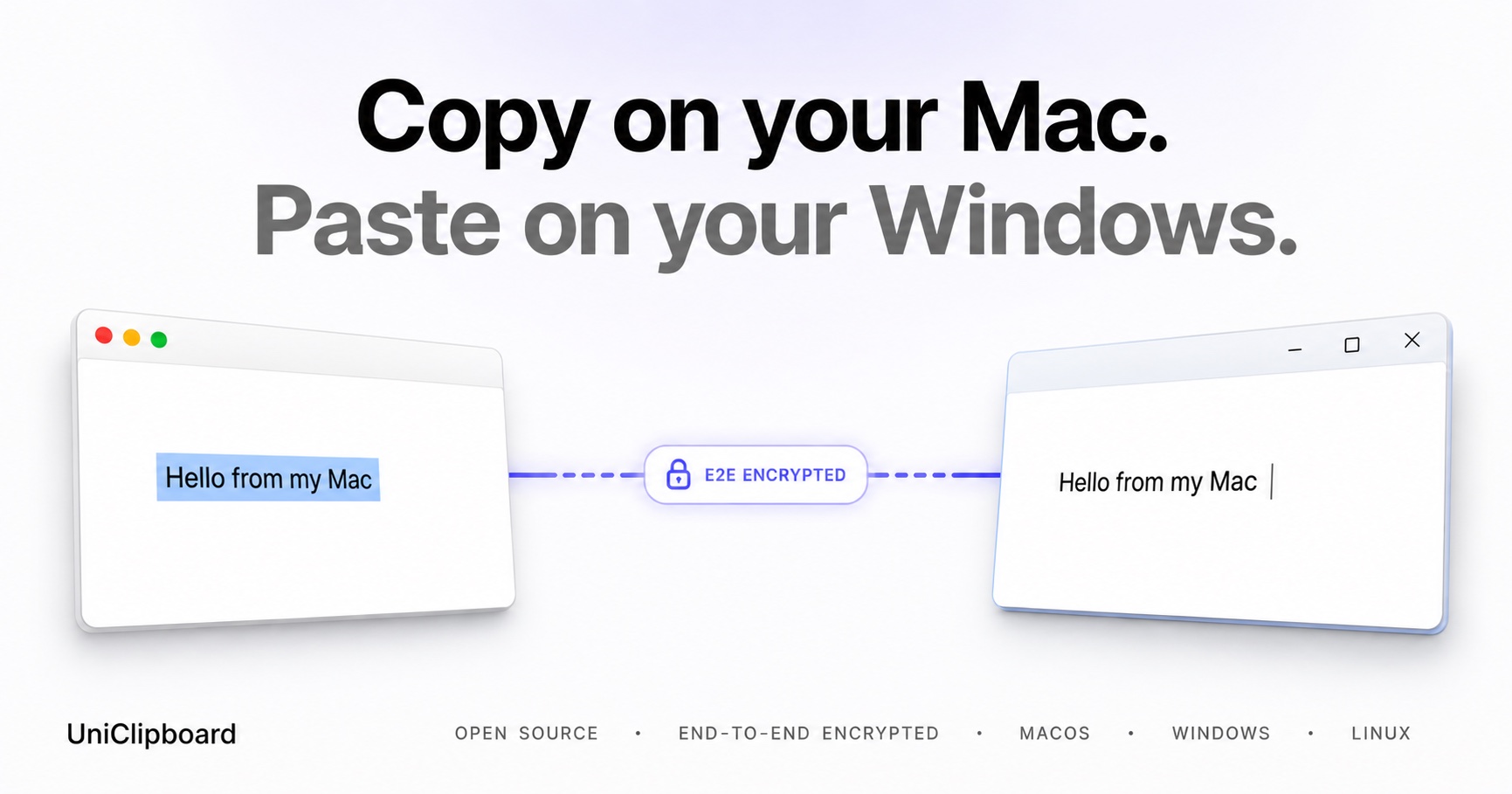

User reviews (0)