Website profiles · Technology insights · Alternatives

virtocean.com No paid content found

Categories: Other

Relaxing sounds of the sea waves crashing on the beach. Ambient ocean noise for relaxing or studying.

Visit website

Updated: 2026-10-01 22:18 Language: English (default) Access: Normal

Profile views 0 Outbound visits 0
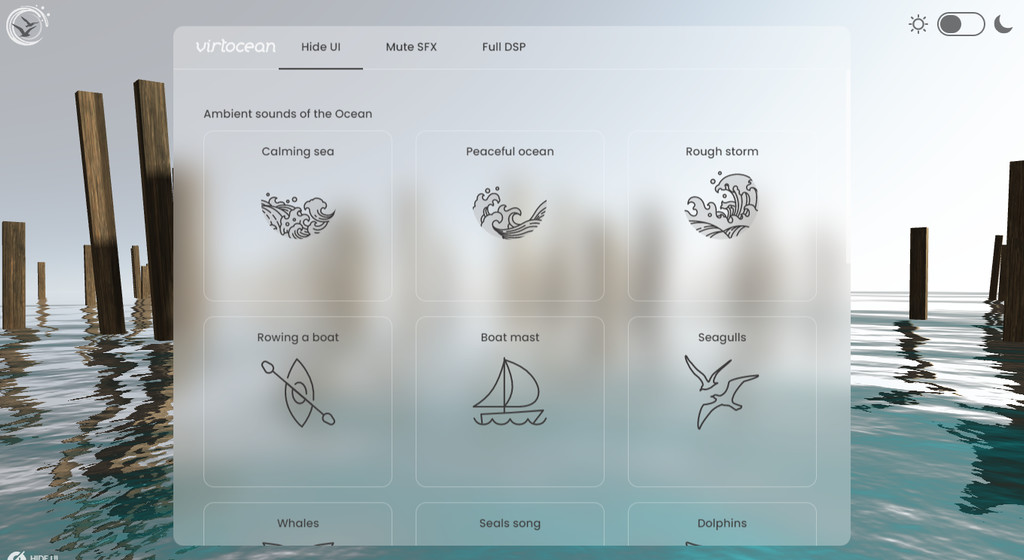
Virtual Ocean | Sea and ocean sounds noise generator Full homepage screenshot
Editorial Review

Website Review

What is Virtual Ocean?

Virtual Ocean is a free browser-based ambient sound generator built around sea and ocean recordings. Instead of playing one looping track, it lets you mix individual layers of coastal sound to create your own background atmosphere.

H3. What you can actually mix The available layers cover a wide range of maritime settings, not just generic waves:

  • Calming sea, Peaceful ocean, Rough storm — different wave energies
  • Seagulls, Dolphins, Distant foghorn, Buoy bells — isolated detail sounds
  • Rowing a boat, Boat mast, Motor boat trip, Sailboat interior — boat-specific ambience
  • Walking on a beach, Underwater diving, Submarine ambiance — scene-based layers
  • Tabletop sounds for D&D campaigns — a separate set aimed at role-playing sessions

The interface is deliberately minimal: mute, fullscreen, and hide-UI controls let you run it as a clean background while you work or rest.

H3. Who it suits

  • Studying or focused work — steady wave noise masks conversation and keyboard clatter without lyrics or melody to follow.
  • Sleep and wind-down — low, slow layers work better than a storm mix if you want something that fades into the background.
  • Tabletop gaming — the campaign sounds let a game master set a harbour, beach or shipboard scene without hunting through music libraries.
  • Writing or worldbuilding — mixing a foghorn under distant waves is a quick way to hold a coastal mood while drafting.

H3. Trade-offs to weigh Because you build the mix yourself, the result depends on how much time you spend tuning layers; a single preset would be faster if you just want one click. Browser-based playback also means the tab must stay open, and it depends on your connection and device audio rather than working offline like a downloaded file. If you need precise volume automation or scheduling, a dedicated audio tool will do more.

H3. A practical next step Start with one wave layer alone at low volume, then add a single detail sound — seagulls for daytime focus, a foghorn or buoy bells for a sleepier mood — and stop there. Adding three or more layers usually makes the mix feel busy rather than immersive. For a tabletop session, keep the ambience under your speaking voice and change layers only at scene transitions. You can try it directly at Virtual Ocean.

How can I use Virtual Ocean for studying or relaxation?

Virtual Ocean is a browser-based ambient sound generator built around sea and ocean recordings. For studying or relaxation, its main advantage is that you pick one sound scene and leave it running in the background — no music tracks, no lyrics, no algorithm deciding what plays next.

How to use it

  1. Open Virtual Ocean in a browser tab.
  2. Choose a scene from the list. Calmer options like "Calming sea" or "Peaceful ocean" suit reading and light work; "Rough storm" or "Rowing a boat" add more texture if you want sound that masks a noisy room.
  3. Use the UI controls to hide the interface and go fullscreen, so the screen shows nothing but the scene. Mute the SFX layer if you want the waves without extra effects.
  4. Leave the tab open while you work. If you need a different mood later, switch scenes rather than stacking multiple tabs.

Matching the scene to the task

Goal Scene to try Why
Deep focus, low distraction Calming sea, Peaceful ocean Steady, predictable wave rhythm
Masking background noise Rough storm, Motor boat trip More broadband sound covers speech and traffic
Winding down before sleep Underwater diving, Submarine ambiance Muffled, low-variation texture
Light background while reading Seagulls, Buoy bells, Distant foghorn Occasional detail keeps it from feeling flat
Tabletop gaming atmosphere Tabletop sounds section Separate set aimed at D&D campaigns

Practical considerations

  • Wave sounds have natural peaks. If a swell keeps pulling your attention, drop the volume until the loudest moments sit below your concentration threshold rather than adjusting every few minutes.
  • The built-in SFX layer (seagulls, bells, foghorn) adds event-like sounds. These are useful for atmosphere but can be distracting during reading-heavy work; muting SFX leaves a smoother bed.
  • Browser tabs can be suspended or throttled when idle. Keep the tab visible in its own window if the audio cuts out.
  • A spoken-word scene such as "Walking on a beach" is closer to a field recording than a pure noise generator, so it works better for imagining a place than for strict noise masking.

A concrete routine

If you study in 50-minute blocks, pick "Peaceful ocean" at low volume for the work portion, then switch to "Underwater diving" for the last few minutes as a wind-down cue. The change in texture marks the end of the session without needing a timer alarm.

Next step: start with one calm scene at roughly half your usual music volume, work for one session, and note whether you noticed the sound at all. If you did, change scene or lower the volume; if you didn't, that's your setting.

What ambient sounds are available on Virtual Ocean?

Virtual Ocean offers a set of loopable ocean-themed ambiences rather than one generic wave track. The available sound options are:

  • Ambient sounds of the Ocean
  • Calming sea
  • Peaceful ocean
  • Rough storm
  • Rowing a boat
  • Boat mast
  • Seagulls
  • Dolphins
  • Sailboat interior
  • Distant foghorn
  • Walking on a beach
  • Underwater diving
  • Submarine ambiance
  • Buoy bells
  • Motor boat trip
  • On the land

The interface also includes mute, SFX, fullscreen and hide-UI controls, and a separate link to tabletop sounds for D&D campaigns. That suggests the site is built for background listening during work, study or tabletop sessions, where you may want the screen hidden and the sound left running.

If you want a quick decision: choose Calming sea or Peaceful ocean for low-distraction studying, Rough storm or Distant foghorn for atmosphere in creative writing or a tabletop game, and Underwater diving or Submarine ambiance when you want a more enclosed, less beach-like texture. Start with one loop, then layer or switch between the boat and wildlife options if the basic wave sound becomes too repetitive.

Can I customize the mix of ocean sounds on Virtual Ocean?

Yes—Virtual Ocean's interface is built around a list of individual ocean sound sources that you toggle on and off, so you can shape the mix by choosing which layers play together. Based on the site's own controls, the available layers include:

  • Calming sea, peaceful ocean, rough storm
  • Rowing a boat, boat mast, motor boat trip
  • Seagulls, dolphins, sailboat interior
  • Distant foghorn, walking on a beach, underwater diving
  • Submarine ambiance, buoy bells, tabletop sounds for D&D campaigns

The interface also shows Mute SFX, Fullscreen, and Hide UI controls, which suggests you can silence sound effects while keeping the ambient bed, and strip the interface down for distraction-free listening.

What "customize" means here

This is a layer selector, not a full mixer. There's no evidence of per-layer volume sliders or saved presets, so you're choosing combinations rather than balancing levels. That's a real trade-off: it's fast and low-friction, but you can't push waves louder than gulls, for example.

Practical combinations

  • Deep focus: Calming sea alone, or with distant foghorn for a sparse, non-melodic backdrop.
  • Sleep: Peaceful ocean plus buoy bells, keeping the rhythm slow and predictable.
  • Reading or tabletop RPG: Boat mast or sailboat interior with seagulls for a dockside feel; add tabletop sounds if you're running a session.
  • Masking office noise: Rough storm gives broader-spectrum sound that covers speech better than gentle surf.

Next step

Open the page, mute SFX first, then add one layer at a time and give each a minute before adding the next—layering too quickly makes it hard to tell which sound is actually helping. If you want comparison, myNoise offers per-slider mixing, while Rainy Mood is a single fixed scene. Virtual Ocean sits between them: more choice than a fixed loop, less control than a mixer.

Is Virtual Ocean free to use?

Yes — Virtual Ocean is free to use. The page is a browser-based ocean sound generator with no pricing links, payment platforms or paid-tier signals, so there is nothing to buy or subscribe to before listening.

What you get for free

  • A set of ambient ocean and water scenes, including calming sea, peaceful ocean, rough storm, seagulls, dolphins, a motor boat trip and underwater diving.
  • Simple player controls: mute, show/hide UI, fullscreen and a sound-effects toggle.
  • A separate set of tabletop sounds aimed at D&D campaigns.

Practical notes

The trade-off is control depth. A free generator like this is best when you want one continuous atmosphere quickly — background noise for studying, sleep, or a tabletop session — rather than layered, savable soundscapes. Expect to pick a scene, adjust volume and leave the tab open; there is no account, download or offline mode implied by the page.

If you need more precise mixing, compare it with a dedicated mixer such as myNoise, which is built around adjustable sliders, or Noises Online for simple preset-based ambience. For a quick, no-signup ocean backdrop, Virtual Ocean is the straightforward choice.

How does Virtual Ocean compare to other noise generators?

Virtual Ocean is a browser-based ocean sound generator: you open the page, pick a scene, and it plays looping sea ambience. It competes less on features than on focus — it does one sound family (water and boats) in more variations than general-purpose noise tools usually bother with.

Where it stands out

  • Variety within a theme. The scene list goes well beyond generic "waves": calming sea, peaceful ocean, rough storm, rowing a boat, boat mast, seagulls, dolphins, sailboat interior, distant foghorn, walking on a beach, underwater diving, submarine ambience, buoy bells, motor boat trip. If you want a specific maritime texture rather than "rain or brown noise," that range is the point.
  • Fast, low-friction use. The interface is minimal — mute, SFX toggle, fullscreen, hide UI — so it works as a background tab while you study or work, or fullscreen on a second monitor.
  • Scene-based rather than slider-based. You choose a place, not a frequency band. That suits people who think "I want to feel like I'm on a beach" more than "I want 400 Hz pink noise."

Where general noise generators win

  • Layer mixing. Most popular generators let you stack and balance multiple sound sources (rain + thunder + café) with individual volume sliders. Virtual Ocean's model is picking one scene, so it is weaker if you want to build a custom mix.
  • Non-water sounds. If you need white/pink/brown noise, fan hum, keyboard clicks, or forest and fire ambience, you will need a second tool.
  • Extras like timers, sleep fade-outs, or saved presets. These are common elsewhere and not part of what this page presents.

Quick comparison

Need Virtual Ocean Typical general noise generator
Ocean/boat variety Strong Usually one or two wave loops
Custom layering and mixing Limited Core feature
Non-water sound types Not the focus Broad library
Setup effort Open and play Sometimes account or app install
Best for Atmosphere and immersion Precise sound control

A practical way to choose

If your goal is a convincing seaside or underwater atmosphere — reading, meditating, writing a scene set at sea, or masking office noise with something more evocative than static — start with Virtual Ocean. If you need to fine-tune levels across several sounds, or you want rain, fire and noise colors in the same place, keep a general generator as your main tool and use Virtual Ocean for the ocean layer alone.

One caveat worth testing yourself: loop quality matters more than scene count. Listen for a few minutes and check whether the wave cycle repeats obviously or has an audible seam — that is the difference between a tool you keep open all afternoon and one you close after ten minutes.

Related questions

More questions →
What Are the Ocean Wave Sounds in a Sea Sound Generator and How Do You Use Them?

In a sea sound generator like Virtual Ocean, "waves" refers to the ambient sound of ocean water moving and breaking — the core loop that most people use for relaxation, sleep, or focus. You use it by opening the generator, picking a wave-related scene such as Calming sea or Walking on a beach, and letting it play in the background while you work, rest, or wind down. It works as everyday background audio, not as a treatment for any medical or psychological condition.

What "waves" actually means here

The word covers two related things:

  • The physical sound: ocean water surging, curling, and crashing, usually with a repeating rhythm.
  • A track or scene inside the generator: a preset mix that recreates that sound, sometimes layered with wind, gulls, or other coastal detail.

Virtual Ocean presents its audio as named ambient scenes rather than a single "waves" button, so you choose the version of the ocean that matches your mood.

Wave-related scenes available in Virtual Ocean

Based on the site's sound list, these options are directly tied to wave and shoreline audio:

Scene What it suggests
Calming sea Gentle, steady wave motion
Peaceful ocean Softer, slower surf
Rough storm Heavier, more turbulent water and weather
Walking on a beach Waves plus footsteps and shore ambience
Rowing a boat Water movement from a boat perspective
Boat mast Creaking and water against a hull
Seagulls Coastal birds over wave sound
Dolphins Ocean ambience with animal calls
Distant foghorn Waves with a low, far-off signal
Underwater diving Muffled, submerged water sound
Submarine ambiance Enclosed, low-frequency water noise
Buoy bells Waves with ringing buoy tones
Motor boat trip Engine and water movement

If you want pure wave sound, start with Calming sea or Peaceful ocean. If you want waves as part of a richer scene, the beach, boat, and diving options add context.

How to play and control it

The interface exposes a small set of controls:

  1. Open the generator in your browser — no described setup step beyond loading the page.
  2. Select a scene from the ambient sound list to start that audio.
  3. Use SHOW UI / Hide UI to toggle the control panel. Hiding it gives you a clean screen for reading, studying, or fullscreen relaxation.
  4. Use Mute to silence audio without leaving the page.
  5. Use SFX to toggle sound effects layered on top of the main ambience.
  6. Use Fullscreen to expand the player to fill your display.

Expected result: the chosen wave scene plays continuously until you mute it, switch scenes, or close the page.

Using waves for relaxation or focus

  • Relaxation: pick a slow, even scene like Calming sea or Peaceful ocean, set a comfortable volume, and hide the UI so nothing on screen competes for attention.
  • Sleep: a steady wave loop masks intermittent background noise. Keep the volume low and let it run.
  • Focus: wave sound provides a consistent ambient layer that can reduce the distraction of sudden noises. Rough storm or Motor boat trip suit people who prefer more texture; Calming sea suits those who want less.
  • Scene-setting: Walking on a beach, Seagulls, or Buoy bells add a sense of place if plain surf feels too bare.

Common snags

  • No dedicated "waves" label: you select a scene, not a single wave slider, so try a few to find the texture you want.
  • Layering confusion: SFX may add extra sounds on top of the main ambience. If the mix feels busy, toggle SFX off.
  • Hidden controls: after using Hide UI, you need to bring the interface back to change scenes or mute.
  • Expectations: this is ambient audio for atmosphere and habit. It is not a substitute for professional care if you have a sleep, anxiety, or health concern.
What Is Ocean Noise and How Can You Use It for Relaxation or Focus?

Ocean noise is ambient audio built from sea and wave sounds—surf, storms, boat creaks, gulls, foghorns—played to help you relax, concentrate, or fall asleep. It works best as background sound at low volume, and you can run it in a browser without downloading anything. Use it when you want to soften a noisy room, settle into a study session, or wind down before bed; skip it if you need silence or find repetitive sound distracting.

What counts as ocean noise

Ocean noise is not one sound but a family of scenes. A generator like Virtual Ocean groups them so you can switch mood in a click:

Scene type Examples from the generator Typical use
Calm water Calming sea, Peaceful ocean Reading, light focus, winding down
Rough weather Rough storm, Distant foghorn Masking loud surroundings, immersive atmosphere
Beach activity Walking on a beach, Seagulls Relaxation with a sense of place
Boats and craft Rowing a boat, Boat mast, Sailboat interior, Motor boat trip Focus with gentle mechanical rhythm
Underwater Underwater diving, Submarine ambiance, Buoy bells Deep concentration, sleep

The common thread is steady, non-musical sound. Because there is no melody or lyrics to follow, your attention is less likely to be pulled away from the task or rest at hand.

How to use it for relaxation, focus, or sleep

  1. Pick a scene that matches your goal. Calm sea or Peaceful ocean for unwinding; Underwater diving or Submarine ambiance for deep focus; Rough storm when you need to cover traffic, chatter, or construction noise.
  2. Set the volume low. Aim for the point where you notice the sound only when you stop to listen. If you have to raise your voice over it, it is too loud for focus or sleep.
  3. Loop it and leave it running. Ambient scenes are meant to play continuously, so start the sound and return to what you were doing rather than managing it.
  4. Use the display controls. The interface offers Mute, Hide UI, and Fullscreen. Hide UI removes visual clutter while the sound continues; Fullscreen is useful if you want the scene on a second screen or TV; Mute lets you silence it instantly without closing the page.
  5. Verify it is working. After starting a scene, confirm you can hear it and that the tab is not muted at the system level—this is the most common reason "nothing happens."

Choosing between scenes

Match the scene to the job rather than to what sounds nicest in isolation:

  • For sleep: favor low, even textures—Calming sea, Peaceful ocean, Underwater diving. Avoid sudden peaks like Rough storm if you are a light sleeper.
  • For study or work: Underwater diving, Submarine ambiance, or Sailboat interior give a steady hum that covers background talk without demanding attention.
  • For masking a noisy environment: Rough storm and Distant foghorn carry more energy and cover a wider range of outside sound.
  • For a change of scene: rotate through Beach, Boat, and Underwater options when the same loop starts to feel stale.

If you want tabletop ambience for a game session, the same generator points to a separate set of Tabletop sounds for D&D campaigns—useful when you want ocean noise as part of a shared scene rather than personal background.

Practical tips and common snags

  • Volume creep: it is easy to nudge the level up over time. Reset it when you notice you are listening to the sound instead of working.
  • Headphones vs. speakers: headphones give more consistent masking; speakers let the sound blend into the room but may need a higher level.
  • Battery and data: continuous streaming in a browser tab uses power, so plug in for long sleep sessions.
  • One tab, one scene: running several ambient tabs at once usually muddies the effect rather than enriching it.
  • No account needed to try it: the generator is a browser page with on-screen controls; nothing in the available material indicates a sign-up step before playing a scene.

Start with one calm scene at low volume for a single work or wind-down session. If it helps you settle, expand to a second scene type for a different task; if it distracts you, ocean noise is simply not the right tool for that moment.

What Is a Noise Generator and How Can You Use One for Relaxation or Focus?

A noise generator is a tool that plays continuous, loopable sound — either synthetic noise (white, pink, brown) or recorded ambience like ocean waves — to mask distracting background sound and create a steady audio environment. You use one when you want to sleep, study, or work without reacting to every passing noise. The main condition for it to work: the sound must be steady enough that your attention stops tracking it, and loud enough to cover what you're trying to hide but not so loud it becomes the distraction itself.

How a noise generator differs from a music player

A music player gives you tracks with beginnings, endings, lyrics, and dynamics. Those changes are exactly what pulls attention. A noise generator gives you a continuous bed of sound with no narrative and no obvious loop point.

That difference matters for two tasks:

  • Masking — covering speech, traffic, or keyboard noise that would otherwise interrupt you.
  • Settling — giving your ears something constant so your mind stops scanning the room.

Synthetic noise and recorded ambience both do this, but they feel different. Noise is flat and predictable; ambience has texture and variation. Neither is better in general — it depends on whether variation helps you or distracts you.

The common sound types and what each is good for

Sound type Character Typical use
White noise Equal energy across frequencies; hissy, bright Masking sharp, high-frequency interruptions
Pink noise More energy at low frequencies; softer than white General focus and sleep; often described as more natural
Brown noise Deep, rumbling, low-heavy Masking bass-heavy noise like traffic or footsteps
Ocean / sea ambience Waves with natural rise and fall Winding down, reading, meditation
Rain, storm, boat, underwater Thematic ambience with variation Immersion, scene-setting, longer sessions

Virtual Ocean is an example of the ambience end of this range. Its sound list includes calming sea, peaceful ocean, rough storm, rowing a boat, boat mast, seagulls, dolphins, sailboat interior, distant foghorn, walking on a beach, underwater diving, submarine ambiance, buoy bells, and a motor boat trip — plus a separate set of tabletop sounds for D&D campaigns. That variety is useful because "ocean" isn't one sound; a calm shore and a storm hit different goals.

How to pick a sound for your goal

Work backward from what you're trying to accomplish.

For sleep: choose low-frequency, low-variation sound — brown noise or a calm sea loop. Sudden peaks (seagulls, foghorns, a boat mast creaking) can wake you at the transition into lighter sleep. If you use ambience, pick the flattest option available.

For studying or deep work: pink noise or steady ocean works for most people. If your distraction is other people talking, favor noise over ambience — speech-like variation in a recording can compete with real speech.

For masking a specific nuisance: match the frequency range. High-pitched distractions (clattering, chatter) respond to white or pink noise. Low rumbling (traffic, machinery, footsteps overhead) responds better to brown noise.

For winding down or meditation: ambience with slow variation, like waves on a beach, gives your attention something gentle to rest on without demanding anything.

A practical test: play the candidate for ten minutes while doing the actual task. If you notice the sound more than once, it's probably too variable or too loud for that task.

Features worth checking before you commit

  • Looping quality — a loop with an audible seam becomes a distraction on repeat. Ambience recordings usually loop better than short clips.
  • Volume control — you want fine adjustment, not just a few steps. The useful range is often lower than you'd expect.
  • Mute and hide-UI controls — Virtual Ocean's interface exposes Mute, SFX, Fullscreen, and Hide UI. Hide UI matters if you're leaving a screen on in a dark room.
  • Offline use — if the tool is browser-based, check whether it works without a connection. A generator that stops when your Wi-Fi drops is a poor sleep aid.
  • Timers — useful for falling asleep without leaving sound running all night, and for ending a focus block.
  • Mixing — some generators let you layer sounds (waves plus rain, for instance). Layering can make a loop less noticeable.

Pricing and account requirements vary by tool and aren't specified for Virtual Ocean in the available material, so check the site directly before relying on it for a nightly routine.

Fitting it into a daily routine

The generator works best as a cue, not just a background.

  1. Pick one sound per purpose and keep it consistent. A single "focus sound" and a single "wind-down sound" trains the association faster than rotating through options.
  2. Start it before you begin the task, not after you're already distracted. The point is to set the environment.
  3. Set volume at the threshold where the nuisance disappears — then stop. Louder isn't more effective.
  4. Use a timer for sleep so the sound fades out rather than running until morning.
  5. Give it a week. If you're still noticing the sound constantly after several sessions, switch types rather than pushing through.

Common snags

  • Too loud. The most frequent mistake. If you can't hear a nearby conversation at all, you've probably overshot into fatigue territory.
  • Too variable. Seagulls and foghorns are atmospheric but poor for sleep. Save them for daytime ambience.
  • Headphones vs. speakers. Headphones mask better but can be uncomfortable overnight; speakers need to be loud enough to cover the room, which may disturb others.
  • Expecting silence. A generator doesn't remove noise — it replaces it with something steadier. That's the whole mechanism.
What Are Sea Sounds and How Can You Use Them for Relaxation or Focus?

Sea sounds are recordings or generated audio that reproduce ocean environments—from gentle waves to storms, gulls, and underwater ambience. You can use them as background audio to relax, sleep, or concentrate, provided you keep the volume moderate and pick a sound that matches the task. A generator like Virtual Ocean lets you switch between these scenes in one place, which is useful if a single loop gets repetitive.

Common types of sea sounds

The ocean is not one sound. Different recordings or generators offer distinct textures, and the right choice depends on whether you want to wind down or stay alert.

Type What it sounds like Often used for
Calming sea / peaceful ocean Slow, low waves with little spray Sleep, meditation, winding down
Waves crashing on the beach Sharper, rhythmic breaks Masking background talk, relaxation
Rough storm Wind, heavy surf, low rumble Immersive ambience, blocking distractions
Seagulls / dolphins Animal calls over water Lighter background, scene-setting
Distant foghorn / buoy bells Sparse, low tones Depth and atmosphere
Rowing a boat / boat mast / sailboat interior Creaks, water against hull Focus with a "place" feeling
Walking on a beach Footsteps on sand plus surf Gentle movement, calm
Underwater diving / submarine ambiance Muffled, pressure-like hum Deep focus, isolation from noise
Motor boat trip Engine drone over water Steady masking sound

Virtual Ocean groups these as selectable scenes (calming sea, peaceful ocean, rough storm, seagulls, dolphins, foghorn, underwater diving, and more), so you can audition several and keep the one that fits.

Why sea sounds help with relaxation and focus

Two mechanisms do most of the work:

  • Masking. Steady ocean noise covers unpredictable sounds—traffic, conversations, keyboard clatter—that pull your attention. Because the ocean has no sudden spikes, your brain has less to react to.
  • Predictability and pace. Slow wave cycles give a gentle rhythm you can breathe or work alongside, which supports a calmer state without demanding attention.

This is different from white noise. White noise spreads energy evenly across frequencies and sounds flat; sea sounds have structure—waves rise and fall, storms rumble, gulls call. Some people find structured natural sound easier to tolerate for long sessions, while others prefer the neutrality of white noise for pure masking. There is no universal winner; test both if you are unsure.

How to use them: practical setup

  1. Choose a scene for the task. Calm waves or underwater ambience for sleep and deep focus; storm or motor boat for louder environments where you need stronger masking.
  2. Set volume just below your attention threshold. You should be able to forget the sound is playing. If you keep noticing it, lower it.
  3. Pick output device by goal. Speakers for room ambience and sleep; headphones for focus in shared spaces. For sleep, prefer speakers or a timer so audio does not play all night at high level.
  4. Match duration to the session. For work, pair with a timer or Pomodoro cycle (for example 25 minutes on, 5 off) and let the sound run across the block. For relaxation, 10–20 minutes is often enough to notice an effect.
  5. Add a breathing or pacing cue if helpful. Sync slow breaths to the wave cycle—inhale as a wave builds, exhale as it recedes.
  6. Verify it is working. After a few sessions, ask: did I fall asleep faster, or did I finish the task with fewer interruptions? If not, change the scene or volume rather than forcing it.

Cautions and when to stop

  • Keep volume moderate, especially with headphones. Long exposure at high volume risks hearing strain; if your ears feel tired or ring, stop and lower the level.
  • If a storm or motor boat track raises your alertness instead of calming it, switch to a gentler scene.
  • Sea sounds are a comfort and focus tool, not a treatment. If you have persistent insomnia, anxiety, or trouble concentrating that affects daily life, treat the audio as a supplement and speak with a qualified professional.

Where to try it

Virtual Ocean (virtocean.com) is an online sea and ocean noise generator with switchable scenes—calming sea, peaceful ocean, rough storm, seagulls, dolphins, foghorn, underwater diving, submarine ambiance, and others—plus UI controls to mute, hide the interface, or go fullscreen. It also lists tabletop sounds for D&D campaigns if you want a shared background for a game. Start with one scene, adjust volume, and keep the setting that lets you relax or focus without thinking about the sound itself.

Website Overview

An established domain and managed infrastructure suggest continuity of operations and may support dependable delivery, although neither guarantees service quality. Page metadata, canonical configuration and social previews work together to provide more consistent search and sharing presentation.

Domain and Registration

Registered in 2016, this domain has about 9 years of history. That suggests continuity, although ownership and purpose may have changed. Transfer-protection status is present, helping reduce the risk of unauthorized domain transfers. The registrar is NameCheap, Inc., a widely used domain service provider. The domain uses the common .com extension, which is not an independent safety signal.

DNS and Email

The observed email authentication setup is incomplete: DMARC is missing. Nameservers are provided by a2hosting.com, indicating managed DNS hosting. MX records point to the virtocean.com email service. No CNAME was found; the observed records resolve directly to addresses. DNSSEC signatures were not detected, so this additional DNS authenticity protection is not confirmed.

TLS and Certificates

The certificate uses an RSA 2048-bit public key, offering broad client compatibility. The server supplied a complete certificate chain. No organization name is present in the certificate; the available fields are consistent with domain validation. The certificate was issued by Let's Encrypt, commonly associated with automated certificate services. The certificate's total validity is about 89 days, consistent with a short renewal cycle.

HTTP and Browser Security

The response lacks these common security headers: CSP, Referrer-Policy, Permissions-Policy. No X-Powered-By header was found, reducing one common source of backend fingerprinting information. No obvious internal addresses or debug information were found in the headers. The Server header contains the custom value LiteSpeed. No explicit CDN or WAF marker was found in the response headers.

Technology Stack Analysis

The public page identifies jQuery without precise versions, leaving fewer clues for version-specific scanning.

Search and Social Sharing

Twitter Card metadata is configured. The title has 52 characters, within a common display range. A meta description is present, with 101 characters. The observed directives allow indexing and link following. No Generator meta tag is publicly exposed.

Hosting and Email

DNSa2hosting.com
HostingA2 Hosting, Inc.
Emailvirtocean.com
Location United States flagDetroit, Michigan, United States 70.32.23.71

User reviews (0)

  • No reviews yet.

Pages, Search and Sharing

Meta descriptionRelaxing sounds of the sea waves crashing on the beach. Ambient ocean noise for relaxing or studying.
Canonical URLhttps://virtocean.com
LanguageEnglish (default)
Twitter Cardsummary_large_image
All bots 1 allowed · 0 disallowed
  • Allow/

No sitemaps found

Registration details RDAP / WHOIS

RegistrarNameCheap, Inc.
Registered2016-11-28
Expires2027-11-28
Domain statusclient transfer prohibited
Nameserversns1.a2hosting.com、ns2.a2hosting.com、ns3.a2hosting.com、ns4.a2hosting.com
DNSSECunsigned

DNS records

TypeNameValueTTLPriority
Avirtocean.com70.32.23.7114400—
MXvirtocean.commail.virtocean.com144000
NSvirtocean.comns1.a2hosting.com86400—
NSvirtocean.comns2.a2hosting.com86400—
NSvirtocean.comns3.a2hosting.com86400—
NSvirtocean.comns4.a2hosting.com86400—
TXTvirtocean.comv=spf1 +a +mx +ip4:70.32.23.71 include:spf.a2hosting.com ~all14400—

TLS and certificates

AssessmentNormal configuration
Supported protocolsTLSv1.2、TLSv1.3
Negotiated protocolTLSv1.3
Certificate subject*.virtocean.com
IssuerLet's Encrypt
Valid until2026-12-19T04:23 · Remaining when checked: 78 days
Verification detailsCertificate trust: Passed · Hostname match: Passed

HTTP response headers

HeaderValue
content-typetext/html
cache-controlmax-age=3600, must-revalidate
serverLiteSpeed
strict-transport-securitymax-age=63072000; includeSubDomains
x-frame-optionsSAMEORIGIN
x-content-type-optionsnosniff

Identified technologies

jQuery

Recent Updates

  • Website images
  • Screenshots