
 Visit website
 Updated: 2026-09-27 10:50
 Language: English (default)
 Access: Normal
 Profile views 6
  Outbound visits 1
 Website Review
What is Wavacity?
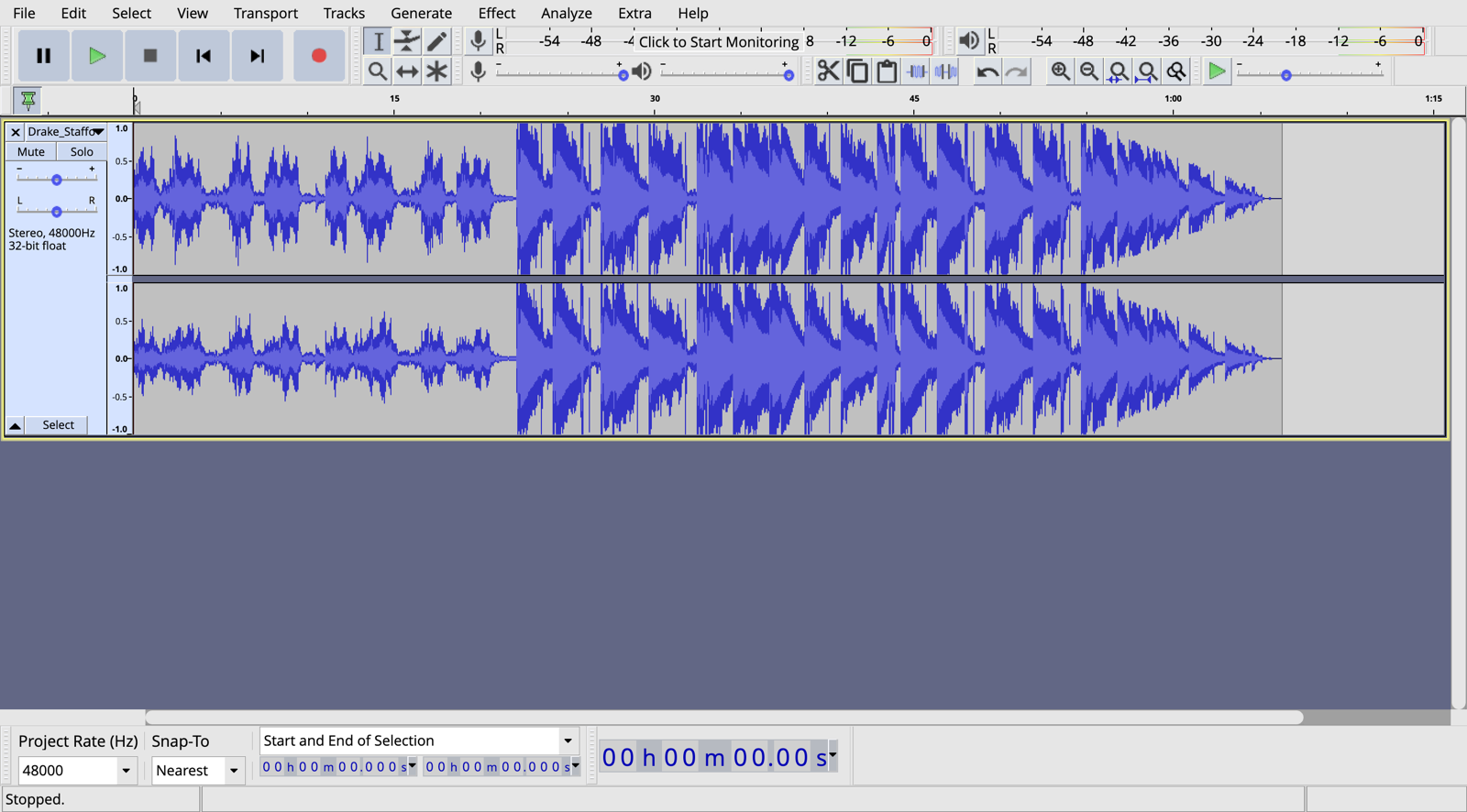
Wavacity is a browser-based port of the Audacity audio editor. It runs in your web browser, requires no installation, and is free and open-source software released under the GNU GPL v2. The site describes it as a port of Audacity to the web; Wavacity is not affiliated with or endorsed by Audacity.
What that means in practice
If you already know Audacity, Wavacity will feel familiar: it brings that style of waveform editing — cutting, trimming, and arranging audio — into a browser tab. If you don't know Audacity, think of it as a tool for editing recorded sound rather than a music-making studio: useful for cleaning up a voice recording, trimming a clip, or assembling a simple sequence of audio files.
Who it suits
- Occasional editors who need to trim or clean up a file on a computer where they can't install software.
- Students or shared-computer users who want to avoid installs and admin permissions.
- Audacity users away from their main machine who want a familiar editing environment in a browser.
Trade-offs to weigh
- No install vs. browser constraints: working in a tab is convenient, but large projects and long files depend on your browser and machine having enough memory.
- Familiarity vs. polish: as a port, it aims to reproduce Audacity's behavior rather than reinvent it; expect an interface built for desktop-style editing.
- Free and open-source vs. support: the software is free, but you shouldn't assume the same support channels or documentation as the original.
A concrete scenario
Suppose you've recorded a 20-minute interview on your laptop and need to remove the first two minutes and lower a loud section. You open Wavacity in your browser, import the file, make the edits on the waveform, and export the result — without installing anything.
Next step
If you want the original desktop application or its official documentation, see Audacity. For other browser-based editing options, compare with Ocenaudio (a free desktop editor) or TwistedWave (an online editor with a different feature set). Before committing to a long project, test Wavacity with one real file to confirm it handles your format and file size comfortably.
How does Wavacity compare to the desktop version of Audacity?
Wavacity is essentially the Audacity editor running inside a browser tab. The page describes it as a port of Audacity to the web, free and open-source under the GNU GPL v2, with no installation required. The practical difference is not a different feature philosophy; it is the same style of waveform editing delivered through a browser instead of a desktop install.
H3 Where the browser version wins
- Zero setup: useful on a borrowed laptop, a lab machine, or a Chromebook where you cannot install software.
- Quick, disposable sessions: trim a voice memo, normalize a clip, or export a WAV without committing to a full desktop setup.
- Cross-machine consistency: the editor lives at a URL, so the same environment follows you between machines.
H3 Where desktop Audacity still has the edge
- Long, heavy projects: large multitrack sessions, long recordings and plugin-heavy work are generally more comfortable with direct access to local files and system resources.
- Hardware and plugin integration: audio interfaces, ASIO-style low-latency drivers and VST/LV2 plugin ecosystems are desktop territory.
- File handling: batch processing folders, scripting and integration with local tools are easier when the editor can reach your whole file system.
- Offline reliability: no browser tab crashes, no tab-suspension, no dependence on a stable connection once the app has loaded.
H3 A concrete scenario
You record a 40-minute interview on your phone and need it cleaned up before transcribing. On a machine where you cannot install anything, Wavacity gets you there: import, cut the false starts, apply noise reduction, export. If instead you are mixing a multi-hour session with several microphones and third-party plugins, the desktop Audacity build is the more sensible home base.
H3 Decision criterion
Ask two questions: does the machine allow installs, and does the job depend on local hardware or plugins? If installs are blocked and the task is a single-track cleanup, use the browser. If the answer is no to both, use the desktop application.
For the desktop original, see Audacity. If you want a browser-based alternative with a different interface, Ocenaudio is a desktop option rather than a web one, so it does not solve the no-install case.
Can I use Wavacity for multi-track audio editing and mixing?
Yes. Wavacity is a browser port of the Audacity audio editor, so it inherits the same multitrack workflow: you can place several audio tracks in one project, edit each independently, and mix them together into a single exported file. Because it runs in the browser with no installation, it suits quick sessions on a borrowed computer or a Chromebook.
H3 What you can expect to do
- Import or record multiple tracks into one project.
- Trim, cut, copy, paste, fade and apply effects per track or to a selection.
- Adjust each track's gain and pan, then mix down to a stereo file.
- Work with the waveform directly, which is useful for spoken-word editing, podcasts, voiceovers and simple music assembly.
H3 Practical limits and trade-offs
- Browser-based editing depends on your machine and browser; very large projects with many long tracks can feel slower than a desktop application.
- It is a stereo mixing environment, not a surround or advanced routing tool, and it does not aim to replace a full digital audio workstation for MIDI composition or complex bus processing.
- The interface follows Audacity's design, which is efficient for editing but has a learning curve if you are used to modern DAW layouts.
H3 A concrete scenario
Suppose you record a two-person podcast plus a music bed. You import the two voice tracks and the music, align them on the timeline, cut filler from each voice track, lower the music under the speech, then export a single mixed file. That is exactly the kind of job Wavacity handles well.
H3 Next step
Open Wavacity, create a project, drop in two audio files and try a simple mix: set one track's gain lower, add a short fade-out, and export. If you later need MIDI, virtual instruments or heavy plugin chains, move the project to a desktop DAW; if you only need multitrack editing and a clean mixdown, the browser version is enough. You can also compare the original desktop editor at Audacity.
What audio file formats can I import and export with Wavacity?
Wavacity does not publish a format list on its page, so the practical answer is: judge it by Audacity's format support, because Wavacity is described as a port of the Audacity audio editor to the browser. In practice, expect the common formats you would use in Audacity — WAV, AIFF, MP3, OGG Vorbis, FLAC, and M4A/AAC — with export usually available for WAV, MP3, OGG, and FLAC. Treat this as a reasonable expectation, not a guarantee: browser-based ports sometimes omit codecs that the desktop program includes.
How to check before you commit
- Open Wavacity and drag in one small test file in each format you actually use.
- Export a short clip to your target format and play it back in another player.
- If a format fails, convert it first with a desktop tool such as Audacity Audacity or a dedicated converter.
A practical example
A podcaster recording a remote interview might import a WAV from a local recorder and an M4A from a phone call app, then export a 128 kbps MP3 for publishing. WAV import and MP3 export are the safest bets; the M4A import is the step most likely to need a conversion first.
Trade-offs
- WAV/AIFF: best for editing quality and lossless export, but large files.
- MP3/M4A: convenient for sharing and small, but lossy — export once, not repeatedly.
- FLAC/OGG: good lossless or open alternatives, though not every player or platform accepts them.
If your workflow depends on a less common format such as Opus or WMA, test it early or plan to convert outside the browser. For lossless editing, keep a WAV or FLAC master and export MP3 only as the final delivery copy.
Is Wavacity completely free to use, and are there any hidden costs?
Yes. According to the site itself, Wavacity is free, open-source software released under the GNU GPL v2, and it runs in your browser with no install required. Nothing on the page indicates paid tiers, subscriptions, credits or in-app purchases, so there is no sign of hidden costs from the product itself.
The practical caveats are not fees but indirect costs:
- Your browser and machine do the work. Editing is limited by your device's memory and CPU, especially with long or multi-track projects.
- File transfer and storage are yours. You handle where projects and exports live; cloud backup or extra disk space would be a separate service you choose.
- No paid support or warranty. Open-source licensing typically means community help rather than a commercial support contract.
- Hosting is someone else's cost. Because the tool runs in a browser, availability depends on the site staying online.
A useful next step: for a quick edit such as trimming a recording, noise reduction or exporting MP3/WAV, open Wavacity, import your file and confirm the export works before committing to a large project. If you need desktop-grade stability, offline use or formal support, compare it with the original Audacity or a paid editor like Adobe Audition.
Does Wavacity work offline or require an internet connection?
Wavacity is a browser-based port of Audacity, so it needs to be loaded in a browser, but once loaded it can run as an offline-capable web app. The practical answer depends on how you use it:
- First load / updates: requires an internet connection to fetch the web app.
- After it is cached: many browser-based apps like this can continue working offline, but that depends on your browser caching and whether the site sets up a service worker. Wavacity’s page does not explicitly promise full offline support, so treat offline use as “likely, but verify in your browser.”
- File handling: your audio files stay local to your machine; the editor processes them in the browser, not on a remote server.
A useful next step: open Wavacity in your browser, load a small test file, then disconnect from the internet and try a basic edit and export. If it still works, your browser has cached the app well enough for offline use. If not, you will need a connection to load it each time.
For a guaranteed offline audio editor, you can also use the original Audacity desktop software from Audacity. Wavacity is convenient when you want no installation, but a desktop app is more predictable when you need to work without any internet access at all.
 Hosting and Email
 Google Cloud DNS
 Hosting
 Google LLC
 Location
 Kansas City, Missouri, United States
 Pages, Search and Sharing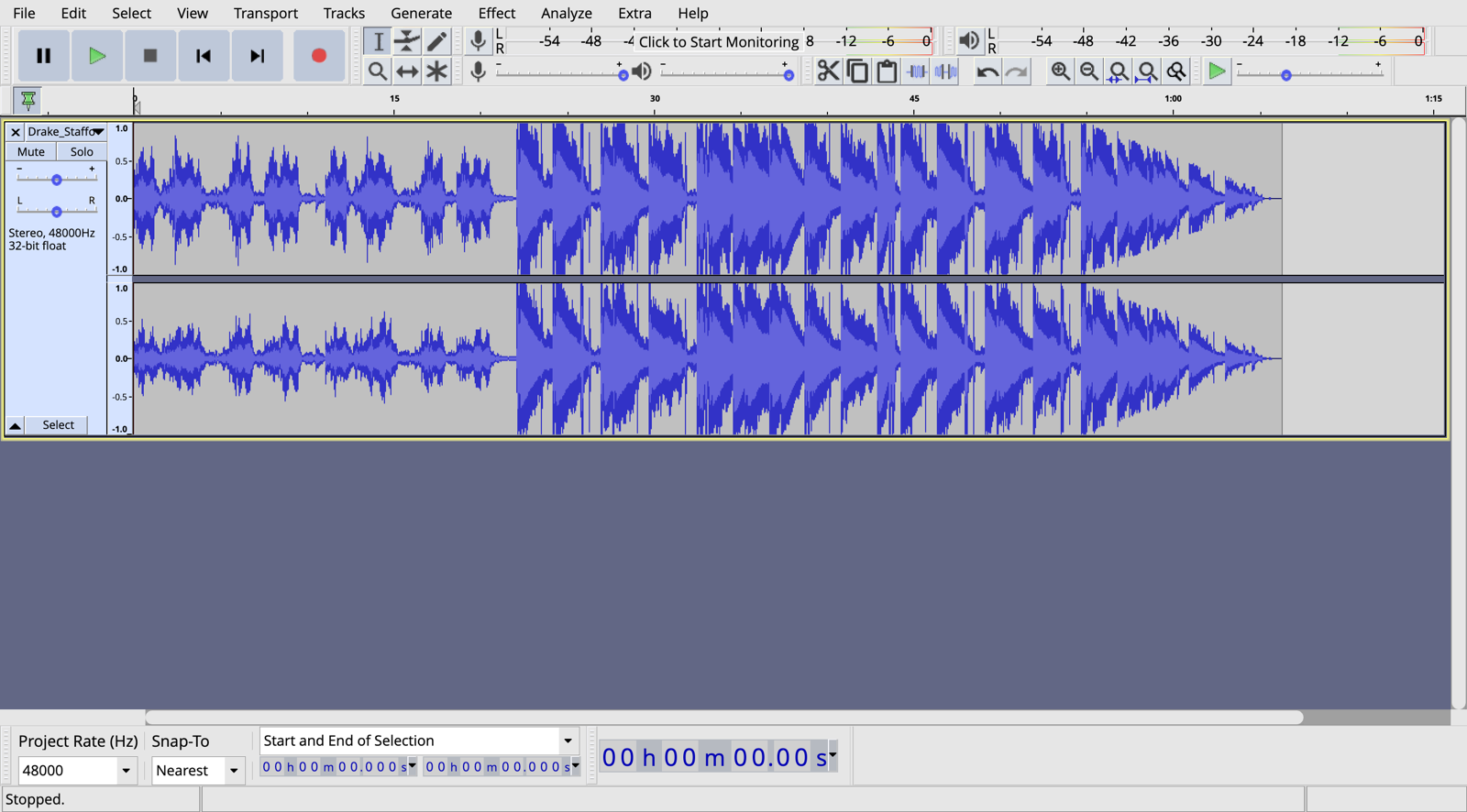

 Registration details

 Identified technologies
User reviews (0)