
 简体中文
简体中文 English
Website review
This review may include AI-generated content and is not individually verified. Domain, certificate and other facts come from the observed data on this page.
What is xplr?
xplr is a terminal-based (TUI) file explorer designed to be hackable, minimal and fast. It runs inside your terminal rather than as a graphical file manager, so it suits people who already work in a shell and want to browse, navigate and act on files without leaving the keyboard.
Who it is for
- Terminal-centric developers and sysadmins who want a lightweight file browser alongside their editor and shell.
- Users who like to customize their tools: the "hackable" emphasis suggests configuration and scripting are central, so it rewards people willing to tune it to their workflow.
- People on modest or remote setups, where a fast TUI is preferable to a heavier GUI file manager.
What to expect, and the trade-offs
- Speed and low overhead are the main appeal of a minimal TUI.
- A learning curve: keyboard-driven navigation and configuration take more setup than a point-and-click file manager.
- Less discoverability: features you might expect to be built in may need configuring, which is a strength for tinkerers and a friction point for casual users.
If you are comfortable in the terminal and want a file explorer you can shape to your habits, xplr is worth trying. A practical next step is to check its documentation and try an install in a scratch directory to see how its default keybindings and configuration feel before adopting it day to day. For general terminal file-management guidance, compare with established tools such as GitHub-hosted projects you already know, but evaluate xplr on its own customization model.
How does xplr compare to other terminal file managers like ranger or nnn?
xplr is best understood as a small, scriptable terminal file explorer rather than a full-featured file manager. Its page presents it as "a hackable, minimal, fast TUI file explorer," and that framing is the key to comparison: you get a lightweight navigation core that you extend yourself, not a batteries-included environment.
Where the differences show up
| Aspect | xplr (as described) | Typical ranger-style managers | Typical nnn-style managers |
|---|---|---|---|
| Design goal | Minimal core, hackable | File management plus previews and a richer UI | Fast, compact navigation |
| Extending it | Configure and script behavior yourself | Configure within an existing feature set | Lightweight, fewer moving parts |
| Best fit | Users who want to build their own workflow | Users who want previews and panes out of the box | Users who want speed with minimal setup |
The trade-off is effort versus control. A hackable explorer assumes you will write configuration and small scripts to get previews, custom actions, or keybindings the way you want them. That is a real cost on day one, but it pays off if your workflow is unusual—say, jumping between a project tree and a notes folder with custom open commands. If you mostly want to browse directories and preview files without tinkering, a more conventional manager will get you there faster.
A practical way to decide
Pick a concrete task you do daily, such as "open the selected file in my editor and move to the next one." Then ask whether you would rather configure that once in a script or rely on a built-in binding. If scripting sounds appealing, start with xplr's documentation and try a single custom action before committing. If not, compare against ranger or nnn on that same task—both are widely used references for the conventional and minimal approaches respectively.
How do I install xplr on my system?
Install xplr from your system's package manager if it has a package, or build it from source with Rust's Cargo toolchain. The official site (xplr) links an install path but does not list per-distro commands on the page shown, so treat the steps below as general guidance and confirm the exact package name in your distro's repository before running anything.
Package manager route (simplest)
Check availability first, then install:
- Debian/Ubuntu-based:
apt search xplrthensudo apt install xplrif it appears. - Arch-based:
pacman -Ss xplr, thensudo pacman -S xplr. - Fedora:
dnf search xplr, thensudo dnf install xplr. - macOS with Homebrew:
brew search xplr, thenbrew install xplr. - Nix: add
xplrto your environment or profile.
If your repository does not carry it, skip to the source route rather than adding untrusted third-party repos.
Source route (when no package exists)
xplr is a Rust program, so Cargo is the most direct build path:
- Install Rust via rustup if you don't have it.
- Run
cargo install xplrto fetch and compile the latest release. - Ensure
~/.cargo/binis on yourPATH, then runxplr --versionto confirm.
For a pinned version, use cargo install xplr --version <version>. Building from a cloned repository with cargo build --release is an option if you want to track a development branch.
Practical notes
- xplr is a terminal UI, so it needs a reasonably modern terminal; a true-color terminal improves the experience.
- Configuration lives in a Lua config file, which you create after installing; installation alone gives you defaults.
- On servers or containers, the Cargo route avoids depending on distro packaging lag.
Decision criterion
Use the package manager when your distro ships a recent version — it handles updates for you. Use cargo install when you need the newest release or your distro has no package; the trade-off is that you manage upgrades yourself.
How can I customize xplr's keybindings and configuration?
xplr is configured through a Lua configuration file, and keybindings are part of that same configuration rather than a separate settings screen. You define modes and map keys to actions inside your config, so customization means editing that file and reloading or restarting xplr.
How keybinding customization typically works
- Configuration file location: xplr reads a Lua config file, conventionally
~/.config/xplr/init.lua. Check the documentation for the exact path on your system. - Modes: keybindings are grouped into modes (for example, a default navigation mode and separate modes for input or selection). You assign keys per mode, so the same key can do different things depending on context.
- Key-to-action mapping: each binding maps a key sequence to an action or a small Lua function. Simple actions cover navigation and file operations; Lua functions let you chain steps or call external commands.
- Reloading: after editing, restart xplr or use the built-in reload mechanism so the new bindings take effect.
A concrete scenario
Suppose you want g to jump to the top of a directory listing and G to the bottom, and you want a custom key to open the current file in your editor. In your init.lua you would add bindings in the relevant mode that call the appropriate built-in actions, and for the editor case a Lua function that launches your editor with the selected path. The exact action names come from xplr's documentation; the pattern is consistent across bindings.
Trade-offs to weigh
| Approach | Strength | Cost |
|---|---|---|
| Built-in actions only | Fast to set up, predictable | Limited to what ships with xplr |
| Lua functions in bindings | Arbitrary logic, external tools | Requires Lua familiarity and debugging |
| Many modes | Precise, context-aware keys | More config to maintain, harder to remember |
Next step
Open your init.lua, find the existing mode and key tables, and change one binding first—then reload and test it before expanding. The official documentation at xplr lists the available actions and configuration structure, which is the reliable reference for exact names and options.
Can xplr be integrated with other command-line tools or scripts?
Yes. xplr is built to be driven by and combined with other command-line tools: it is a terminal UI (TUI) file explorer described as "hackable," and its configuration and behavior are meant to be scripted rather than locked behind a fixed menu system. In practice this means you can bind keys to shell commands, pipe selections out to scripts, and use xplr as one step in a larger terminal workflow.
What integration looks like in practice
- Keybindings as shell entry points: map a key to an external command that acts on the current file or directory, so xplr becomes the navigation layer and other tools do the work.
- Piping and selection passing: send the focused or selected paths to scripts, then feed the output into tools like
fzf,grep/rg,git, or a previewer. - Composability with a shell: launch xplr from a script, or have a script open it in a specific directory, making it a reusable step in a larger task.
- Minimal footprint: because it is a TUI, it runs over SSH and inside tmux/screen sessions without a desktop environment.
A concrete scenario
Imagine a developer who reviews logs and config files on a remote server. They open xplr over SSH, press a key bound to a preview command to inspect a file, and another key to open the selected path in their editor or pass it to a search tool. The explorer handles movement; the shell tools handle content.
Trade-offs to weigh
| Approach | Strength | Cost |
|---|---|---|
| Bind keys to shell commands | Fast, repeatable actions on the focused item | Requires writing and maintaining config |
| Pipe selections to scripts | Fits existing pipelines and automation | Needs care with paths containing spaces or special characters |
| Run as a plain TUI step | Works over SSH, low overhead | Less discoverable than a GUI file manager |
Next step
Start small: bind one key to a command you already run often (for example, opening the selected file in your editor), confirm it behaves correctly with paths containing spaces, then add a preview or search binding. If you want to compare approaches, the official documentation at xplr is the place to check the exact configuration syntax before building out a larger setup.
What are the performance benefits of using xplr over a graphical file manager?
xplr's main performance advantage comes from being a terminal UI (TUI) file explorer: it runs inside your existing terminal session, so it avoids the startup cost and memory overhead of launching a full graphical file manager with its toolkit, icons and thumbnail pipeline. The page describes it as "hackable, minimal, fast," which points to a small, scriptable core rather than a feature-heavy GUI. On low-spec machines, remote servers over SSH, or when you're already working in a terminal, that means near-instant opening and no context switch to a separate window.
The trade-off is that you give up what graphical managers do well: drag-and-drop, thumbnail previews, and visual browsing for unfamiliar folders. xplr suits keyboard-driven users who mostly navigate, filter and act on files through keybindings and scripts; a GUI remains better for image-heavy work or occasional users who rely on visual cues.
As a practical test, open a large directory (tens of thousands of files) in both xplr and your current graphical manager and compare time-to-first-list and scrolling responsiveness. If you spend most of your day in a terminal, that comparison usually favors xplr; if you juggle media files, keep the GUI alongside it. You can try or install it from xplr.
 Cloudflare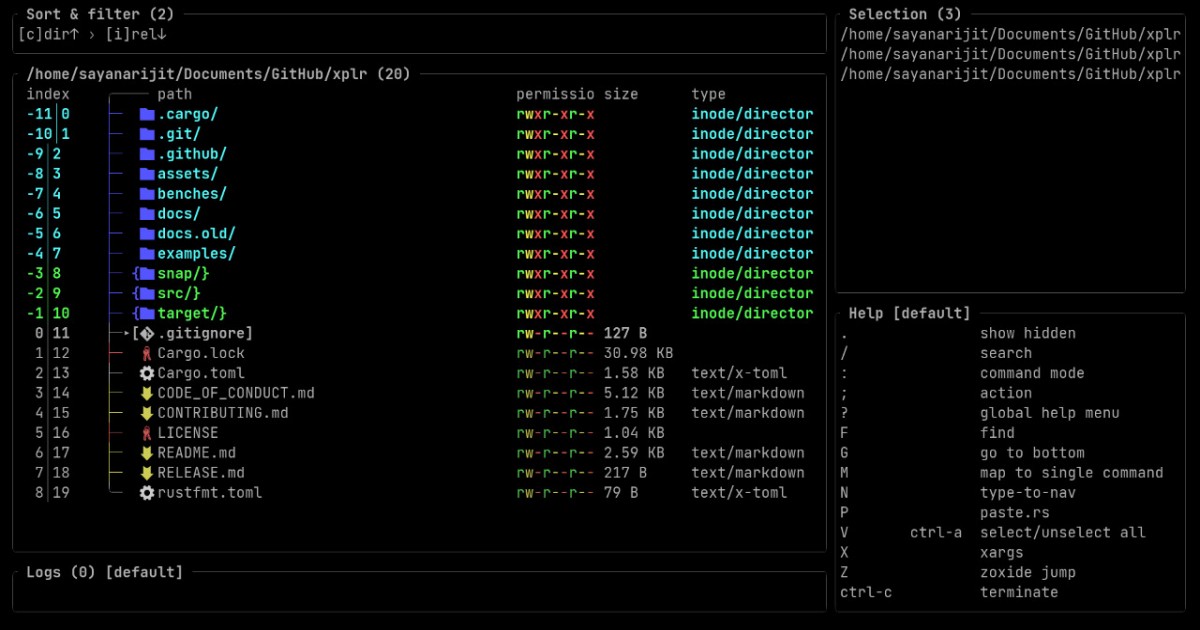

User reviews (0)