
 简体中文
简体中文 English
Website review
This review may include AI-generated content and is not individually verified. Domain, certificate and other facts come from the observed data on this page.
What is Awesome Video Player?
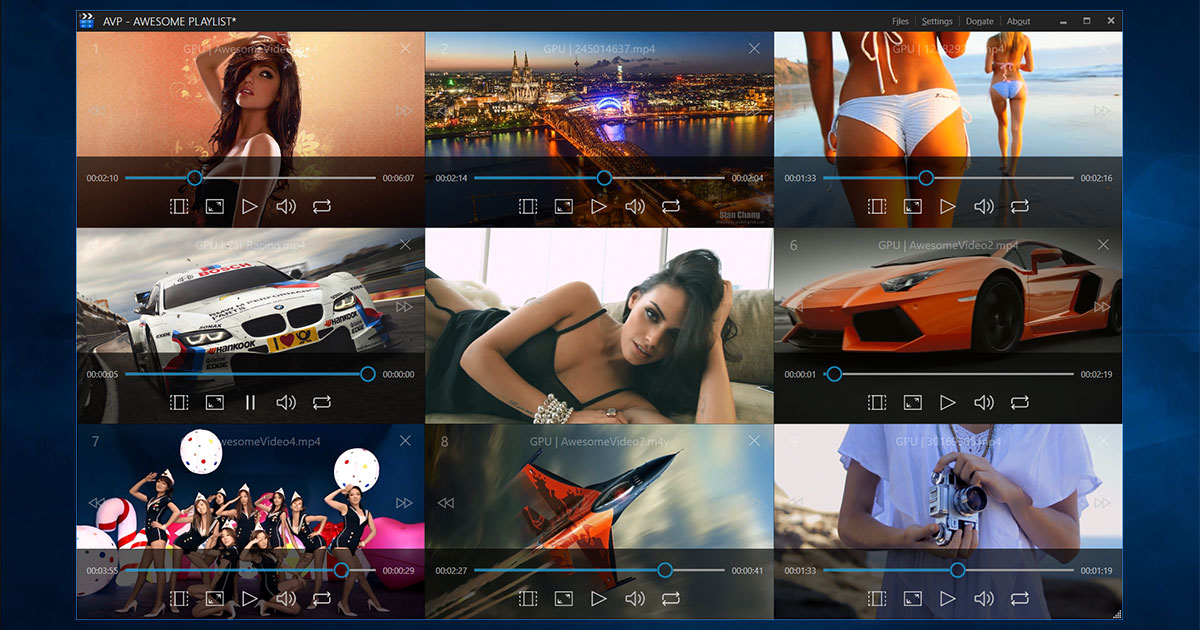
Awesome Video Player (AVPlayer) is a free desktop video player for Windows and Mac whose main purpose is playing many videos at once: up to 16 on a single screen in a grid it calls MultiView. It also supports playlists, extensive keyboard shortcuts, individual controls for each video (play/pause, seek, volume, repeat, aspect ratio, fullscreen), and combined GPU/CPU decoding to keep playback smooth when several files run together. The site says it handles all common video formats and is ad-free and spyware-free.
Who it suits
- People comparing or reviewing clips side by side: footage from several cameras, versions of the same edit, or a batch of short files.
- Anyone who dislikes opening several player windows and positioning them by hand: AVPlayer arranges them in one grid.
- Keyboard-first users: shortcuts matter when you're managing many streams and don't want to reach for the mouse.
Trade-offs to consider
- Grid playback over depth: the emphasis is on watching many videos simultaneously, not on advanced single-file features like subtitle styling, audio track management or color controls. For those, a full-featured player such as VLC is the more conventional choice.
- Hardware-dependent performance: the site claims GPU acceleration reduces CPU load, but the realistic limit depends on your machine, resolution and codecs—test with your own files rather than assuming 16 streams will run smoothly.
- Lightweight site footprint: the site is small and informal, so check the download source and your system's security prompts before installing.
Next step
Download the free version and run a quick test: load four to six of your typical files into one MultiView screen, then check CPU usage and playback smoothness. If that holds up, scale toward your real workload before relying on the 16-video maximum.
How do I set up and control 16 videos playing at once on one screen?
Use AVPlayer (Awesome Video Player) when you want one window to show many videos at once instead of opening several player instances. The site presents it as a Windows/Mac player with a MultiView mode for up to 16 videos per screen, plus playlists, keyboard shortcuts, per-video controls, and GPU/CPU decoding. It is offered as free with no ads or spyware.
A practical setup sequence
- Install and open AVPlayer on Windows or Mac.
- Create a playlist with the 16 videos you want. The site describes playlists as the way to save and reload favourite collections instantly.
- Switch to MultiView and let AVPlayer arrange the videos. The page presents MultiView as the multi-video viewing mode rather than asking you to open 16 separate player windows.
- Use keyboard shortcuts for play/pause, fast-forward, rewind, volume, repeat, aspect ratio and fullscreen. This matters because moving a mouse across a 4×4 grid is slow.
- Adjust each video individually if the controls allow it—the page lists per-video control of playback, volume and aspect. For a wall of clips with different shapes, aspect-ratio control is the setting you will use most.
What to expect from a 16-video grid
A 4×4 layout gives each video a small tile. That works for monitoring several feeds, comparing clips, or keeping a collection moving in the background. It is a poor way to watch one video closely. A 2×2 or 3×3 layout is usually more comfortable; use 16 only when overview matters more than detail.
Decoding load is the other limit. AVPlayer says it combines GPU and CPU decoding to support many simultaneous videos. In practice, the number you can run smoothly depends on your machine and the video resolution. Start with fewer videos, confirm smooth playback, then add more.
How it compares with a general-purpose player
| Need | AVPlayer's approach | Typical general player |
|---|---|---|
| Several videos in one window | MultiView, up to 16 per screen | Usually one video per window |
| Recurring collections | Playlists | Playlists, but not built around a grid |
| Mouse-free control | Keyboard shortcuts emphasised | Shortcuts exist but vary |
| Cost | Free | Free or paid depending on player |
If your goal is simply watching one file, a standard player is enough. If your goal is a simultaneous multi-video wall, AVPlayer is designed around that use case.
Next step: build a short test playlist of four videos at your usual resolution, check CPU/GPU load and tile readability, then expand toward 16. If the tiles are too small or playback stutters, reduce the count or lower video resolution rather than forcing the maximum.
Can AVPlayer play all video formats, and how does its hardware decoding handle multiple streams?
AVPlayer states that it plays all existing video formats and uses combined GPU/CPU decoding to keep multiple streams running at once. Those are the developer's claims, not independently verified measurements, so treat "all formats" as a broad compatibility promise rather than a guarantee for every codec you own.
What the page actually says
- Formats: "Plays All Existing Video Formats," with automatic hardware and software decoding acceleration.
- Multiple streams: Up to 16 videos on one screen in MultiView, with GPU acceleration to reduce CPU load and combined GPU/CPU decoding to support as many simultaneous videos as possible.
- Controls: Per-video play, pause, fast-forward, rewind, fullscreen, volume, repeat and aspect ratio, plus keyboard shortcuts and playlists.
- Platforms and cost: Windows and Mac, described as 100% free with no ads or spyware. An "Upgrade" item in the navigation suggests a paid tier may exist, but the page doesn't detail it.
How hardware decoding behaves with many streams
Hardware decoders have a limited number of simultaneous sessions, and that limit varies by GPU, driver and operating system. A player that combines GPU and CPU decoding is effectively designed to fall back to software decoding once hardware slots run out. The practical consequence: a few 1080p streams may stay smooth on GPU decoding, while 16 high-resolution streams, or several 4K streams, will lean on the CPU and can stutter on a modest laptop.
A concrete test before relying on it
If your goal is a wall of clips for monitoring, comparison or background viewing, try a stress test on your own machine: load four 1080p files, then eight, then sixteen, and watch CPU and GPU usage and dropped frames at each step. If playback degrades before you reach your target count, lower the resolution of the grid tiles or reduce the number of simultaneous streams.
For a second opinion on general multi-stream playback, VLC media player is a widely used reference point, though it is built for single-instance playback rather than a tiled MultiView grid.
How do I save and reload my video collections using playlists in AVPlayer?
Use AVPlayer's playlist feature to store a set of videos and bring them back as one group instead of reopening files one by one. The product page lists "Save & Reload Your Favorite Videos Instantly With Playlists" among its features, so the intended workflow is: arrange the videos you want, save that arrangement as a playlist, and reload it later to restore the collection.
A practical way to use it
- Open the videos you want in the MultiView layout, since AVPlayer is built around watching up to 16 videos on one screen.
- Save that set as a playlist while it is arranged the way you like.
- Next session, load the playlist rather than re-adding each file, then use the per-video controls (play/pause, seek, volume, repeat, aspect) to fine-tune.
Playlists are most useful for recurring setups: a fixed panel of camera or reference clips, a study set of lectures, or a batch of short clips you review in the same order each time. For a one-off viewing of a single file, opening it directly is simpler.
What to check on the page
The feature list confirms playlists exist but does not spell out how many playlists you can keep, whether the saved order and screen positions are restored exactly, or where playlist files are stored. Before relying on it for a large collection, test with a small playlist: save it, close the app, reload, and confirm the videos and their arrangement come back as expected. That quick check tells you whether playlists suit your routine or whether you should keep a written list of file locations as a backup.
For related multi-window viewing habits, VLC is a common comparison point, though it is not designed around a 16-video grid.
What keyboard shortcuts does AVPlayer offer for controlling multiple videos?
The supplied page material does not list specific key combinations. It states that AVPlayer includes "All The Keyboard Shortcuts You'll Ever Need" and that shortcuts exist so you can control playback without reaching for the mouse, but the actual key bindings are not shown in the evidence provided.
What the page does confirm about controls
- Keyboard shortcut support is presented as a core feature, aimed at users who want to manage several videos without switching to the mouse.
- The controls available per video include play/pause, fast forward, rewind, fullscreen, volume, repeat and aspect ratio.
- These controls apply across a MultiView layout of up to 16 videos on one screen, with playlists for saving and reloading favourite clips.
Practical next step
Open the player and check its shortcut or settings menu for the actual key list, since bindings can vary by version and platform (Windows and Mac are both mentioned). As a general approach—not a description of this product—when working with many simultaneous videos, it helps to assign one set of keys to the currently focused tile and another to global actions like mute-all or pause-all, so a single mistyped key does not disturb every stream at once.
For readers comparing multi-video tools, related options include VLC Media Player, though its multi-instance handling differs from a dedicated MultiView grid.
Is the free version of AVPlayer fully featured, and what does the upgrade add?
The page presents AVPlayer as 100% free, with no ads or spyware, and it does not describe a feature-limited free tier. The features it advertises—up to 16 videos on one screen, MultiView, playlist saving and reloading, keyboard shortcuts, per-video playback controls, and combined GPU/CPU decoding—are presented as part of the player itself, not as paid extras. A separate "Upgrade" link exists in the site navigation, but the supplied page content does not state what that upgrade includes, so the free-versus-paid split cannot be confirmed from this material alone.
What the free download appears to cover
- Multi-video playback on a single screen (up to 16 videos)
- MultiView layout
- Playlists for saving and reloading favorite videos
- Keyboard shortcuts for control without a mouse
- Individual controls for play/pause, fast-forward, rewind, fullscreen, volume, repeat and aspect ratio
- GPU-accelerated decoding with CPU fallback
- Windows and Mac versions
Practical reading
For a typical viewer who wants to watch several clips side by side—say, comparing footage, monitoring a set of feeds, or reviewing a collection—the advertised free version already covers the core workflow. The main trade-off is that the page is marketing copy: it claims support for "all existing video formats" and "lightning fast" performance without benchmarks, so real-world format compatibility and performance on older hardware are worth testing yourself with a few of your own files before relying on it.
The sensible next step is to download the free build, try MultiView with a handful of videos in the formats you actually use, and then open the "Upgrade" page to see exactly which features, if any, sit behind payment. If the upgrade page lists nothing you need, the free version is likely sufficient; if it gates something like additional screens or advanced layout options, that is the point to weigh the cost.
User reviews (0)